Connector tools overview
You can use Optimizely Connect Platform (OCP)Optimizely Connect Platform (OCP) to add additional connector tools to the system tools already available in Optimizely Opal.
Beta
Adding tools through OCP is in beta. Contact your Customer Success Manager for information.
App directory
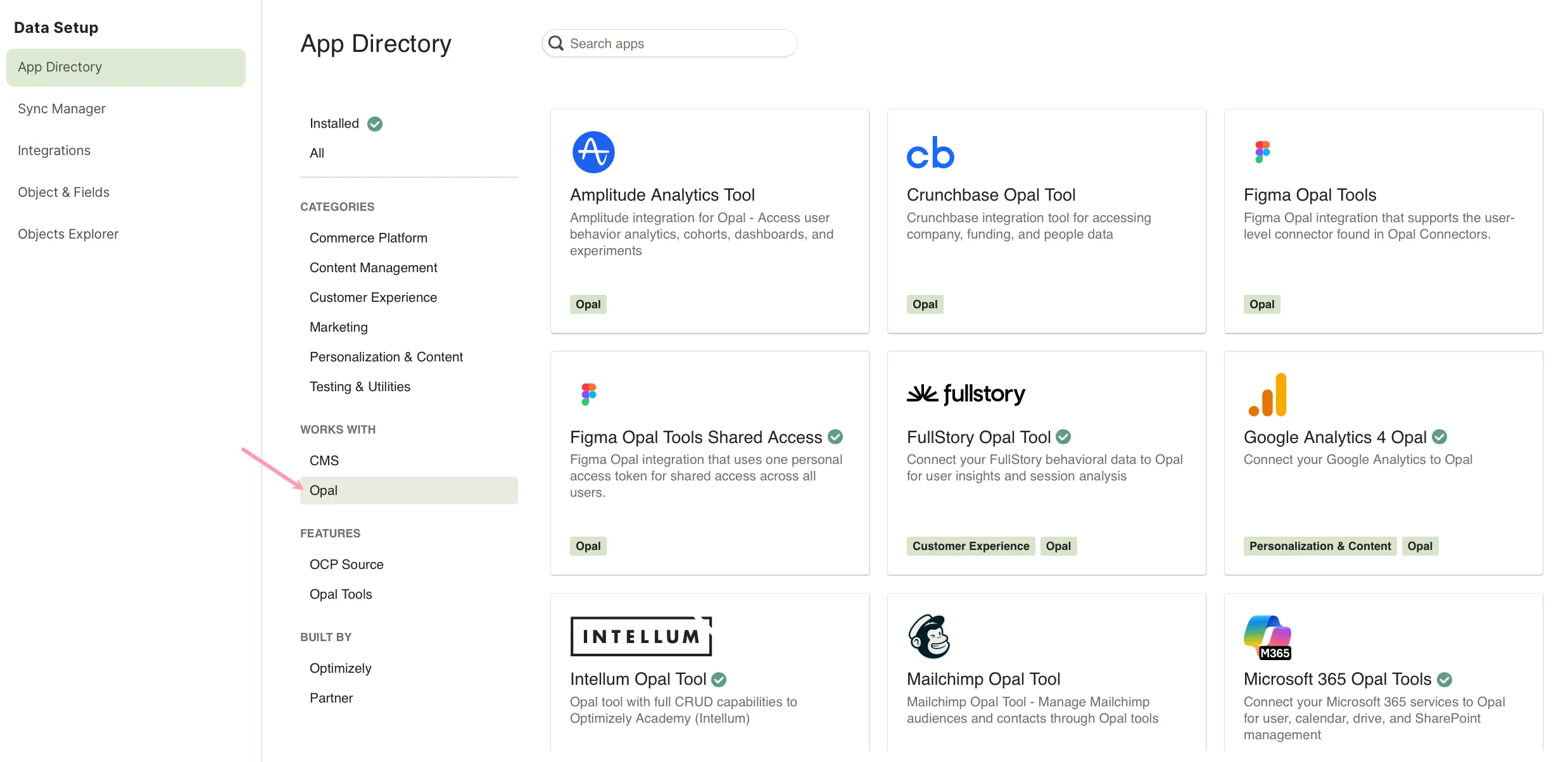
Optimizely lists the available Opal connector tools in the OCP App DirectoryOCP App Directory. To view only Opal connector tools, click on Opal in the Works with section.
Add connector tools
Installing an app in the OCP App Directory makes its connector tools available in Opal. During installation, provide any required information, such as authentication details or API keys. After you configure the integration in OCP, you can register it with Opal. See the documentation for each integration in the following section for step-by-step instructions.
Available connector tools
You can add the following connector tools to Opal using OCP divided by use case.
Advertisement
Analytics and data
Automation and integration
Content and publication
Customer relationship management (CRM) and sales
Design and development
Custom remote MCP connectors
See Add a remote MCP provider for instructions on how to connect Opal to a remote MCP server to extend it with tools and data from an external system.
Troubleshoot connector tools
Why do I not see all the available tools listed in the documentation?
- Optimizely may have released a new version of the connector tools. You can Sync the connector tools to get the latest version. See Update a tool registry section in the Manage tools documentation.
- Alternatively, you may not have access to all available tools if your organization does not access to all AI features in the third party app, such as Fullstory. See step six in theAdd Fullstory Opal Tools in OCP section.
Why is my OCP connector failing to connect?
- API keys or credentials – Ensure that the API keys, tokens, or other authentication credentials used for the OCP connector are correct and have not expired.
- Network connectivity – Confirm that there is stable network connectivity between your Opal instance and the OCP environment. Check for any network outages or disruptions.
- Endpoint URLs – Double-check that the OCP API endpoint URLs configured in the connector are accurate and accessible.
I made a change to the connector configuration, but it is not taking effect.
Configuration changes often require a sync in Opal. See Update a tool registry section in the Manage tools documentation.
Note
If you use Opti ID, administrators can turn off generative AI in the Opti ID Admin Center. See Turn generative AI off across Optimizely applicationsTurn generative AI off across Optimizely applications.