Salesforce CRM connector tools
The Salesforce Customer Relationship Management (CRM) connector tools let marketing and sales teams integrate with Salesforce from Optimizely Opal. The tools streamline workflows, from automating personalized content for new leads and suggesting relevant materials for sales follow-ups. They also provide actionable insights through dynamic reporting and proactive alerts for at-risk opportunities. Opal transforms how teams leverage their CRM for enhanced engagement, efficiency, and competitive advantage.
First, an Opal administrator must Connect Opal with Salesforce using Optimizely Connect Platform (OCP). After installing the connector in OCP, individual Opal users and agent builders can log in to Salesforce to access their information from Opal. Administrators only need to install the Salesforce connection in OCP once.
Connect Opal with Salesforce
The following video and steps walk you through connecting Opal with Salesforce CRM.
Install Salesforce CRM in OCP
In the OCP App Directory, complete the following:
- Click the Opal Tool Salesforce CRM connector tool.
- Click Install App.
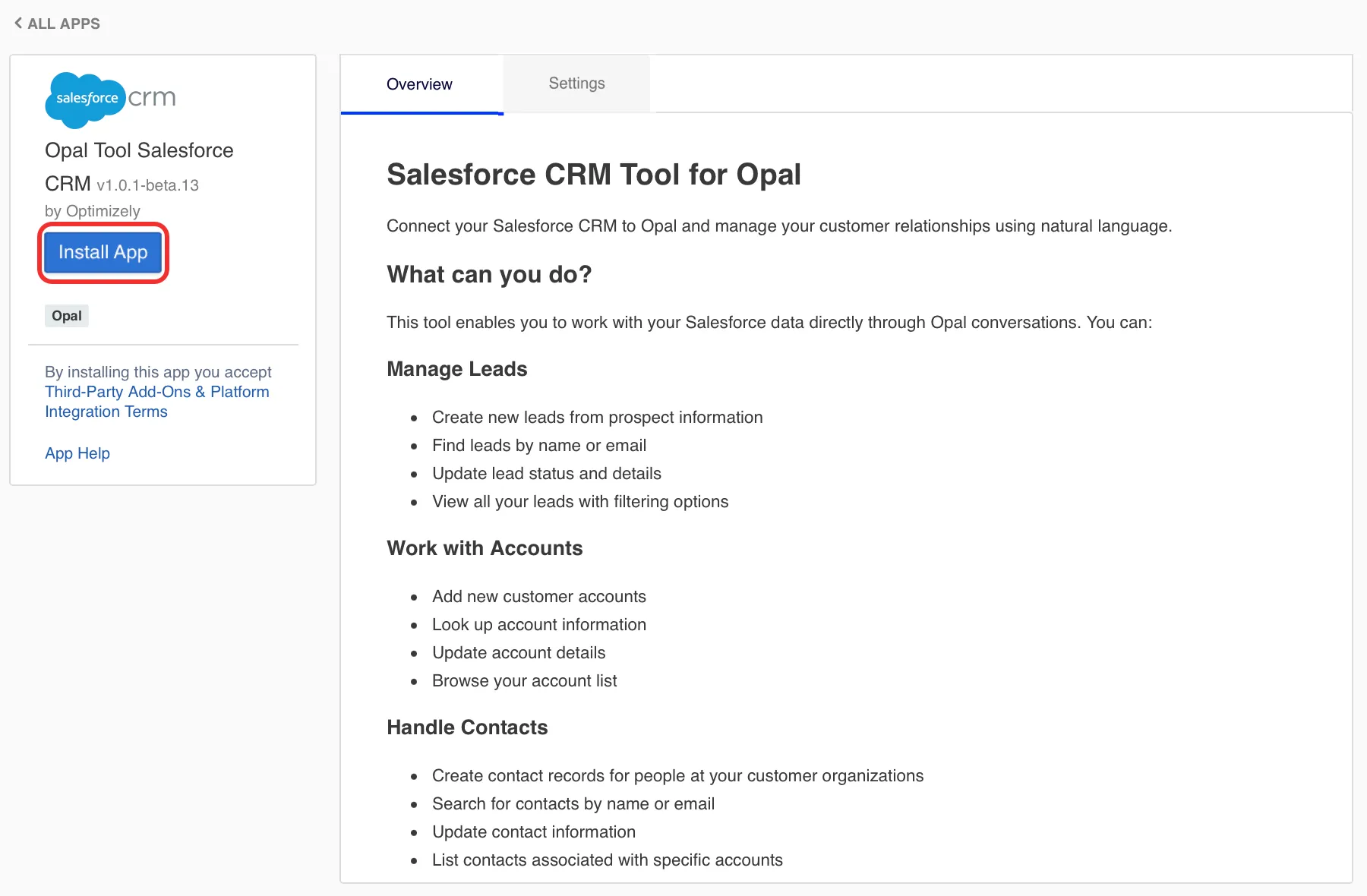
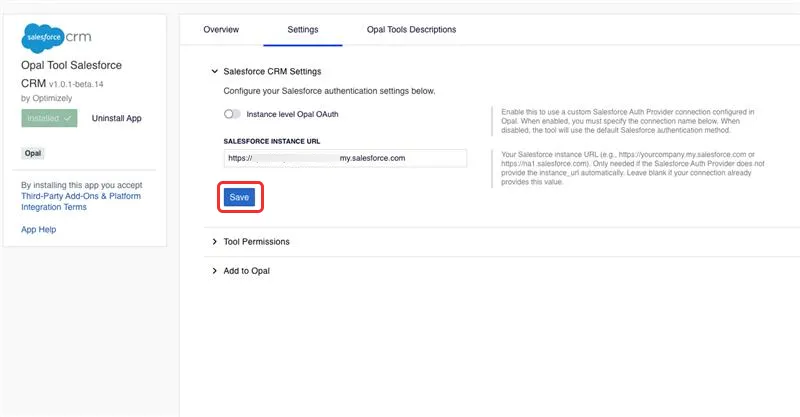
- Click the Settings tab
- Leave the Instance level Opal Oauth toggle off if you are using Optimizely managed Oauth.
- Enter your Salesforce instance URL.
- Click Save.
Enable your toolset preferences
- Expand the Tool Permissions section.
- Toggle the permissions on that you want.
- Enable Data Reading – Tools that let Opal read data (list, get, describe, count objects, and reports) from Salesforce.
- Enable Data Modification – Tools that let Opal update (create and update objects) in Salesforce.
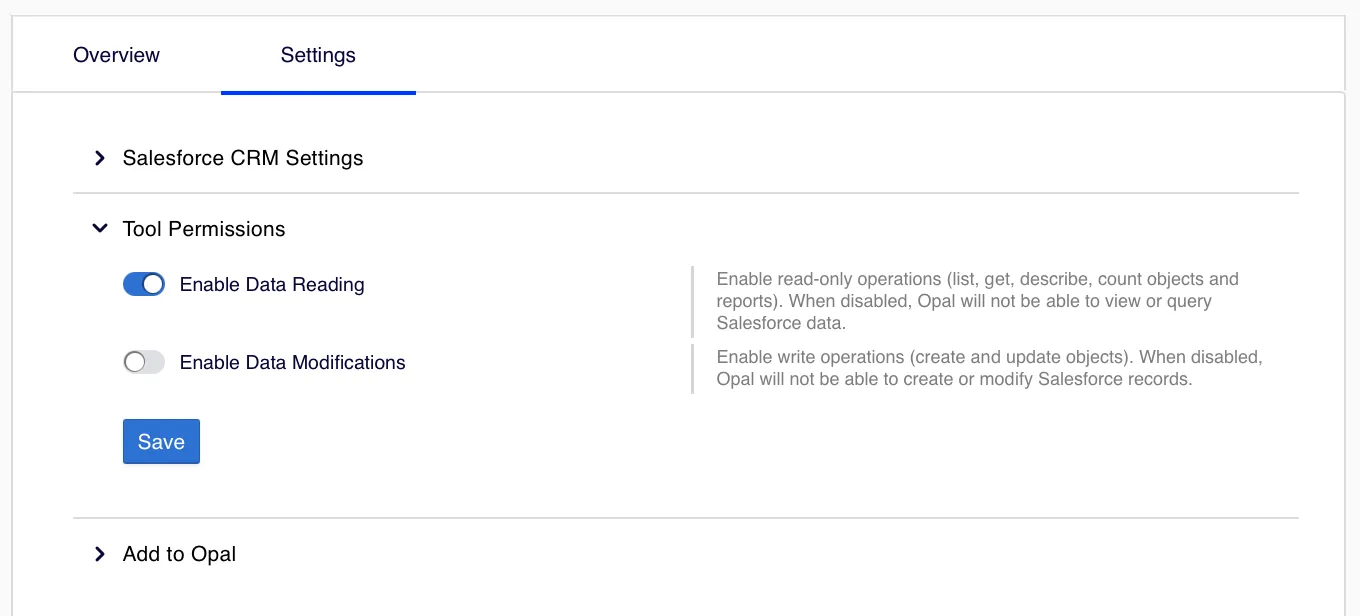
You can modify specific tool access within Opal.
Add the Salesforce CRM tools to your Opal instances
- Expand the Add to Opal section.
- Click Add to Opal to register the Salesforce CRM connector tools to the corresponding Opal instance. Click Remove from Opal to remove the connection.
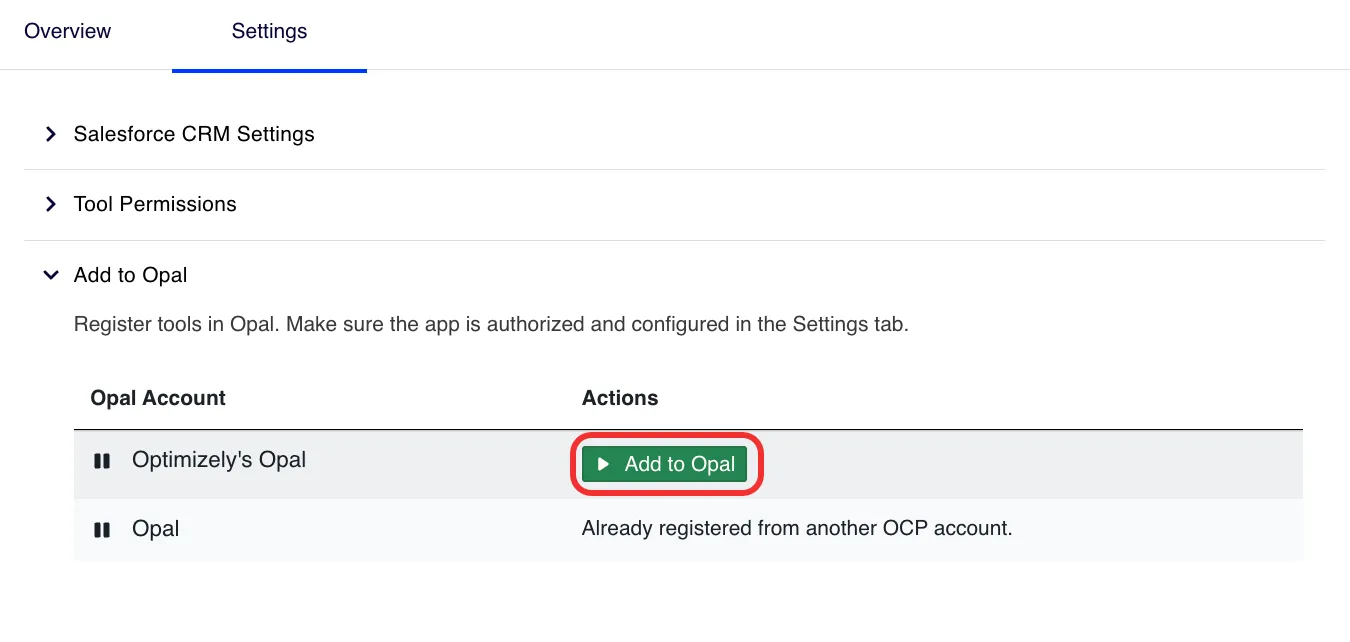
After you complete the steps in this section, Opal users can then follow the steps in the Authenticate with Salesforce CRM section.
Configure the Salesforce CRM connector
After an Opal administrator Connects Opal with Salesforce, a Salesforce Admin must complete the following steps in Opal:
- Go to Connectors.
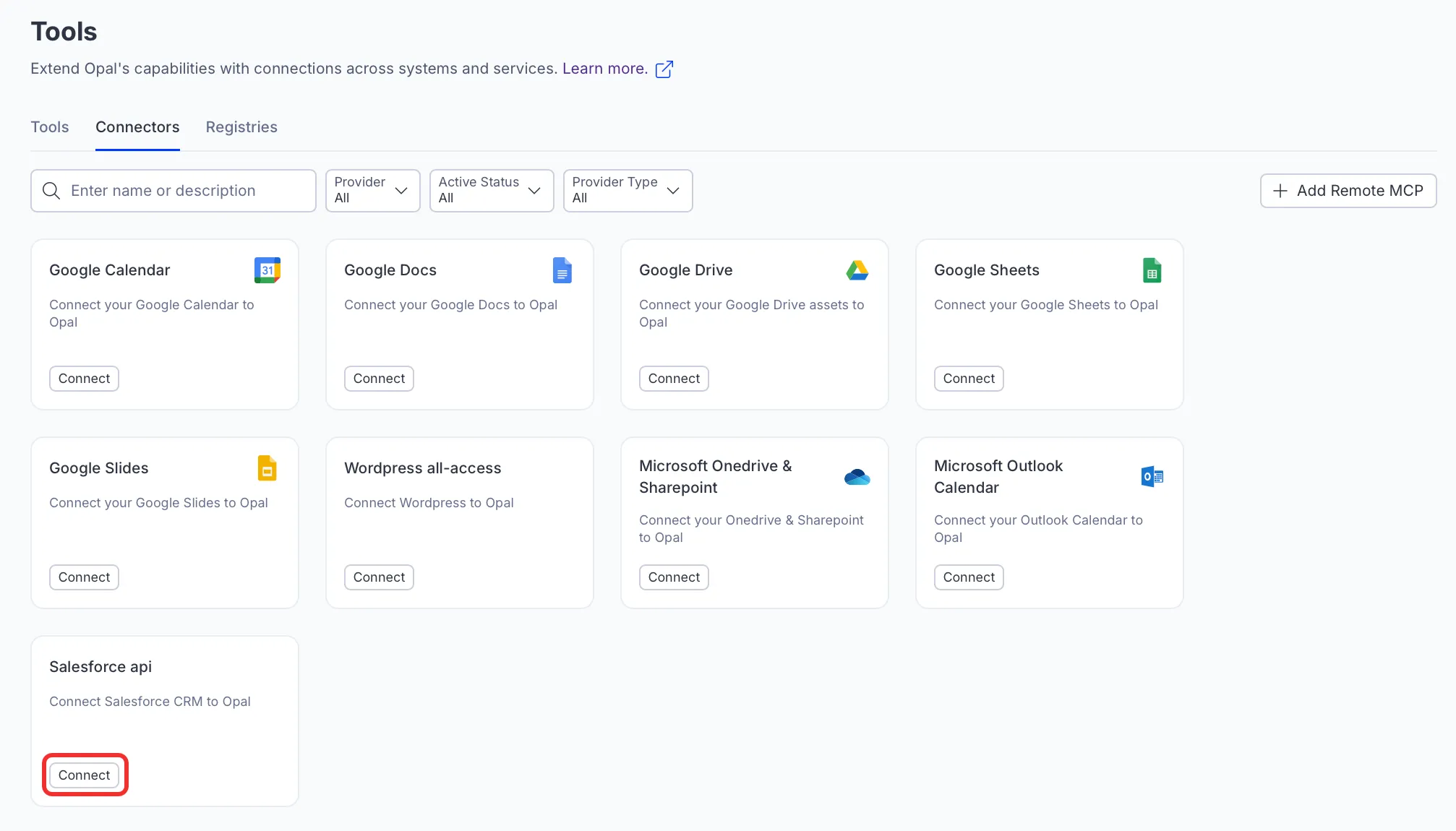
- Click Connect on the Salesforce CRM connector.
This makes the Opal app available in Salesforce.
Open a new tab and go to Salesforce. Log in and complete the following steps once:
- Go to Setup > Apps > Connected Apps > Connected Apps OAuth Usage. See Manage Current OAuth Connected App Sessions in the Salesforce documentation.
- Click Manage App Policies on the Opal app. See Manage Access to a Connected App in the Salesforce documentation.
- Click Edit policies and adjust IP restrictions to Relax IP restrictions. See Connected App IP Relaxation and Continuous IP Enforcement in the Salesforce documentation.
- Click Save.
- Click Install on the Connected Apps OAuth Usage page.
Authenticate with Salesforce CRM
After an administrator connects Opal with Salesforce, log in from Opal to access your information. The Salesforce CRM connector tools use user-level authorization, so each Opal user can only access data they have permission to access in Salesforce.
To authenticate, complete the following steps in Opal:
- Go to Connectors.
- Click Connect on the Salesforce CRM connector tools.
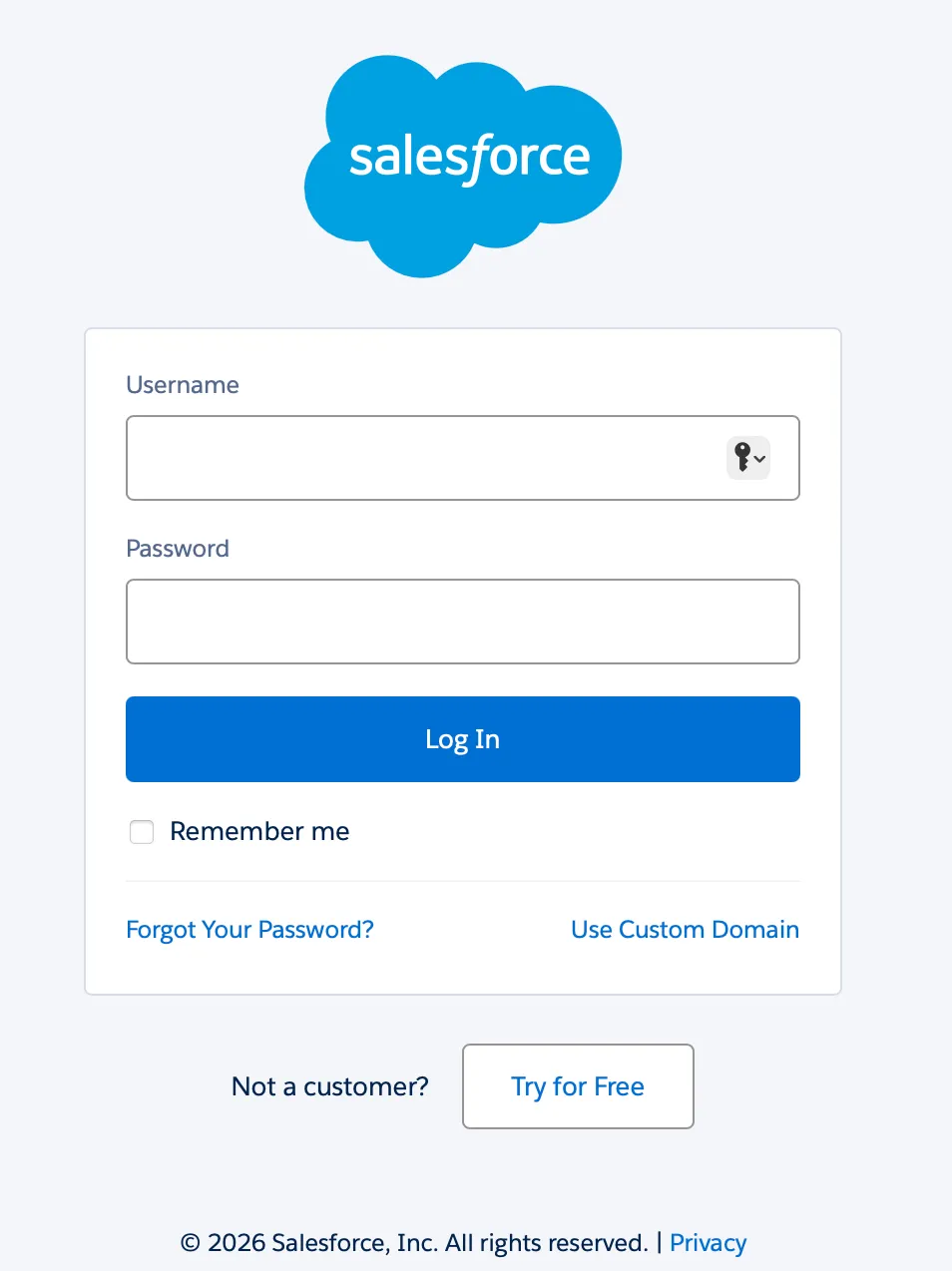
- Log in to Salesforce in the window that Optimizely displays.
After you connect to Salesforce, the Salesforce CRM connector tools become available in Opal Chat, agents, and workflows.
Add skills
Skills help you control how Opal communicates with Salesforce based on how you use it. You should add at least one skill before calling the Salesforce connector tools.
As an example, follow the steps in the Create an organization-wide skill documentation and enter the following information:
Name – Salesforce Tools
Core Skill
Salesforce Tool Usage Guidelines: When interacting with Salesforce data, especially `Opportunity` records, always adhere to the following rules:
- Opportunity Filtering:
- When querying `Opportunity` records, only include opportunities where type is one of the following:
- New Customer - Single Product
- New Customer - Multiple Products
- Existing Customer - Cross Sell
- Existing Customer - Cross Sell and Up Sell
- If the user mentions "closed won opportunities" in the context of an Opportunity always use 'stage' of 'Closed Won - Finance'
- If the user mentions "open opportunities" in the context of an Opportunity, filter by 'opportunity status' is 'Open'
- If the user mentions "closed lost opportunities" in the context of an Opportunity always filter by 'stage' is 'Closed Lost'
- If the user mentions "top opportunities" always sort descending by the RecurringSoftwareAmountChange__c field
- Always exclude opportunities with "test", "dummy", or "renewal" in the name (not case sensitive)
- Always exclude opportunities where the RecurringSoftwareAmountChange__c is null, a non-number, 0, or less than 1
- Opportunity Data:
- When returning opportunity data always show: opportunity name, Recurring_Software_Amount_Change__c (label this field 'Recurring Software Amount (converted)'), owner, and close date at a minimum
- Always use thousands separators (commas) when displaying number fields. Never show decimal points or cents.
- IMPORTANT: If the user asks for opportunity "ARR", "amount", "revenue", or "value", always use the RecurringSoftwareAmountChange__c field on the opportunity object because this is always in USD currency. Never use the 'Amount' field because it can be in different currencies.
- Salesperson/AE Mapping:
- If the user mentions "salesperson" or "AE" in the context of an `Account` or `Opportunity`, interpret this as a request for the "Primary Account Executive" field.
- Implementation: When retrieving `Account` or `Opportunity` records, include the Salesforce API field name for "Primary Account Executive" in the `fields` parameter (for example, `"PrimaryAccountExecutive__c"` or `"PrimaryAccountExecutive"`). *Note: You may need to use* `salesforce_crm_describe_object` *to confirm the exact API name of this field if it is a custom field.*
- CSM Mapping:
- If the user mentions "CSM" in the context of an `Account` or `Opportunity`, interpret this as a request for the "Primary Customer Success Manager" field.
- Implementation: When retrieving `Account` or `Opportunity` records, include the Salesforce API field name for "Primary Customer Success Manager" in the `fields` parameter (for example, `"PrimaryCustomerSuccessManager__c"` or `"PrimaryCustomerSuccessManager"`).
- *Note: You may need to use* `salesforce_crm_describe_object` *to confirm the exact API name of this field if it is a custom field.*
When to use – When querying Salesforce data with Salesforce CRM tools.
Update the Core Skill with additional information about how your organization uses Salesforce.
Salesforce CRM connector tools
After an Opal administrator connects and add the required skills and you log in to Salesforce , call the following tools in Opal.
Click a tool's name to expand it and learn when to use it, its required and optional parameters, and example prompts for calling the tool. If you do not provide a required parameter, Opal prompts you for it.
Objects
Use these tools to count, create, retrieve, and update standard and custom Salesforce records. Choose the tool that matches the operation you need to perform.
Custom objects
Custom objects are data structures your organization has added to Salesforce beyond the standard set. Use these tools to discover which custom objects exist in your org and to query or filter records within them.
Reports
Use these tools to find, inspect, and run existing Salesforce reports. Start with the salesforce_crm_list_reports tool to discover available reports. Use the salesforce_crm_describe_report tool to review a report's structure and available filters before running it. Then use the salesforce_crm_run_report tool to retrieve the data.
Use cases
Personalize content for new leads
Challenge – Marketing teams struggle to create and deliver personalized content to new leads, leading to generic outreach and lower engagement.
Solution with Opal – Opal can monitor Salesforce for newly created leads. Upon identifying a new lead, Opal automatically retrieves relevant details such as industry, company size, and expressed interests. Leveraging this data, Opal then drafts personalized marketing content, like a tailored email or a blog post summary, ready for review and immediate deployment by the marketing team. This ensures every new lead receives content that resonates, boosting engagement and qualification rates.
Automate content suggestion for sales follow-up
Challenge – Sales representatives spend time searching for appropriate content (case studies, product sheets, or demos) to share with prospects at different stages of the sales cycle, often leading to delays and inconsistent messaging.
Solution with Opal – As opportunities advance through Salesforce stages, Opal proactively identifies the need for follow-up content. Based on the opportunity's details (for example, industry, specific product interest, or identified pain points), Opal searches your Content Marketing Platform (CMP) for the most relevant assets. It then suggests these assets directly to the sales rep or even drafts a personalized email incorporating the content, streamlining the follow-up process and ensuring timely, relevant communication.
Streamline opportunity reporting
Challenge – Business users need quick, up-to-date insights into sales pipeline health and opportunity status, but compiling reports from Salesforce can be time-consuming and require specific expertise.
Solution with Opal – Ask Opal for a summary of open opportunities, top deals, or opportunities by stage. Opal queries Salesforce in real-time, aggregates the data, and presents it in an easily digestible format, such as a dynamic table or chart within an Opal canvas. This eliminates manual reporting efforts, providing instant, actionable insights for sales leaders and executives, unifying reporting into a single, accessible interface.
Proactive engagement for at-risk opportunities
Challenge – Sales teams often react to at-risk opportunities rather than proactively addressing potential issues, leading to lost deals. Identifying these opportunities early and knowing the best course of action is critical.
Solution with Opal – Opal continuously monitors Salesforce opportunities for signs of risk, such as prolonged inactivity, approaching close dates without recent engagement, or changes in competitor presence. When an at-risk opportunity is detected, Opal alerts the sales representative and suggests next-best actions. This could include drafting a re-engagement email, recommending a specific piece of content to share, or prompting a call with a key stakeholder, letting you proactively intervene to keep deals on track.
Competitive intelligence for sales pitches
Challenge – Sales representatives need quick access to up-to-date competitive intelligence to effectively position Optimizely's solutions during critical sales pitches, but this information is often scattered or difficult to retrieve on demand.
Solution with Opal – When a sales rep is preparing for a pitch, they can ask Opal for competitive intelligence related to a specific opportunity. Opal retrieves any competitor information stored in Salesforce for that opportunity and then leverages its extensive internal knowledge base (including up-to-date competitor analysis) to provide key differentiators, battle cards, and strategic talking points against the identified competitors. This empowers sales teams with instant, relevant insights to strengthen their pitches and close more deals.
Note
If you use Opti ID, administrators can turn off generative AI in the Opti ID Admin Center. See Turn generative AI off across Optimizely applicationsTurn generative AI off across Optimizely applications.