Access and explore Optimizely Mark chat
Mark (Optimizely Agent Platform) is an agent orchestration platform that helps you work smarter across Optimizely One. Mark chat is its conversational interface. Use it to ask questions, run agents, generate content, and get platform guidance from one chat window. This article covers where to find Mark chat, how the interface works, and which Optimizely products include it.
The following articles explain how to work in Mark chat:
Access Mark chat
Access Mark chat from several places across the Optimizely platform, depending on your organization and product access.
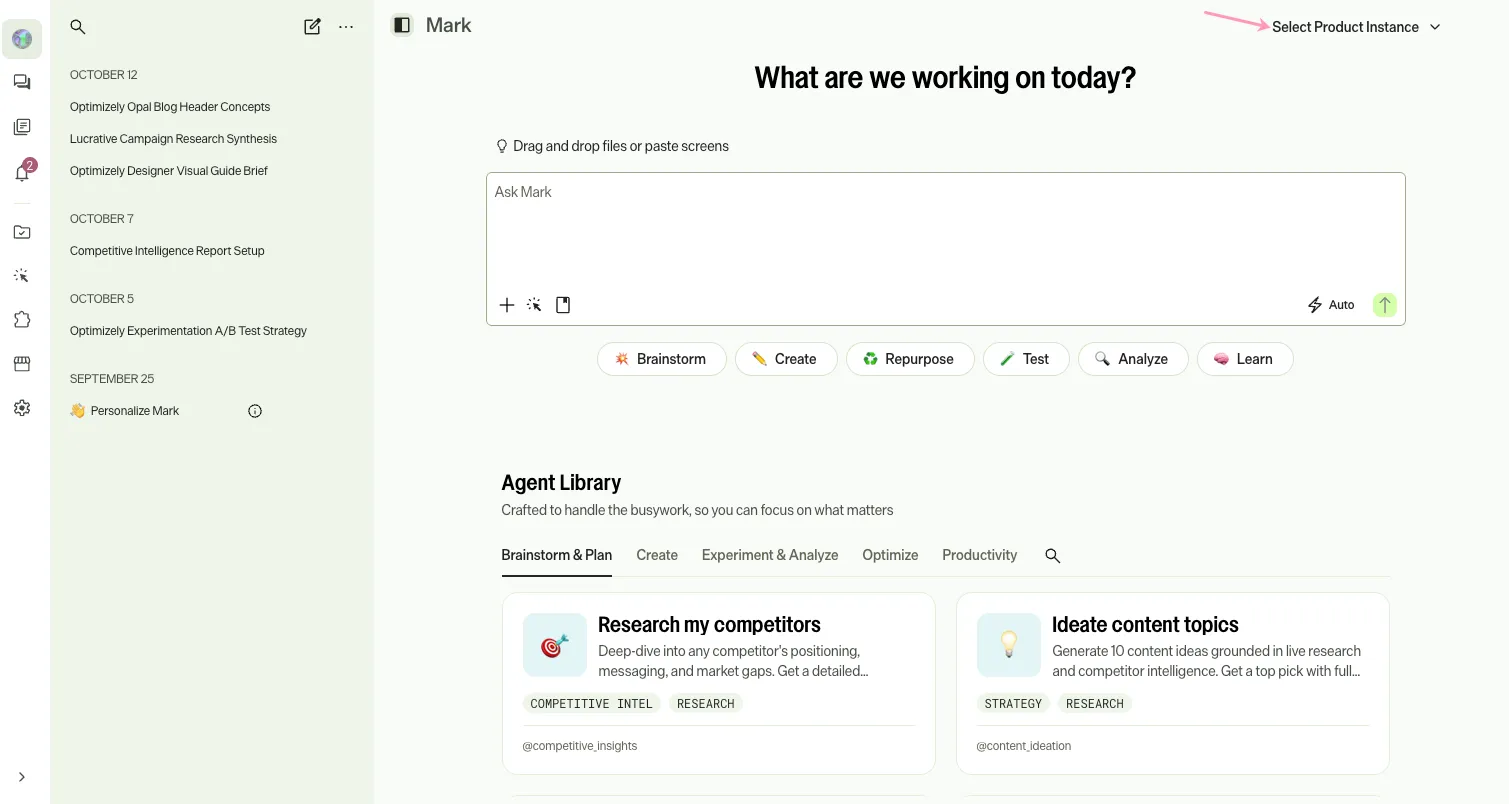
- Mark website – Go to mark.optimizely.com. Mark chat opens automatically. Use the Set Product Instance drop-down list to choose the product instance you have access to.
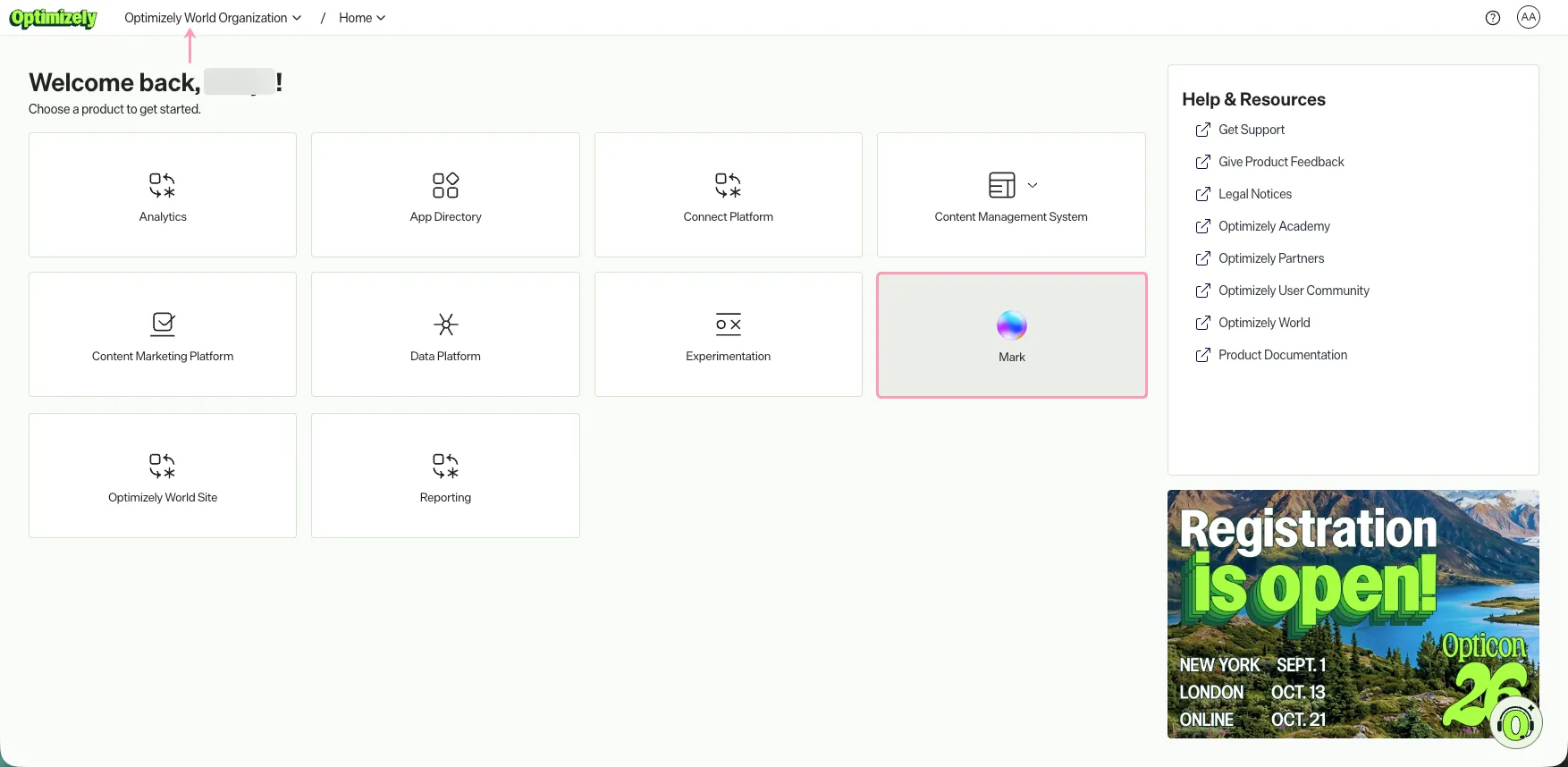
- Optimizely Admin Center – Go to home.optimizely.com to access the Admin Center. Select an organization that includes Mark chat and click Mark.
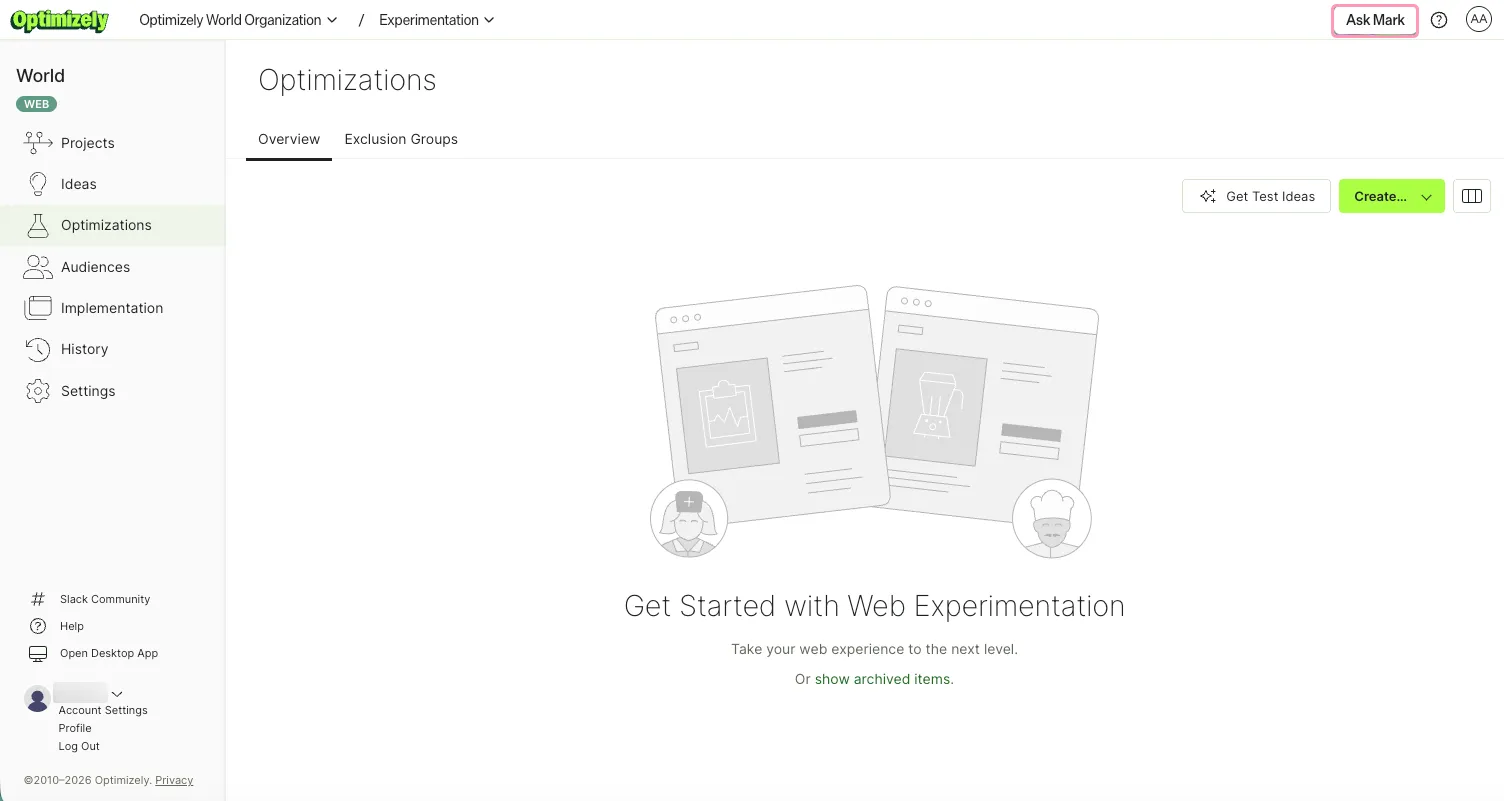
- Global navigation bar – From any product with Mark chat access, click Ask Mark in the global navigation bar. See Mark chat in Optimizely products for a list of supported Optimizely products.
Mark chat UI
How Mark chat displays varies by entry point and conversation state. The following screenshots provide a general reference for typical layouts.
Through the Mark website
When accessing through the Mark website, mark.optimizely.com, Mark chat displays similar to the following:
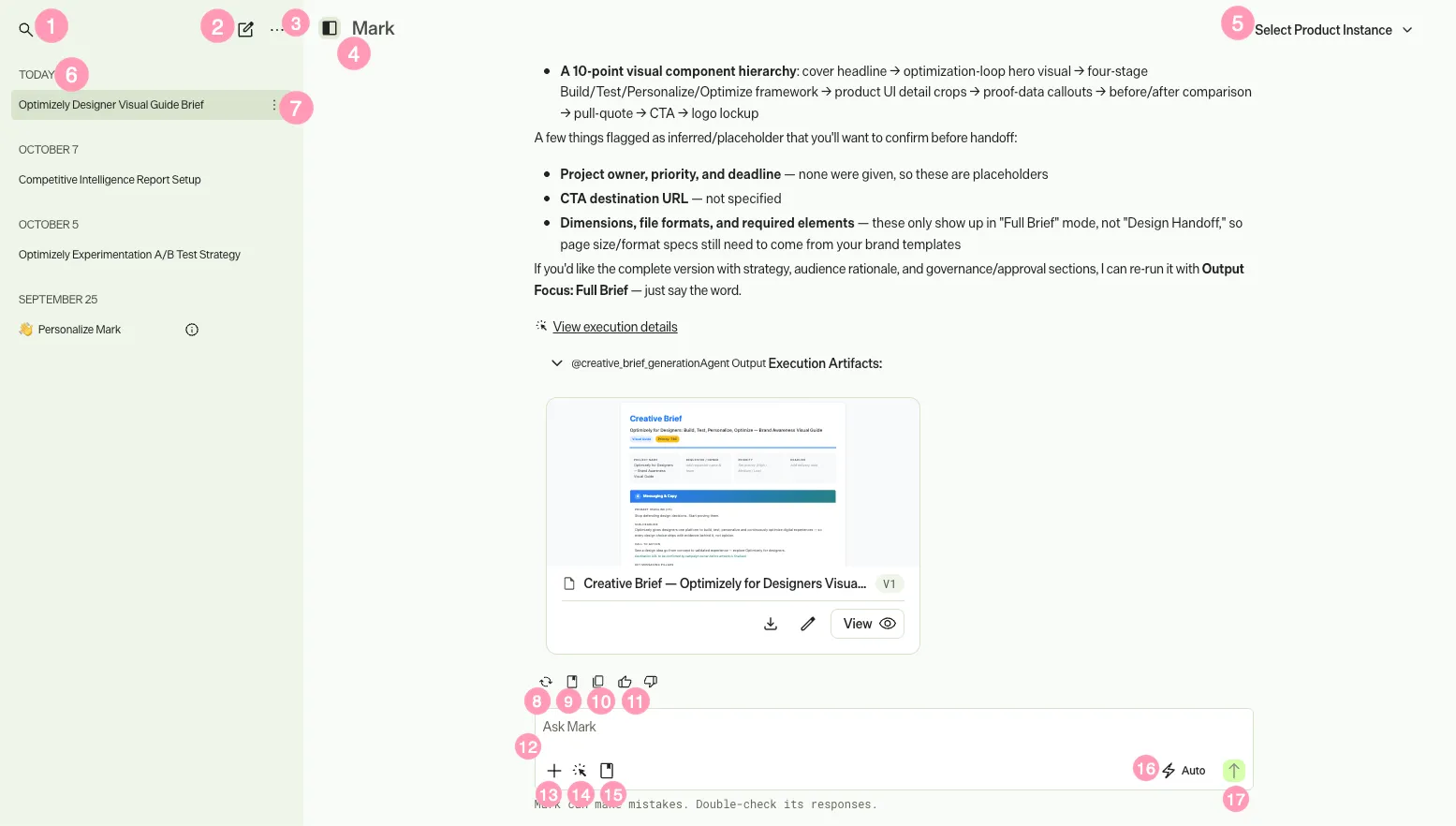
- Search Mark chat history – Search your previous chats with Mark.
- New Chat – Start a new chat. Start a new chat when switching topics to keep Mark's responses and chat thread history focused.
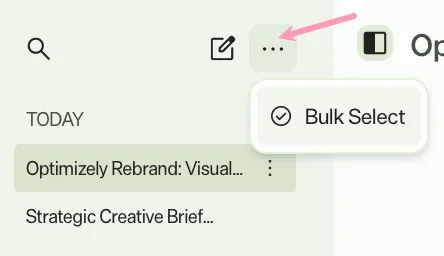
- More options – Click Bulk Select to choose multiple chat threads, then click Delete.
- Show or hide Chat history – Toggle the Chat history panel to show or hide.
- Select Product Instance – Select the Optimizely instance that Mark should refer to.
- Chat history – Go to previous chat threads with Mark.
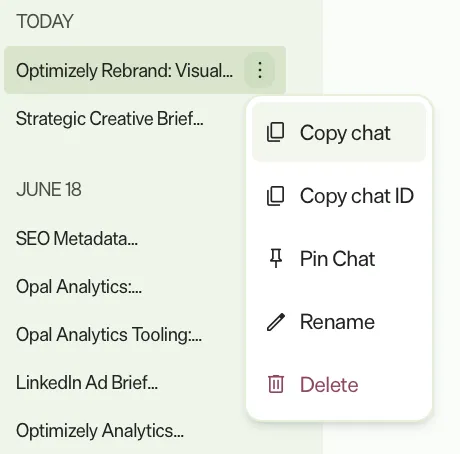
- Chat thread options – Additional options to update your chat threads, including the option to copy the chat, copy the chat ID, pin the chat to top of the sidebar, rename the thread, and delete the chat thread. You cannot retrieve deleted chats.
- Regenerate – Have Mark respond differently to the same query.
- Create skills – Create an organization or personal skill based on your conversation with Mark.
- Copy – Copy Mark's response to your clipboard.
- Give feedback on a response – Click Thumbs up if Mark's response helped. Click Thumbs down if it did not help.
- Chat with Mark
- Ideate and prompt – Ask Mark to research, brainstorm, create things, provide a summary, and so on. Mark can explain terms, walk you through configuration steps, or point you to relevant documentation. It can evolve a rough idea into something more complete, such as expanding a hypothesis or completing a concept.
- Translate content or tone – Translate text into other languages or rewrite content to fit a specific tone or audience.
- Research online – Ask Mark to search the web, summarize content, or extract key information from provided URLs.
- Sample queries
- Summarize this document into key takeaways.
- Extract the details from this timeline and present them to me as a list.
- Give me the audio text and timestamps from this file so I can copy and paste into a subtitle .mov file. Remove any "ums" and "ahs" from the text.
- Develop a test plan for a web experiment comparing two different call-to-action button designs to determine which drives more user engagement.
- Using Optimizely Feature Experimentation, set up a feature flag for the new checkout process and outline a strategy for its gradual rollout and A/B testing.
- How should we personalize content for anonymous users versus logged-in users?
- Extract the key points from this video and create a blog post to promote them.
- Undo – Press Ctrl+Z (Windows) or Cmd+Z (Mac) to undo text typed or pasted in the chat input.
- Add – Upload files and ask questions about their content, or add connectors. See Supported file types in Mark and Connector tools overview.
- Mention Agent – Select an agent to run.
- Use skill – Select skills to use. Enter / and select the skill.
- Response speed – Select the speed Mark takes for its response. See Chat modes in Mark chat.
- Submit – Submit a request to Mark. Click Stop at any time to end Mark's execution. See Stop a response.

Messages sent while Mark is responding display as queued cards. Mark takes them into the current response at its next step. See Queue messages while Mark works.
In an Optimizely product
When accessing Mark chat through an Optimizely product by clicking a button, such as Ask Mark, Mark chat displays similar to the following:
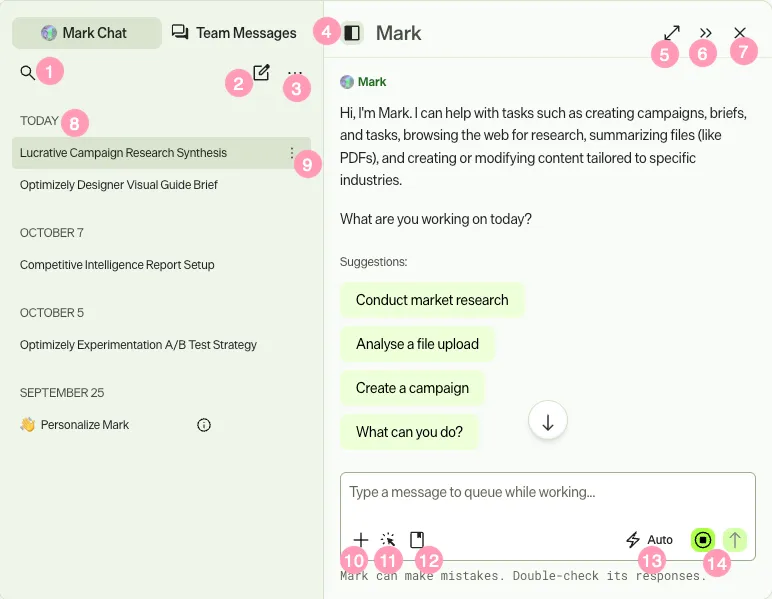
- Search Mark chat history – Search your previous chats with Mark.
- New Chat – Start a new chat thread. You should start a new chat when switching topics to keep Mark's responses focused and your chat thread history focused on the topic.
- More options – Click Bulk Select to choose multiple chat threads, then click Delete.
- Toggle sidebar – Show or hide the chat history sidebar.
- Fullscreen – Expand the Mark chat window to take up your entire browser window.
- Dock to the side – Dock the Mark chat as a panel to the side of your browser window. The icon updates to Pop it out
when docked.
- Close – Close the Mark chat window.
- Chat history – Go to previous chat threads with Mark.
- Chat thread options – Additional options to update your chat threads, including the option to copy the chat, copy the chat ID, pin the chat to top of the sidebar, rename the thread, and delete the chat thread. You cannot retrieve deleted chats.
- Add – Upload files and ask questions about their content, or add connectors. See Supported file types in Mark and Connector tools overview.
- Mention Agent – Select an agent to run.
- Use skill – Select skills to use. Enter / and select the skill.
- Response speed – Select the speed Mark takes for its response. See Chat modes in Mark chat.
- Submit – Submit a request to Mark. Click Stop at any time to end Mark's execution. See Stop a response.
Messages sent while Mark is responding display as queued cards. Mark takes them into the current response at its next step. See Queue messages while Mark works.
Contextual tips
Mark displays a rotating tip above the message field when your chat is empty. Tips highlight features such as keyboard shortcuts, connections, skills, and canvas outputs, so you discover more of what Mark does.
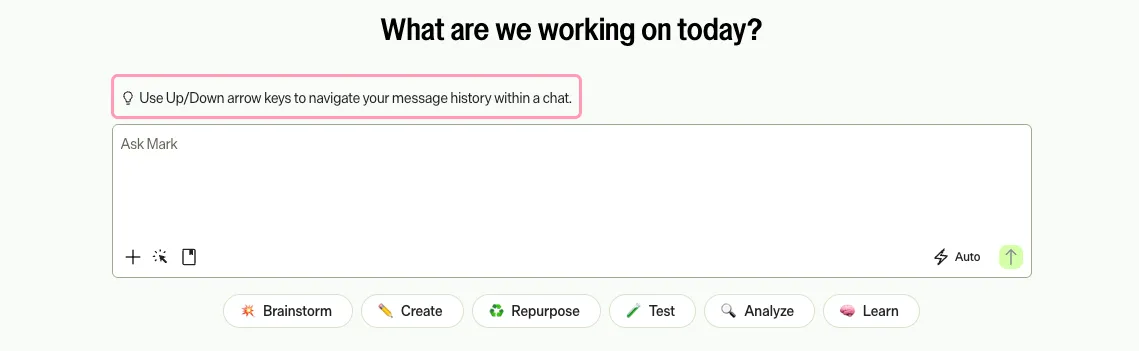
Most tips include a Try it out or Take me there action. Select the tip or the action to do what the tip describes. For example, a tip can open the mention menu, prefill a prompt for you to review, open the connectors menu, or go to a tab such as Artifacts, Settings, or Context. Some prefilled prompts include a fillable field, such as a topic, for you to complete before you send.
You do not need to turn anything on. Tips display automatically and rotate as you use Mark. Hover over a tip to pause the rotation while you read.
A few tips are informational and have no action, such as the tips for drag and drop, stopping Mark, and message history.
Mark chat in Optimizely products
Mark chat is available in various Optimizely products. See the following documentation for details:
Note
If you use Opti ID, administrators can turn off generative AI in the Opti ID Admin Center. See Turn generative AI off across Optimizely applications.