Install Mark chat in CMS 13
Install the Optimizely.Cms.OpalChat package to surface the Mark chat widget in the CMS 13 editorial UI, giving editors AI-powered assistance without leaving CMS.
Optimizely Agent PlatformOptimizely Agent Platform is an agent orchestration platform. It helps you explore complex questions, find answers about the Optimizely platform, and access step-by-step instructions. Mark automates tasks, surfaces insights, and guides decision-making.
Prerequisites
- CMS 13 in Optimizely Digital Experience Platform (DXP).
- Opti ID enabled for your CMS instance.
- Agent Platform provisioned at the organizational level. Contact your Customer Success Manager (CSM) to request Agent Platform access.
- Third-party cookies enabled in your browser.
See Add-ons platform compatibility for package and version information.
Install the Mark chat NuGet package
Install Mark chat through NuGet.
Connect CMS 13 to Agent Platform
Configure CMS site
Install and configure the Mark chat add-on for your CMS site.
- Add the following NuGet package to your project.
Optimizely.Cms.OpalChat- In Startup.cs, register Mark chat.
services.AddOpalChat();- Configure your local environment.
- Configure Opti ID login on your local machineOpti ID login on your local machine. Access the PaaS Portal to locate your Client Id, Client Secret, and Instance Id, as shown in the following screenshot.
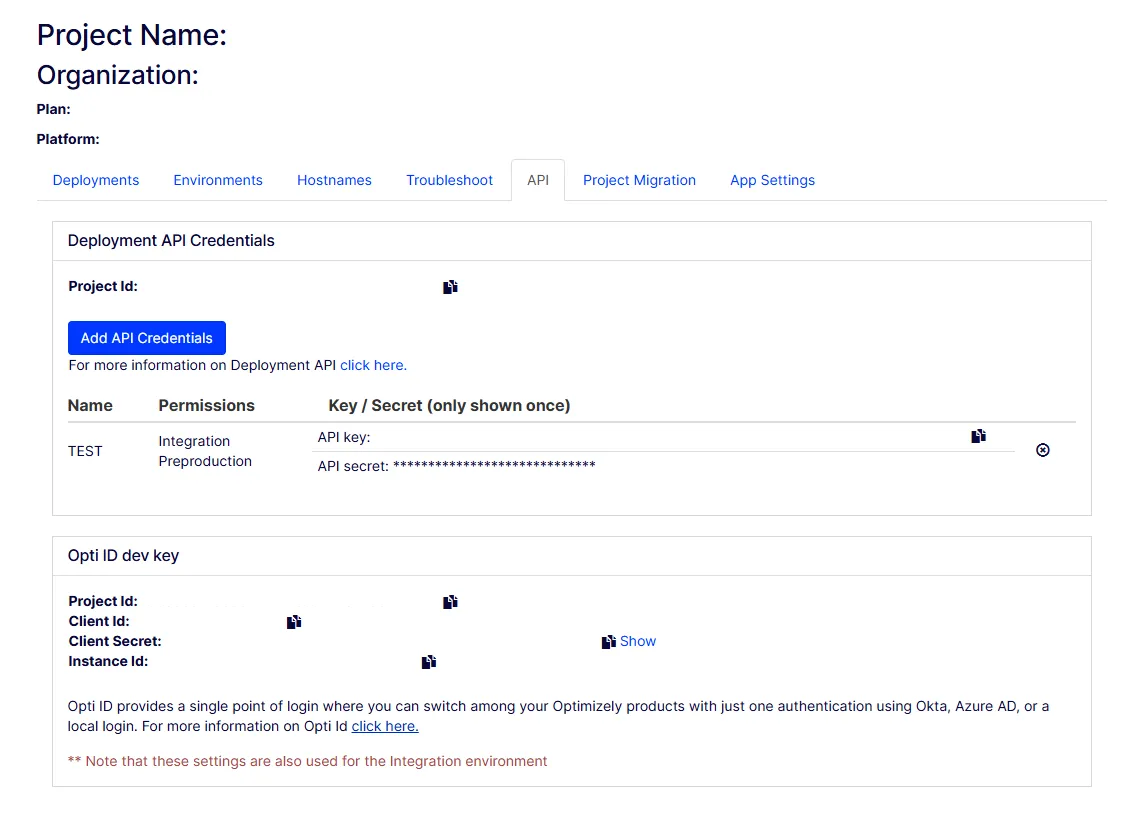
- Copy your Client Id, Client Secret, and Instance Id, and paste them into the configuration as follows:
"EPiServer": {
  "Cms": {
    "OptimizelyIdentity": {
      "Authority": "https://login.optimizely.com/oauth2/default",
      "InstanceId": "INSTANCE_ID",
      "ClientId": "CLIENT_ID",
      "ClientSecret": "CLIENT_SECRET"
    }
  }
}- Configure Mark chat.
"Optimizely": {
  "OpalChat": {
    "InstanceId": "INSTANCE_ID",
    "ServiceUrl": "https://opal-backend.optimizely.com"
  }
}- Grant your login username access rights to the CMS instance.
Note Production environments require no additional configuration.
After completing the configuration, deploy your CMS site to your PaaS Portal project.
Associate CMS with Agent Platform
The following screenshot shows the Connections tab in the Admin Center, where you associate your CMS instance with Agent Platform.
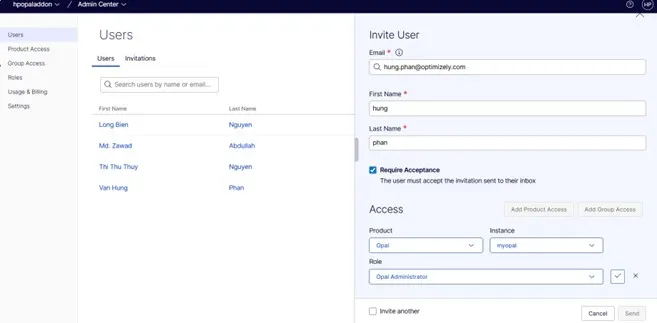
- In your organization's Admin CenterAdmin Center, ensure you have the Opal Administrator roleOpal Administrator role.
Note Contact Optimizely Support if you need access or role assignment.
- From the main menu, select Agent Platform.
- Open the Connections tab.
- Select the instance associated with your CMS site.
- Click Save to complete the association.
After you save, your CMS 13 site connects to Agent Platform. You can chat with Markchat with Mark and call agentsagents that do not require CMS tools.