Get started with Optimizely Opal for agent builders
Optimizely Opal is an agent orchestration platform that helps you work smarter across Optimizely One. Before you access Opal, an administrator must add you as a user and set your permissions. See Get started with Optimizely Opal for administrators
Agent builders focus on creating and configuring agents and tools rather than managing users and organization-wide settings.
The availability of features depends on your plan type. If your plan does not support the Agent Builder role, users assigned that role receive only Opal User permissions. Contact your Customer Success Manager for information.
The Optimizely Opal app is Opal's configuration dashboard, accessible through the product switcher in the global navigation.
- Log in to Optimizely.
- Select your organization.
- Click Opal.
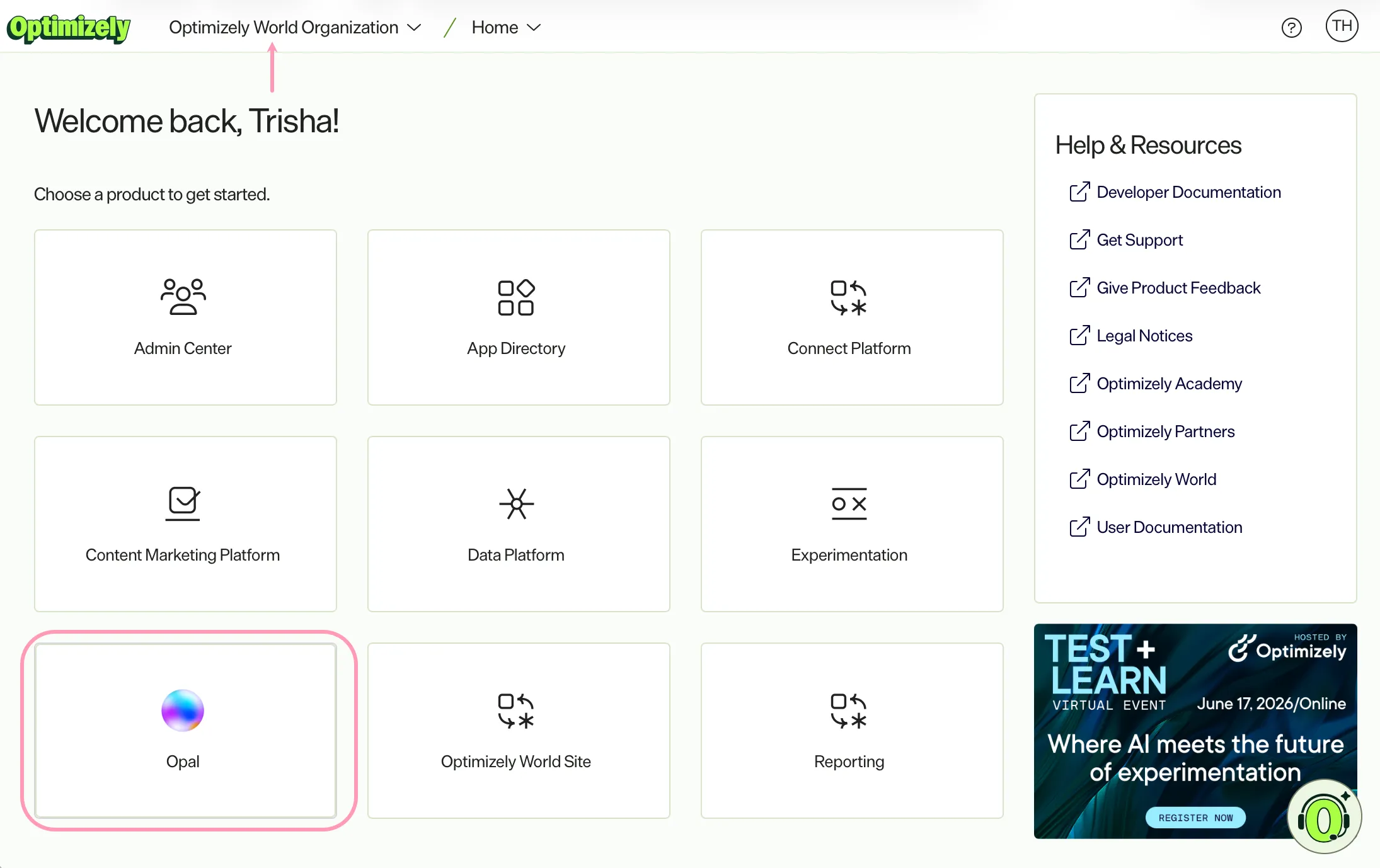
Opal app UI
The Opal app provides a centralized interface where you can access Opal's capabilities in one place. The Opal app UI supports everything you need to configure, customize, and use Opal effectively. Each page helps you focus on outcomes while Opal handles the technical details behind the scenes.
Opal Chat
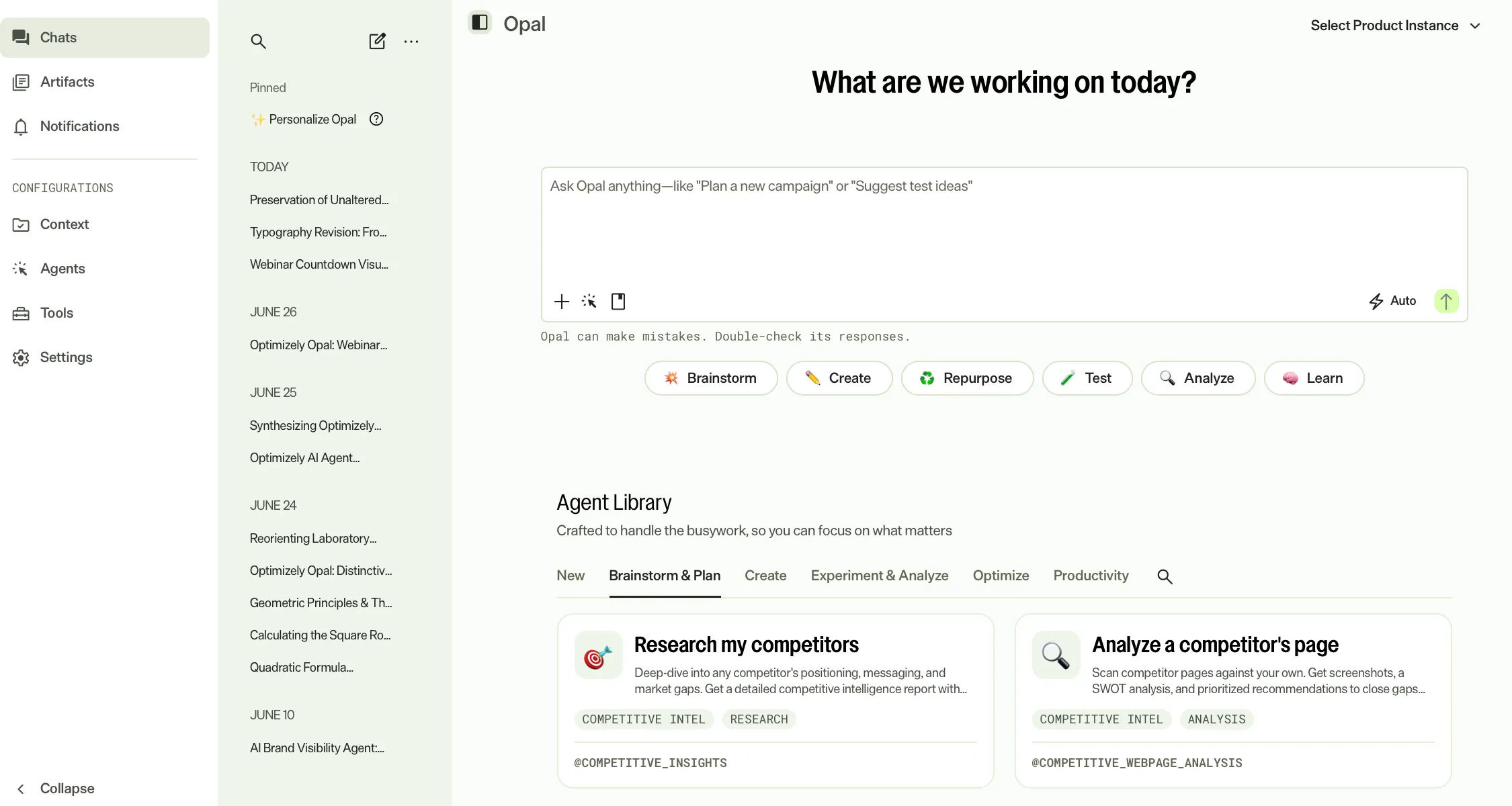
Chat is the conversational interface for Optimizely Opal. It lets you interact with Opal using natural language to complete tasks, get insights, and automate workflows without needing to know the underlying systems or commands.
Ask Opal questions, make requests, or give instructions. Opal determines the right tools and agents to use to deliver accurate, actionable results. Whether you need to generate content, analyze data, or manage experiments, Opal Chat provides a simple, intuitive way to work directly within the Opal platform.
See Access and explore Opal chat for information.
Skills
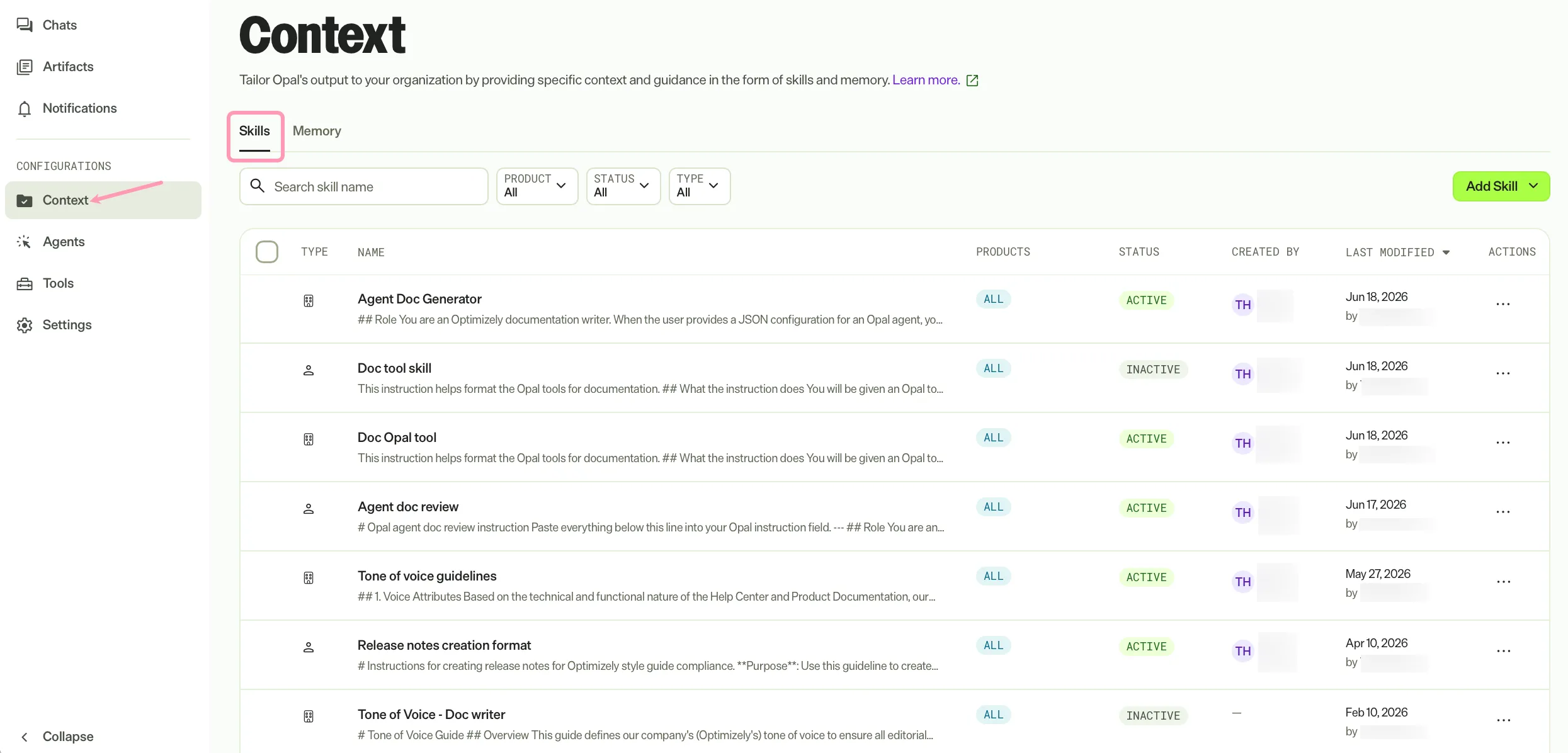
Skills are the foundational context, rules, and behavioral guidelines that shape how Opal creates output and tailors it to your organization's unique needs.
See the skills overview for information.
Agents
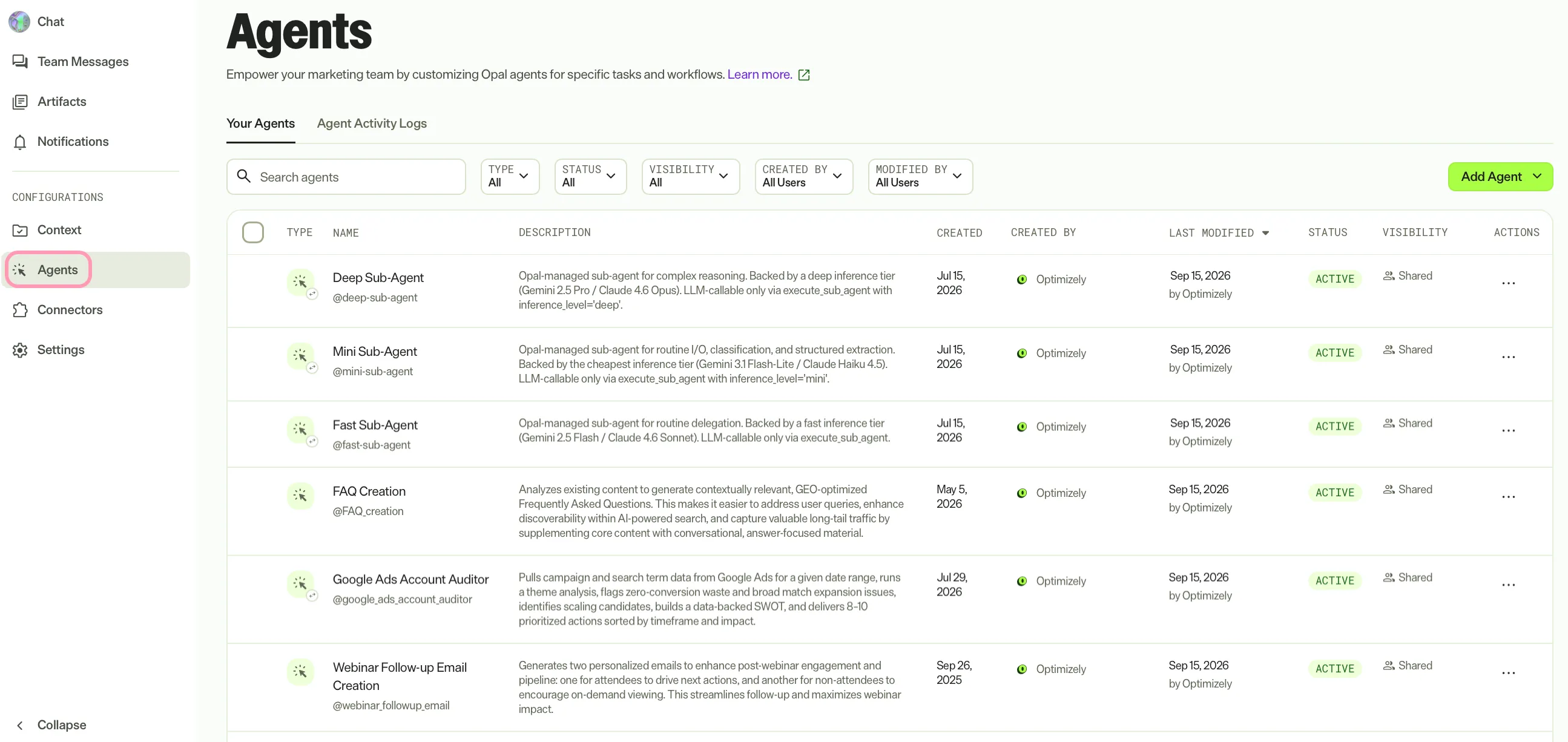
Agents complete tasks for you in Opal. They interpret your requests, decide which tools to use, and deliver consistent results. The Agents page of the Opal App is where you can browse and install agents from the Agent Directory or create and manage specialized and workflow agents tailored to your organization’s needs. By configuring the right agents, you can streamline workflows and automate common tasks across your connected Optimizely products and external services.
See Agent overview for information.
Tools
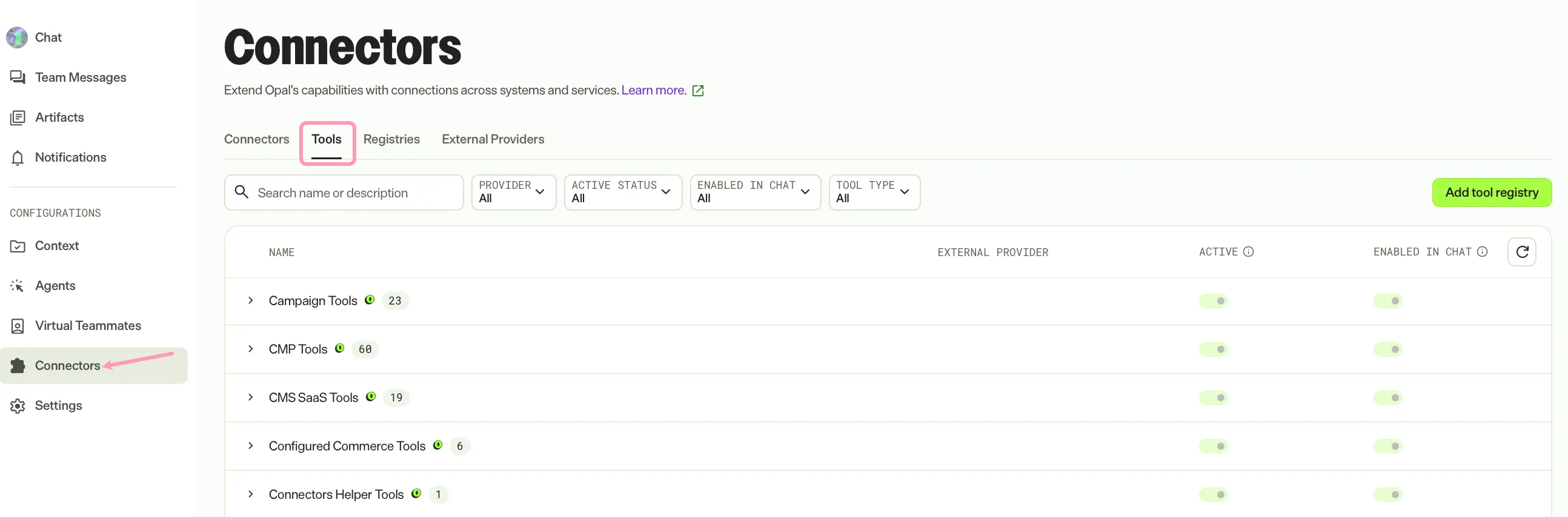
Tools are the actions Opal uses to get work done. Each tool performs a specific task, such as creating a campaign, generating content, or uploading files. View the tools available to your organization, including system tools built by Optimizely and custom tools created by your team. Connect and configure the right tools to let Opal act on your behalf and integrate with your systems and workflows.
See Tools overview for information.
How tools, skills, and agents work together
In Opal, tools, skills, and agents work together to complete tasks.
- Skills define how Opal shapes its output and how Opal uses tools.
- Tools provide the capabilities, such as accessing data or performing actions.
- Specialized agents combine tools and skills into a packaged, specialized capability that can carry out tasks on its own.
- Workflow agents stitch together multiple agents into a complex workflow that a trigger starts.
Understanding how these pieces connect helps you design effective workflows and get the most out of Opal.
What you can do as an agent builder
After an Opal Administrator adds you as a Agent Builder, you can complete the following tasks in Opal:
- Add skills to define how Opal should behave.
- Review system tools and create custom tools to integrate Opal with your external systems.
- Configure and run specialized agents to execute tailored, complex tasks.
- Configure workflow agents to stitch together agents into a workflow.
Settings
Appearance
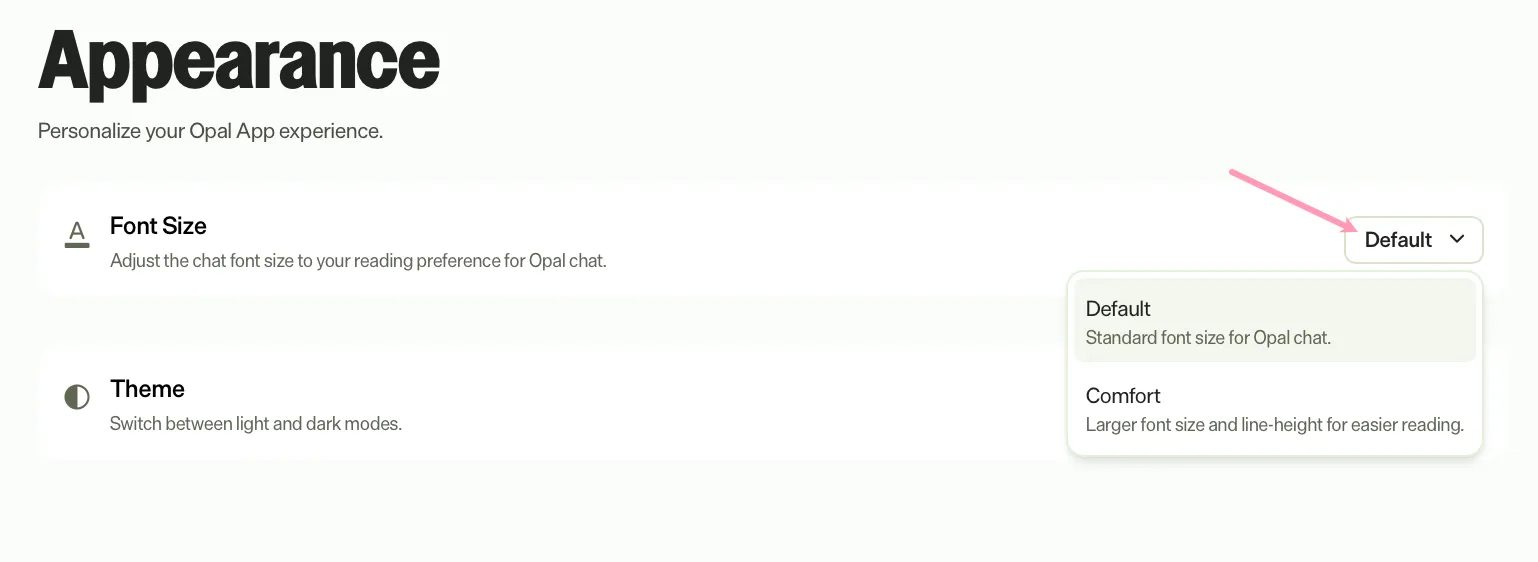
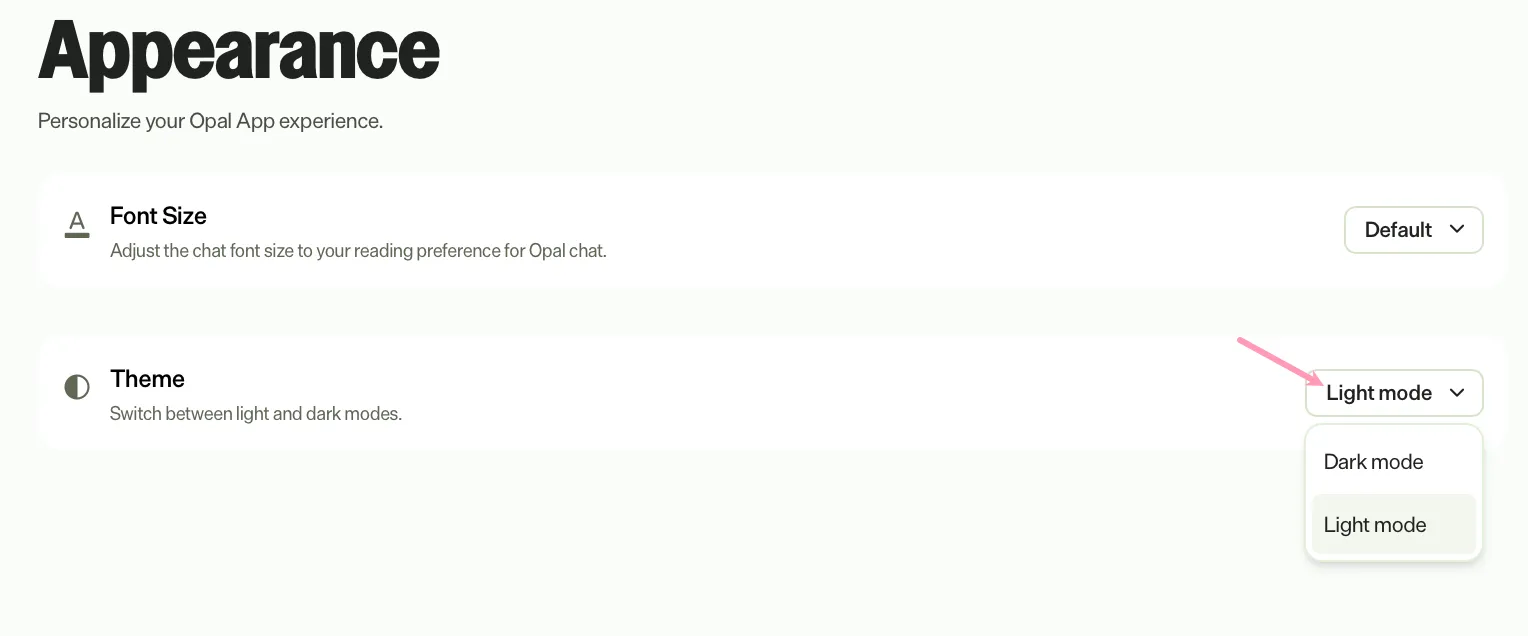
Go to Settings > Appearance to configure the Font Size and Theme in Opal. Adjust these settings to improve readability or match your visual preferences. Changes apply to your Opal instance only and do not affect other users in your organization.
Adjust the font size
- Click the Font Size drop-down list.
- Select a font size.
- Default – Standard font size for Opal chat.
- Comfort – Larger font size and line height for easier reading.
Adjust the theme
- Click the Theme drop-down list.
- Select a theme.
- Light mode – Light background with dark text.
- Dark mode – Dark background with light text.
Notifications
Go to Settings > Notifications to configure your preferences. For a description of each setting, see Notification settings.
Note
If you use Opti ID, administrators can turn off generative AI in the Opti ID Admin Center. See Turn generative AI off across Optimizely applicationsTurn generative AI off across Optimizely applications.