Tools overview
Mark (Optimizely Agent Platform) relies on tools to turn your requests into results. Tools help Mark take action on your behalf. Each tool performs a specific task, such as creating a campaign, uploading files, or generating images. Mark connects your natural language request to the right tool automatically. You focus on the outcome instead of running searches, uploading files, or calling APIs yourself.
Think of tools as attachments on a Swiss Army knife. Each one serves a unique purpose.
Mark administrators add and manage tool registries for your organization. Most Mark users do not configure tools directly and instead interact with them through Mark chat and agents.
Types of tools
Mark offers the following types of tools:
- System tools – Optimizely builds and maintains these tools.
- Connector tools – Optimizely builds and maintains these tools to connect Mark with third-party providers.
- Custom tools – Your organization builds and maintains these tools.
Where tools are used
Mark automatically chooses the right tool to complete each request. Most users experience tools through Mark chat or agents without knowing which tool runs in the background.
Mark chat
You do not need to call a tool directly in Mark chat. Mark analyzes your request to determine your intent and the best tool to use. It looks for keywords, phrases, and the overall meaning of your message to choose the action.
If Mark cannot find a tool that matches your request, it asks clarifying questions or lets you know it does not have a way to take action yet. Rephrase your request or speak with your administrator about adding a custom tool.
The following examples demonstrate how Mark automatically selects tools based on your requests:
- If you ask, Can you create a campaign for our Q4 marketing efforts?, Mark uses the create_campaign tool.
- If you ask, What is the current date?, Mark uses the get_today tool.
- If you say, Find me some images of dogs, Mark uses the search_web tool with the image search type.
Agents
Specialized agents can call specific tools if you include them in the prompt template. See Create a specialized agent for details. Optimizely also provides many Agents in the Agent Directory that include tools.
Connectors tab overview
The Connectors tab links your personal third-party accounts, such as Google or Salesforce, to Mark. Connect an account from this tab to let tools act on it in Mark chat and agents.
For details, see manage your personal connections.
Tools tab overview
Use the Tools tab to see which tools Mark uses and to control where each tool is available. Administrators turn tools on or off for the whole instance and for Mark chat. Each person also decides which tools Mark uses for them.
Everyone with access to the Tools tab sees the tools in your instance. Tabs and columns that manage tools display only for people with tool management permissions.
The following image displays the Tools tab:
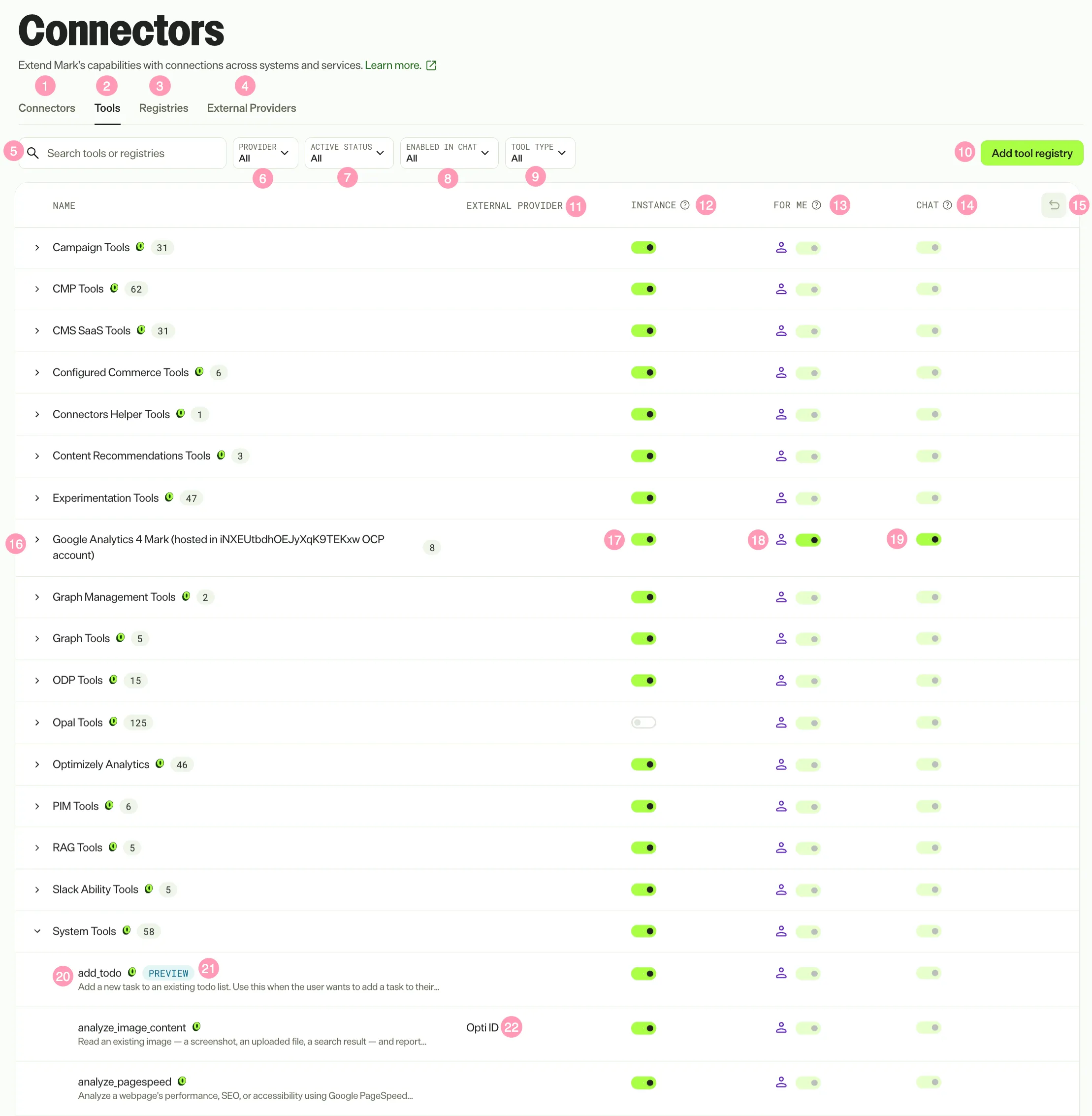
- Connectors – Connect your personal third-party accounts to Mark. See Connectors tab overview.
- Tools – View the tools in your Mark instance, grouped by registry.
- Registries – View and manage the tool registries in your instance. Only administrators see this tab. See Registries tab overview.
- External Providers – View and add remote Model Context Protocol (MCP) servers and authentication providers. Only administrators see this tab. See Add a remote MCP provider.
- Search tools or registries – Enter a tool or registry name to filter the list.
- Provider – Filter the list by tool registry.
- Active Status – Filter the list by tools that are enabled or disabled for the instance.
- Enabled in Chat – Filter the list by tools that are enabled or disabled in Mark chat.
- Tool Type – Filter the list by Remote MCP or Mark Tools.
- Add tool registry – Add custom tools that you self-host or host on Optimizely Connect Platform (OCP). This option requires permission to manage tools. See Add a custom tool to Mark.
- External Provider – Displays the provider the tool requires authorization from, such as Google Docs. A blank cell means the tool does not require authorization.
- Instance – Activates or deactivates the tool for everyone in your instance, including Mark chat, agents, and other places Mark runs. Only administrators see this column. Administrators cannot deactivate some core Mark tools.
- For Me – Turns the tool on or off for you only. Other people in your instance keep their access. When you turn a tool off, Mark stops using it in your chats and in agents you run, including workflow agents. In the Add Tools picker when creating an agent, the tool displays as disabled for you. See Turn a tool off for yourself.
- The toggle is unavailable when an administrator deactivates the tool for the instance. Mark keeps your setting and applies it again when an administrator reactivates the tool.
- You cannot turn some system tools off for yourself.
- Chat – Makes the tool available in Mark chat. Agents started from Mark chat use the tool regardless of this setting. This toggle requires permission to manage chat configuration. The toggle is unavailable when Instance or For Me is off.
- Restore all to default – Reset the tools enabled in Mark chat to the defaults. You cannot undo this action. The option is unavailable if the instance is already set to the default.
- Registry row – Displays the registry name and the number of tools it contains. Icons identify Remote MCP registries and Mark system tools. Select the arrow to expand the registry and view its tools.
- Registry Instance toggle – Activates or deactivates every tool in the registry for the instance, except locked tools.
- Registry For Me toggle – Turns every tool in the registry on or off for you, except locked tools.
- Registry Chat toggle – Makes every tool in the registry available or unavailable in Mark chat, except locked tools.
- Tool name and description – Select a tool to open its details panel. Use the tool name to call the tool from Mark chat or to add it to a specialized agent. See Define tools.
- Preview – Indicates the tool is in beta. See System tools in beta.
- External provider – Displays the provider the tool requires authorization from for that tool, such as Opti ID. See step 11.
How tool settings combine
Three toggles control whether Mark uses a tool. The following table describes each toggle:
Toggle | Who changes it | What it controls |
|---|---|---|
Instance | Administrators | Whether anyone in the instance uses the tool, anywhere Mark runs |
For Me | Each person, for themselves | Whether Mark uses the tool for you, without affecting other people |
Chat | People who manage chat configuration | Whether the tool is available in Mark chat. Agents started from chat still use the tool. |
Mark uses a tool for you only when Instance and For Me are both on. In Mark chat, Chat must also be on.
Registries tab overview
The following image displays the Registries tab, where you can view, filter, and manage tool registries in your Mark instance. Only administrators see this tab.
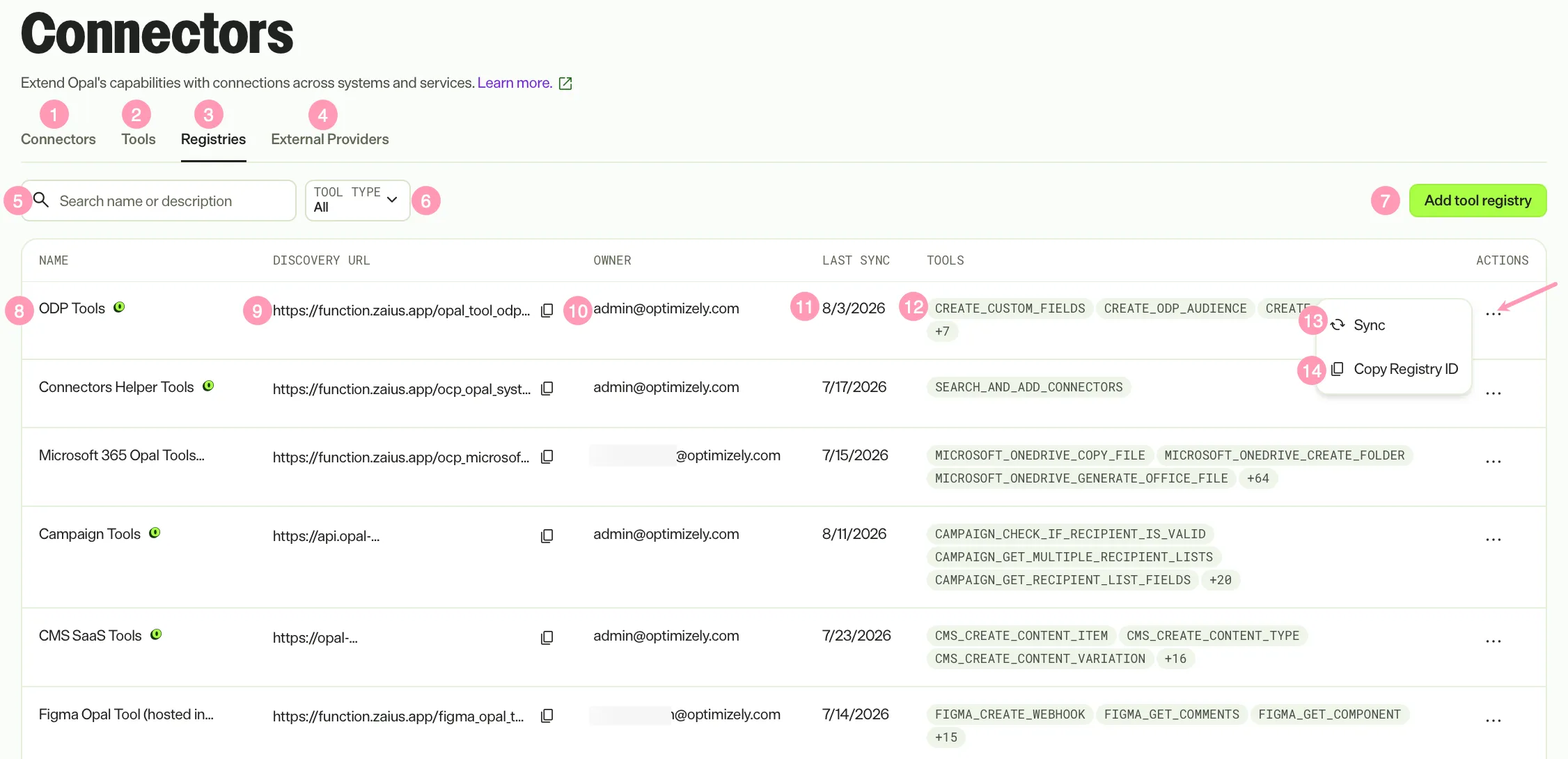
- Tools – View a listing of tools in your Mark instance categorized by registry. See Tools tab overview.
- Connectors – Connect your personal third-party account with Mark. See Connectors tab overview.
- Registries – View a listing of registries in your Mark instance.
- External Providers – View and add remote MCP servers and authentication providers. See Add a remote MCP provider.
- Search name or description – Enter a registry name or description to filter the list.
- Tool Type – Filter the list by Remote MCP or Mark Tools.
- Add tool registry – Add custom tools that you self-host or host on OCP. See Add a custom tool to Mark.
- Name – Name of the tools registry. If the tools registry is from Optimizely, an Optimizely logo displays.
- Discovery URL – The tool's discovery HTTP endpoint. Click Copy to copy the URL to your clipboard.
- Owner – Who owns the tool registry.
- Last Sync – Date when the registry was added or last synced.
- Tools – List of tools available in the registry.
- Actions – More options.
- Sync – Sync the registry to get any new or updated tools. See Update a tool registry.
- Copy Registry ID – Copy the registry ID to your clipboard.
- Delete – Delete registries that Optimizely does not manage. This option is unavailable for Optimizely-managed registries. See Delete a tool registry.
External providers tab overview
The External Providers tab connects Mark to remote MCP servers and authentication providers that host tools outside Mark. Add a provider from this tab to make its tools available in Mark.
For step-by-step instructions, see Add a remote MCP provider.
Note
If you use Opti ID, administrators can turn off generative AI in the Opti ID Admin Center. See Turn generative AI off across Optimizely applications.