Generative AI settings
Optimizely products include generative artificial intelligence (AI) features, including Optimizely Opal and other AI features. The Admin Center lets you turn generative AI off and choose which products and instances to suggest Opal access for users.
Turn generative AI off
Generative AI is on by default in your Optimizely products. You can optionally turn generative AI off for your Optimizely products with a single setting in the Opti ID Admin Center.
Note
You must remove users from Opal product groups and Opal roles from custom and SCIM groups before you can turn generative AI off. To disable Optimizely Opal for one or more products or instances, manage connections within the Optimizely Opal app.
- On (Default) – Enables the AI-powered features across all Optimizely applications listed under the Optimizely Opal and Included generative AI features sections.
- Off – Disables the AI-powered features across all Optimizely applications listed under the Optimizely Opal and Included generative AI features sections.
Important
This setting affects only the features listed under the Optimizely Opal and Included generative AI features sections. It does not affect any machine learning features.
Steps
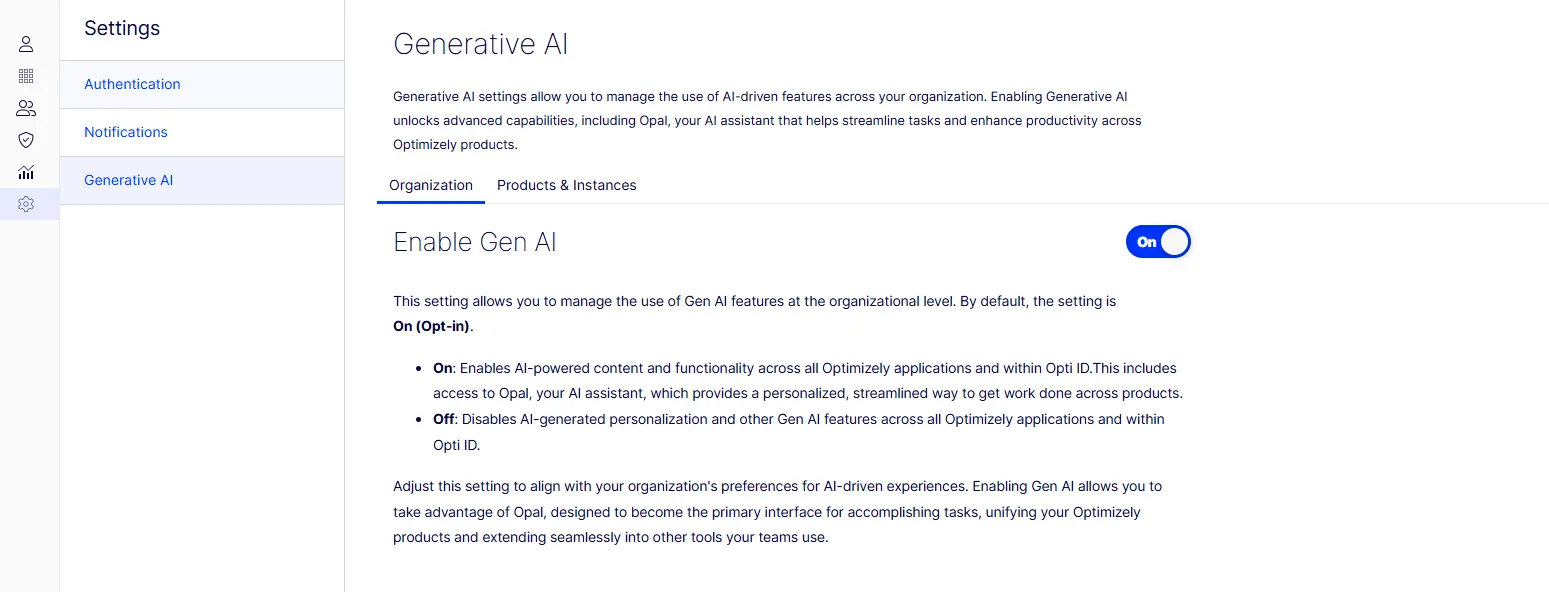
- Go to Settings > Generative AI in the Opti ID Admin Center.
- Select the Organization tab.
- Toggle Enable Gen AI to Off.
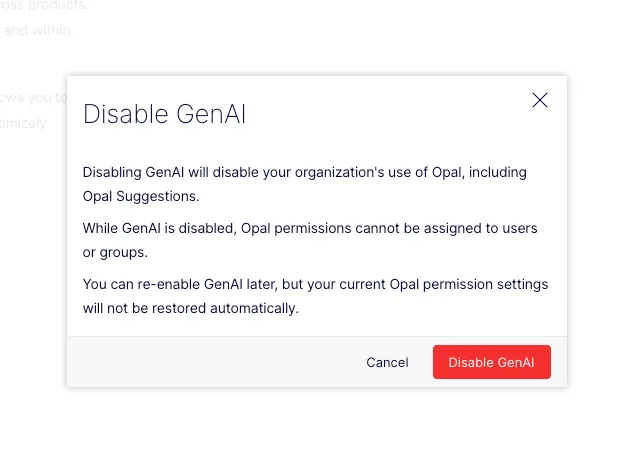
- Click Disable GenAI to confirm.
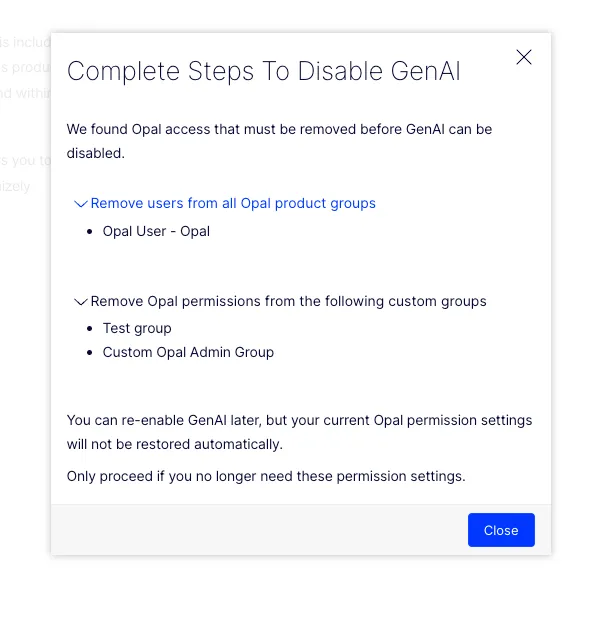
If you have any users with Opal permissions or any custom groups with Opal roles, a message displays to remove those users and roles before you can disable generative AI.
Warning
You cannot enable generative AI. To enable generative AI features across all Optimizely applications, contact Optimizely Support.
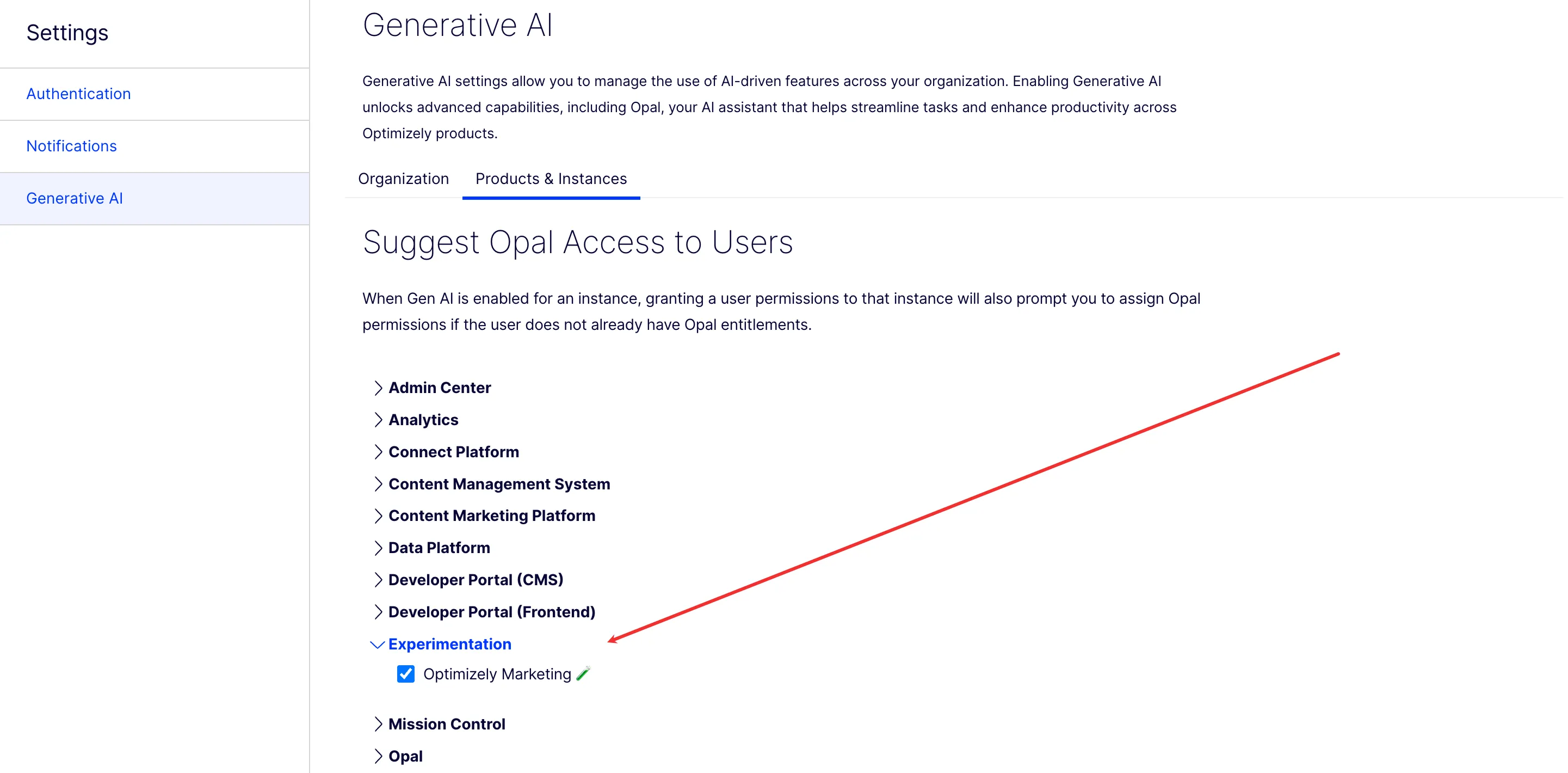
Suggest Opal access to users
When you enable generative AI for an instance, the Admin Center prompts you to assign Opal permissions if the user does not have them already when you add them to that instance. See Manage users for information.
You can choose which products and instances suggest Opal access.
- Go to Settings > Generative AI in the Opti ID Admin Center.
- Select the Products & Instances tab.
- Expand a product and use the checkboxes to select the instances.