Optimizely Mark in Slack
Mark (Optimizely Agent Platform) for Slack provides direct access to Mark's AI capabilities and Optimizely product knowledge within your Slack workspace. You can use this integration to chat with Mark, manage campaigns, analyze experiment results, and execute AI agents, all without leaving Slack.
Prerequisites
- Use Opti ID to access Mark.
- Enable generative AI in Optimizely.
- Request access to Mark in Slack. Contact your Customer Success Manager.
Add Mark to your Slack Workspace

Key features of Mark in Slack
- Full Mark capabilities in Slack – Access the full power of Mark, backed by its deep knowledge of Optimizely's product suite and best practices.
- Visual content creation – Analyze, generate, and edit images, and take webpage screenshots with Mark.
- Instant insights – Reference Optimizely documentation, gather external web insights, and get real-time SEO keyword insights right in your conversation.
- Mobile productivity – Interact with your content and experiments on the go. The integration extends Mark's full product suite to the Slack app on your phone or tablet.
Install Mark in Slack
Note
Your Slack workspace's Owner may require admin approval to add apps. See Add apps to your Slack workspace for information.
- Click Add to Slack from the Add Mark to your Slack Workspace section to install Mark in your workspace.
- Enter your workspace's information and log in to Slack.

- Click Allow on the permission page.
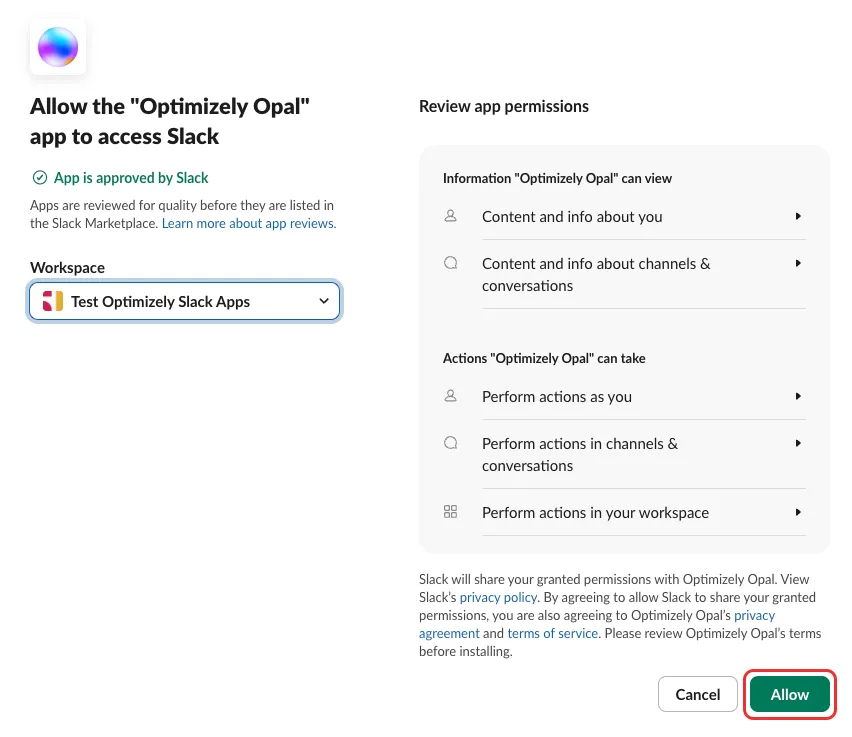
Configure Mark in Slack
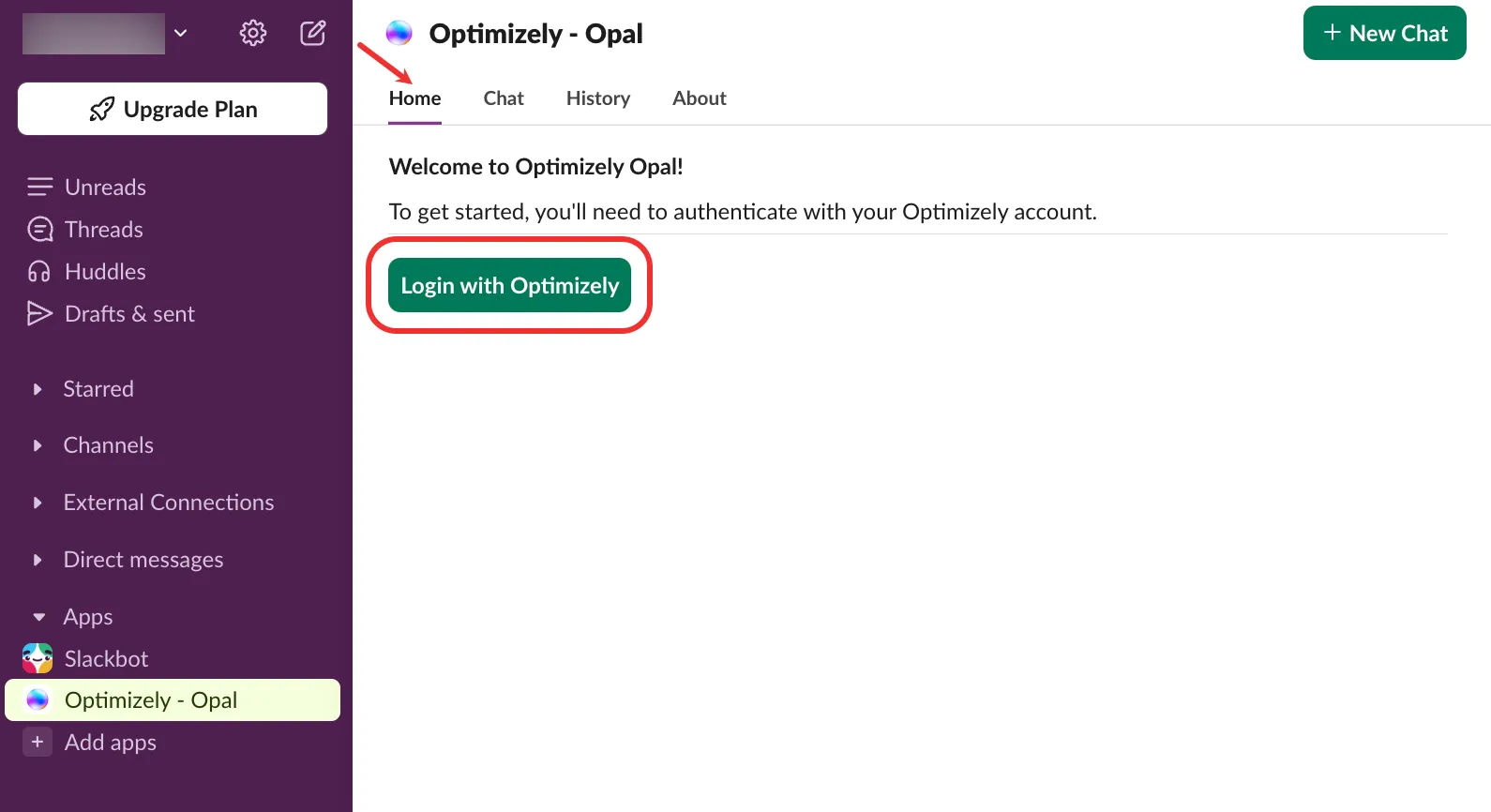
- Go to Apps > Optimizely - Opal.
- Select the Home tab and click Login with Optimizely to complete the connection.
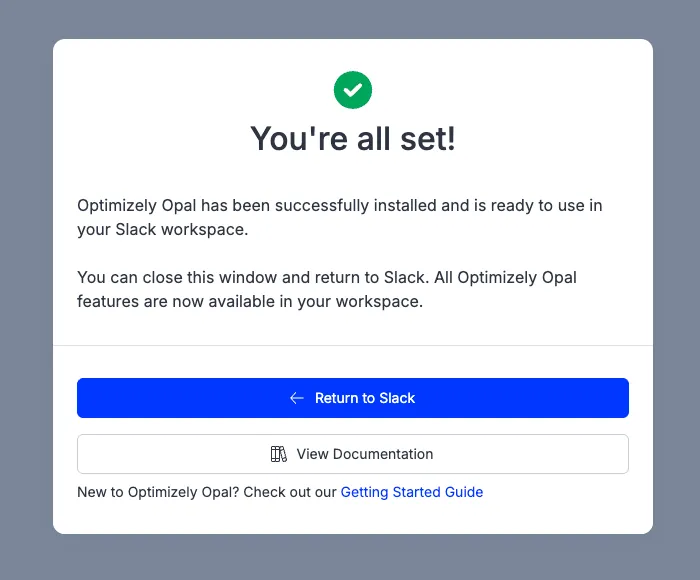
- Log in to Optimizely. A success message should display. Click Return to Slack.
- Click Select Organization.
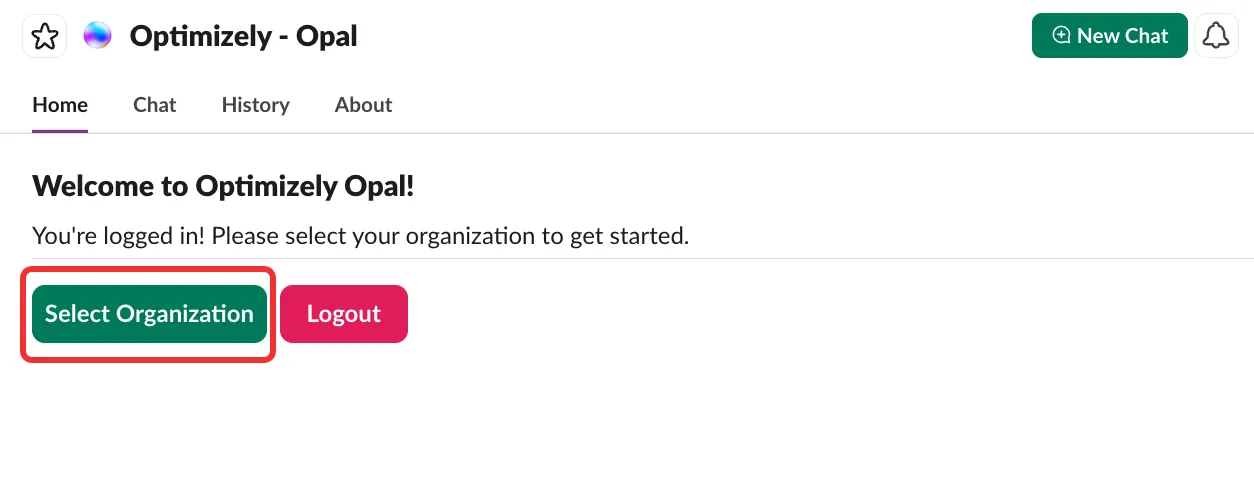
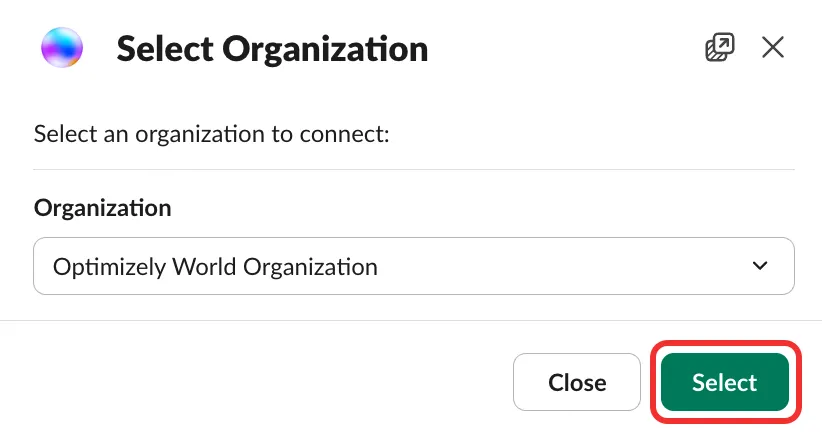
- Select your Organization and click Select.
- Click Close.
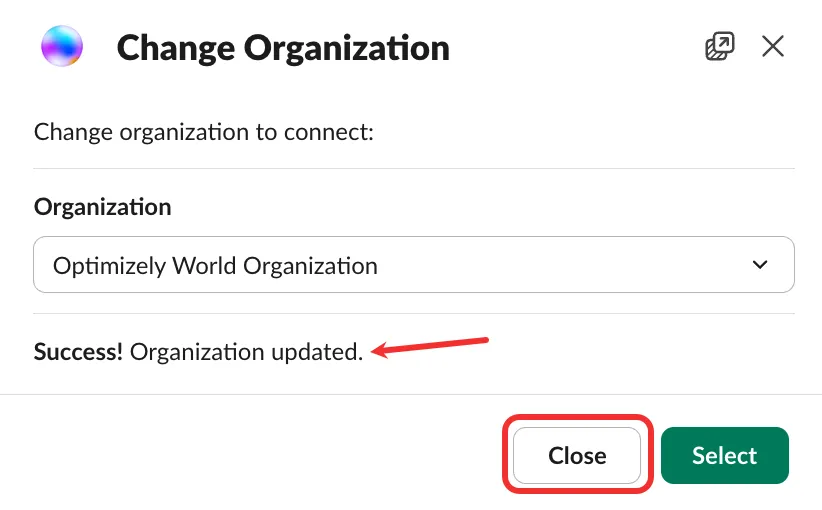
You can now use Mark in Slack.
How to use Mark in Slack
After you install and configure Mark, it integrates directly into your Slack workspace, letting you have seamless conversations and task execution.
Go to Apps > Optimizely - Opal in your Slack app's sidebar to open the dedicated app. You can interact with Mark in the Chat tab. See the Detailed usage scenarios section for information. Keep the following in mind when chatting with Mark:
- Ask anything – Type your request directly. Mark processes natural language queries to execute tasks across your Optimizely instance, such as summarizing documents, generating content, or managing campaigns. See Mark prompts for tips and tricks when prompting Mark.
- New subject – Click New Chat when switching topics to ensure Mark's responses remain focused and relevant to your latest goal.
Detailed usage scenarios
You can chat with Mark to research, summarize, and ideate, create and refine content, manage tasks and campaigns, and analyze experiment results directly in Slack.
- Go to Apps > Optimizely - Opal.
- Select the Chat tab.
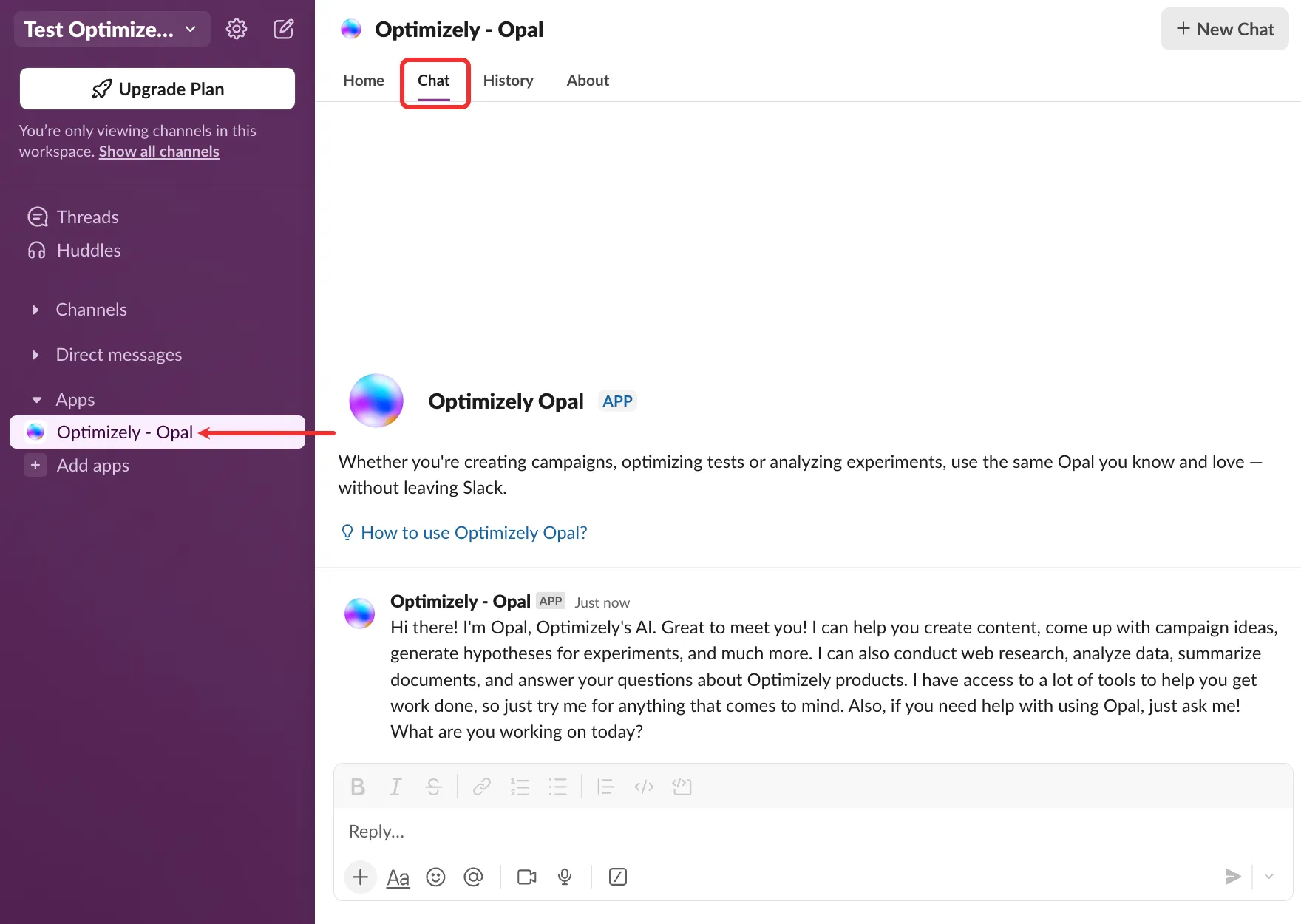
- Chat with Mark to complete tasks like the following:
- Research and ideate.
- Create and refine content.
- Support experimentation.
- Manage campaigns and tasks.
- Work with files and visuals.
Sample queries
- Summarize this document into three key takeaways.
- Rewrite this paragraph in a more formal tone for a customer email.
- Suggest three A/B test ideas to improve engagement on the checkout page.
See the Mark chat user interface documentation for information on Mark's capabilities.
- Click New Chat to start a new conversation when switching topics to keep Mark's responses focused.
View agents
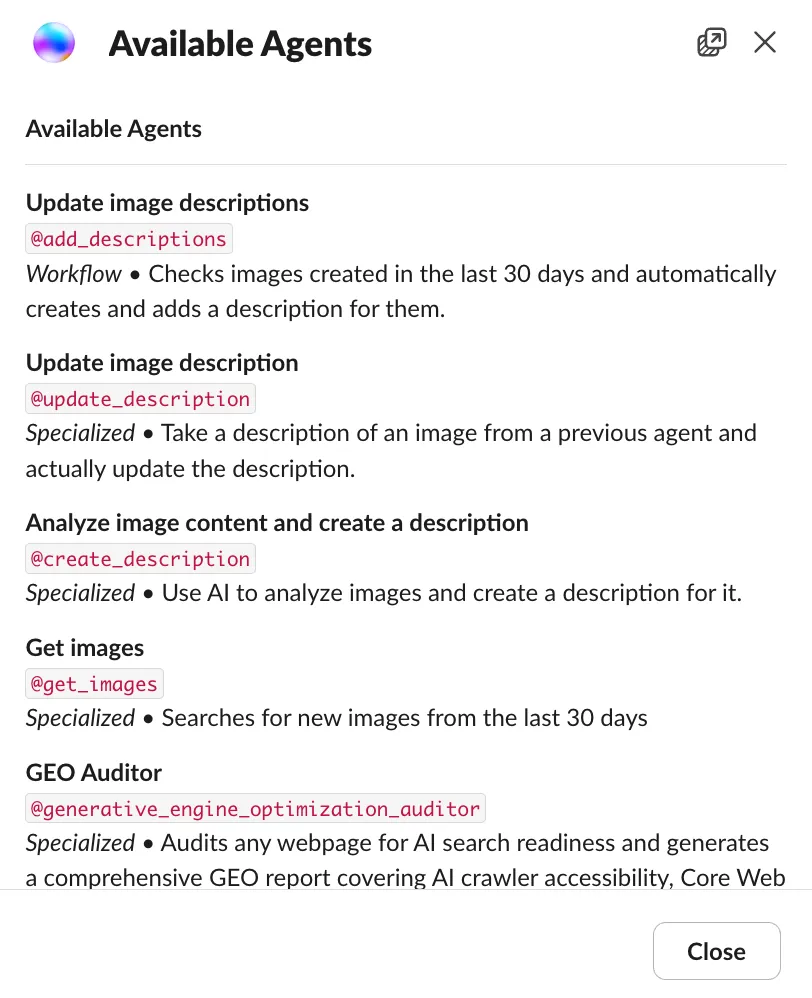
You can view the agents you can call in Slack.
- Go to Apps > Optimizely - Opal.
- Select the Home tab.
- Click View Agents.
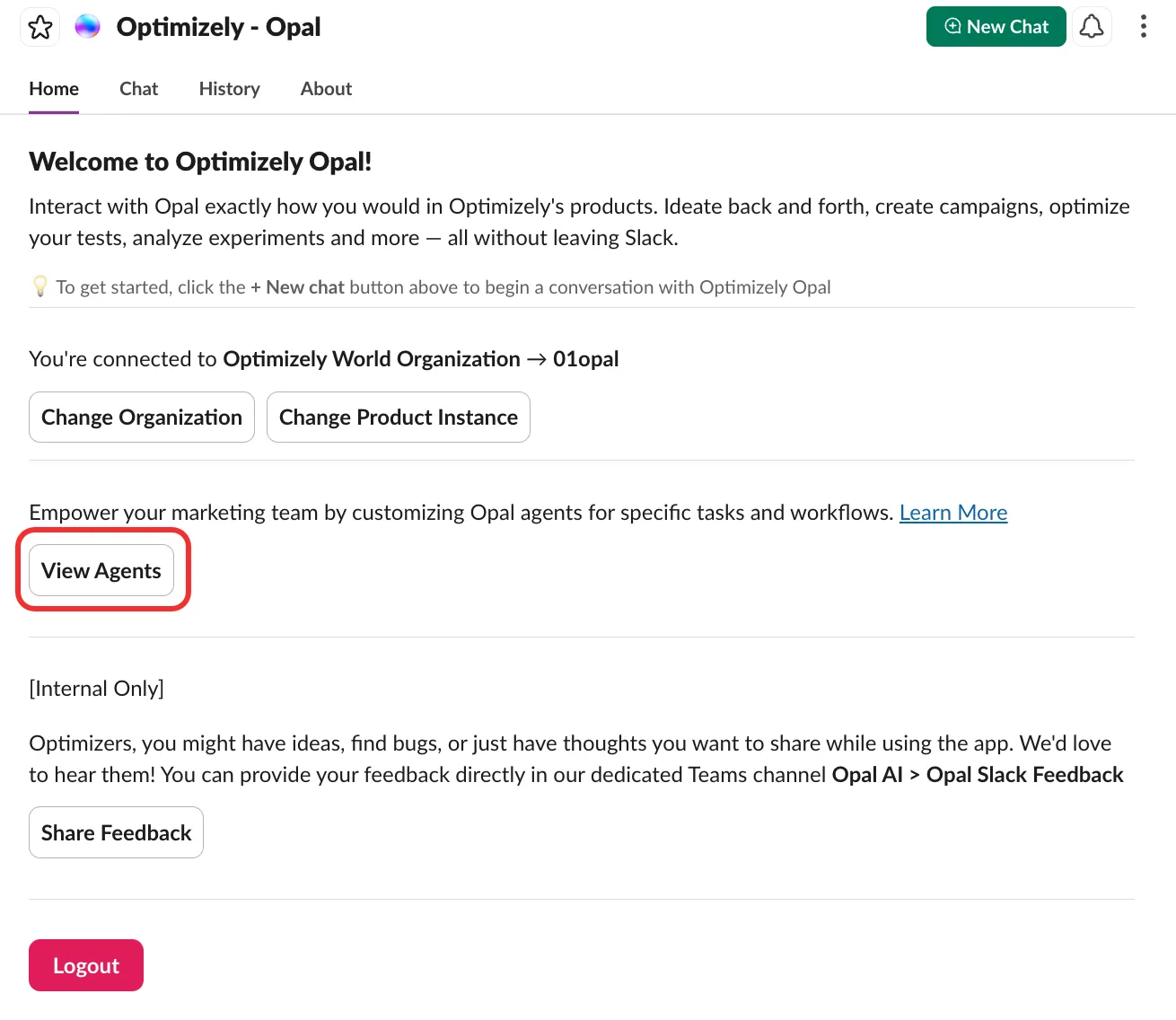
Slack displays a list of available agents you can call in the Chat tab with their @ID.
History
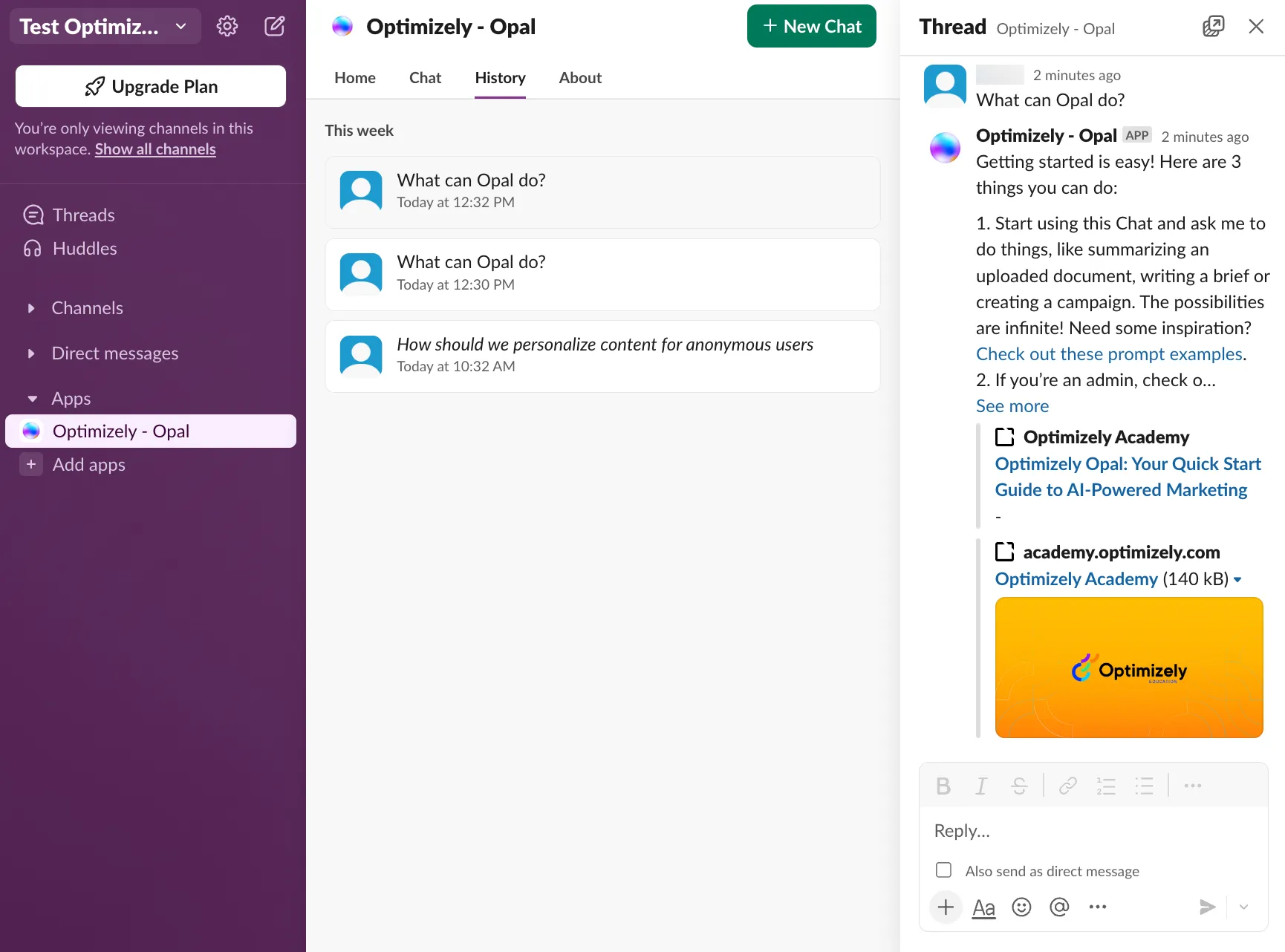
Mark saves your conversations in both Slack and the Mark chat app, so you can refer back to past chats and continue them across platforms.
In the Slack app
- Go to Apps > Optimizely - Opal > History.
- Click a chat to open it as a thread and continue your conversation with Mark.
Note
All conversations you have with Mark display in the History tab, regardless of Optimizely organization and instance settings. Only you can see your own history. Conversations persist across the desktop and mobile Slack apps.
In the Mark UI
- Go to home.optimizely.com and select the Optimizely organization that Slack is connected to (see step seven in the Install Mark in Slack section).
- Click Opal > Chat.
Your recent chats display in the chat history panel. See the Mark chat user interface documentation for more information.
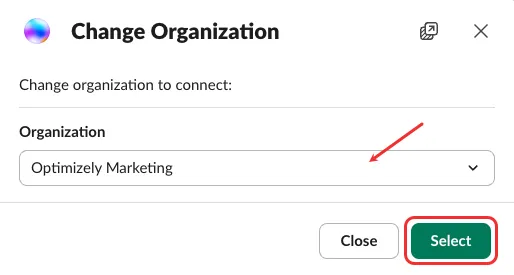
Change Optimizely organization
- Go to Apps > Optimizely - Opal in Slack.
- Select the Home tab.
- Click Change Organization.
- Select your organization from the Organization drop-down list and click Select.
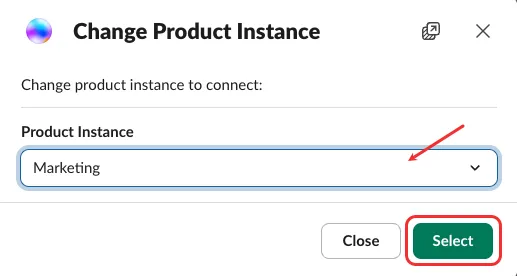
Change Optimizely product instance
- Go to Apps > Optimizely - Opal in Slack.
- Select the Home tab.
- Click Change Organization.
- Select your instance from the Product Instance drop-down list and click Select.
Uninstall Mark from Slack
To uninstall Mark from Slack, see Remove apps and custom integrations from your workspace in the Slack documentation.
Troubleshoot
Install issues
- Cannot add app to workspace – Some organizations prevent users from installing apps in Slack. Ask your Slack Workspace Admin to approve the app before you can install it. See Manage app approval for your workspace.
Login issues
- Mark prompts you to log in again – If you see a message like the following, asking you to re-authenticate, follow steps four and five in the Install Mark in Slack section.

- Wrong organization or instance – If Mark's responses do not match your expected projects or data, you may be logged in to the wrong organization or instance. See Change Optimizely instance.
Usage issues
- Mark responses are incorrect in Slack – You should verify that you are logged in with the correct Optimizely organization and instance (see Change Optimizely instance). Each organization can configure different agents and skills, which can affect how Mark generates its output.
- History not showing expected chats – Only conversations you have with Mark display in the History tab. Mark does not share chats across collaborators. Conversations persist across the desktop and mobile Slack applications.
Note
If you use Opti ID, administrators can turn off generative AI in the Opti ID Admin Center. See Turn generative AI off across Optimizely applications.