Optimizely Mark in Microsoft Copilot
Mark (Optimizely Agent Platform) for Microsoft Copilot lets you use Mark directly in your Copilot workspace. You can do everything you can do in Mark chat, including creating and managing campaigns, generating and editing images, analyzing experiment results, and executing AI agents.
Prerequisites
- You must use Opti ID to access Mark.
- You must have generative AI enabled in Optimizely.
Install Mark in Copilot
In Microsoft Copilot, complete the following steps:
- Go to the Agent Store.
- Click the Search agents field and enter Mark.
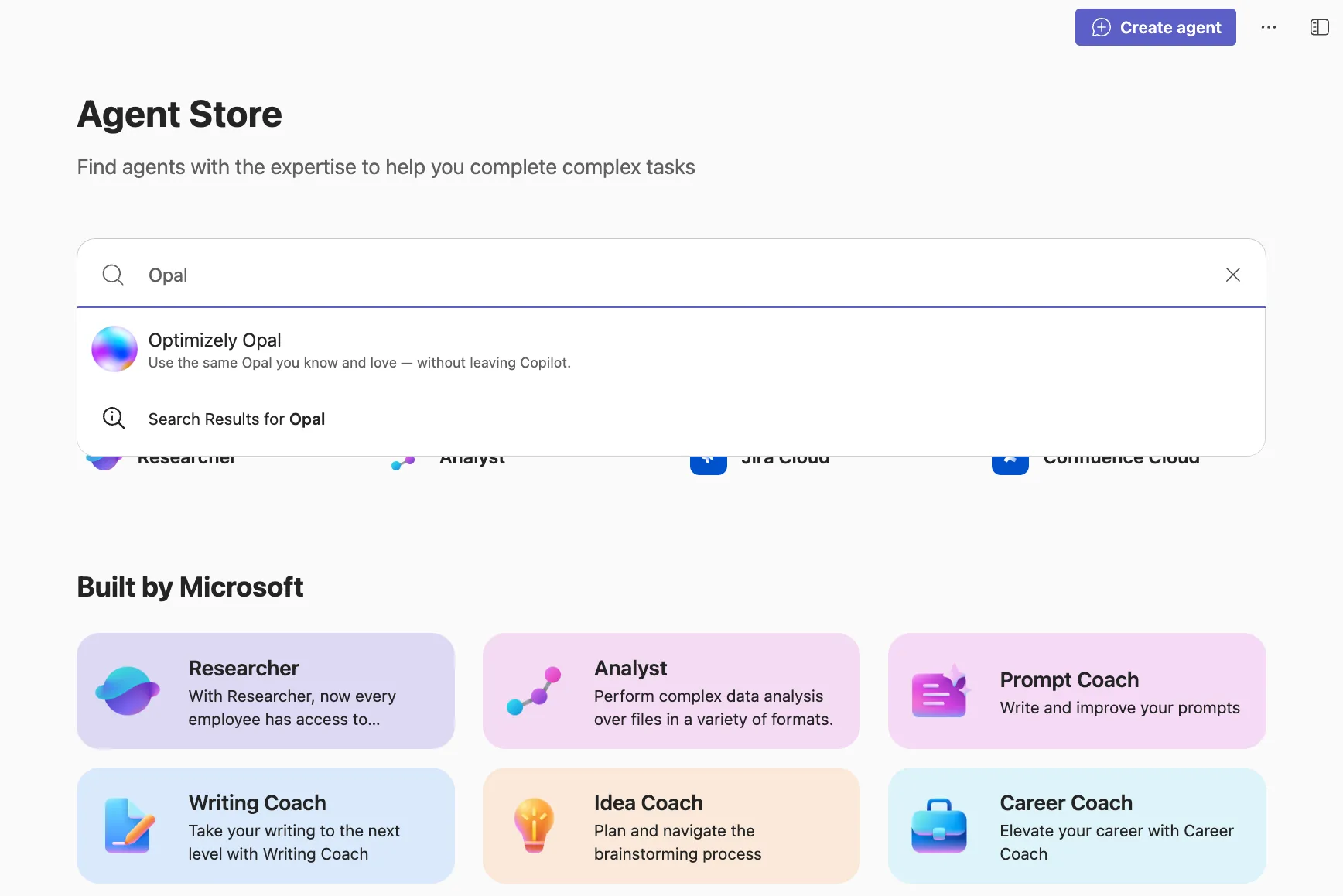
- Select Mark.
- Review the privacy policy, terms of use, and permissions, and click Add.
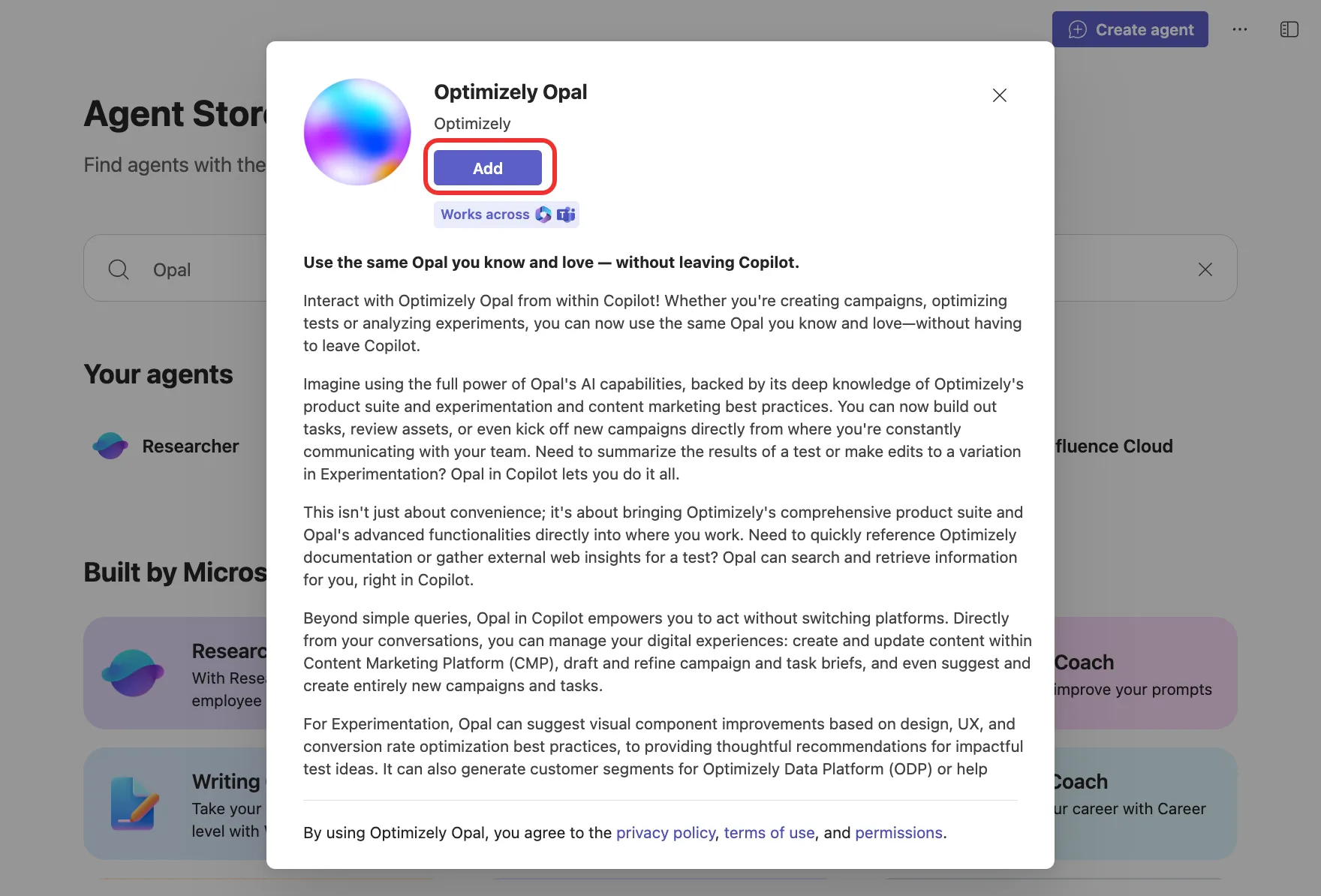
- Mark is added to your Copilot.
See Agent installation in Microsoft 365 Copilot for information.
Use Mark in Copilot
With Mark in Copilot, you can chat with Mark to research, summarize, and ideate, create and refine content, manage tasks and campaigns, and analyze experiment results directly in Copilot.
- Go to Copilot.
- Enter a prompt.
- On your first visit, Mark prompts you to log in.
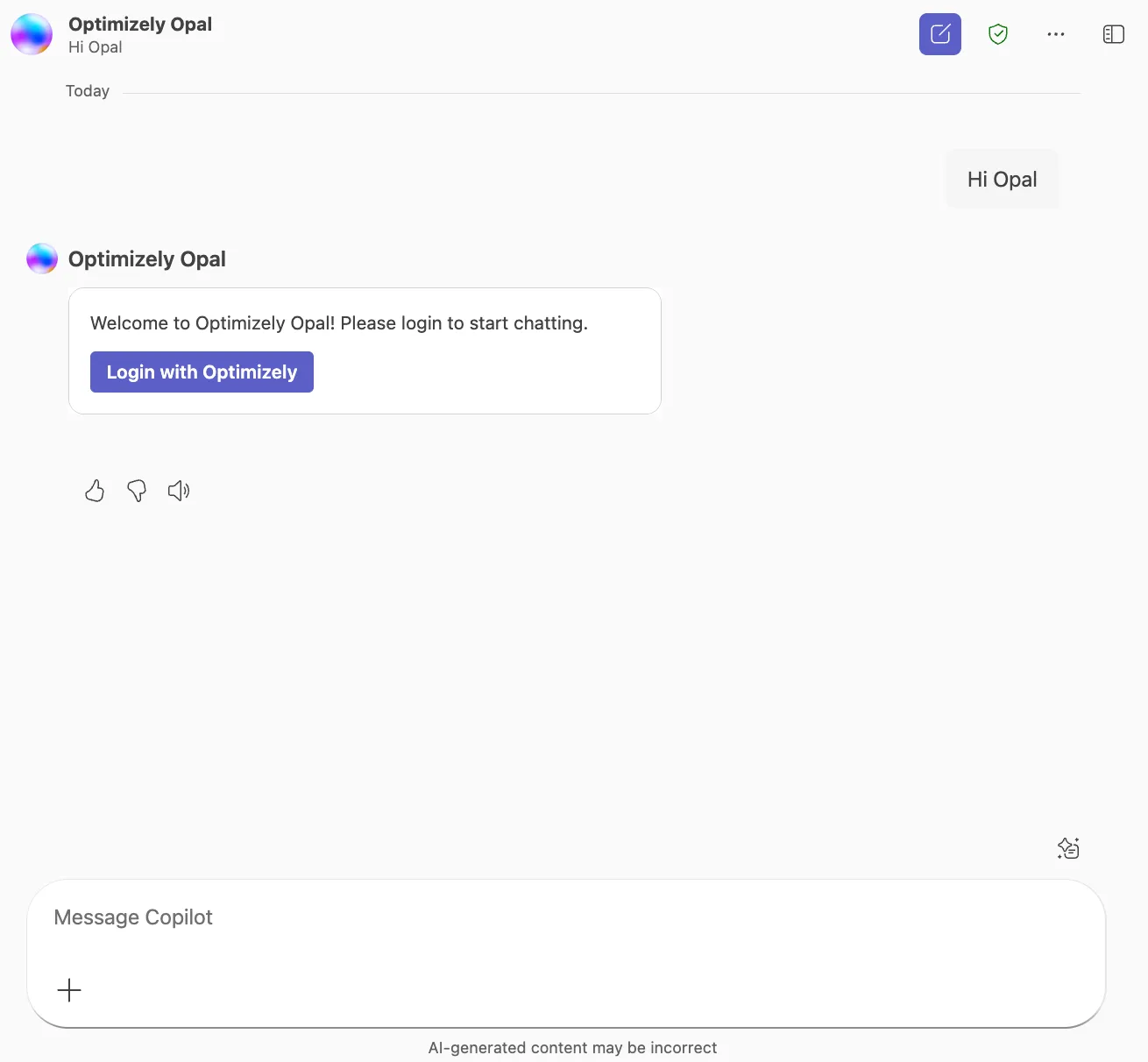
- Click Login with Optimizely.
- Enter your Opti ID credentials.
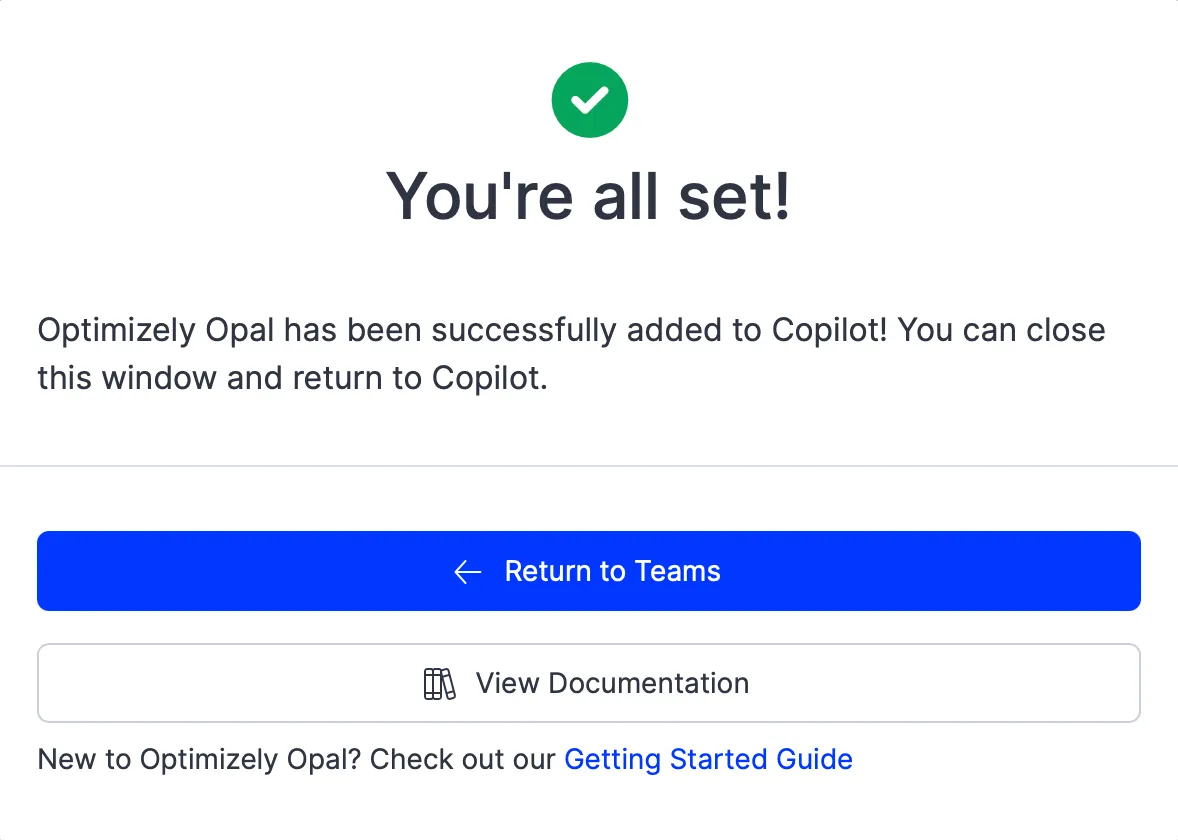
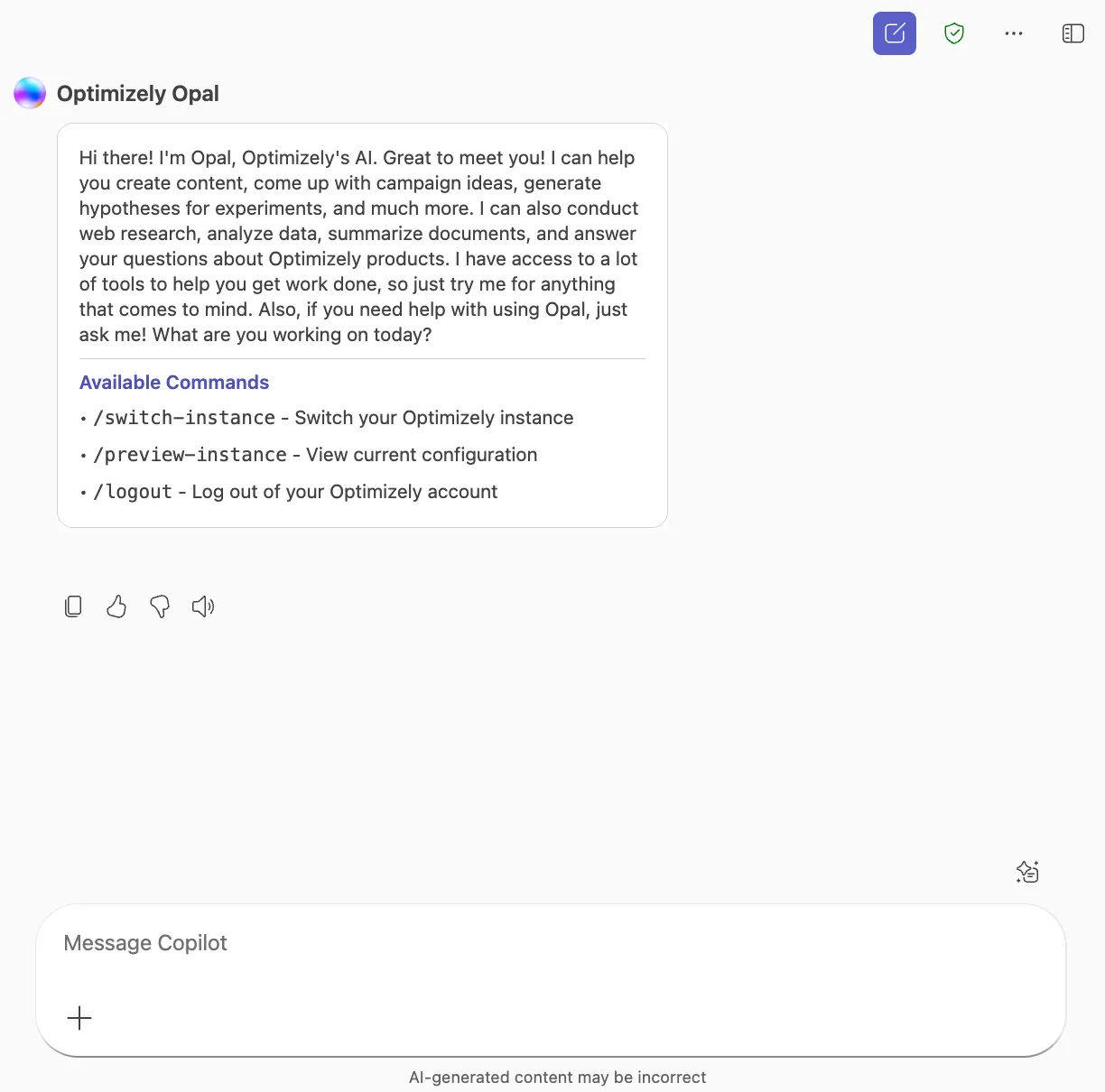
- Mark automatically responds in Copilot.
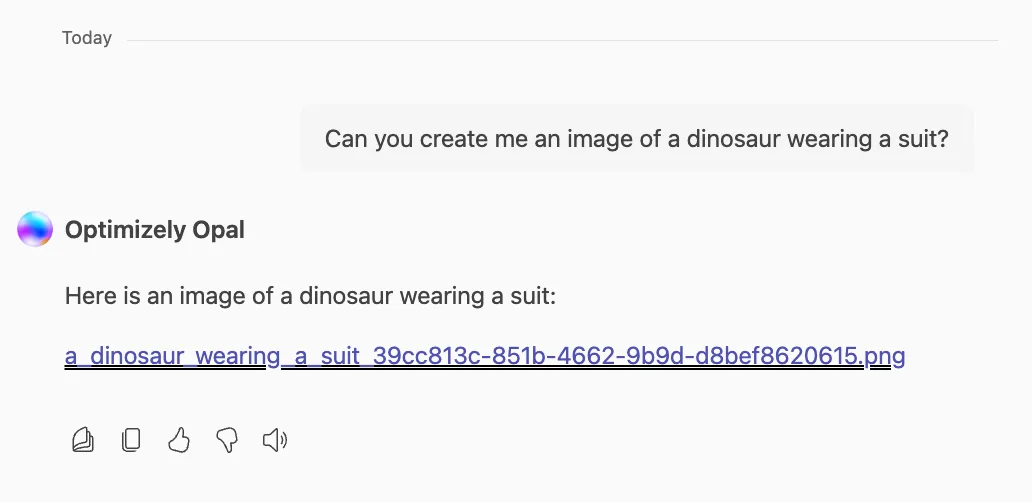
Copilot does not display inline images. Instead, when Mark's message includes an image, Copilot shows a descriptive text link to the image's URL. Click on the URL to see the image.
History
Your conversations with Mark are saved in Copilot and the Mark chat app, so you can refer back to past chats and continue them across platforms.
In Copilot
Note
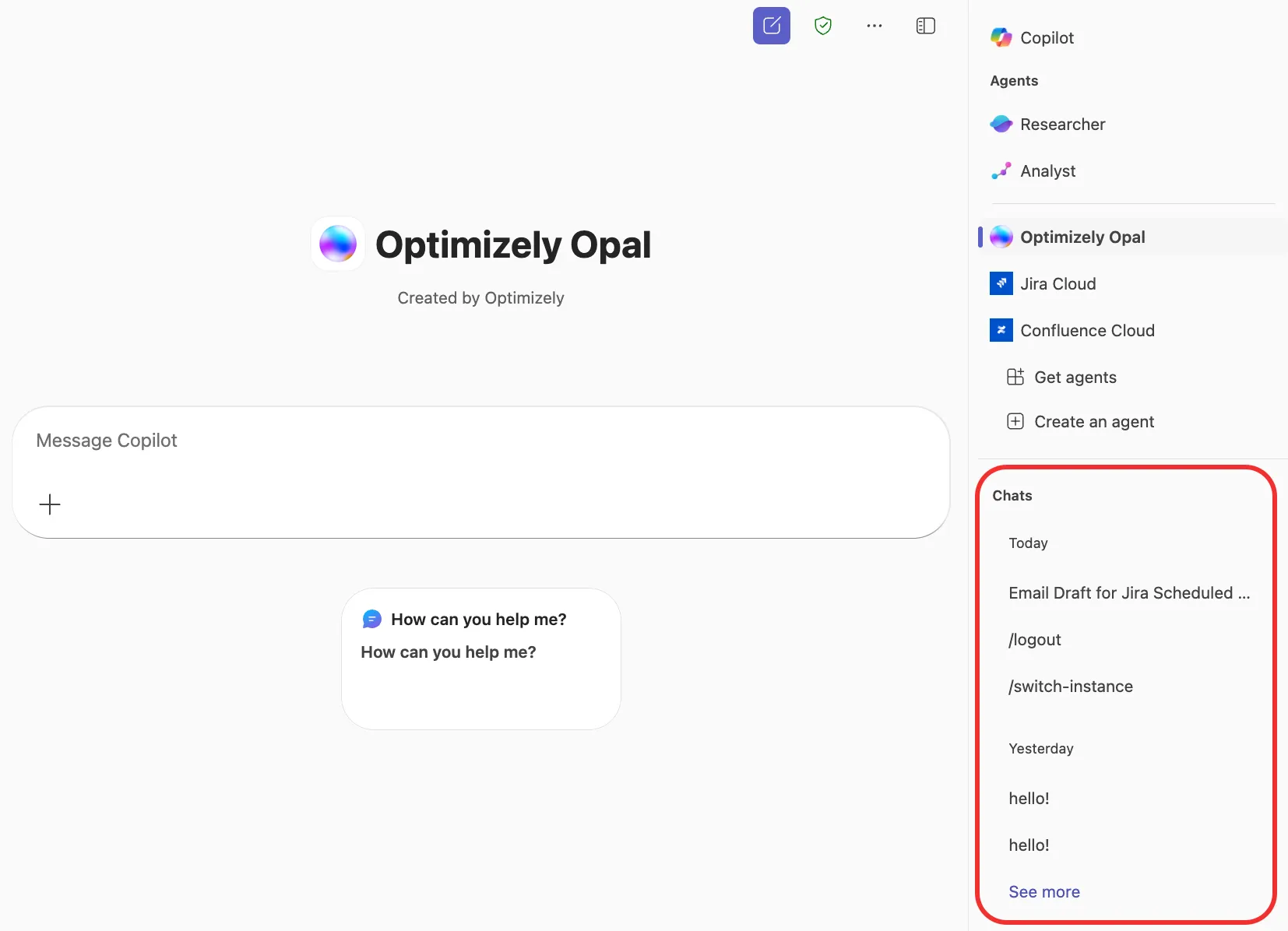
Chat history listed in Copilot includes chats from all your agents installed in Copilot, not just Mark.
Copilot keeps a list of your recent conversations so you can return to past work. In the section labeled Chats, review your recent conversations. Entries are grouped by day (for example, Today and Yesterday) and display the first line or command from each conversation.
Note
Chats started in Copilot and continued in Mark chat do not sync back to Copilot.
See Conversation History in Microsoft Copilot in the Microsoft documentation for information.
In the Mark UI
Note
Chat and thread names may not match between Copilot and Mark.
- Go to home.optimizely.com and select the Optimizely organization that Copilot is connected to.
- Click Opal > Chat.
Your recent chats display in the chat history panel. See the Mark chat UI documentation for information.
View your Mark instance
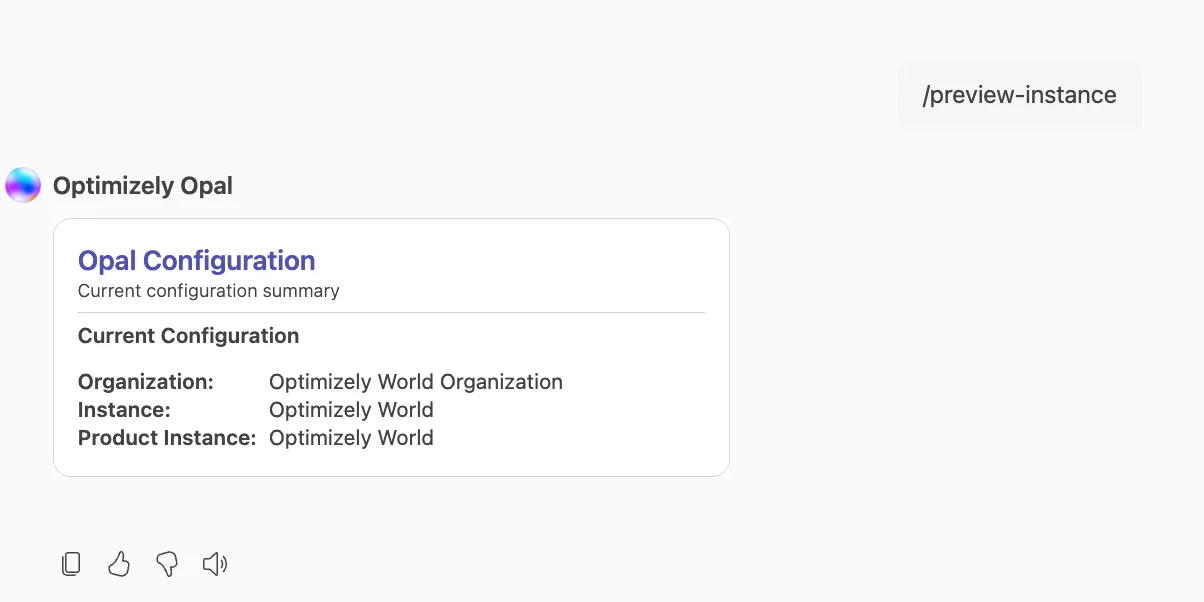
To view your current Mark instance, enter /preview-instance. Mark responds with your current Optimizely organization, Mark Instance, and Optimizely product instance.
Change your Mark instance
To update your Mark instance, complete the following steps:
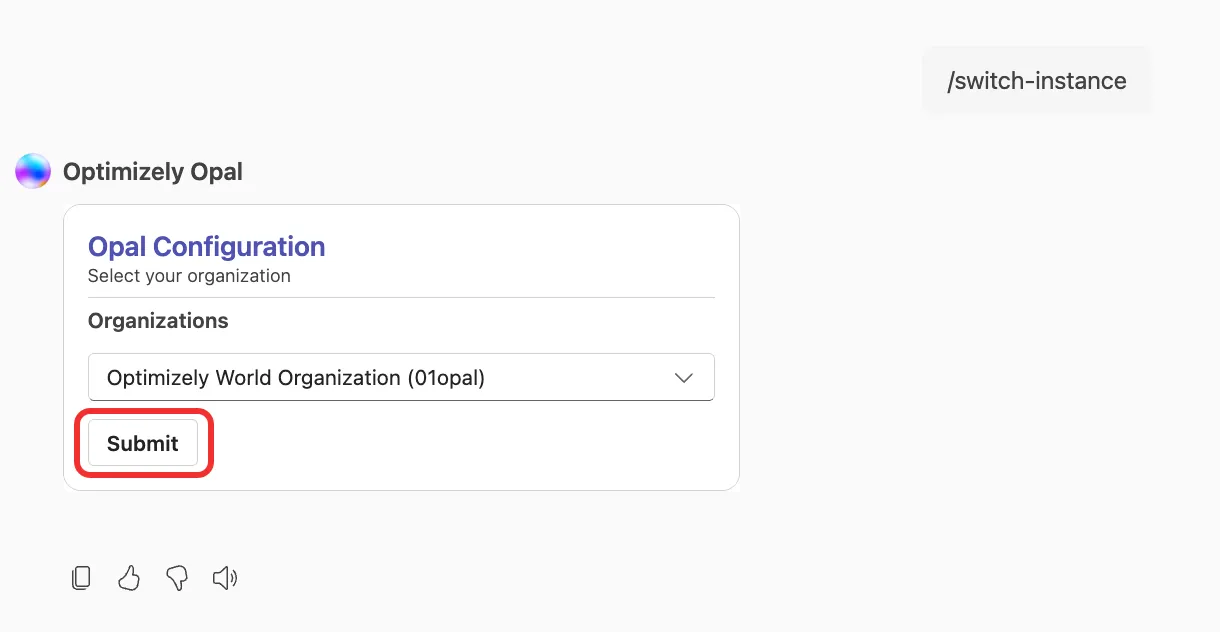
- Enter /switch-instance.
- Select your Optimizely organization from the Organizations drop-down menu.
- Click Submit.
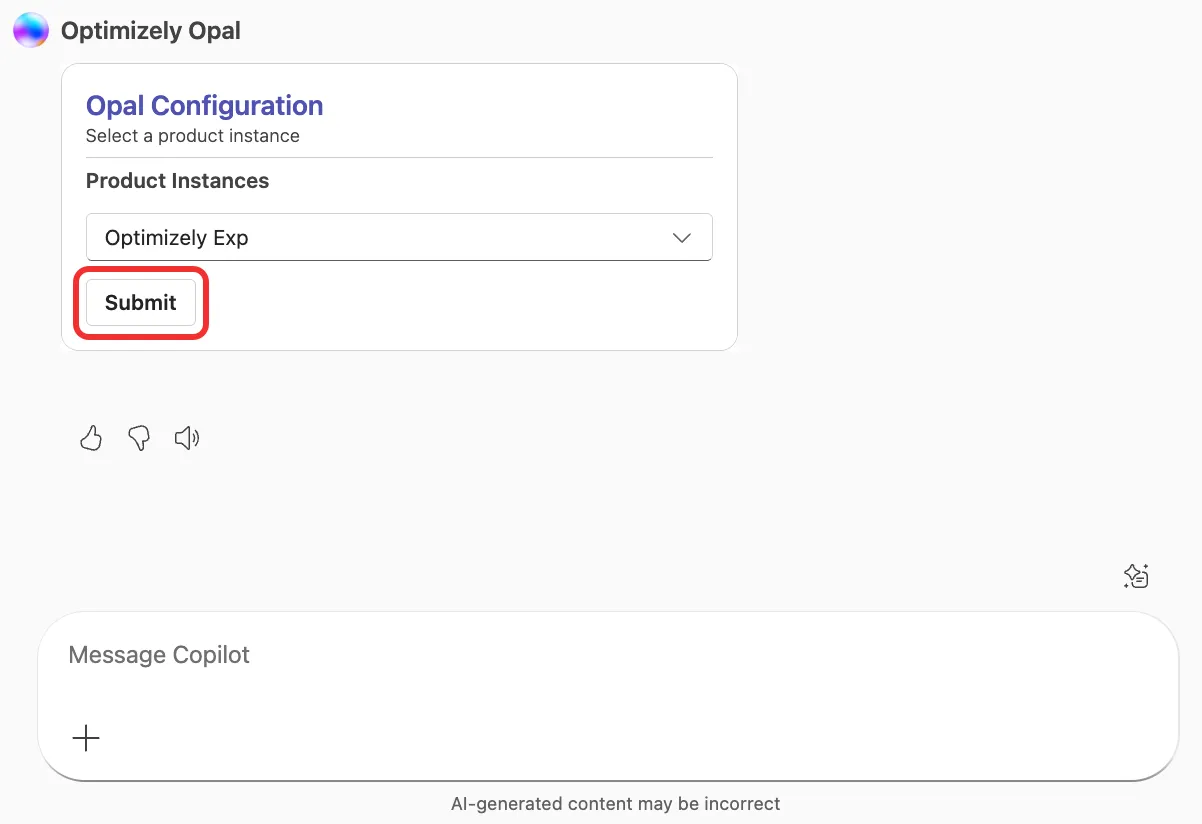
- Select your Optimizely instance from the Product Instances drop-down list.
- Click Submit.
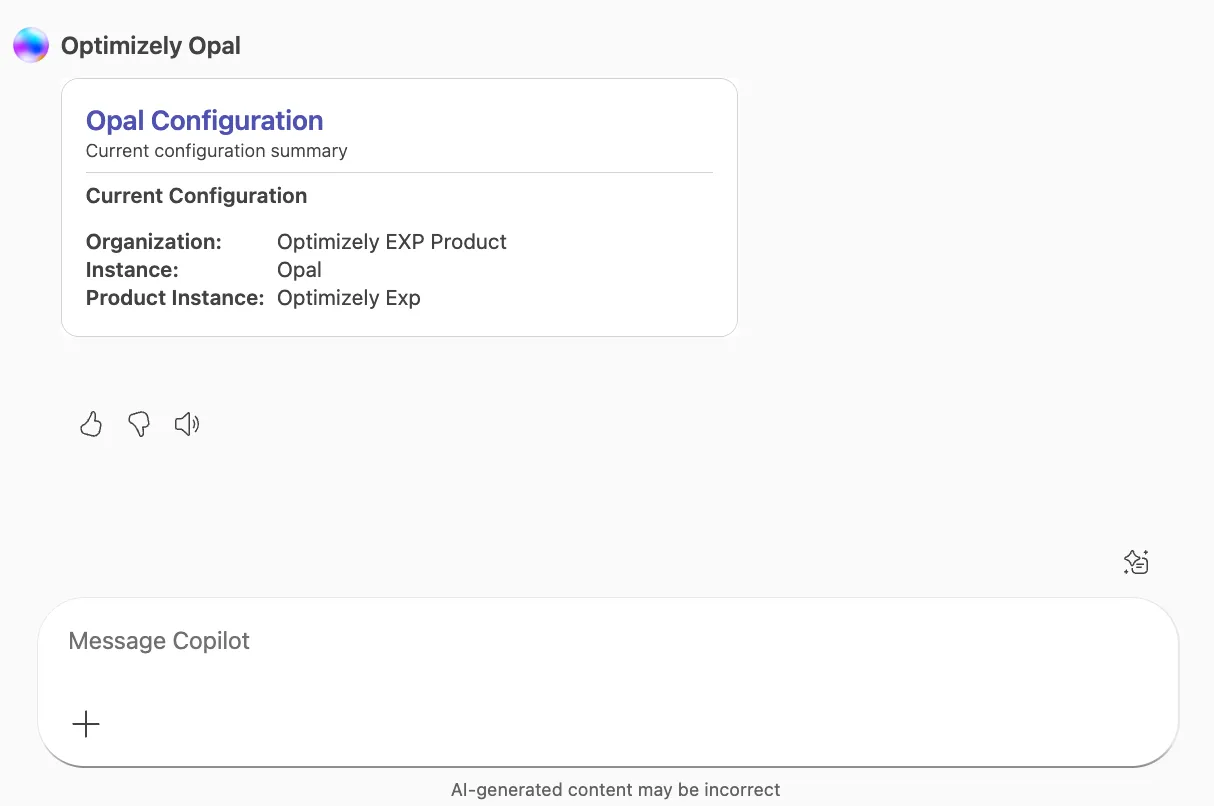
- Mark displays your current configuration. Verify that your Mark instance was updated correctly.
Log out of Mark in Copilot
To log out of your Mark instance, complete the following steps:
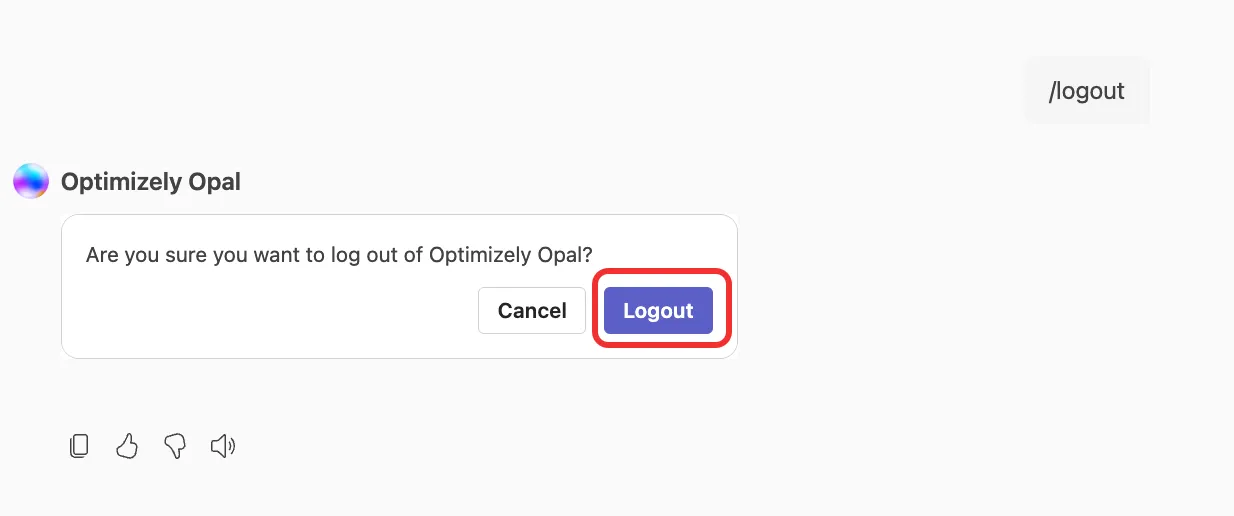
- Enter /logout.
- Click Logout.
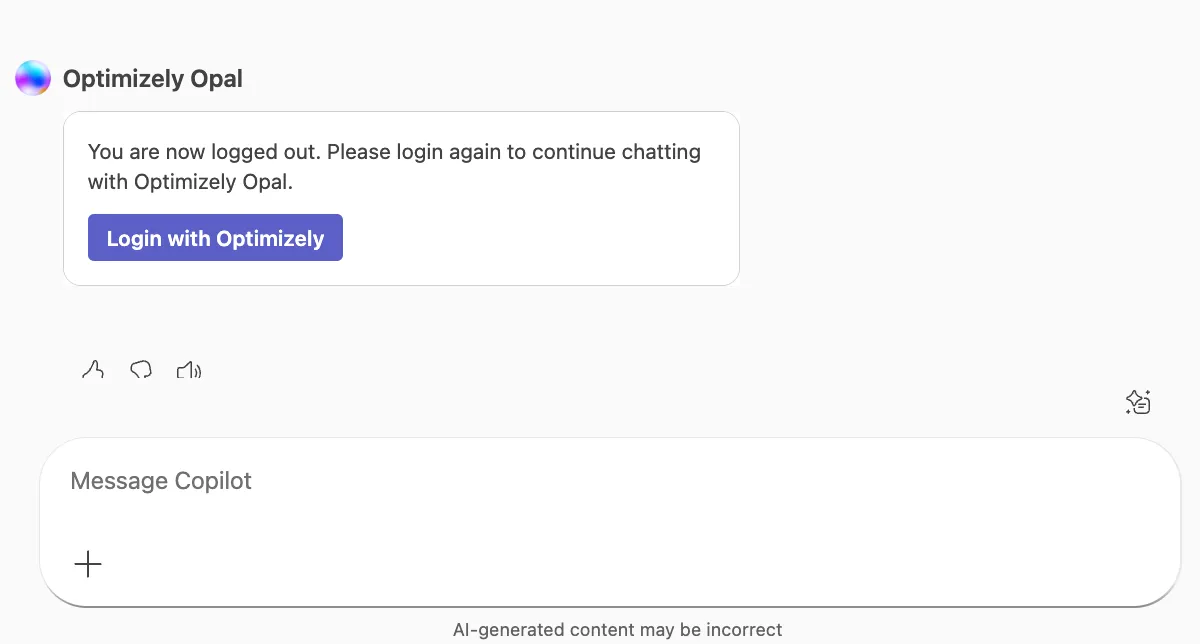
- Mark displays a confirmation. To log in, see step two in the Use Mark in Copilot section.
Uninstall Mark from Copilot
To remove Mark from Copilot, complete the following steps:
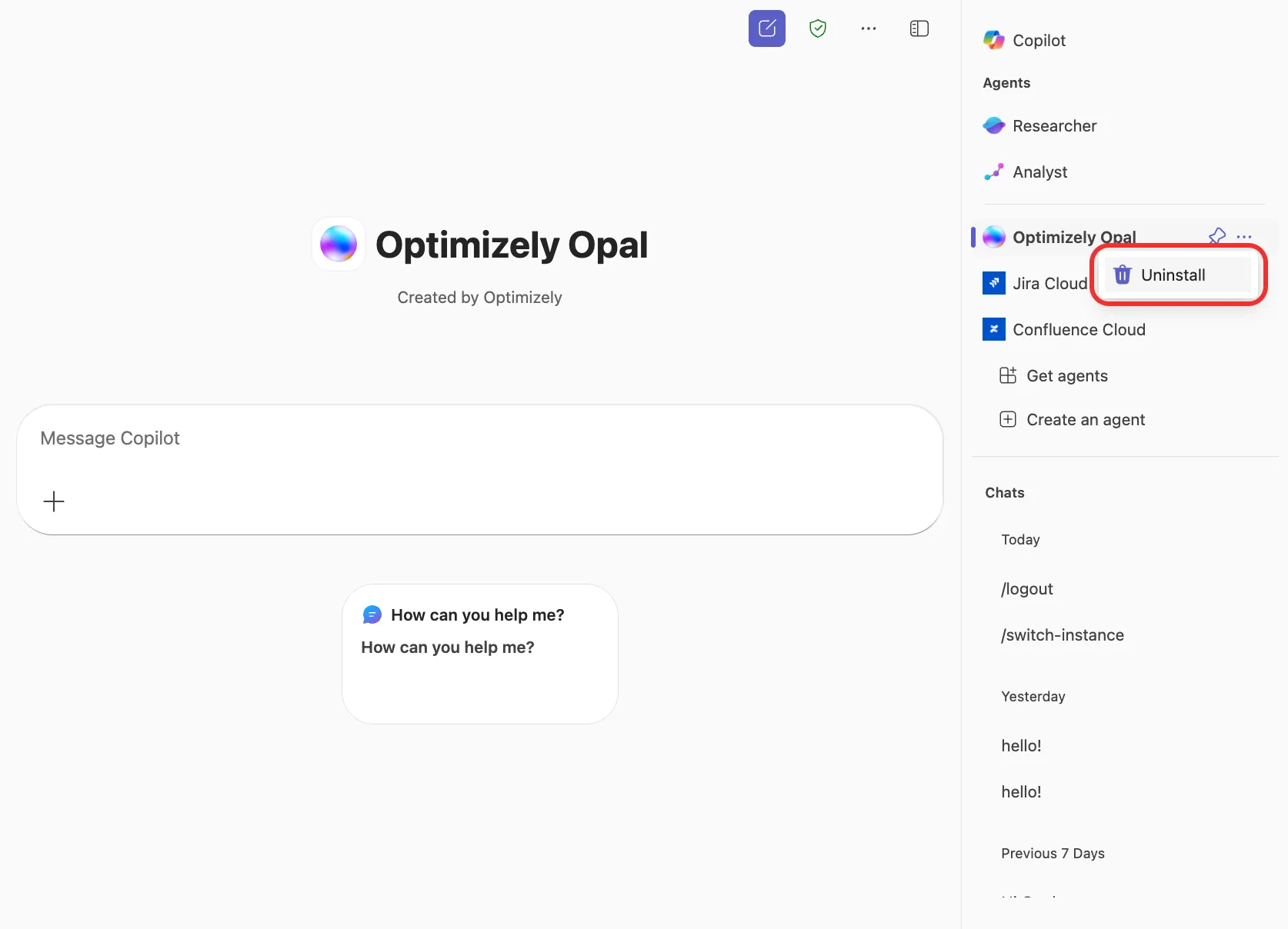
- On the Mark agent listing, click more options (...).
- Click Uninstall.
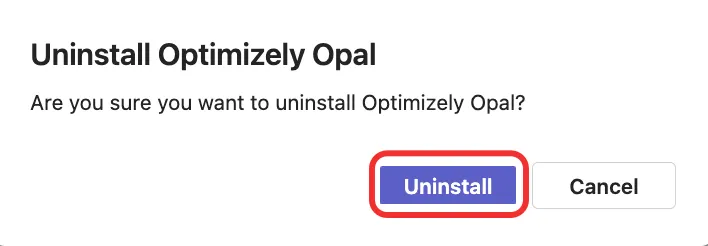
- Click Uninstall on the confirmation page.
Note
If you use Opti ID, administrators can turn off generative AI in the Opti ID Admin Center. See Turn generative AI off across Optimizely applications.