Personalize Opal
Use the Personalize Opal pinned chat to connect your tools, build a skill, and run it on your own data. It guides your first session in Opal, so you reach a useful result fast instead of facing an empty chat. Personalize Opal stays pinned to the top of your chat list, and you cannot delete it. Return anytime to continue where you left off or to learn what else Opal can do as features are added.
What Personalize Opal helps you do
When you open Opal for the first time, you land in conversation with Personalize Opal. It guides you through one focused path:
- Quick intro – Tell Opal your marketing role and the apps you work in.
- Add your connectors – Connect Microsoft 365 or Google Workspace so Opal works with your real data.
- Build a skill together – Turn a task you often repeat into a reusable skill, shaped by a few questions.
- Watch your skill run – See your skill run on your real data before you keep or adjust it.
Start your first session
Personalize Opal is pinned at the top of the Opal Chat list.
- In Opal, click Opal Chat.
- Click Personalize Opal under Pinned.
- Review the welcome overview. It lists the four parts of the session and the approximate time each one takes.
- Click Let's get started!
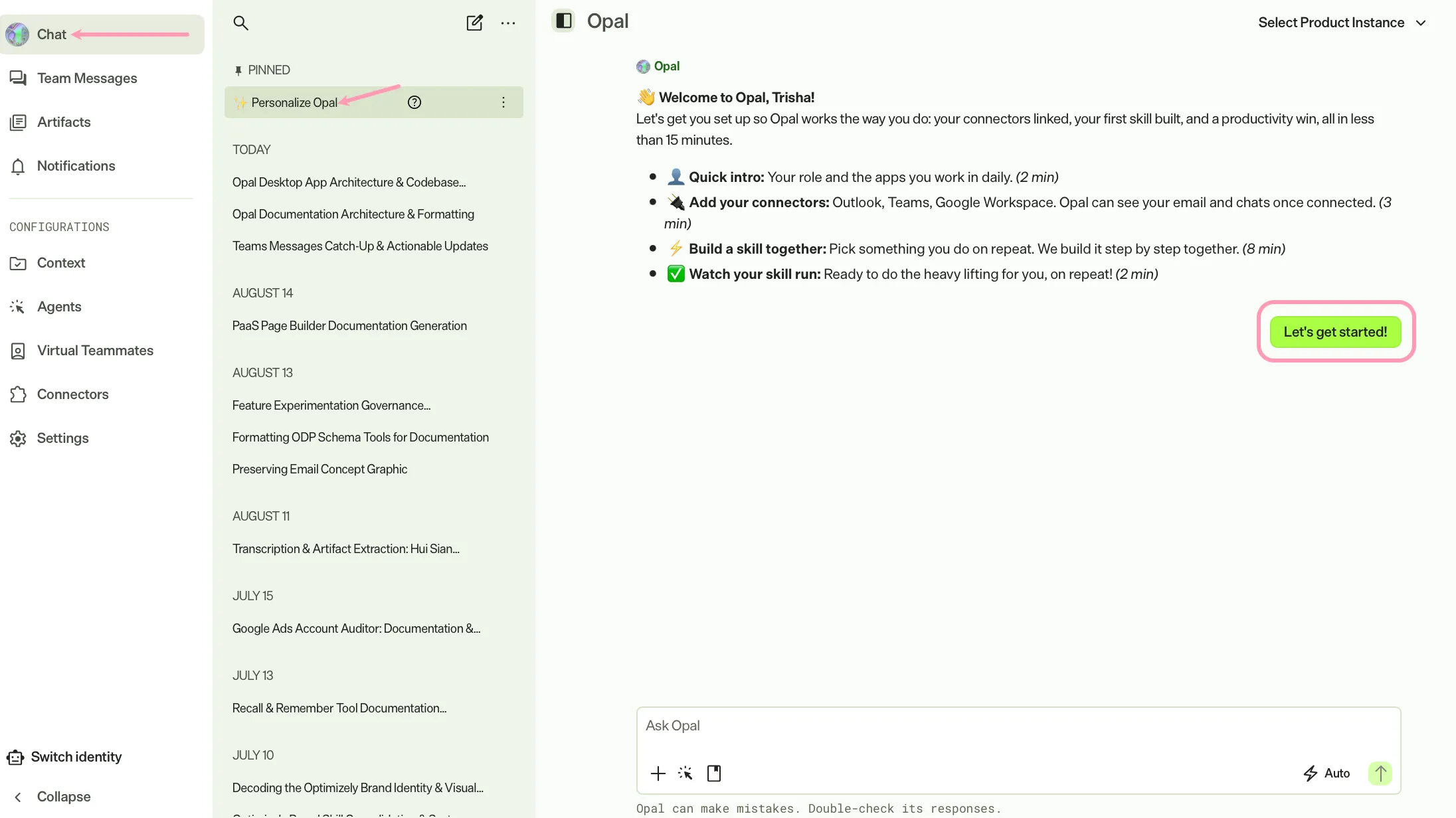
Personalize Opal moves one step at a time. Each step gives you a button or a question, so you know what to do next.
Share your role and tools
First, Personalize Opal asks for your marketing role and the apps you work in. It saves your answers, so the rest of the session and your future visits fit how you work.
Connect your tools
Connect Microsoft 365 (Outlook and Teams) or Google Workspace. Connecting first means the skill you build next works with your real content and channels rather than a generic example.
Build one skill together
Personalize Opal helps you turn a task you repeat into a reusable skill. A skill is a saved set of instructions Opal runs for you on demand. See Skills overview for information.
- Choose one of the three task ideas suited to your connectors, or describe your own.
- Answer two or three short questions that shape how the skill works.
- Choose how you want the output to look.
Personalize Opal then displays the finished skill so you can confirm it before it runs.
Save and run your skill
Opal saves your skill as a personal skill, then runs it on your real data. A personal skill is yours alone and shapes how Opal works for you. After you see the result, Personalize Opal asks whether you want to keep the skill as is or adjust it.
Personalize Opal recaps the steps you just followed so you can repeat them on your own.
Return visits and Discovery Mode
Because Personalize Opal stays pinned in your chats, you can reopen it whenever you want.
- If you have not finished your first session, Personalize Opal picks up where you left off.
- If you have finished onboarding, Personalize Opal enters Discovery Mode. Each visit introduces another Opal capability, such as getting agent suggestions, working in a canvas, or managing what Opal remembers about you. Opal tracks what it has shown you, so each visit moves on rather than repeating.
As Opal adds capabilities, Discovery Mode includes them, so the pinned chat keeps teaching you over time.
If you come back with a task already in mind, describe it and Personalize Opal helps you with it directly.
Personalize Opal saves every skill you build. To run a skill again, type its shortcut (for example, /skill-name) in any Opal chat.
Note
If you use Opti ID, administrators can turn off generative AI in the Opti ID Admin Center. See Turn generative AI off across Optimizely applicationsTurn generative AI off across Optimizely applications.