Get started with Optimizely Mark for users
Mark (Optimizely Agent Platform) is an agent orchestration platform that helps you work smarter across Optimizely One. Before you access Mark, an administrator must add you as a user and set your permissions. See Get started with Mark for administrators
Access the Mark app
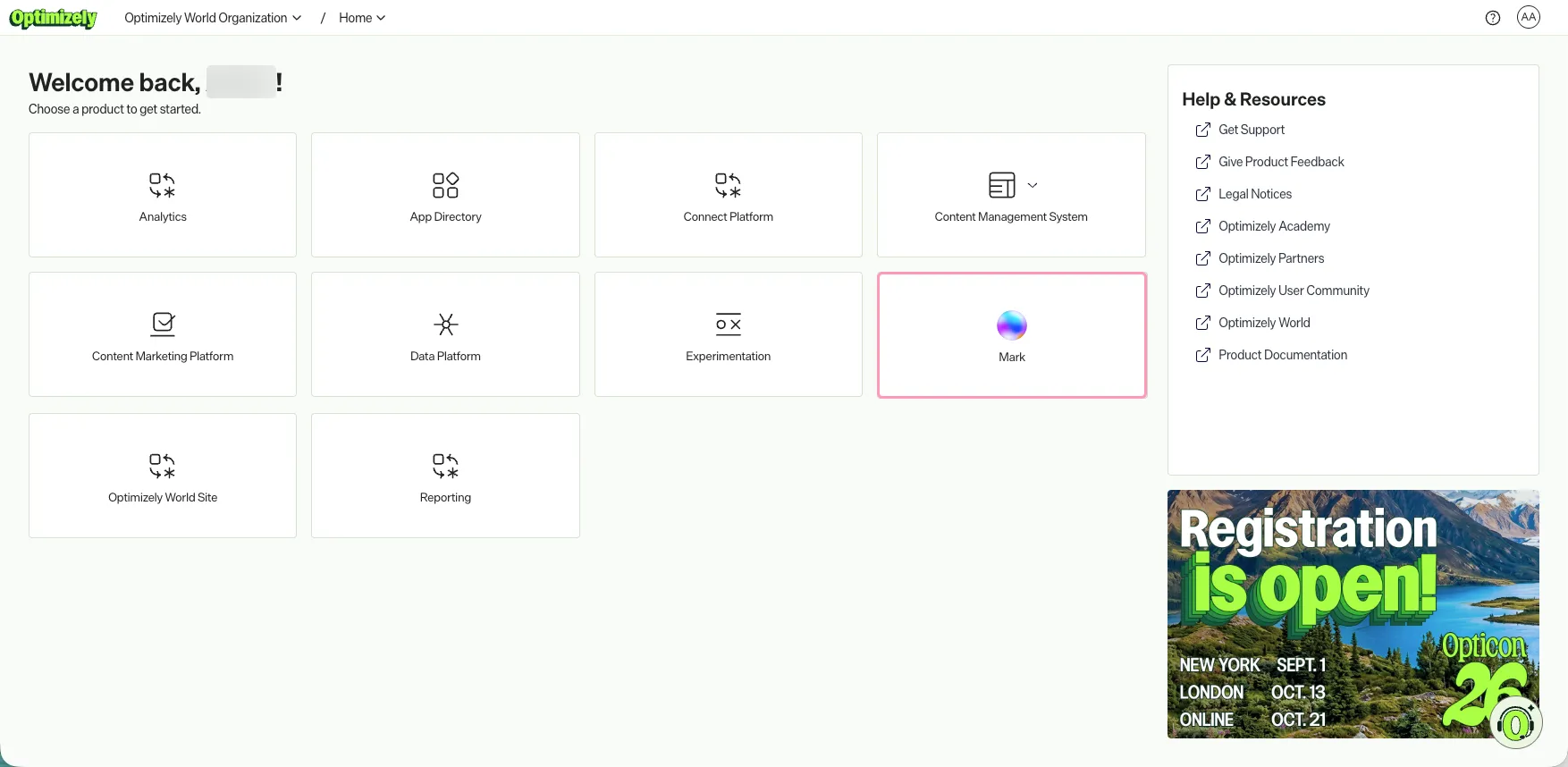
The Mark app is Mark's configuration dashboard, accessible through the product switcher in the global navigation.
- Log in to Optimizely.
- Select your organization.
- Click Mark.
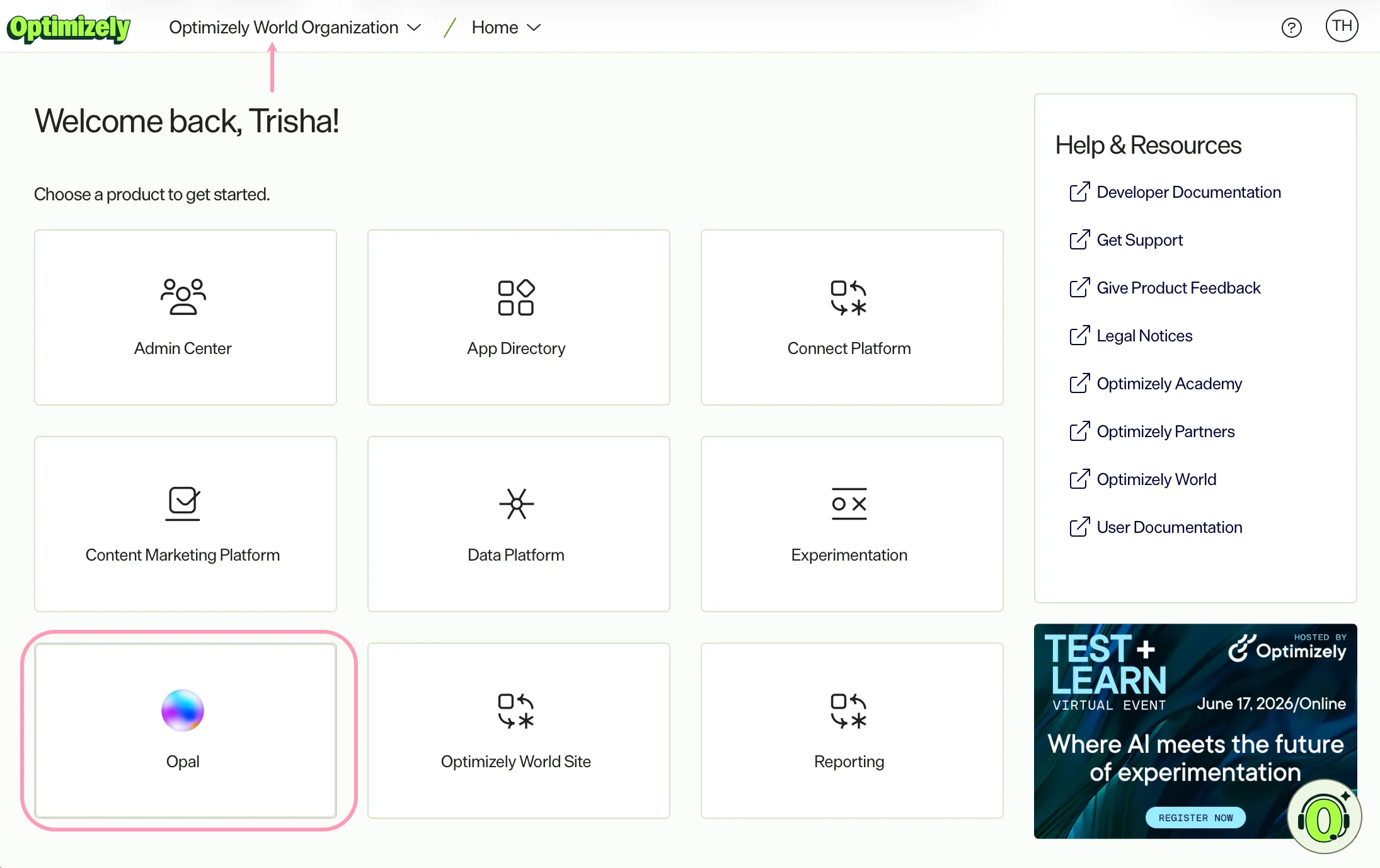
Mark app UI
The Mark app provides a centralized interface where you can access Mark's capabilities in one place. The Mark app UI supports everything you need to configure, customize, and use Mark effectively. Each page helps you focus on outcomes while Mark handles the technical details behind the scenes.
Start a conversation in Mark chat
Mark chat is the primary way you interact with Mark. Use it to ask questions, request content, analyze data, and complete tasks across your connected Optimizely products, all in plain language, without needing to know the underlying systems.
Personalize Mark
Use the Personalize Mark pinned chat to guide your first session in Mark, so you reach a useful result fast instead of facing an empty chat. Personalize Mark stays pinned to the top of your chat list, and you cannot delete it. Return anytime to continue where you left off or to learn what else Mark can do as features are added. See Personalize Mark.
Start a new chat
To create a new Mark chat, click New Chat. Enter anything you want Mark to help you with. Mark automatically picks up your organization's information so its output stays on task. See Access and explore Mark chat.
The follow are some examples of what you can ask Mark:
- Summarize the results of my latest experiment.
- Draft a subject line for a promotional email about our spring sale.
- What is the difference between a specialized agent and a workflow agent?
- Generate three variation ideas for our homepage hero banner.
Mark responds in real time and maintains your conversation history within each chat, so you can follow up, ask for changes, or pick up where you left off.
What Mark can help you with
The tasks available to you depend on which Optimizely products your administrator has connected to Mark. Common uses include the following:
- Generating and refining content such as emails, campaign briefs, and social posts.
- Summarizing experiment results and getting test ideas.
- Translating content into other languages.
- Answering questions about Optimizely features and workflow.
For a full list of Mark features available in each product, see Mark and AI features.
Appearance
Go to Settings > Appearance to configure the Font Size and Theme in Mark. Adjust these settings to improve readability or match your visual preferences. Changes apply to your Mark instance only and do not affect other users in your organization.
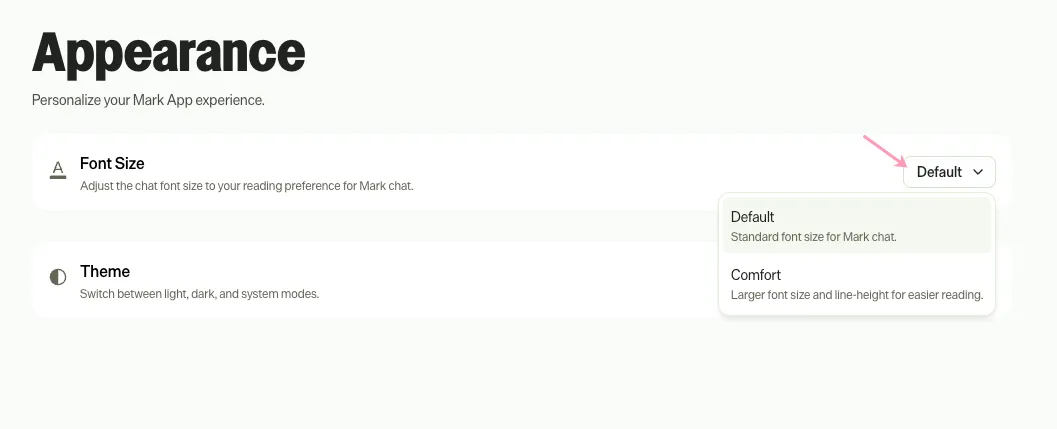
Adjust the font size
- Click the Font Size drop-down list.
- Select a font size.
- Default – Standard font size for Mark chat.
- Comfort – Larger font size and line height for easier reading.
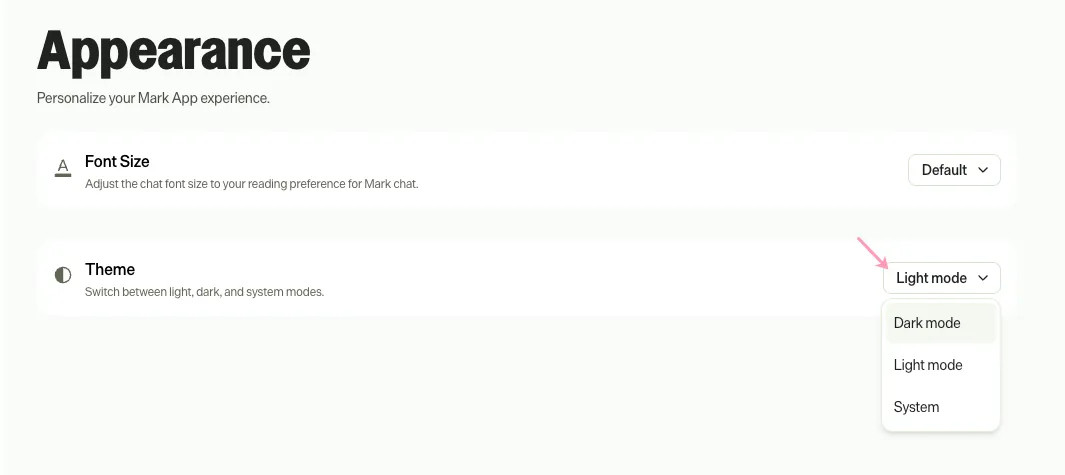
Adjust the theme
- Click the Theme drop-down list.
- Select a theme.
- Light mode – Light background with dark text.
- Dark mode – Dark background with light text.
Notifications
Go to Settings > Notifications to configure your preferences. For a description of each setting, see Notification settings.
Note
If you use Opti ID, administrators can turn off generative AI in the Opti ID Admin Center. See Turn generative AI off across Optimizely applications.