Notification settings
Notification preferences let you control which notifications you receive and how they are delivered in Mark (Optimizely Agent Platform). Each user manages their own notification preferences independently.
Access notification settings
The Mark app is Mark's configuration dashboard, accessible through the product switcher in the global navigation.
- Log in to Optimizely.
- Select your organization.
- Click Mark.
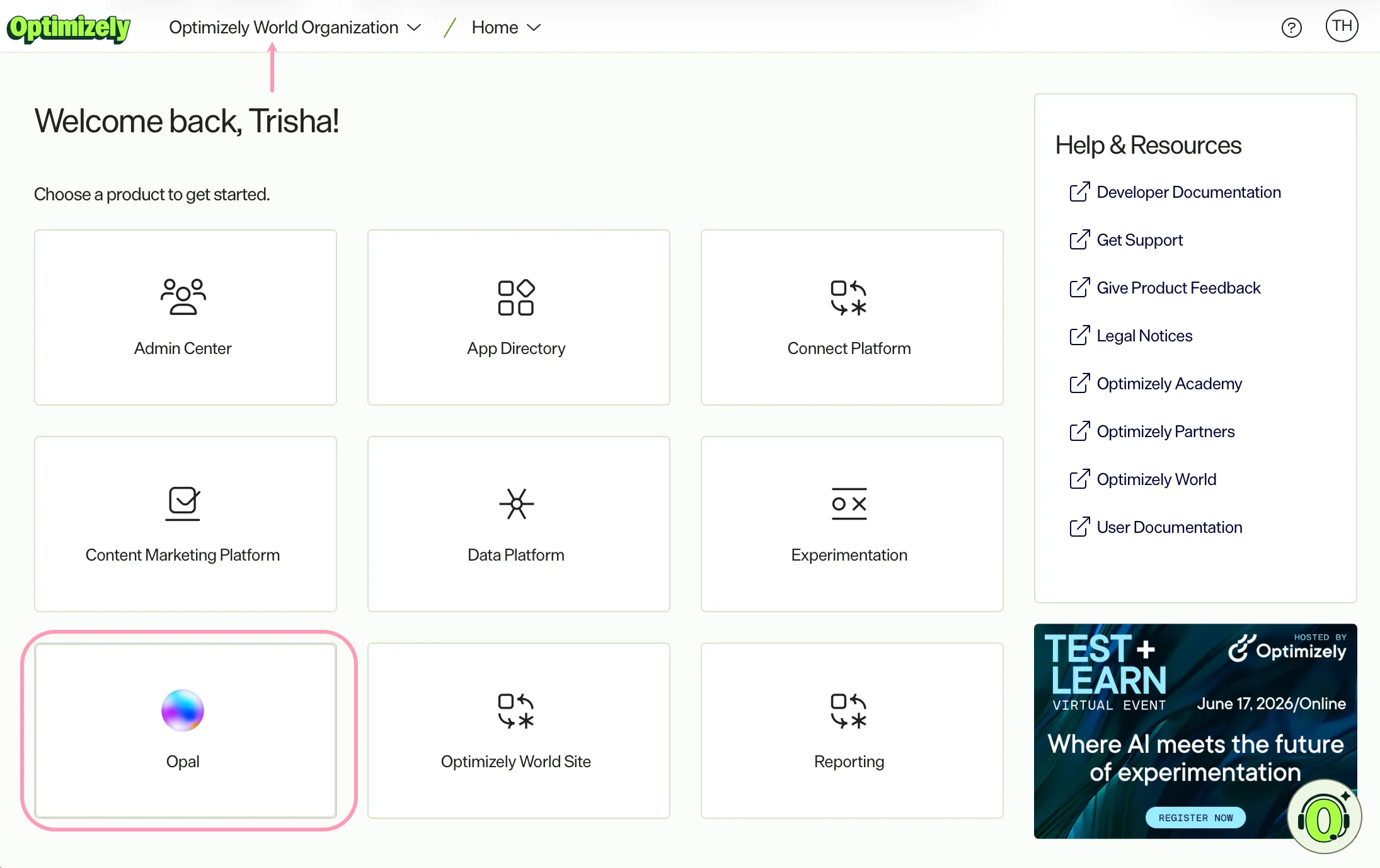
- Click Settings > Notifications.
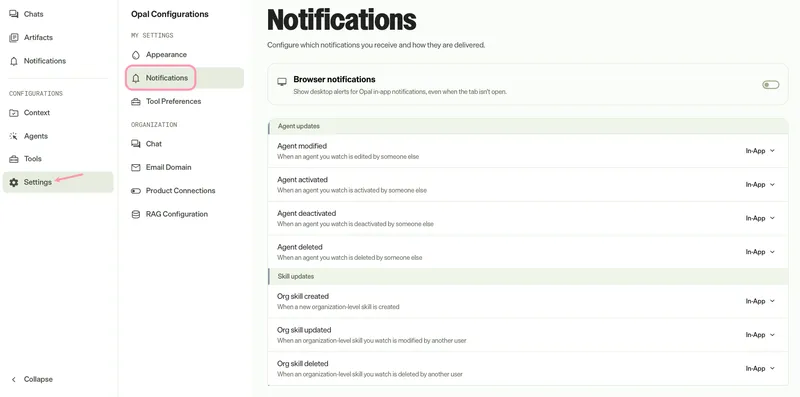
Enable browser notifications
Turn on Browser notifications to receive desktop alerts when Mark sends you an in-app notification. Desktop alerts display even when the Mark tab is in the background or closed. You do not need to keep Mark open to know when an agent finishes or an update arrives.
Browser notifications extend the In-App delivery channel. When you have In-App delivery enabled for a notification type, the alert also displays on your desktop.
To enable browser notifications:
- Go to Settings > Notifications.
- Toggle Browser notifications on.
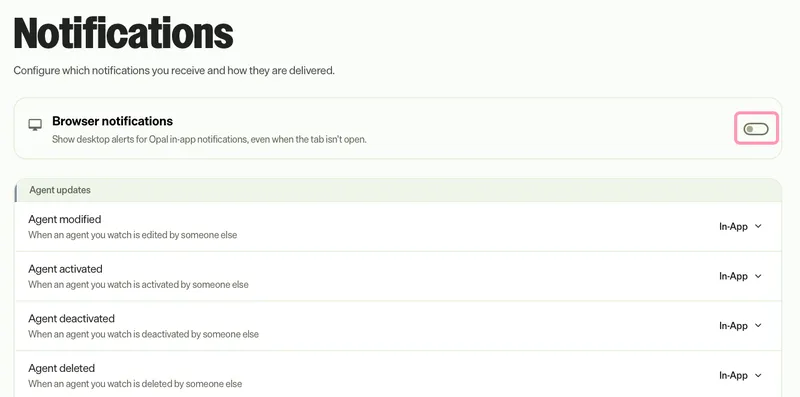
- Allow notifications from mark.optimizely.com when your browser prompts for permission.
After you grant permission, you receive a desktop alert for every In-App notification. To stop desktop alerts, toggle Browser notifications off, or revoke the site permission in your browser settings.
Desktop alerts require your browser to be running. Behavior when the Mark tab is closed varies by browser and operating system.
Configure delivery channels per notification type
Mark organizes notifications by category. Each notification type displays the delivery channels enabled for it (for example, In-App or Email). If no channels are enabled, the row displays No delivery channels.
To change the delivery channels for a notification, complete the following:
- Click the delivery channel for the notification you want to change.
- Toggle individual channels on or off:
- In-App – Receive notifications in the notifications tray (the panel in the global header) and Notification Center (the full-page view).
- Email – Receive notifications by email.
- Click Select all to enable or disable all channels.
- Click Done to save your changes.
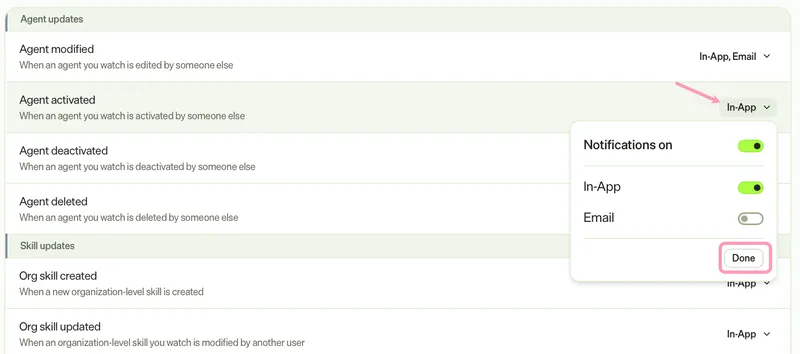
Changes save immediately. You do not need to refresh the page.
Available notification types
The notification types on the settings page depend on your role and permissions. If you do not have the required permission, the category does not display in your settings. See Notification types and priorities for a list of all types available.
Note
Mark enables all notification types for In-App delivery by default. Email delivery is off by default, except for ownership transfer notifications. Enable email delivery for any notification type from the channel editor.
Ownership transfer notifications
The Agent updates category groups all ownership transfer notifications into one Ownership transfer row. Changes to this row apply to every ownership transfer notification. The row displays only when ownership transfer is available in your instance.
By default, expired and withdrawn requests arrive in-app only. All other ownership transfer notifications arrive in-app and by email. See Agent ownership and ownership transfer.
How preferences affect delivery
The following behaviors apply when you change notification preferences.
- If you disable all channels for a notification type, you do not receive that notification.
- Preference changes take effect immediately and do not affect previously delivered notifications.
Related articles
- Notifications overview – Learn how notifications work in Mark.
- Notifications tray – Access and interact with notifications from the global header.
- Notification Center – Browse, filter, and manage all notifications.
- Watch agents – Subscribe to an agent and manage watchers.
Note
If you use Opti ID, administrators can turn off generative AI in the Opti ID Admin Center. See Turn generative AI off across Optimizely applications.