Enable Opal for non-Opti ID users
3 min
Customers who are not on Opti ID can try out Optimizely Opal by having their technical contacttechnical contact assign access to Opal. This lets them evaluate Opal before migrating to Opti ID. This method adds the user to that organization's Opti ID as the home organization.
Opti ID is the single sign-on (SSO) solution for Optimizely products. See Overview of Opti IDOverview of Opti ID for information.
Warning
If you use Opal with a product, that product must migrate to Opti ID.
Prerequisites
- You must have a Super Admin roleSuper Admin role in your organization in the Admin Center. This role is typically assigned to the technical contact. This admin can assign Opal to users within their organization.
Add Opal access to a local user
- Go to Admin Center > Users.
- Find the user you want to grant Opal access to. If the user does not have an account yet, click Invite User and fill out the form with the Email, First Name, and Last Name for the user.
- Click Add Product Access and enter the following:
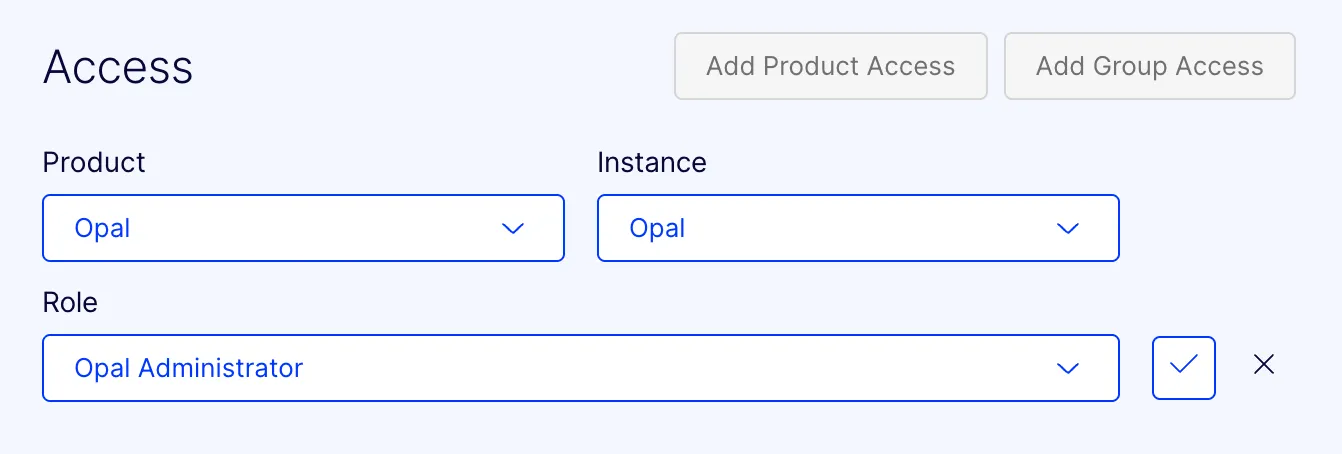
- Product – Select Opal. The Instance field auto-populates with Opal.
- Role – Select the appropriate Opal role. See Optimizely Opal rolesOptimizely Opal roles for information.
- Click Check.
- (Optional) Click Send to send a welcome email for new users.
Note
If you use Opti ID, administrators can turn off generative AI in the Opti ID Admin Center. See Turn generative AI off across Optimizely applicationsTurn generative AI off across Optimizely applications.