Connectors tab overview
The Connectors tab lets you authorize your personal third-party accounts with Mark (Optimizely Agent Platform). Mark administrators control which connectors and remote Model Context Protocols (MCPs) are available to the organization. Individual users then authenticate their personal accounts. Mark acts on their behalf using their permissions, data access, and identity.
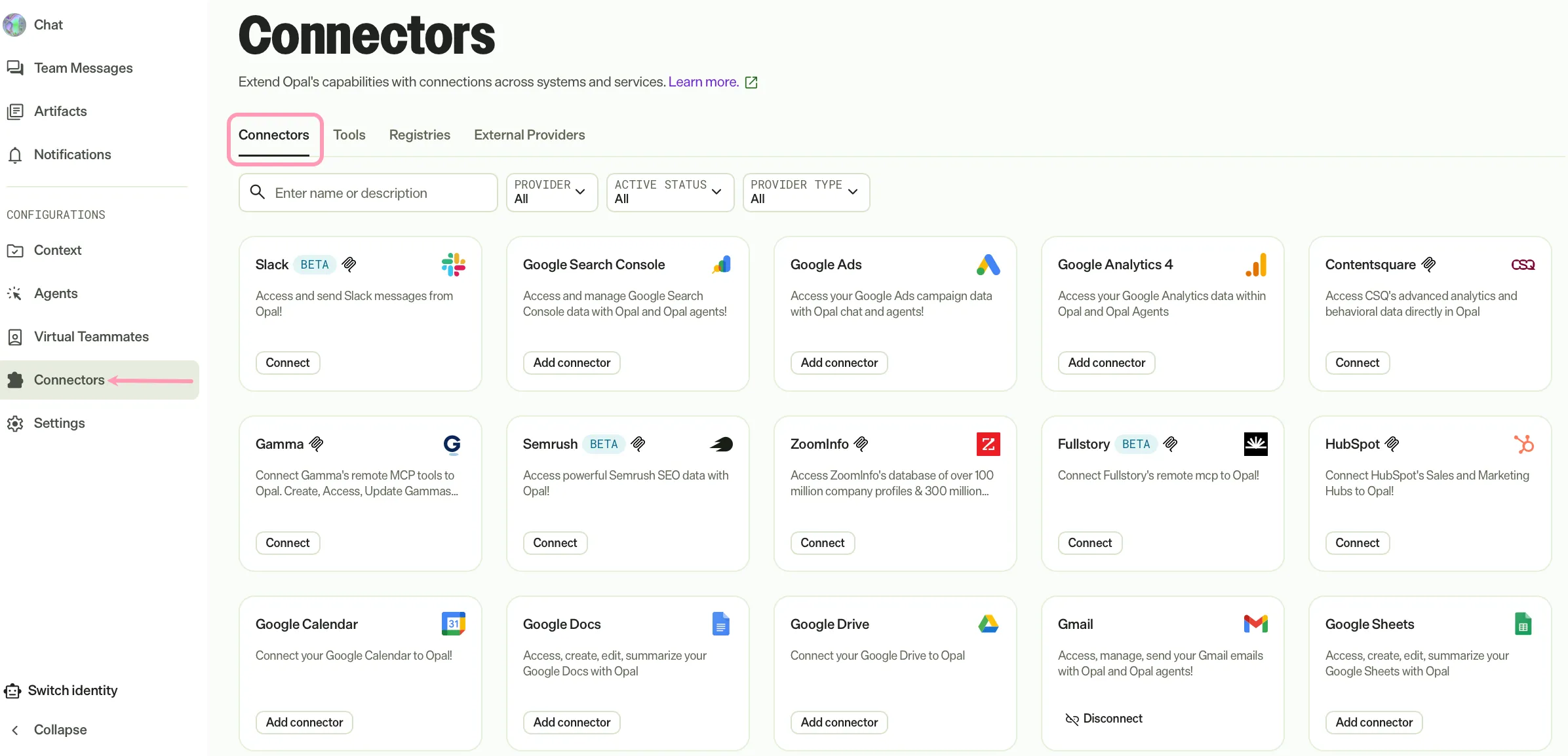
To access the Connectors tab, click Connectors.
For Mark administrators
Mark administrators manage connector and remote MCP availability for the entire organization. The following connector types are available:
- Connector tools – Connectors that an administrator installs from a tile on the Connectors tab. See Connector tools.
- Remote MCPs – External servers that communicate with Mark through MCP. See Remote MCPs.
Both types display as tiles on the Connectors tab. After an administrator connects them, users can then connect to authenticate with the third-party provider.
Connector tools
Connector tools require configuration before users can authenticate with them. This is a one-time task per connector, and it applies to the whole organization.
To configure one, click Configure on its tile. If the connector is not installed yet, an Install modal displays first. After you install it, complete the Settings step, if the connector has one, and the Tools step. For the full procedure, see Configure a connector in the Connector tools overview.
After you configure it, the connector tile displays Connect on the Connectors tab for everyone in your organization to authenticate with their personal accounts.
To change a configuration later, click Configure on the tile again. Only administrators see this option.
As a Mark administrator, configure any of the following connectors for your organization:
- Microsoft 365 connector tools – Available when your administrator enables user-level authentication.
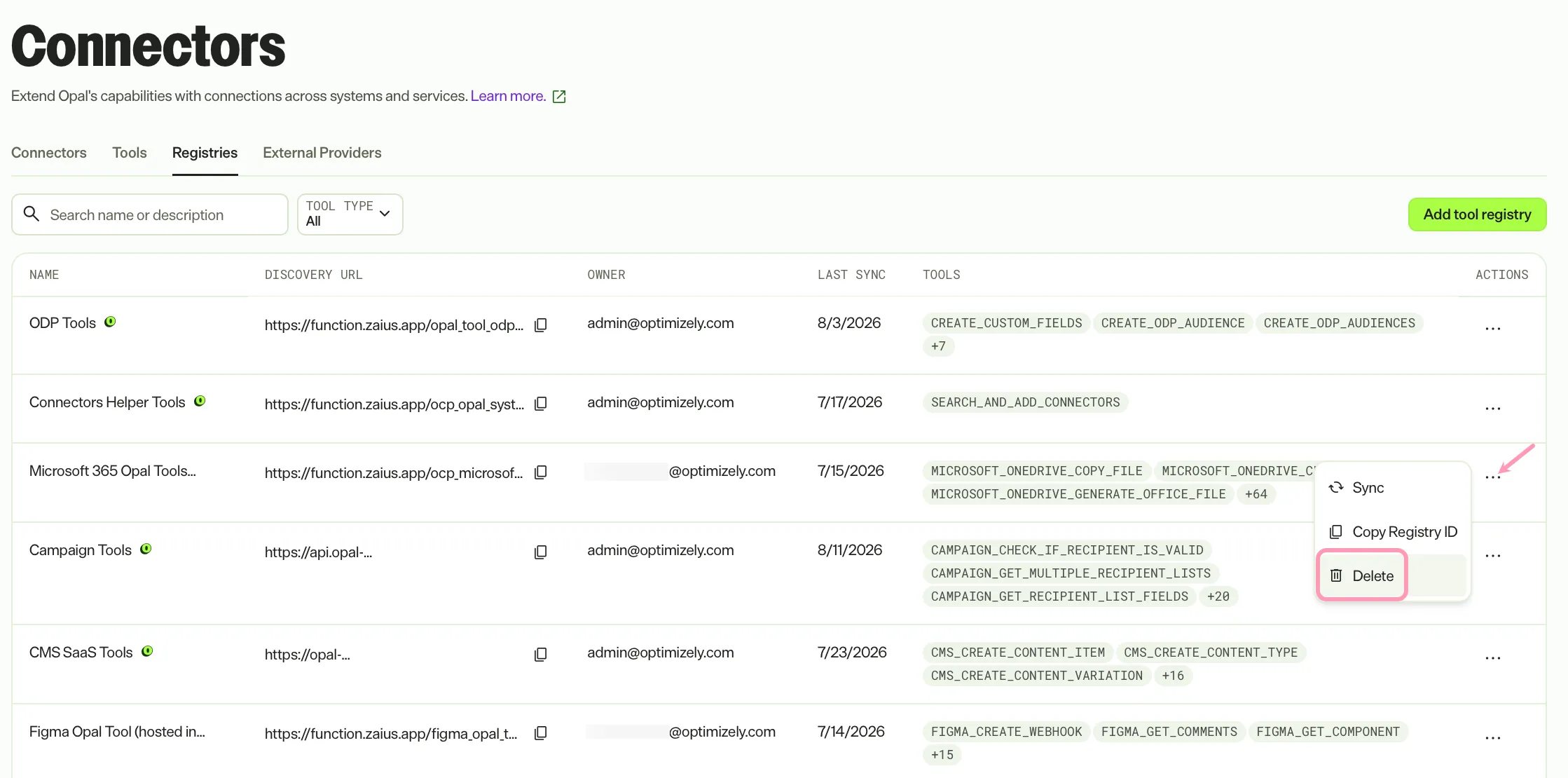
To remove a connector tool, see Delete a tool registry. Removing a connector tool disables it for the entire organization. Users who have already authenticated with the tool lose access immediately, and the connector tile no longer displays on the Connectors tab.
Remote MCPs
Remote MCPs extend Mark's capabilities by connecting to external MCP servers that Optimizely has approved. Mark administrators connect to the remote MCP and then users can authenticate to view their own information.
As a Mark administrator, connect any of the following remote MCPs to make them available to your organization:
See Add a remote MCP provider for instructions. Connecting a remote MCP server extends Mark with tools and data from an external system.
Requests from users
Users cannot configure connectors. When a user clicks Contact Admin on a tile that is not configured yet, Mark sends a request to the administrators in your organization. The request displays in your Notifications, where you can go to the tile and configure the connector.
Administrator visibility into user connections
Mark administrators cannot view which users in their organization have authenticated a connector. Individual connections are private to each user.
For Mark users
Use the Connectors tab to link your personal third-party accounts to Mark. This ensures Mark uses your identity and permissions when calling connector tools, rather than a shared account.
You can connect, open, disconnect, and reconnect any connector that an administrator has already configured. You cannot configure a connector yourself. If a tile displays Contact Admin, the connector is not configured yet. Click Contact Admin to send a request to your Mark administrators, who receive it in their Notifications.
Benefits of personal authentication
Authenticating your personal accounts provides the following advantages:
- Personal data access – Mark retrieves information from your calendar, files, or projects.
- Action attribution – Mark performs actions in other systems on your behalf.
- Granular security – Mark never shares your personal information with other users in your organization.
Prerequisites
Before connecting to a third-party tool, ensure you meet the following requirements:
- Have an active account with the third-party service.
- Have a Mark administrator configure the connector or add the remote MCP for your organization. If the tile displays Contact Admin, click it to request this.
- Allow pop-up windows in your browser.
Authenticate a connector
Authentication opens a pop-up window where you log in to the third-party service and grant Mark permission to access your account. This process uses OAuth, the standard authorization protocol for connecting to third-party services securely. The steps vary by connector.
After an administrator configures a connector, follow the steps for your connector to authenticate your personal account:
- Microsoft 365 connector tools – Available when your administrator enables user-level authentication.
Manage your connections
Manage your connections from the Connectors tab. Use the Active Status filter to display only connected items.
A connected tile displays Connected, along with the following actions:
- Open – View the connector's details, including its authentication method and the full list of its tools.
- Reconnect – Authenticate again if a session expires or if the third-party service requires a password update.
- Disconnect – Remove Mark's access to your personal account by revoking the stored authentication token. Disconnecting does not delete any data that Mark retrieved from the third-party service.
Administrators also see Configure on a connected tile, which reopens the configuration dialog for the whole organization.
To reconnect, click Connect.
Troubleshoot
If you encounter issues when authenticating or managing a connector, see the following common scenarios and resolutions.
Pop-up window does not display
Mark opens a pop-up window to complete the authentication flow. If the window does not display after you click Connect, your browser may be blocking pop-ups.
Resolution – Check your browser's address bar for a blocked pop-up notification and click Allow. Then click Connect again.
Authentication window closes
If the window closes before you finish logging in or granting permissions, the connection does not complete and the connector status remains unchanged.
Resolution – Click Connect again and complete the steps in the Authenticate a connector section without closing the pop-up window manually. Ensure you click Allow or Authorize on the permissions page before you close the window.
Status does not update to connected
After you complete the authentication steps, the connector status may not immediately display as Connected.
Resolution – Refresh the Connectors tab and check the status again. If the status still does not update, disconnect the connector and repeat the authentication steps.
Connection displays as expired or requires re-authentication
OAuth tokens expire after a period of inactivity, a password change, or a revoked permission. When this happens, Mark can no longer act on your behalf until you re-authenticate.
Resolution – Locate the affected connector on the Connectors tab and click Refresh. Complete the login and permissions steps again to restore the connection.
Connector not visible in the list
The Connectors tab displays connectors Optimizely has added. If a connector you expect to see is not listed, a Mark administrator may not have configured it yet.
Resolution – Find the connector's tile and click Contact Admin. Mark sends a request to your administrators, who receive it in their Notifications.
Connection displays an error after authentication
An error state after completing authentication typically indicates a permissions mismatch, an unsupported account type, or an issue on the third-party service's end.
Resolution – Disconnect the connector, then reconnect and ensure you grant all requested permissions during the authorization step. If the error persists, verify that your third-party account has the required access level. For connector-specific guidance, see Authenticate a connector.
Related topics
See the following documentation:
Note
If you use Opti ID, administrators can turn off generative AI in the Opti ID Admin Center. See Turn generative AI off across Optimizely applications.