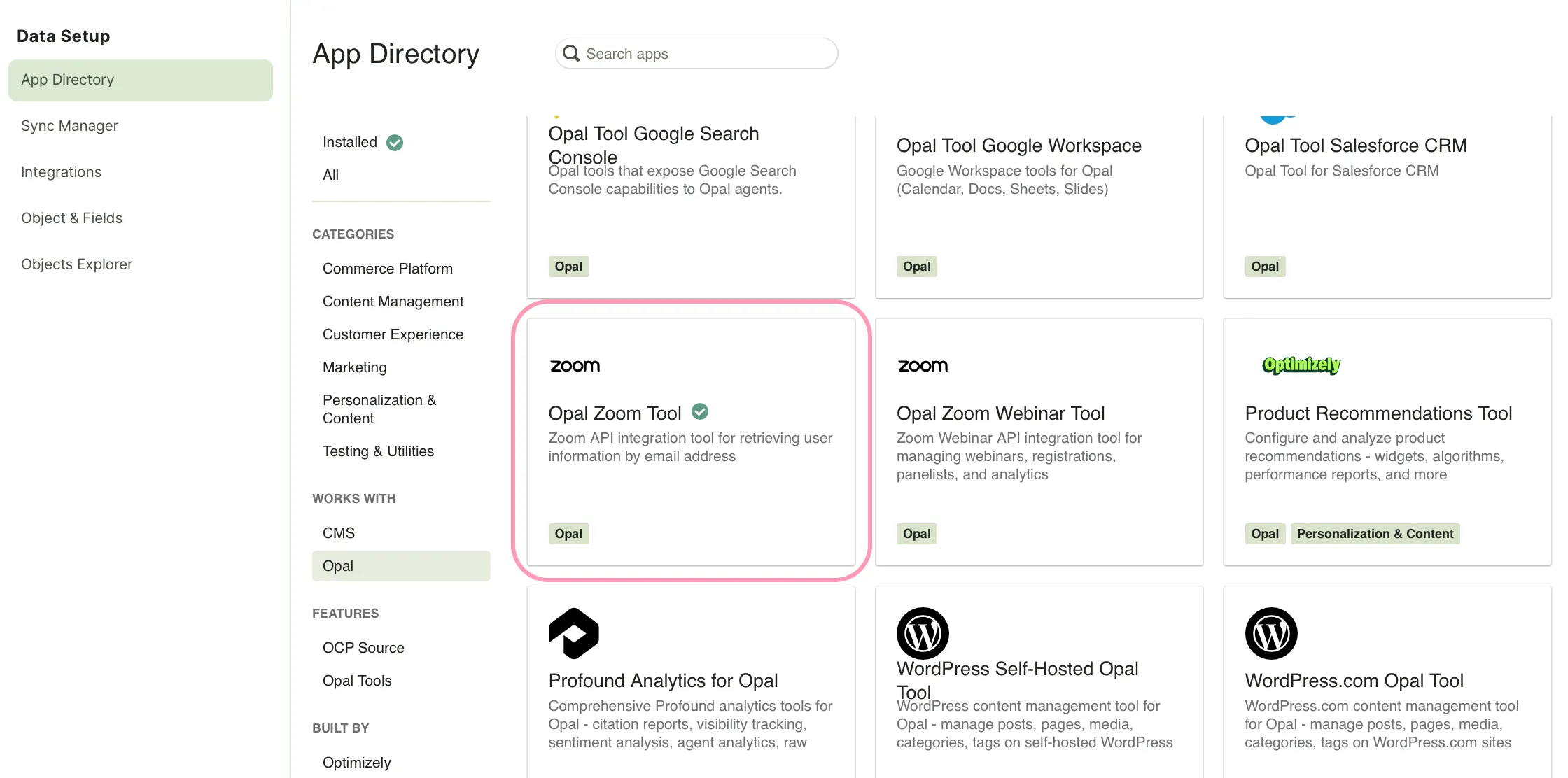
The Zoom Meetings connector tools in Optimizely Opal let you create and manage meetings, add registrants, and retrieve AI-generated summaries and transcripts, without leaving Opal. Administrators install the tools in Optimizely Connect Platform (OCP). After installation, each user authenticates with their own Zoom account to access their meetings and data.
Add the Opal Zoom Tool tool in OCP
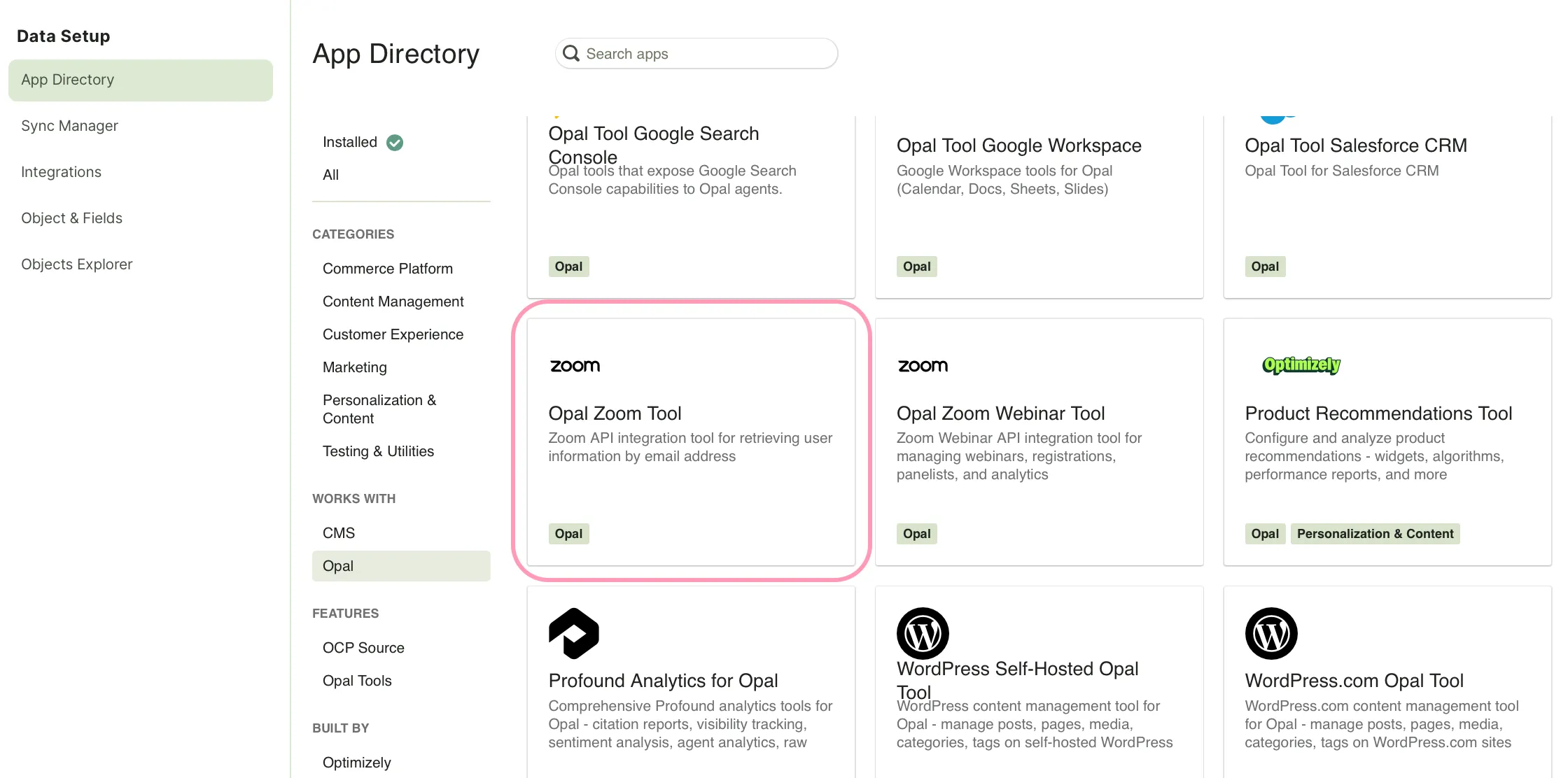
In the OCP App Directory, complete the following:
Click Opal Zoom Tool.
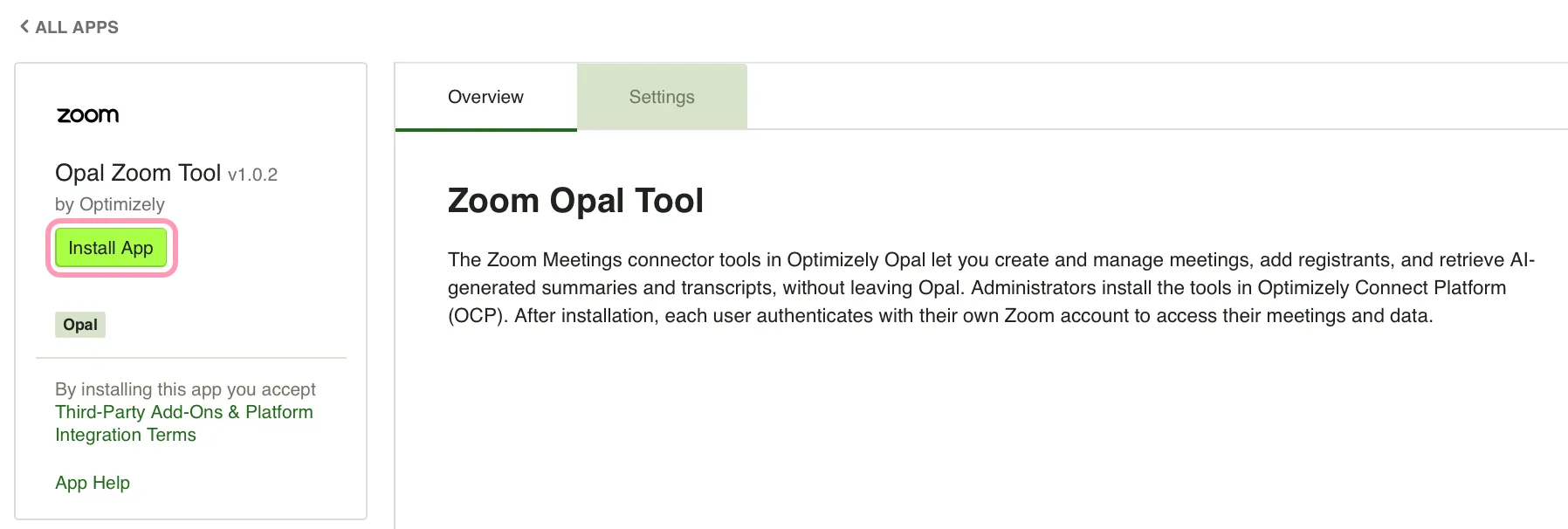
Click Install App.
Register the Opal Zoom Tool with Opal
In your OCP instance, go to the Opal Zoom Tool and complete the following steps:
Click the Settings tab.
Expand the Add to Opal section.
Click Add to Opal for the Opal Account you want to add the Zoom Meetings tools to.
Authenticate with Zoom
After an administrator adds the Opal Zoom Tool in OCP, log in from Opal to access your information. The Zoom Meetings connector tools use user-level authorization. Each user accesses only data they have permission to view in Zoom.
To authenticate, complete the following steps in Opal:
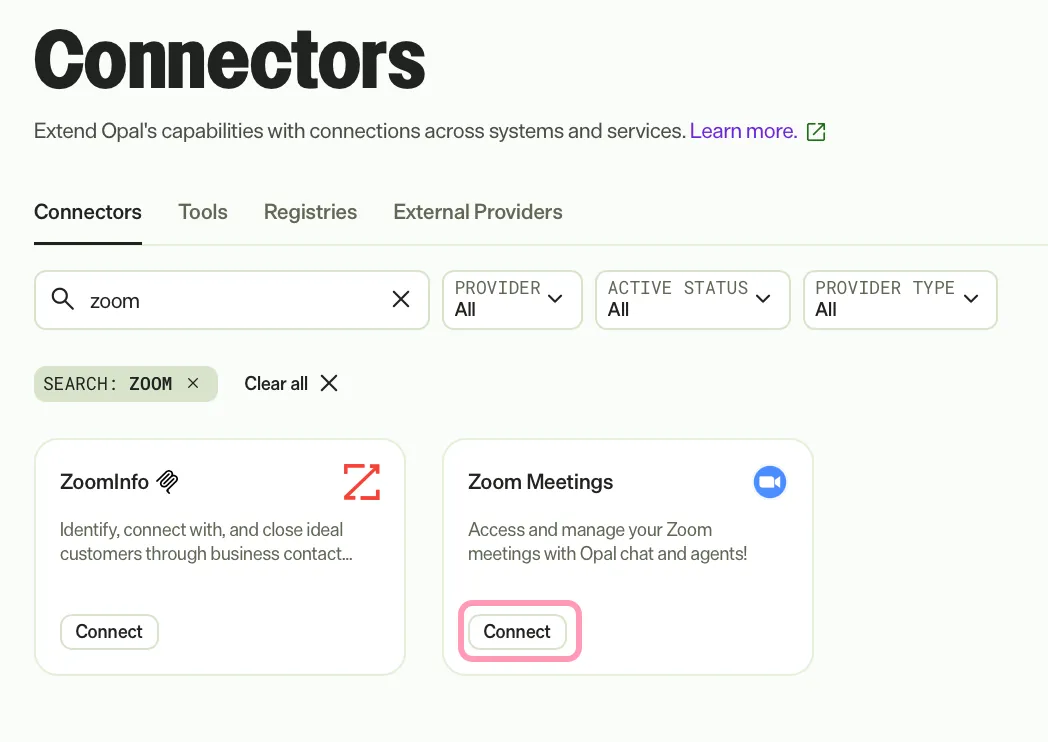
Go to Connectors > Connectors.
Click Connect for the Zoom Meetings tools.
Log in with Zoom in the pop-up window.
If you try to connect and see a message that the app needs an administrator pre-approval, contact a Zoom admin and ask them to connect to the app first.
After you connect to Zoom, the Zoom Meetings connector tools become available in Opal Chat, agents, and workflows.
Disconnect from Zoom
Disconnect your Zoom account from Opal to revoke access to your Zoom meetings and data. Disconnect when you switch Zoom accounts or no longer use the Zoom Meetings tools.
To disconnect, complete the following steps in Opal:
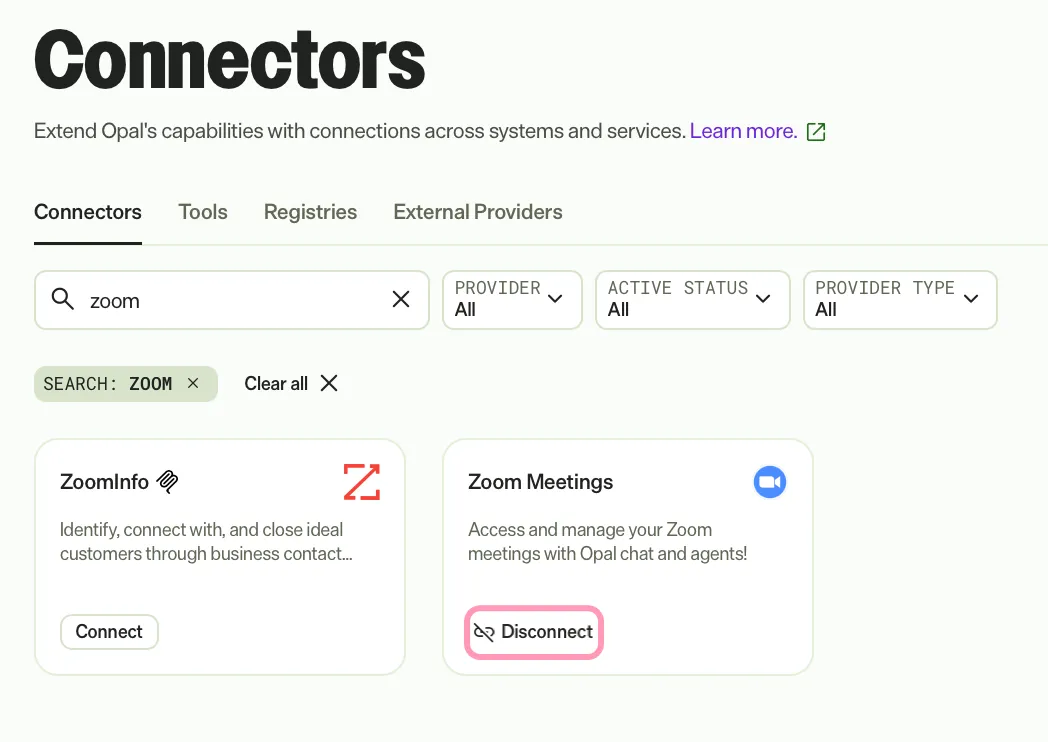
Go to Connectors.
Click Disconnect on the Zoom Meetings tile.
Zoom Meetings connector tools
After an administrator installs the Zoom Meetings Tools in OCP and you authenticate with Zoom, use the following tools in Opal. These tools let you manage Zoom meetings, attendees, and post-meeting content directly from Opal. Use them to schedule and configure meetings, manage registrations, customize branding, and retrieve summaries and transcripts after meetings end.
Click a tool to expand it. Each entry describes when to use it, available parameters, and example prompts. If you do not provide a required parameter, Opal prompts you for it.
Branding and customization
These tools let you create branded join pages and custom meeting links. Use them to deliver a consistent and branded experience for webinars and high-visibility events, and to generate personalized, trackable links for specific attendees.
When to use
Create a vanity URL for a webinar to make it easier to share.
Require custom CSS or branding, such as a company logo and colors, on the join page.
Generate personalized, trackable links for specific attendees.
Parameters
meeting_id – ID of the meeting for which to generate custom links.
(Optional) background_color – Background color for the join page in hex format (for example, #ffffff). Defaults to white.
(Optional) branded_join_page – Enable a custom-branded join page with company styling. Defaults to true.
(Optional) company_name – Company name to display on the branded join page.
(Optional) custom_domain – Custom domain for branded links (for example, meetings.yourcompany.com).
(Optional) custom_redirect_url – URL to redirect attendees after the meeting ends (for example, https://company.com/feedback).
(Optional) hide_zoom_branding – Hide Zoom branding elements. Requires an enterprise account. Defaults to false.
(Optional) logo_url – URL of your company logo for the branded join page (for example, https://company.com/logo.png).
(Optional) personalized_links_json – JSON array of personalized links for specific attendees. Example: [{"user_email":"[email protected]","custom_params":{"role":"vip"}}]
(Optional) primary_color – Primary brand color in hex format (for example, #0e72ed). Defaults to Zoom blue.
(Optional) track_attendance – Enable attendance tracking through custom links. Defaults to true.
(Optional) vanity_url – Vanity URL path for easy sharing (for example, quarterly-review). Creates links like meetings.company.com/quarterly-review.
(Optional) welcome_message – Custom welcome message for attendees on the join page.
Example prompts
Create a vanity URL 'spring-launch' for meeting 123456789 with attendance tracking enabled.
Generate custom meeting links for meeting 987654321 using our company logo and the primary hex color #ff5500.
Configure the join page for my event so it redirects to our homepage after the meeting ends.
Meeting management
These tools let you create, update, and delete Zoom meetings. Use them to schedule one-time or recurring meetings, adjust settings and timing, and remove meetings that are no longer needed.
When to use
Schedule a recurring team sync or project check-in.
Create an instant meeting for an ad-hoc session.
Configure a meeting with specific security settings, such as a waiting room or passcode.
Parameters
topic – Meeting title. Displayed in invitations, calendar entries, and the Zoom interface. Maximum 200 characters.
(Optional) agenda – Meeting agenda or description. Appears in invitations and helps participants prepare.
(Optional) duration – Meeting duration in minutes. Defaults to 60.
(Optional) password – Meeting passcode for security. Maximum 10 alphanumeric characters.
(Optional) recurrence – Recurrence settings for recurring meetings. Required for meeting types 3 and 8. Accepts a JSON object with type (1=Daily, 2=Weekly, 3=Monthly), repeat_interval, end_times, and weekly_days.
(Optional) settings – Meeting settings object. Common options include host_video, participant_video, waiting_room, mute_upon_entry, auto_recording, and join_before_host.
(Optional) start_time – Meeting start time in UTC ISO 8601 format (for example, 2026-01-09T14:00:00Z). Required for scheduled meetings (type 2).
(Optional) timezone – Meeting time zone using standard identifiers (for example, America/New_York). Defaults to the host's time zone.
(Optional) type – Meeting type. 1 = Instant, 2 = Scheduled (default), 3 = Recurring with no fixed time, 8 = Recurring with fixed time.
Example prompts
Create an instant meeting for a quick sync.
Schedule a 45-minute Q3 Planning meeting for tomorrow at 2 PM New York time with the waiting room enabled.
Create a recurring weekly 1:1 every Monday for the next month.
Create a team meeting with password "secure123" that records automatically to the cloud.
When to use
A duplicate meeting was accidentally scheduled.
A meeting series has been canceled and must be removed from the schedule.
A specific occurrence in a recurring series is no longer needed.
For recurring meetings, omitting occurrence_id deletes the entire meeting series. This action cannot be undone.
Parameters
meeting_id – Numeric ID of the meeting to delete.
(Optional) cancel_meeting_reminder – Send cancellation email notifications to registrants. Defaults to false.
(Optional) occurrence_id – Occurrence ID of a specific instance to delete from a recurring meeting. Omit to delete the entire series.
(Optional) schedule_for_reminder – Send a cancellation notification email to the meeting host. Defaults to false.
Example prompts
Delete meeting 123456789 since it was created by mistake.
Cancel meeting 987654321 and send a cancellation email to all registered participants.
Remove occurrence 1648194000000 from recurring meeting series 555444333.
When to use
Reschedule a meeting to a new start time or duration.
Update security settings, such as enabling a waiting room or muting participants on entry.
The meeting agenda or topic has changed.
The recurrence pattern has changed (for example, from weekly to monthly).
Parameters
meeting_id – Numeric ID of the meeting to update.
(Optional) agenda – Updated meeting agenda or description. Leave blank to keep the existing agenda.
(Optional) duration – Updated duration in minutes. Leave blank to keep the existing duration.
(Optional) password – Updated meeting passcode. Maximum 10 alphanumeric characters. Set to an empty string to remove the passcode.
(Optional) recurrence – Updated recurrence settings as a JSON object. Applies only to recurring meeting types (3 or 8).
(Optional) settings – Updated meeting settings as a JSON object. Include only the settings you want to change.
(Optional) start_time – Updated start time in UTC ISO 8601 format (for example, 2026-01-09T14:00:00Z). Must be in the future.
(Optional) timezone – Updated time zone using standard identifiers (for example, America/Los_Angeles).
(Optional) topic – Updated meeting title. Leave blank to keep the existing title.
(Optional) type – Updated meeting type. See zoom_create_meeting for type values.
Example prompts
Update meeting 123456789 to 90 minutes.
Reschedule meeting 987654321 to start at 2026-01-09T02:00:00Z.
Change the topic of meeting 1122334455 to "Revised Q1 Roadmap".
Enable the waiting room and turn off host video for meeting 555666777.
Meeting information
These tools let you retrieve details about scheduled meetings, list a user's meetings, and browse available meeting templates. Use them to look up join links, passcodes, meeting settings, and occurrence information for existing meetings.
When to use
Get a join link and passcode for a scheduled meeting to share with participants.
Review the security settings of an existing meeting.
Get metadata for a specific occurrence in a recurring meeting series.
Parameters
meeting_id – Numeric ID of the meeting to retrieve.
(Optional) include_passcode – Include the meeting passcode in the response. Set to true when you need to access cloud recordings. Defaults to false.
(Optional) occurrence_id – Occurrence ID of a specific instance in a recurring meeting series. Leave blank to retrieve the main meeting details.
(Optional) show_previous_occurrences – Include past occurrences in the response for recurring meetings. Defaults to false.
Example prompts
Get the details and join URL for my meeting 123456789.
Pull up the info for meeting 987654321 and include the passcode so I can share the recording.
Show me the previous occurrences of recurring meeting 1122334455.
When to use
Retrieve upcoming meetings for a dashboard or email.
Audit past meetings for a user within a date range.
Find the ID of a recently scheduled meeting.
Parameters
(Optional) fetch_full_details – Fetch complete settings and configuration for each meeting. Makes one additional API call per meeting. Defaults to false.
(Optional) from – Start date for filtering meetings in YYYY-MM-DD format (for example, 2025-09-01).
(Optional) page_size – Number of meetings to return per page. Minimum one, maximum 300. Defaults to 30.
(Optional) to – End date for filtering meetings in YYYY-MM-DD format (for example, 2025-09-30).
(Optional) type – Filter meetings by status. Options: scheduled (default), live, or upcoming.
(Optional) user_id – User ID or email address to retrieve meetings for. For OAuth authentication, defaults to the current authenticated user. For server-to-server authentication, this parameter is required.
Example prompts
List all of my upcoming Zoom meetings.
Get the scheduled meetings for [email protected] between 2025-10-01 and 2025-10-31.
List my current live meetings and include full details about their settings.
When to use
Find a pre-saved template to use for meeting creation.
Check whether an admin has pushed account-wide meeting settings via templates.
Need a template ID to apply to a new scheduled meeting.
Parameters
(Optional) page_number – Page number for pagination. Defaults to 1.
(Optional) page_size – Number of templates to return per page. Minimum one, maximum 300. Defaults to 30.
(Optional) user_id – User ID or email address. Use me for the current authenticated user.
Example prompts
List my current saved Zoom meeting templates.
Fetch the first page of templates for user [email protected] with a limit of 10.
Show me all templates available on my account.
Post-meeting content
These tools let you retrieve AI-generated summaries and transcripts from completed meetings. Use them to capture action items, catch up on meetings you missed, and archive key discussion points for documentation or compliance.
When to use
Share action items with stakeholders after a meeting.
Catch up on a recorded meeting you missed.
Archive key discussion points for documentation or compliance tracking.
Parameters
meeting_id – Unique identifier of the meeting whose AI-generated summary to retrieve. Accepts the numeric meeting ID or the meeting UUID.
Example prompts
Pull the AI summary for yesterday's project kick-off meeting. The ID is 123456789.
Get the action items generated by Zoom AI for meeting 987654321.
Look up the meeting summary for ID 1122334455 so I can build my report.
When to use
Use a webinar transcript as the basis for a blog post.
Retrieve the full transcript of a sync to verify what was discussed.
Export a transcript in a specific language for a regional audience.
Parameters
meeting_id – Unique identifier of the recorded meeting whose transcript to retrieve. Accepts the numeric meeting ID or the meeting UUID.
(Optional) include_transcript – Download and include the full transcript text in the response. Set to true to return the full text, or false to return metadata only. Defaults to false.
(Optional) transcript_lang – Language code for the transcript (for example, en-US, es-ES, or fr-FR). Defaults to the meeting's primary language.
Example prompts
Retrieve the English transcript for my cloud recording 123456789.
Get the full transcript for the quarterly all-hands meeting 987654321 so I can summarize it.
Get the transcript metadata for meeting 1122334455 without downloading the full text.
Registration and attendees
These tools let you configure meeting registration and add registrants. Use them to control who attends your meetings, collect attendee information, and automate or manually manage approvals.
When to use
Invite someone to a meeting.
Add attendees to a meeting.
Track who is attending and ensure Zoom sends official invitations.
Parameters
email – Registrant's email address. Zoom sends the confirmation and meeting link to this address. Each email address registers only once per meeting.
first_name – Registrant's first name. Appears in the host's participant list and in Zoom confirmation emails.
meeting_id – ID of the meeting to add the registrant to. The meeting must have registration enabled. Use zoom_configure_meeting_registration first if registration is not yet enabled.
(Optional) address – Registrant's street address. Required for some event types.
(Optional) auto_approve – Automatically approve this registrant, bypassing manual approval. Defaults to false.
(Optional) city – Registrant's city (for example, San Francisco).
(Optional) comments – Additional comments or special requests from the registrant.
(Optional) country – Registrant's country. Accepts the full country name or ISO code (for example, United States or US).
(Optional) custom_questions – Responses to custom registration questions as a JSON array. Question titles must exactly match those configured on the meeting.
(Optional) industry – Registrant's industry (for example, Technology or Healthcare).
(Optional) job_title – Registrant's job title (for example, Software Engineer or Marketing Manager).
(Optional) last_name – Registrant's last name. Recommended for more professional participant lists.
(Optional) occurrence_ids – For recurring meetings, comma-separated occurrence IDs to register the attendee for specific dates. Leave empty to register for all occurrences.
(Optional) org – Registrant's organization or company name.
(Optional) phone – Registrant's phone number.
(Optional) state – Registrant's state or province (for example, California or CA).
(Optional) zip – Registrant's postal code.
Example prompts
Invite [email protected] to meeting 123456789. His first name is John.
Add Sarah as an attendee to my marketing sync meeting. Her email is [email protected].
Register Michael for meeting ID 987654321 and auto-approve his registration since he is a VIP.
When to use
Require attendees to sign up before a webinar or training session.
Customize the registration form to collect attendee information.
Manage meeting capacity or set a registration deadline.
Enable automatic or manual approval for an exclusive event.
Parameters
meeting_id – ID of the meeting to configure.
registration_type – Registration requirement. 1 = Required with approval, 2 = Required (auto-approve), 3 = No registration.
(Optional) approval_type – Approval method when registration_type is 1. 0 = Auto-approve, 1 = Manual approve, 2 = No approval required.
(Optional) auto_approve_users – Comma-separated list of email addresses to auto-approve when approval_type is 1 (for example, [email protected],[email protected]).
(Optional) close_registration – Close registration after the meeting starts. Defaults to false.
(Optional) registrants_confirmation_email – Send a confirmation email to registrants. Defaults to true.
(Optional) registrants_email_notification – Send email notifications to registrants. Defaults to true.
(Optional) registrants_limit – Maximum number of registrants. Set to 0 for unlimited. Defaults to 0.
(Optional) reminder_time_hours – Hours before the meeting to send a reminder email. Accepts one through 168. Defaults to 24.
(Optional) send_confirmation – Send a registration confirmation. Defaults to true.
(Optional) send_reminder – Send a meeting reminder email. Defaults to true.
Example prompts
Enable automatic approval registration for meeting 123456789.
Configure registration for my upcoming webinar, cap it at 100 registrants, and ask for their company name.
Set up manual approval for executive meeting 987654321, but auto-approve external partner emails.
User management
These tools let you look up profile and account information for Zoom users. Use them to verify user identities, retrieve personal meeting IDs, and confirm account permissions before assigning host duties.
When to use
Verify your connection and confirm the permissions for your API token.
Get your email address, name, or Personal Meeting ID (PMI).
Check the account type and feature limits assigned to your user.
Parameters
None
Example prompts
What Zoom account am I currently logged into?
Retrieve my Zoom Personal Meeting ID and profile details.
Check if my current Zoom user has a license to host webinars.
When to use
Look up a colleague's Personal Meeting ID or Zoom contact details.
Verify whether a user has a licensed Zoom account before assigning host duties.
Review authentication or profile settings for a specific user.
Parameters
email – Primary email address of the Zoom user to look up.
(Optional) login_type – Authentication method for the user account. Options: 0 = Facebook OAuth, 1 = Google OAuth, 11 = Apple OAuth, 21 = Zoom work email, 23 = Microsoft OAuth, 99 = API user, 101 = SSO.