Zapier remote MCP connector tool
Connect Zapier Remote MCP to Mark (Optimizely Agent Platform) for access to over 7000 apps available in Zapier through Mark chat, agents, and workflows.
Important
Mark does not support individual authentication for Zapier tool connections. All Mark users in your organization share the same access level to the connected system as the authorizing user.
For example, if you connect Google Calendar, all Mark users in your organization can access the specific calendar authorized by you, the connecting user.
In general, you should add tools that are "account to account," such as an analytics tool where typically all users have the same level of access.
Create your MCP server in Zapier
- Go to mcp.zapier.com.
- Click + New MCP Server.
- Select Other for MCP Client and give it a name like Mark.
- Add the tools you would like available to Mark.
- Select Streamable HTTP in the Connect section.
- Copy the Server URL.
Add the Zapier Remote MCP Connector App in OCP
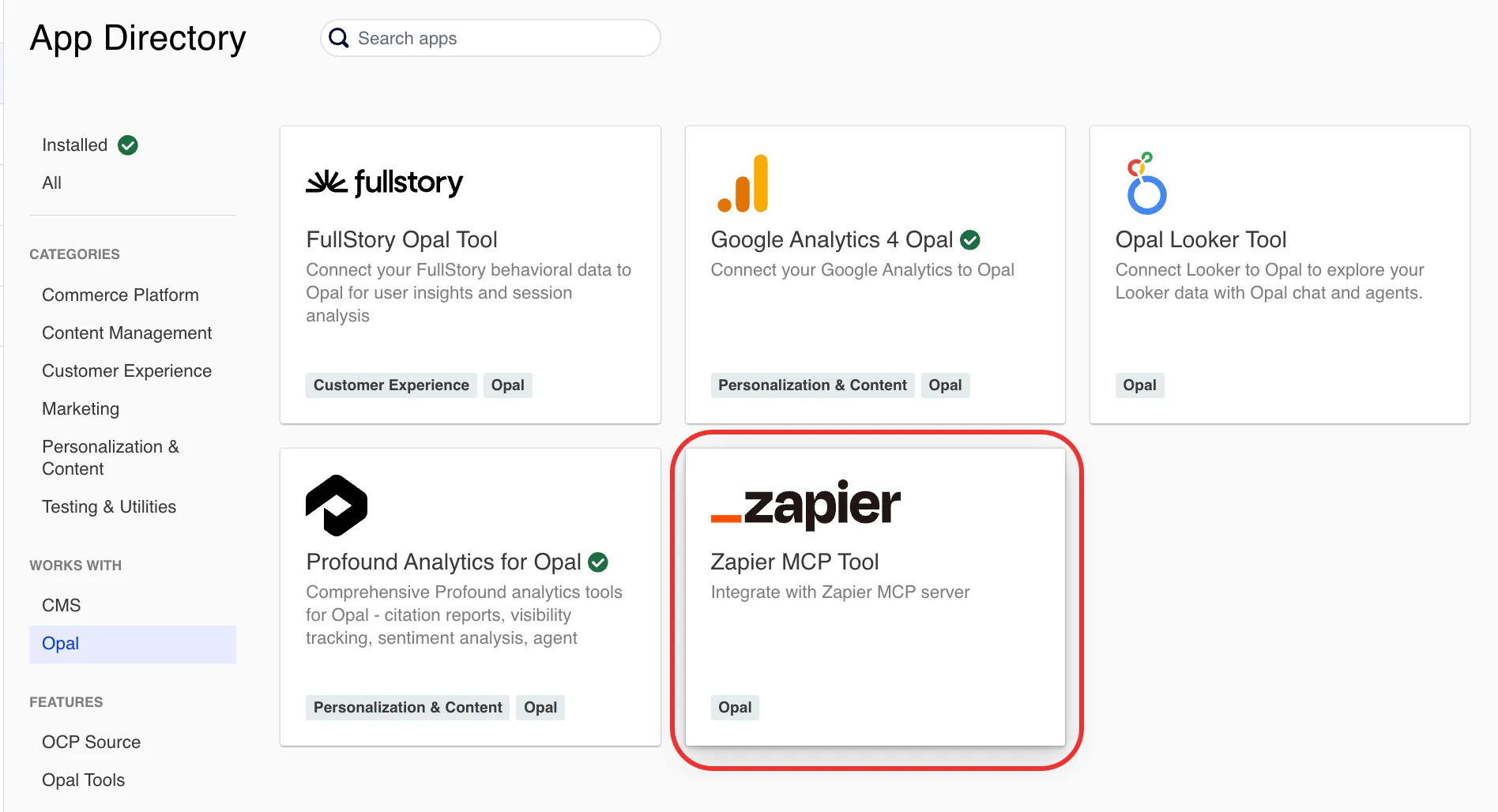
- Find the Zapier MCP Tool in the OCP App Directory and click on it.
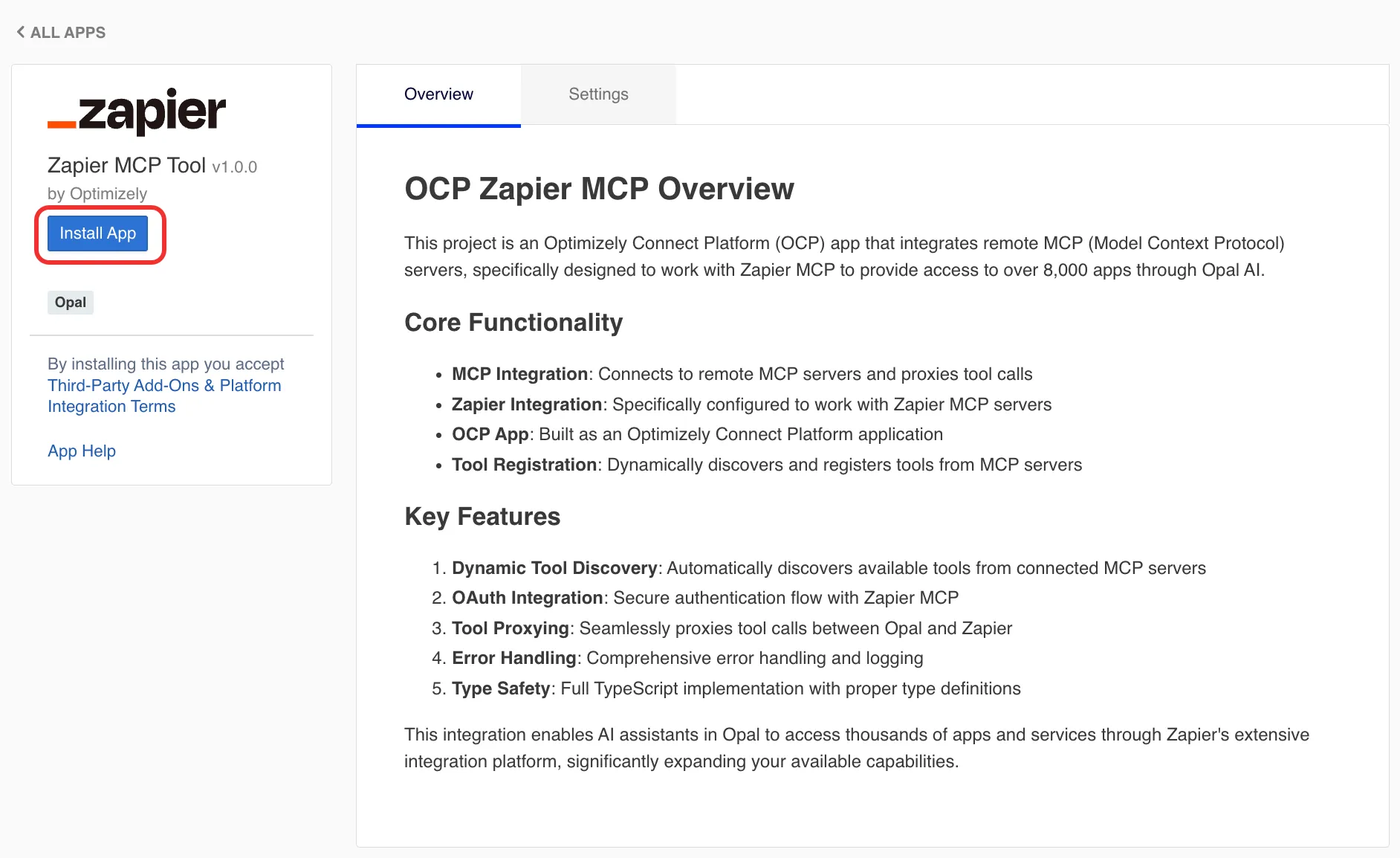
- Click Install App.
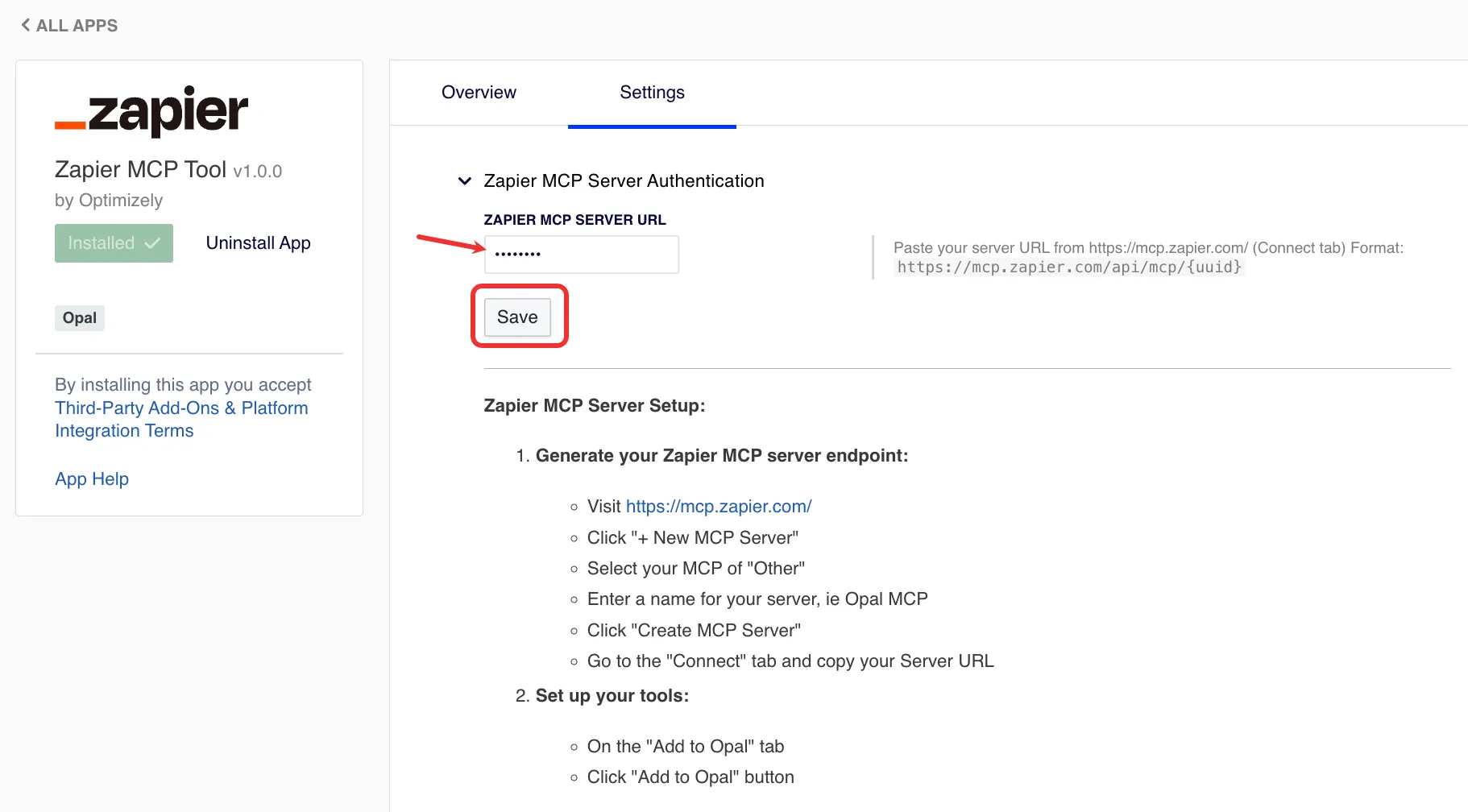
- Select the Settings tab.
- Paste your Zapier server URL from the Create your MCP server in Zapier section in the Zapier MCP Server URL.
- Click Save.
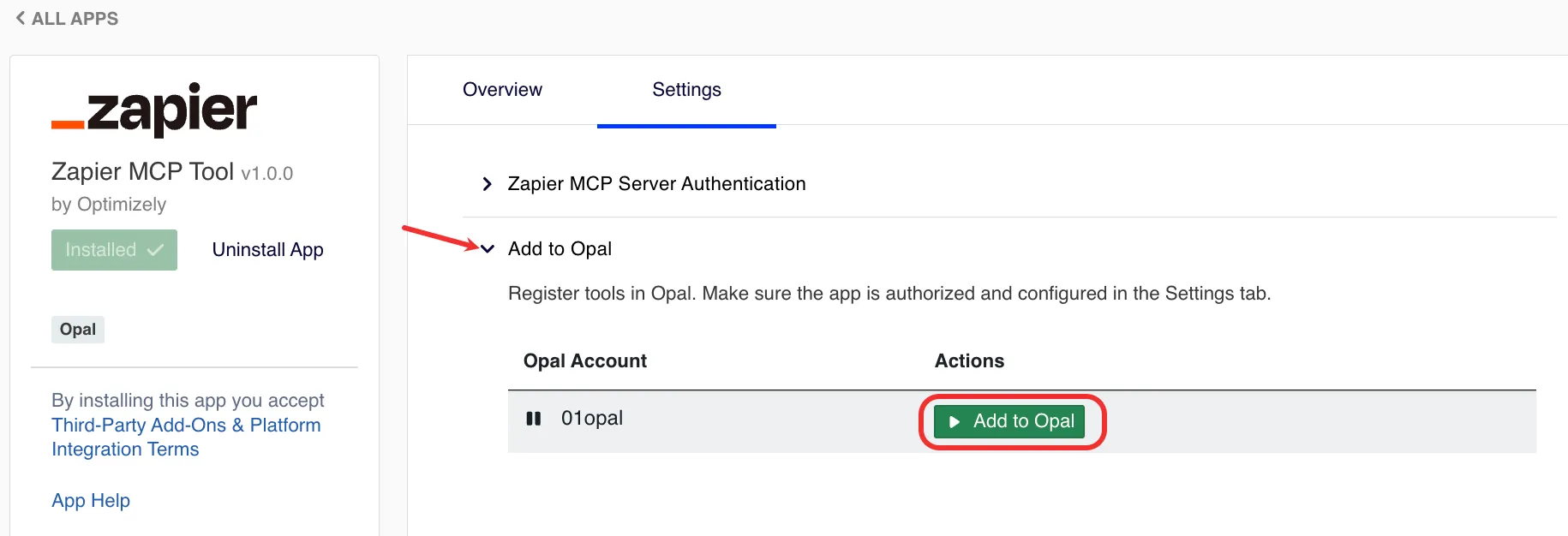
- Expand the Add to Mark section.
- Click Add to Mark for each Mark account where you want to enable the Zapier MCP tools.
After you complete the previous steps, you have access to all tools added to your Zapier MCP server within Mark.
Note
If you use Opti ID, administrators can turn off generative AI in the Opti ID Admin Center. See Turn generative AI off across Optimizely applications.