Manage tools
Manage Mark (Optimizely Agent Platform) tools and tool registries to control which capabilities Mark chat and agents can call. Use these settings to limit Mark chat to approved tools, give agents broader access, and keep registries in sync. A tool is a discrete capability Mark can call. A tool registry groups related tools so you can manage them as a set.
For a full summary of the Tools tab and what each column means, go to the Tools tab overview.
Find a tool
Find a tool when you need to activate it, enable it for Mark chat, or check its availability to agents. Use the search and filters to narrow a long tool list to a specific tool or provider.
- Go to Connectors > Tools.
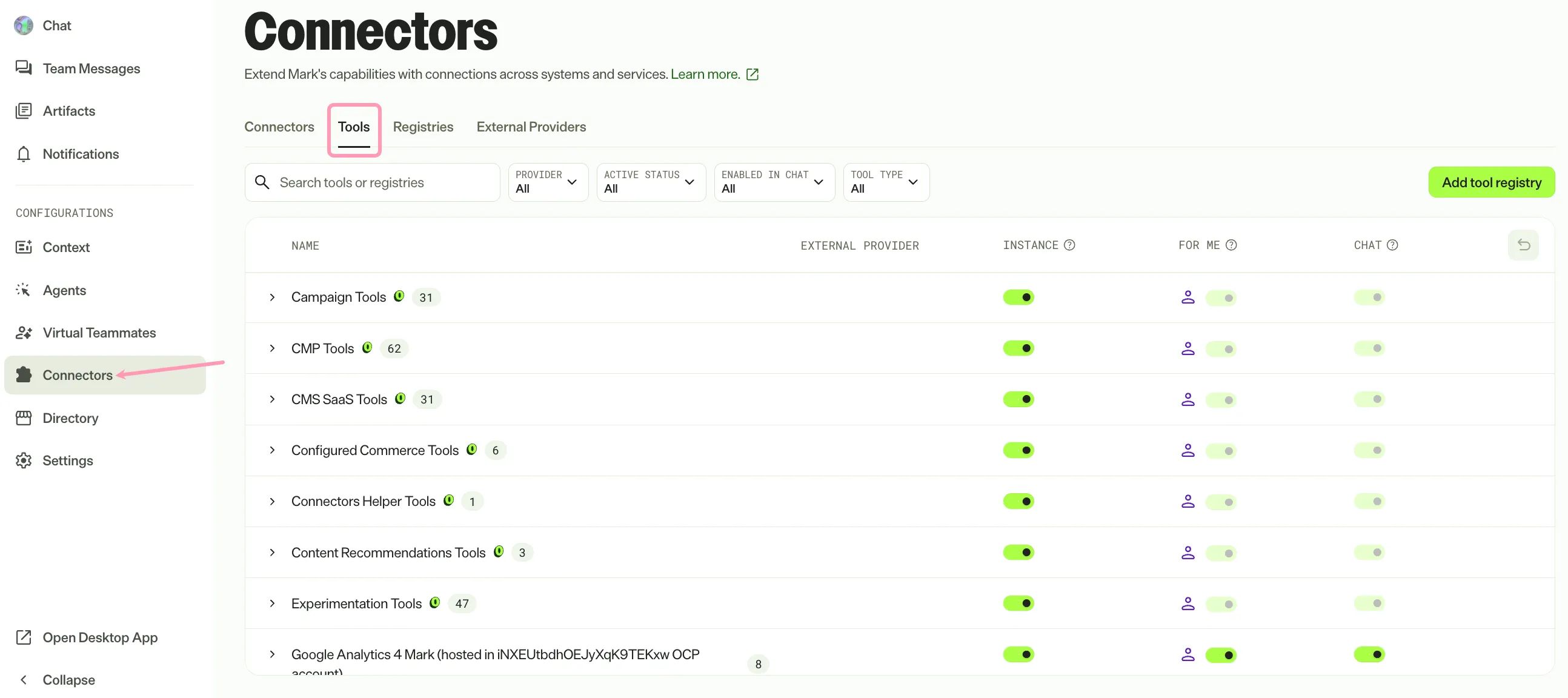
- Enter the tool name or description in the search text field.
- (Optional) Filter the list using the Provider, Active Status, Enabled in Chat, and Tool Type drop-down lists.
Find a registry
Find a registry when you need to sync it or delete a registry you no longer use. Use the search and filter to narrow a long registry list to a specific registry.
- Go to Connectors > Registries.
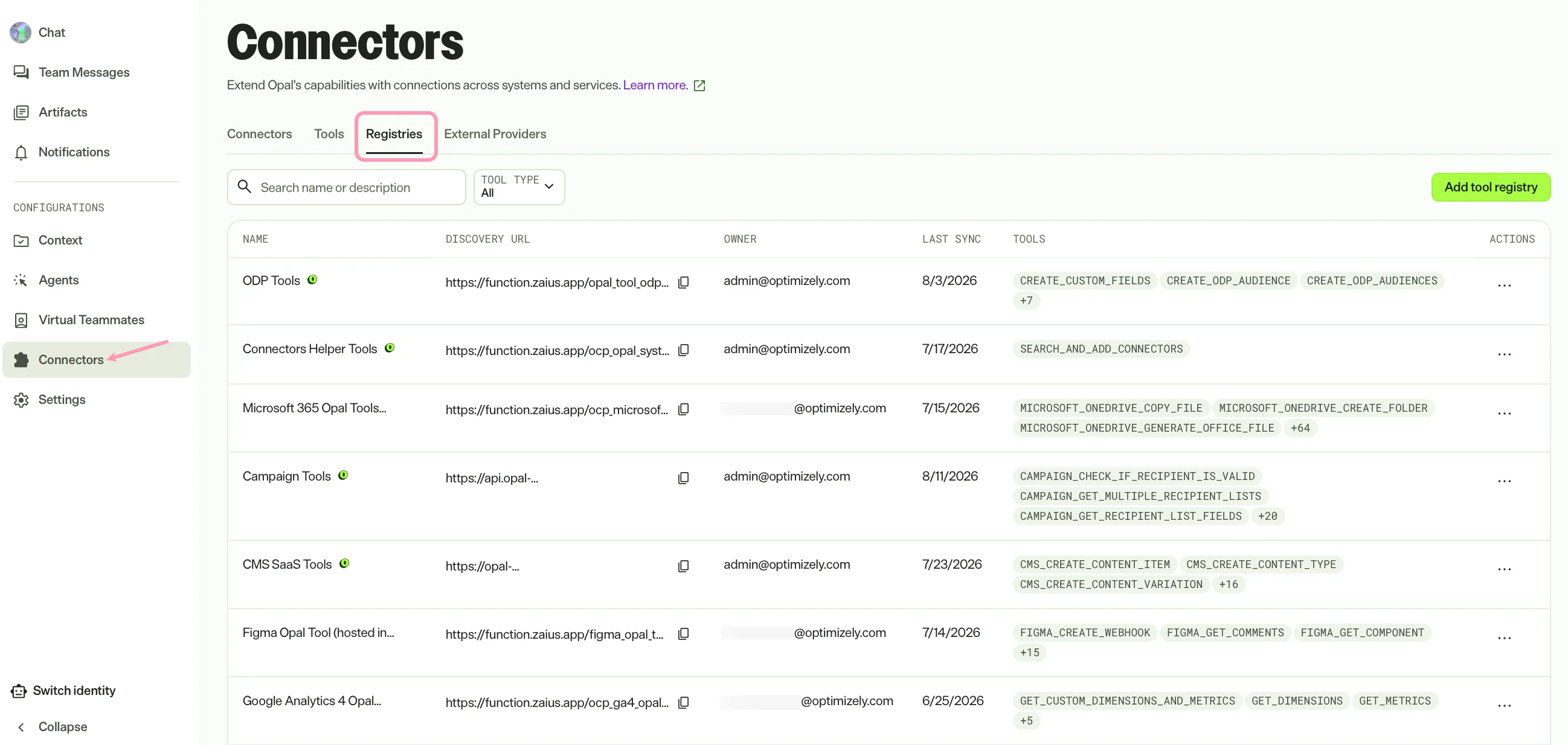
- Enter the registry name or description in the search text field.
- (Optional) Use the Tool Type drop-down list to filter your registries.
Activate or deactivate a tool
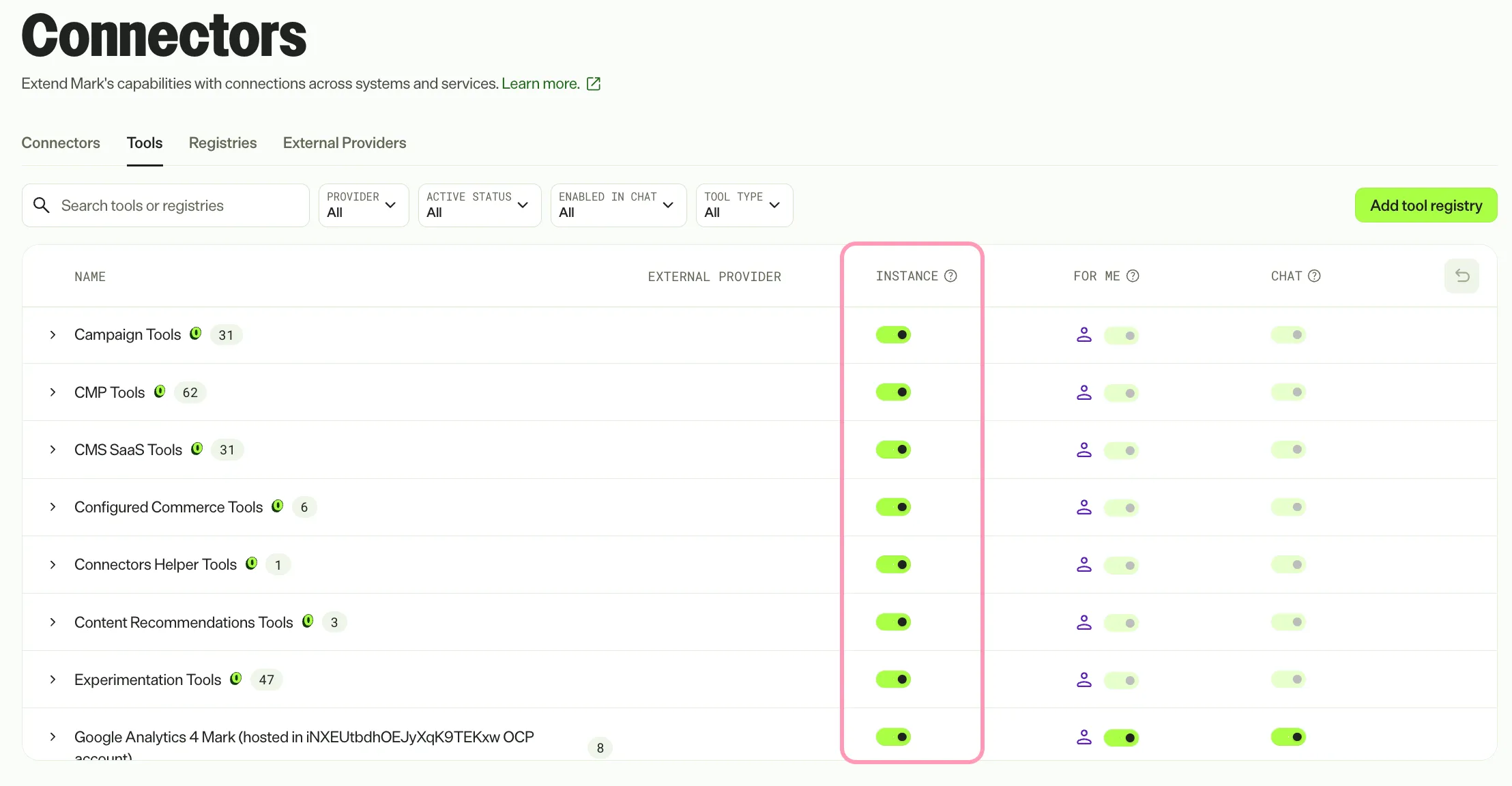
Toggle Instance on to let Mark chat and agents call the tool. Toggle Instance off to make the tool unavailable to everyone in your instance.
- Go to Connectors > Tools.
- Find the tool you want to update.
- Toggle Instance on or off for an individual tool or for an entire tool registry.
Note
Administrators cannot deactivate some core system tools for the instance.
Turn a tool off for yourself
Turn off a tool you do not want Mark to use for you, without changing it for anyone else. Use this setting to keep tools you never need out of your chats and agent runs.
- Go to Connectors > Tools.
- Find the tool you want to update.
- Toggle For Me off for an individual tool or for an entire tool registry.
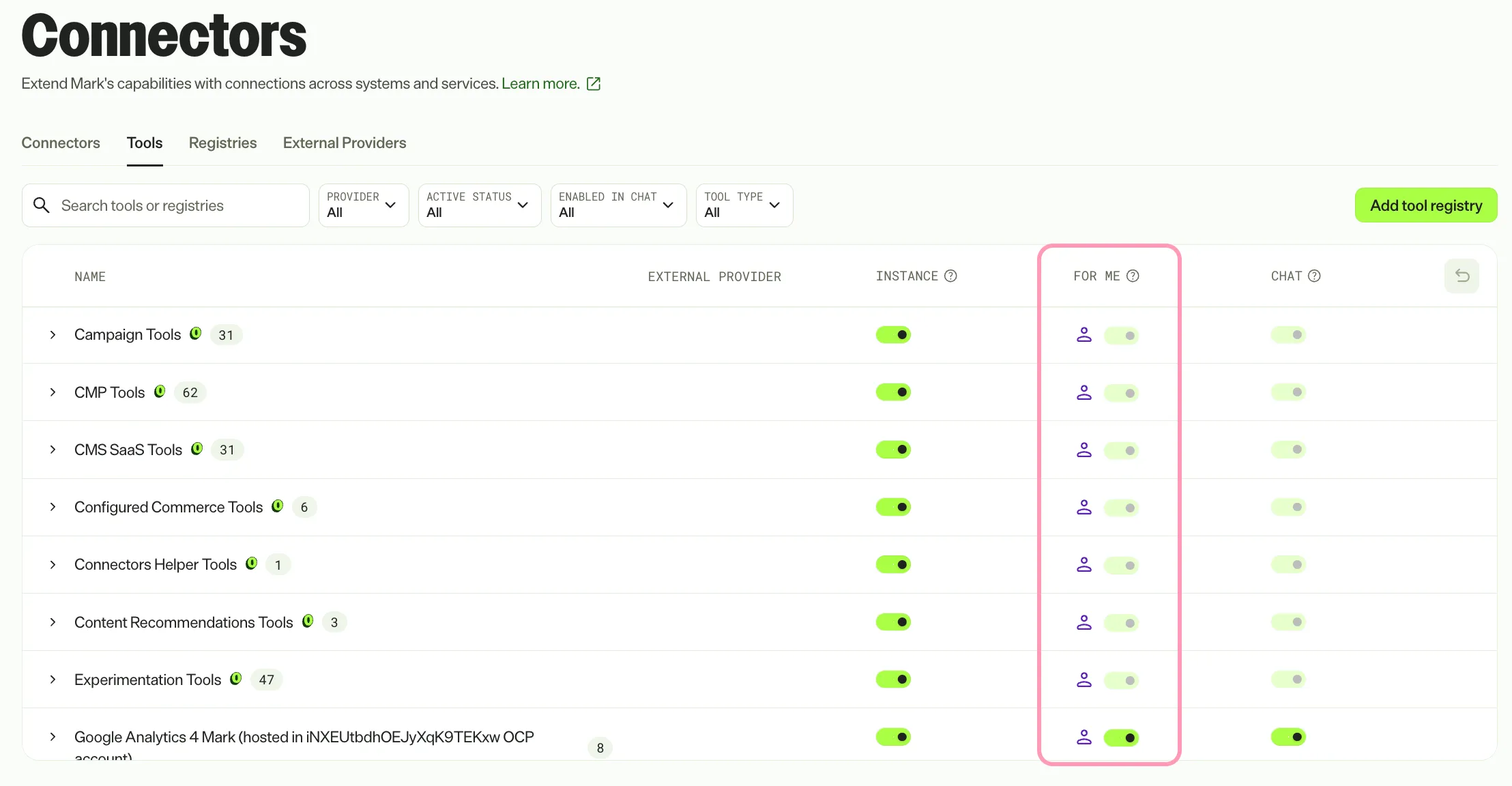
When For Me is off, the tool is unavailable in the following places:
- Mark chat and agents you run, including workflow agents that include the tool. A workflow agent cannot use a tool that is off for you.
- Mark in Slack and Mark in Microsoft Copilot, which apply your For Me settings.
- Virtual Teammates, if you switch to the Virtual Teammate's identity and turn the tool off.
In the Add Tools picker for an agent, a tool that is off for you displays, but you cannot select it. The picker displays Disabled for you.
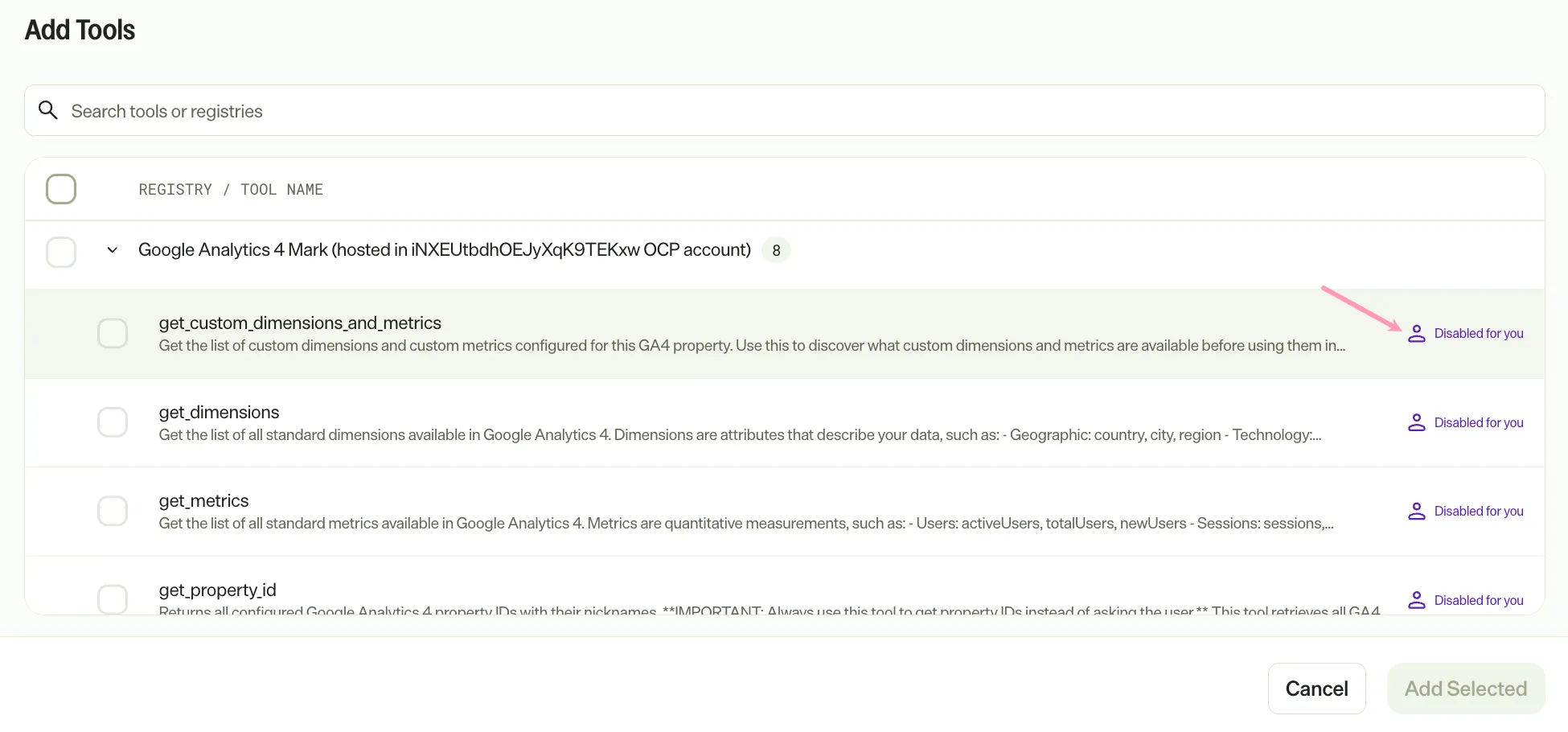
Toggle For Me on in Connectors > Tools to restore the tool. If the toggle is unavailable, an administrator deactivated the tool for the instance. A locked system tool also has an unavailable toggle.
Enable a tool in Mark chat
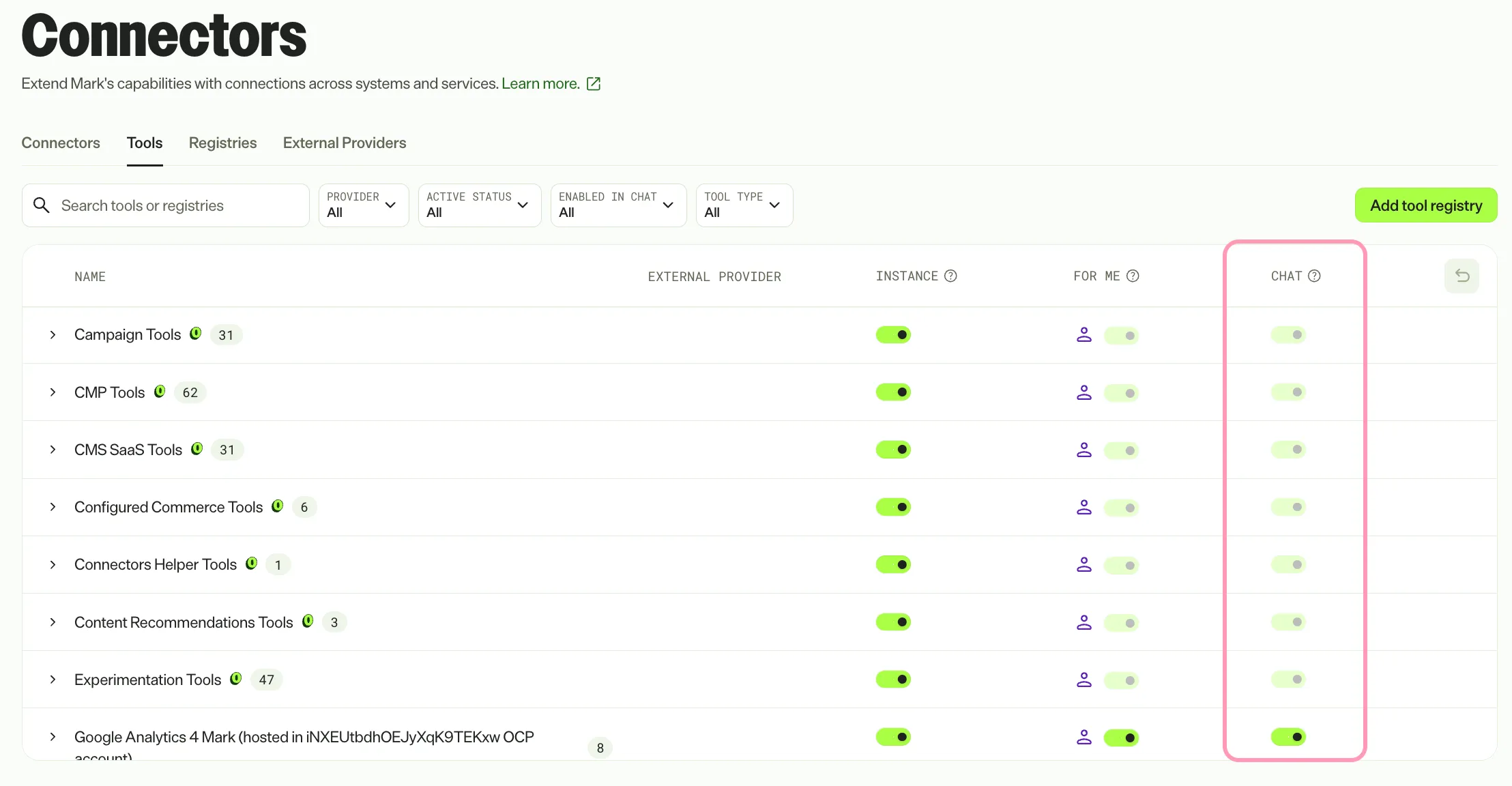
Toggle Chat on to let Mark chat call the tool. Toggle Chat off to block Mark chat from calling the tool while still letting agents call it.
- Go to Connectors > Tools.
- Find the tool you want to update.
- Toggle Chat on or off for an individual tool or for an entire tool registry.
Update a tool registry
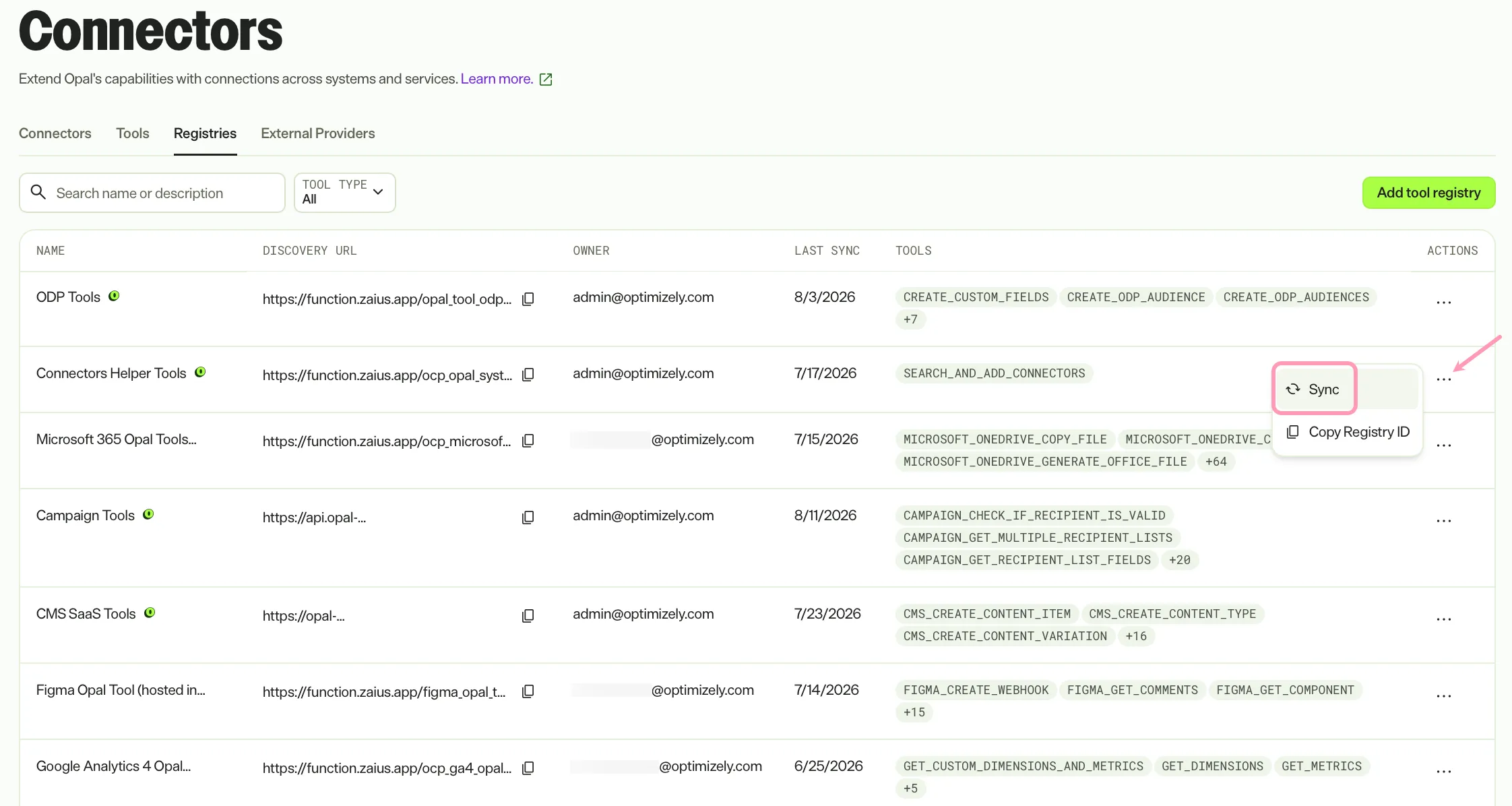
Sync a tool registry to pull in tools that you or Optimizely have added since the last sync. Without a sync, Mark cannot access tools added after the last sync.
- Go to Connectors > Registries and find the registry you want to update.
- Click More > Sync.
Delete a tool registry
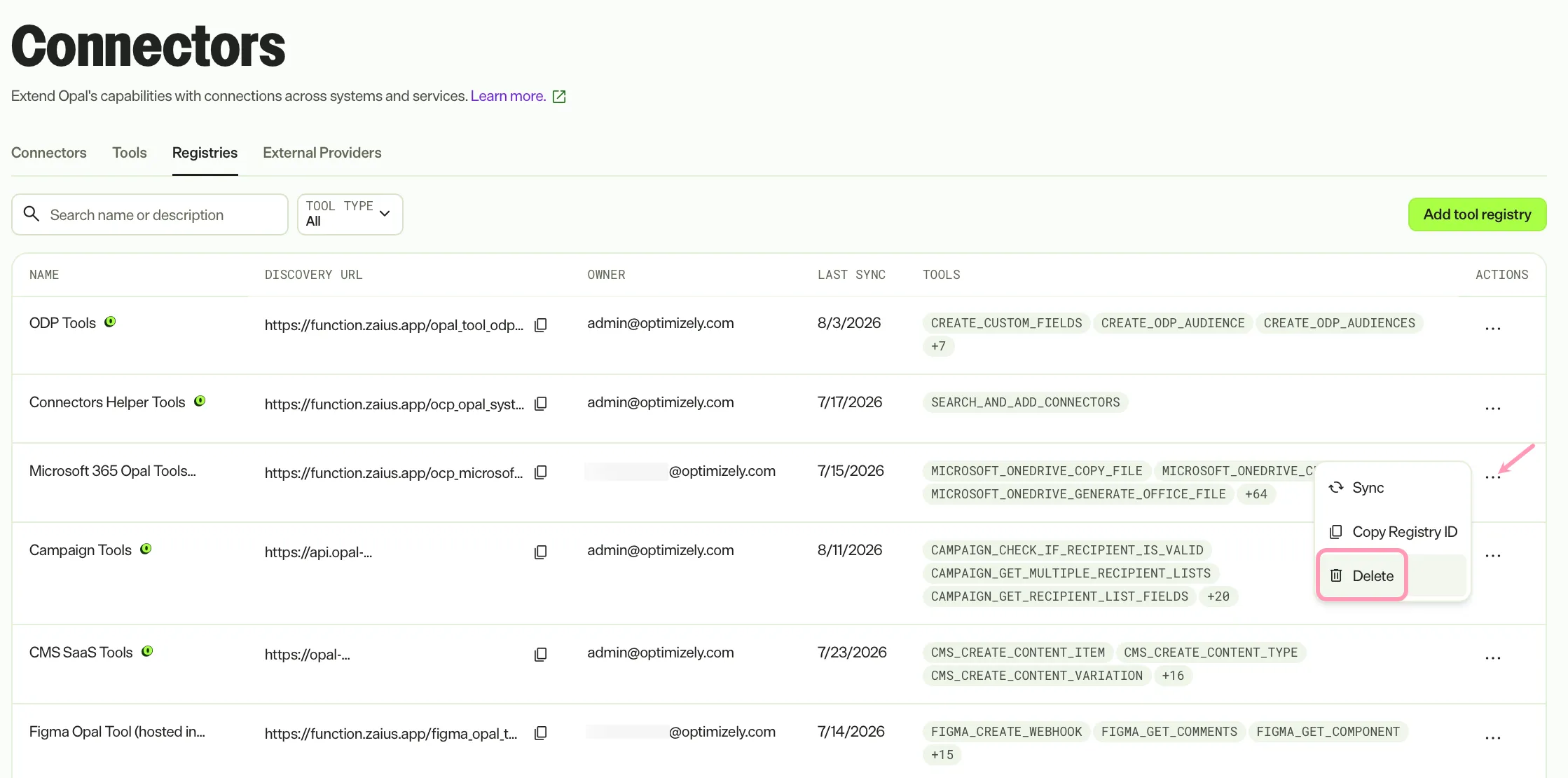
Delete a tool registry to remove a custom registry and all of its tools from your Mark instance. You cannot undo a deletion.
You cannot delete Optimizely-managed registries.
- Go to Connectors > Registries and find the custom registry you want to delete.
- Click More > Delete.
Note
If you use Opti ID, administrators can turn off generative AI in the Opti ID Admin Center. See Turn generative AI off across Optimizely applications.