The Google Ads connector tools in Optimizely Opal provide a direct bridge to your advertising performance data, letting you retrieve detailed metrics across campaigns, ad groups, and individual keywords. This integration lets teams dive deep into audience demographics, geographic trends, and actual search queries to understand exactly how users are interacting with their ads. By centralizing these insights, marketers can more effectively optimize their budgets, refine targeting for Performance Max and Shopping campaigns, and drive higher ROI through data-backed experimentation.
Complete the following steps to enable the Google Ads tools in Opal.
Use cases
The following use cases show how you can use Google Ads connector tools in Opal to connect ad performance data with content and creative workflows.
Marketing strategy and performance optimization
Goal – Data-driven budget allocation and campaign scaling.
Key performance indicator (KPI) monitoring and budget shifting – Use the google_ads_get_campaigns and google_ads_get_budgets tools to identify campaigns with high conversion rates but low impression share (the percentage of eligible impressions your ads receive). Opal can draft a recommendation to reallocate funds from budget-constrained campaigns.
High-intent keyword discovery – Run the google_ads_get_keywords and google_ads_get_search_terms tools to surface high-value search queries that drive conversions but are not yet added as exact-match keywords.
Channel synergy analysis – Compare performance across Search, Shopping (google_ads_get_shopping_performance), and Performance Max (PMax) (google_ads_get_asset_groups) to determine which network is most efficient for specific product categories.
A/B experimentation
Goal – Validate creative and copy hypotheses.
Ad copy comparison – Use the google_ads_get_ads tool to compare the click-through rate (CTR) and conversion rate of different Responsive Search Ads (RSAs). Opal can analyze which headlines or descriptions drive performance and suggest variations for follow-up testing.
Landing page validation – Correlate specific ad groups (google_ads_get_adgroups) with conversion data to see which landing pages (mapped to those ad groups) are underperforming. Use this to trigger an Optimizely Web Experimentation or Optimizely Feature Experimentation test on those pages.
Demographic sensitivity testing – Use the google_ads_get_age_performance and google_ads_get_gender_performance tools to see if a specific creative resonates better with certain age groups. If a "Gen Z" creative is underperforming with its target, Opal can draft a brief for a more aligned creative direction.
Content pipeline and creative plans
Goal – Use search data to fuel Optimizely Content Marketing Platform (CMP).
Search-driven content briefs – Analyze top-performing search terms using the google_ads_get_search_terms tool. If a specific question or pain point appears frequently, Opal can generate a brief for a blog post in CMP to address that topic through organic search content.
PMax asset optimization – Use the google_ads_get_asset_groups tool to identify which asset groups in a Performance Max campaign have "Low" performance ratings. Opal can then help generate image prompts or headlines to replace the weak assets.
Seasonal creative refresh – Pull geographic performance data using the google_ads_get_geographic_performance tool. If a region is showing an uptick in interest for a specific product, use Opal to create localized ad copy or social assets tailored to that region's trends.
Audience insights and target strategy
Goal – Refine your audience and your geography.
Geographic expansion – Identify cities or regions with high conversion rates but low volume using the google_ads_get_geographic_performance tool. Use this insight to create localized landing page content or localized ad extensions.
Audience mapping – Use the google_ads_get_audiences tool to see which user lists are assigned. Opal can suggest Similar Segments or In-Market audiences based on the characteristics of the customers who convert at the highest rate.
Connect Opal with Google Ads
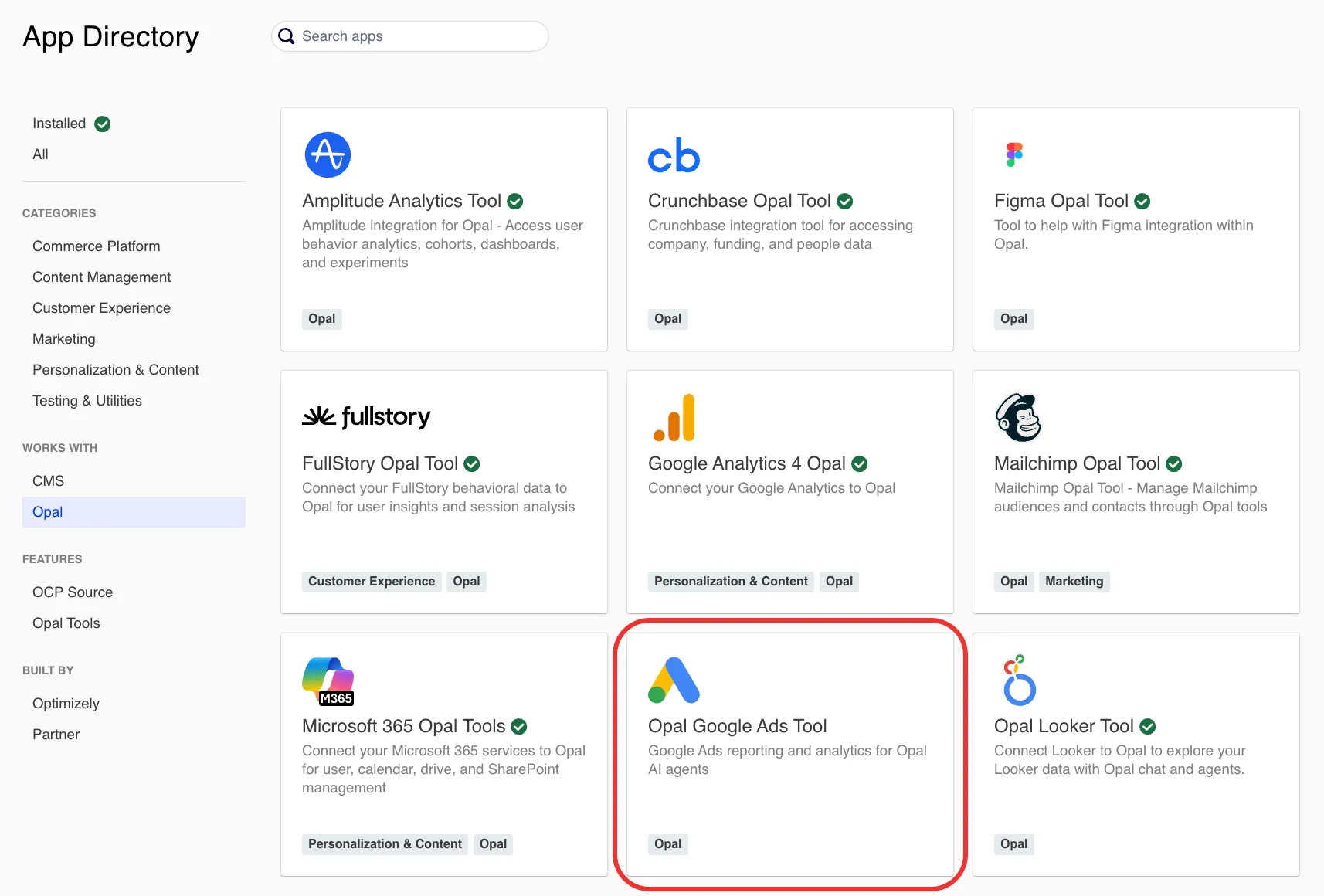
Install the Opal Google Ads Tool in OCP
In the OCP App Directory, complete the following:
Click the Opal Google Ads Tool.
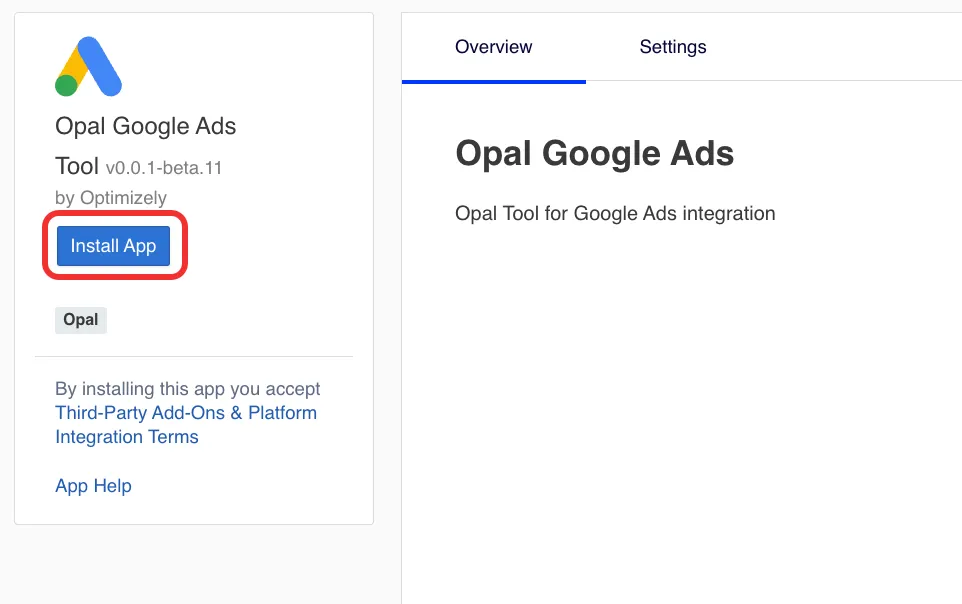
Click Install App.
Configure Google Ads API authentication
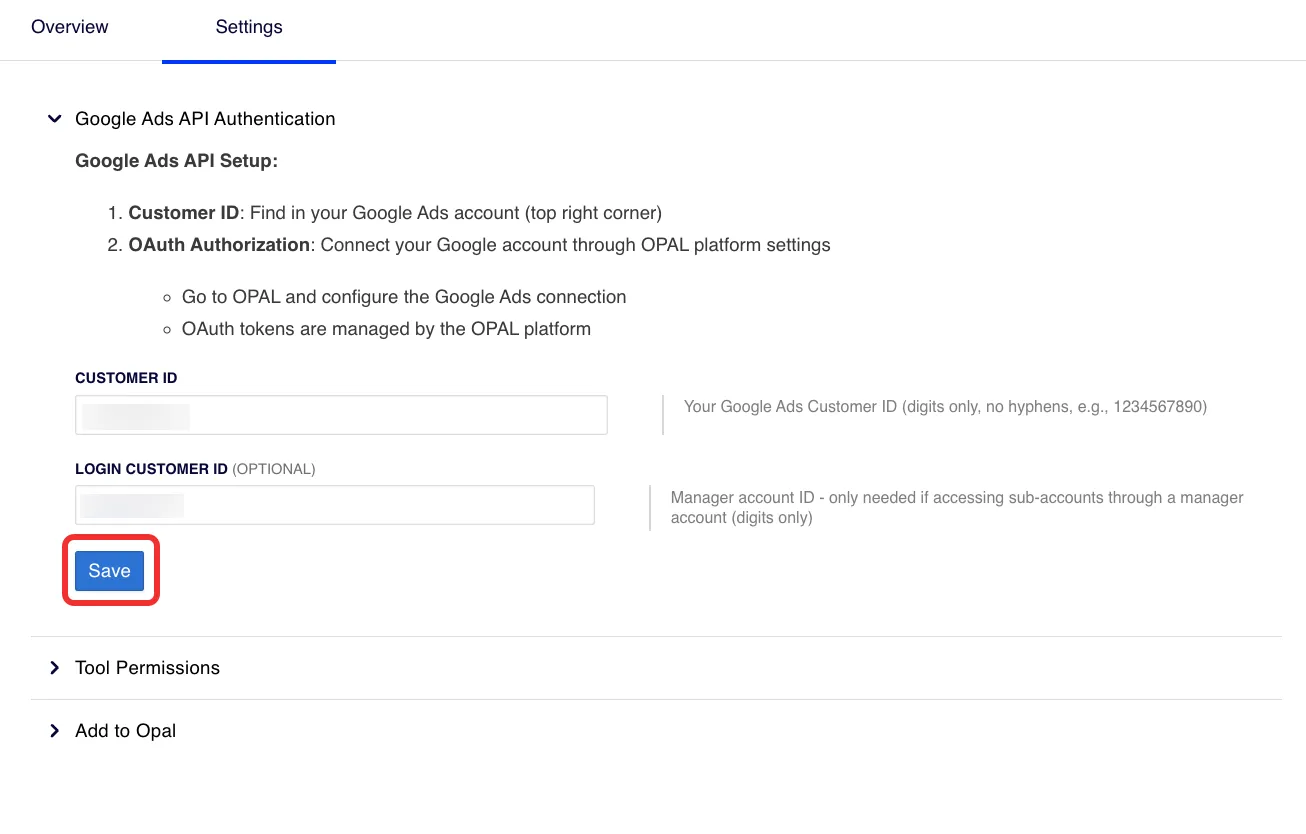
Configure the Google Ads API authentication so Opal can call Google Ads on behalf of your account.
(Optional) Enter your Login Customer ID. If you manage multiple Google Ads accounts under a Manager account (a single login that controls several customer accounts), this is the Manager account ID. To find it, see the Additional tips to find your customer ID section in the Find your Google Ads customer ID in the Google documentation.
Click Save.
Configure tool permissions
Select the Settings tab.
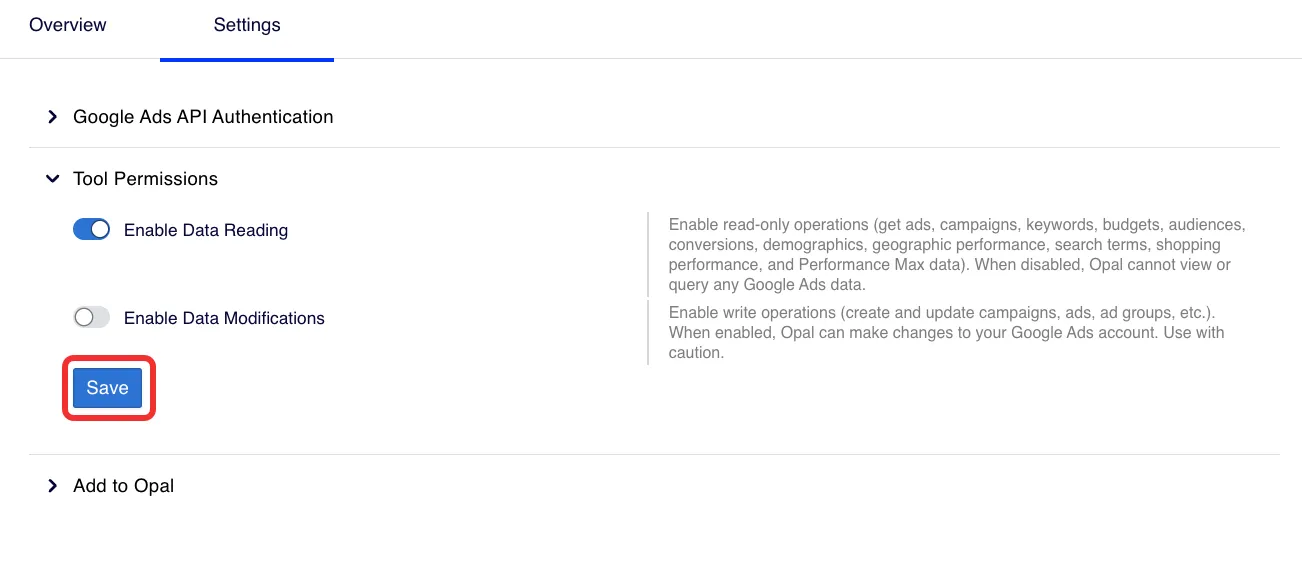
Expand the Tool Permissions section.
Toggle Enable Data Reading on to enable read-only tools.
Toggle Enable Data Modifications on to enable write tools.
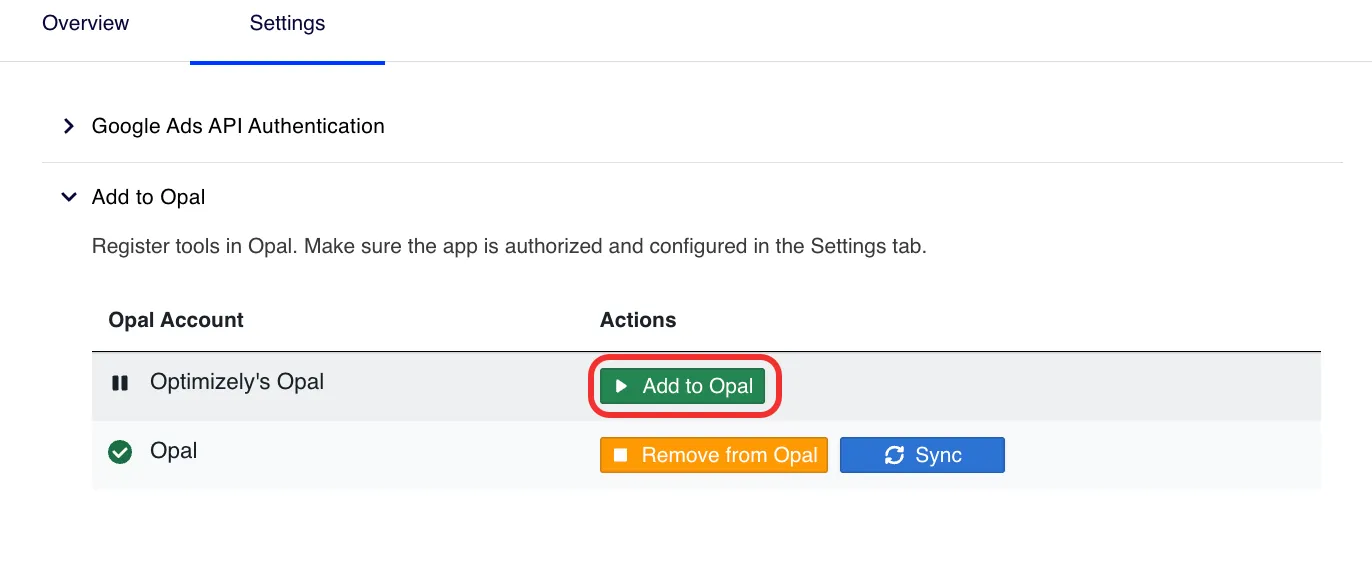
Click Add to Opal for the Opal Account you want to add the Google Ads connector tools to.
Click Remove from Opal to remove the connection.
After you complete the steps in this section, each Opal user in your account can follow the steps in Authenticate with Google Ads to connect their own Google Ads login.
Authenticate with Google Ads
After an administrator connects opal with Google Ads, log in from Opal to access your data. The Google Ads connector tools use user-level authentication, so you can only access data you have permission to view in Google Ads.
To authenticate, complete the following steps in Opal:
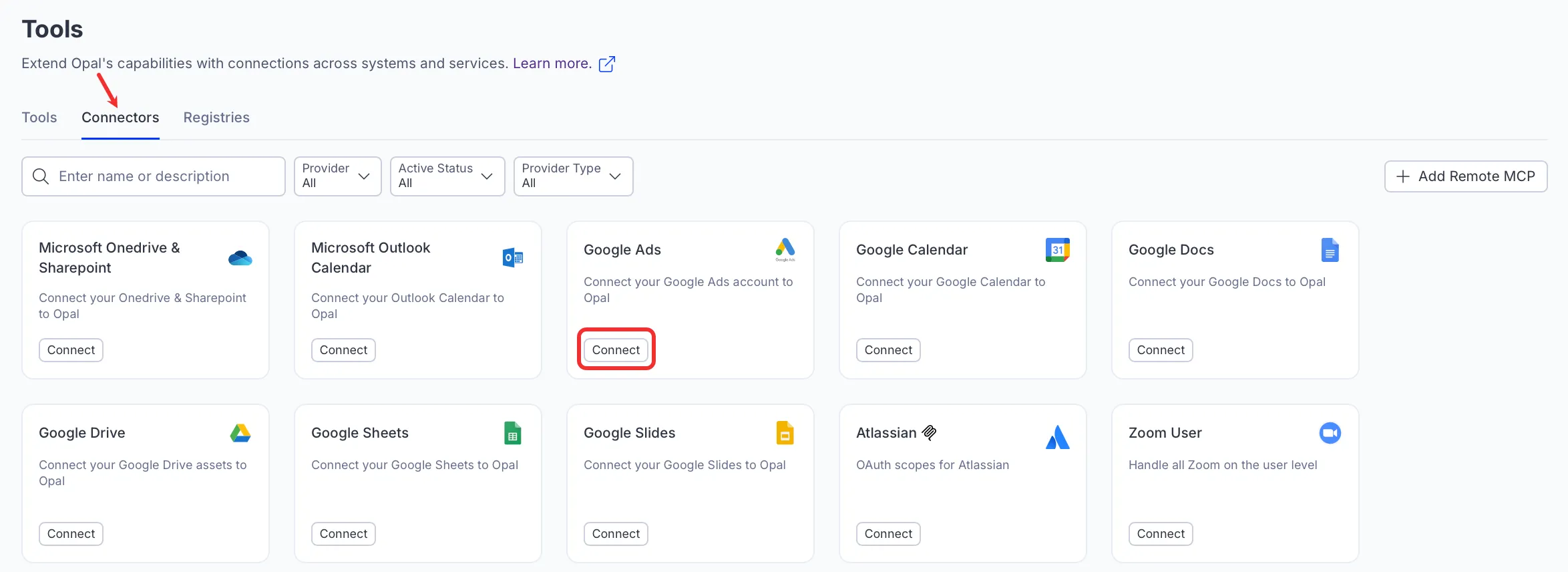
Go to Connectors > Connectors.
Click Connect on the Google Ads connector tools.
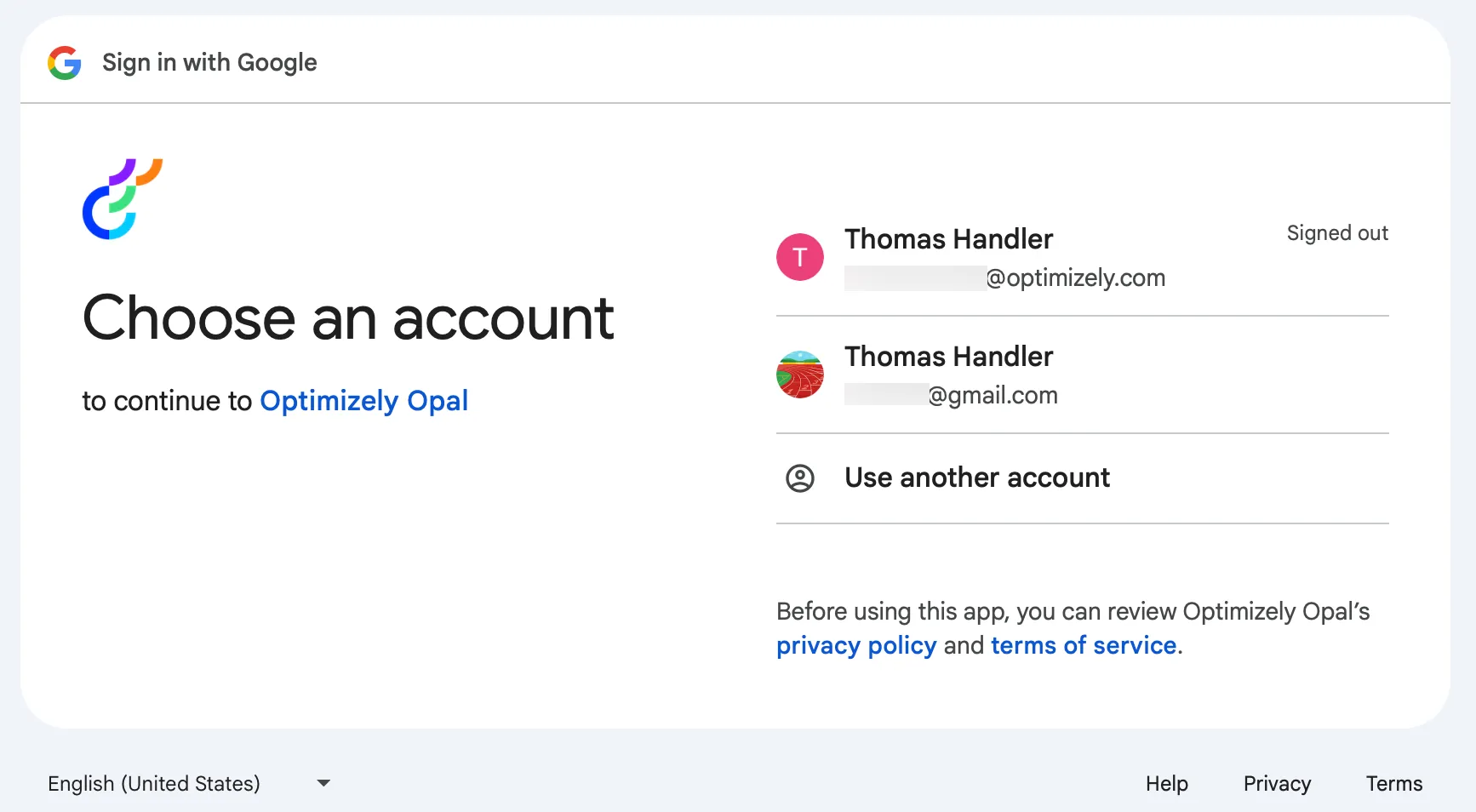
Log in to Google in the window Optimizely displays.
After an Opal administrator Add the Opal Google Ads Tool in OCP and you log in using the User-level auth for Google Ads, you can call the following tools in Opal. Click on a tool to expand it to learn when to use the tool, available parameters, and example prompts. If you do not provide a required parameter, Opal prompts you for it.
Account access and verification
Use these tools to confirm which Google Ads account is connected and to discover all accounts available to you. This is especially useful for manager (MCC) accounts with multiple sub-accounts, and as a first step before running queries against a specific account.
When to use
Confirm which account is connected before running other queries.
Retrieve the account name, customer ID, currency code, and timezone of a specific Google Ads account.
Check the manager status and auto-tagging configuration of an account.
Parameters
(Optional) customerId – Google Ads Customer ID to query (digits only, no hyphens). For example, 1234567890. Default: Uses the Customer ID from authentication settings. Only needed if querying a different account than the default.
Example prompts
Get the current Google Ads account info.
Can you tell me the timezone and currency for customer ID 1234567890?
Check the manager status of my connected Google Ads account.
When to use
Discover sub-accounts available under a MCC account.
Verify which customer accounts the authenticated user can access before querying specific IDs.
Retrieve a list of accessible customer IDs to pass into other Google Ads tools like campaigns or keywords.
Parameters
None
Example prompts
List all the Google Ads accounts I have access to.
What customer accounts can my credentials see?
Show me all accessible customer IDs for my manager account.
Campaign and structure management
Use these tools to analyze the hierarchy of your Google Ads account, monitor high-level performance metrics, manage budgets, and drill into specific ad groups and ad creatives.
When to use
Monitor total spend, impressions, and conversions for specific campaigns over a set date range.
Compare performance between active and paused campaigns.
Identify top-performing campaigns to inform budget reallocation.
Parameters
(Optional) startDate – Date range in YYYY-MM-DD format. For example, 2025-01-01.
(Optional) endDate – Date range in YYYY-MM-DD format. For example, 2025-01-31.
(Optional) campaignIds – JSON array of campaign IDs to filter by. For example, [12345678, 87654321].
(Optional) metrics – JSON array of metric names to include. For example, ['impressions', 'clicks', 'cost_micros', 'ctr', 'conversions'].
(Optional) customerId – Customer ID (digits only).
(Optional) campaignStatus – JSON array of campaign statuses to filter by. Provide as a JSON string. For example, single status: ['ENABLED'], multiple statuses: ['ENABLED', 'PAUSED'].
(Optional) campaignName – Filter campaigns by name (case-insensitive contains match).
Example prompts
Show me the total cost and conversions for all enabled campaigns last month.
How did my "Search - Brand" campaign perform over the last 14 days?
I need a list of all paused campaigns and their historical click-through rates.
When to use
Break down campaign results to see which themes or ad groups drive the most ROI.
Analyze conversion rates at the ad group level to identify optimization opportunities.
Filter by ad group status to review performance of specific experimental groups.
Parameters
(Optional) startDate – Date range in YYYY-MM-DD format. For example, 2025-01-01.
(Optional) endDate – Date range in YYYY-MM-DD format. For example, 2025-01-31.
(Optional) campaignIds – JSON array of campaign IDs to filter by. For example, [12345678, 87654321].
(Optional) metrics – JSON array of metric names to include. For example, ['impressions', 'clicks', 'cost_micros', 'ctr', 'conversions'].
(Optional) adGroupIds – JSON array of ad group IDs to filter by. For example, [98765432, 87654321].
(Optional) adGroupStatus – JSON array of ad group statuses to filter by.
(Optional) customerId – Customer ID (digits only).
Example prompts
What are the top five ad groups by conversion rate in my "Winter Sale" campaign?
Show me the impressions and CPC for ad groups in campaign ID 12345.
List all enabled ad groups that had more than 10 conversions last week.
When to use
Evaluate the performance of specific Responsive Search Ads or Expanded Text Ads.
Identify which ad creatives have the highest CTR.
Audit the performance of active ads within a specific campaign to refine copy or assets.
Parameters
(Optional) startDate – Date range in YYYY-MM-DD format. For example, 2025-01-01.
(Optional) endDate – Date range in YYYY-MM-DD format. For example, 2025-01-31.
(Optional) campaignIds – JSON array of campaign IDs to filter by. For example, [12345678, 87654321].
(Optional) metrics – JSON array of metric names to include. For example, ['impressions', 'clicks', 'cost_micros', 'ctr', 'conversions'].
(Optional) adIds – JSON array of ad IDs to filter by. For example, [11111111, 22222222].
(Optional) adGroupIds – JSON array of ad group IDs to filter by. For example, [98765432, 87654321].
(Optional) adStatus – JSON array of ad statuses to filter by. For example, ['ENABLED', 'PAUSED']. Valid statuses include ENABLED, PAUSED, and REMOVED.
(Optional) customerId – Customer ID (digits only).
Example prompts
Compare the performance of all enabled ads in my "Brand" ad group.
Which individual ads had the lowest cost per click (CPC) last month?
Show me the conversion data for all ads in campaign 987654.
When to use
Track how much of your daily budget your campaigns use.
Monitor shared budget performance to ensure even delivery.
Identify campaigns that are "Limited by Budget" by comparing cost to daily limits.
Parameters
(Optional) startDate – Date range in YYYY-MM-DD format. For example, 2025-01-01.
(Optional) endDate – Date range in YYYY-MM-DD format. For example, 2025-01-31.
(Optional) budgetIds – JSON array of campaign budget IDs. For example, [12345678, 87654321].
(Optional) metrics – JSON array of metrics. For example, ['impressions', 'clicks', 'cost_micros'].
(Optional) customerId – Customer ID (digits only).
(Optional) deliveryMethods – JSON array of delivery methods. For example, ['STANDARD']. Valid methods include STANDARD and ACCELERATED.
Example prompts
Show me the daily budget and total spend for all campaigns this week.
Which budgets are shared across multiple campaigns and how is the spend distributed?
Check the performance of my primary budget for the current month.
Search and keyword intelligence
Use these tools to analyze the effectiveness of your targeted keywords and to identify the search queries that trigger your ads.
When to use
Analyze performance by keyword match type (Exact, Phrase, Broad). Keyword match types control how broadly Google matches your keyword against user search queries. Exact, Phrase, and Broad widen the match in that order.
Identify keywords with high cost but no conversions to pause or exclude.
Check Quality Score (Google's 1–10 rating of keyword relevance and ad experience) and expected click-through rate for keywords.
Parameters
(Optional) startDate – Date range in YYYY-MM-DD format. For example, 2025-01-01.
(Optional) endDate – Date range in YYYY-MM-DD format. For example, 2025-01-31.
(Optional) metrics – JSON array of metrics. For example, ['impressions', 'clicks', 'cost_micros', 'ctr', 'conversions', 'quality_score'].
(Optional) customerId – Customer ID (digits only).
(Optional) campaignIds – JSON array of campaign IDs to filter by. For example, [12345678, 87654321].
(Optional) keywordTexts – JSON array of keyword texts to filter by. For example, ['running shoes', 'sneakers', 'athletic footwear'].
(Optional) adGroupIds – JSON array of ad group IDs to filter by. For example, [98765432, 87654321].
(Optional) matchTypes – JSON array of keyword match types to filter by. For example, ['EXACT', 'PHRASE']. Valid match types include the following:
EXACT – Exact match keywords.
PHRASE – Phrase match keywords.
BROAD – Broad match keywords.
Example prompts
What are the top 10 keywords by conversion value in campaign 123?
Show me all Exact match keywords that have a Quality Score below five.
List the cost per conversion for keywords in my "Search - NonBrand" campaign.
When to use
Discover search queries that triggered ads, and use them to find negative keyword opportunities.
Identify emerging search trends and high-intent queries that are not yet added as keywords.
Understand how Google matches broad keywords to user queries.
Parameters
(Optional) startDate – Date range in YYYY-MM-DD format. For example, 2025-01-01.
(Optional) endDate – Date range in YYYY-MM-DD format. For example, 2025-01-31.
(Optional) campaignIds – JSON array of campaign IDs to filter by. For example, [12345678, 87654321].
(Optional) searchTermStatus – JSON array of search term statuses to filter by. For a single status, use ['NONE']. For multiple statuses, use ['ADDED', 'EXCLUDED'].
(Optional) metrics – JSON array of metrics. For example, ['impressions', 'clicks', 'cost_micros', 'ctr', 'conversions'].
Example prompts
Show me the search terms from the last 30 days that have not been added as keywords.
Which search queries had more than 5 conversions last month?
I need a list of search terms from the "Shoes" ad group with a CTR higher than 10%.
Specialized campaign performance
Use these tools for specialized Google Ads formats, such as Performance Max and Shopping, that require unique reporting. They provide insights into asset groups, product performance, and ad distribution across the Google network.
When to use
Evaluate the performance of different asset groups (combinations of text, images, and video) in Performance Max.
Identify which audiences or themes within a PMax campaign drive results.
Monitor the status and metrics of each PMax component.
Parameters
(Optional) startDate – Date range in YYYY-MM-DD format. For example, 2025-01-01.
(Optional) endDate – Date range in YYYY-MM-DD format. For example, 2025-01-31.
(Optional) assetGroupIds – JSON array of asset group IDs. For example, [12345678, 87654321].
(Optional) metrics – JSON array of metrics. For example, ['impressions', 'clicks'].
(Optional) customerId – Customer ID (digits only).
(Optional) assetGroupStatus – JSON array of asset group statuses. For example, ['ENABLED']. Valid statuses include ENABLED, PAUSED, and REMOVED.
(Optional) campaignIds – JSON array of campaign IDs. For example, [12345678].
Example prompts
Show me the clicks and conversions for asset groups in my PMax campaign.
Which asset group in campaign 987 has the highest conversion value?
List all enabled asset groups and their performance for the last 30 days.
When to use
Identify the websites, YouTube channels, or mobile apps where Google displays your Performance Max ads.
Audit placements for brand safety and relevance.
Understand the distribution of your PMax budget across the Google Display Network.
Parameters
(Optional) startDate – Date range in YYYY-MM-DD format. For example, 2025-01-01.
(Optional) endDate – Date range in YYYY-MM-DD format. For example, 2025-01-31.
(Optional) campaignIds – JSON array of campaign IDs. For example, [12345678].
(Optional) metrics – JSON array of metrics. For example, ['impressions', 'clicks'].
(Optional) customerId – Customer ID (digits only).
Example prompts
Where did my PMax ads show last week? Show me the top 20 placements by impressions.
List the placements for campaign ID 45678 and their respective conversion counts.
I need a placement report for my all-asset Performance Max campaign.
When to use
Analyze performance by Product ID or category in Shopping and PMax campaigns.
Identify "hero" products that drive the most revenue for your ecommerce store.
Spot products with high spend but low return on ad spend (ROAS) to adjust bids or negative keywords (terms that prevent your ads from showing for irrelevant queries).
Parameters
(Optional) startDate – Date range in YYYY-MM-DD format. For example, 2025-01-01.
(Optional) endDate – Date range in YYYY-MM-DD format. For example, 2025-01-31.
(Optional) metrics – JSON array of metrics. For example, ['impressions', 'clicks'].
(Optional) productIds – JSON array of product IDs in Merchant Center format. For example, ['online:en:US:12345', 'online:en:US:67890'].
(Optional) adGroupIds – JSON array of ad group IDs. For example, [12345678].
(Optional) customerId – Customer ID (digits only).
(Optional) campaignIds – JSON array of campaign IDs. For example, [12345678].
Example prompts
What are my top 10 best-selling products by conversion value in Google Shopping?
Show me the impressions and cost for product ID 'online:en:US:12345'.
List product performance for the "Electronics" category over the last quarter.
Audience and demographic insights
Use these tools to break down performance by age, gender, and pre-defined audience segments to understand who is engaging with your ads. These breakdowns help you tailor your messaging and targeting.
When to use
Determine which age groups have the highest conversion rates to refine targeting.
Evaluate if your ad creative is resonating with your target demographic.
Justify bid adjustments for specific age brackets (for example, 25–34) based on performance.
Parameters
(Optional) startDate – Date range in YYYY-MM-DD format. For example, 2025-01-01.
(Optional) endDate – Date range in YYYY-MM-DD format. For example, 2025-01-31.
(Optional) metrics – JSON array of metrics. For example, ['impressions', 'clicks'].
(Optional) customerId – Customer ID (digits only).
(Optional) campaignIds – JSON array of campaign IDs. For example, [12345678].
(Optional) adGroupIds – JSON array of ad group IDs. For example, [12345678].
Example prompts
What is the conversion rate for the 18-24 age range in my "University" campaign?
Show me a breakdown of clicks and cost by age group for last month.
Which age range has the lowest cost per conversion across the whole account?
When to use
Compare performance between male, female, and undetermined segments.
Identify demographic shifts in performance for specific localized campaigns.
Optimize your budget by focusing spend on the most responsive gender segments.
Parameters
(Optional) startDate – Date range in YYYY-MM-DD format. For example, 2025-01-01.
(Optional) endDate – Date range in YYYY-MM-DD format. For example, 2025-01-31.
(Optional) metrics – JSON array of metrics. For example, ['impressions', 'clicks'].
(Optional) customerId – Customer ID (digits only).
(Optional) campaignIds – JSON array of campaign IDs. For example, [12345678].
(Optional) adGroupIds – JSON array of ad group IDs. For example, [12345678].
Example prompts
Which gender segment has the highest CTR in my "Apparel" campaign?
Show me the conversion value breakdown by gender for campaign ID 445566.
Compare impressions by gender for all search campaigns over the last 60 days.
When to use
Review the audience segments (User Lists, Custom Audiences) used for targeting.
Audit audience definitions to ensure they align with your current marketing strategy.
Identify available audiences for re-marketing or lookalike targeting.
Parameters
(Optional) audienceIds – JSON array of audience IDs. For example, [12345678, 87654321].
(Optional) customerId – Customer ID (digits only).
Example prompts
List all custom audiences configured in my account.
What are the definitions for my current remarketing lists?
Show me the IDs for all "In-Market" audiences I am currently tracking.
Geographic and result tracking
These tools provide location-specific data and detailed conversion tracking insights. Use them to understand where your results come from and what actions users take.
When to use
Identify high-performing countries, regions, or cities for expanded targeting.
Determine which geographic areas should be excluded based on high spend and low conversions.
Inform location-based bid adjustments for specialized local service campaigns.
Parameters
(Optional) adGroupIds – JSON array of ad group IDs to filter by. Examples include the following:
Single ad group – [12345678]
Multiple ad groups – [12345678, 87654321].
(Optional) locationIds – JSON array of location criteria IDs to filter by. Examples include the following:
Single location – [2840] (United States).
Multiple locations – [2840, 2826, 2124] (United States, United Kingdom, and Canada).
(Optional) startDate – Date range in YYYY-MM-DD format. For example, 2025-01-01.
(Optional) endDate – Date range in YYYY-MM-DD format. For example, 2025-01-31.
(Optional) campaignIds – JSON array of campaign IDs to filter by. Provide as a JSON string. Examples include the following:
Single campaign – [12345678]
Multiple campaigns – [12345678, 87654321].
(Optional) metrics – JSON array of metric names to include in the response. For example, ['metrics.impressions', 'metrics.clicks', 'metrics.cost_micros', 'metrics.ctr', 'metrics.conversions'].
(Optional) customerIds – Google Ads Customer ID to query (digits only, no hyphens). For example, 1234567890.
Example prompts
What were the top five countries by conversion rate for my "Global Search" campaign?
Show me the cost per acquisition (CPA) for users in California versus New York over the last month.
List all cities in the UK where my ads generated more than 50 clicks last week.
When to use
Retrieve conversion tracking configuration to see which conversion actions are set up.
Check the categories, statuses, and types of your configured conversions.
Filter specific conversion actions by category (for example, purchases or leads) to audit tracking setups.
Parameters
(Optional) categories – JSON array of conversion categories. Example: "['PURCHASE', 'LEAD']". Valid categories: PURCHASE, LEAD, SIGNUP, PAGE_VIEW, ADD_TO_CART, etc.
(Optional) customerId – Customer ID (digits only). Uses default if not provided
Example prompts
Get all conversion actions configured in my Google Ads account.
Show me the configuration for conversion action IDs 12345678 and 87654321.
List all the conversion actions that are categorized under 'PURCHASE' or 'LEAD'.
Campaign and keyword management
Use these tools to make changes to your account, such as pausing campaigns, adjusting budgets and bids, and adding keywords. Unlike the reporting tools, these tools modify your live campaigns and can affect spend, so review the changes before you apply them.
When to use
Create one or more keyword criteria in a specified ad group.
Add multiple keywords with different match types (EXACT, PHRASE, or BROAD).
Add keywords with a default cost-per-click (CPC) bid to an ad group.
Parameters
adGroupId – The ad group ID to add keywords to. For example, 12345678.
keywords – JSON array of keyword objects. Each object must have text and matchType.
(Optional) cpcBidMicros – Default CPC bid in micros for all keywords being added. 1,000,000 micros = $1.00.
(Optional) customerId – Google Ads Customer ID (digits only, no hyphens). Default: Uses the Customer ID from authentication settings.
Example prompts
Add the exact match keyword "running shoes" to ad group 12345678.
Can you add "best running shoes" as a phrase match and "athletic footwear" as broad match to ad group 12345678?
Add the keyword "running shoes" with an exact match and a default CPC bid of $1.50 to ad group 12345678.
When to use
Update the CPC bid amount for a specific keyword criterion.
Adjust bids in micros (1,000,000 micros = $1.00).
Change the bid for an individual keyword without affecting the entire ad group.
Parameters
adGroupId – The ad group ID that contains the keyword. For example, 12345678.
cpcBidMicros – New CPC bid amount in micros. 1,000,000 micros = $1.00.
criterionId – The keyword criterion ID to update the bid for. For example, 99887766.
(Optional) customerId – Google Ads Customer ID (digits only, no hyphens). Default: Uses the Customer ID from authentication settings.
Example prompts
Set the CPC bid to $1.50 for keyword criterion 99887766 in ad group 12345678.
Update the keyword bid to $0.50 for criterion 99887766 in ad group 12345678.
Change the CPC bid to $10.00 for keyword 99887766 in my ad group 12345678.
When to use
Update the status of one or more keyword criteria to ENABLED or PAUSED.
Pause a single underperforming keyword in an ad group.
Enable multiple keywords at once.
Parameters
adGroupId – The ad group ID that contains the keywords. For example, 12345678.
criterionIds – JSON array of keyword criterion IDs to update. Provide as a JSON string.
status – New status for the keywords. Valid values: ENABLED or PAUSED.
(Optional) customerId – Google Ads Customer ID (digits only, no hyphens). Default: Uses the Customer ID from authentication settings.
Example prompts
Pause keyword criterion 99887766 in ad group 12345678.
Enable keyword criteria 99887766 and 55443322 in ad group 12345678.
Please update the status to PAUSED for keyword 99887766 in ad group 12345678.
When to use
Update the status of one or more ads to ENABLED or PAUSED.
Pause a single underperforming ad in an ad group.
Enable multiple ads at once within the same ad group.
Parameters
adGroupId – The ad group ID that contains the ads. Required to construct the ad resource name. For example, 12345678.
adIds – JSON array of ad IDs to update. Provide as a JSON string.
status – New status for the ad(s). Valid values: ENABLED or PAUSED.
(Optional) customerId – Google Ads Customer ID (digits only, no hyphens). Default: Uses the Customer ID from authentication settings.
Example prompts
Pause ad 99887766 in ad group 12345678.
Enable ads 99887766 and 55443322 in ad group 12345678.
Update the status to PAUSED for ad 99887766 in ad group 12345678.
When to use
Update the status of one or more ad groups to ENABLED or PAUSED.
Pause a single ad group.
Enable multiple ad groups at once.
Parameters
adGroupIds – JSON array of ad group IDs to update. Provide as a JSON string.
status – New status for the ad groups. Valid values: ENABLED or PAUSED.
(Optional) customerId – Google Ads Customer ID (digits only, no hyphens). Default: Uses the Customer ID from authentication settings.
Example prompts
Pause ad group 12345678.
Enable ad groups 12345678 and 87654321.
Change the status to PAUSED for ad group 12345678.
When to use
Update the status of one or more campaigns to ENABLED or PAUSED.
Pause a single campaign that has ended or is underperforming.
Enable multiple campaigns at once.
Parameters
campaignIds – JSON array of campaign IDs to update. Provide as a JSON string.
status – New status for the campaigns. Valid values: ENABLED or PAUSED.
(Optional) customerId – Google Ads Customer ID (digits only, no hyphens). Default: Uses the Customer ID from authentication settings.
Example prompts
Pause campaign 12345678.
Enable campaigns 12345678 and 87654321.
Update the status of campaign 12345678 to PAUSED.
When to use
Change the daily budget amount for a campaign budget.
Increase the budget for a high-performing campaign.
Decrease the daily budget to limit spend on a specific campaign.
Parameters
amountMicros – New daily budget amount in micros. 1,000,000 micros = $1.00
budgetId – The campaign budget ID to update. For example, 12345678.
(Optional) customerId – Google Ads Customer ID (digits only, no hyphens). Default: Uses the Customer ID from authentication settings.
Example prompts
Set the budget to $50/day for budget ID 12345678.
Update the campaign budget to $100/day for budget ID 12345678.
Increase the budget amount to $500/day for budget ID 12345678.