Optimizely Opal's WordPress connector tools let you manage and optimize your WordPress content in Opal. These tools support content creation, publishing, and management for articles and static pages. They include capabilities for search engine optimization (SEO), digital asset management, and content organization through categories and tags. The tools integrate with WordPress so you can manage your content workflow without accessing the WordPress admin panel.
After installing the connector in OCP, individual Opal users (those who chat with Opal) and agent builders (those who configure Opal agents) can log in to WordPress to access their WordPress content from Opal. Administrators only need to install the WordPress connection in OCP once.
Common use cases
The WordPress connector tools in Opal let you create and manage posts and pages, update metadata, manage media assets, and organize content with categories and tags.
Create content and publish
Draft, publish, update, and delete articles, check their status, and schedule future posts. Optimize content for search engines by updating titles, slugs, and meta descriptions, without accessing the WordPress admin panel.
Example prompts
Create a WordPress post with the following details: title: XYZ, body: ABC, tags: ZYX.
Update the slug on the spring 2026 post to spring-styles-2026.
Update roadmap page with xyz details.
Show me a preview of xyz page.
Website and landing page management
Create, update, and manage static pages, for example, "About Us", "Contact", or "Services", and configure and modify landing pages for marketing campaigns. Use these tools to maintain core website content and deploy campaign-specific pages.
Example prompt
Create a marketing landing page and insert copy using the attached brief.
Digital asset management
Opal lets you manage media assets. Upload, organize, and retrieve images, videos, and other media files to integrate visual content into posts and pages. This makes it straightforward to add visuals anywhere on the site.
Example prompts
Upload the attached image to my WordPress asset manager.
Show me media assets tagged with ‘sneakers’.
Content organization and SEO
Opal also lets you classify content. Manage and apply categories and tags to posts, improving content organization, site navigation, discoverability, and search engine indexing.
Example prompt
Update the category of the ‘Guardians of the Galaxy!’ post to ‘Superheros’
Import content from third-party platforms
Use Opal to import content from third-party platforms into WordPress.
Example prompt
Import the content from the ‘Spring Car Reviews’ google doc and create a WordPress post.
Connect Opal with WordPress
Complete the following steps to enable the WordPress connector tools.
Install WordPress in OCP
In the OCP App Directory, complete the following:
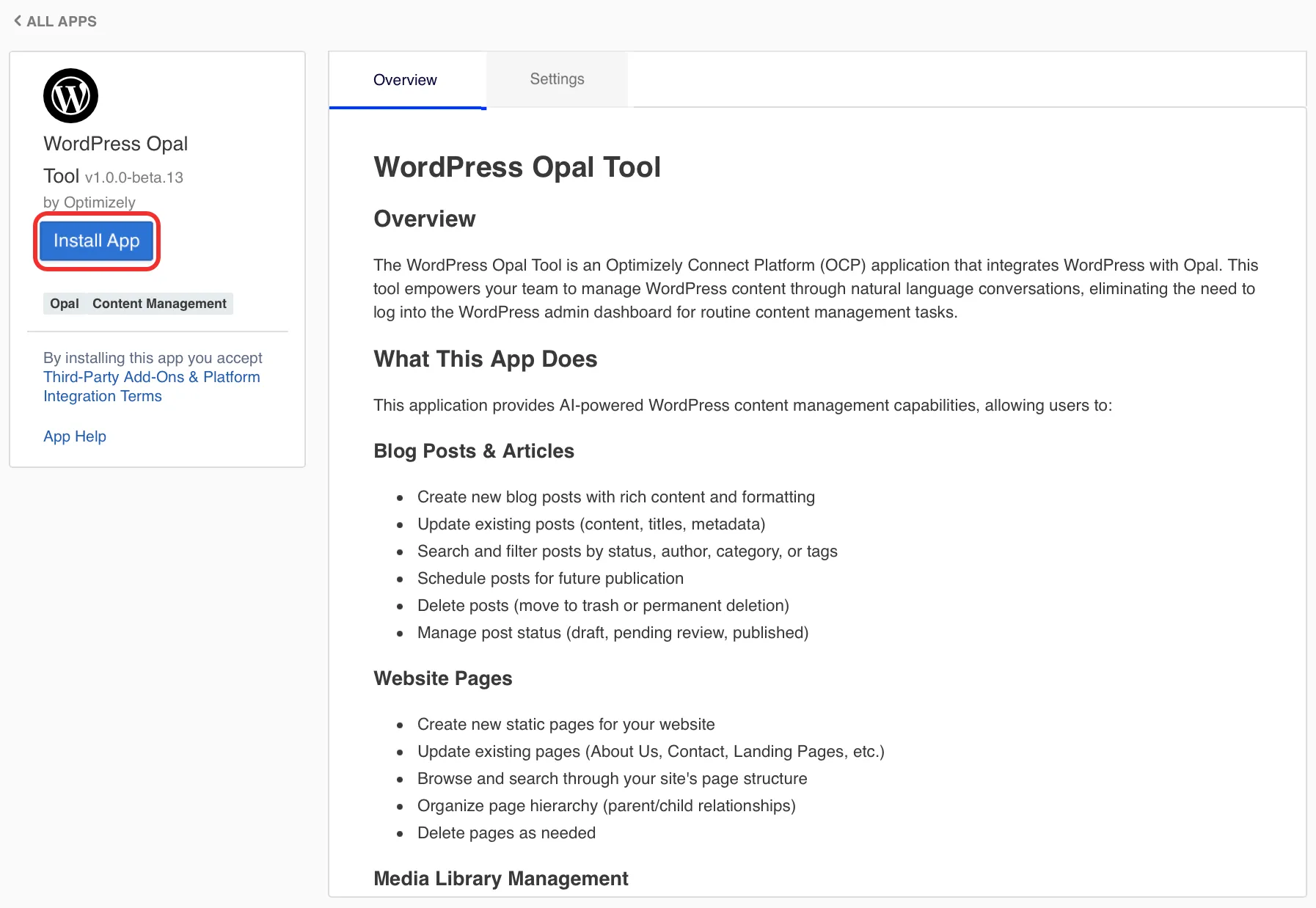
Click the WordPress connector tool.
Click Install App.
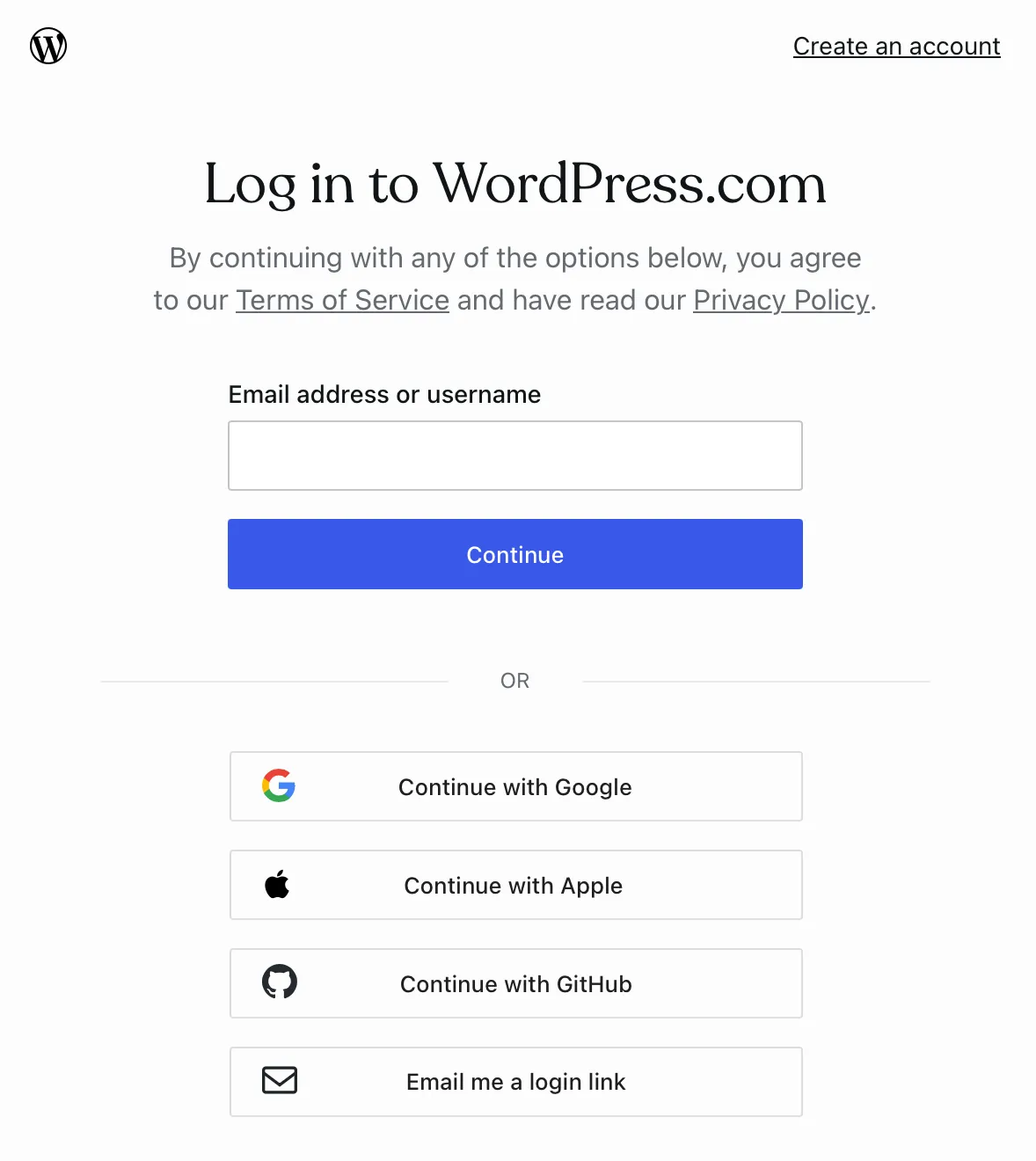
Log in to WordPress using the following options:
If you self-host your WordPress site, connect using your username and password.
Go to the Settings tab.
Enter your WordPress Site URL.
Enter your WordPress username.
Enter your Application password in the WordPress admin.
Expand the Add to Opal section.
Click Add to Opal to register the WordPress connector tools to the corresponding Opal instance.
Leave the WordPress Site URL, WordPress username, and Application password fields blank.
Expand the Add to Opal section.
Click Add to Opal to register the WordPress connector tools to the corresponding Opal instance.
After you complete the previous steps, Opal users can then follow the steps in the Authenticate in WordPress section.
Authenticate in WordPress
After an administrator connects Opal with WordPress, log in from Opal to access your WordPress content. The WordPress connector tools use user-level authentication to ensure individual Opal users and agent builders can only access data they have permission to access within WordPress.
To authenticate, complete the following steps in Opal:
After an administrator installs WordPress in OCP and you log in to WordPress as described in Authenticate in WordPress, the following tools are available in Opal. Click a tool's name to expand it and learn when to use the tool, required and optional parameters, and example prompts on how to call the tool. If you do not provide a required parameter, Opal prompts you for it.
Category
When to use
Add a new topic or section to your WordPress site.
Organize posts into new hierarchical structures.
Prepare for a new content campaign by configuring relevant categories.
Parameters
name – The name of the category.
(Optional) slug – The URL-friendly version of the name.
(Optional) description – A brief description of the category.
(Optional) parent – The ID of the parent category, if it is a subcategory.
Example prompts
Create a new WordPress category called "Product Updates".
Add a category named "Event Recaps" with the slug "event-recaps" and description "Summaries of past events".
Make a subcategory "Press Releases" under the "News" category (ID 123).
When to use
Fetch information about a specific category, like its description or parent.
Verify if a category exists and its properties.
Get details for a category before updating it.
Parameters
id – The ID of the category to retrieve.
Example prompts
Get details for WordPress category ID 10.
Show me the information for category 25.
What are the details of the "News" category (ID 5)?
When to use
View all available categories on your WordPress site.
Find categories related to a specific topic.
Get a list of categories to use for new posts.
Parameters
(Optional) search – Search categories by name.
(Optional) per_page – Number of categories to return per page.
(Optional) page – The page number to retrieve.
(Optional) orderby – Sort collection by object attribute.
(Optional) order – Order sort attribute ascending or descending.
Example prompts
List all WordPress categories.
Show me the first 10 categories.
List categories containing "marketing".
When to use
Find a category when you know only its name (or part of it).
Verify if a category with a specific name already exists.
Get category details for a category by its name.
Parameters
name – The full or partial name of the category to search for.
Example prompts
Search for WordPress categories named "News".
Find categories that include "product" in their name.
Are there any categories called "Updates"?
Page
When to use
Publish a new "About Us" or "Contact" page.
Draft a landing page for a new marketing campaign.
Create a static content page for your website.
Parameters
title – The title of the page.
(Optional) content – The main content of the page. Can include HTML.
(Optional) status – The status of the page. For example, publish, future, draft, pending, or private.
(Optional) author_id – The ID of the author.
(Optional) parent – The ID of the parent page for hierarchical structure.
(Optional) slug – The URL-friendly version of the title.
(Optional) menu_order – The order in navigation menus.
Example prompts
Create a new WordPress page titled "Our Services" with some placeholder content.
Draft a page called "Upcoming Features" and set its status to "draft".
Publish a new "Privacy Policy" page.
When to use
Remove an old or irrelevant page from your website.
Clean up draft pages you no longer need.
Delete a page created in error.
Parameters
id – The ID of the page to delete.
(Optional) force – Whether to bypass the trash and permanently delete the page instead. Boolean, default false.
Example prompts
Delete the WordPress page with ID 101.
Remove page 202 permanently.
Can you delete the "Test Page" (ID 303)?
When to use
Fetch the content or metadata of a specific page.
Verify if a page exists and its properties.
Get details for a page before updating it.
Parameters
id – The ID of the page to retrieve.
Example prompts
Get details for WordPress page ID 1.
Show me the information for page 2.
What is the content of the "About Us" page (ID 3)?
When to use
View all pages on your WordPress site.
Find pages related to a specific topic.
Get a list of all published pages.
Parameters
(Optional) search – Search term to filter pages by title and content.
(Optional) per_page – Number of pages to return per page. Default, 10. Max, 100.
(Optional) page – The page number for pagination.
(Optional) orderby – Sort collection by object attribute.
(Optional) order – Order sort attribute ascending or descending.
(Optional) status – Filter by page status. For example, publish, future, draft, pending, private, trash, or any.
(Optional) author – Filter pages by author ID.
(Optional) parent – Filter pages by parent ID.
(Optional) menu_order – Filter pages by menu order.
Example prompts
List all WordPress pages.
Show me all draft pages.
List pages containing "contact" in their title.
When to use
Modify the title, content, or status of an existing page.
Correct errors or update information on a published page.
Change a page from draft to published status.
Parameters
id – The ID of the page to update.
(Optional) menu_order – The order in navigation menus.
(Optional) title – The updated title of the page.
(Optional) content – The updated content of the page. Can include HTML.
(Optional) parent – The ID of the parent page.
(Optional) slug – The updated URL-friendly slug.
(Optional) status – The updated status. For example, publish, future, draft, pending, or private.
(Optional) featured_media – The ID of the featured image or media.
Example prompts
Update the content of page ID 123 with new information.
Change the title of page 456 to "Our New Services".
Publish the draft page with ID 789.
When to use
Add or modify custom fields for a WordPress page.
Update SEO metadata (for example, meta title or meta description) for a page.
Store additional structured data associated with a page.
Parameters
id – The ID of the page whose metadata is updated.
meta – A JSON object containing custom metadata key-value pairs. For example, {"custom_field": "value"}. Only registered meta fields can be updated.
Example prompts
Update the 'seo_title' metadata for page ID 123 to "New SEO Title".
Set the 'custom_css' meta field for page 789 to 'body { color: blue; }'.
Post
When to use
Publish a new blog post.
Draft an article for future publication.
Create a news update with specific categories and tags.
Parameters
title – The title of the post.
content – The main content of the post. Can contain HTML.
(Optional) excerpt – A short excerpt or summary of the post.
(Optional) slug – The URL-friendly slug for the post.
(Optional) tags – Comma-separated tag IDs to assign to the post. For example, "2,8,15". Use the wordpress_search_tags_by_name tool to find tag IDs by name.
(Optional) status – The status of the post. Options include, publish, future, draft, pending, or private.
(Optional) featured_media – The ID of the featured image or media.
(Optional) categories – Comma-separated category IDs to assign to the post. For example, "1,5,12". Use the wordpress_search_categories_by_name tool to find category IDs by name.
Example prompts
Create a new blog post titled "10 Tips for Better SEO" and publish it.
Draft a post about "AI in Content Creation" and assign it to the "Technology" category.
Publish a news article titled "Company X Announces New Partnership" with tags "news" and "partnership".
When to use
Remove an outdated blog post.
Delete a draft post that will not be published.
Clean up spam or irrelevant posts.
Parameters
id – The ID of the post to delete.
(Optional) force – Whether to bypass trash and permanently delete. Boolean, default false.
Example prompts
Delete the WordPress post with ID 500.
Permanently remove blog post 600.
Can you delete the post titled "Old News" (ID 700)?
When to use
Fetch the content or metadata of a specific blog post.
Verify if a post exists and its properties.
Get details for a post before updating it.
Parameters
id – The ID of the post to retrieve.
Example prompts
Get details for WordPress post ID 10.
Show me the information for post 20.
What is the content of the blog post titled "Latest Trends" (ID 30)?
When to use
View all blog posts on your WordPress site.
Find posts related to a specific category or tag.
Get a list of all published articles.
Parameters
(Optional) search – Search posts by title or content.
(Optional) categories – Filter posts by comma-separated category IDs. For example, "1,5,12". Use the wordpress_search_categories_by_name tool or the wordpress_list_categories tool to find category IDs.
(Optional) order – Sort order. asc or desc.
(Optional) tags – Filter posts by comma-separated tag IDs. For example, "2,8,15". Use the wordpress_search_tags_by_name tool or the wordpress_list_tags tool to find tag IDs.
(Optional) author – Filter posts by author ID.
(Optional) orderBy – Sort posts by date, relevance, id, title, or slug.
(Optional) per_page – Number of posts per page.
(Optional) status – Filter by post status, publish, future, draft, pending, private, trash, or any.
(Optional) page – Page number for pagination.
Example prompts
List all WordPress posts.
Show me all posts in the "News" category.
List draft posts authored by John Doe.
When to use
Modify the title, content, or status of an existing post.
Correct errors or update information on a published article.
Change a post from draft to published status.
Parameters
id – The ID of the post to update.
(Optional) title – The new title of the post.
(Optional) content – The new main content of the post. Can include HTML.
(Optional) featured_media – The ID of the featured image or media.
(Optional) slug – The updated URL-friendly slug.
(Optional) tags – Comma-separated tag IDs to assign to the post. For example, "2,8,15". Use the wordpress_search_tags_by_name tool to find tag IDs by name.
(Optional) excerpt – The updated excerpt or summary.
Example prompts
Update the content of post ID 123 with new information.
Change the title of post 456 to "Latest Industry News".
Publish the draft post with ID 789 and add it to the "Announcements" category.
When to use
Add or modify custom fields for a WordPress post.
Update SEO metadata (for example, meta title or meta description) for a post.
Store additional structured data associated with a post.
Parameters
id – The ID of the post to update metadata for.
meta – A JSON object containing custom metadata key-value pairs. For example, {"custom_field": "value"}. Only registered meta fields can be updated.
Example prompts
Update the 'seo_description' metadata for post ID 123 to "Optimized description for search engines".
Add a custom field 'reading_time' with value '5 minutes' to post 456.
Set the 'featured_video_id' meta field for post 789 to 'youtube_xyz'.
Tag
When to use
Add a new keyword or topic for post classification.
Improve content discoverability by creating relevant tags.
Standardize tagging for new content.
Parameters
name – The name of the tag.
(Optional) slug – The URL-friendly version of the name.
(Optional) description – A brief description of the tag.
Example prompts
Create a new WordPress tag called "Marketing Strategy".
Add a tag named "Productivity Hacks" with the slug "productivity-hacks".
Make a new tag "Customer Success" and give it a description.
When to use
Fetch information about a specific tag, like its description.
Verify if a tag exists and its properties.
Get details for a tag before updating it.
Parameters
id – The ID of the tag to retrieve.
Example prompts
Get details for WordPress tag ID 1.
Show me the information for tag 5.
What are the details of the "SEO" tag (ID 10)?
When to use
View all available tags on your WordPress site.
Find tags related to a specific topic.
Get a list of tags to use for new posts.
Parameters
(Optional) search – Search tags by name.
(Optional) per_page – Number of tags to return per page.
(Optional) page – The page number to retrieve.
(Optional) orderby – Sort collection by object attribute.
(Optional) order – Order sort attribute ascending or descending.
Example prompts
List all WordPress tags.
Show me the first 10 tags.
List tags containing "marketing".
When to use
Find a tag when only its name (or part of it) is known.
Verify if a tag with a specific name already exists.
Get tag details for a tag by its name.
Parameters
name – The full or partial name of the tag to search for.
Example prompts
Search for WordPress tags named "SEO".
Find tags that include "marketing" in their name.
Are there any tags called "Tutorials"?
Media
When to use
Remove an outdated or unused image from the media library.
Clean up duplicate media files.
Delete a video that is no longer relevant.
Parameters
id – The ID of the media item to delete.
(Optional) force – Whether to bypass trash and permanently delete.
Example prompts
Delete the WordPress media item with ID 456.
Permanently remove the image file with ID 789.
Can you delete media item 123?
When to use
Fetch information about a specific image or video, like its URL or alt text.
Verify if a media item exists and its properties.
Get details for a media item before updating it.
Parameters
id – The ID of the media item to retrieve.
Example prompts
Get details for WordPress media item ID 100.
Show me the information for media 200.
What are the details of the image with ID 300?
When to use
View all media files in your WordPress library.
Find images related to a specific keyword.
Get a list of recent uploads.
Parameters
(Optional) search – Search term to filter media by title and description.
(Optional) per_page – Number of media items to return per page.
(Optional) mime_type – Filter by specific MIME type. For example, image/jpeg or video/mp4.
(Optional) page – The page number for pagination.
(Optional) orderby – Sort media by object attribute, date, id, or title.
(Optional) order – Order sort attribute ascending or descending.
(Optional) media_type – Filter by media type. For example, image, video, audio, application, or file.
Example prompts
List all WordPress media items.
Show me all images uploaded recently.
List media items with "logo" in their title.
Sites
When to use
View all sites within a WordPress multisite installation.