Mark (Optimizely Agent Platform)'s Microsoft 365 connector tools let you manage your Microsoft 365 calendar and file ecosystem directly within the Mark platform. These tools streamline meeting scheduling, calendar management, and file browsing across OneDrive and SharePoint, including capabilities for browsing document libraries, retrieving site pages, and organizing drives. The tools integrate with Microsoft 365, so you do not need to switch between Mark and the Microsoft 365 admin panel or individual apps like Outlook, Teams, or SharePoint.
Key capabilities
User and directory management
User profiles – Access and retrieve user information from Azure Active Directory.
Directory operations – Browse organizational structure and user relationships.
Tenant information – Get details about the Microsoft 365 organization.
File and drive operations
OneDrive access – Go to and manage files in OneDrive for Business.
SharePoint integration – Access SharePoint sites and document libraries.
Drive management – List and access organizational drives.
File operations – Read, write, and manipulate files across Microsoft cloud storage.
Communication and collaboration
SharePoint sites – Access collaborative workspaces and content.
Outlook Calendar – Schedule and manage meetings and events across your organization.
Outlook email – Send, read, and organize email messages without leaving Mark.
OneDrive – Store, share, and collaborate on files and Office documents.
OneNote – Create, read, and organize notes and notebooks without leaving Mark.
Security and compliance
Azure AD authentication – Secure authentication through Microsoft identity platform.
Token management – Automatic token refresh and session management.
Permission scoping – Granular control over API access permissions.
Audit logging – Comprehensive logging of API operations and access.
Sensitivity labels – List, retrieve, and assign Microsoft 365 sensitivity labels to classify and protect files.
Get started
First, a Mark administrator must configure the Microsoft 365 connectors in Mark (Optimizely Agent Platform). Microsoft 365 uses system-level Open Authorization (OAuth) by default. After the administrator configures the connectors, users and agent builders can optionally click Connect on each Microsoft tile and log in to Microsoft SharePoint, OneDrive, and Outlook Calendar to access their personal Microsoft information from within Mark. Administrators only need to configure the Microsoft 365 connectors once.
Connect Mark with Microsoft 365
As a Mark administrator, complete the following sections to connect Mark with Microsoft 365. Administrators only need to configure the Microsoft 365 connectors once.
Configure the Microsoft 365 connectors
Microsoft 365 has a separate tile for each connector, such as Microsoft OneNote, Microsoft OneDrive & SharePoint, Microsoft Outlook Calendar, Outlook Email, and Microsoft Teams. The connectors are bundled, so the settings you enter apply to every Microsoft 365 connector no matter which tile you start from. You only complete the Settings step once. The following steps use Microsoft OneNote as an example.
When you click Configure, Mark opens the Configure Microsoft OneNote dialog. If the connector is not installed yet, an Install modal displays first. The dialog then has two steps: Settings, where you enter the details the connector needs to authenticate, and Tools, where you choose which tools to enable.
As a Mark administrator, complete the following steps:
Go to Connectors.
(Optional) Enter Microsoft OneNote in the Enter name field, or use the Provider, Active Status, and Provider Type filters to find the connector.
Click Configure on the Microsoft OneNote tile.
Note
The Install modal only displays if the connector is not installed yet. Installing adds the connector to your organization and makes its tools available. You install a connector once, for everyone.
On the Settings step, complete the following, and then click Next. The app stores these settings and applies them to everyone in your organization.Under Microsoft 365 Settings, leave Instance level Mark OAuth off to use the default Microsoft 365 authentication method. Turn it on only if you use a custom Microsoft 365 Auth Provider connection configured in Mark, and then enter the connection ID. Most administrators can skip this setting.Under Tool Configuration, turn each Microsoft 365 service on or off, such as Enable Outlook Calendar Tools, Enable Outlook Mail Tools, Enable Teams Tools, and Enable OneDrive & SharePoint Tools. Mark turns all of them on by default. These toggles apply to the whole bundle, so you set them once.For each service you turn on, a permissions section displays below it. Choose which groups of tools to enable:
Read Tools – Tools that retrieve or search data without making changes, such as listing events or getting a message.
Write Tools – Tools that create, update, or delete data, such as creating an event or sending an email.
On the Tools step, select the tools that users can use by default, and then click Save. Each tool displays its type, such as Read, Create, Update, or Delete. Use the search field to find a tool, or click Deselect all to clear the selection. Tools that you do not select still display on the connector's Tools tab, but remain disabled until you select them.
Important
After you change the Tool Configuration toggles or the per-service permissions, you must resync your Mark tools for the changes to take effect.
After you configure the connector, the Microsoft OneNote tile displays Connect for you and for every Mark user in your organization. Click Connect to connect it.
Because the settings are shared, you do not repeat the Settings step for the other Microsoft 365 tiles. Each connector still needs its own connection, so click Connect on each tile that you want to make available.
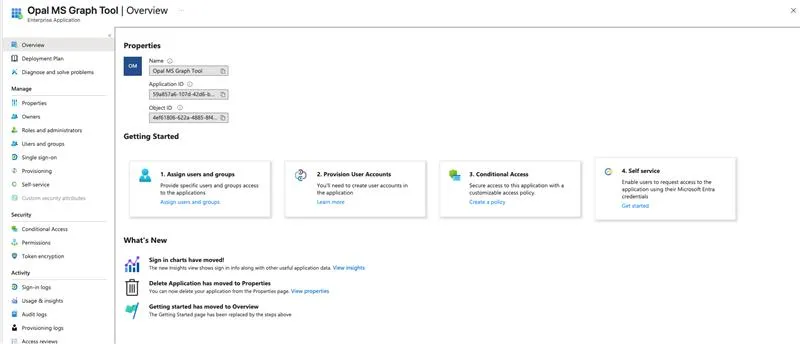
Authorize the Mark Microsoft tools in Microsoft Entra
After a Mark administrator configures the Microsoft 365 connector, a prompt displays indicating that an administrator needs to authorize the connection. A Microsoft administrator must log in to the Microsoft Entra Admin Center and complete one of the following:
Add the Opal MS Graph Tool app to trusted apps – Grants the app access for all users in the organization.
Configure access for individual groups – Restricts the app to specific groups within your organization.
The Microsoft 365 tools use Optimizely-managed OAuth by default. This configuration is not required for most organizations and can be skipped. Complete this section only if your organization requires self-managed instance-level OAuth.
Configure this setting on the Settings step when you configure the Microsoft 365 connectors. Toggle Instance level Mark OAuth on, and then enter the Microsoft 365 Auth Provider ID, which is the ID of the Microsoft 365 Auth Provider configured in Mark.
Authenticate with Microsoft
After an administrator connects Mark with Microsoft 365, log in from Mark to access your information. User-level authorization ensures you can only access data you have permission to access within Microsoft.
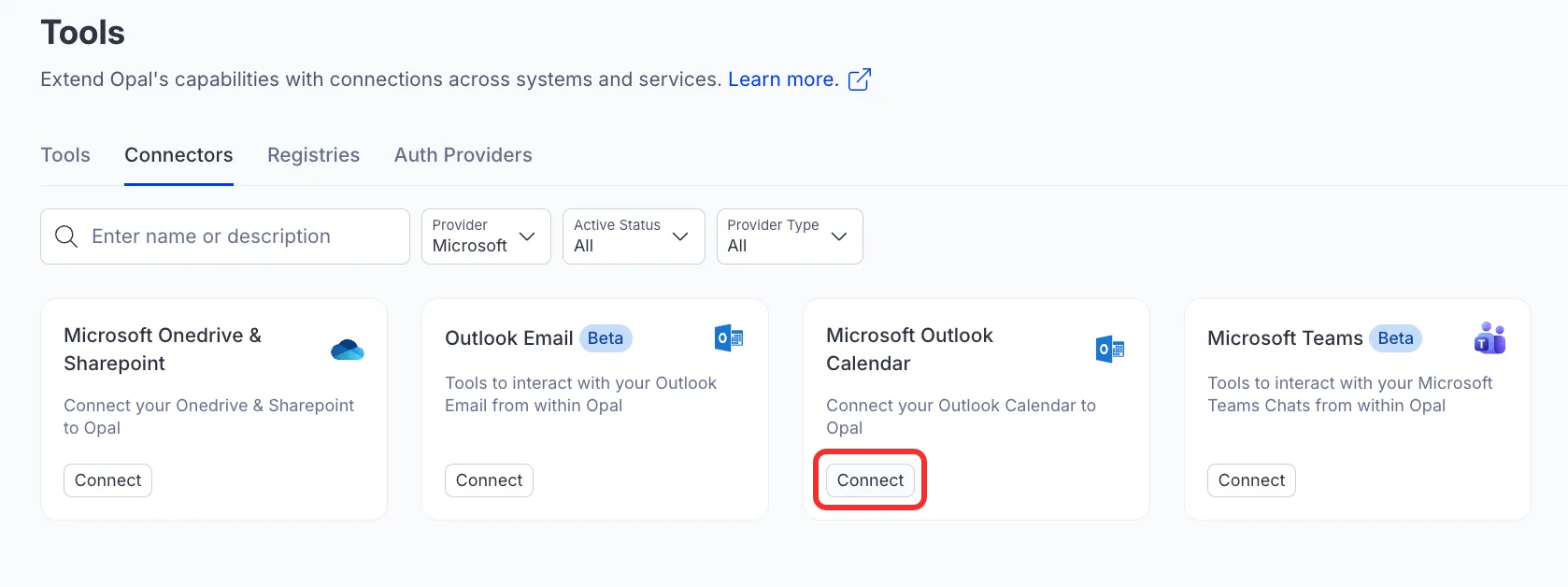
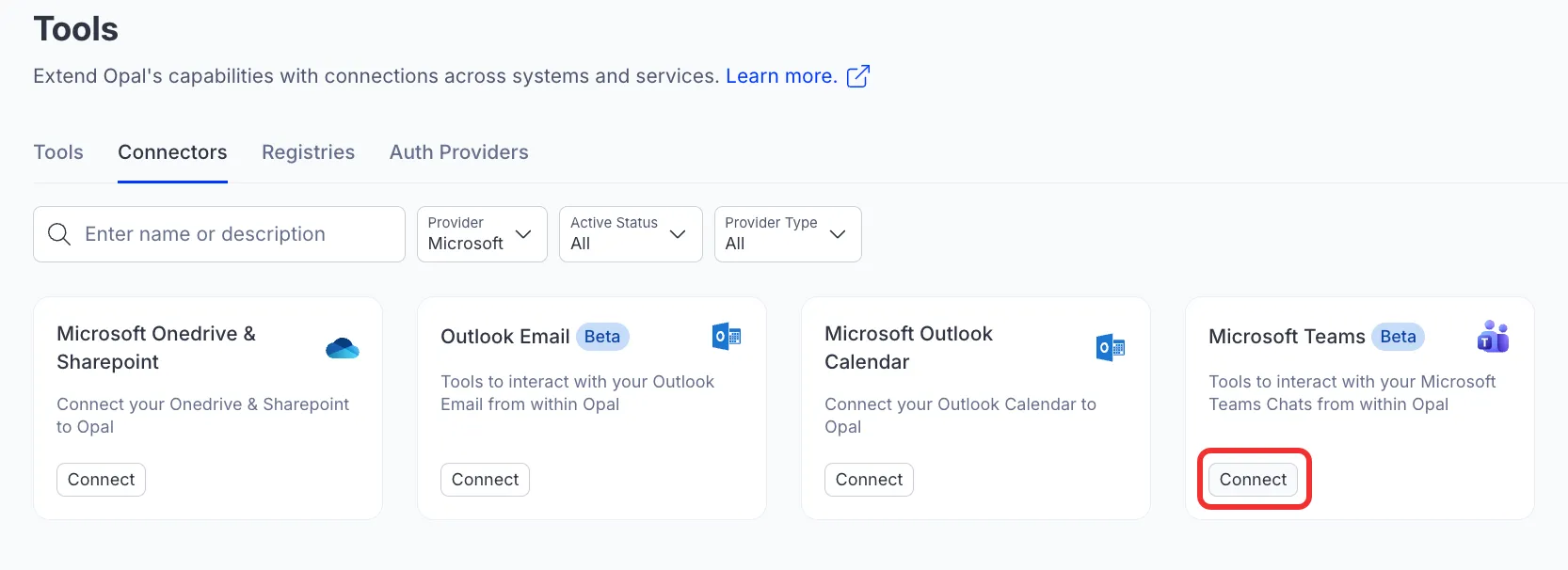
The Microsoft 365 connector tools have four corresponding connectors in Mark. Connect to all to unlock all enabled tools.
If the tile displays Contact Admin instead of Connect, an administrator has not configured the connector yet. Click Contact Admin to send them a request, which displays in their Notifications.
To authenticate, complete the following steps in Mark:
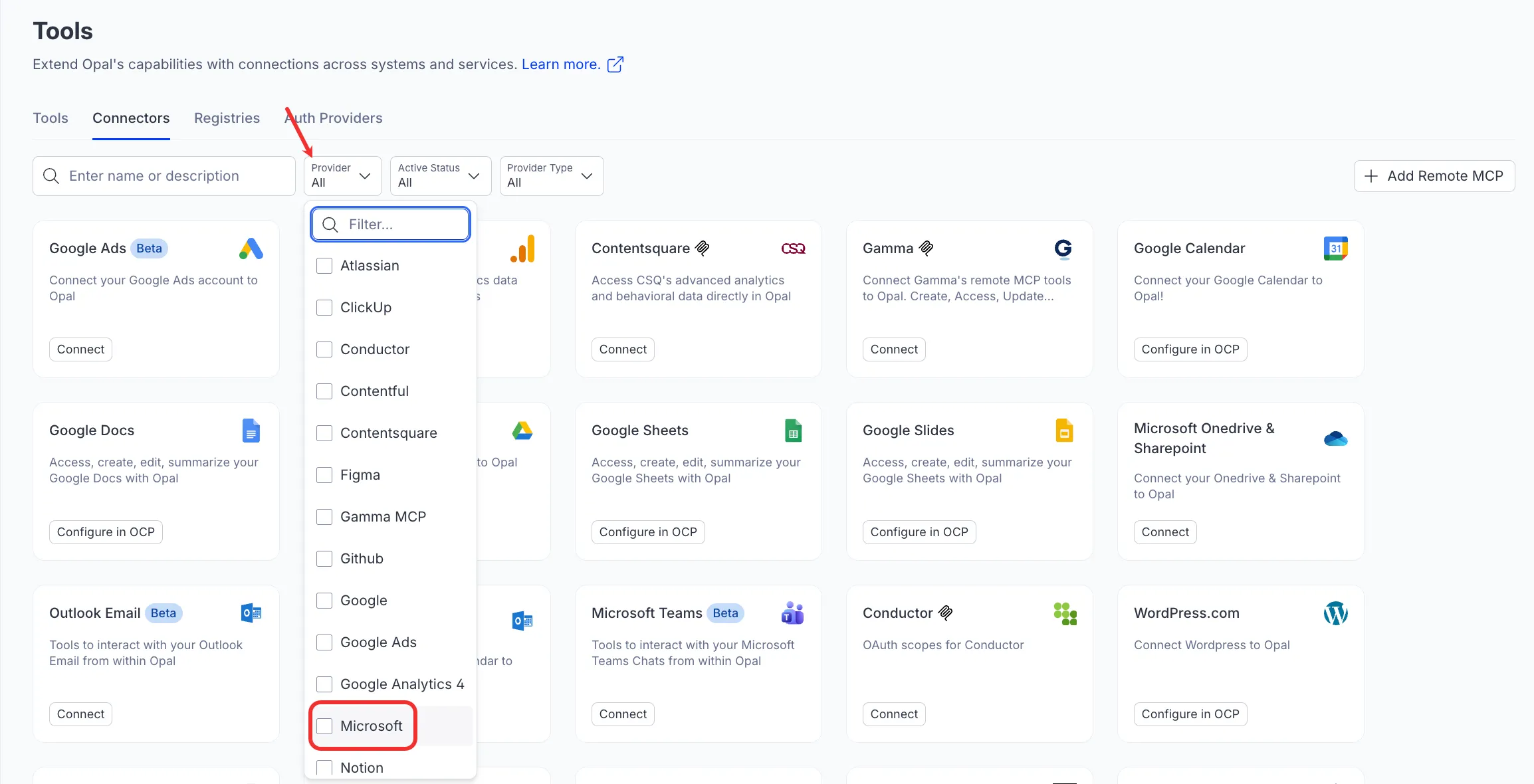
Go to Connectors > Connectors.
Select Microsoft from the Provider drop-down list.
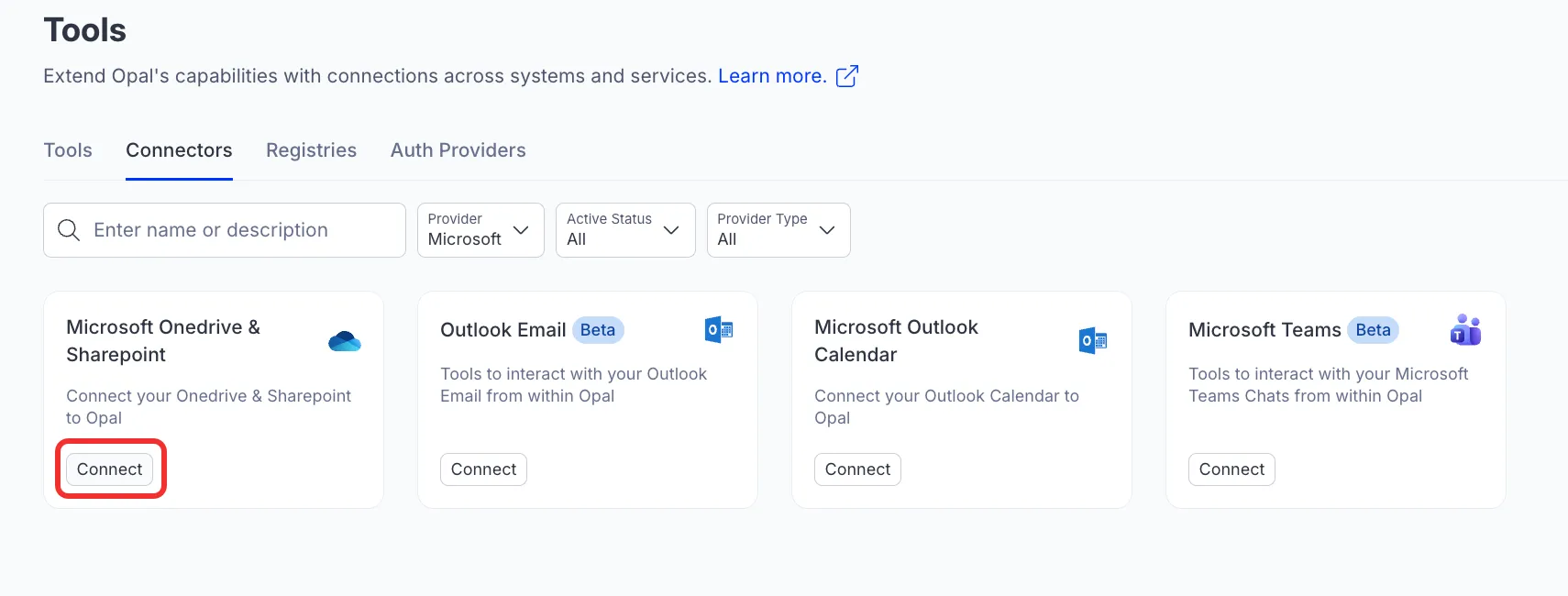
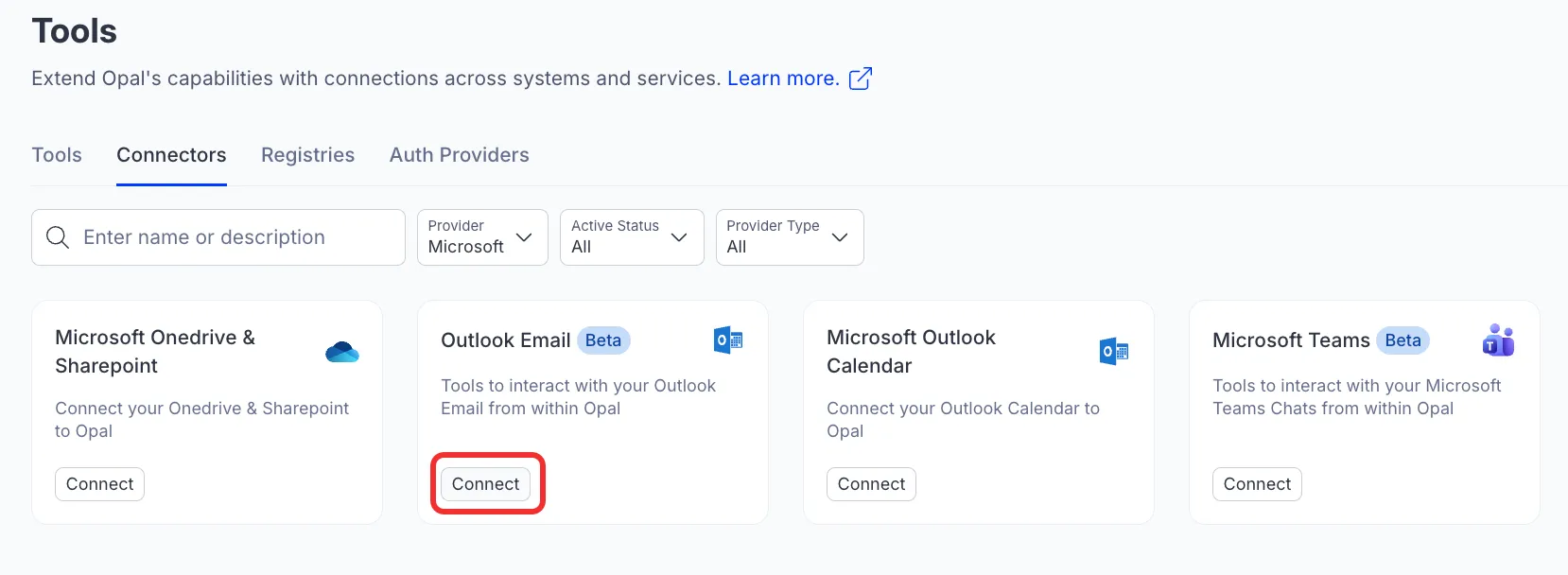
Click Connect on each Microsoft connector.
Microsoft OneDrive & SharePoint
Outlook Email
Microsoft Outlook Calendar
Microsoft Teams
Microsoft OneNote
Log in to Microsoft for each connection.
Grant the requested permissions.
Microsoft 365 connector tools
After an administrator configures the Microsoft 365 connectors and you authenticate with Microsoft, call the following tools in Mark. Click a tool's name to expand it and learn when to use the tool, required and optional parameters, and example prompts on how to call the tool. If you do not provide a required parameter, Mark prompts you for it.
Microsoft Outlook Calendar tools
When to use
Schedule a new meeting with one or more attendees directly from Mark.
Create an online Teams meeting with a generated join URL.
Set up a calendar event with a specific location, agenda, and reminder.
Book a recurring or time-sensitive meeting without leaving your workflow.
Create a meeting on behalf of another user's calendar.
Parameters
subject – The title or subject of the meeting.
start – The meeting start date and time, including timezone. Format: {"dateTime": "2024-12-01T10:00:00", "timeZone": "UTC"}
end – The meeting end date and time, including timezone. Format: {"dateTime": "2024-12-01T11:00:00", "timeZone": "UTC"}
(Optional) attendees – A list of attendees with their names and email addresses. Format: [{"emailAddress": {"name": "Jane Doe", "address": "[email protected]"}, "type": "required"}]
(Optional) body – The meeting description or agenda. Format: {"contentType": "HTML", "content": "Meeting description here."}
(Optional) location – The physical or virtual location of the meeting. Format: {"displayName": "Conference Room A"}
(Optional) isOnlineMeeting – Set to true to generate a Teams or Skype join link.
(Optional) onlineMeetingProvider – The online meeting provider: teamsForBusiness or skypeForBusiness.
(Optional) importance – Priority of the meeting: low, normal, or high.
(Optional) reminderMinutesBeforeStart – Number of minutes before the meeting to send a reminder (for example, 15).
(Optional) categories – Comma-separated tags or categories to organize the meeting (for example, "Q4, Sales").
(Optional) isAllDay – Set to true to create an all-day event.
(Optional) isReminderOn – Set to true to enable reminders for this meeting.
(Optional) showAs – How the time appears in the calendar: free, tentative, busy, oof, or workingElsewhere.
(Optional) calendarId – The ID of a specific calendar to create the meeting in.
(Optional) userId – The ID of another user whose calendar should be used. Defaults to the authenticated user.
Create a meeting called "Campaign Review" on December 5th from 2pm to 3pm in Conference Room B, and set the importance to high.
Book an online meeting for next Monday at 9am titled "Onboarding Kickoff" and include the agenda: cover product setup, access provisioning, and Q&A.
Set up a 30-minute meeting called "Design Handoff" on Friday at 11am with a 15-minute reminder and invite the design team at [email protected].
Create an all-day calendar event called "Company Offsite" on March 10th and mark it as out of office.
When to use
Cancel and remove a meeting from a user's calendar.
Clean up outdated or duplicate calendar events.
Delete a meeting that was created in error.
Remove a meeting from a specific calendar or on behalf of another user.
Parameters
meetingId – The unique identifier of the meeting to delete.
(Optional) calendarId – The ID of the specific calendar containing the meeting.
(Optional) userId – The ID of the user whose calendar to delete from. Defaults to the authenticated user.
Example prompts
Delete the meeting with ID AAMkAGI2TGuLAAA= from my calendar.
Cancel the meeting AAMkAGI2TGuLAAA= on behalf of user [email protected].
Remove the meeting AAMkAGI2TGuLAAA= from calendar AAMkAGI2TGuLBBB=.
When to use
Look up the full details of a specific meeting, including attendees, time, and location.
Check the online meeting join URL for a Teams or Skype meeting.
Retrieve attendee response statuses for a scheduled meeting.
Access meeting recurrence settings or attached files.
Verify meeting details before making updates or sending communications.
Parameters
meetingId – The unique identifier of the meeting to retrieve.
(Optional) select – Comma-separated list of specific fields to return (for example, subject,start,end,organizer,attendees,location).
(Optional) expand – Comma-separated list of related entities to expand in the response (for example, calendar,attachments).
(Optional) calendarId – The ID of the specific calendar containing the meeting.
(Optional) userId – The ID of the user whose calendar to query. Defaults to the authenticated user.
Example prompts
Get the details of meeting AAMkAGI2TGuLAAA= from my calendar.
Show me the attendees and their response statuses for meeting AAMkAGI2TGuLAAA=.
Retrieve the Teams join URL for meeting AAMkAGI2TGuLAAA=.
Get the subject, start time, end time, and organizer for meeting AAMkAGI2TGuLAAA= on [email protected]'s calendar.
Show me the full details of meeting AAMkAGI2TGuLAAA=, including any attachments.
When to use
Check availability of one or more people before scheduling a meeting.
Find joint availability across multiple attendees.
View the free and busy status for a specific time frame.
Determine when people are available for meetings.
Plan meetings based on multiple attendees' calendars.
Parameters
endTime – End of the time range to check availability, as a JSON string with dateTime and timeZone. Example: {'dateTime': '2025-04-10T18:00:00', 'timeZone': 'America/New_York'}.
startTime – Start of the time range to check availability, as a JSON string with dateTime and timeZone. Example: {'dateTime': '2025-04-10T08:00:00', 'timeZone': 'America/New_York'}.
availabilityViewInterval – Duration of each time slot in minutes for the availability view (default: 30). Valid values: 5, 10, 15, 20, 30, 60.
When is the entire marketing team available next week?
What does my schedule look like for tomorrow morning?
When to use
View all upcoming meetings within a specific date range.
Search for meetings by subject or keyword.
Retrieve a paginated list of calendar events for review or reporting.
Check meetings on behalf of another user's calendar.
Filter and sort meetings to find specific events.
Parameters
(Optional) startDateTime – Start of the time range to filter meetings (for example, 2024-12-01T00:00:00Z).
(Optional) endDateTime – End of the time range to filter meetings (for example, 2024-12-31T23:59:59Z).
(Optional) top – Maximum number of meetings to return. Defaults to 50, max 999.
(Optional) skip – Number of meetings to skip for pagination.
(Optional) filter – Data filter expression for advanced filtering (for example, contains(subject,'team')).
(Optional) orderBy – Field to sort results by (for example, start/dateTime desc).
(Optional) select – Comma-separated list of specific fields to return (for example, subject,start,end,organizer).
(Optional) calendarId – The ID of a specific calendar to list meetings from.
(Optional) userId – The ID of the user whose calendar to query. Defaults to the authenticated user.
Example prompts
Show me all my meetings in December 2024.
List my next 10 upcoming calendar events.
Find all meetings with "team" in the subject from this month.
Show meetings on [email protected]'s calendar for next week, sorted by start time.
List my meetings from January 1st to January 31st, showing only the subject, start, and end time.
When to use
Change the time, date, or duration of an existing meeting.
Add or remove attendees from a scheduled meeting.
Update the meeting agenda, location, or subject.
Change the importance level or reminder settings on a meeting.
Convert an in-person meeting to an online Teams meeting.
Parameters
meetingId – The unique identifier of the meeting to update.
(Optional) subject – The new title or subject of the meeting.
(Optional) start – The new meeting start date and time, including timezone. Format: {"dateTime": "2024-12-01T10:00:00", "timeZone": "UTC"}
(Optional) end – The new meeting end date and time, including timezone. Format: {"dateTime": "2024-12-01T11:00:00", "timeZone": "UTC"}
(Optional) attendees – Updated list of attendees with their names and email addresses. Format: [{"emailAddress": {"name": "Jane Doe", "address": "[email protected]"}, "type": "required"}]
(Optional) body – The new meeting description or agenda. Format: {"contentType": "HTML", "content": "Updated agenda here."}
(Optional) location – The new meeting location. Format: {"displayName": "Conference Room B"}
(Optional) isOnlineMeeting – Set to true to add a Teams or Skype join link.
(Optional) onlineMeetingProvider – The online meeting provider: teamsForBusiness or skypeForBusiness.
(Optional) importance – Updated priority of the meeting: low, normal, or high.
(Optional) reminderMinutesBeforeStart – Updated number of minutes before the meeting to send a reminder.
(Optional) categories – Updated comma-separated tags or categories for the meeting.
(Optional) isReminderOn – Set to true to enable reminders for this meeting.
(Optional) showAs – How the time appears in the calendar: free, tentative, busy, oof, or workingElsewhere.
(Optional) calendarId – The ID of the specific calendar containing the meeting.
(Optional) userId – The ID of the user whose calendar to update. Defaults to the authenticated user.
Example prompts
Update the meeting AAMkAGI2TGuLAAA= to start at 3pm instead of 2pm.
What drives are available on the SharePoint site contoso.sharepoint.com,abc123,def456?
Get all document libraries for my SharePoint site so I can browse the files.
When to use
Replace specific text in a Word document or specific cell values in an Excel spreadsheet.
Append new content to the end of a document or add new rows to the bottom of a spreadsheet.
Prepend content to the beginning of a document or rows to the top of an Excel file.
Insert new content at a specific paragraph index or row index.
Apply uniform formatting (for example, font size, color, or bold) across an entire Word document.
Parameters
itemId – The unique identifier of the Office file to modify.
operation – Operation to perform. Options include the following: replace, append, prepend, insert, or format.
(Optional) content – Content to add.
For docx – Supports markdown formatting.
For xlsx – Supports newline-separated rows.
(Optional) driveId – Drive ID where the file is located.
(Optional) formatting – Formatting options as JSON string (docx only, for format operation). This replaces all existing formatting uniformly. For example, {"bold": true, "italic": false, "fontSize": 14, "color": "blue"}
(Optional) position – Paragraph index (docx) or row index (xlsx) at which to insert content (required for insert operation).
(Optional) replaceText – Replacement text (required for replace operation).
(Optional) searchText – Text to search for (required for replace operation).
(Optional) siteId – SharePoint site ID where the file is located.
Example prompts
Append the following new user data rows to the end of my Excel spreadsheet.
Find all occurrences of "Acme Corp" in the Word document and replace them with "Globex Corporation".
Insert this new introductory paragraph at position 1 in the existing project proposal document.
When to use
Get a quick overview or extract core themes and topics from a Word document.
Analyze an Excel file to retrieve sheet names, row counts, and previews of data.
Generate a structured bullet-point breakdown or a detailed comprehensive analysis without opening the file.
Check file metadata such as author name, modification dates, and size.
Parameters
itemId – The unique identifier of the Office file to summarize.
(Optional) driveId – Drive ID where the file is located.
(Optional) maxLength – Maximum length of the summary in characters. Default is 500.
(Optional) siteId – SharePoint site ID where the file is located.
(Optional) summaryType – Type of summary. Options include the following:
brief – Quick overview, default.
detailed – Comprehensive analysis.
bullet-points – Structured list.
Example prompts
Can you read the "Q3 Financials" Excel file and give me a brief summary of the data and sheet structures?
Provide a detailed summary of the strategy document in bullet points, keeping it under 1000 characters.
Summarize the main topics discussed in the attached SharePoint Word document.
When to use
Create a new folder in your Onedrive.
Create a subfolder inside an existing folder.
Organize files by creating folder structures
Create project or team folders in Sharepoint document libraries.
Parameters
folderName – The name of the folder to create. Cannot contain \, /, :, *, ?, ", <, or >.
driveId – The ID of the drive to create the folder in. Use onedrive_list_drives or onedrive_list_all to find drive IDs.
(Optional) parentPath – Path to the parent folder where the new folder is created. Example: Documents/Projects. If omitted (and parentId is also omitted), creates the folder at the drive root.
(Optional) parentId – The item ID of the parent folder. Use this instead of parentPath if you already have the folder ID. Takes precedence over parentPath if both are provided.
Example prompts
Create a new folder in my OneDrive called 'Q3 Marketing Assets'.
Can you make a folder named 'Campaign Reports' in my OneDrive?
Please create a new OneDrive folder titled '2026 Budget Drafts'.
I need a new directory in my OneDrive for the 'Summer Launch' project.
Create a folder named 'Client Presentations' in my OneDrive.
Microsoft Sensitivity Label tools
When to use
Apply a sensitivity label to a file (for example, mark as "Confidential" or "Internal Only").
Change or upgrade the sensitivity label on an existing file.
Downgrade or remove a sensitivity label from a file (requires justification text).
Parameters
drive_id – The ID of the OneDrive or SharePoint drive containing the file.
item_id – The ID of the file (drive item) to assign the sensitivity label to.
sensitivity_label_id – The ID of the sensitivity label to assign. Use microsoft_onedrive_list_sensitivity_labels to find available label IDs. Pass an empty string ("") to remove the current label.
(Optional) assignment_method – The method of label assignment. Valid values: standard (default, applied by a user) or privileged (admin-level assignment).
(Optional) justification_text – Justification text for audit purposes. Required when downgrading or removing a sensitivity label. For example, "Reclassified after review".
Example prompts
Mark my Q4 report as "Confidential" in OneDrive.
Remove the sensitivity label from this file.
Downgrade the sensitivity label on the budget spreadsheet and add a justification.
When to use
Check what sensitivity label is currently applied to a specific file.
Audit sensitivity label assignments for compliance purposes.
Verify that a label was applied correctly after using microsoft_onedrive_assign_sensitivity_label.
Parameters
drive_id – The ID of the OneDrive or SharePoint drive containing the file.
item_id – The ID of the file (drive item) to extract sensitivity labels from. Only supported for Word, Excel, PowerPoint, and PDF files.
Example prompts
What sensitivity label is on my contract file?
Check if the Q3 report has a sensitivity label applied.
Show me the current sensitivity label on this OneDrive file.
When to use
Discover which sensitivity labels are available before assigning one to a file.
Look up the label ID for a named label (for example, find the ID for "Confidential").
Audit which labels are currently active in the tenant.
Parameters
No parameters required.
Example prompts
What sensitivity labels are available in our organization?
Show me all the Microsoft Purview labels I can apply to files.
List all active sensitivity labels in my Microsoft 365 tenant.
Microsoft SharePoint tools
When to use
Look up the ID of a specific SharePoint list or document library by its display name.
Locate a document library such as "Site Pages" or "Documents" before accessing its contents.
Verify that a list exists within a SharePoint site before performing further operations.
Retrieve list metadata including creation date, URL, and template type.
Discover all available lists within a site when the target list name is unknown.
Parameters
siteId – The unique identifier of the SharePoint site to search within. Format: hostname,site-collection-id,site-id (for example, contoso.sharepoint.com,abc123,def456).
listName – The display name of the SharePoint list or document library to find (for example, Site Pages, Documents, or Site Assets).
Example prompts
Find the "Site Pages" library in my SharePoint site contoso.sharepoint.com,abc123,def456.
Look up the list ID for "Project Documents" in SharePoint site contoso.sharepoint.com,abc123,def456.
Does a list called "Marketing Assets" exist in SharePoint site contoso.sharepoint.com,abc123,def456?
Find the "Documents" library in my SharePoint site so I can browse its files.
Get the metadata for the "Site Assets" library in SharePoint site contoso.sharepoint.com,abc123,def456.
When to use
Resolve a SharePoint page name to a page ID before retrieving its content.
Check whether a specific page exists within a SharePoint site.
Retrieve basic metadata about a page, such as its URL and last modified date, without fetching its full content.
Look up a page ID to use with other tools that require it as an input.
Find a site's home page or any custom page by name.
Parameters
siteId – The unique identifier of the SharePoint site containing the page. Format: hostname,site-collection-id,site-id (for example, contoso.sharepoint.com,abc123,def456).
pageName – The name of the page to find. Can be provided with or without the .aspx extension (for example, Home or Home.aspx).
Example prompts
Find the "Home" page in my SharePoint site contoso.sharepoint.com,abc123,def456.
Get the page ID for "Visiting-the-Austin-office.aspx" in SharePoint site contoso.sharepoint.com,abc123,def456.
Does a page called "ProjectOverview" exist in SharePoint site contoso.sharepoint.com,abc123,def456?
Look up the metadata for the "TeamPage" page in my SharePoint site.
Find the page ID for the home page of SharePoint site contoso.sharepoint.com,abc123,def456 so I can retrieve its content.
When to use
Read and extract the content of a SharePoint page for summarization or analysis.
Retrieve the full HTML of a page for content migration or archival purposes.
Access page metadata such as URL and last modified date alongside its content.
Pull content from a SharePoint knowledge base page for further processing.
Copy content from one SharePoint page to use elsewhere.
Parameters
siteId – The unique identifier of the SharePoint site containing the page. Format: hostname,site-collection-id,site-id (for example, contoso.sharepoint.com,abc123,def456).
pageName – The name of the SharePoint page to retrieve. Can be provided with or without the .aspx extension (for example, Home or Home.aspx).
(Optional) listId – The ID of the SharePoint list containing the page. If not provided, the tool will automatically find the "Site Pages" library. Providing this can improve performance.
Example prompts
Get the content of the "Home" page from SharePoint site contoso.sharepoint.com,abc123,def456.
Summarize the content of the "ProjectOverview.aspx" page in my SharePoint site.
Retrieve the HTML content of the "TeamPage" page from SharePoint site contoso.sharepoint.com,abc123,def456.
What does the "Onboarding" page say in my SharePoint site contoso.sharepoint.com,abc123,def456?
Pull the content from the "Marketing Strategy" page in SharePoint site contoso.sharepoint.com,abc123,def456 so I can copy it into a document.
When to use
Look up metadata and properties for a specific SharePoint site.
Retrieve a site ID needed for use with other SharePoint tools.
Access a SharePoint site using its hostname and server-relative path.
Get information about the root site of a SharePoint tenant.
Verify a site exists and retrieve its URL before browsing its contents or pages.
Parameters
(Optional) siteId – The unique identifier of the SharePoint site. Format: hostname,site-collection-id,site-id (for example, contoso.sharepoint.com,abc123,def456).
(Optional) hostname – The hostname of the SharePoint tenant (for example, contoso.sharepoint.com). Can be used with or without sitePath.
(Optional) sitePath – The server-relative path of the site (for example, /sites/projectsite). Must be used together with hostname.
Example prompts
Get details about the SharePoint site contoso.sharepoint.com,abc123,def456.
Retrieve information about the root SharePoint site at contoso.sharepoint.com.
Get the site ID and URL for the SharePoint site at contoso.sharepoint.com/sites/marketing.
Show me the metadata for the SharePoint site at contoso.sharepoint.com/sites/projectsite.
Find the SharePoint site contoso.sharepoint.com,abc123,def456 so I can browse its document libraries.
When to use
Retrieve clean, structured content from a modern SharePoint page for summarization or analysis.
Extract text from all web parts on a page without parsing raw HTML.
Access the full canvas layout of a SharePoint page, including sections and web part structure.
Pull content from a SharePoint knowledge base or intranet page for further processing.
Generate a report or summary from the content of a specific SharePoint page.
Parameters
siteId – The unique identifier of the SharePoint site containing the page. Format: hostname,site-collection-id,site-id (for example, contoso.sharepoint.com,abc123,def456).
(Optional) pageName – The name of the SharePoint page to retrieve. Can be provided with or without the .aspx extension (for example, Home or Home.aspx). Required if pageId is not provided.
(Optional) pageId – The unique identifier of the SharePoint page. Required if pageName is not provided. Can be retrieved using the microsoft_sharepoint_find_site_page tool.
Example prompts
Get the structured content of the "Home" page from SharePoint site contoso.sharepoint.com,abc123,def456.
Summarize the content of the "Onboarding.aspx" page in my SharePoint site contoso.sharepoint.com,abc123,def456.
Retrieve and extract the text from all web parts on the "Marketing Strategy" page in SharePoint site contoso.sharepoint.com,abc123,def456.
Get the structured layout of SharePoint page b1234567-89ab-cdef-0123-456789abcdef in site contoso.sharepoint.com,abc123,def456.
What does the "Company News" page say in my SharePoint site contoso.sharepoint.com,abc123,def456?
When to use
Browse files and folders within a SharePoint site's default document library.
Go to a specific SharePoint list or library by providing its ID.
Filter site contents by file type to find specific documents.
Paginate through large SharePoint libraries with many files or subfolders.
Retrieve file metadata such as size, URL, and last modified date from a SharePoint site.
Parameters
siteId – The unique identifier of the SharePoint site. Format: hostname,site-collection-id,site-id (for example, contoso.sharepoint.com,abc123,def456).
(Optional) listId – The ID of a specific list or library to access. If not provided, uses the site's default document library.
(Optional) folderPath – Path to a specific folder within the library (for example, /Documents/Projects).
(Optional) folderId – The ID of a specific folder to list contents of. Can be used as an alternative to folderPath.
(Optional) fileType – MIME type to filter results by (for example, application/pdf). Returns only files matching this type.
(Optional) top – Maximum number of items to return. Defaults to 200.
(Optional) skip – Number of items to skip for pagination.
Example prompts
List all files in the default document library of SharePoint site contoso.sharepoint.com,abc123,def456.
Show me the contents of the Documents/Projects folder in SharePoint site contoso.sharepoint.com,abc123,def456.
List only the PDF files in the SharePoint site contoso.sharepoint.com,abc123,def456.
Browse the contents of library b57af081-936c-4803-a120-d94887dc6c05 in my SharePoint site.
Show me the first 50 files in SharePoint site contoso.sharepoint.com,abc123,def456 and then get the next page.
When to use
Discover all SharePoint sites available to the current user.
Search for a specific SharePoint site by name or keyword.
Retrieve site IDs needed for use with other SharePoint tools.
Paginate through a large number of SharePoint sites in an organization.
Audit available SharePoint sites before browsing their contents or pages.
Parameters
(Optional) search – Search query to find sites by name or content (for example, marketing). Returns all sites if not specified.
(Optional) filter – OData filter expression to narrow results (for example, siteCollection/hostname eq 'contoso.sharepoint.com').
(Optional) orderBy – Field to sort results by (for example, displayName or createdDateTime).
(Optional) top – Maximum number of results to return. Defaults to 25, max 1000.
(Optional) skip – Number of results to skip for pagination.
Example prompts
List all SharePoint sites I have access to.
Find all SharePoint sites with "marketing" in the name.
Show me the top 50 SharePoint sites in my organization, sorted by display name.
List all SharePoint sites on contoso.sharepoint.com.
Find the SharePoint site for the sales team so I can browse its files.
Outlook Email tools
When to use
Find who someone's manager is.
Look up the authenticated user's own manager.
Get manager contact details (name, email, or job title).
Parameters
(Optional) userId – The user ID (GUID) or email address of the person whose manager to retrieve. If omitted, returns the authenticated user's manager. Example: "[email protected]" or "a1b2c3d4-...".
Prepare emails the user wants to edit before sending.
Save email compositions without sending them.
Parameters
subject – The subject line of the draft email.
(Optional) bccRecipients – List of BCC recipients as a JSON string array. Same format as toRecipients. Provide as a JSON string (Python-style with single quotes is supported).
(Optional) body – Alias for bodyContent. The email body content, plain text or HTML. Use bodyContent instead when possible.
(Optional) bodyContent – The email body content, plain text or HTML. For plain text: "Hi team, here is the update." For HTML: "<h1>Title</h1><p>Body paragraph</p>".
(Optional) bodyContentType – Content type of the email body. Values: Text or HTML. Default: Text. Set to HTML when bodyContent contains HTML markup.
(Optional) ccRecipients – List of CC recipients as a JSON string array. Same format as toRecipients. Provide as a JSON string (Python-style with single quotes is supported).
(Optional) importance – Importance level of the email. Values: low, normal, or high.
(Optional) toRecipients – List of primary recipients as a JSON string array. Single recipient: [{'emailAddress': {'address': '[email protected]'}}]. With name: [{'emailAddress': {'name': 'John Doe', 'address': '[email protected]'}}]. Provide as a JSON string (Python-style with single quotes is supported).
Example prompts
Draft an email to the marketing team about the Q4 report.
Prepare a draft email to John about the project update but don't send it yet.
Save a draft email titled "Budget 2026" with a summary of our meeting notes.
When to use
Draft a reply for the user to review before sending.
Prepare a reply that needs editing or approval.
Create a reply the user wants to finish later in Outlook.
Parameters
messageId – The unique identifier of the email message to reply to. Use outlook_mail_list or outlook_mail_get to find the message ID.
(Optional) ccRecipients – Optional CC recipients as a JSON string array. Same format as toRecipients. Provide as a JSON string (Python-style with single quotes is supported).
(Optional) comment – The reply body content, plain text or HTML. If omitted, creates an empty draft reply to fill in later.
For plain text: – "Thanks, I will review and get back to you."
For HTML – "<p>Thank you.</p><p>I have questions:</p>".
(Optional) confirmNonInbox – Set to true only after you have explicitly confirmed you want to create a draft reply to a message that is not in the Inbox (for example Sent Items or Drafts).
(Optional) toRecipients – Optional override recipients as a JSON string array. If not provided, the reply goes to the original sender. Format: "[{'emailAddress': {'address': '[email protected]'}}]". Provide as a JSON string (Python-style with single quotes is supported).
Example prompts
Draft a reply to the last email from Sarah saying I approve the proposal.
Start a draft reply to that email so I can add my comments later.
Prepare a draft response to the budget thread and copy John.
When to use
Forward an email to one or more new recipients.
Share email information with colleagues.
Add a comment when forwarding.
Parameters
messageId – The unique identifier of the email message to forward.
toRecipients – List of recipients to forward to as a JSON string array. Provide as a JSON string (Python-style with single quotes is supported).
Single recipient – "[{'emailAddress': {'address': '[email protected]'}}]".
(Optional) comment – Comment to include with the forwarded message. Supports HTML formatting.
(Optional) confirmNonInbox – Set to true only after you have explicitly confirmed you want to forward a message that is not in the Inbox (for example Sent Items or Drafts).
Example prompts
Forward the latest project update email to the design team.
Please forward this message to [email protected] with the note "FYI".
Can you forward the Q3 results email to my manager?
When to use
Read the full content of a specific email.
Get detailed email headers and metadata.
View attachment details (name, type, or size) on an email.
Access the full HTML or text body of a message.
Parameters
messageId – The unique identifier of the email message to retrieve.
(Optional) expand – Comma-separated list of related entities to expand. For example: "attachments".
(Optional) select – Comma-separated list of fields to return. For example: "subject,from,body,receivedDateTime,toRecipients".
Example prompts
Read the full email thread about the contract review.
Get the details and attachments for the latest email from legal.
Show me the full text of the welcome email I just received.
When to use
Check how many unread emails are in the inbox.
Browse the user's mail folder structure.
Get unread counts across all folders.
Find folder IDs for use with other mail tools.
Parameters
(Optional) includeHiddenFolders – Whether to include hidden mail folders (default: false).
(Optional) skip – Number of folders to skip for pagination.
(Optional) top – Maximum number of folders to return.
Example prompts
Show me a list of all my email folders.
How many unread emails are in my inbox?
Can you list my custom mail folders?
When to use
Search emails by keyword (full-text search across subject, body, and sender).
List recent emails in the inbox or a specific folder.
Filter emails by sender, date, read status, importance, and so on.
Paginate through large sets of email messages.
Parameters
(Optional) filter – Open Data Protocol (OData) filter expression for property-based filtering. Examples: isRead eq false, importance eq 'high', from/emailAddress/address eq '[email protected]', and receivedDateTime ge 2025-01-01T00:00:00Z. Cannot be combined with the search parameter.
(Optional) folderId – ID or well-known name of the mail folder to list from. Well-known names: inbox, drafts, sentitems, deleteditems, junkemail, and archive. If not specified, lists from all mail folders.
(Optional) orderBy – Field to order results by (for example, receivedDateTime desc, subject asc). Cannot be used with the search parameter. When searching, results are ranked by relevance automatically.
(Optional) search – Full-text search query using Kusto Query Language (KQL) syntax. Searches across subject, body, and sender. Example: project proposal or from:[email protected]. Cannot be combined with the filter parameter.
(Optional) select – Comma-separated list of fields to return (for example, subject,from,receivedDateTime,bodyPreview,isRead).
(Optional) skip – Number of messages to skip for pagination.
(Optional) top – Maximum number of messages to return (default: 25, max: 999).
comment – The reply text or body content. Supports HTML formatting. Example: "Thanks for the update, I will review and get back to you."
messageId – The unique identifier of the email message to reply to.
(Optional) confirmNonInbox – Set to true only after you have explicitly confirmed you want to reply to a message that is not in the Inbox (for example Sent Items, or Drafts).
(Optional) toRecipients – Override recipients as a JSON string array. If not provided, the reply goes to the original sender. Format: [{'emailAddress': {'address': '[email protected]'}}]. Provide as a JSON string (Python-style with single quotes is supported).
Example prompts
Reply to the last email from Sarah saying "Thanks for the update".
Send a reply to the contract thread confirming my approval.
Reply to John's email and copy the rest of the team.
When to use
Send new emails to one or more recipients from your Outlook.
Compose emails with HTML or plain text body.
Send emails with CC and BCC recipients.
Set email importance level.
Parameters
subject – The subject line of the email.
toRecipients – List of primary recipients as a JSON string array. Provide as a JSON string (Python-style with single quotes is supported).
Single recipient – [{'emailAddress': {'address': '[email protected]'}}].
With name – [{'emailAddress': {'name': 'John Doe', 'address': '[email protected]'}}].
(Optional) bccRecipients – List of BCC recipients as a JSON string array. Same format as toRecipients. Provide as a JSON string (Python-style with single quotes is supported).
(Optional) body – Alias for bodyContent. The email body content, plain text or HTML. Use bodyContent instead when possible.
(Optional) bodyContent – The email body content, plain text or HTML markup.
For plain text – "Hi team, here is the update."
For HTML – "<h1>Title</h1><p>Body paragraph</p>".
(Optional) bodyContentType – Content type of the email body. Values: Text or HTML. Default: Text. Set to HTML when bodyContent contains HTML markup.
(Optional) ccRecipients – List of CC recipients as a JSON string array. Same format as toRecipients. Provide as a JSON string (Python-style with single quotes is supported).
(Optional) importance – Importance level of the email. Values: low, normal, and high.
(Optional) saveToSentItems – Whether to save the sent email in the Sent Items folder (default: true).
Example prompts
Send an email to John with the subject "Project Update" and body "Here is the latest".
Email the marketing team about the Q4 results.
Send a high importance email to my manager with the weekly report.
When to use
Find a person by name to send them a Teams chat message.
Find contact information for a colleague by name.
Look up a person's email, phone, title, or department.
Discover people the user frequently collaborates with.
(Optional) mailTipsOptions – Types of mail tips to retrieve as a JSON string array. Example: ['automaticReplies', 'mailboxFullStatus']. If not specified, defaults to automaticReplies. Provide as a JSON string (Python-style supported).
Example prompts
Check if John is out of office before I email him.
Can you get the mail tips for the marketing team distribution list?
Check if Alice's mailbox is full.
When to use
Check if you have out-of-office or automatic replies enabled.
View your working hours and timezone.
Get your language and date format preferences.
Check the current OOO message content.
Parameters
(Optional) select – Comma-separated list of settings to return. Options: automaticRepliesSetting, timeZone, language, workingHours, dateFormat, and timeFormat.
Example prompts
What are my current mailbox settings?
Check if my out-of-office is currently turned on.
What timezone is my mailbox set to?
When to use
Turn on or off out-of-office automatic replies.
Set the internal and external reply messages.
Schedule automatic replies for a specific date range.
Configure who receives external replies.
Parameters
status – Automatic replies status. Values: disabled, alwaysEnabled, and scheduled.
(Optional) externalAudience – Who receives the external reply. Values: none, contactsOnly, or all.
(Optional) externalReplyMessage – Reply message for people outside your organization. Supports HTML formatting.
(Optional) internalReplyMessage – Reply message for people inside your organization. Supports HTML formatting.
(Optional) scheduledEndDateTime – End time for scheduled replies as JSON string. Format: {'dateTime': '2025-04-21T00:00:00', 'timeZone': 'America/New_York'}. Required when status is scheduled.
(Optional) scheduledStartDateTime – Start time for scheduled replies as JSON string. Format: {'dateTime': '2025-04-14T00:00:00', 'timeZone': 'America/New_York'}. Required when status is scheduled.
Example prompts
Turn on my out of office replies with the message "I am on vacation".
Schedule my automatic replies for next week from Monday to Friday.
Turn off my out of office automatic replies.
Microsoft Teams tools
When to use
Start a new 1:1 chat with someone (or get the existing one).
Create a group chat with multiple people.
Get the chatId needed to send a message to a person.
Parameters
memberUserIds – Comma-separated list of user IDs (Azure AD object IDs or email addresses) for the chat members. For 1:1 chats, provide exactly 2 IDs (the authenticated user and the other person). For group chats, provide at least 2 IDs. Example: 8b081ef6-4792-4def-b2c9-c363a1bf41d5, 82af01c5-f7cc-4a2e-a728-3a5df21afd9d.
(Optional) chatType – Type of chat to create. Values: oneOnOne or group. Defaults to oneOnOne if not specified.
(Optional) topic – Title or topic for the chat. Only supported for group chats. Ignored for 1:1 chats. Example: Project Planning.
Set up a new Teams chat titled "Project Planning" with the marketing leads.
When to use
List your recent chats.
Filter chats by chat type (oneOnOne, group, or meeting).
Expand chat details to include members or last message preview.
Paginate through your chat list.
Parameters
(Optional) expand – Comma-separated list of related entities to expand. Supported values: members and lastMessagePreview. Example: members,lastMessagePreview.
(Optional) filter – OData filter expression for filtering chats. Example: chatType eq 'oneOnOne' or chatType eq 'group'.
(Optional) orderBy – Field to order results by. Example: lastUpdatedDateTime desc.
(Optional) skip – Number of chats to skip for pagination.
(Optional) top – Maximum number of chats to return (max 50).
Example prompts
Show me my recent Teams chats.
List my group chats in Teams.
Get the last 10 1:1 chats I had.
When to use
Read recent messages in a 1:1 direct message conversation.
View chat history for a group chat.
Get the latest messages from a meeting chat.
Get messages with sender information.
Parameters
chatId – The unique identifier of the chat to retrieve messages from. Example: 19:[email protected].
(Optional) top – Maximum number of messages to return (default 20, max 50).
Example prompts
Show me the recent messages from my chat with John.
Read the last 10 messages from the Q3 Planning group chat.
What did we discuss in the recent meeting chat?
When to use
Find chats about a specific topic or project.
Find a specific group or meeting chat with a person.
Locate chats containing specific keywords in recent messages.
Filter search results by chat type (oneOnOne, group, or meeting).
Parameters
query – Search keyword to match against chat topics, participant names, and last message content. Example: project update or John Smith.
(Optional) chatType – Filter results by chat type. Values: oneOnOne, group, or meeting. If not specified, all chat types are searched.
(Optional) top – Maximum number of matching chats to return (default 10, max 200).
Example prompts
Search my Teams chats for "budget review".
Find the group chat I have with Sarah about the Q2 launch.
Look for any recent chats mentioning the new design.
When to use
Send a text or HTML message in a Teams chat.
Send messages with different importance levels.
Communicate with individuals or groups via chat.
Parameters
body – The message content to send. Pass the message text directly as a string. For formatted messages, use HTML tags like <b>, <em>, <br/>, <ul>/<li>. Markdown formatting (**bold**, *italic*, - lists) is also supported and are automatically converted to HTML. Examples: Hello, how are you?, <p>Here is the <b>update</b>.</p>, **Important**: Please review the document..
chatId – The unique identifier of the chat to send the message to. Example: 19:[email protected].
(Optional) importance – Importance level of the message. Values: normal, high, or urgent.
Example prompts
Send a message to John saying "Hello, how are you?".
Post a high importance message in the Q3 Planning chat.
Send a quick update to the marketing group chat.
When to use
Get a summary of a chat conversation.
Review what was discussed in a specific chat.
Catch up on a chat you missed.
Get an overview of chat participants and activity.
Parameters
chatId – The unique identifier of the chat to summarize. Use teams_chat_list_chats or teams_chat_search_chats to find the chat ID. Example: 19:[email protected].
(Optional) messageCount – Number of recent messages to include in the summary (default 50, max 500). Use a lower number for a quick overview.
Example prompts
Summarize my recent chat with Sarah.
What was decided in the Project Alpha group chat?
Give me a recap of the last 20 messages in the design sync chat.
When to use
When you want to find information in a channel.
You already have both a teamId and a channelId.
Parameters
channelId – The ID of the channel to list messages from. Use teams_list_channels to find the channel ID.
teamId – The ID of the team containing the channel. Use teams_list_joined_teams to find the team ID.
(Optional) top – Maximum number of messages to return (default: 20, max: 50).
Example prompts
Show me the latest messages in the General channel of the Marketing team.
What was posted recently in the Engineering team's announcements channel?
Fetch the last 10 messages from the Design channel.
When to use
Get all channels in a team.
Find a specific channel by name.
View channel types (standard, private, or shared).
Discover available channels to post messages in.
Parameters
teamId – The ID of the team to list channels from. Use teams_list_joined_teams to find the team ID.
(Optional) skip – Number of teams to skip for pagination.
(Optional) top – Maximum number of teams to return.
Example prompts
List all the Teams I belong to.
Which Teams am I a member of?
Find the Marketing team in my Teams list.
When to use
View all tags in a team.
Find tag names for mentioning groups of people.
Check how many members belong to each tag.
Discover organizational groupings within a team.
Parameters
teamId – The ID of the team to list tags for. Use teams_list_joined_teams to find the team ID.
Example prompts
List all tags in the Marketing team.
What tags are available in this team?
Show me the tags for the Engineering team.
When to use
View all members of a specific team or channel.
Check member roles (owner, member, or guest) within a team.
Paginate through a large team's membership.
Parameters
teamId – The ID of the team to list members from. Use teams_list_joined_teams to find the team ID.
(Optional) filter – OData filter expression on displayName only. Example: startsWith(displayName,'John'). Only displayName is supported, do not use mail or email.
(Optional) nextLink – Pagination URL from a previous response.
(Optional) top – Maximum number of members to return.
Example prompts
List all members of the Marketing team.
Who is in the Engineering team?
Find members named John in the Sales team.
When to use
Check availability of multiple team members at once.
Get presence status for an entire team or group.
Monitor availability of key contacts.
Find who is available for a meeting.
Parameters
ids – JSON string array of user IDs (GUIDs) to get presence for. Format: ['id1', 'id2', 'id3']. Provide as a JSON string (Python-style with single quotes is supported).
Example prompts
Check the status of these team members.
Are John and Sarah available right now?
Get the presence for the whole group.
When to use
Check if a user is available before messaging them.
See a colleague's current status (busy, away, and so on).
Check if someone is in a meeting or out of office.
View out-of-office settings and messages.
Parameters
userId – The user ID (GUID) or user principal name (email address) of the user whose presence to retrieve.
body – Reply body as a JSON string with contentType and content fields. Format: {'contentType': 'text', 'content': 'Your reply here'} or {'contentType': 'html', 'content': '<p>HTML reply</p>'}. Provide as a JSON string (Python-style with single quotes is supported).
channelId – The unique identifier of the channel. Example: 19:[email protected].
messageId – The unique identifier of the message to reply to. Example: 1234567890.
teamId – The unique identifier of the team. Example: ab1c2d3e-4f56-7890-abcd-ef0123456789.
Example prompts
Reply to that channel message with 'Thanks for sharing!'.
Add a reply to the announcement saying I approve.
Reply to the latest post in the General channel.
When to use
Post a message in a Teams channel.
Send announcements to a channel.
Share information with the team through a channel.
Send formatted (HTML) messages to a channel.
Parameters
body – The message content to send. Pass the message text directly as a string. For formatted messages, use HTML tags like <b>, <em>, <br/>, <ul>/<li>, and <ol>/<li>. Markdown formatting (**bold**, *italic*, - lists, and 1. numbered lists) is also supported and will be automatically converted to HTML. Examples: Hello team!, <p>Here is the <b>update</b>.</p>, and **Important**: Please review the document..
channelId – The ID of the channel to send the message to. Use teams_list_channels to find the channel ID.
teamId – The ID of the team containing the channel. Use teams_list_joined_teams to find the team ID.
(Optional) importance – Importance level of the message. Values: normal, high, or urgent.
(Optional) subject – Optional subject line for the message.
Example prompts
Post a message to the General channel saying 'Hello team'.
Send an urgent announcement to the Marketing channel.
Post the weekly update to the team channel.
OneNote tools
When to use
Create a brand-new top-level notebook container.
Set up a dedicated notebook for a new project, team, or initiative.
Use when the user explicitly asks to create a "notebook" (does not require any section or page ID).
Parameters
displayName – The name of the notebook to create. Cannot contain special characters (?*/:<>|'") or end with a period. Example: "Project Atlas".
Example prompts
Create a new OneNote notebook called "Project Atlas".
Make a notebook for my Q4 planning.
Set up a new OneNote notebook named "Research Notes".
When to use
Create a new notes page within a chosen section.
Draft meeting minutes, project briefs, or documentation directly in OneNote.
Supports both Markdown formatting and raw HTML content.
Parameters
sectionId – The ID of the section to create the page in. Must be provided or confirmed by the user. Use onenote_list_sections to find it.
title – The title/heading of the page.
(Optional) content – The page body. Markdown by default (converted to HTML), or raw HTML when contentFormat is html.
(Optional) contentFormat – Format of the content field: markdown (default) or html.
Example prompts
Create a page called "Kickoff Notes" in my Meeting Notes section.
Add a new page titled "Sprint 12 Plan" with today's agenda items.
Make a new OneNote page for the Q4 retrospective.
When to use
Add a new section tab inside an existing notebook.
Organize notes into categories or phases within a project notebook.
Use when the user explicitly asks to create a "section" (requires a valid notebookId).
Parameters
displayName – The name of the section to create. Cannot contain special characters (?*/:<>|'") or end with a period. Example: "Meeting Notes".
notebookId – The ID of the notebook to create the section in. Use onenote_list_notebooks to find it.
Example prompts
Add a new section called "Meeting Notes" to my Project Atlas notebook.
Create a "Sprint 12" section in my QA Testing Notebook.
Make a new section for "Research" in my work notebook.
When to use
Permanently delete a specific OneNote page (cannot be undone; not moved to "Deleted notes").
Locate the page ID in one step using onenote_list_pages with a search query before deleting.
Parameters
pageId – The ID of the page to delete. Use onenote_list_pages to find it. Notebooks and sections cannot be deleted through this tool.
Example prompts
Delete my "Draft Ideas" page from OneNote.
Remove the old "Sprint 10 Retro" page permanently.
Can you delete the page called "Temp Notes"?
When to use
Read or summarize the full body content of a specific OneNote page.
Extract notes, action items, or meeting details from a page.
Inspect page structure before making edits.
Parameters
pageId – The ID of the page to read. Use onenote_list_pages to find it.
Example prompts
Read my "Kickoff Notes" page.
Summarize the contents of my Sprint QA Summary page.
Show me everything on my "Budget 2026" OneNote page.
When to use
Discover all available notebooks and their IDs before working with sections or pages.
Find notebook IDs required by onenote_list_sections and onenote_create_section.
Browse the user's notebooks sorted by name or modification date.
Parameters
(Optional) orderBy – Field to sort notebooks by (for example, displayName, lastModifiedDateTime desc).
(Optional) top – Maximum number of notebooks to return.
Example prompts
Show me all my OneNote notebooks.
List my 5 most recently modified notebooks.
What notebooks do I have in OneNote?
When to use
Search across page titles and contents using the search parameter in a single call.
List pages within a specific section.
Retrieve page IDs and metadata needed for reading, updating, or deleting pages.
Parameters
(Optional) search – Free-text search across page titles and content. Example: "project kickoff" or "Sprint QA Summary".
(Optional) sectionId – The ID of the section to list pages from. If omitted, lists pages across all sections (most recently modified first).
(Optional) orderBy – Field to sort pages by (for example, lastModifiedDateTime desc, title). This is ignored when search is used.
(Optional) top – Maximum number of pages to return.
Example prompts
List pages in my Sprint Notes section.
Find my "Sprint QA Summary" page.
Show my 20 most recently modified OneNote pages.
When to use
List sections within a specific notebook to find where pages are stored.
Discover section IDs required by onenote_list_pages and onenote_create_page.
Browse all sections across every notebook owned by the user.
Parameters
(Optional) notebookId – The ID of the notebook to list sections from. If omitted, returns sections from all notebooks. Use onenote_list_notebooks to find the ID.
(Optional) orderBy – Field to sort sections by (for example, displayName).
(Optional) top – Maximum number of sections to return.
Example prompts
List the sections in my QA Testing Notebook.
Show me all my OneNote sections.
What sections are in my Project Atlas notebook?
When to use
Append notes, follow-up items, or status updates to an existing page.
Prepend important announcements to the top of a page.
Replace the full body of a page with updated content.
Parameters
pageId – The ID of the page to update. Use onenote_list_pages to find it.
content – The content to add or replace with. Markdown by default, or raw HTML when contentFormat is html.
(Optional) action – How to apply the content: append (default), prepend, or replace.
(Optional) contentFormat – Format of the content field: markdown (default) or html.
(Optional) target – The element to target. Defaults to body. Use a OneNote data-id to target a specific element.
Example prompts
Add this note to the end of my Sprint QA Summary page.
Update my "Kickoff Notes" page to include the new action items.
Replace the body of my "Status" page with the latest report.
Architecture
Authentication and security
Microsoft Azure AD – Secure authentication through Azure Active Directory.
MSAL integration – Microsoft Authentication Library for token management.
OAuth 2.0 – Industry-standard authentication and authorization.
Device code flow – Secure authentication without password storage.
API integration
Microsoft Graph API – Unified endpoint for Microsoft 365 services.
REST API – Standard HTTP-based API communication.
Batch operations – Efficient bulk operations for improved performance.
Real-time updates – Support for webhooks and change notifications.
Supported Microsoft 365 services
Core services
Azure Active Directory – Identity and access management.
OneDrive for Business – Cloud file storage and sync.
SharePoint Online – Collaboration and document management.
Data types
User profiles – Personal and organizational information.
Files and folders – Documents, images, and media files.
SharePoint lists – Structured data and custom content types.
API permissions
Application permissions (app-only access)
Files.ReadWrite.All – Access and write all files.
Sites.ReadWrite.All – Access and write all SharePoint sites.
Calendars.ReadWrite – Access and write to all Calendars. Optimizely recommends using delegated permissions instead of Calendars.ReadWrite (application-level) because application-level calendar access grants write permission to all users' calendars in the tenant without user consent.
Delegated permissions (user context)
Files.ReadWrite – Access user's files.
Sites.ReadWrite.All – Access SharePoint sites.
Calendars.Read – Access to your Calendar.
Calendars.Read.Shared – Access to your Calendar and shared Calendars.
Calendars.ReadWrite – Access and write to your Calendar.
Calendars.ReadWrite.Shared – Access and write to your Calendar and shared Calendars.