The Figma connector tools in Mark (Optimizely Agent Platform) let you access Figma's design data from Mark, work with collaboration workflows, and automate the handoff between designers and developers.
Note
Mark offers two Figma connectors, Figma and Figma MCP. The Figma connector, described in this article, is managed by Optimizely and built on the Figma REST API. Only Figma REST API rate limits apply to it.
The Figma MCP connector uses Figma's official MCP server, which includes functionality that the REST API does not provide. Figma has stated that usage-based pricing may apply to its MCP server. For details, see Figma remote MCP connector.
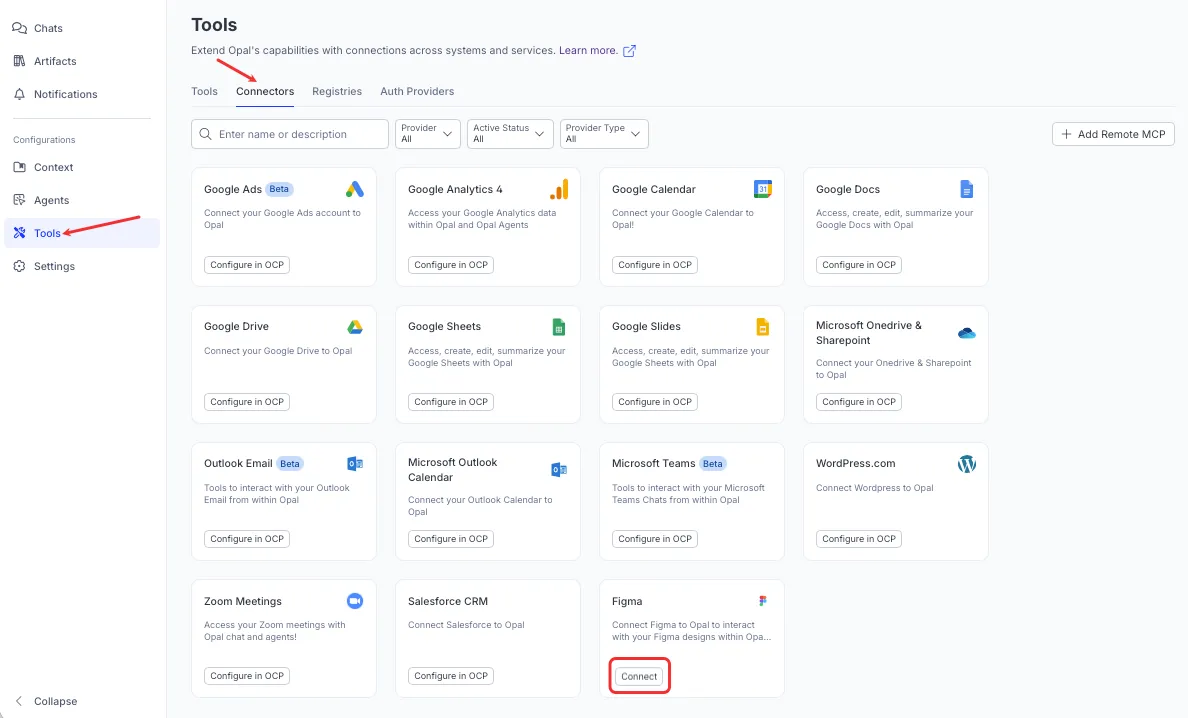
To enable the tools, an administrator configures the Figma connector on the Connectors page. After the connector is installed, you click Connect on the tile to authenticate individually. The Figma connector tools then return only the data your Figma account is permitted to view.
Important
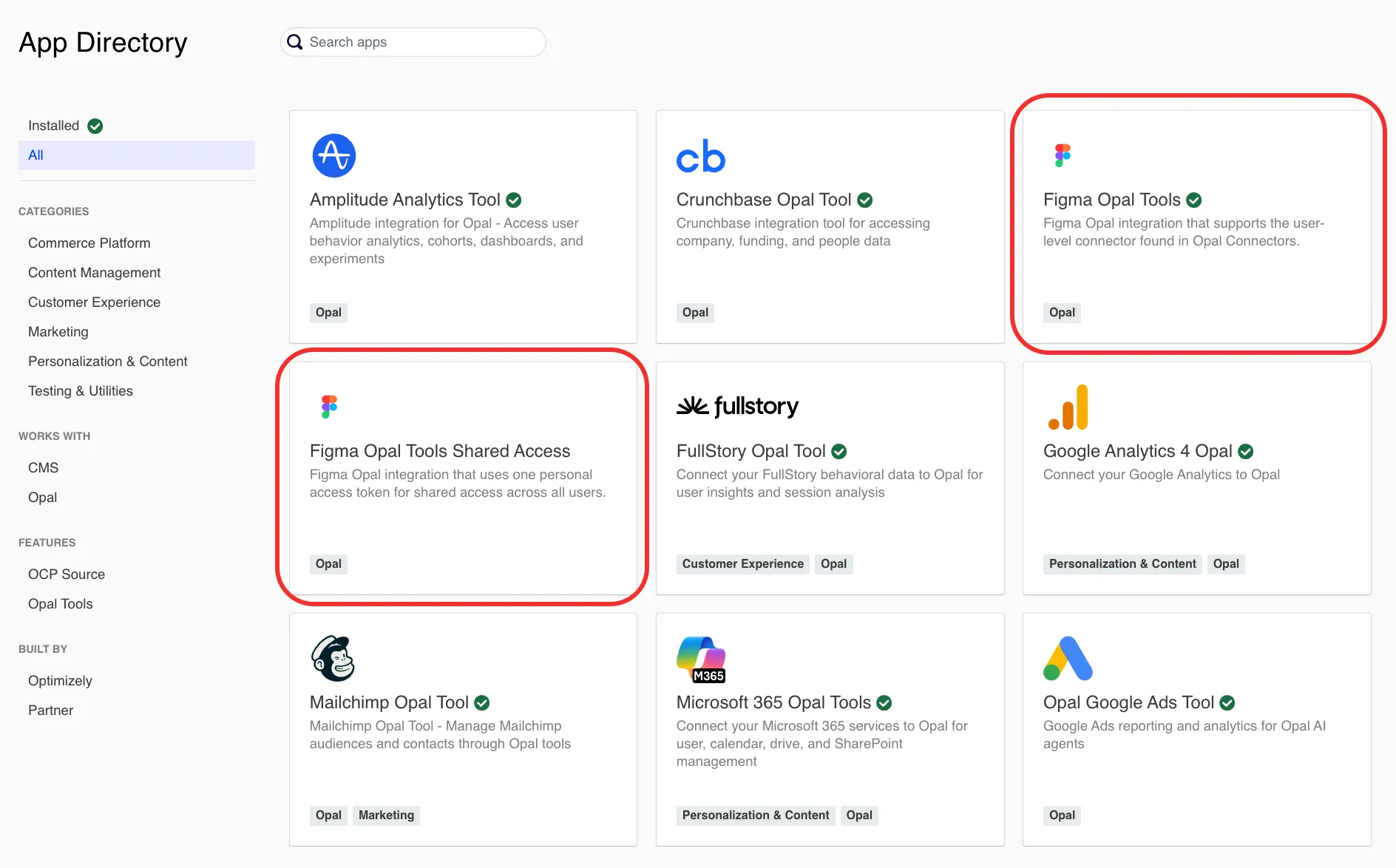
If you previously used a Figma API key with the Figma Opal Tools Shared Access OCP app, your existing installation continues to work, but you should update to the Figma Mark Tools app.
When you click Configure, Mark opens the Configure Figma dialog. If the connector is not installed yet, an Install modal displays first. This connector needs no extra authentication details, so the dialog has a single Tools step, where you choose which tools to enable.
As a Mark administrator, complete the following steps:
Go to Connectors.
(Optional) Enter Figma in the Enter name field, or use the Provider, Active Status, and Provider Type filters to find the connector.
Click Configure on the Figma tile.
Note
The Install modal only displays if the connector is not installed yet. Installing adds the connector to your organization and makes its tools available. You install a connector once, for everyone.
On the Tools step, select the tools that users can use by default, and then click Save. Each tool displays its type, such as Read, Create, Update, or Delete. Use the search field to find a tool, or click Deselect all to clear the selection. Tools that you do not select still display on the connector's Tools tab, but remain disabled until you select them.
After you configure the connector, the Figma tile displays Connect for you and for every Mark user in your organization. Click Connect to connect it.
Authenticate with Figma
After an administrator configures the Figma connector, log in to Figma from Mark to access your Figma data. Authenticate with Figma to give Mark access to your Figma data so the Figma connector tools can act on your behalf. The Figma connector tools authenticate each Mark user individually, so you see only the Figma data your account is already permitted to view.
If the tile displays Contact Admin instead of Connect, an administrator has not configured the connector yet. Click Contact Admin to send them a request, which displays in their Notifications.
To authenticate, complete the following steps in Mark:
Go to Connectors.
Click Connect on the Figma tile.
Log in to Figma.
After you authenticate, the Figma connector tools become available in Mark chat, agents, and workflows.
Figma connector tools
After you add and register Figma, you can call the following tools in Mark. Click a tool's name to expand it and learn when to use the tool, what parameters it requires, how to call it. If you do not provide a required parameter, Mark prompts you for it.
When to use
To receive real-time notifications about updates to Figma files, such as content changes or new versions.
When you need to track collaboration events such as comments being added or modified in a Figma file.
To automate workflows that trigger upon specific Figma events, like publishing a library.
For integrating Figma activity with other systems, such as project management tools or custom dashboards.
To monitor design system changes and ensure consistency across projects.
Parameters
event_type – The type of event you want to subscribe to.
FILE_UPDATE – Notifies when the file content changes.
FILE_VERSION_UPDATE – Notifies when a new version of the file is saved.
FILE_COMMENT – Notifies when a comment is added or modified.
LIBRARY_PUBLISH – Notifies when a library is published.
endpoint – Your HTTP endpoint URL where Figma sends POST requests when the specified events occur. This URL must be publicly accessible and use HTTPS.
team_id – The ID of the Figma team you want to receive events from. Find this in your Figma team's URL.
(Optional) description – A brief description to help you remember the purpose of this webhook.
(Optional) passcode – An optional passcode that Figma includes in the webhook payload for verification, adding a layer of security.
Example prompts
Create a webhook to notify my server athttps://my-server.com/figma-updateswhenever a file is updated in team12345.
I want to configure a webhook that sends notifications tohttps://my-app.com/commentsfor new comments in Figma team67890. Can you add a description saying "Figma comment notifications"?
Please create a webhook for library publish events for team112233tohttps://design-system-monitor.org/webhookswith a passcode ofsecure123.
Set up a webhook for team98765tohttps://dev-handoff.io/figmathat triggers on file version updates.
I need a webhook to track all file updates in my design team54321and send them tohttps://my-analytics.com/figma-data.
When to use
When you need to see all the feedback, discussions, and design review conversations associated with a specific Figma file.
To extract all comments for a file, which can then be used to create reports or summaries of design feedback for stakeholders.
To understand the history of communication and collaboration on a design, including who said what and when.
If you want to integrate Figma comments into your own notification system, perhaps to alert specific team members about new feedback.
To look back at why certain design choices were made by reviewing the discussions in the comments.
Parameters
file_key – The unique identifier of the Figma file you want to retrieve comments from. Find the key in the Figma file's URL. For example, in https://www.figma.com/file/ABC123xyz789/File-Name, ABC123xyz789 is the file key.
Example prompts
Get all comments for Figma fileABC123xyz789.
Show me the comments on the design file with keyXYZ987abc654.
Retrieve all feedback from file1234567890.
What are the discussions happening in Figma filefigma_file_key_here?
Can you list all comments for my Figma filemy_design_file_key?
When to use
When you need to retrieve specific information about a single published Figma component, such as its name, description, or when it was last updated.
To programmatically fetch details for individual components to populate a design system documentation site or a component library.
To check the creation or last modification date of a specific component, which can be useful for tracking changes within your design system.
Before using a component in a new design or development, you might use this tool to confirm its existence and retrieve its properties.
To get specific component metadata that can be used to generate code snippets or ensure consistency between design and code.
Parameters
key – The unique identifier (key) of the component you want to retrieve. This key is typically found when listing file components or can be discovered within the Figma UI.
Example prompts
Get details for Figma component5e9c9d4fb1e009ac25eca858f96a109520c00d76.
Show me the information for the published component with keycomponent_key_example.
Retrieve the metadata for Figma componentanother_component_key.
What are the details of the componentxyz123abc456?
Can you provide information about componentmy_button_component_key?
When to use
When you want to show a new team member or client the full range of capabilities of the Figma tool within Optimizely, providing a structured, guided tour.
To get a ready-made, step-by-step script for conducting a training session on how to leverage Optimizely's Figma integration for design analysis and asset generation.
If you are unsure how to best utilize the various Figma tools for a multi-step task, these instructions can provide a comprehensive example workflow.
To see a practical example of how different Figma API calls can be orchestrated to achieve a larger goal, serving as a reference for building your own custom integrations.
Parameters
(Optional) url – A Figma share URL to include in the demo instructions. If you provide this, the instructions use this specific file. If you do not provide it, the instructions prompt you to supply a Figma URL interactively during the demo.
Example prompts
Give me the step-by-step demo instructions for the Figma tool.
How can I demonstrate the Figma integration capabilities?
Provide a guide for using the Figma tools, starting with this design file:https://www.figma.com/design/PohuceHz2EoQoR6KYy2DIK/Page_Basic?node-id=1-82.
I need a walkthrough of the Figma features in Optimizely.
Can you give me the full demo instructions for the Figma tool, without a specific URL for now?
When to use
When you need to retrieve the entire structure of a Figma file, including all pages, frames, components, and their properties, for a deep analysis of the design.
To extract all necessary design data to generate HTML or CSS code or other front-end assets from a Figma design.
To get a complete overview of all elements within a design system file, allowing for detailed audits of styles, components, and their usage.
To pull the full file structure for generating detailed documentation of a design project, including all its elements and their relationships.
Parameters
file_key – The unique identifier of the Figma file you want to retrieve. This key is typically found in the Figma file's URL For example, in the URL: https://www.figma.com/file/ABC123xyz789/File-Name, ABC123xyz789 is the file key.
(Optional) ids – A comma-separated list of specific node IDs within the file to filter the results. If provided, only these nodes and their children are returned.
(Optional) depth – The depth of the node tree to traverse. This controls how many levels of child nodes are included in the response. A lower depth means a faster response and less data.
(Optional) version – The ID of a specific historical version of the file to retrieve. This lets you get the file as it existed at a particular point in time.
Example prompts
Get the complete structure of Figma fileaBc123dEf456gHi789jKl012mNo345pQr678sTu901.
Retrieve all design elements from the Figma file with keymy_project_file_key.
Show me the full details of Figma filedesign_system_file_key, but only for nodes1:2and1:3.
I need the entire content of Figma fileanother_file_key, but only go 2 levels deep into the node tree.
Can you fetch the structure of Figma fileold_version_file_keyas it was in version1234567890?
When to use
To see what reusable design elements are available in a specific design system or file.
To extract metadata about components for creating external documentation or libraries.
To monitor changes or understand how components are being used across projects.
To pull component information that might be linked to design tokens.
To programmatically check for consistency or adherence to design standards.
Parameters
file_key – The unique identifier (key) of the Figma file to get components from.
Example prompts
List all the published components in the Figma file with keyABC123xyz789.
Can you show me the components available in the 'Website Redesign' Figma file? My team ID is987654321.
What components are being used in this Figma file:https://www.figma.com/file/DEF456uvw012/My-Design-System?
I need to see all the published components from the fileProduct_Dashboard_V2. My team ID is112233445.
When to use
To extract color palettes, typography scales, and other design tokens directly from Figma for use in development.
To automatically generate or update style guides and documentation based on the actual styles defined in Figma.
To map Figma styles to corresponding CSS variables or design tokens in a codebase, ensuring consistency between design and development.
To audit a Figma file for adherence to a design system by reviewing its published styles.
To programmatically export style definitions for various purposes, such as creating custom plugins or integrations.
Parameters
file_key – The unique identifier (key) of the Figma file to get styles from.
Example prompts
Get all the published styles from the Figma file with keyABC123xyz789.
Can you list the styles defined in the 'Brand Guidelines' Figma file?
What are the color, text, and effect styles in this Figma file:https://www.figma.com/file/DEF456uvw012/My-Style-Guide?
I need to see all the published styles from the fileMarketing_Website_Styles. My team ID is112233445.
Show me the design tokens available in the Figma fileGlobal_Design_System.
When to use
To generate images of all design frames for a comprehensive visual review or approval process.
To create a gallery of design variations or screens for documentation or presentation purposes.
To export all frames as image assets for use in documentation, marketing materials, or development.
To efficiently generate images from many frames in large Figma files without manual export.
To visually check how frames are rendered by Figma's image API.
Parameters
shareLink – The Figma share link URL for the file containing frames to render as images.
(Optional) format – Image format for rendering. Defaults to png. Options: jpg, png, svg, or pdf.
(Optional) scale – Scale factor for image rendering (0.01 to 4.0). Defaults to 1.0.
(Optional) batchSize – Number of frames to process in each batch. Defaults to 5.
Example prompts
Generate images for all frames in this Figma share link:https://www.figma.com/file/ABC123/My-Design-File.
I need high-resolution JPG images of all frames from the 'Website Mockups' Figma file. The share link ishttps://www.figma.com/file/DEF456/Website-Mockups.
Can you provide SVG images of all frames from the prototype linkhttps://www.figma.com/proto/GHI789/Prototype-Flow?
Export all frames fromhttps://www.figma.com/file/JKL012/Mobile-App-Screensas PNGs with a scale of 2.0."
Get me images of all frames from the Figma file shared athttps://www.figma.com/file/MNO345/Marketing-Assets.
When to use
To get an overview of available frames and pages in a large Figma file before making more intensive API calls (like image generation), which can be slow or memory-intensive.
To quickly grasp the organization of a complex Figma file, including its pages and the frames within them.
To let users browse and select specific frames by name or ID for subsequent operations.
To create an inventory of design screens or sections for content planning, documentation, or design-to-code workflows.
To verify whether a specific frame or page exists in a shared link.
Parameters
share_link – The Figma share link URL to extract frames from.
Example prompts
Show me all the pages and frames in this Figma share link:https://www.figma.com/proto/ABC123DEF456/My-Prototype?node-id=1%3A123.
What's the structure of the Figma file athttps://www.figma.com/design/GHI789JKL012/Project-X-UI? I want to see its pages and frames.
Can you list all the frames available in the design file shared viahttps://www.figma.com/file/MNO345PQR678/Marketing-Site?
I need an overview of the frames in this Figma link:https://www.figma.com/file/STU901VWX234/Mobile-App-Flows.
Before I export images, can you tell me what frames are inhttps://www.figma.com/design/YZA567BCD890/Web-Design?
When to use
To provide developers with specific image assets (for instance, icons, illustrations, or UI elements) directly from Figma.
To generate images of individual components or screens for inclusion in design system documentation.
To create visual previews of specific design elements for galleries, reports, or internal tools.
To export images of key UI components for automated testing against future design changes.
To integrate Figma's rendering capabilities into custom workflows or applications.
Parameters
file_key – The unique identifier of the Figma file containing the nodes to render.
ids – A comma-separated list of node IDs to render as images.
(Optional) format – The image output format for rendering. Options: png, jpg, svg, pdf. Defaults to png.
(Optional) scale – Scale factor for rasterized image outputs (PNG, JPG). Must be a number between 0.01 and 4.0. Defaults to 1.0.
(Optional) contents_only – Whether to return only the rendered image content without additional metadata.
(Optional) svg_include_id – Whether to include node IDs as attributes in SVG output (only applicable when format is "svg").
(Optional) svg_simplify_stroke – Whether to simplify stroke rendering in SVG output (only applicable when format is "svg").
(Optional) use_absolute_bounds – Whether to use absolute bounds for node positioning in the rendered output.
Example prompts
Render the Figma node1:2from fileABC123xyz789as a PNG image.
Can you get me a JPG image of nodes1:5,1:6from the fileDEF456uvw012at 2x scale?
Export the icon with node ID123:456from the fileGHI789jkl012as an SVG.
I need a PDF image of the frame789:012from the Figma fileMNO345pqr678.
Please generate a PNG image of node1:10from fileSTU901vwx234.
When to use
To extract design token values (colors, spacing, typography, and so on) directly from Figma and integrate them into a development workflow.
To automatically create or update documentation for a design system's local variables.
To inspect and understand the specific design tokens defined within a Figma file.
To retrieve values for different modes (for example, light or dark themes) defined within variable collections.
To programmatically access design token values for various automation tasks.
Parameters
file_key – The file key of the Figma file to get variables from.
Example prompts
Get all the local variables from the Figma file with keyABC123xyz789.
Can you list the design tokens defined in the 'Product UI Kit' Figma file?
I need to see all the local variables from the fileBrand_Colors_and_Typography. My team ID is112233445.
Show me the design tokens (local variables) available in the Figma fileGlobal_Theme_Variables.
When to use
To extract design token values from a published Figma library for use in a development environment, ensuring consistency across projects.
To understand and integrate the shared variables from a central design system library into other design files or development processes.
To retrieve theme-specific variables that are published as part of a design system library.
To automatically create or update documentation for the published variables within a design system library.
To review and verify the values of design tokens that are made available to other teams or projects through a Figma library.
Parameters
file_key – The file key of the Figma library file to get published variables from.
Example prompts
Get all the published variables from the Figma library file with keyABC123xyz789.
Can you list the published design tokens from the 'Optimizely Design System' Figma library?
What are the published variables in this Figma library file:https://www.figma.com/file/DEF456uvw012/Shared-Tokens?
I need to see all the published variables from the libraryGlobal_Brand_Tokens. My team ID is112233445.
Show me the design tokens (published variables) available in the Figma libraryCore_UI_Variables.
When to use
To get granular details about a particular style, such as its exact color values, font properties, or effect parameters.
To extract the precise properties of a style for direct translation into code (for example, CSS or design tokens).
To confirm that a specific style has the correct attributes as defined in the design system.
When you know the key of a particular design token (which corresponds to a Figma style) and need its value.
To retrieve the exact definition of a style that might be causing inconsistencies in a design.
Parameters
key – The unique key of the style to retrieve.
Example prompts
Get the details for the Figma style with keyS:abc123xyz789.
Can you show me the properties of the 'Primary Button' text style? Its key isS:def456uvw012.
What are the specifications for the color style with keyS:ghi789jkl012?
Retrieve the information for the effect style identified byS:mno345pqr678.
I need the details of the grid style with keyS:stu901vwx234.
When to use
To get an overview of all design files contained within a particular Figma project.
To retrieve the unique file_key for each file, which is necessary for subsequent API calls to get file details, components, styles, or images.
To track file activity, such as new files created or last modified dates within a project.
To create tools or workflows that need to interact with multiple files across a Figma project.
To get a list of all design assets within a project for inventory or compliance checks.
Parameters
project_id – The ID of the Figma project to list files from.
Example prompts
List all the files in the Figma project with ID12345678.
Can you show me all the design files in the 'Website Redesign' project?
I need a list of all files in the 'Mobile App Development' project.
When to use
To get an overview of all design projects managed by a specific Figma team.
To retrieve the unique project_id for each project, which is necessary for subsequent API calls, such as listing files within a project.
To understand how design work is organized and distributed across different projects within a team.
To create tools or workflows that need to interact with multiple projects across a Figma team.
To get a comprehensive list of all design projects for inventory or compliance checks.
Parameters
team_id – The ID of the Figma team to list projects from.
Example prompts
List all projects in the Figma team with ID987654321.
Can you show me all the design projects in the 'Product Design' team?
What are the projects in the team whose ID is112233445?
When to use
To view and manage all active webhooks for a team, ensuring that only necessary integrations are running.
To check which external systems are currently receiving event notifications from Figma, which is useful for security and compliance.
To confirm webhooks are configured with the right endpoints and event types.
To identify whether a webhook exists and check its status when investigating why an integration is not receiving events.
To obtain the id of a webhook for subsequent operations like updating or deleting it.
Parameters
team_id – The ID of the Figma team to list webhooks for.
Example prompts
List all active webhooks for the Figma team with ID123456789.
Can you show me all the webhooks configured for the 'Design Operations' team?
What webhooks are currently set up for the team whose ID is987654321?
I need to see all the webhook subscriptions for the 'Product Team'.
When to use
To give specific feedback on design elements, layouts, or overall user experience directly within the Figma file.
To inquire about design decisions, clarify requirements, or seek input from team members on particular parts of a design.
To record design rationale, changes, or agreements directly on the canvas for future reference.
To streamline the review process by centralizing comments and discussions within the design file.
To integrate external tools or processes that generate feedback directly into Figma comments.
Parameters
message – The text content of the comment.
file_key – The file key of the Figma file to post the comment to.
(Optional) comment_id – The ID of an existing comment to reply to. Leave empty for top-level comments.
Example prompts
Post a comment 'This button needs to be larger for better accessibility' to the Figma file with keyABC123xyz789.
Reply to comment1234567890in fileDEF456uvw012with 'Agreed, let's make it 48px tall'.
Add a comment to the Figma filehttps://www.figma.com/file/GHI789jkl012/My-Designsaying 'Consider using a darker shade for better contrast'.
I want to post a new comment 'Is this component ready for development?' to the fileMNO345pqr678.
Can you add a comment to fileSTU901vwx234with the message 'Feedback: The spacing around the header seems off. Can we adjust it?'
When to use
To extract the file_key and node_id from any Figma share link provided by a user.
To quickly see what is inside a specific frame or node, including its immediate children, without incurring the overhead of fetching the entire Figma file.
To check if a Figma URL is valid and what content it points to.
Parameters
url – The Figma share link to resolve.
Example prompts
What is at this Figma URL:https://www.figma.com/design/PohuceHz2EoQoR6KYy2DIK/Page_Basic?node-id=1-82?
Can you resolve the Figma linkhttps://www.figma.com/file/ABC123/MyDesign?node-id=456-789and tell me what node it points to?
I have a Figma linkhttps://www.figma.com/proto/DEF456/Prototype?node-id=10-20. What information can you get from it?
Please analyze this Figma share link:https://www.figma.com/design/GHI789/ComponentLibrary?node-id=30-40.
What file and node doeshttps://www.figma.com/file/JKL012/ProjectX?node-id=50-60refer to?
Uninstall the Figma connector tools
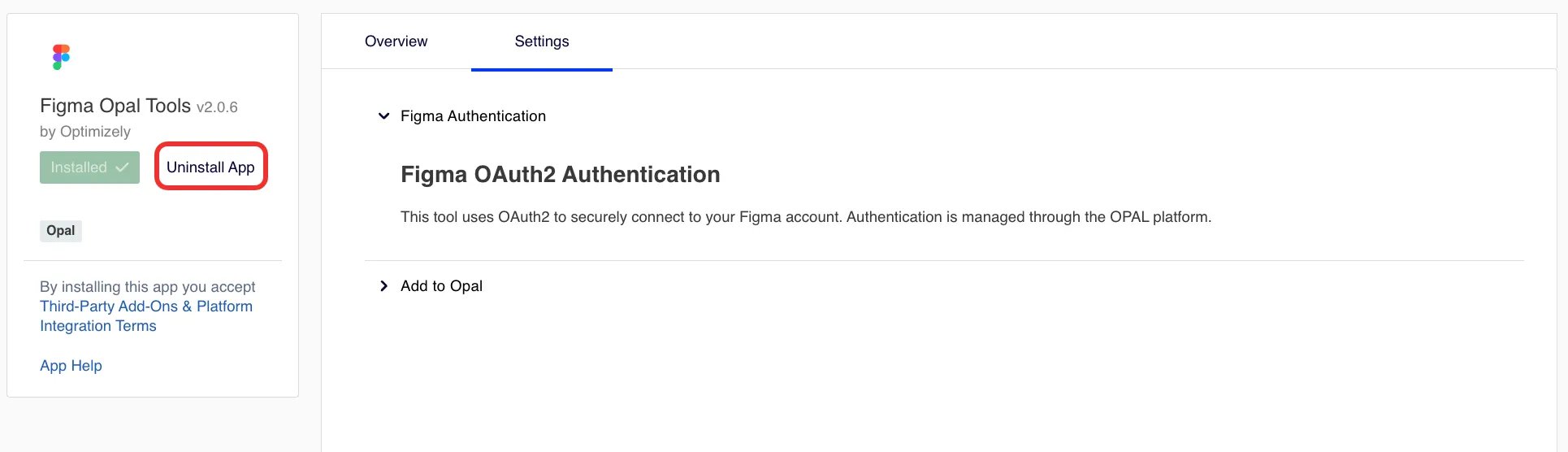
Uninstall Figma to disconnect it from Mark and stop the Figma connector tools from running. Uninstalling the app in OCP also removes the tools from every Mark instance they were registered to.
To uninstall the Figma Mark Tools, complete the following in the OCP App Directory.
Click Figma Mark Tools or Figma Opal Tools Shared Access if you are using the legacy app.
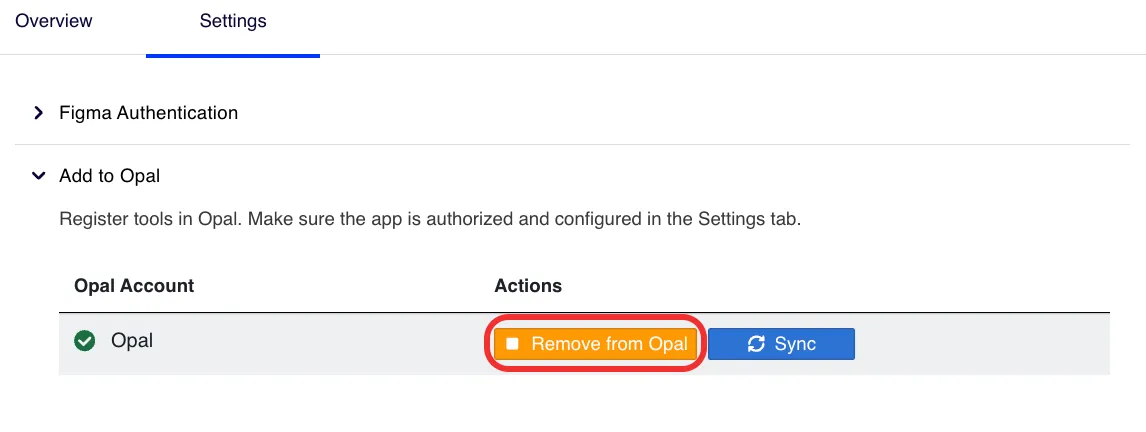
Click the Settings tab.
Expand the Add to Mark section.
Click Remove from Mark to remove the tools from Mark.