Atlassian remote MCP connector
The Atlassian remote Model Context Protocol (MCP) connector in Optimizely Opal lets Opal interact directly with your Jira and Confluence environments. Opal helps you manage your projects, tasks, and documentation without switching between applications.
Note
The Atlassian remote MCP is managed by Atlassian. For details, see Getting started with the Atlassian Rovo MCP Server in the Atlassian documentation.
First, an Opal administrator must Connect Atlassian remote MCP to Opal. After connecting the MCP server, individual Opal users and agent builders can log in to Atlassian to access their information from Opal. Administrators only need to connect the Atlassian remote MCP once.
Connect Atlassian remote MCP to Opal
Note
The first person to connect a third-party service to Opal should be an administrator of that service. Administrator access installs the complete set of tools, so Opal adds every available tool. If a non-administrator connects the service first, Opal installs only the tools that account can access.
Opal administrators connect and grant access to Atlassian from Opal. After granting access, administrators select which tools to enable in Opal and optionally customize their display names.
Add Atlassian connection
As an Opal administrator, complete the following steps:
- Go to Connectors in Opal.
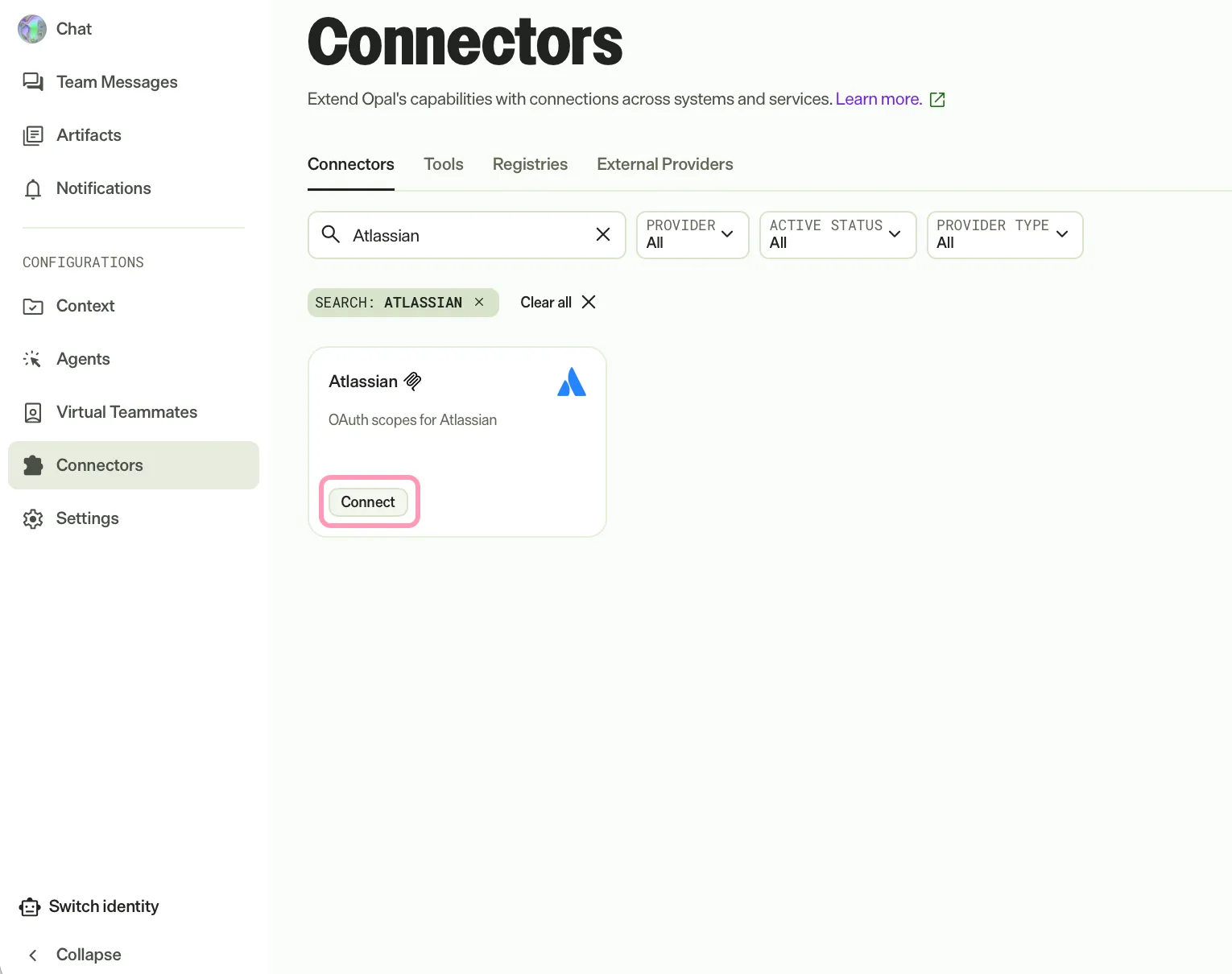
- (Optional) Enter Atlassian in the search bar to filter the connectors list.
- Click Connect on the Atlassian tile.
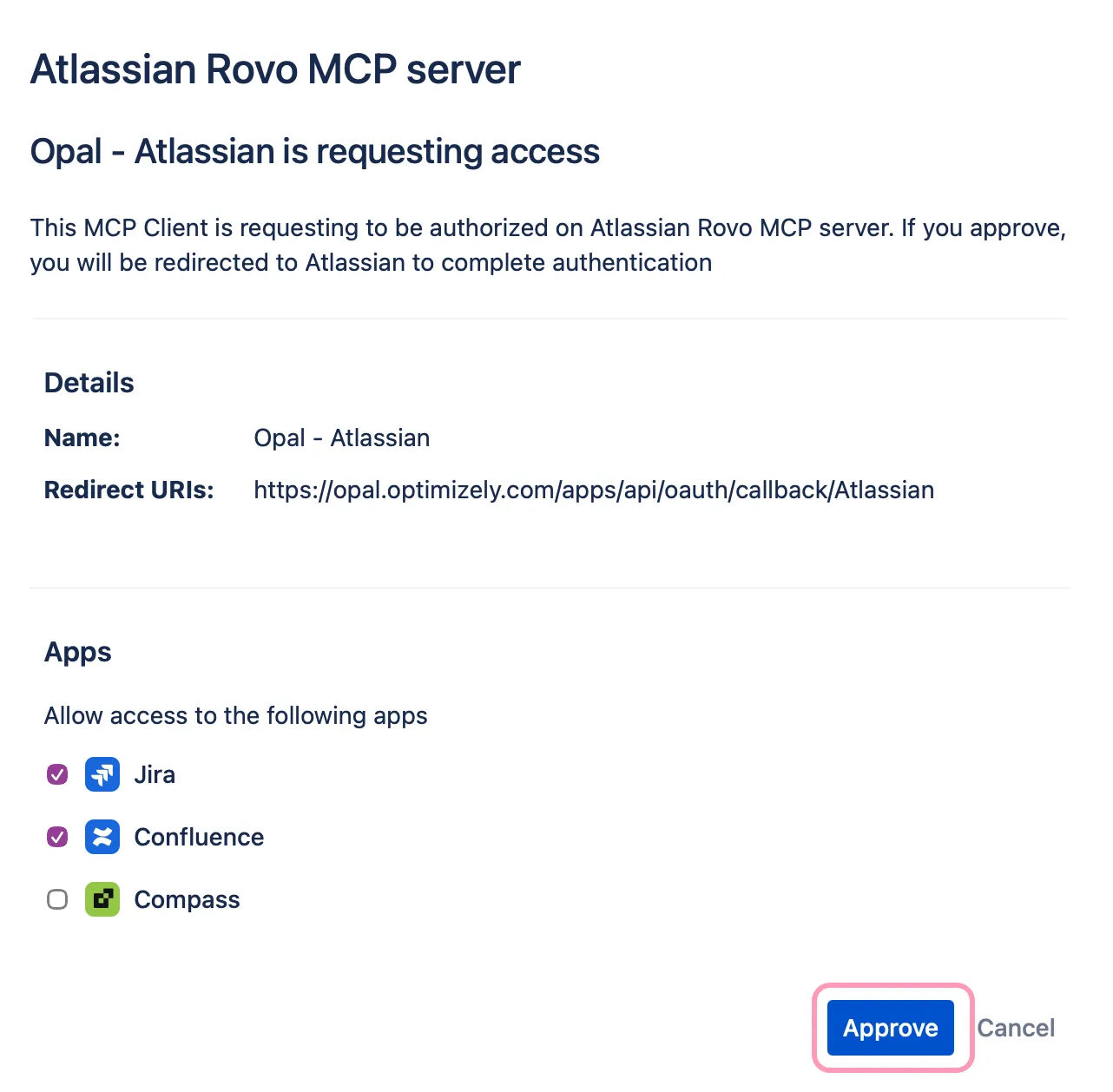
- Select which Atlassian apps you want to access in the pop-up window that Opal displays.
- Click Approve.
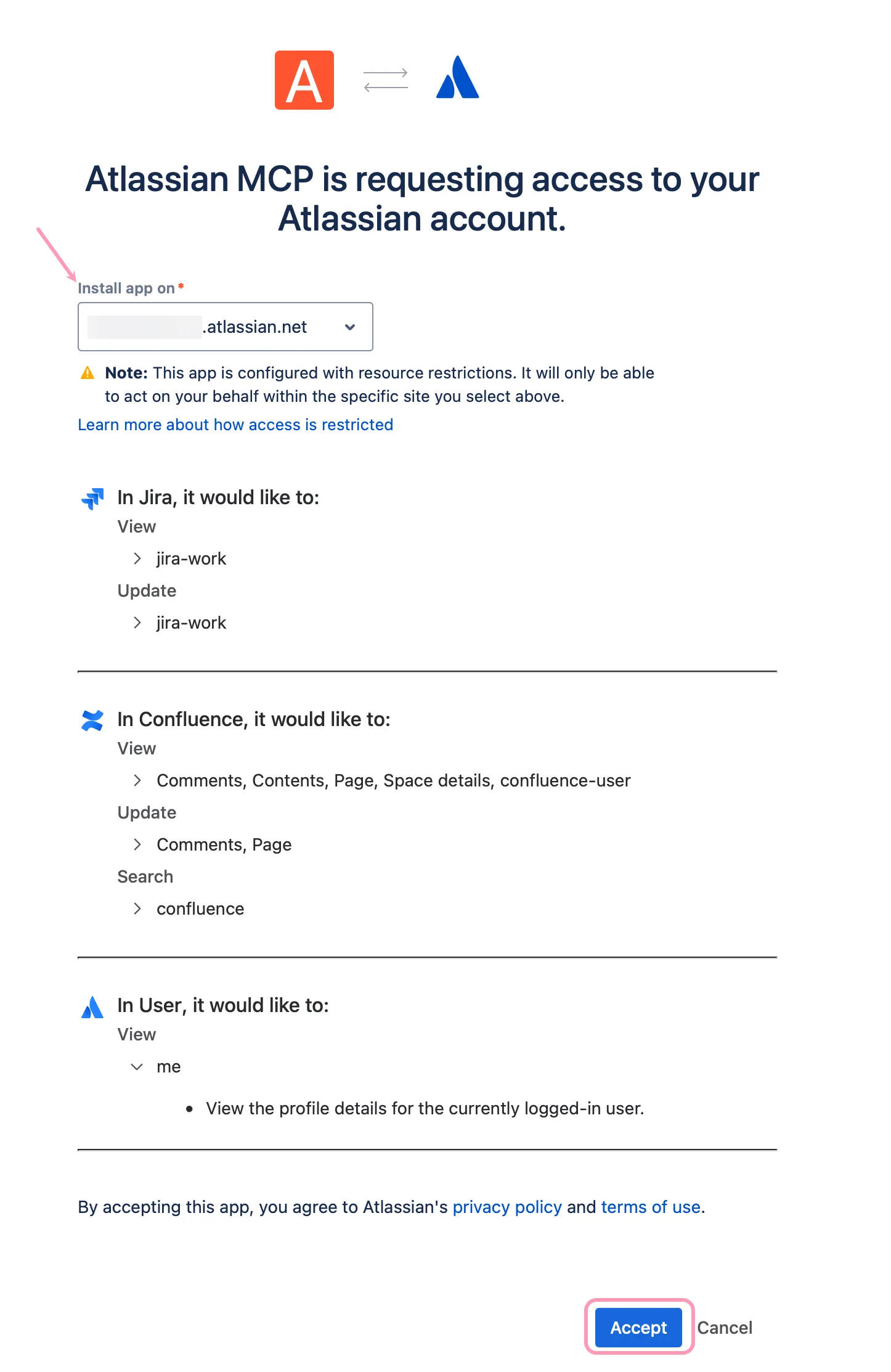
- Select which site to access in the Install app on drop-down list.
- Click Accept.
A confirmation message displays and you can close the pop-up window.
Configure Opal tools
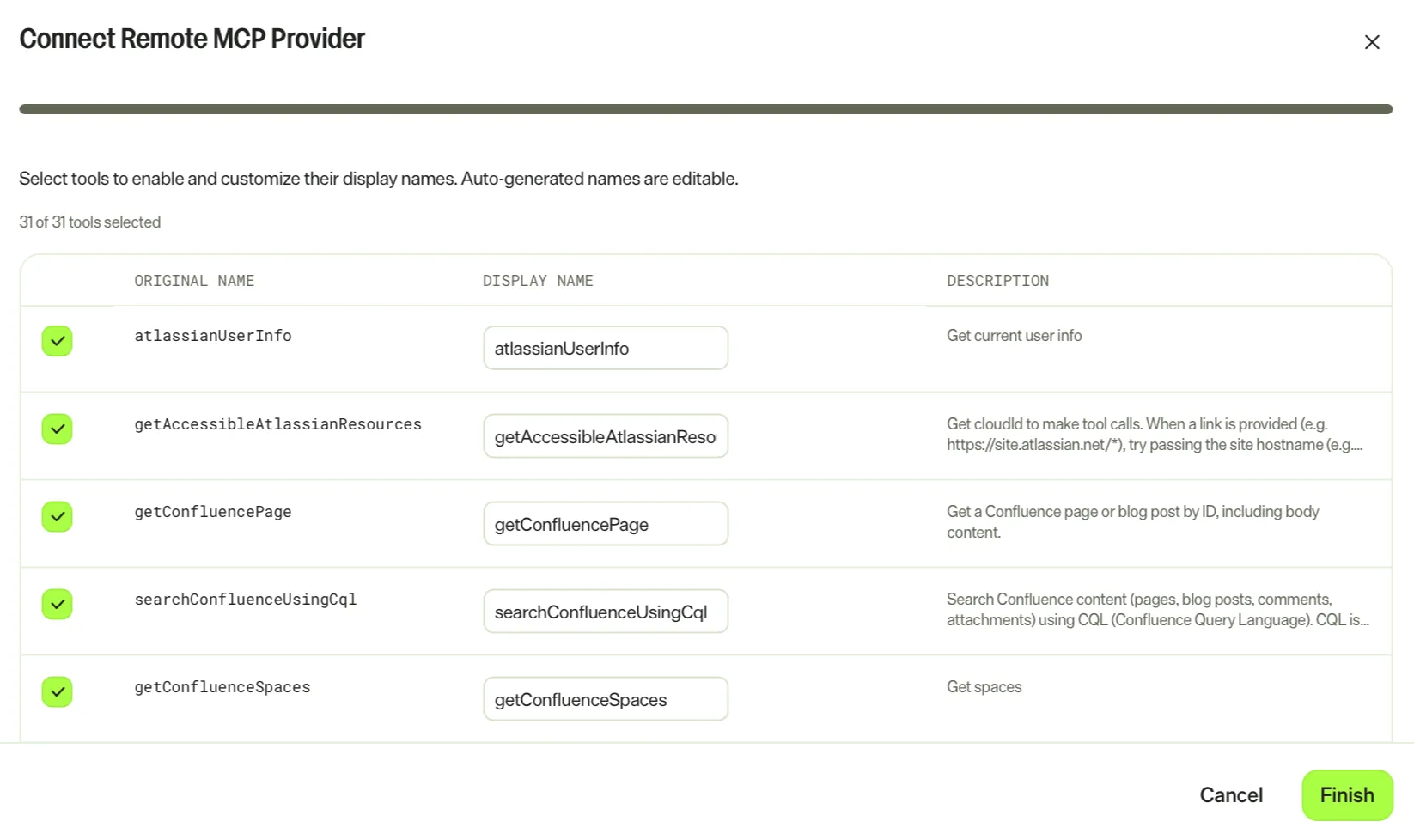
After adding the Atlassian connection, Opal prompts you to select which tools to enable and optionally customize their display names.
As an Opal administrator, complete the following steps:
- Deselect any tools you do not want to add to Opal.
- (Optional) Update any tool's display name.
- Click Finish.
The Atlassian tile displays Connect on the Connectors tab for Opal users to authenticate with their personal accounts.
To update the available tools or names, see Update tools.
Authenticate with Atlassian
Each Opal user and agent builder logs in to Atlassian individually to access their Atlassian data from Opal. User-level authentication ensures you access only the data your Atlassian account is authorized to view.
Before you begin, confirm that an Opal administrator has connected the Atlassian remote MCP to Opal. Until an administrator connects it, the Atlassian tile displays Contact admin instead of Connect and you cannot select it.
To authenticate, complete the following steps in Opal:
- Go to Connectors.
- (Optional) Enter Atlassian in the search bar to filter the connectors list.
- Click Connect on the Atlassian tile.
- Log in to Atlassian.
After you connect to Atlassian, the Atlassian connector tools your administrator added become available in Opal Chat, agents, and workflows.
Atlassian connector tools
The Atlassian connector tools are available in Opal after an administrator connects the Atlassian remote MCP to Opal and you log in. The available tools depend on which Atlassian apps and tools your administrator enabled. For a full list of available tools and actions, see Getting started with the Atlassian Rovo MCP Server in the Atlassian documentation.
Update tools
To rename, add, or remove tools, an Opal administrator must delete the Atlassian tools registry and re-add it. To do so, complete the following steps:
- Follow the steps in Delete a tool registry.
Note
If you use Opti ID, administrators can turn off generative AI in the Opti ID Admin Center. See Turn generative AI off across Optimizely applicationsTurn generative AI off across Optimizely applications.