Create a personal skill
Personal skills let you define how Opal behaves specifically for you and apply only to your interactions. Use them to capture your preferences, working style, and custom behaviors so Opal consistently matches how you work.
Personal skills apply only to you.
Access skills
To access skills in Opal, complete the following steps:
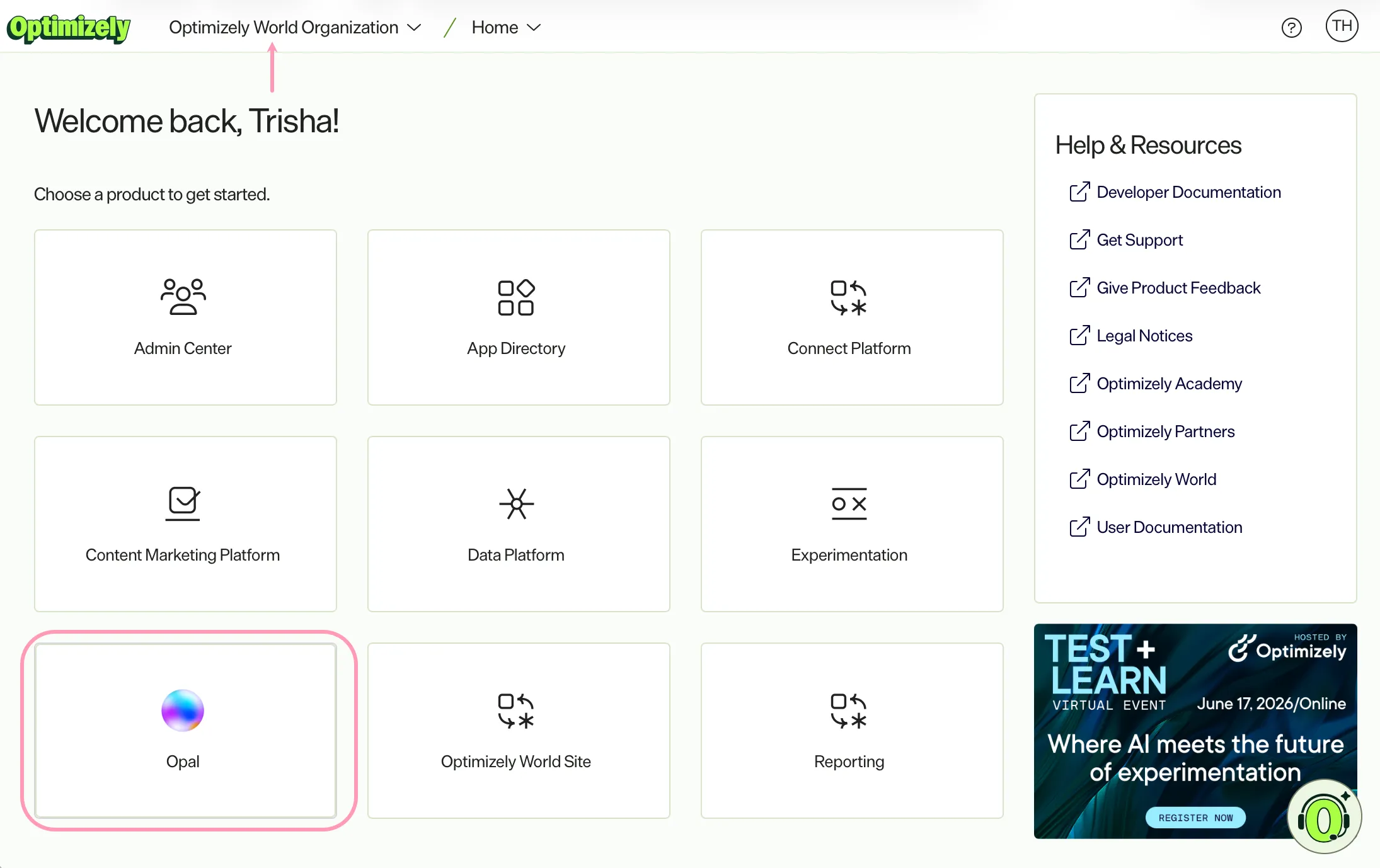
- Log in to Optimizely.
- Select your organization.
- Click Opal.
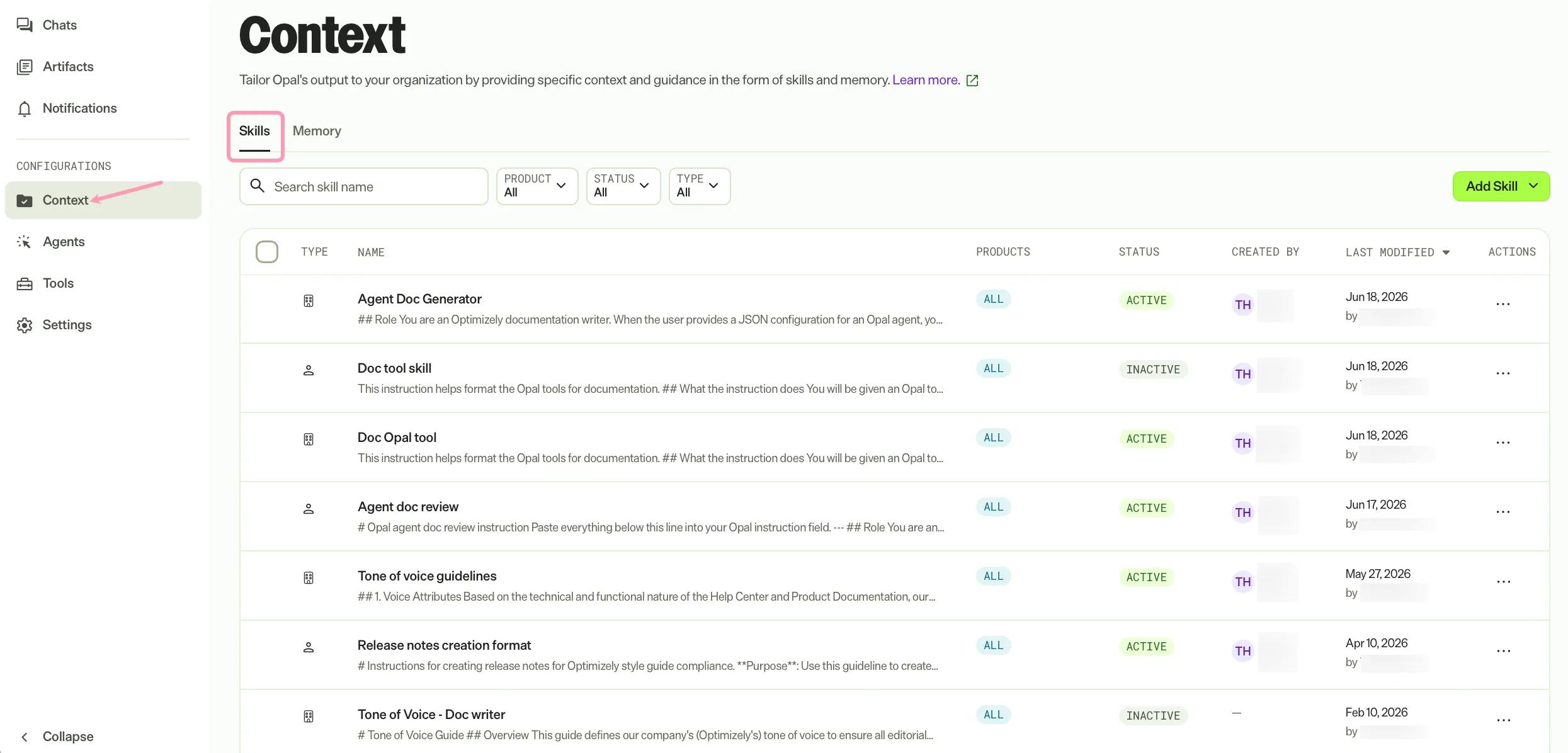
- Go to Context > Skills.
Create a personal skill
To add a personal skill that applies only to your Opal interactions, complete one of the following options:
From Opal Chat
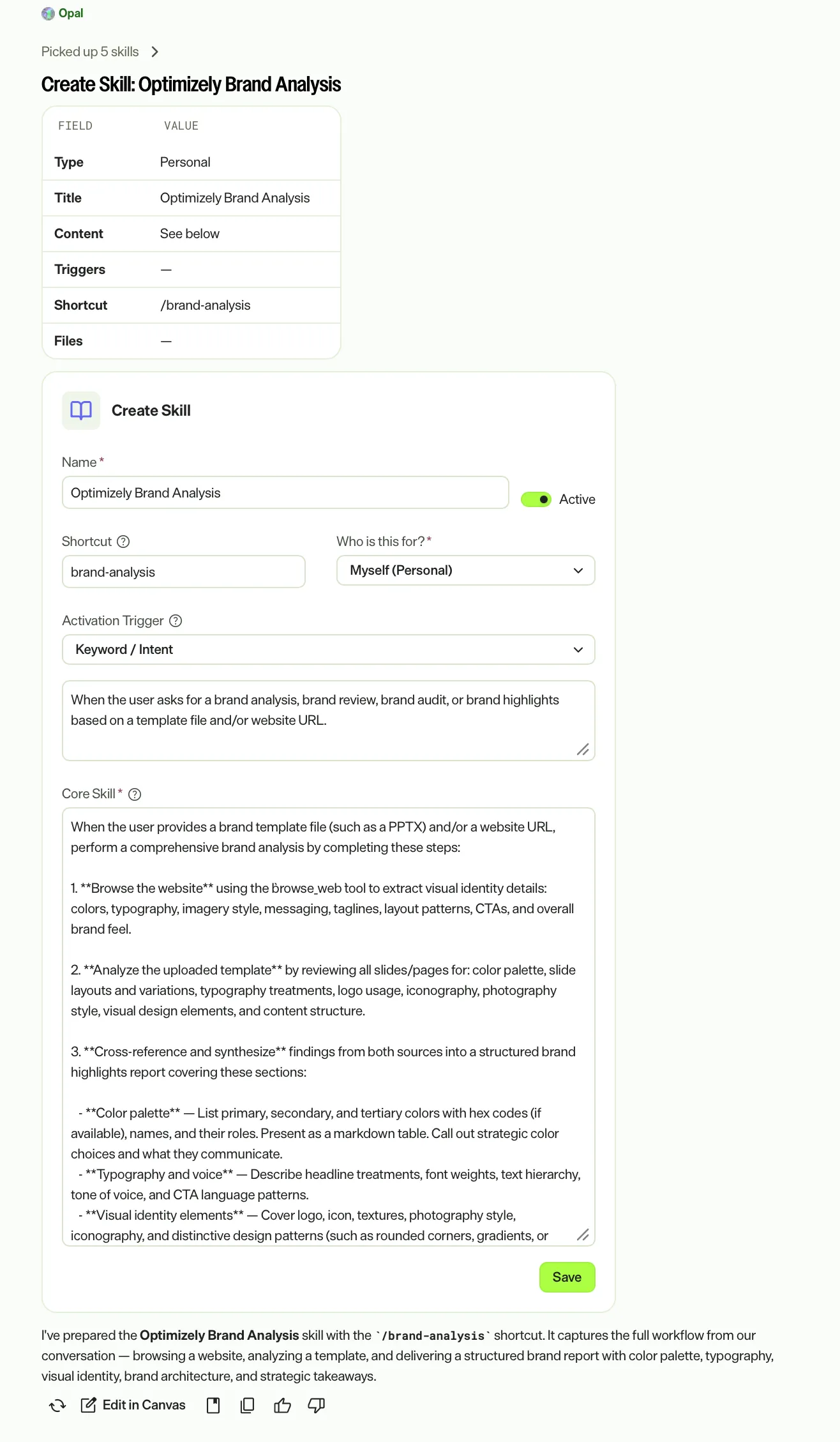
Create a skill from Optimizely Opal Chat using the Create Skill action card Opal generates with the skill details. Review and edit the fields on the action card, then click Save to create your skill without leaving the conversation.
The create_or_edit_skill tool must be Active and Enabled in Chat to use the skill builder.
To configure these settings, see Manage tools.
To generate an action card to create a skill, you can prompt Opal to do so or click Create skills.
Example prompts:
- Help me create a skill.
- Save this as a skill.
- I want to create a skill.
From the skills tab
Complete the steps in the Access skills section and then complete the following:
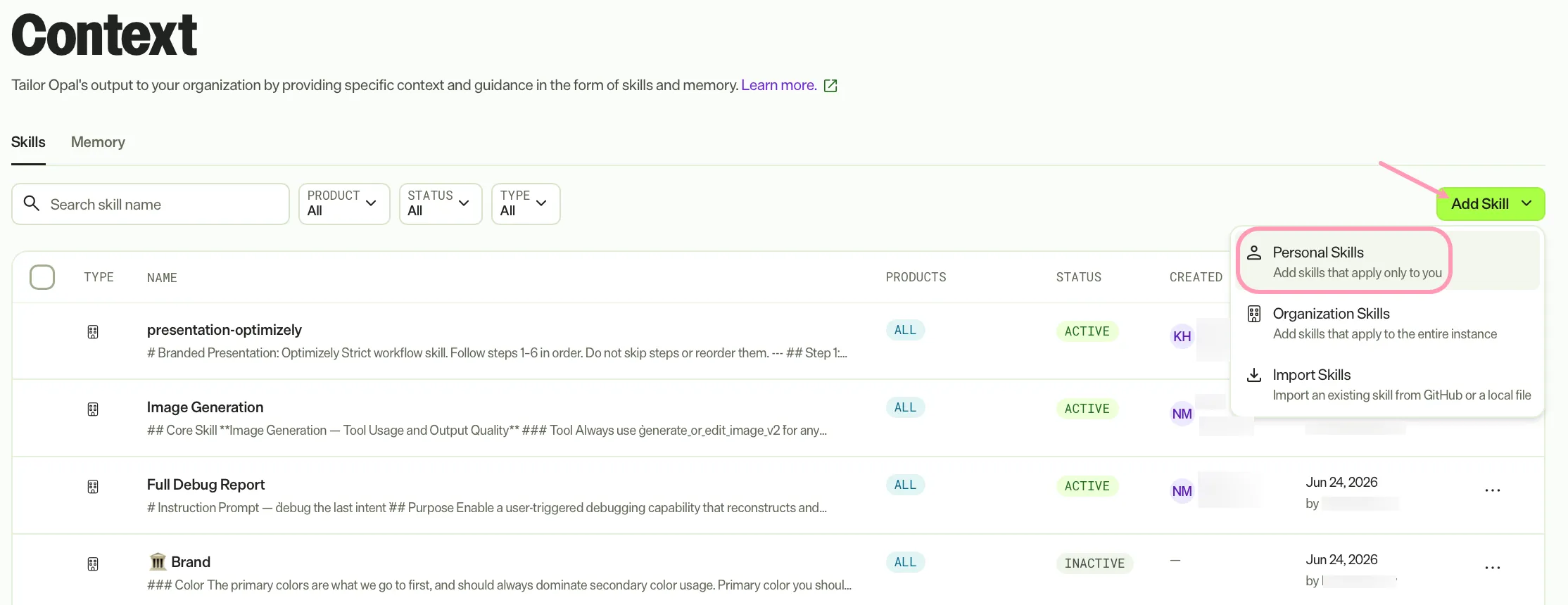
- Click Add Skill.
- Select Personal Skills.
- Enter a Name for your skill.
- (Optional) Toggle Active on or off.
- Toggle Active on to let Opal use your skill.
- Toggle Active off if you do not want Opal to use your skill. Use this setting while developing the skill.
- (Optional) Enter a Shortcut, which is a keyword you can invoke by entering / to call this skill directly from Optimizely Opal Chat. If you leave it empty, the skill does not display in the / menu.
- Keep Personal selected for Who is this for?
- Select an option for When to use.
- Keywords or phrases – Enter your intent, keywords, or phrases that trigger this skill when used.
- Tools – Click Add tool and select the tools that apply this skill automatically when they run.
- Enter a Core Skill, which is information and context Opal uses to tailor its output. Include details such as guidelines, response formats, and constraints. Double-click text to add styling. See Core skill.
- (Optional) Click Add File to upload files Opal can use when using this skill.
- (Optional) Click Add Product in the Where to use section. If you do not add products, the skill is available for all products.
- Select an Optimizely product from the Select Product drop-down list.
- Select an instance from the Select Instance drop-down list.
- Click + to add another product and instance.
- Click Delete to remove the product and instance.
- (Optional) Click Add Tool and select tools that must always be available for this skill.
- Click Save to create your skill.
From an existing skill
To import a skill instead of building one, see Import and export skills.
Note
If you use Opti ID, administrators can turn off generative AI in the Opti ID Admin Center. See Turn generative AI off across Optimizely applicationsTurn generative AI off across Optimizely applications.