Manage a conversation in Optimizely Mark chat
Mark (Optimizely Agent Platform) gives you several controls over each conversation. Manage the flow of a conversation in Mark chat. Stop a response, edit a sent message, queue follow-ups, compact a long thread, or copy your thread ID.
Stop a response
Stop a response when Mark is heading in the wrong direction or you want to revise your prompt. Do one of the following:
- Click Stop.
- Press Escape.
Mark stops the response, and the chat input is ready for your next message.
Edit a message
Edit any message you have already sent in Mark chat. Editing a message creates a branch of the conversation. Mark preserves your original wording and its first response, so you can return to them anytime.
- Hover over a message you sent. The edit option displays when Mark is idle.
- Click Edit. The message opens in an editable text field.
- Change the text.
- Click Send.
Mark continues the conversation from your edited message and generates a response. Mark keeps the messages that came after the original on the earlier branch. Nothing is deleted.
Switch between versions
After you edit a message, navigation arrows display on it with a counter such as 1 of 2. Use the arrows to move between the original message and each edited version. Switching versions swaps the rest of the conversation to match that branch.
Limitations
Keep the following limitations in mind when editing messages in Mark:
- Editing applies only to messages you sent, not to Mark's responses.
- You cannot edit a message while Mark generates a response. Wait for it to finish.
- Editing carries text only. Attached files do not carry over to the edited version.
- Message editing is not available inside a specialized-agent session or when you use your own AI provider.
Queue messages while Mark works
Queue your follow-up messages while Mark generates a response, instead of waiting for it to finish. At its next step, Mark takes each queued message into the response it is already working on and treats it as a follow-up.
Add a message to the queue
While Mark is working, complete the following:
- Enter your next message in the chat input.
- Click Add to queue or press Enter.
Mark adds the message to the Queued messages list and updates the count, such as Queued messages (1).
Manage queued messages
In the Queued messages list, do any of the following:
- Click Send now to move a queued message to the front of the queue and stop the current response. Mark runs that message next.
- Press Ctrl(⌘) + Enter while Mark works to send the message you typed now. If the chat input is empty, Ctrl(⌘) + Enter sends the first queued message now.
- Click Edit to move a queued message and its files back to the chat input.
- Click Remove from queue to delete a queued message.
- Drag a queued message to reorder the queue.
Send now is hidden while Mark waits for your answer to a question or an approval.
Edit a queued message
Edit a queued message to change its text or files instead of removing the message and retyping it. Complete the following steps in the Queued messages list:
- Click Edit for the message.
- Change the text or the attached files in the chat input.
- Click Add to queue or press Enter.
Edit takes the message out of the queue and puts its text and attached files in the chat input. If the chat input already has a draft, Mark adds the message after the draft. Mark also adds its files to your attached files.
Mark adds the edited message to the end of the queue. The message does not keep its earlier position. To drop the message, clear the chat input. An edit has no cancel action.
Edit also works on a message that Mark keeps on your device while your connection is down. When you edit that message, Mark does not send the original after the connection returns.
Keep the following limits in mind when you edit a queued message:
- If Mark already started the message, nothing moves to the chat input. A message tells you that Mark already started it.
- If Mark cannot load an attached file, the message stays in the queue and an error message displays.
- You cannot edit a message that has a deleted or missing attachment. Send or remove it instead.
- You cannot edit a message that asks Mark about a passage of an artifact. Edit does not display for it. Send or remove it instead.
Compact a conversation
Mark chat automatically saves checkpoints so it can automatically get context from earlier in the conversation.
To compact a conversation manually, complete the following steps in a chat that already contains messages:
- Enter /compact in the Mark chat.
- Click Submit or press Enter.
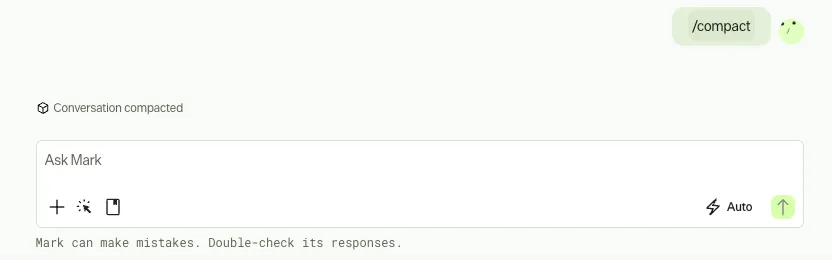
Mark summarizes the conversation and inserts a summary marker in the thread.
From that point, Mark sends the summary and any newer messages to the model instead of the full history. You still see the entire conversation in the chat. Nothing is deleted, and you stay in the same conversation thread.
Copy your Mark chat ID
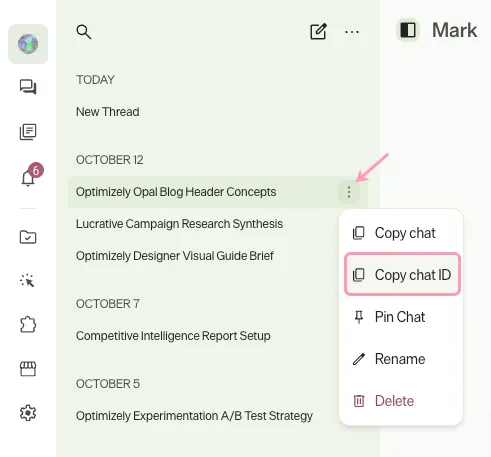
To get your chat thread ID, complete the following:
- Click the chat thread you want to copy the ID for.
- Click More and select Copy chat ID.
Note
If you use Opti ID, administrators can turn off generative AI in the Opti ID Admin Center. See Turn generative AI off across Optimizely applications.