The Google Tag Manager connector tools in Optimizely Opal let you read and write your Tag Manager containers in plain English through the official Tag Manager API v2. Use them to list the accounts, containers, and workspaces you can access, audit and manage tags, triggers, and variables, and freeze and publish container versions, all without opening Google Tag Manager. Each Opal user authenticates with their own Google account, so every action is attributed to whoever is chatting rather than to a shared service account.
The following use cases show how you can use Google Tag Manager connector tools in Opal to audit, extend, and troubleshoot tag configurations without opening Google Tag Manager.
Audit a container for dead weight
Containers accumulate paused tags, duplicate tag types, and orphaned configurations over time. Use gtm_list_tags and gtm_list_triggers to list every tag in a container and flag the ones that are paused, have no firing trigger, or duplicate another tag's type and configuration. This surfaces dead weight and double-firing tags that quietly inflate your GA4 numbers.
Example – List every tag in my main container and flag the ones that are paused, have no firing trigger, or duplicate another tag's type and configuration.
Map conversion tags to their triggers
A conversion tag that fires on All Pages instead of a specific action is a common cause of an inflated conversion rate. Use gtm_list_tags and gtm_list_triggers to see every tag that fires a GA4 conversion event, which trigger fires it, and which ones fire on All Pages rather than a specific action. Review this before you trust a GA4 report.
Example – Show me every tag that fires a GA4 conversion event and which trigger fires it. Tell me which ones fire on All Pages rather than a specific action.
Add scroll and engagement tracking
Scroll depth and engagement triggers give you visibility into content engagement that many containers do not track by default. Use gtm_create_trigger and gtm_create_tag to create scroll depth triggers and a GA4 event tag for each, and stage the changes in a workspace without publishing them.
Example – Create a 50% and 90% scroll depth trigger for my blog pages only, and a GA4 event tag for each. Stage it in a workspace — don't publish.
Fix single-page app pageview tracking
A single-page app can silently undercount pageviews, because the full page load event that GA4 relies on never repeats after the initial load. Use gtm_get_tag to check whether a GA4 configuration tag fires on a pageview trigger, and use gtm_create_trigger and gtm_update_tag to switch it to a historyChange trigger so route changes get tracked.
Example – My site is a single-page app. Check whether my GA4 config tag fires on a pageview trigger, and if so, create a historyChange trigger instead so route changes get tracked.
Review container release history
Reviewing what changed between container versions helps you confirm a rollout landed as expected or diagnose a regression after a publish. Use gtm_list_versions to list recent container versions with their tag counts, and compare the current live version against the one before it.
Example – List the last 10 container versions with their tag counts, and tell me what changed between the current live version and the one before it.
Connect Opal with Google Tag Manager
Complete the following steps to enable the Google Tag Manager tools in Opal.
Install the Opal Google Tag Manager Tool in OCP
In the OCP App Directory, complete the following steps:
Click Opal Google Tag Manager Tool.
Click Install App.
Configure Google Tag Manager API authentication
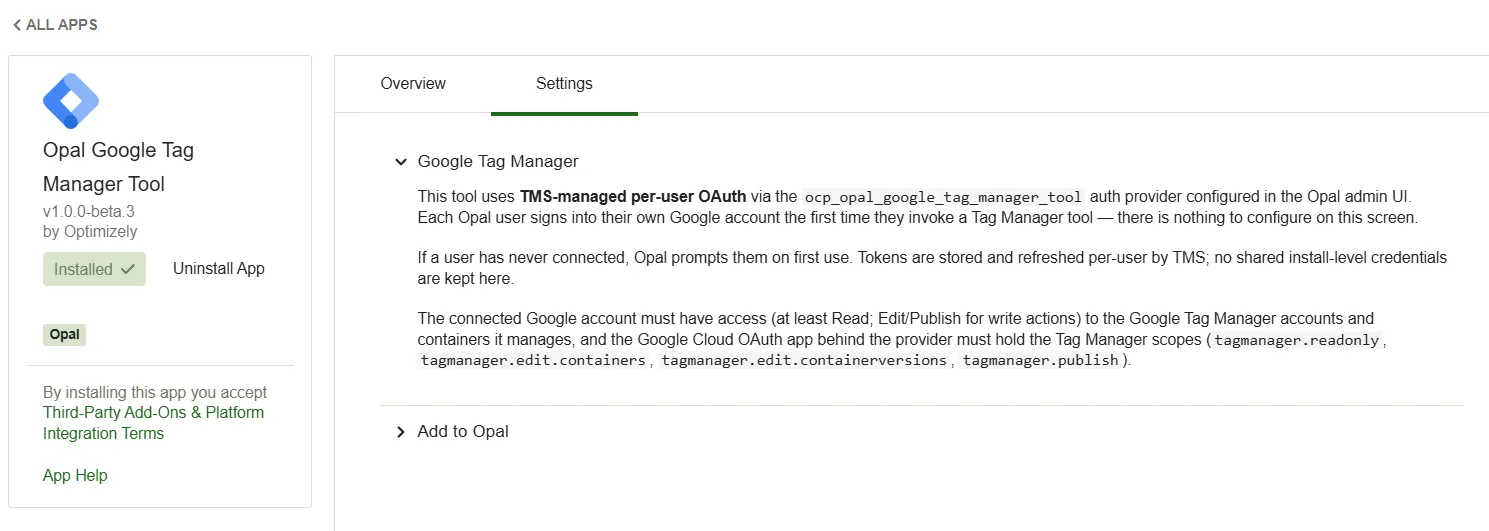
Before you install the Opal Google Tag Manager Tool, an Opal administrator registers Google Tag Manager as an authentication provider in the Opal admin UI. This is a one-time step for the whole Opal instance, and it uses per-user OAuth 2.0 so every Opal user authenticates with their own Google identity.
Register the ocp_opal_google_tag_manager_tool authentication provider and its scope bundle in the Opal admin UI.
Create or reuse a Google Cloud OAuth app with the Tag Manager API enabled.
Add the TMS callback URL to that Google Cloud OAuth app's allowed redirect URIs.
The Google Cloud OAuth app behind the provider must have the Tag Manager API enabled and request the following scopes:
tagmanager.readonly
tagmanager.edit.containers
tagmanager.edit.containerversions
tagmanager.publish
The connected Google account must hold the matching role (Read, Edit, or Publish) on the Google Tag Manager accounts and containers it manages.
After registration, the Opal Google Tag Manager Tool in OCP uses this provider automatically. Go to the Settings tab of the tool to confirm the provider is configured. The Settings tab requires no further configuration once the provider is registered.
Add the Google Tag Manager connector tools to Opal
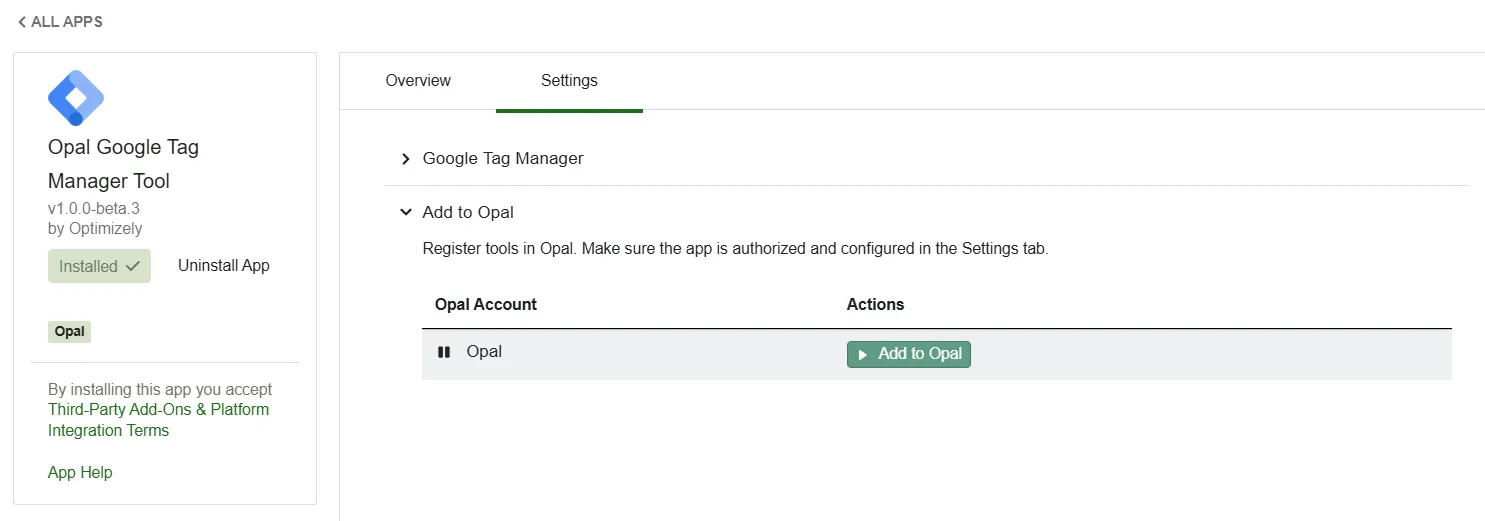
Click Add to Opal for the Opal account you want to add the Google Tag Manager connector tools to.
Click Remove from Opal to remove the connection.
Expand the tool list to review the 17 available Google Tag Manager tools. Each tool has an independent toggle, so an administrator can turn off a specific tool, such as a write tool like gtm_delete_tag, without disabling the rest of the connector.
After you complete the steps in this section, each Opal user in your account can follow the steps in Authenticate with Google Tag Manager to connect their own Google Tag Manager login.
Authenticate with Google Tag Manager
After an administrator connects Opal with Google Tag Manager, log in from Opal to access your data. The Google Tag Manager connector tools use per-user authentication, so you can only access data you have permission to view in Google Tag Manager.
To authenticate, complete the following steps in Opal:
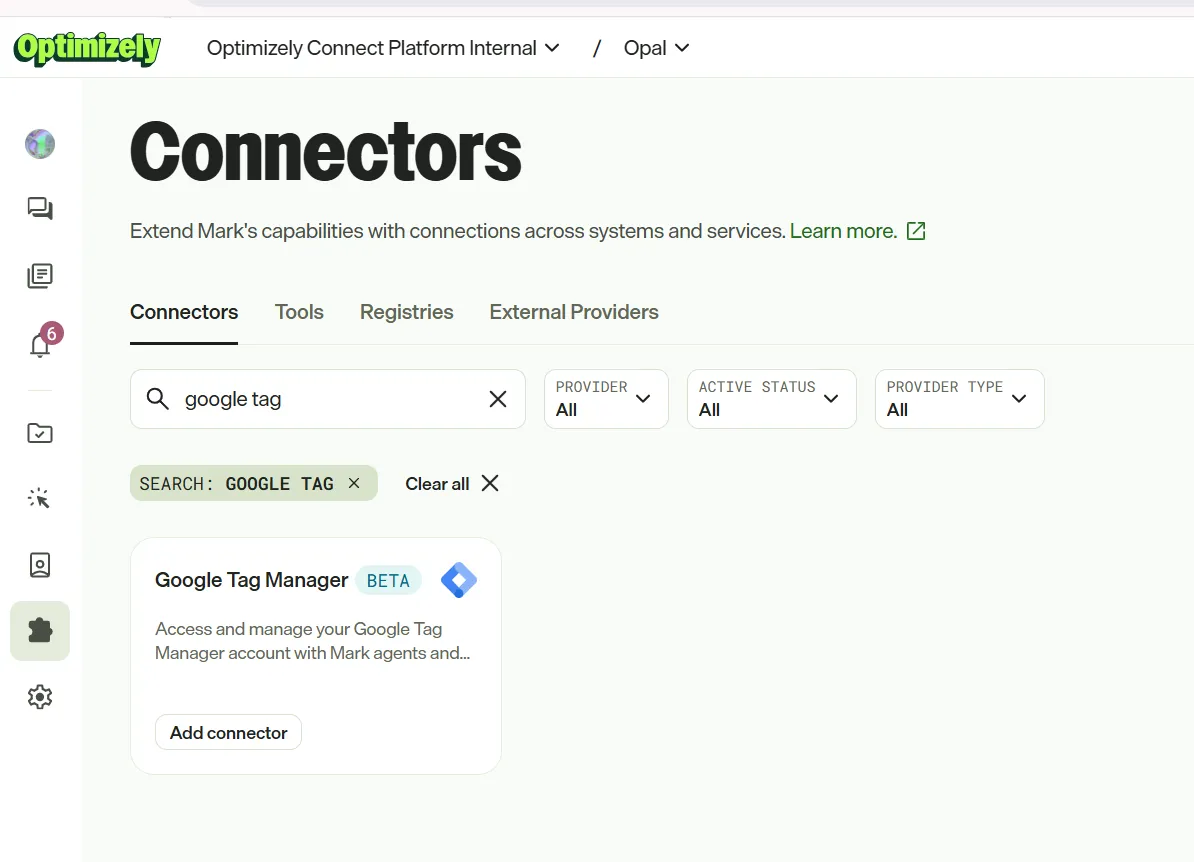
Go to Tools > Connectors.
Click Connect on the Google Tag Manager connector tools.
Log in to Google in the window Optimizely displays.
After you connect to Google, the Google Tag Manager connector tools become available in Opal Chat, agents, and workflows.
Click a tool's name to expand it and learn when to use it, its required and optional parameters, and example prompts for calling the tool. If you do not provide a required parameter, Opal prompts you for it.
Account, container, and workspace access
Use these tools to discover the accounts, containers, and workspaces your connected Google account can access. Run these first, because almost every other Google Tag Manager tool needs an ID one of these tools returns.
Lists the Google Tag Manager accounts the connected Google account can access.
When to use
Start any Google Tag Manager request when you do not yet know the account_id to pass to other tools.
Confirm which Tag Manager accounts your Google account can access before you query a specific container.
Discover accounts you manage on behalf of a client or another team.
Parameters
None
Example prompts
List the Google Tag Manager accounts I can access.
What Tag Manager accounts is my Google account connected to?
Show me the account ID for my Tag Manager account.
Lists the containers in a Google Tag Manager account. A container is a single site or app property, and its public ID is the GTM-XXXXXX identifier you paste into a page.
When to use
Find the container_id for a specific site or app before you list its workspaces, tags, or triggers.
Confirm the public GTM-XXXXXX ID for a container you are about to embed on a page.
Review every container registered under an account.
Parameters
account_id – The Google Tag Manager account to list containers for. Get this from gtm_list_accounts.
Example prompts
List the containers in my main Tag Manager account.
What is the public container ID for my marketing site?
Show me every container under account 123456.
Lists the workspaces in a container. Every edit to a tag, trigger, or variable happens inside a workspace, and the default workspace is usually named Default Workspace.
When to use
Find the workspace_id you need before you create, read, update, or delete a tag, trigger, or variable.
Confirm which workspaces are open in a container before you stage new changes.
Check whether a colleague already created a workspace for a pending change.
Parameters
container_id – The container to list workspaces for. Get this from gtm_list_containers.
Example prompts
List the workspaces in my main container.
What is the workspace ID for the Default Workspace in container 7654321?
Show me every open workspace in my container.
Tags
Use these tools to list, read, create, update, and delete the tags that fire scripts and pixels on your site or app, such as GA4 event tags, custom HTML tags, and conversion linkers.
Lists all tags in a workspace. Returns each tag's ID, name, type, firing triggers, and paused state.
When to use
Audit a container for paused tags, tags with no firing trigger, or tags that duplicate another tag's type and configuration.
Get an overview of every tag configured in a workspace before you make a change.
Find the tag_id for a specific tag before you read or update it.
Parameters
workspace_id – The workspace to list tags for. Get this from gtm_list_workspaces.
Example prompts
List every tag in my main container and flag the ones that are paused, have no firing trigger, or duplicate another tag's type and configuration.
Show me every tag that fires a GA4 conversion event and which trigger fires it.
Which tags in my workspace have no firing trigger?
Gets one tag by ID, with its full configuration, including type, all parameters, firing and blocking triggers, and fingerprint. Use this before gtm_update_tag so you edit the exact resource.
When to use
Review a tag's complete configuration before you change it.
Confirm which triggers fire or block a specific tag.
Retrieve the exact JSON structure to modify with gtm_update_tag.
Parameters
workspace_id – The workspace that contains the tag.
tag_id – The ID of the tag to retrieve. Get this from gtm_list_tags.
Example prompts
Get the full configuration for tag 45.
Show me the firing and blocking triggers for my GA4 purchase tag.
What parameters are set on tag 12 in my main workspace?
Creates a tag in a workspace. Pass tag_json as the full Tag resource, with name, type, and a parameter list as the minimum required fields.
When to use
Add a new GA4 event tag, custom HTML tag, or conversion linker to a workspace.
Stage a new tag in a workspace without publishing it to the live container.
Create a tag as part of a larger tracking rollout, such as scroll depth or engagement tracking.
Parameters
workspace_id – The workspace to create the tag in.
tag_json – The full Tag resource to create. Requires name, type, and a parameter list. For example, a GA4 event tag: {"name":"GA4 - purchase","type":"gaawe","parameter":[...]}.
Example prompts
Create a GA4 event tag named "GA4 - purchase" in my main workspace.
Create a 50% and 90% scroll depth trigger for my blog pages only, and a GA4 event tag for each. Stage it in a workspace — don't publish.
Add a custom HTML tag that fires a third-party pixel on the checkout confirmation page.
Updates (replaces) an existing tag. Fetch it first with gtm_get_tag, modify the JSON, and pass the full resource as tag_json. This is a full replacement, so include every field you want to keep.
When to use
Change a tag's firing triggers, parameters, or name after reviewing it with gtm_get_tag.
Correct a misconfigured tag, such as one firing on All Pages instead of a specific action.
Migrate a tag from a pageview trigger to a historyChange trigger for single-page app tracking.
Parameters
workspace_id – The workspace that contains the tag.
tag_id – The ID of the tag to update.
tag_json – The full, updated Tag resource, including every field you want to keep. Field keys can be snake_case or camelCase.
Example prompts
My GA4 config tag fires on a pageview trigger. Create a historyChange trigger instead and update the tag to fire on it, since my site is a single-page app.
Update tag 45 so it stops firing on All Pages and only fires on the checkout confirmation trigger.
Change the parameter list on my GA4 purchase tag to include the transaction ID variable.
Deletes a tag from a workspace. This is a workspace edit, so it only takes effect on the live site after you run gtm_create_version and gtm_publish_version.
When to use
Remove a duplicate tag identified during a container audit.
Delete a tag you replaced with an updated version.
Clean up a paused tag that no team plans to reactivate.
Parameters
workspace_id – The workspace that contains the tag.
tag_id – The ID of the tag to delete.
Example prompts
Delete the duplicate GA4 purchase tag in my main workspace.
Remove tag 78, since it has been paused for six months.
Delete the old Universal Analytics tag now that GA4 replaced it.
Triggers
Use these tools to list, create, update, and delete the triggers that decide when a tag fires, such as page views, clicks, form submissions, custom events, and timers.
Lists all triggers in a workspace. Triggers decide when tags fire, such as on page views, clicks, form submissions, custom events, or timers.
When to use
Find the trigger_id for a specific trigger before you read, update, or delete it.
Check which triggers exist before you create a tag that depends on one of them.
Audit a workspace for triggers that no tag references.
Parameters
workspace_id – The workspace to list triggers for.
Example prompts
List every trigger in my main workspace.
Which triggers in my workspace have no tag attached to them?
Show me the trigger ID for my checkout confirmation page view trigger.
Creates a trigger in a workspace. Pass trigger_json as the full Trigger resource.
When to use
Add a click trigger on a CSS selector, such as a Buy button.
Create scroll depth triggers, for example at 50% and 90%, to measure content engagement.
Create a historyChange trigger to track route changes on a single-page app.
Parameters
workspace_id – The workspace to create the trigger in.
trigger_json – The full Trigger resource to create. For example, a click trigger on a CSS selector: {"name":"Click - Buy button","type":"click","filter":[{"type":"cssSelector","parameter":[...]}]}.
Example prompts
Create a 50% and 90% scroll depth trigger for my blog pages only.
Create a click trigger that fires when a visitor clicks the Buy button.
Create a historyChange trigger so route changes on my single-page app get tracked.
Updates (replaces) an existing trigger. Read it first with gtm_list_triggers, modify the JSON, and pass the full resource as trigger_json. This is a full replacement, so include every field you want to keep.
When to use
Narrow or widen the pages a trigger fires on, such as restricting a scroll depth trigger to blog pages only.
Change the CSS selector or event name a trigger listens for.
Correct a trigger's filter conditions after reviewing it with gtm_list_triggers.
Parameters
workspace_id – The workspace that contains the trigger.
trigger_id – The ID of the trigger to update.
trigger_json – The full, updated Trigger resource, including every field you want to keep. Field keys can be snake_case or camelCase.
Example prompts
Restrict my scroll depth trigger to blog pages only.
Update trigger 33 so it fires on the new checkout confirmation URL.
Change the CSS selector on my Buy button click trigger.
Deletes a trigger from a workspace. Check gtm_list_tags first, because any tag that fires on this trigger loses it. This is a workspace edit, so it only takes effect on the live site after you run gtm_create_version and gtm_publish_version.
When to use
Remove a trigger after you confirm with gtm_list_tags that no tag depends on it.
Clean up a duplicate or unused trigger identified during a container audit.
Delete a trigger you replaced with a corrected version.
Parameters
workspace_id – The workspace that contains the trigger.
trigger_id – The ID of the trigger to delete.
Example prompts
Check whether any tag uses trigger 33, and delete it if none does.
Delete the unused scroll depth trigger in my main workspace.
Remove the duplicate click trigger from my workspace.
Variables
Use these tools to list and create the user-defined variables that tags and triggers reference, such as data-layer variables, constants, and lookup tables.
Lists all user-defined variables in a workspace, such as constants, data-layer variables, lookup tables, and custom JavaScript variables.
When to use
Review which variables a workspace already defines before you create a new one.
Find the variables a tag or trigger references.
Audit a workspace for unused or duplicate variables.
Parameters
workspace_id – The workspace to list variables for.
Example prompts
List every variable in my main workspace.
Which data-layer variables are defined in my workspace?
Show me the lookup tables configured in my container.
Creates a user-defined variable in a workspace. Pass variable_json as the full Variable resource.
When to use
Add a data-layer variable to capture a value your site pushes to the data layer, such as a user ID.
Create a constant variable to reuse a fixed value, such as a measurement ID, across multiple tags.
Create a lookup table variable to map raw event values to friendly labels.
Parameters
workspace_id – The workspace to create the variable in.
variable_json – The full Variable resource to create. For example, a data-layer variable: {"name":"DLV - user_id","type":"v","parameter":[...]}.
Example prompts
Create a data-layer variable named "DLV - user_id" in my main workspace.
Add a constant variable that stores my GA4 measurement ID.
Create a lookup table variable that maps event names to friendly labels.
Versions and publishing
Use these tools to freeze a workspace into a container version and publish it to your live site or app, or to review past versions before you publish or roll back.
Lists the container versions for a container, including each version's ID, name, and how many tags, triggers, and variables it holds. Use this to find a version_id to publish.
When to use
Review release history before you publish a new version.
Find the version_id for a version you want to publish or compare.
Check how many tags, triggers, and variables a past version held.
Parameters
container_id – The container to list versions for.
Example prompts
List the last 10 container versions with their tag counts.
What version is currently live in my main container?
Show me every version created in my container this year.
Freezes the current state of a workspace into a new container version. Nothing goes live yet. Follow with gtm_publish_version to publish the returned version to the live container. Returns the new container_version_id, or a list of compiler errors if the workspace contains invalid configuration.
When to use
Freeze a workspace after you finish staging new tags, triggers, or variables, before you publish them.
Create a version to review or share before it goes live.
Check for compiler errors in a workspace before you attempt to publish it.
Parameters
workspace_id – The workspace to freeze into a new version.
Example prompts
Freeze my main workspace into a new container version.
Create a version from my current workspace so I can review it before publishing.
Check whether my workspace has any compiler errors before I create a version.
Publishes a container version to the live container. This is what pushes your changes to the real site or app. Get a version_id from gtm_create_version or gtm_list_versions. Requires the tagmanager.publish scope on the connected Google account.
When to use
Push a frozen version live after you review it.
Republish an older version to roll back a recent change.
Complete a tag, trigger, or variable change that only takes effect after publishing.
Parameters
version_id – The container version to publish. Get this from gtm_create_version or gtm_list_versions.
Example prompts
Publish version 14 to my live container.
Roll back to the previous container version.
Publish the version I just created so my new scroll depth tags go live.