Profound connector tools
The Profound connector tools in Optimizely Opal let you analyze how AI systems are interacting with your content, providing insights into citations, sentiment, and brand visibility. Complete the following steps to enable them.
Add the Profound Analytics for Opal app in OCP
In the OCP App Directory, complete the following:
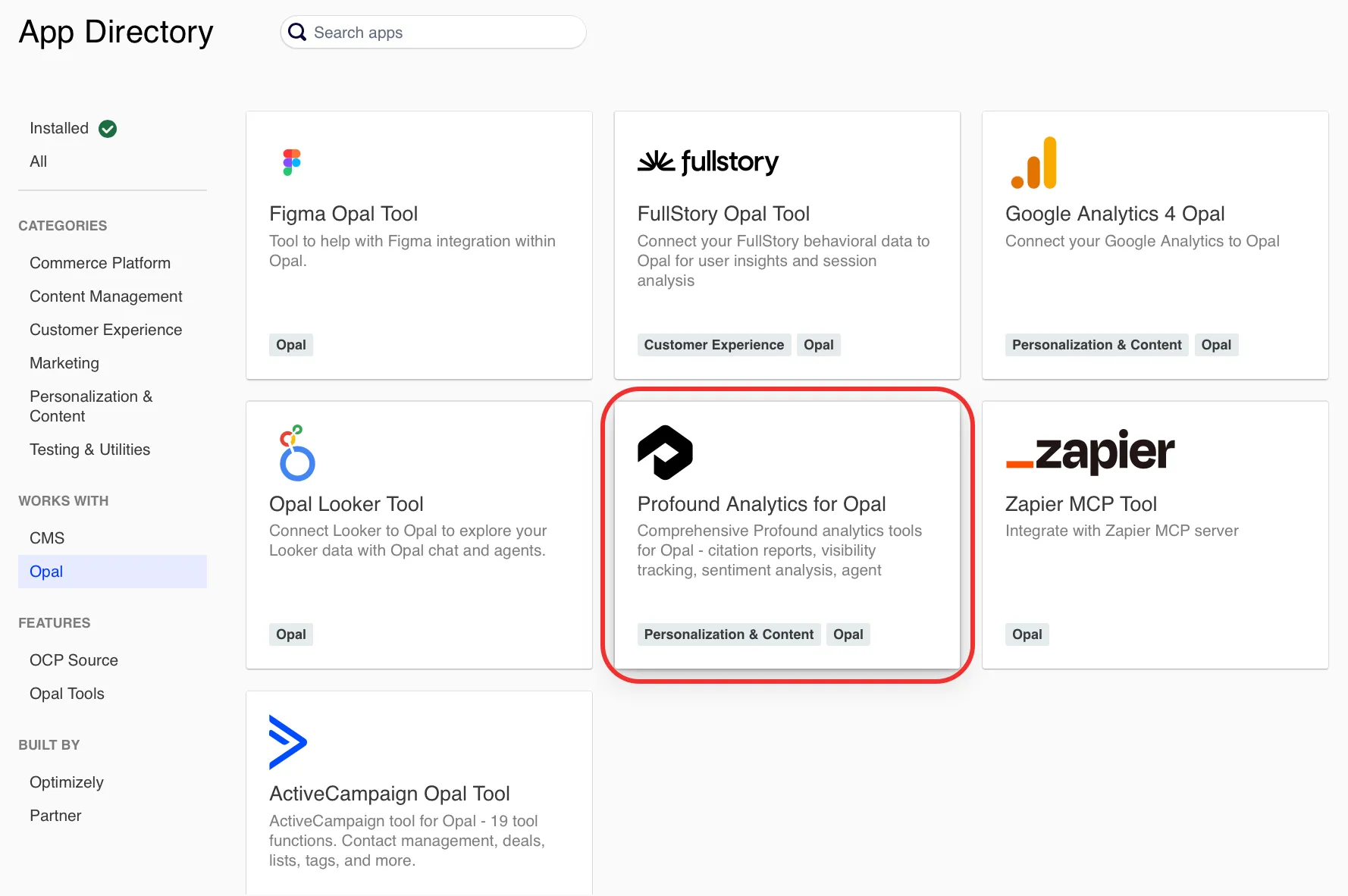
- Click on Profound Analytics for Opal.
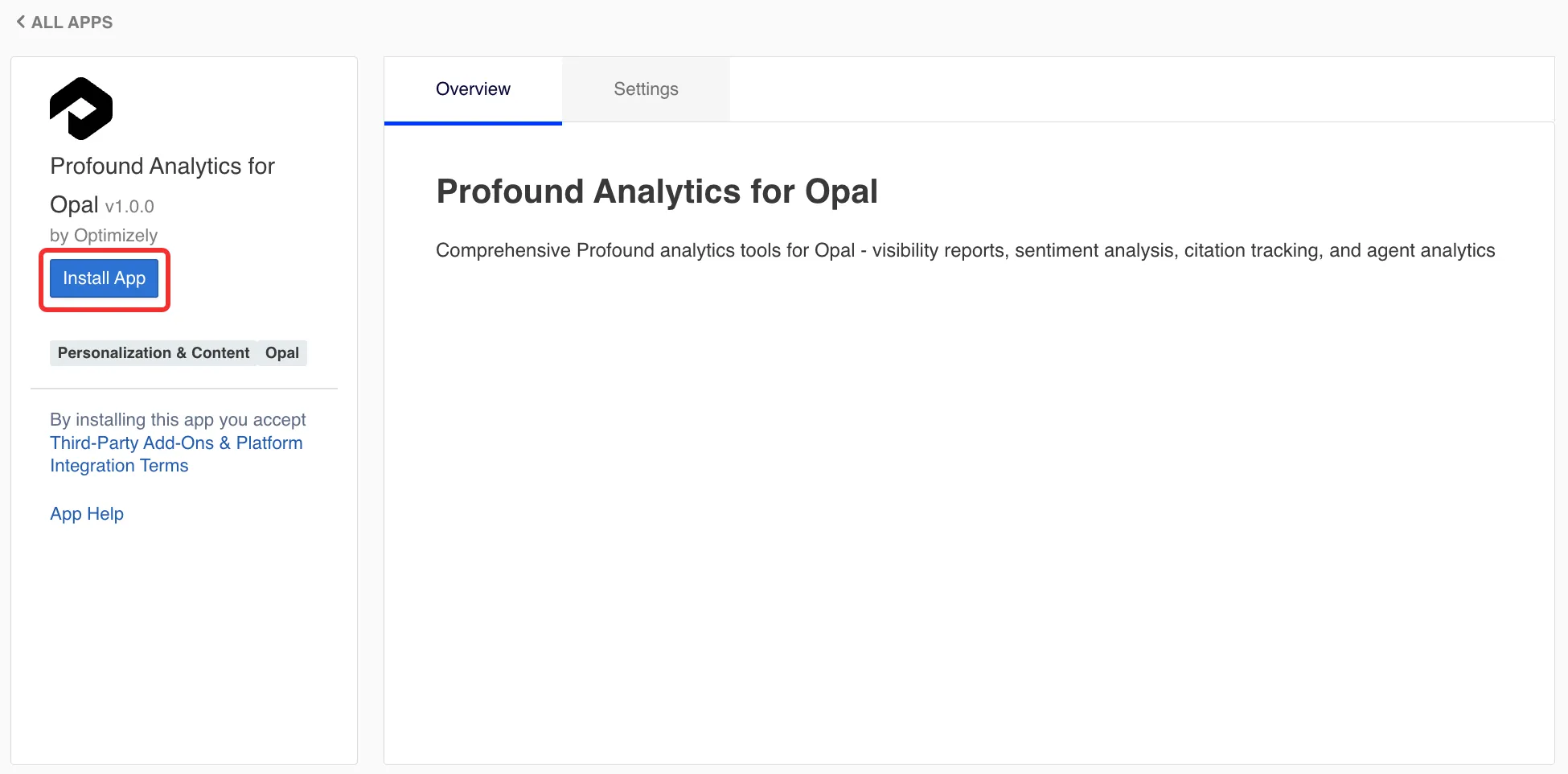
- Click Install App.
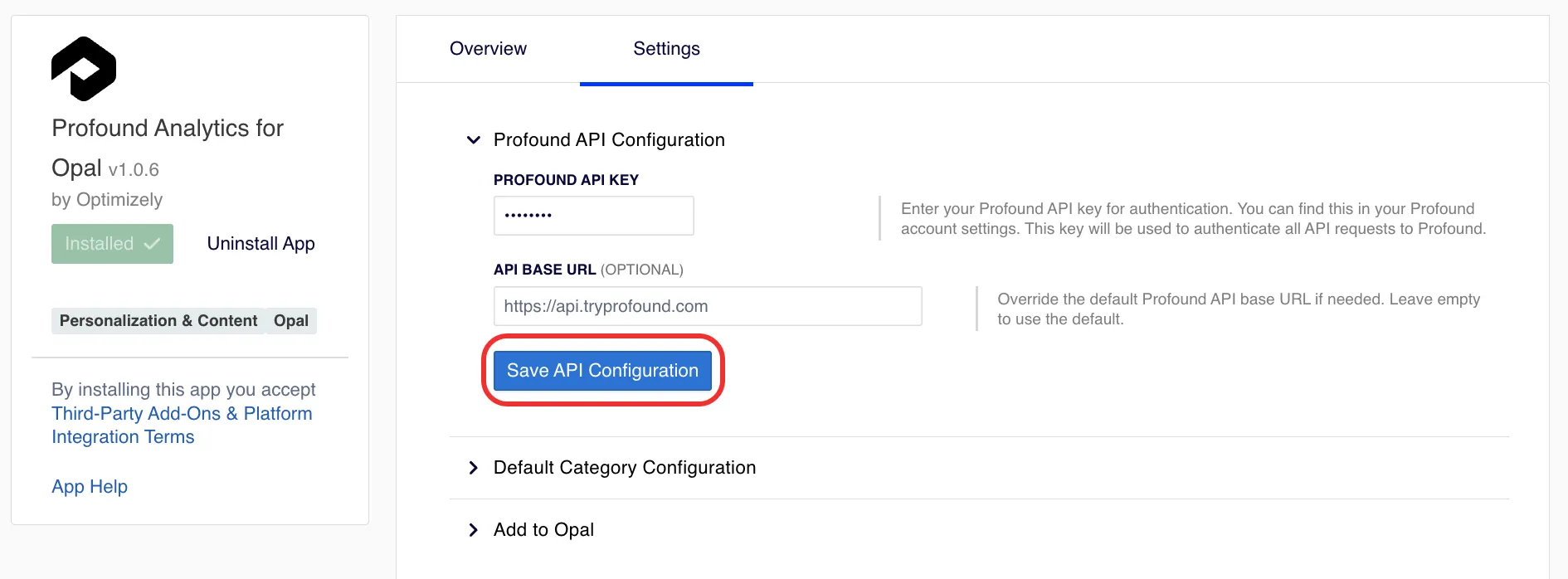
Go to Settings > Profound API Configuration.
- Enter your Profound API key. See Profound's documentation on Authentication to learn more.
- (Optional) Enter an API Base URL. Entering a URL overrides the Profound API base URL. See Profound's documentation on the Base URL for information.
- Click Save API Configuration.
Configure default category (optional)
After configuring your Profound API Key, you can select a default Profound category to query when using the Profound tools in Opal. If you have multiple categories, you can set a default here and query others in your Opal prompt, or you can leave this section blank, which may result in Opal asking which category to query.
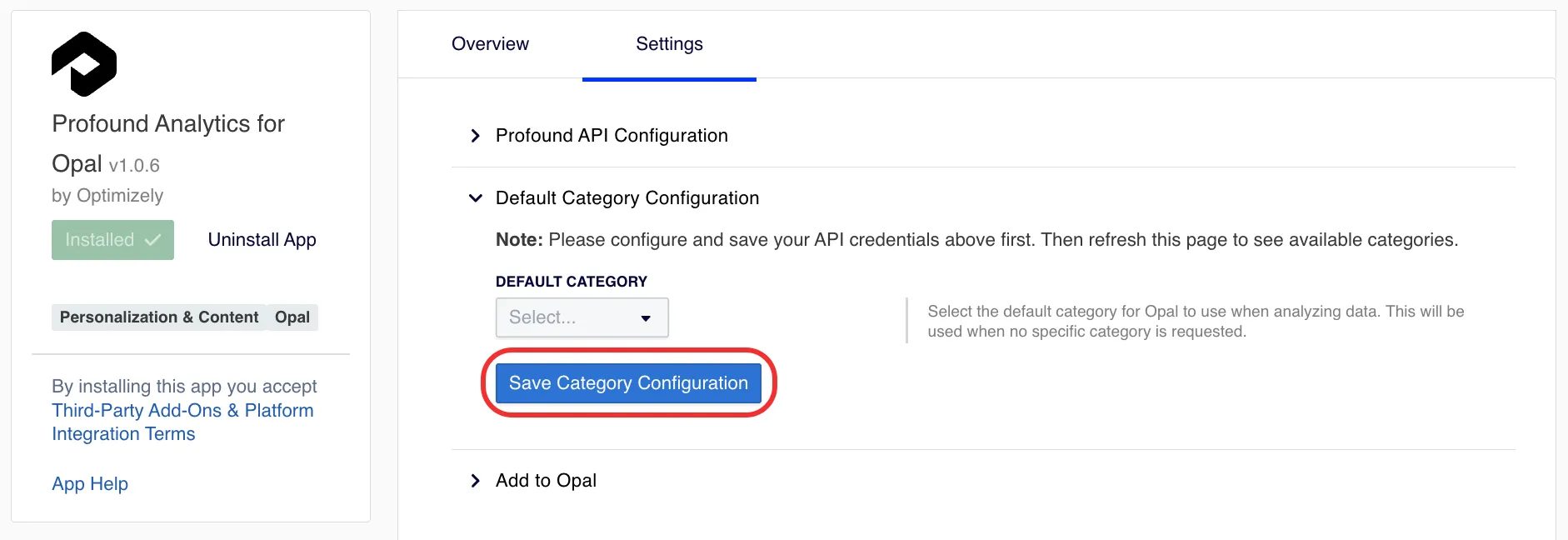
To configure a default category, complete the following:
- Expand the Default Category Configuration section.
- Select the Default Category drop-down list.
- Select the default category or search to find it.
- Click Save Category Configuration.
Register the Profound connector tool in OCP
After you Add the Profound Analytics for Opal app in OCP and optionally Configure default category, complete the following in OCP:
- Click Settings > Add to Opal.
- Click Add to Opal for the Opal Account you want to add the Profound connector tools to. Click Remove from Opal to remove the connection.
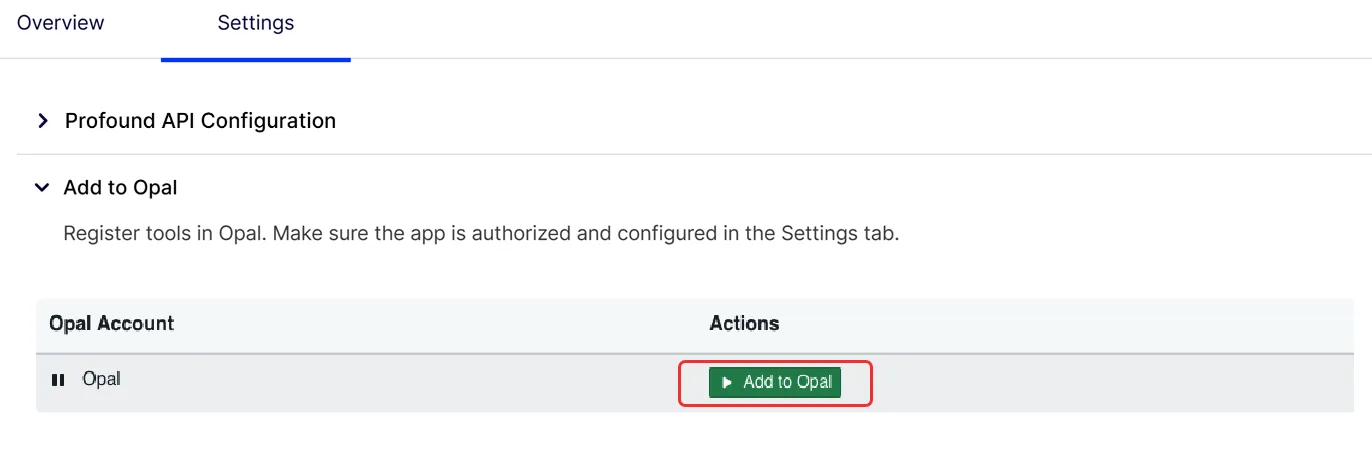
You can now use the Profound connector tools within Opal.
Profound connector tools
After you add and register the Profound connector tools, you can call the following tools in Opal.
Click a tool's name to expand it and learn when to use it, its required and optional parameters, and example prompts for calling the tool. If you do not provide a required parameter, Opal prompts you for it.
Note
If you use Opti ID, administrators can turn off generative AI in the Opti ID Admin Center. See Turn generative AI off across Optimizely applicationsTurn generative AI off across Optimizely applications.