Virtual Teammates Directory overview
Hire an AI teammate for your recurring work from the Virtual Teammates section of the Optimizely Agent Platform Directory. A Virtual Teammate is an AI teammate with a defined role, such as Chief of Staff or Marketing Analyst. It runs recurring jobs on its own and works with the tools you already use. Compare the teammates in this section, check which ones you can hire, and hire the ones that fit your work.
The Directory also includes the Agents and Skills sections. For an overview of the three sections, see Directory overview.
To learn how a Virtual Teammate works after you hire it, see Virtual Teammates overview.
Prerequisites
Confirm the following before you hire a Virtual Teammate:
- An Agent Platform administrator enabled the teammate for your organization.
- You have permission to hire Virtual Teammates.
Access the Virtual Teammates section
- Log in to Optimizely.
- Select your organization.
- Select your Agent Platform instance.
- Click Directory > Virtual Teammates.
The Virtual Teammates section displays a card for each teammate, a search bar, and filters.
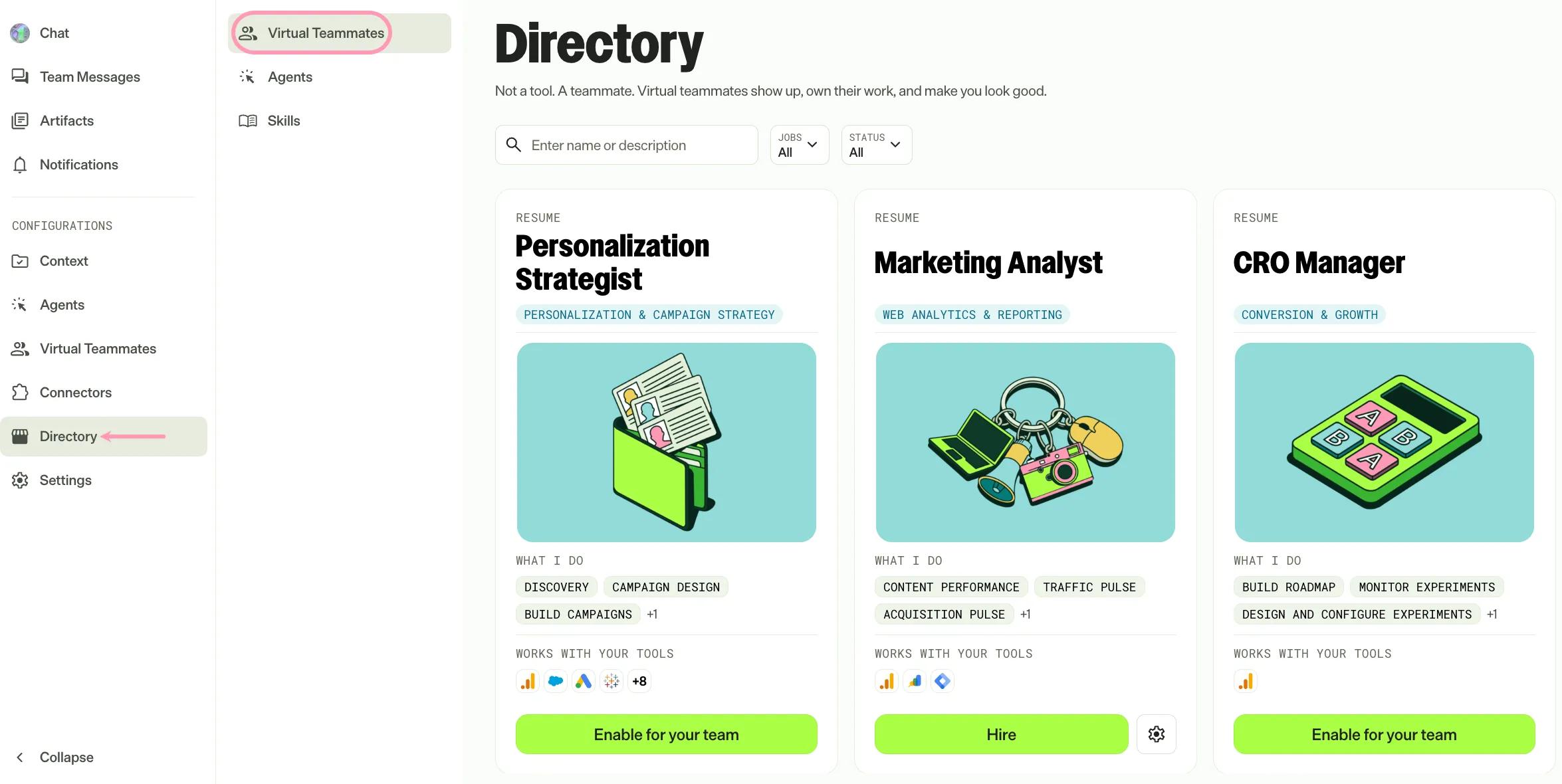
Available Virtual Teammates
Optimizely offers the following Virtual Teammates. An administrator decides which ones your organization can hire. Each linked article describes what the teammate does, what it needs, and how you receive its work.
- Chief of Staff – Briefs you each day, prepares and recaps your meetings, and tracks competitor moves.
- Content Marketer – Tracks trends, competitor content, and content gaps to tie your editorial plan to audience signals and revenue.
- CRO Manager – Runs your conversion rate optimization (CRO) program in Optimizely Web Experimentation, from test ideas to results.
- Marketing Analyst – Turns your Google Analytics 4 (GA4) data into scheduled reports on traffic, content, and conversion.
- Personalization Strategist – Turns audience and behavioral signals into personalized campaigns, from finding the opportunity to monitoring results after launch.
- SEO & AI Search Analyst – Monitors your search engine optimization (SEO) and AI search visibility each day, and coordinates fixes.
- Web Manager – Audits your pages for brand, legal, accessibility, and style compliance, and monitors the health of your site.
Find a Virtual Teammate
Narrow the list of teammates with the following search and filter options:
- Search bar – Enter a name or a word from a description to find a specific teammate.
- Jobs – Select one or more jobs to display only the teammates that run them.
- Status – Select Enabled to display the teammates that an administrator enabled for your organization. Select Not enabled to display the teammates that are not enabled. Select All to display every teammate.
Click Clear all to remove the filters you applied.
Compare Virtual Teammates
Each card works like a resume for one teammate. The front of the card displays the following information:
- Name and role – The teammate's name and the type of work it does.
- What I do – The jobs the teammate runs.
- Works with your tools – The tools the teammate connects to.
- Hired – The number of times you hired this teammate. The badge displays only after you hire the teammate. Hover over the badge to see the names of your hired teammates.
Click a card to flip it. The back of the card displays the following sections:
- Why hire me – The value the teammate adds to your team.
- Experience – The teammate's background and expertise.
- Tools used – The full list of tools the teammate uses.
- What I do – The full list of jobs the teammate runs.
After you flip a card, click Details to open the teammate's details page. The details page includes the following sections:
- My pitch – What the teammate brings to your team, including how many jobs and tools it has.
- Jobs – A description of each job the teammate runs.
Hire or request a Virtual Teammate
The buttons on a card depend on the teammate's status and your permissions.
Button | When it displays | What it does |
|---|---|---|
Hire | An administrator enabled the teammate for your organization, and you have permission to hire Virtual Teammates. | Starts the hiring process. Repeat the process to hire the same teammate more than once. See Hire a Virtual Teammate. |
Request | The teammate is not enabled, or a newer version is available, and you do not have permission to enable it. | Sends a request to your administrators to enable or update the teammate. After you send a request, wait before you request the same teammate again. |
Enable for your team | The teammate is not enabled, and you have permission to enable Virtual Teammates. | Starts enabling the teammate for your organization. See Enable Virtual Teammates. |
Update for your team | A newer version of an enabled teammate is available, and you have permission to enable Virtual Teammates. | Updates your organization to the newer version of the teammate. |
Hire is unavailable in the following situations:
- An administrator froze hiring for the teammate.
- Your organization reached its limit of hired Virtual Teammates. To hire another one, deactivate a teammate you no longer need. Deactivation is permanent and deletes the teammate's memory. See Deactivate a Virtual Teammate.
Hover over Hire to see why it is unavailable.
Note
Enable for your team is unavailable when your organization does not have every Optimizely product that the teammate requires. Hover over Enable for your team to see the required products. Contact your account representative to add them.
Manage the Virtual Teammates you hired
Manage a teammate you hired from its card in Directory > Virtual Teammates. The Manage menu on the card displays after you hire the teammate.
- Go to Directory > Virtual Teammates.
- Click Manage on the teammate's card.
- Click Manage teammate, or click Manage teammates if you hired the same teammate more than once.
For what you can change after you hire a teammate, see Manage your Virtual Teammate.
Agent Platform administrators also use the Manage menu to change a teammate's jobs and freeze hiring for the organization. See Manage Virtual Teammates for your organization.
Note
If you use Opti ID, administrators can turn off generative AI in the Opti ID Admin Center. See Turn generative AI off across Optimizely applications.