Manage your Virtual Teammate
Manage your Virtual Teammate in Mark (Optimizely Agent Platform) to supervise its work, adjust what it does, and control what it can access. In Mark, you manage a hired teammate from its Supervise and Settings areas. To hire one, see Hire a Virtual Teammate.
This article is for the people who manage a hired Virtual Teammate. You must be a manager of the teammate to change its settings. Mark administrators control which jobs a teammate offers and whether people can hire it. For those steps, see Manage Virtual Teammates for your organization.
Open a Virtual Teammate
In Mark, complete the following steps:
- Go to Virtual Teammates > Teammates.
- Select the teammate you want to manage.
Each teammate has two areas: Supervise for its work and Settings for its configuration.
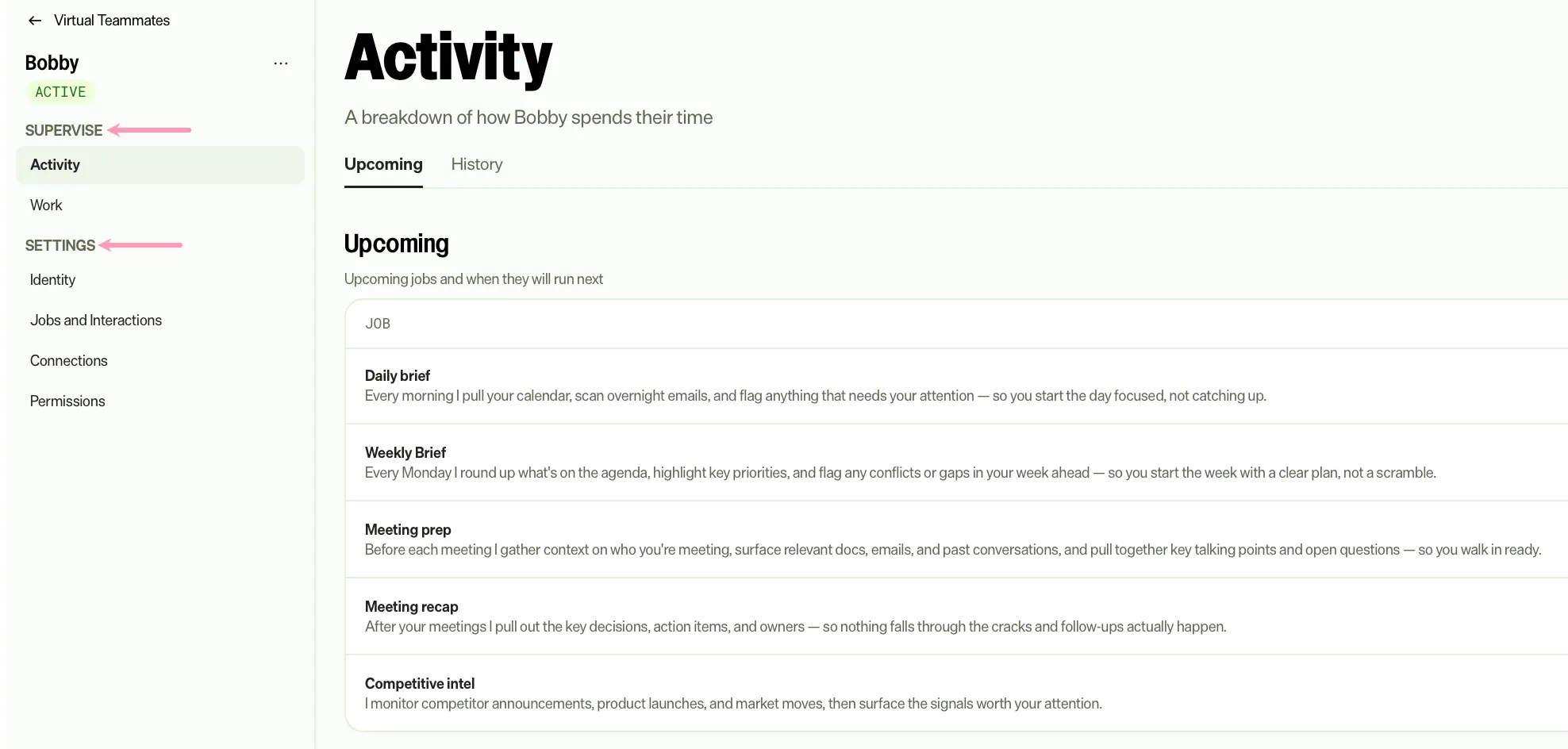
Supervise
Track what a Virtual Teammate is doing and what it has produced. Select each section to review it.
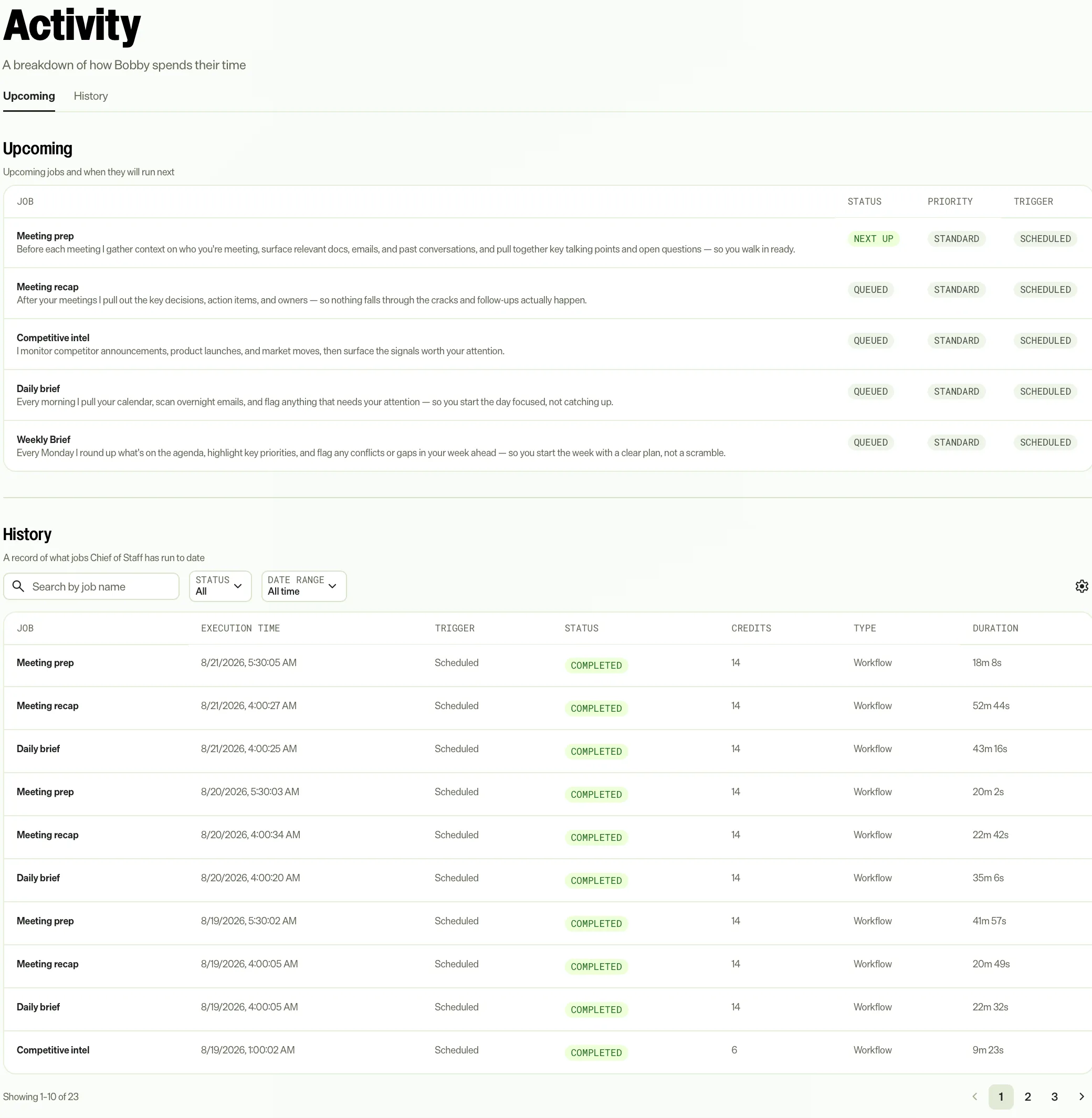
Activity
View upcoming jobs, when they run next, and a history of past runs.
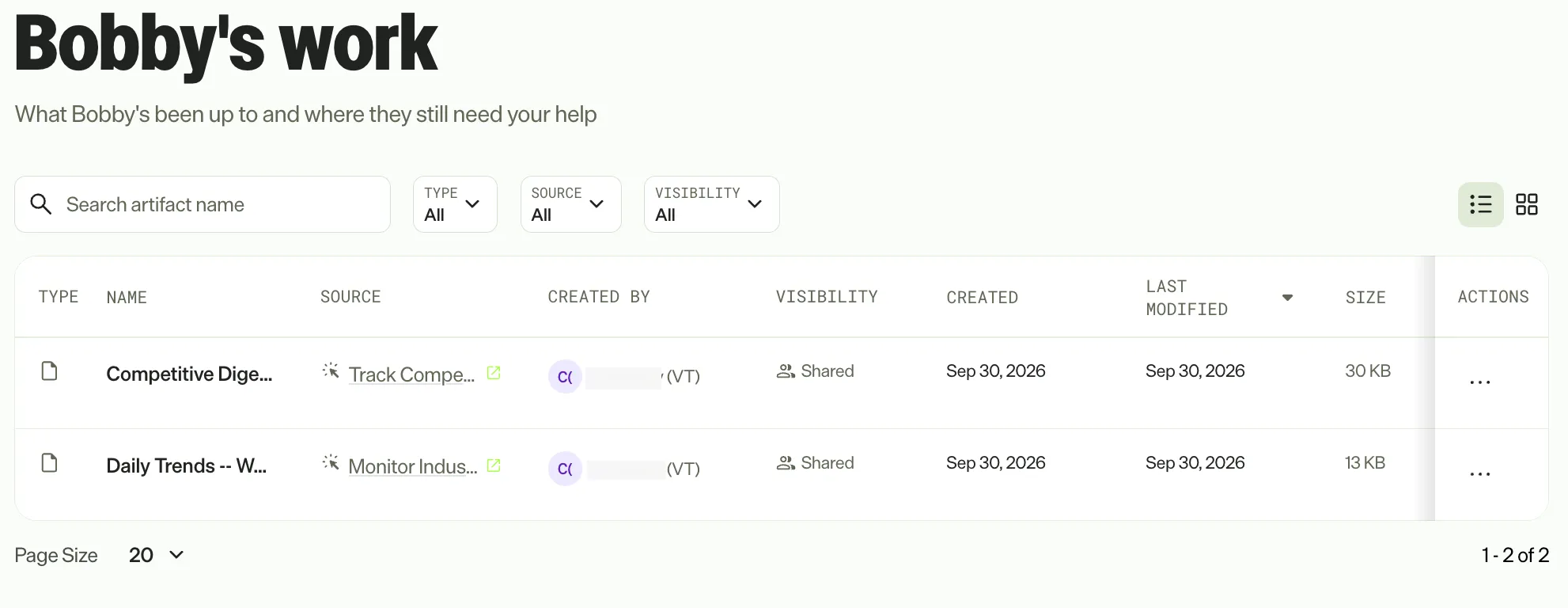
Work
Review a running record of everything the teammate has produced. Filter by Type, Source, or Visibility. Use the search field to filter by name, and switch between grid and list views.
Settings
Configure who the teammate is, what it runs, and where it works.
Identity
View the teammate's identity and personality. Edit or deactivate the teammate.
- The basics – Who the teammate is, such as the Name, Email, and Start date.
- Deactivate – Deactivate the teammate when you no longer need it.
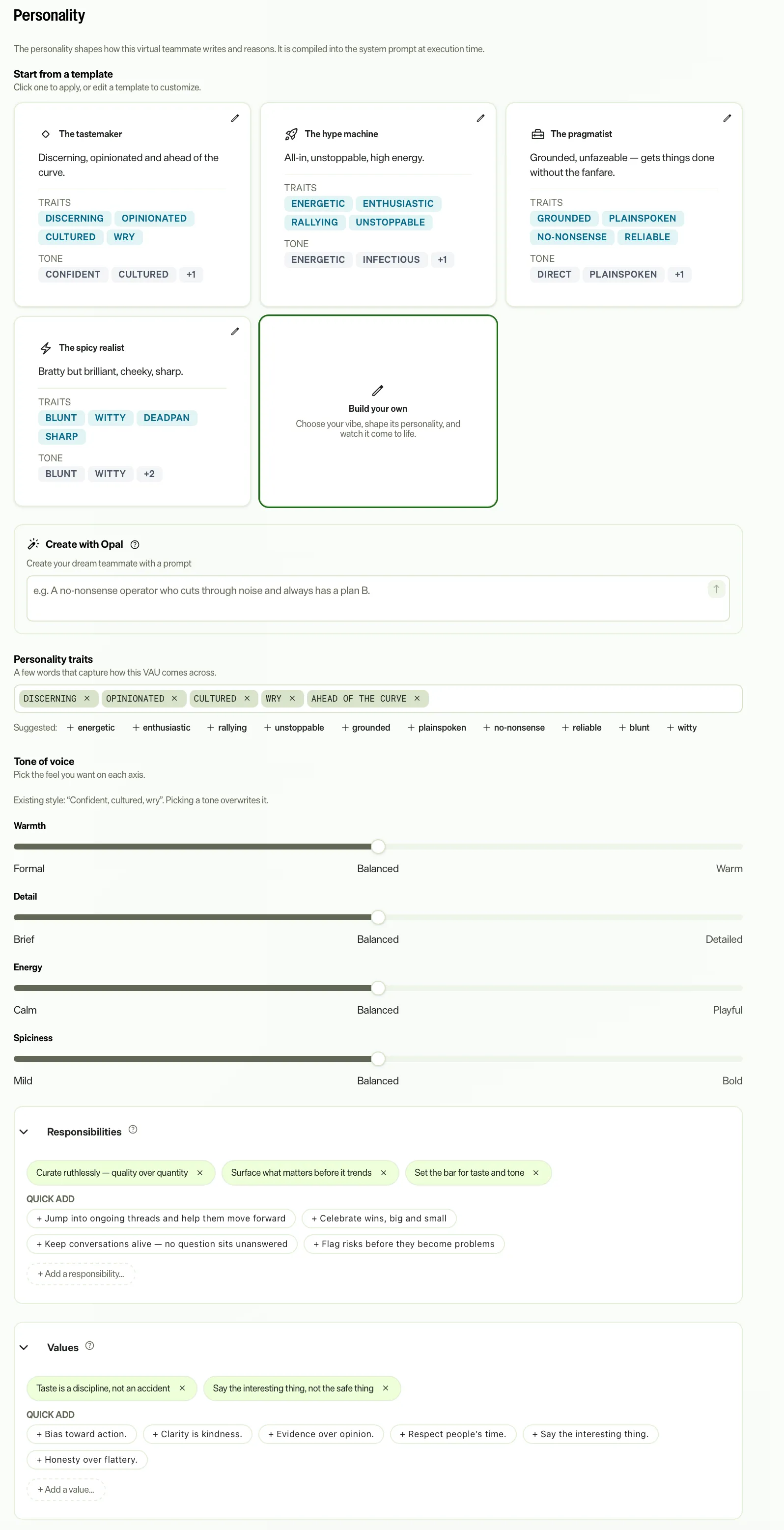
- Personality – The personality shapes how the teammate writes and reasons. Select or edit a personality template, or build one from scratch.
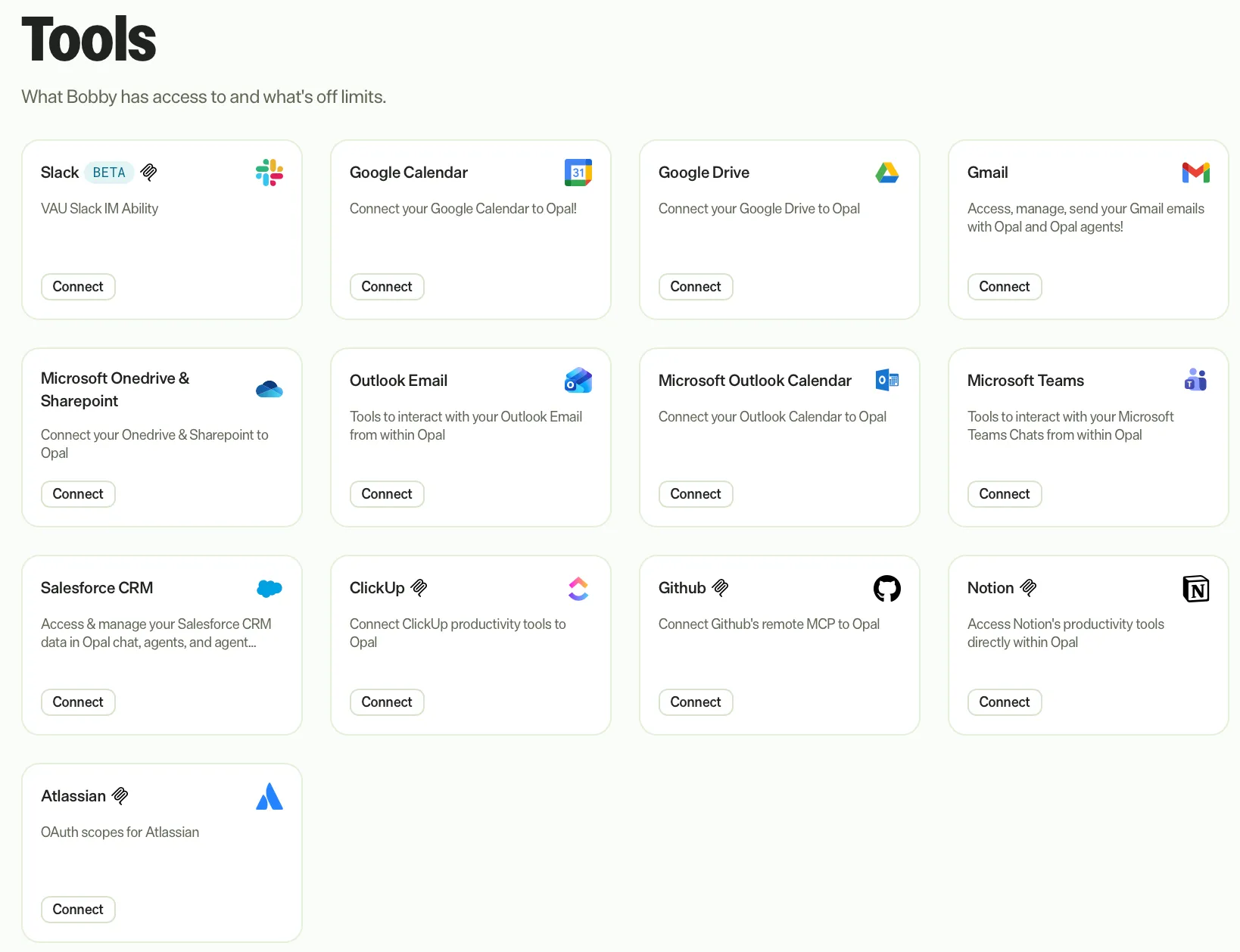
Tools
Connect external tools to expand what the teammate can do. To add or remove a teammate's connectors, see Add or remove a teammate's connectors.
To remove a connector from this section, click Disconnect for the connector. Disconnect revokes the teammate's own credential for that connector, and a message confirms the change.
Product connections
Choose the product instance the teammate operates in for each connected product. A product instance is a particular deployment of an Optimizely product in your organization, such as a specific Experimentation project.
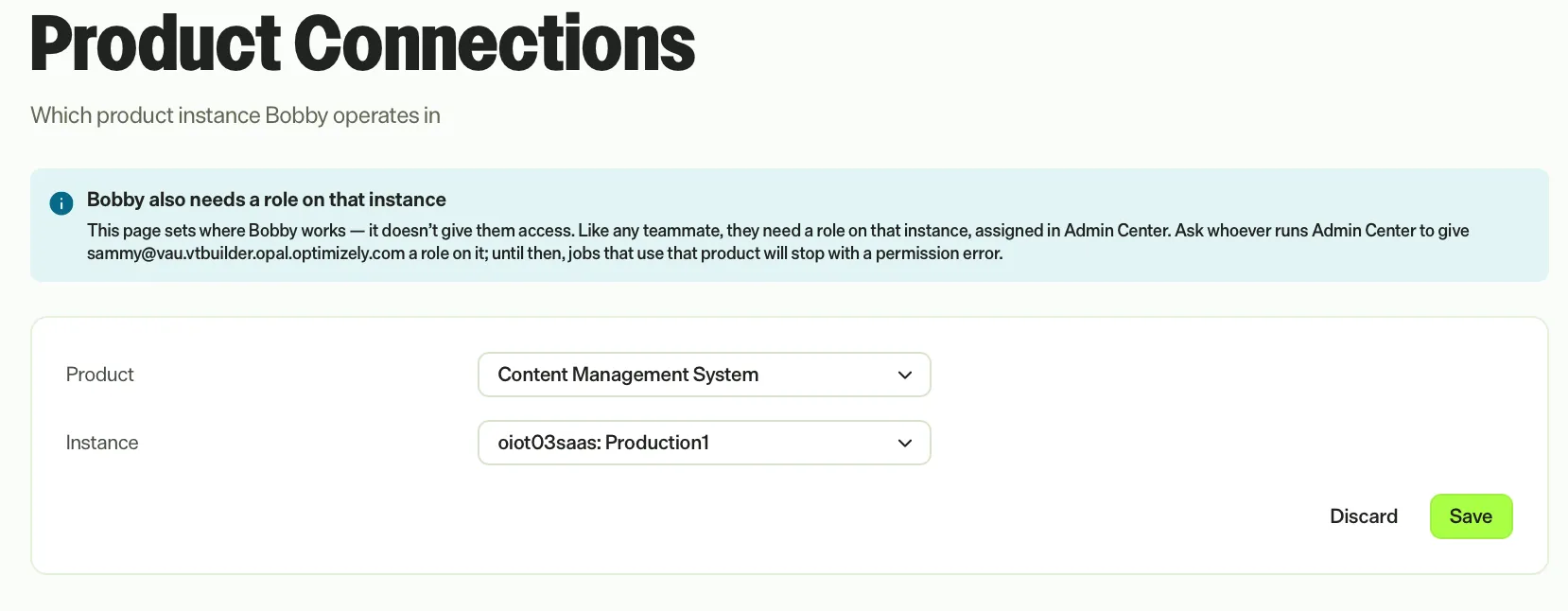
Choosing a product and instance tells the teammate where to work. It does not grant access. An administrator assigns the teammate a role on each instance in Opti ID Admin Center.
Permissions
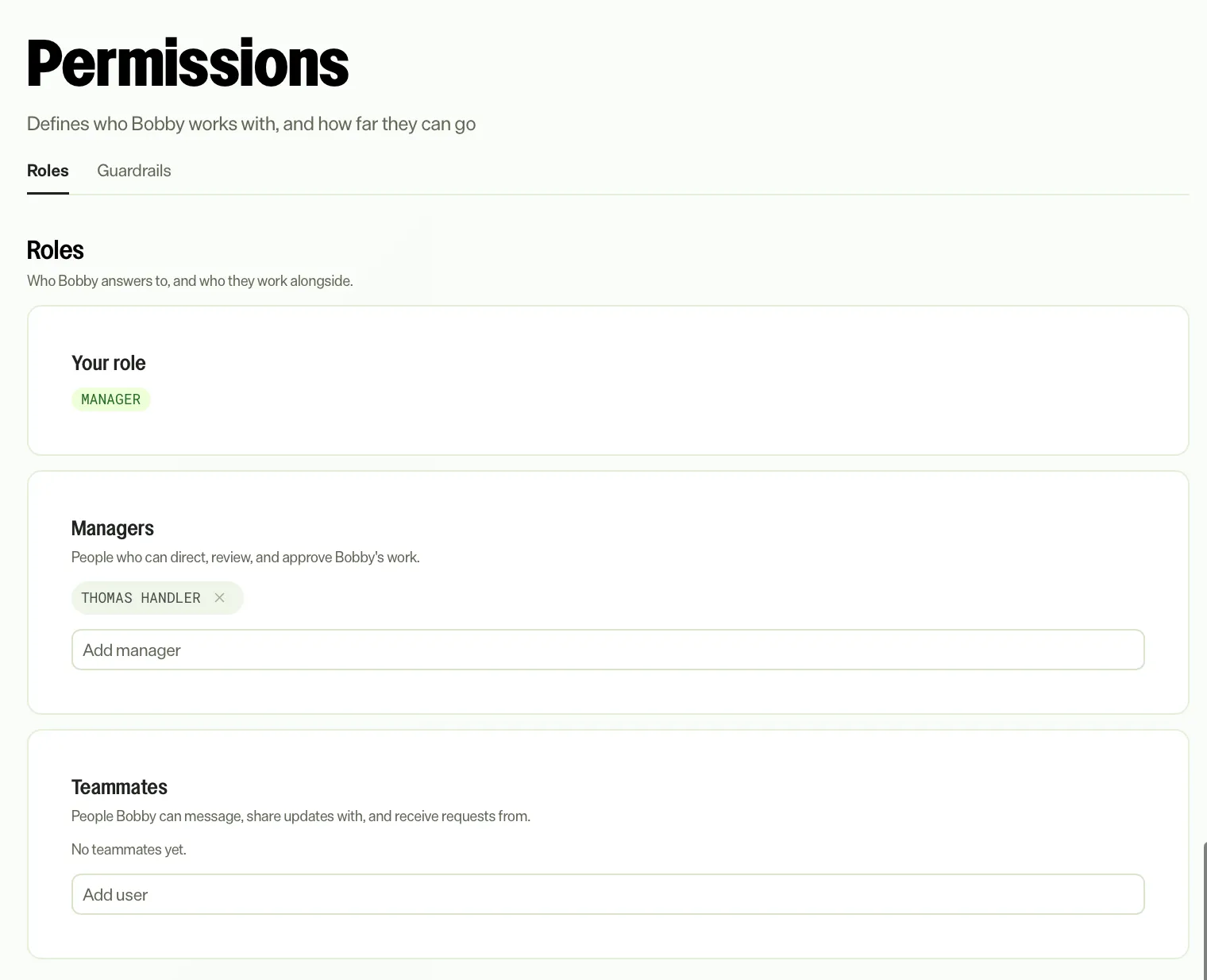
Permissions define who the teammate works with and the guardrails that keep it on track.
Roles – Set the managers who direct, review, and approve the teammate's work. Choose the teammates it can message and share updates with. These roles are separate from the roles you assign in Opti ID.
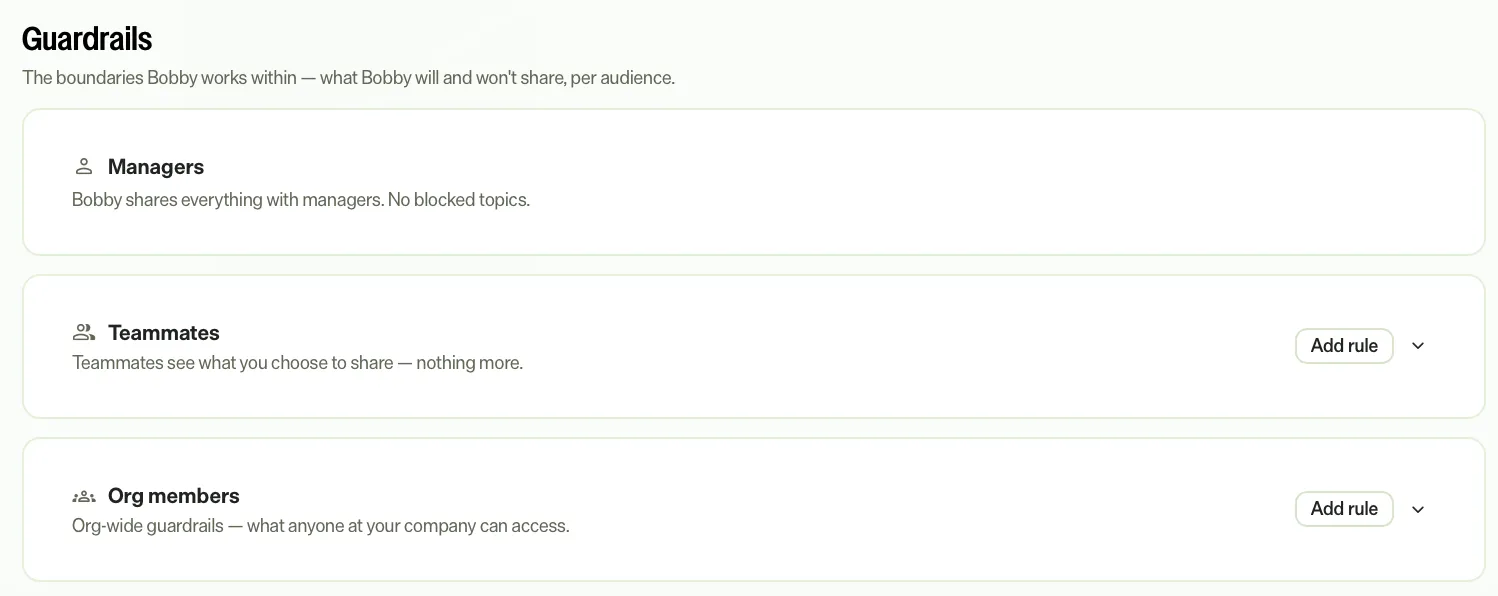
Guardrails – Set the boundaries for what the teammate shares with each audience.
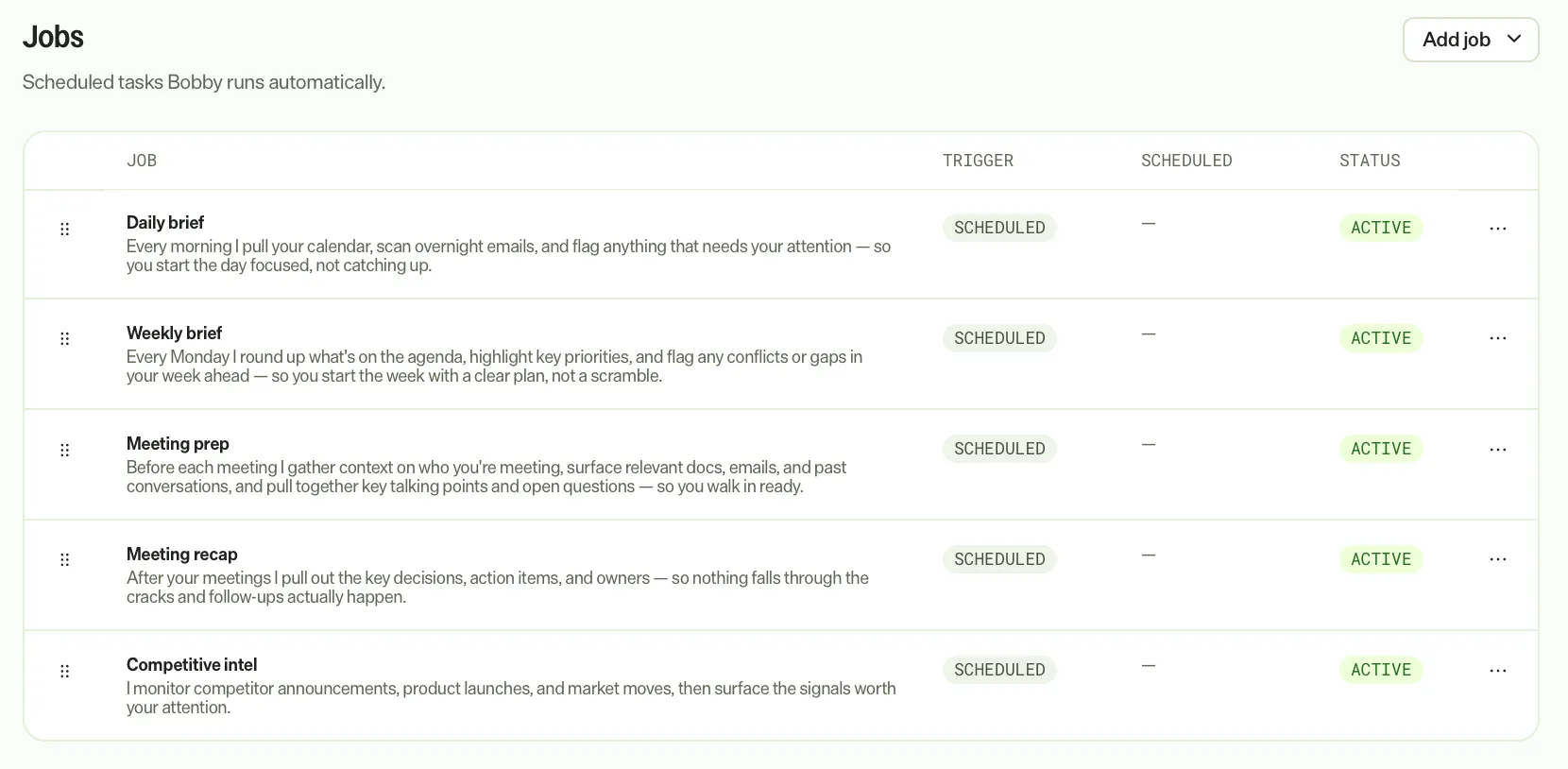
Jobs – Turn jobs on or off, or add a job. To change the schedule of a job or pause it for one teammate, see Edit or pause a job for one teammate.
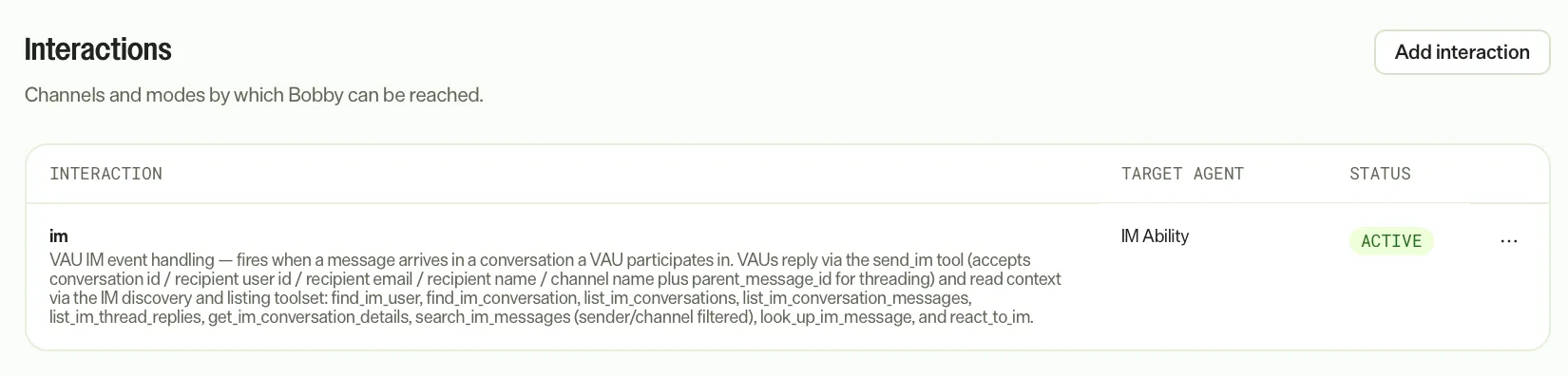
Interactions – Manage the channels where people can reach the teammate, such as Team Messages.
Edit or pause a job for one teammate
Change the schedule of a job, or pause it, for one Virtual Teammate. These changes apply only to the teammate you manage. Other teammates and the job itself stay as they are.
Edit a job
To edit a job for a teammate, complete the following steps in Mark:
- Go to Virtual Teammates > Teammates.
- Select the teammate.
- Scroll to the Jobs section.
- Click More > Edit.
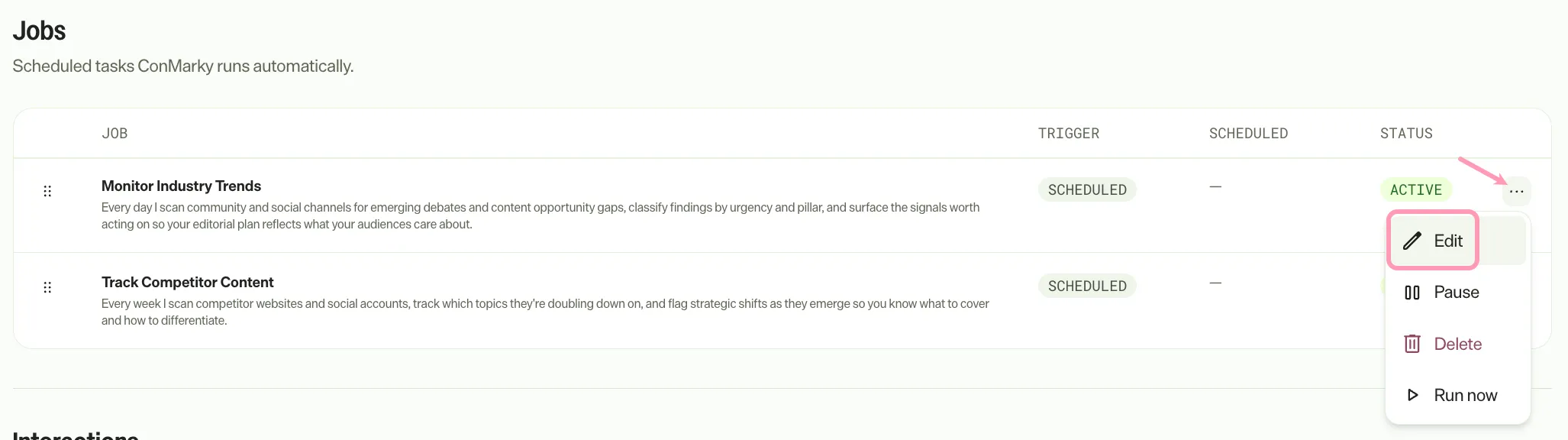
- Change the schedule and click Save.
The Edit job dialog displays the teammate's own schedule. Mark updates and reschedules only that teammate's job, and the schedule carries over if the job is reinstalled. The dialog displays the job's other fields and its trigger type as read-only values.
Message jobs and email jobs display their actual type and open as Job details instead of Edit job.
Pause or resume a job
To pause a scheduled job for one teammate, complete the following steps in Mark:
- Go to Virtual Teammates > Teammates.
- Select the teammate.
- Scroll to the Jobs section.
- Click More > Pause.
Mark displays Job paused, and the teammate's queued run of the job does not run. To start the job again, open More and select Resume. Mark displays Job resumed and queues the next run.
Only scheduled jobs can be paused. For other job types, Mark displays "Only scheduled jobs can be paused."
Act as a Virtual Teammate
Switch your identity to a Virtual Teammate to work in Mark as that teammate. Acting as a teammate gives you the teammate's own view of Mark, where you can do anything the teammate can. Mark takes every action as the teammate until you switch back. Use this view to manage the teammate's connectors, run its agents, or work in its chat on its behalf.
To act as a teammate, complete the following steps in Mark:
- Click Switch identity.
- Select the teammate.

- Work in Mark as the teammate. The Acting as banner displays whose identity you are using.

- Click Switch back to return to your own identity.
Add or remove a teammate's connectors
Connectors give a Virtual Teammate access to third-party tools, such as Google Analytics 4 or HubSpot. To change a teammate's connectors, act as the teammate.
Note
Connectors differ from product connections. Connectors give access to third-party tools. Product connections choose the product instance the teammate operates in.
To add or remove a teammate's connectors, complete the following steps:
- Click Switch identity.
- Select the teammate.
- Go to Connectors.
- Click Connect or Add connector for the tool provider you want to add.
- (Conditional) Click Disconnect for each connector you want to remove.
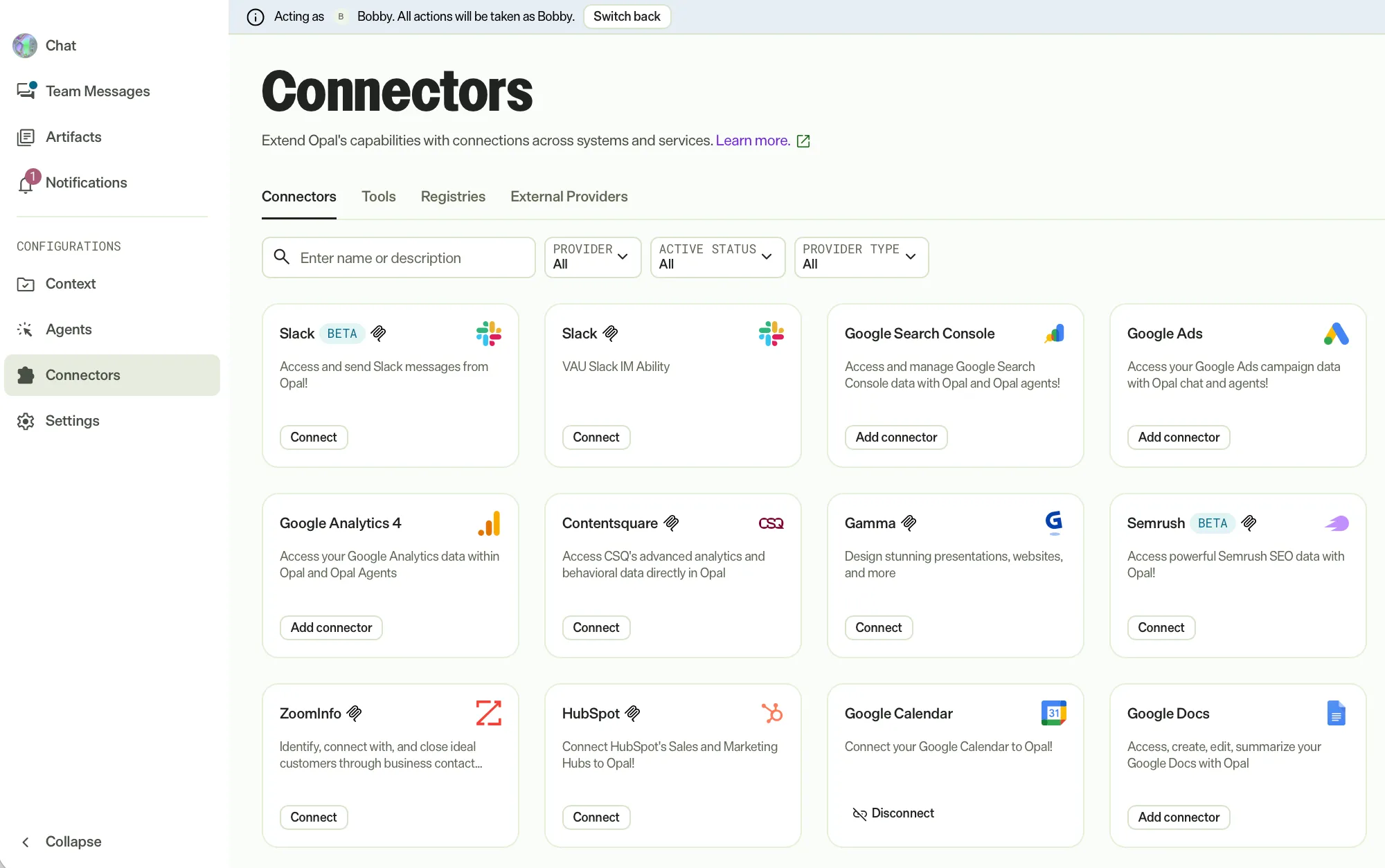
- Click Switch back or Switch identity > Switch back to my profile to return to your own identity.
See Connector tools overview and Connectors tab overview for information on each connector and how to connect them.
Pause a Virtual Teammate
Pause a Virtual Teammate to stop it temporarily without deleting its history. Unlike deactivating, pausing is reversible. To pause a teammate, complete the following steps:
- Go to Virtual Teammates > Teammates.
- Click More for the teammate you want to pause.
- Click Pause.
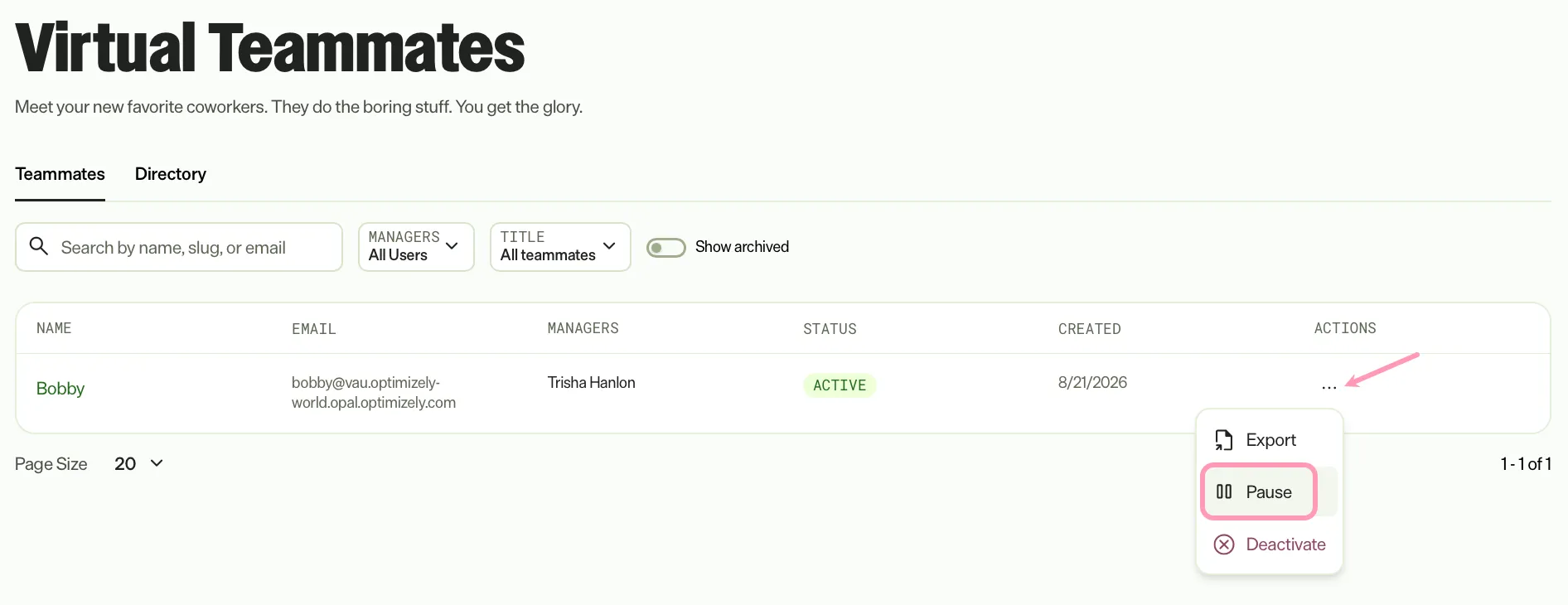
To resume a paused teammate, click More > Resume.
Out-of-office status in Team Messages
A paused Virtual Teammate displays as out of office in Team Messages. People who message the teammate see its status and a warning.
- Direct message warning – A direct message with the teammate displays the warning VT_NAME is not available right now. Messages will be delivered but workflows won't run. The message field keeps working.
- Live updates – The warning updates when you pause or resume the teammate. The warning remains after a page reload.
- Hover card – Hover over the teammate's avatar to see Out of Office - Not available. The status dot and the avatar badge on the card carry a gray cross.
The warning does not display in group chats, in archived conversations, or while you act as a Virtual Teammate. A deactivated teammate shows a red cross on the status dot and the avatar badge.
Deactivate a Virtual Teammate
Deactivate a Virtual Teammate when you no longer need it. Do this from the More menu on the Teammates tab or from its Identity settings.
Warning
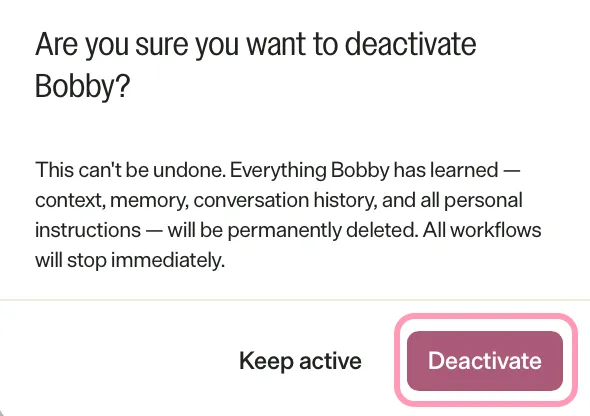
Deactivating a Virtual Teammate is permanent and deletes the memory and context it has gathered.
Pause a Virtual Teammate instead if you want to stop it temporarily.
Deactivate from the Teammates tab
To deactivate a Virtual Teammate from the Teammates tab, complete the following steps:
- Go to Virtual Teammates > Teammates.
- Click More for the teammate you want to deactivate.
- Click Deactivate.
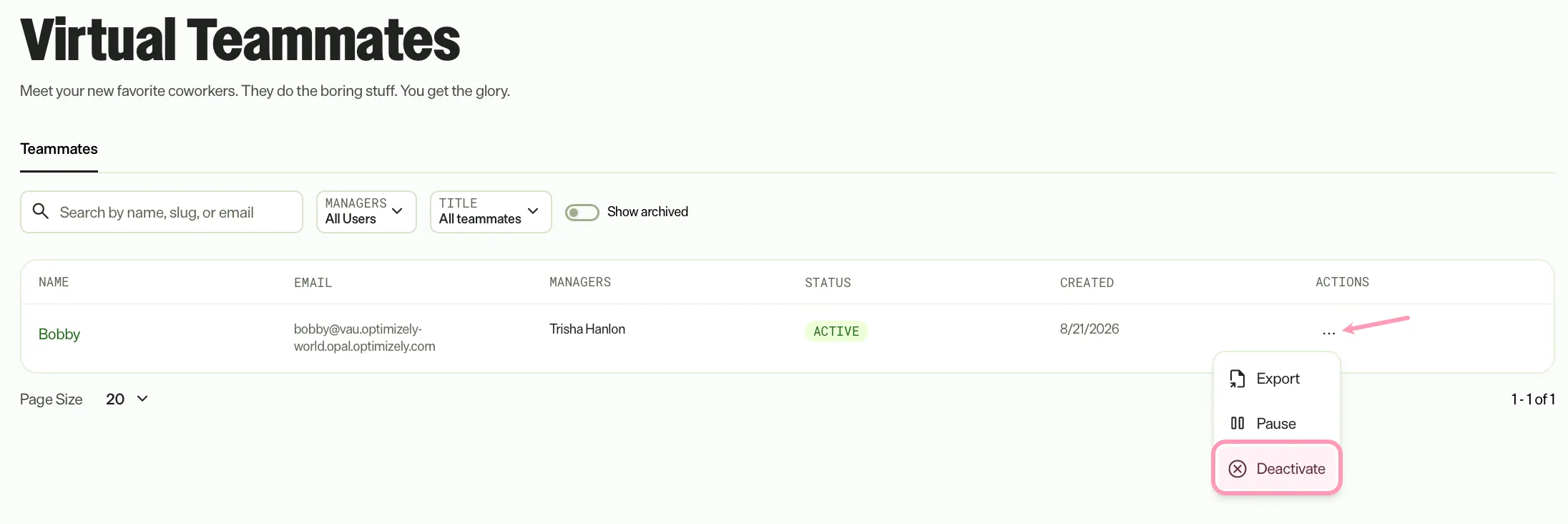
- Click Deactivate on the confirmation page.
Deactivate from Identity settings
To deactivate a Virtual Teammate from its Identity settings, complete the following steps:
- Go to Virtual Teammates > Teammates.
- Select the teammate you want to deactivate.
- Select Identity.
- Click Deactivate.
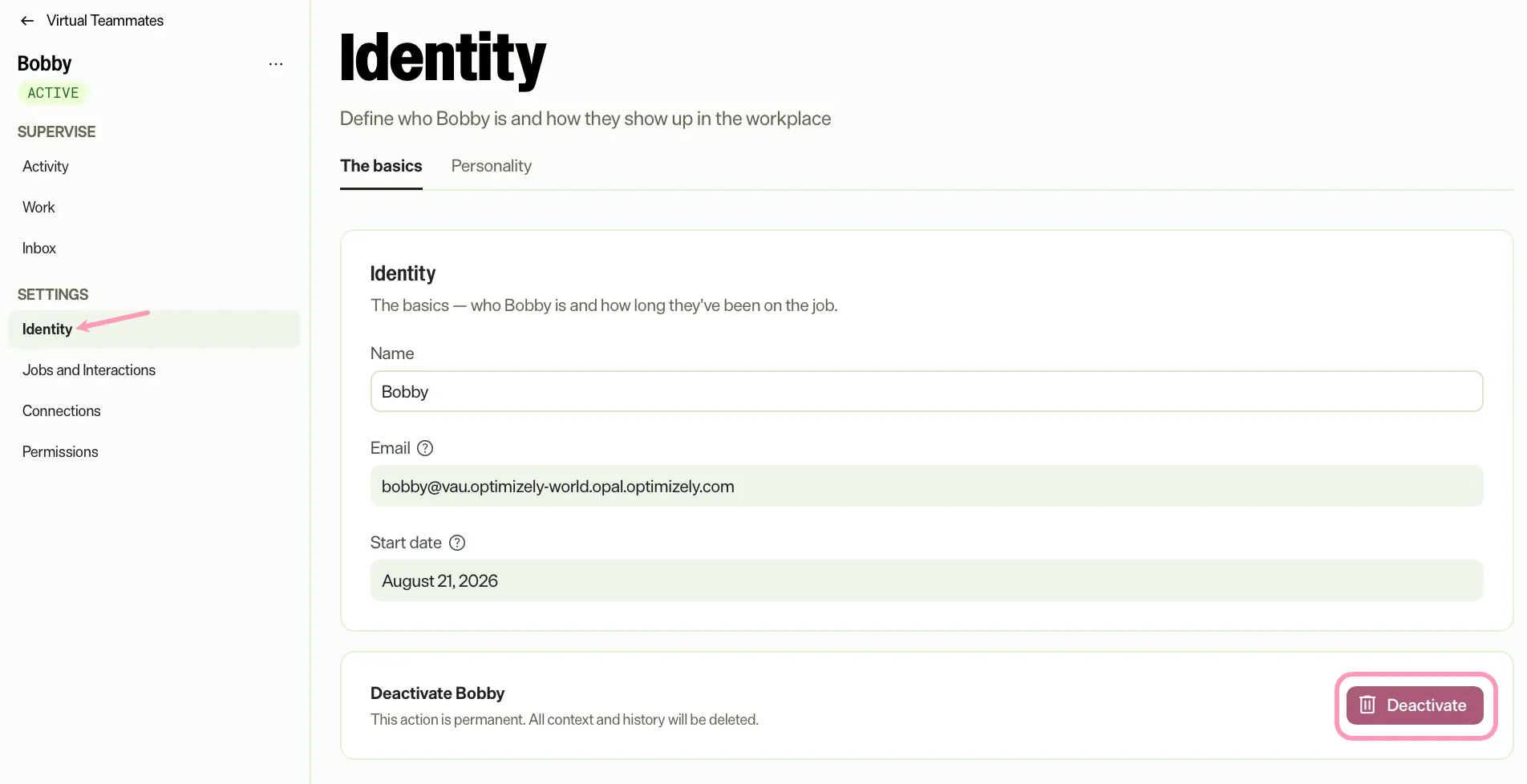
- Click Deactivate on the confirmation page.
Note
If you use Opti ID, administrators can turn off generative AI in the Opti ID Admin Center. See Turn generative AI off across Optimizely applications.