Manage Virtual Teammates for your organization
As an administrator in Mark (Optimizely Agent Platform), control which jobs each Virtual Teammate runs and whether people can hire it. These controls apply only to Virtual Teammates that are enabled for your organization. For information, see Enable Virtual Teammates.
A job is a task a Virtual Teammate performs on its own, such as the Chief of Staff's daily brief or meeting recap. Jobs run on a schedule or in response to an event, so turning a job off removes that behavior for your whole organization.
To supervise and configure a teammate you hired, see Manage your Virtual Teammate.
Manage jobs for a Virtual Teammate
Turn off a job to remove it from a Virtual Teammate across your organization. Hired teammates lose the job, and teammates hired later do not get it. Manage jobs from the Directory or from the teammate's details.
Manage jobs from the Directory
To manage a Virtual Teammate's jobs from the Directory, complete the following steps:
- Go to Directory > Virtual Teammates.
- Click Settings for the teammate you want to manage.

- Click Manage jobs.
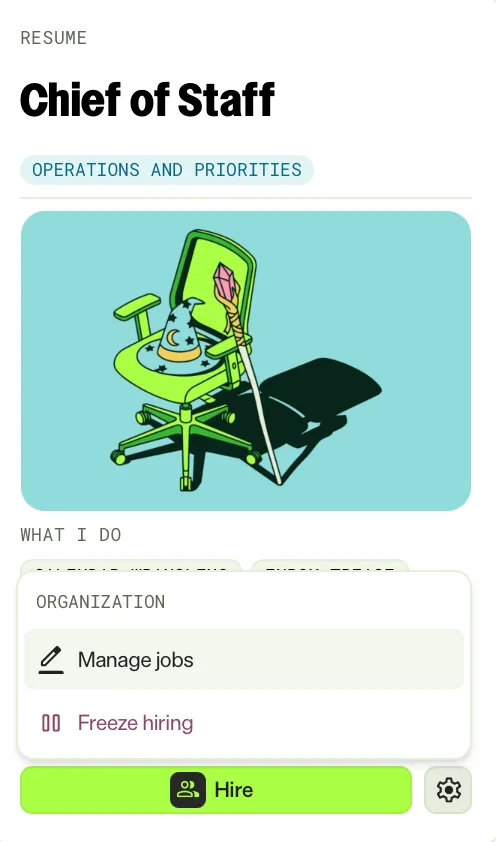
- Turn off each job you want to remove.
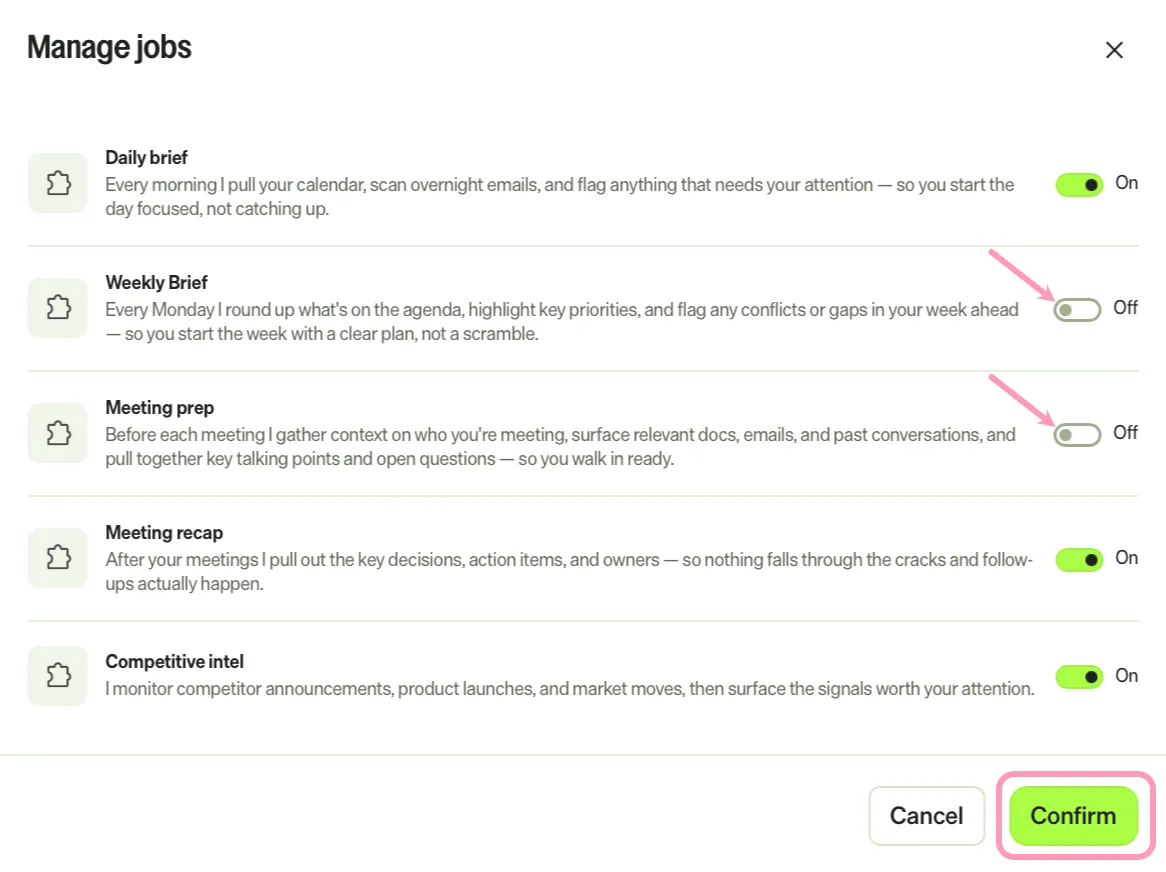
- Click Confirm.
Manage jobs from the teammate's details
To manage a Virtual Teammate's jobs from the teammate's details, complete the following steps:
- Go to Directory > Virtual Teammates.
- Click the teammate you want to manage.
- Click Details.
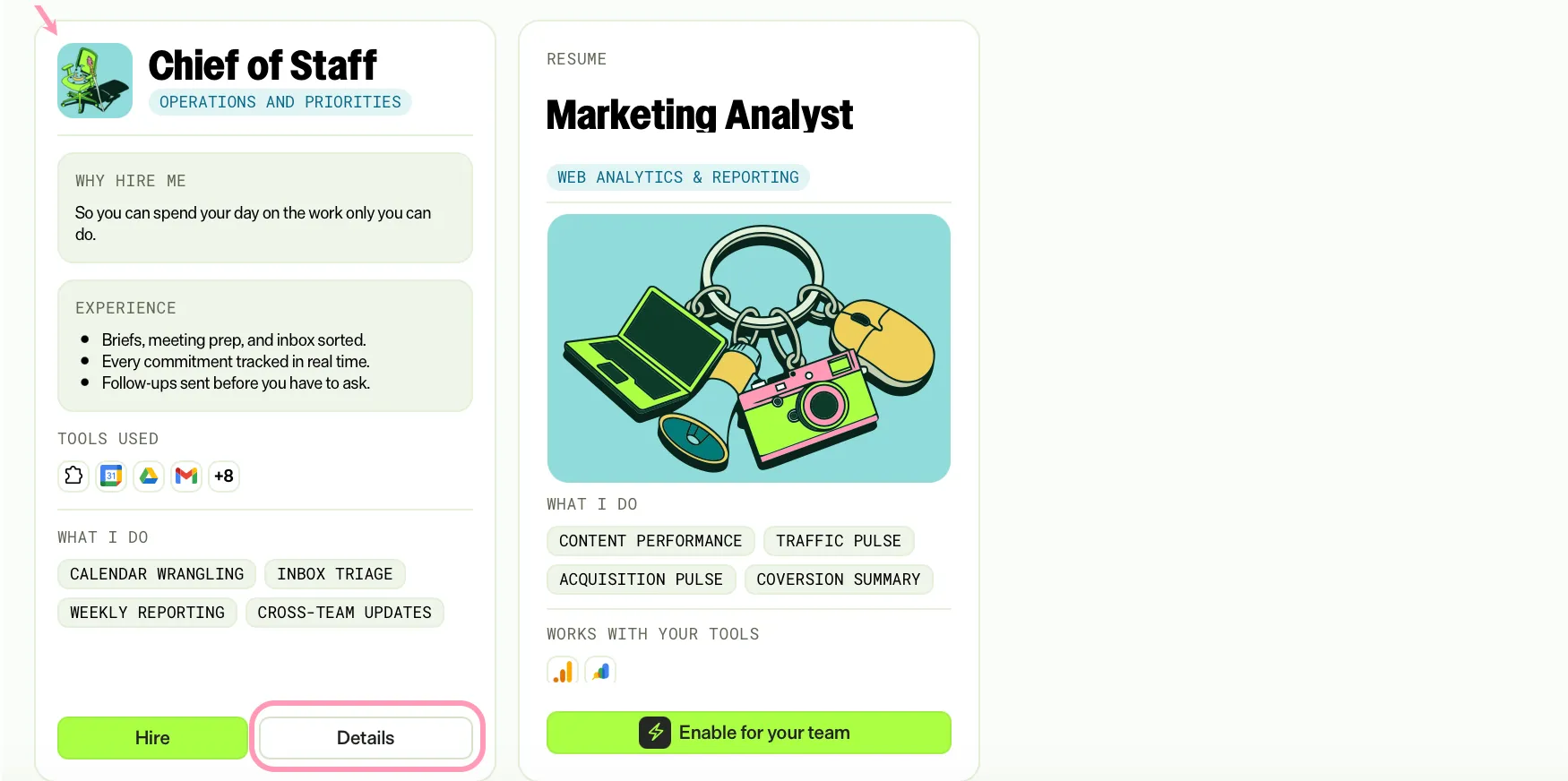
- Click Manage > Manage jobs.
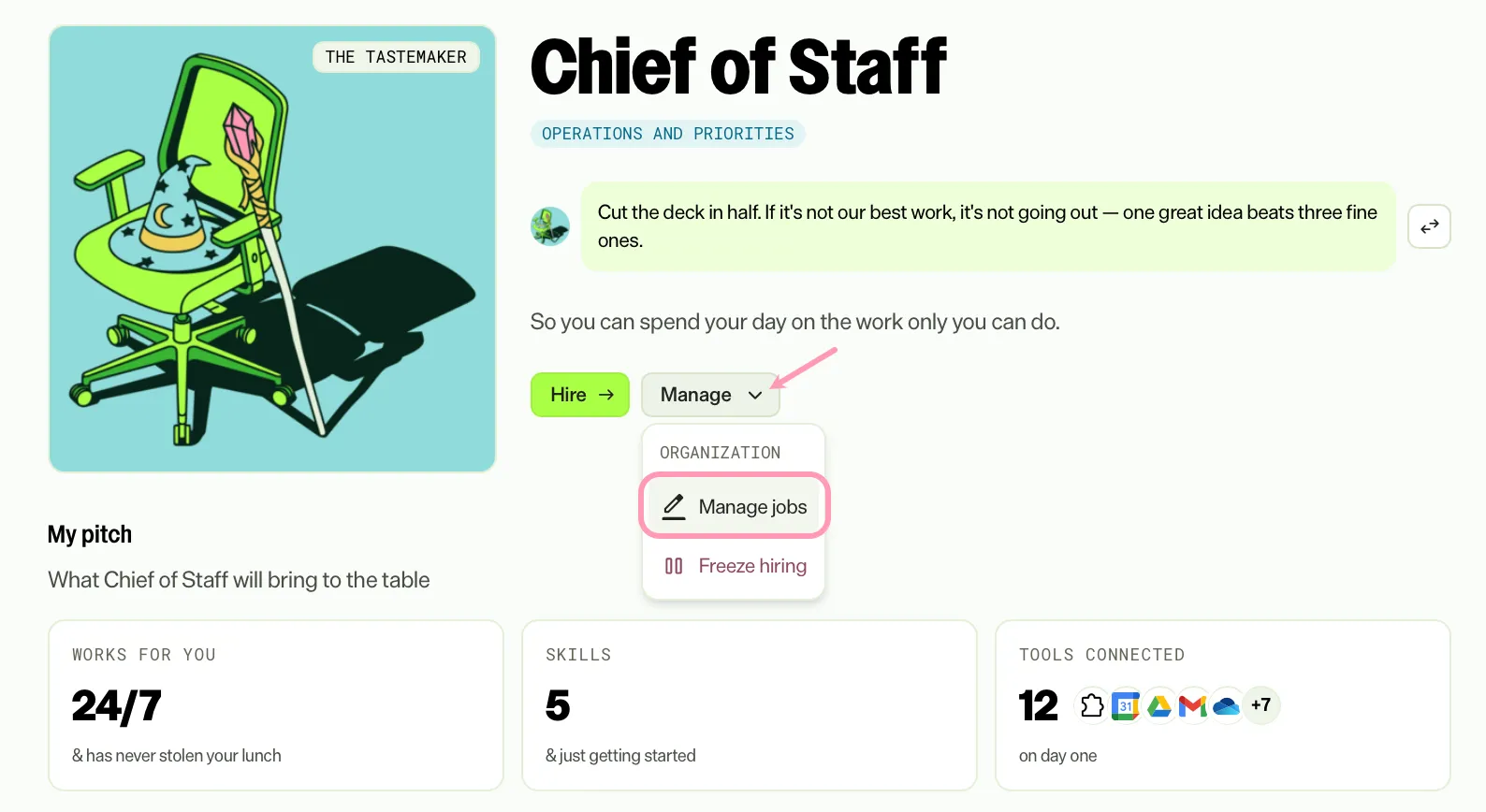
- Turn off each job you want to remove.
- Click Confirm.
Turn jobs back on and get updates
To turn a job back on, follow the steps in either of the previous sections and turn on the job. Every hired teammate gets the job again, even if a person removed it from their own teammate.
When Optimizely publishes an updated version of a Virtual Teammate, your organization receives it automatically. Jobs you turned off stay off. Jobs added in the update start turned off, so turn them on in Manage jobs to use them.
After you turn on a job and click Confirm, Mark saves the change, or displays a warning that names each job or ability it could not set up, and why.
Replace an existing agent
A job can use an agent that Optimizely provides. If your instance already has its own agent with the same ID, Mark asks Replace your existing agent? and names the agent. Mark asks the same question when you enable a Virtual Teammate. Choose one of the following options:
- Replace – Replaces your agent with the agent that the job provides. The agent keeps its ID, and triggers you added to it stay.
- Keep existing – Keeps your agent. Mark does not set up the job and reports it as not set up.
Freeze hiring of a Virtual Teammate
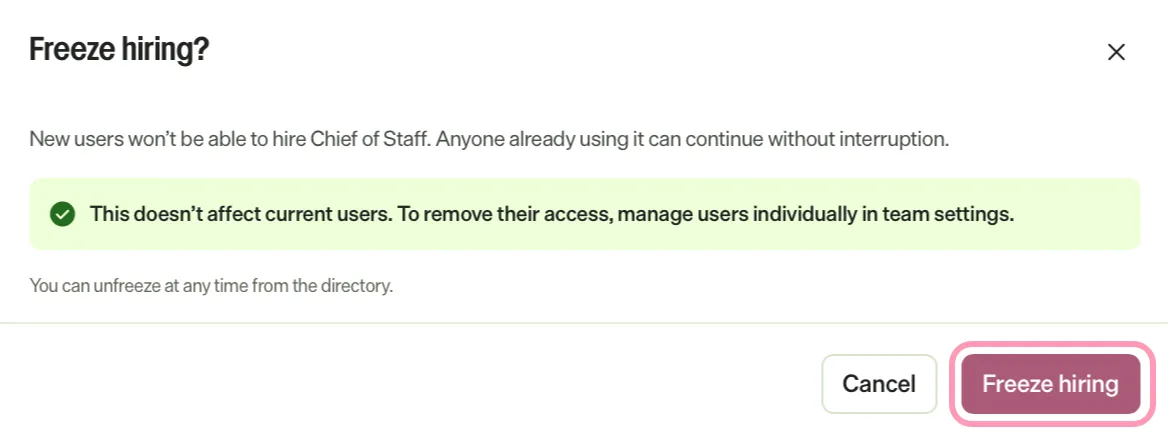
Freeze hiring to stop people in your organization from hiring a Virtual Teammate. People who already hired the teammate continue to use it without interruption. Freeze hiring from the Directory or from the teammate's details.
Freeze hiring from the Directory
To freeze hiring of a Virtual Teammate from the Directory, complete the following steps:
- Go to Directory > Virtual Teammates.
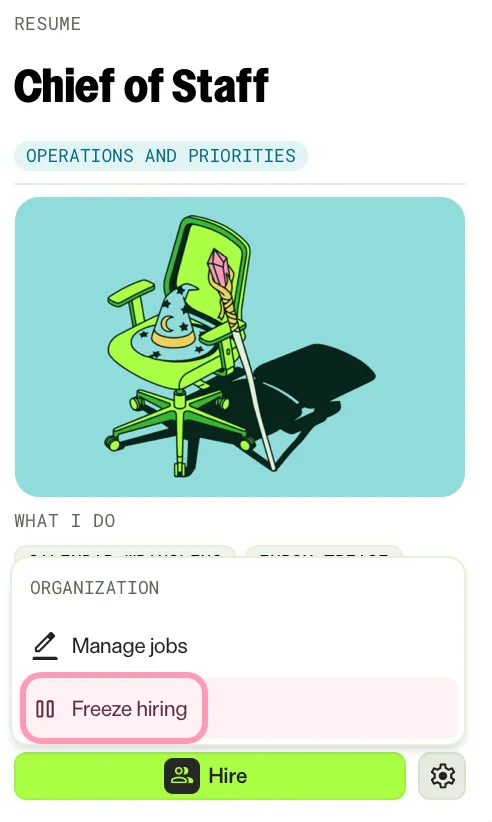
- Click Settings for the teammate you want to freeze.
- Click Freeze hiring.
- Click Freeze hiring in the confirmation window.
Freeze hiring from the teammate's details
To freeze hiring of a Virtual Teammate from the teammate's details, complete the following steps:
- Go to Directory > Virtual Teammates.
- Click the teammate you want to manage.
- Click Details.
- Click Manage > Freeze hiring.
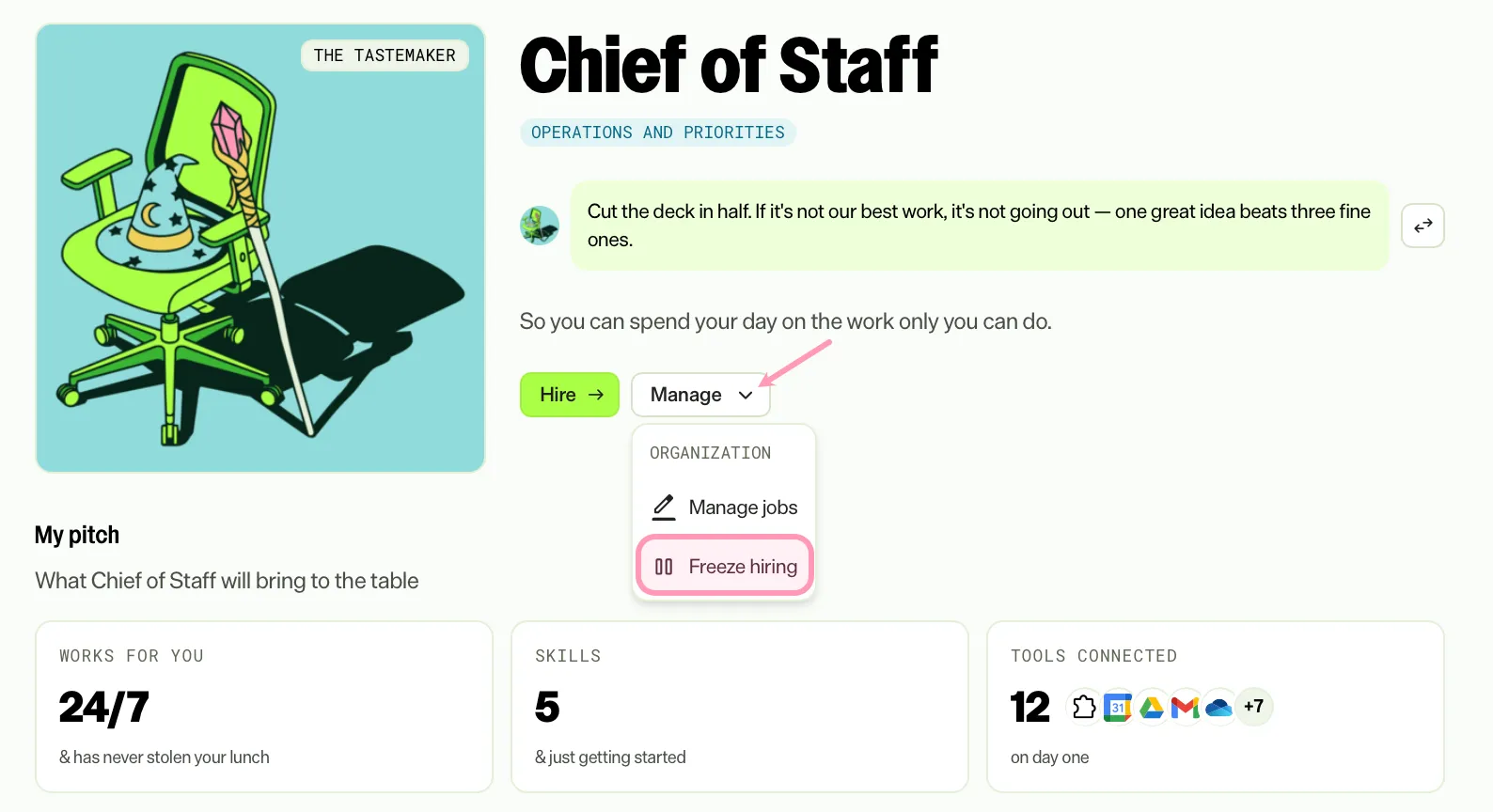
- Click Freeze hiring in the confirmation window.
Unfreeze hiring of a Virtual Teammate
Unfreeze hiring to let people in your organization hire a Virtual Teammate again. The change does not affect people who already hired the teammate. Unfreeze hiring from the Directory or from the teammate's details.
Unfreeze hiring from the Directory
To unfreeze hiring of a Virtual Teammate from the Directory, complete the following steps:
- Go to Directory > Virtual Teammates.
- Click Settings for the teammate you want to unfreeze.
- Click Allow hiring.
- Click Allow hiring in the confirmation window.
Unfreeze hiring from the teammate's details
To unfreeze hiring of a Virtual Teammate from the teammate's details, complete the following steps:
- Go to Directory > Virtual Teammates.
- Click the teammate you want to manage.
- Click Details.
- Click Manage > Allow hiring.
- Click Allow hiring in the confirmation window.
Note
If you use Opti ID, administrators can turn off generative AI in the Opti ID Admin Center. See Turn generative AI off across Optimizely applications.