Enable Virtual Teammates
Enable Virtual Teammates in Mark (Optimizely Agent Platform) so users in your organization can hire and configure their own AI teammates. As a Mark administrator, you enable a teammate for your organization by turning on the jobs you want and connecting the tools it needs.
This article is for Mark administrators. To hire and configure a teammate as a user, see Hire a Virtual Teammate.
Prerequisites
Before you enable a Virtual Teammate, configure your organization's email domain in Mark. Each teammate works from its own mailbox at that domain, such as [email protected].
To configure the email domain, go to Settings > Email Domain. For the steps, see Get started with Mark for administrators.
Enable a Virtual Teammate
Complete these steps in Mark to enable a Virtual Teammate for your organization:
- Go to Directory > Virtual Teammates.
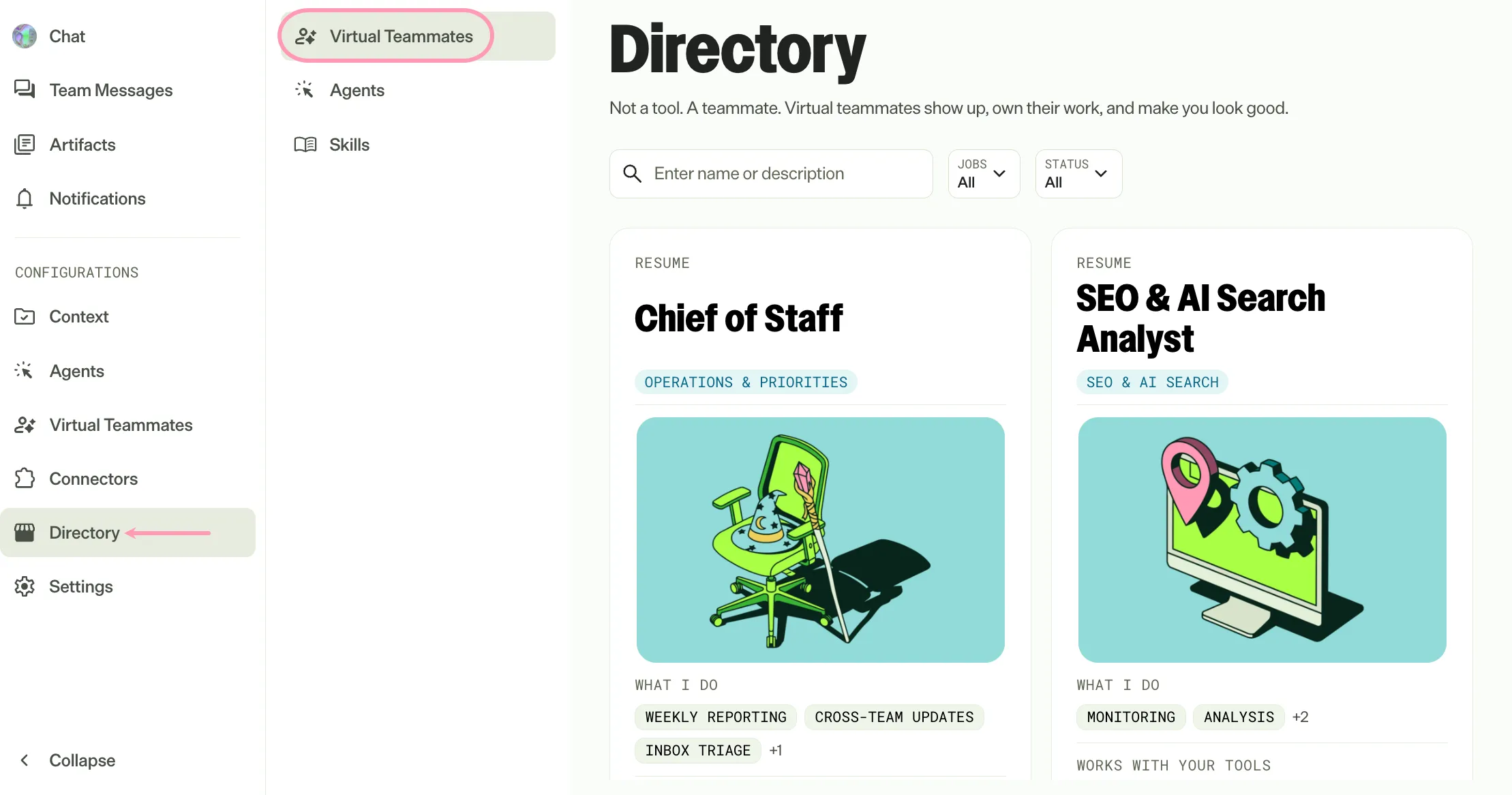
- Find the teammate you want, such as the Chief of Staff.
Note
To review what a Virtual Teammate does before you enable it, click its tile, and then click Details.
- Click Enable for your team.
- (Optional) Toggle off any jobs you do not want to make available. A job is a task a Virtual Teammate performs on its own, such as the Chief of Staff's daily brief or meeting recap. Jobs run on a schedule or in response to an event, so turning a job off removes that behavior for your whole organization.
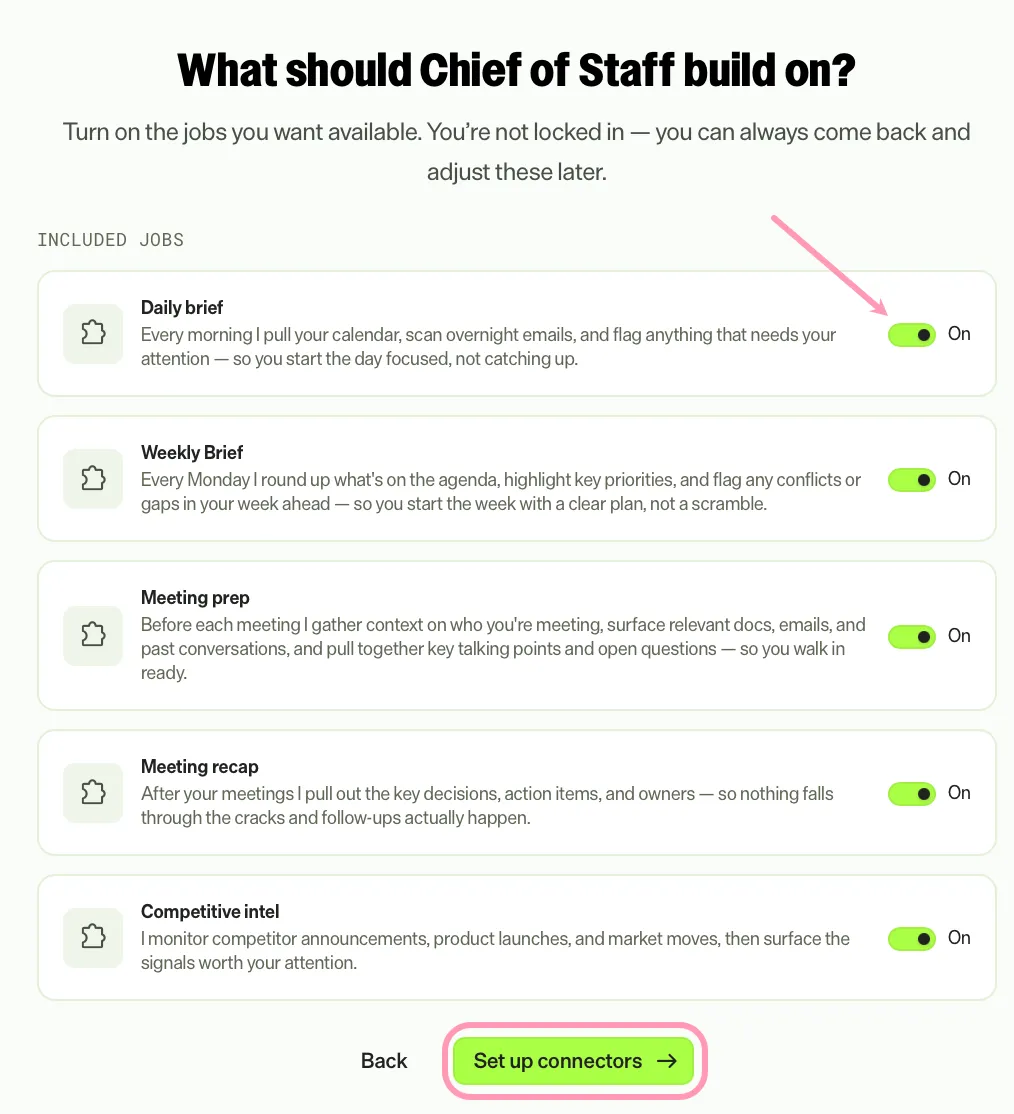
- Click Set up connectors.
- Click Add connector for each tool the teammate needs.
- Install the connector. Skip any connector that is already installed in your organization. See Connector tools overview.
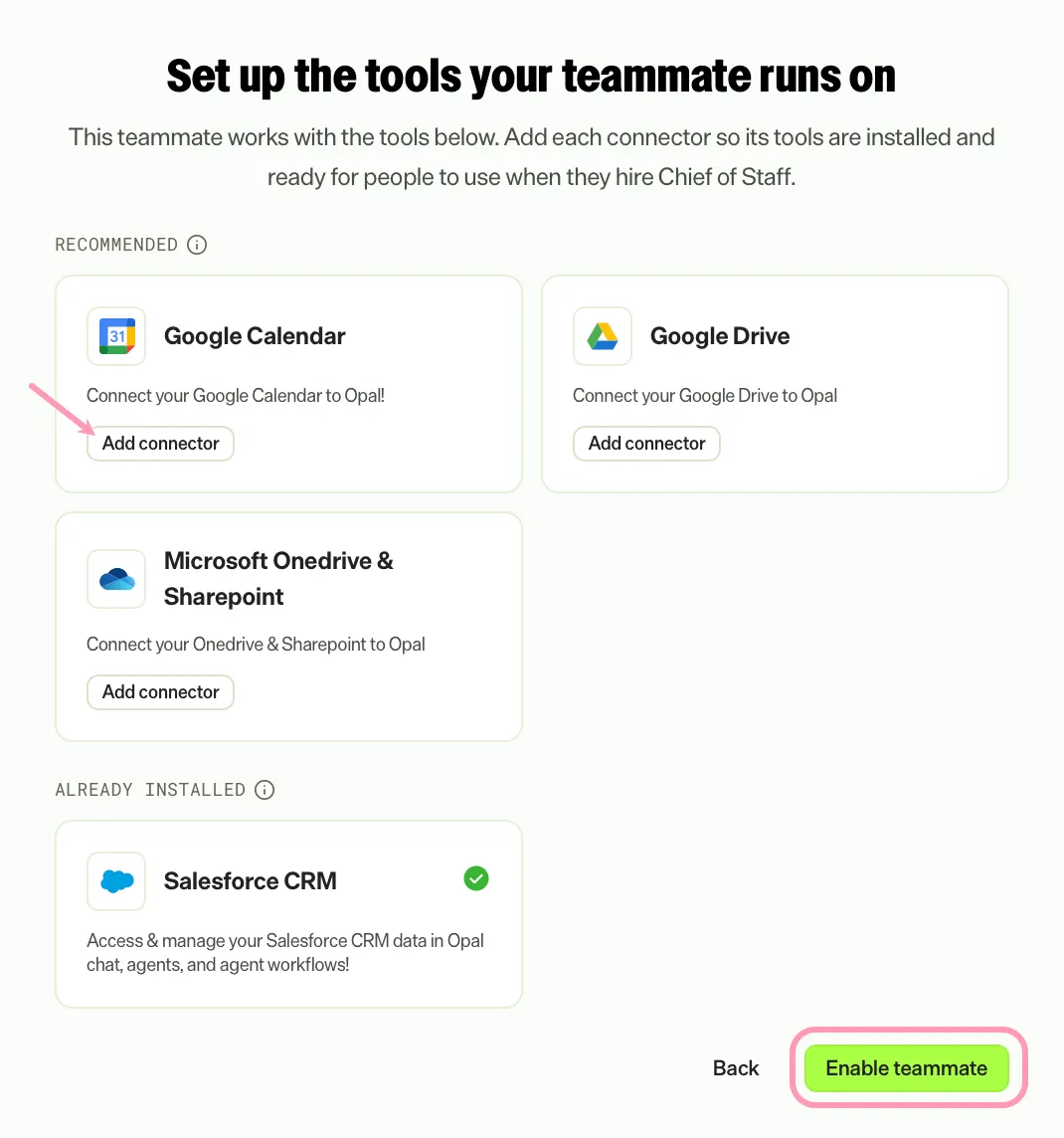
- Click Enable teammate.
When you enable the teammate, it becomes available for users to hire and configure from the Directory. Each teammate gets its own email address in your Mark domain.
If your instance already has its own agent with the same ID as an agent that a job uses, Mark asks Replace your existing agent? See Replace an existing agent.
Change which jobs are available or freeze hiring for a teammate at any time. See Manage Virtual Teammates for your organization.
Note
If you use Opti ID, administrators can turn off generative AI in the Opti ID Admin Center. See Turn generative AI off across Optimizely applications.