Hire a Virtual Teammate
Hire a Virtual Teammate in Mark (Optimizely Agent Platform) to hand off recurring work to an AI teammate that acts on your behalf. Name it, choose where it works, connect its tools, and start working together.
These steps apply to every Virtual Teammate. To learn what a specific teammate does, see one of the following articles:
Prerequisites
Confirm the following before you hire a Virtual Teammate:
- A Mark administrator has enabled the teammate you want for your organization. If the teammate displays Request instead of Hire, click Request to ask your administrator to enable it. If you are a Mark administrator and the teammate is not enabled for your organization, see Enable Virtual Teammates.
- You have permission to hire a Virtual Teammate.
Hire a Virtual Teammate
Complete the following steps in Mark to hire a Virtual Teammate:
- Go to Directory > Virtual Teammates.
- Click Hire for the teammate you want to add.
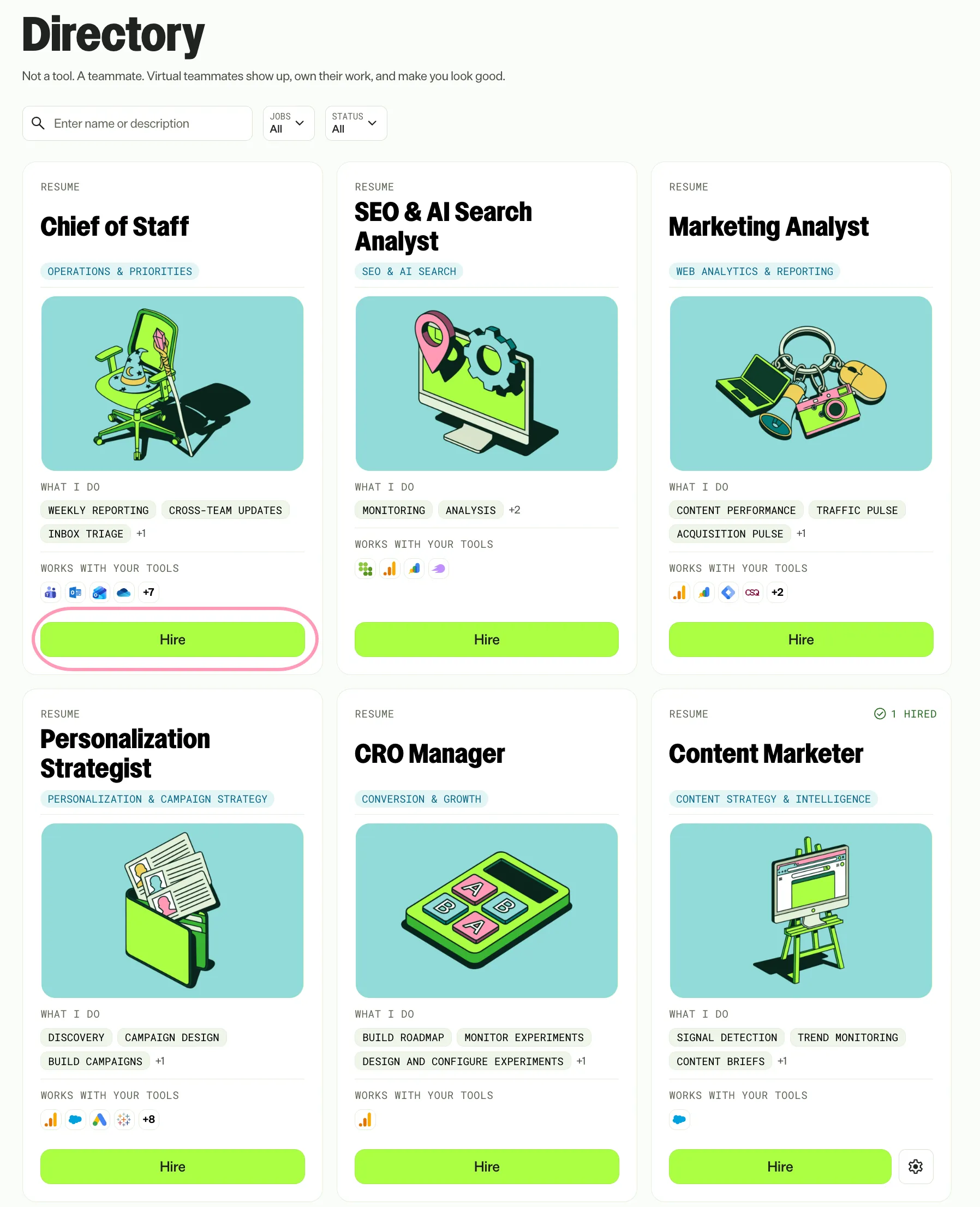
If the teammate displays Request insteadof Hire, an administrator has not enabled it. Click Request to send your administrator a request to enable it.
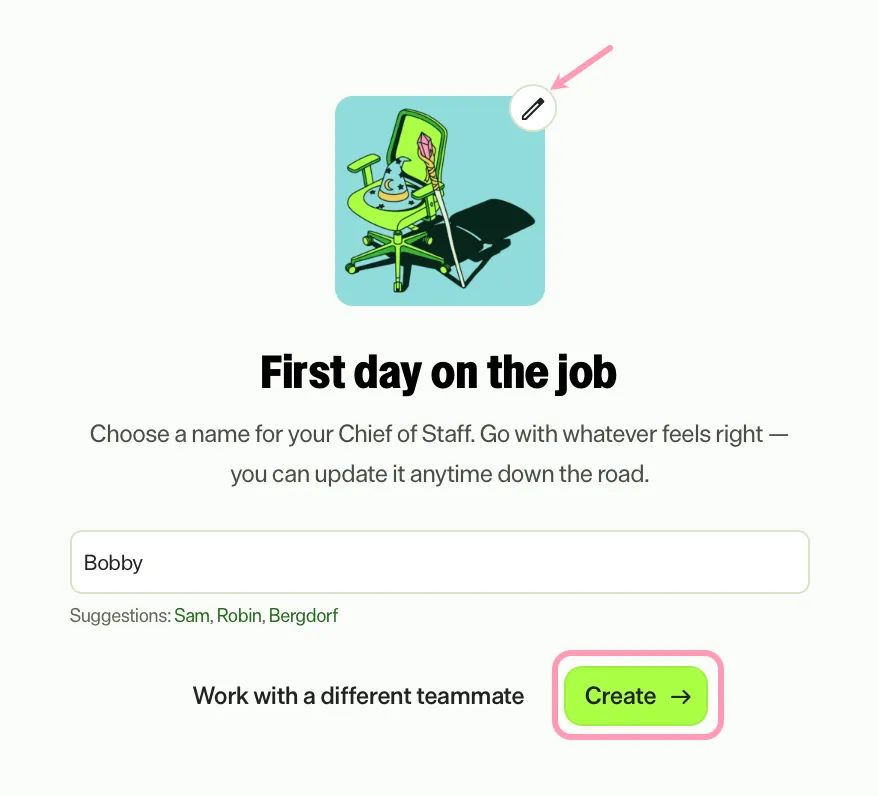
- Enter a name for your teammate.
- (Optional) Click Edit to customize your teammate's personality or avatar. Edit these settings later if needed.
- Click Create.
- Choose the product instance for each product the teammate uses.
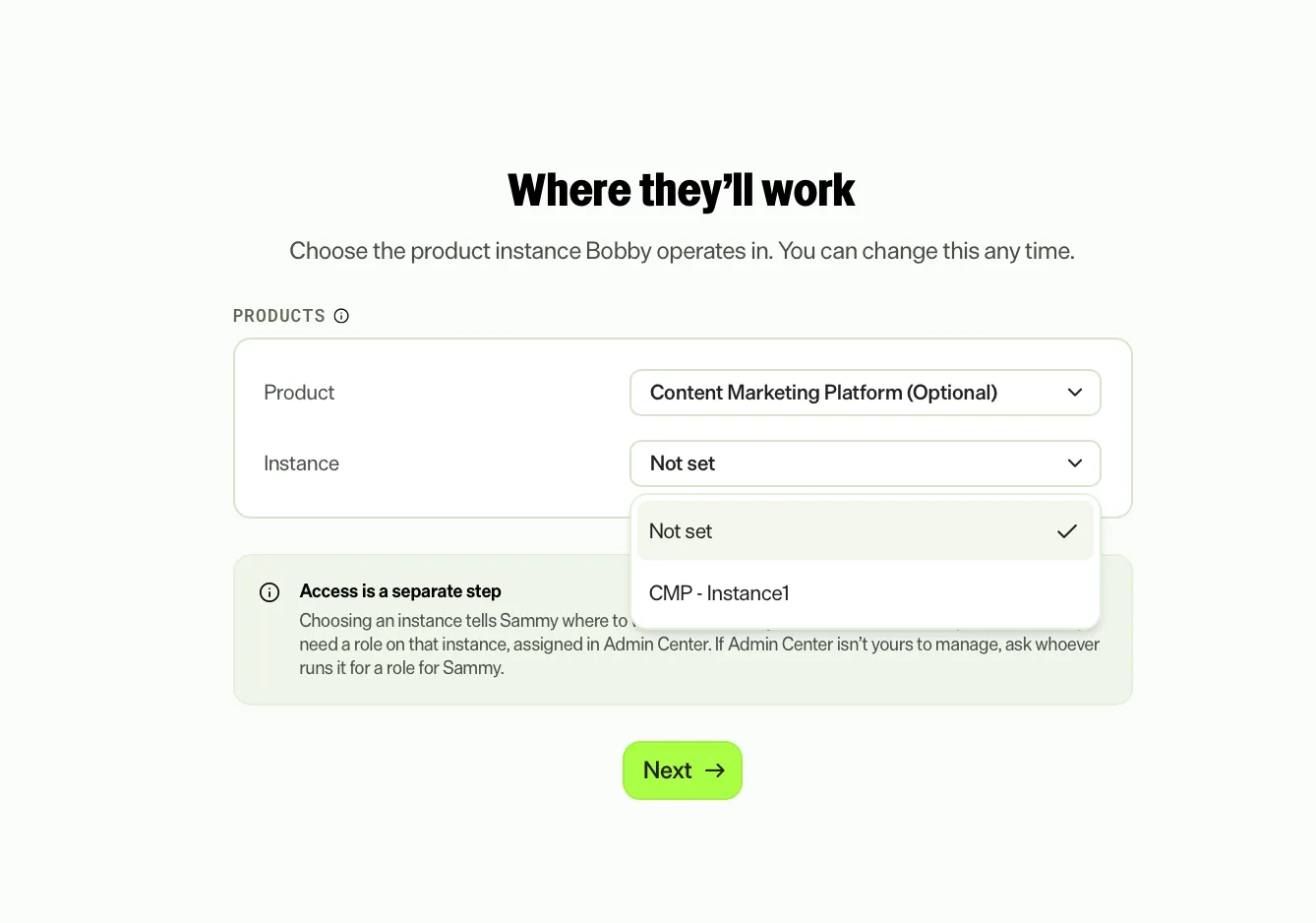
Note
A product instance is a particular deployment of an Optimizely product in your organization, such as a specific Experimentation project. Choosing a product instance tells the teammate where to work. It does not grant access. An administrator assigns the teammate a role on each instance in Opti ID Admin Center.
- Click Next.
- Click Connect for each connector that is not connected.
- Log in to the connector in the pop-up window.
- Click Start working together.
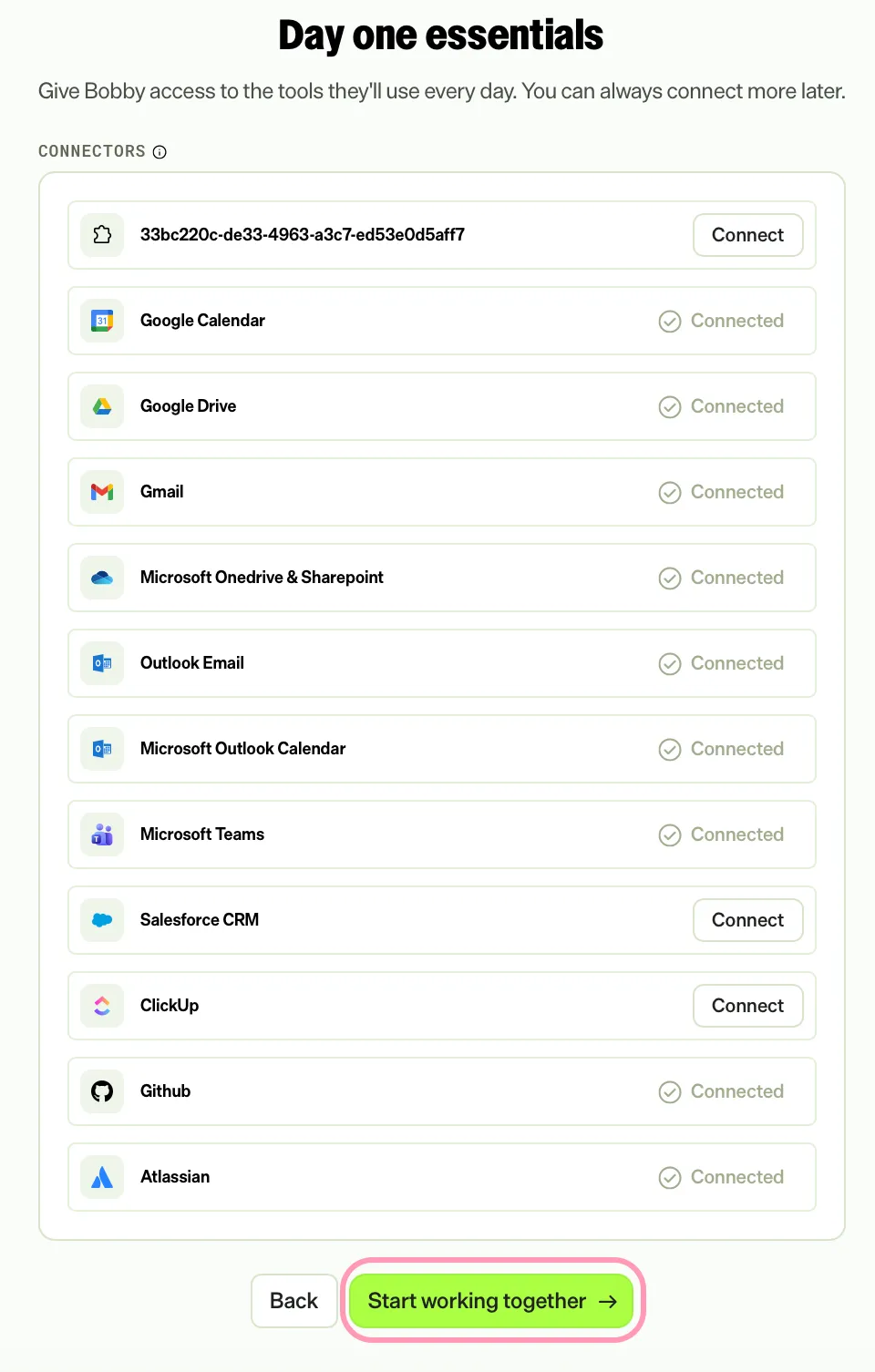
- Click Go to your teammate to open your conversation.
By default, a Virtual Teammate proposes its work over Team Messages and you approve it before it acts. You give it more autonomy as you build trust in its output.
Manage your Virtual Teammate
Each hired Virtual Teammate has Supervise and Settings areas. Use them to review its work and to adjust its connections, jobs, and guardrails. See Manage your Virtual Teammate.
Note
If you use Opti ID, administrators can turn off generative AI in the Opti ID Admin Center. See Turn generative AI off across Optimizely applications.