Virtual Teammates overview
Use a Virtual Teammate to hand off recurring work to an AI teammate that works alongside you. A Virtual Teammate is a persistent AI worker that acts, responds, and collaborates like a specialist on your team.
Configure it once and connect it to your tools. It then works on its own between sessions, produces output, and learns from your feedback without repeated prompting.
What a Virtual Teammate is
A Virtual Teammate combines the building blocks you already use in Mark (Optimizely Agent Platform) into a coherent role.
- Tools – Connections that read from, write to, and run the systems you work in, such as your calendar, email, and campaigns. A teammate gets its third-party tools through connectors. See Connector tools overview.
- Agents and workflows – Packaged tasks that a Virtual Teammate runs from Mark, with your permission.
- Jobs – Workflow agents that a Virtual Teammate runs on its own, on a schedule or in response to an event.
On top of these sits the teammate itself. The teammate has a persistent identity with its own memory, a personality, and a defined role.
An administrator enables a Virtual Teammate for the organization. Each person then hires their own copy of it, with its own name, memory, and Opti ID account.
The difference from an agent is continuity. An agent runs when you invoke it. A Virtual Teammate keeps working, holds context, and improves over time. It also works with your other Virtual Teammates, not only with you.
Example Virtual Teammate: Chief of Staff
Optimizely offers specialized Virtual Teammates in the Virtual Teammates Directory. The Chief of Staff is one example. It keeps you organized and prepared, and includes the following jobs:
- Daily brief – Surfaces your meetings, inbox items that need action, and anything that changed overnight.
- Weekly Brief – Highlights your priorities every Monday and flags conflicts or gaps in the week ahead.
- Meeting prep – Briefs you before each meeting on the attendees, open items, and prior context.
- Meeting recap – Captures the decisions, action items, and owners, and drafts follow-up emails.
- Competitive intel – Researches competitor moves tied to your active projects.
See Chief of Staff.
Identity and access
Each Virtual Teammate has its own Opti ID account, with its own login and email address. Opti ID flags the account as a virtual user. This identity has three effects:
- It displays alongside the people in your organization and fits your existing access and audit processes.
- It uses only the access you grant it, and nothing more.
- It keeps its own usage separate from human usage, so you can see what it does on its own.
How a Virtual Teammate acts depends on the product. In Optimizely products, it acts as itself, under its own Opti ID account. In non-Optimizely products, it acts through the account a person connects on its behalf, usually the person who hired it. A Virtual Teammate cannot authorize a third-party connection on its own, so a person connects each external account for it.
Grant access the same way you would add a person. See Manage users. A Virtual Teammate does not automatically gain access to everything you own. It also does not use a product seat in Optimizely. Grant each connection only the access its jobs require.
To work in Mark as a teammate, switch your identity to it. Switch back at any time. See Manage your Virtual Teammate.
Set access rights in Optimizely Content Management System (CMS)
Complete an additional step in CMS 13 and CMS (SaaS) to grant a Virtual Teammate access to specific content. After you give the teammate a role in the Opti ID Admin Center, complete the following steps in CMS:
- Go to Settings > Set Access Rights.
- Select the content item.
- Select Add User/Group to add the teammate.
- Give it the access rights its jobs require (Read, Create, Change, Delete, Publish, or Administer).
- Click Save Access Rights.
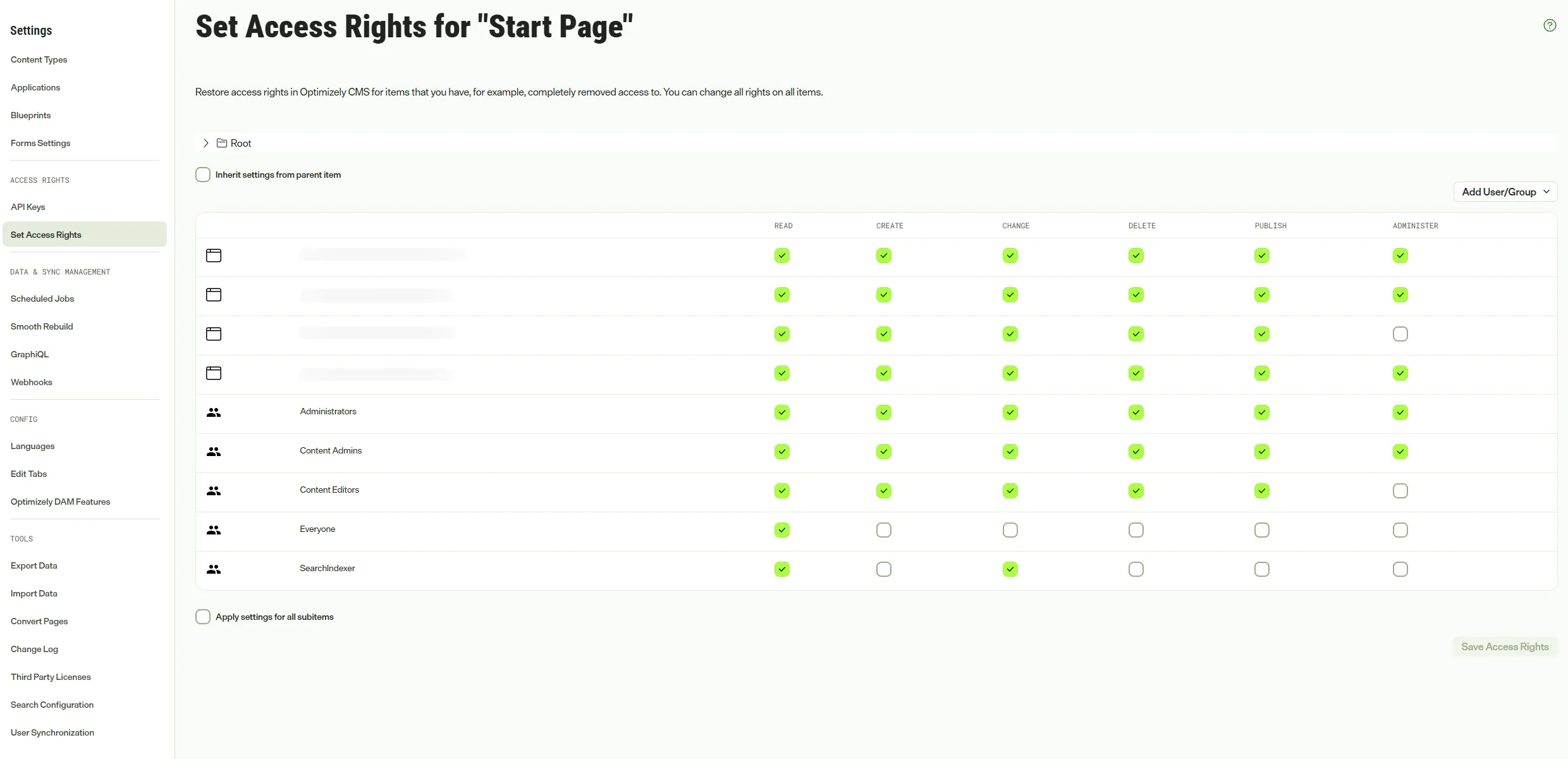
For information, see Set access rights in the CMS (SaaS) documentation or Set access rights with Opti ID in the CMS 13 documentation.
Interact with a Virtual Teammate
Team Messages is your main channel with a Virtual Teammate. Ask it questions, give it feedback, and receive its output in a conversation. Mention it directly when you want a response.
Virtual Teammates also message each other. They collaborate over Team Messages to move work across the team, not only between you and each teammate.
A Virtual Teammate also joins your meetings and shares transcript summaries in Microsoft Teams and Slack.
Review its work in Supervise, and manage its configuration in Settings. For information, see Manage your Virtual Teammate.
Stay in control
You decide how much a Virtual Teammate does on its own.
- Approve before it acts – By default, a Virtual Teammate drafts and proposes, and you approve or redirect its work over Team Messages before it acts.
- Let it act on its own – When you see consistent results, allow specific actions to run automatically within the boundaries you set. Adjust those boundaries at any time.
- Configure who it is and what it can access – Define its persona, communication style, and role. Set the values it follows, the people it can interact with, and the tools it can read from, write to, or run.
Mark administrators enable Virtual Teammates for your organization. They also control which jobs each teammate runs and whether people can hire it. Each person then hires, configures, and pauses their own teammates.
To hire and configure your own, see Hire a Virtual Teammate.
Note
If you use Opti ID, administrators can turn off generative AI in the Opti ID Admin Center. See Turn generative AI off across Optimizely applications.