Directory overview
Use the Directory to extend Mark (Optimizely Agent Platform) with Virtual Teammates, agents, and skills. Each section lists what Optimizely publishes. Each section also displays what you or your organization have added and lets you add more.
Access the Directory
- Log in to Optimizely.
- Select your organization.
- Click Mark.
- Click Directory.
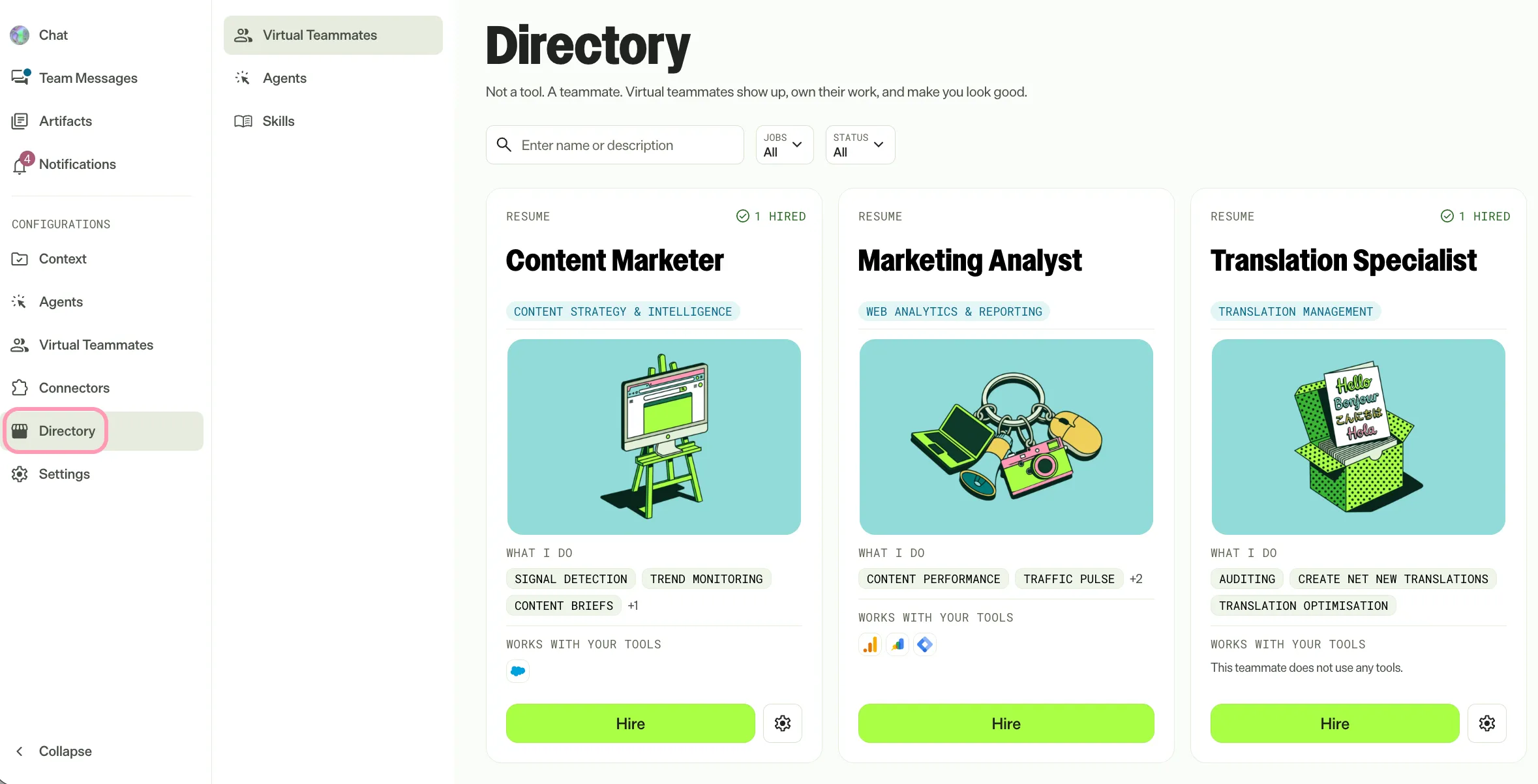
The Directory sub-navigation lists the sections you can access. Mark opens Virtual Teammates first when your organization has Virtual Teammates enabled. Otherwise, Mark opens Skills first.
Directory sections
The following sections are available in the Directory:
- Virtual Teammates – Hire an AI teammate that owns recurring work. Examples include the Chief of Staff and the SEO & AI Search Analyst. See Virtual Teammates overview.
- Agents – Browse and install agents that handle specific tasks, such as reviewing content or analyzing data. See Agent Directory overview.
- Skills – Add ready-made skills that teach Mark how you and your organization work. Examples include your brand voice, report formats, and keyword strategy. To learn what skills are, see Skills overview. See Skills Directory overview.
What you can do in each section
Your permissions determine what you can do in each section. If an action requires permissions you do not have, Mark hides the action or displays Request. Click Request to send a request to your administrators to perform the action.
Section | Who can browse | Who can add |
|---|---|---|
Virtual Teammates | Users in organizations with Virtual Teammates enabled | Administrators enable a teammate for the organization. Users hire an enabled teammate. |
Agents | Users with permission to view the Agent Directory | Administrators and Agent Builders |
Skills | All Mark users | Administrators add organization skills. Any user adds personal skills. |
Agent Builders create and configure agents and tools but do not manage users or organization-wide settings. An administrator assigns the role, and your plan must support it. For details, go to Get started with Mark for agent builders.
Note
If you use Opti ID, administrators can turn off generative AI in the Opti ID Admin Center. See Turn generative AI off across Optimizely applications.