Manage a Brand Pack
Use the Brand Pack details page in Optimizely Opal to add the resources and guidance that make up a Brand Pack. To open the Brand Pack details page, go to Context > Brand Packs and click a Brand Pack.
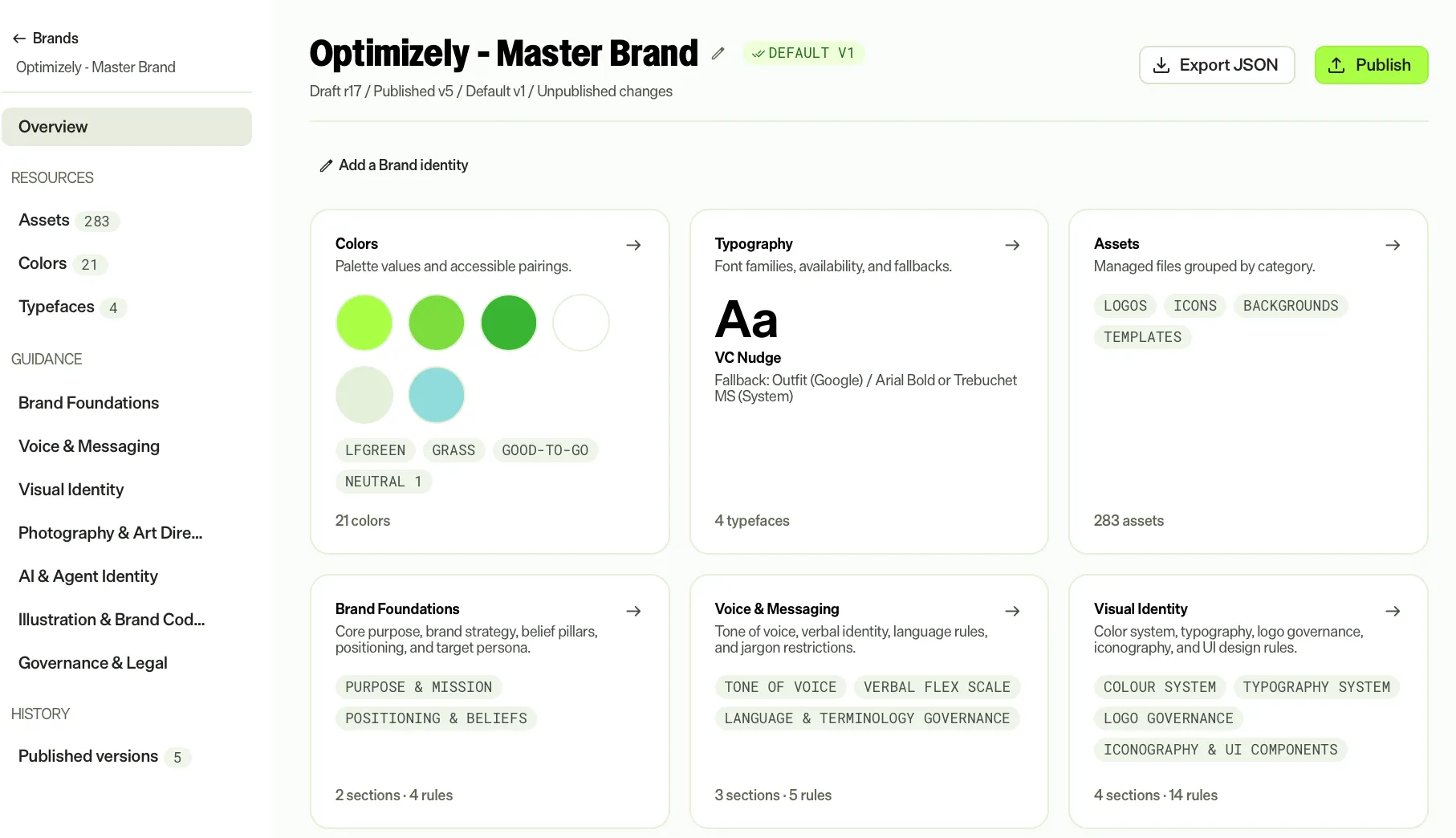
The Brand Pack details page includes the following pages:
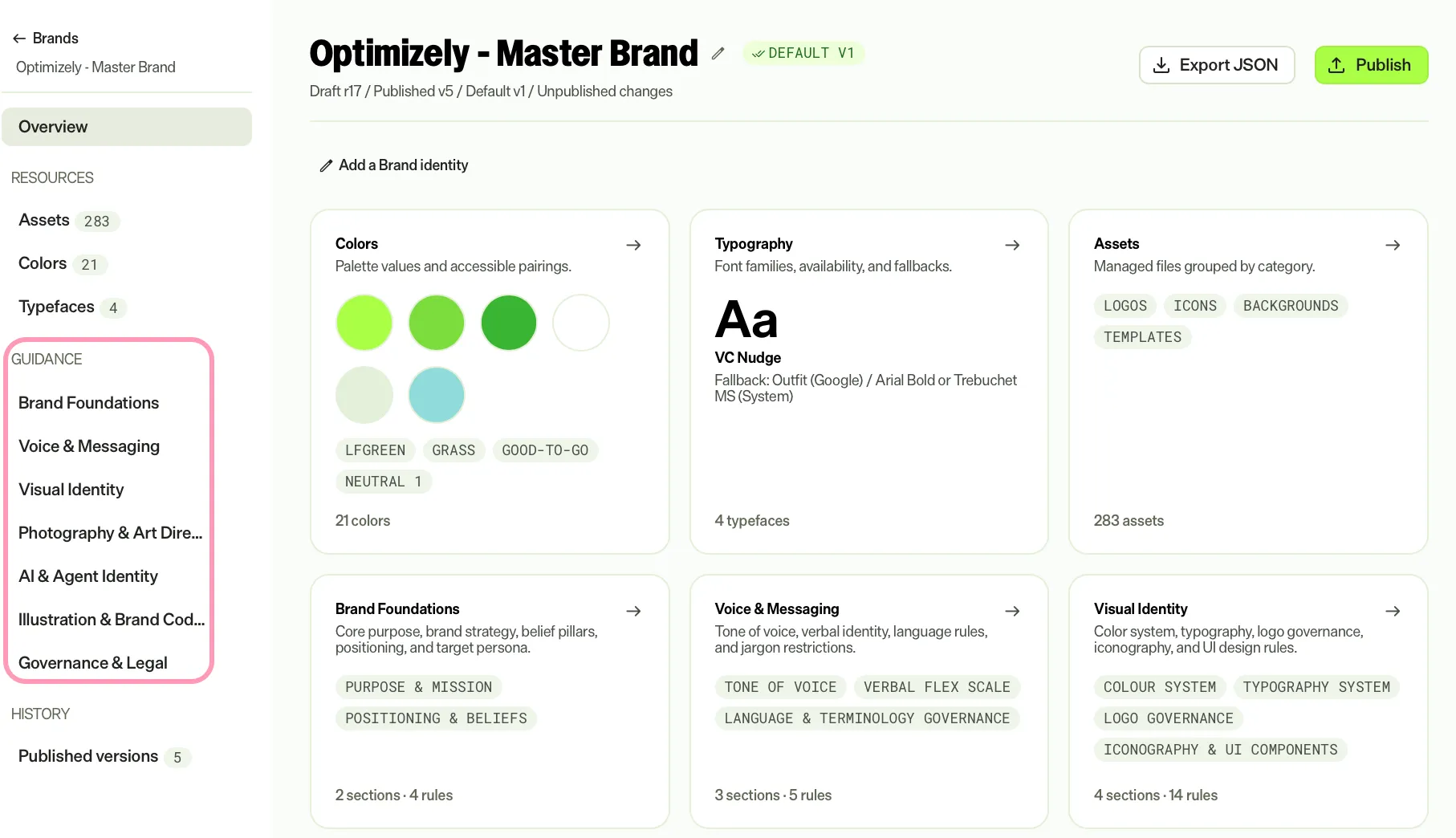
- Overview – A summary of the Brand Pack, including its identity and a card for each area.
- Resources – The Brand Pack's assets, colors, and typefaces.
- Guidance – The rules for using the Brand Pack.
- History – The group that contains Published versions, the record of published versions.
The header displays the Brand Pack name and status. It also includes options to export the Brand Pack as JSON and to publish it. See Publish and use a Brand Pack.
Add or edit the Brand Pack identity
The Brand Pack identity is a short description of what the Brand Pack is. It displays on the Overview page. When you publish, Opal includes the identity in the generated skill. To add or edit the identity, complete the following steps:
- Open the Brand Pack.
- Go to Overview.
- Click Add a Brand Pack identity. If an identity exists, click Edit Brand Pack identity instead.
- Enter the identity. The limit is 2,000 characters, and the identity supports Markdown formatting.
- Click Save.
Manage resources
Resources are the building blocks of a Brand Pack: assets, colors, and typefaces.
Add assets
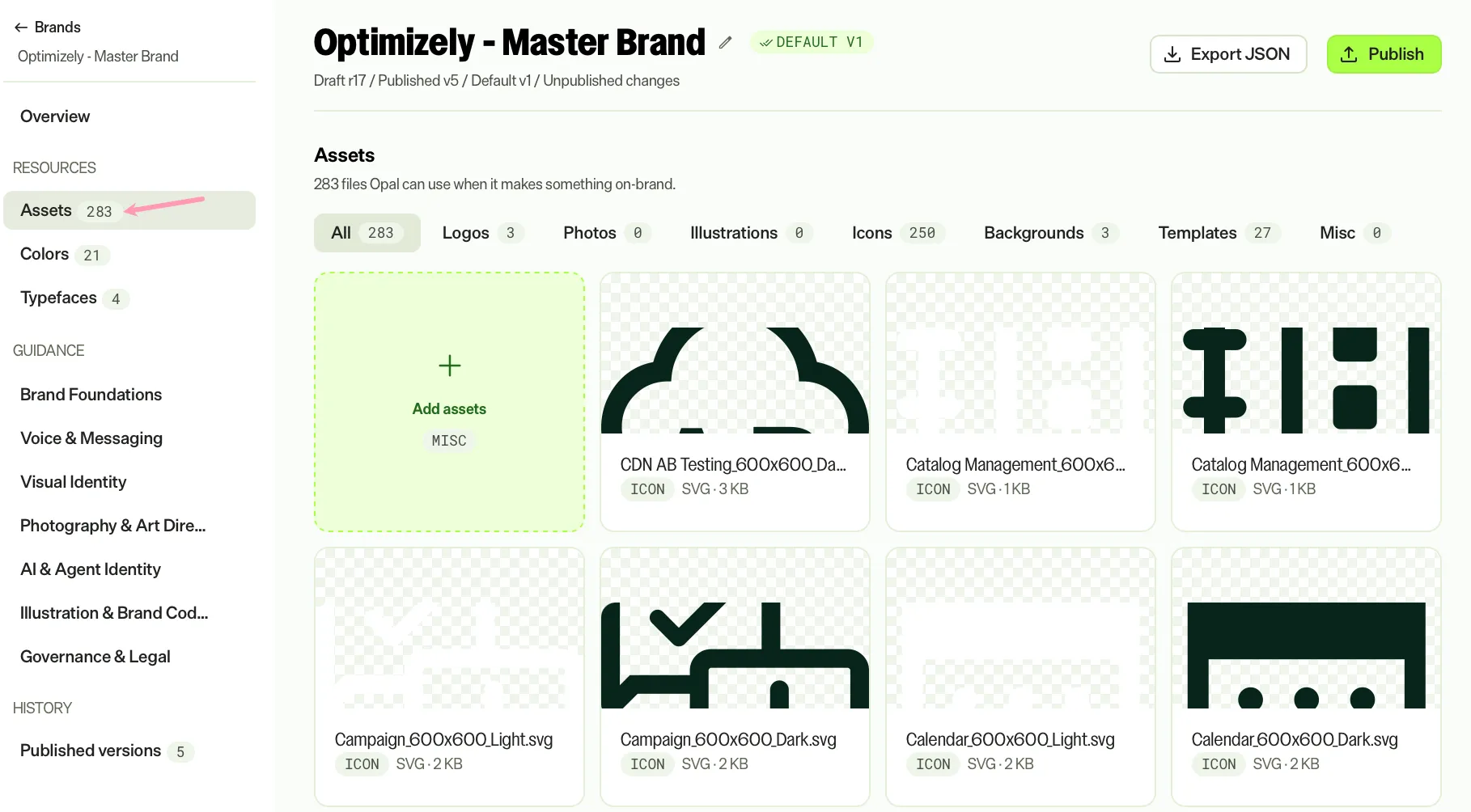
Assets are the logos, photos, backgrounds, and templates in the Brand Pack. Add assets in one of the following ways:
- Upload them from your computer.
- Select them from the Optimizely Content Marketing Platform (CMP) library.
Add colors
The Colors page displays the Brand Pack's palette. A table lists every managed color with its role and values.
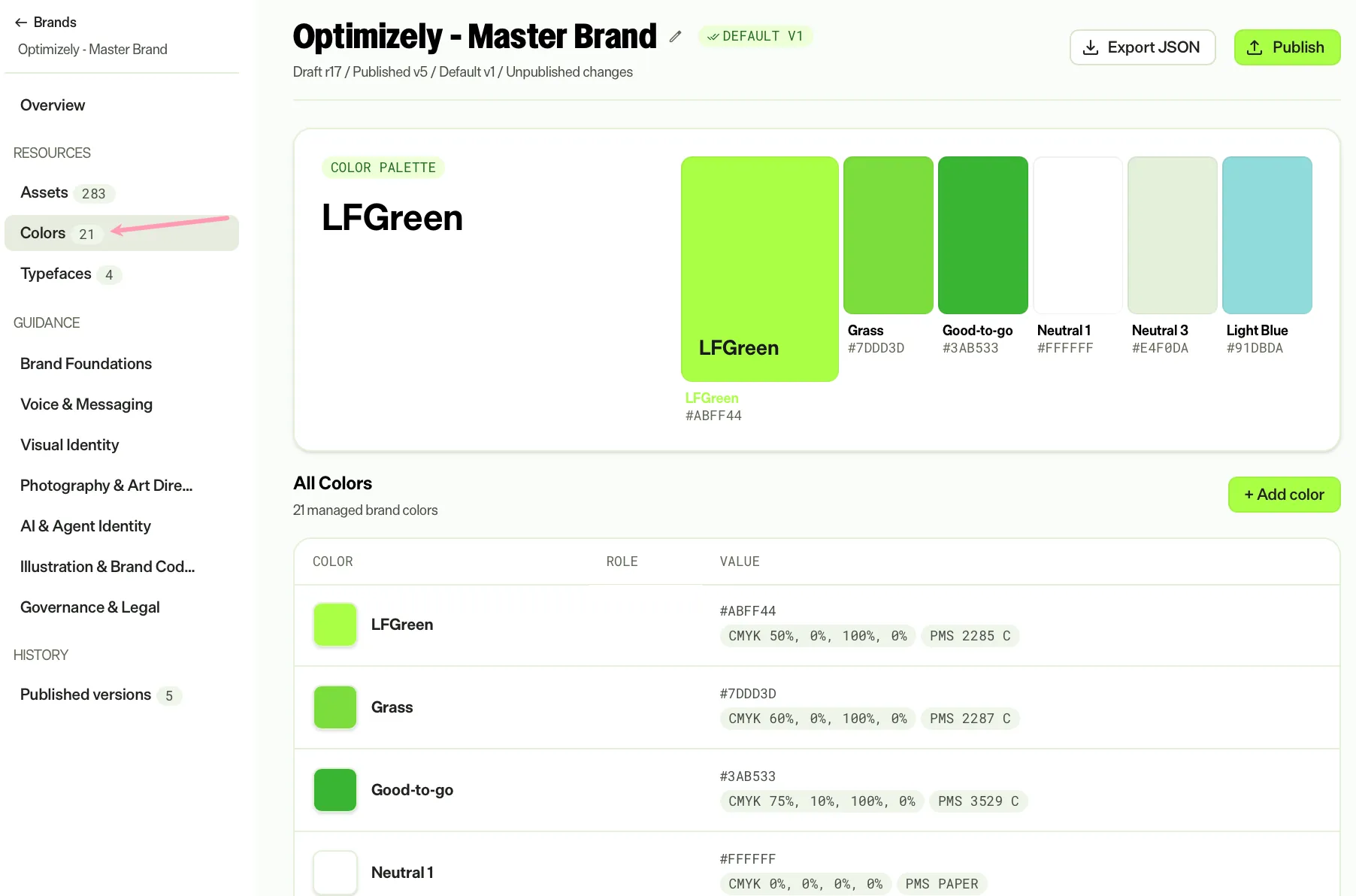
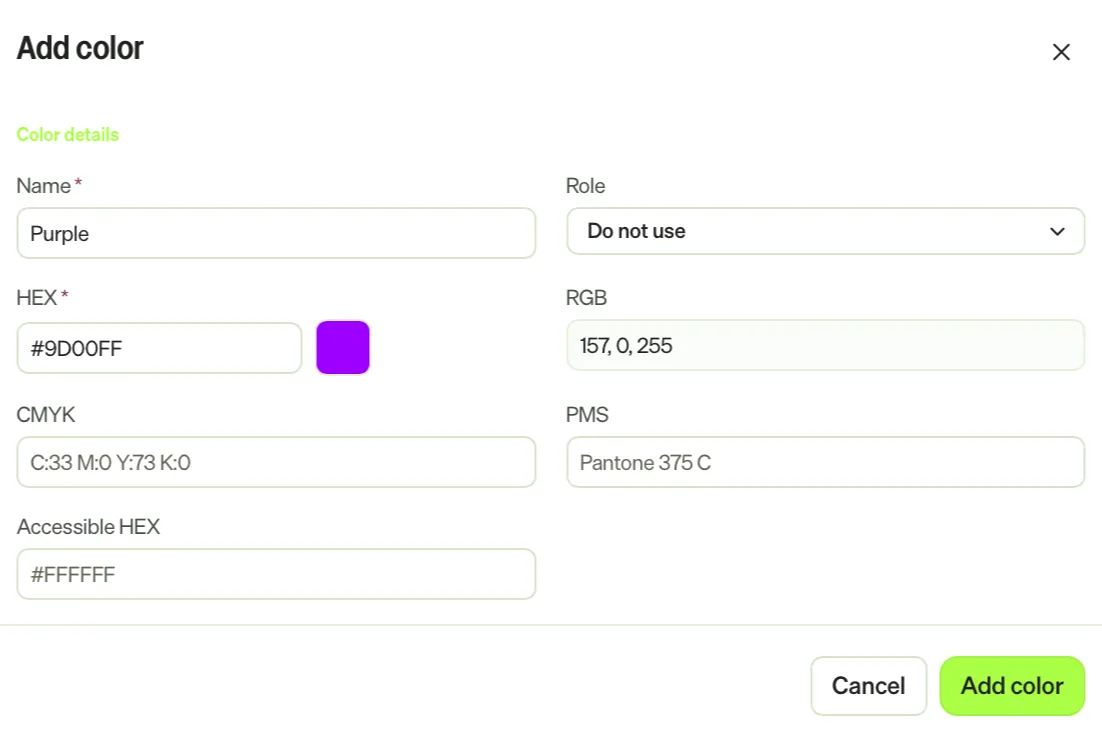
To add a color, click Add color and complete the following fields:
- Name – A friendly name for the color, such as Lime Active.
- Role – A label for the color, such as Primary, Secondary, Accent, Neutral, Extended, or Do not use. Roles help you identify each color at a glance.
- HEX – The hexadecimal (HEX) color value. Opal computes the red, green, and blue (RGB) value automatically.
- CMYK – The print color value in cyan, magenta, yellow, and key (CMYK) format.
- PMS – The Pantone Matching System (PMS) value.
- Accessible HEX – The color to pair with this one for accessible contrast.
Enter at least one color value: HEX, CMYK, or PMS.
Add typefaces
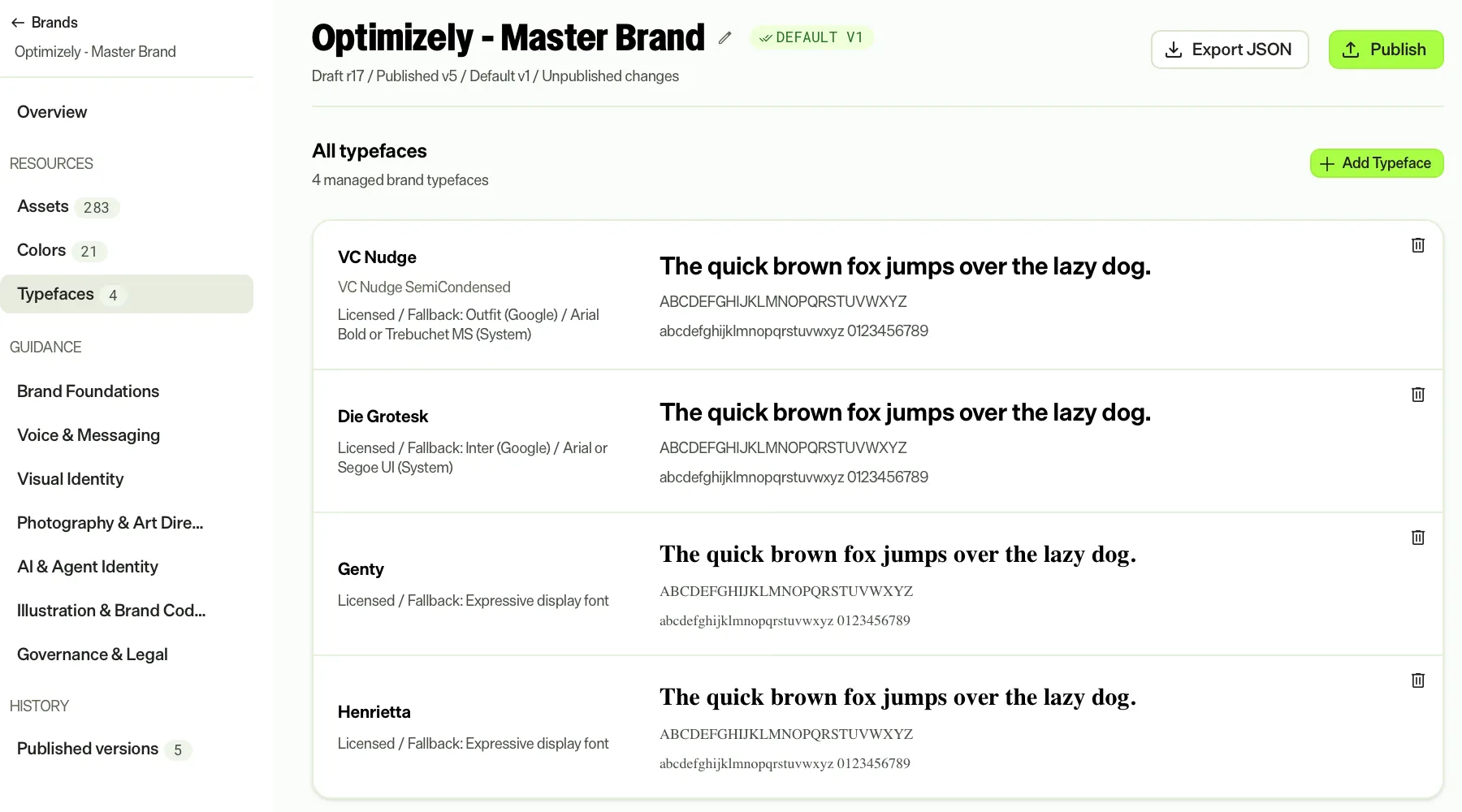
The Typefaces page lists the Brand Pack's typefaces. You can also open it from the Typography card on Overview. Each typeface displays its name, licensing, fallback font, and specimen preview. To add a typeface, complete the following steps:
- Click Add Typeface.
- Select a source: Google Fonts or Upload file.
- (Optional) Assign a role: Primary, Secondary, or Display.
- Click Add typeface.
Manage guidance
The Guidance pages hold the rules for using the Brand Pack. Unlike the fixed Resources pages, guidance pages vary by Brand Pack. Opal creates them when it extracts a Brand Pack from your sources, or you add and title your own.
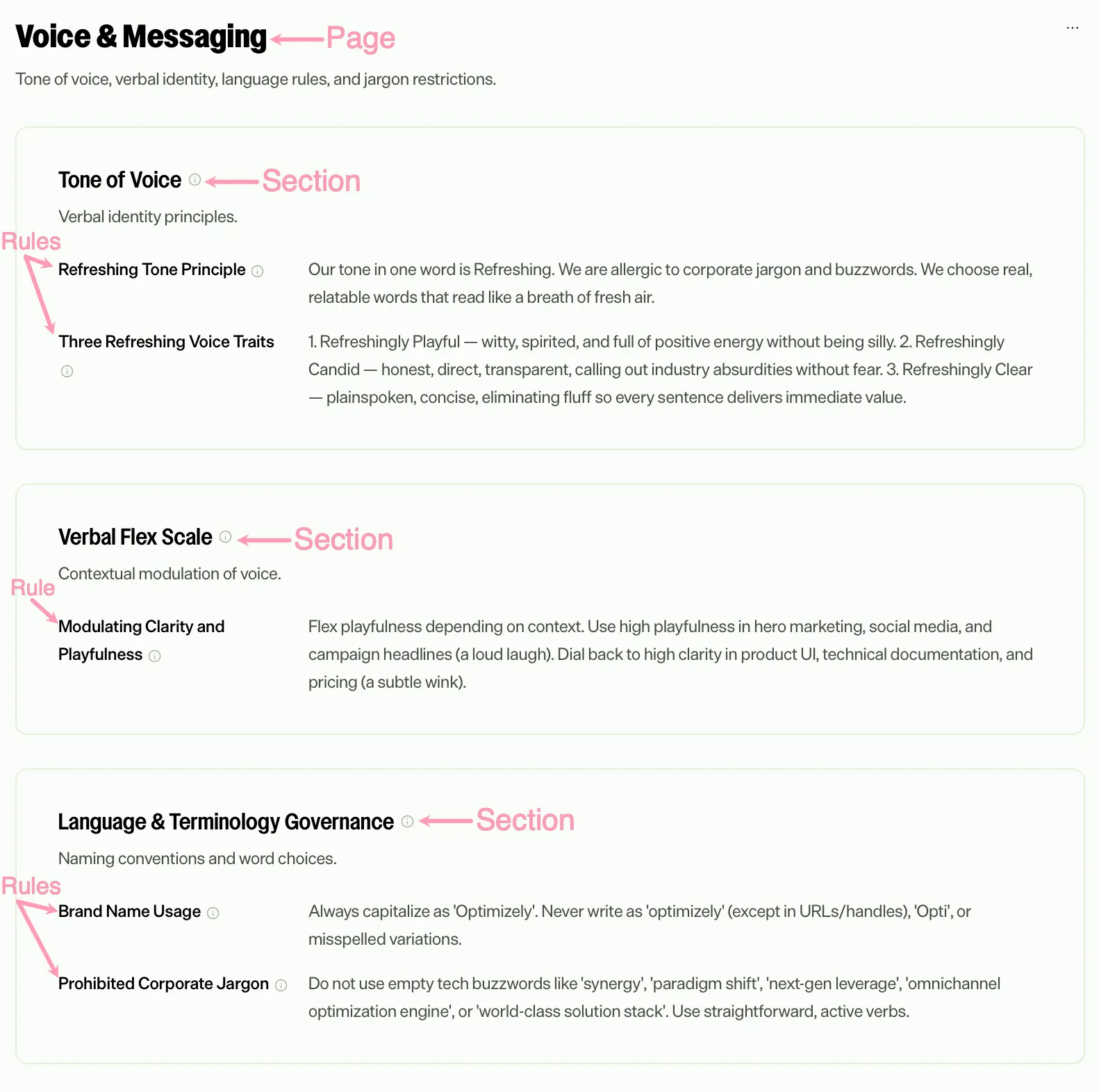
Guidance uses a consistent three-level structure so any rule fits:
- A page covers one area of the Brand Pack, such as brand foundations or voice and messaging.
- A section groups related rules within a page.
- A rule is one instruction that Opal follows.
Edit a guidance page
To edit a guidance page, complete the following steps:
- Click More > Edit guidance on the guidance list or the guidance details page.
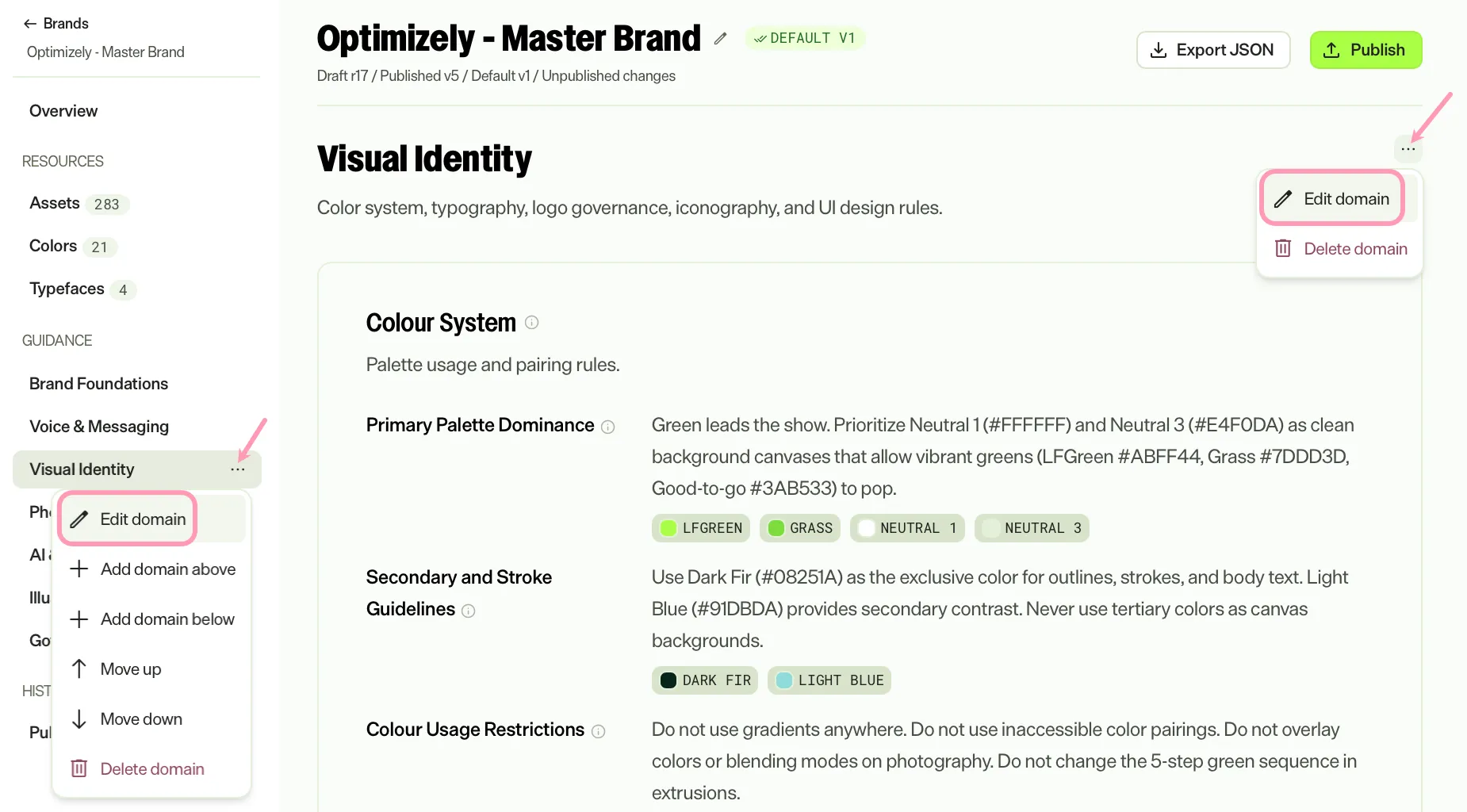
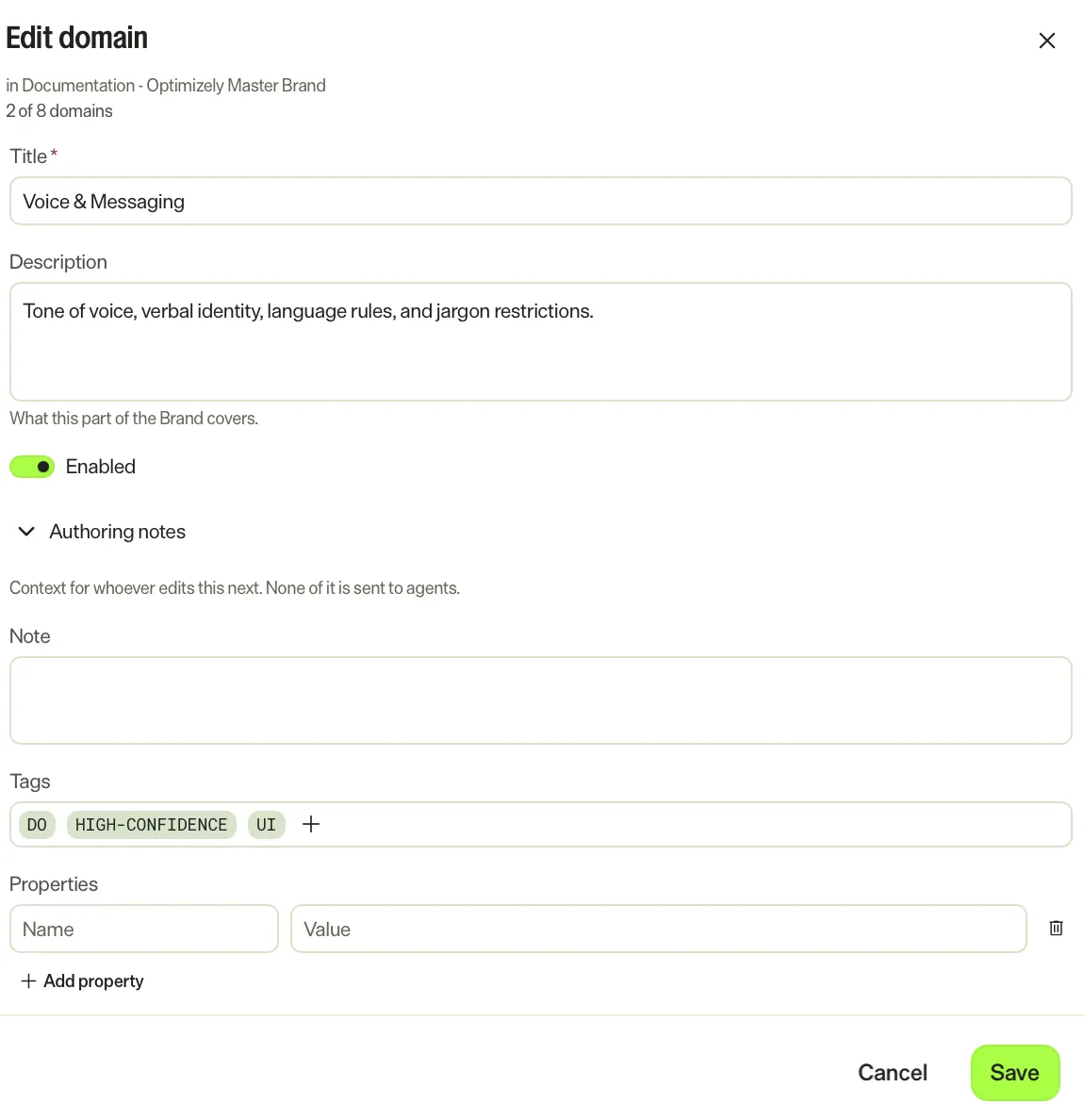
- Update the Title, Description, or Enabled option, or expand Authoring notes to add a note, tags, or properties.
- Click Save.
The guidance page has the following options:
- Title – The name of the area, such as Illustration and AI.
- Description – What this part of the Brand Pack covers.
- Enabled – Whether the page is active. Disable a page to leave it out of the generated skill while you finish working on it.
- Authoring notes – Context for editors. Opal does not receive authoring notes or include them in the generated skill. Expand Authoring notes to add the following:
- Note – Context for editors.
- Tags – Keywords that label the page for editors. Reuse an existing tag or add a new one. Tags display with the note when you open the page details.
- Properties – Name and value pairs that record extra reference details, such as details Opal captured when it built the Brand Pack. Give each property a unique name.
Add a section
Within a page, add a section to group related rules. A section has the same options as a guidance page: Title, Description, Enabled, and Authoring notes. To add a section, complete the following steps:
- Select a guidance page.
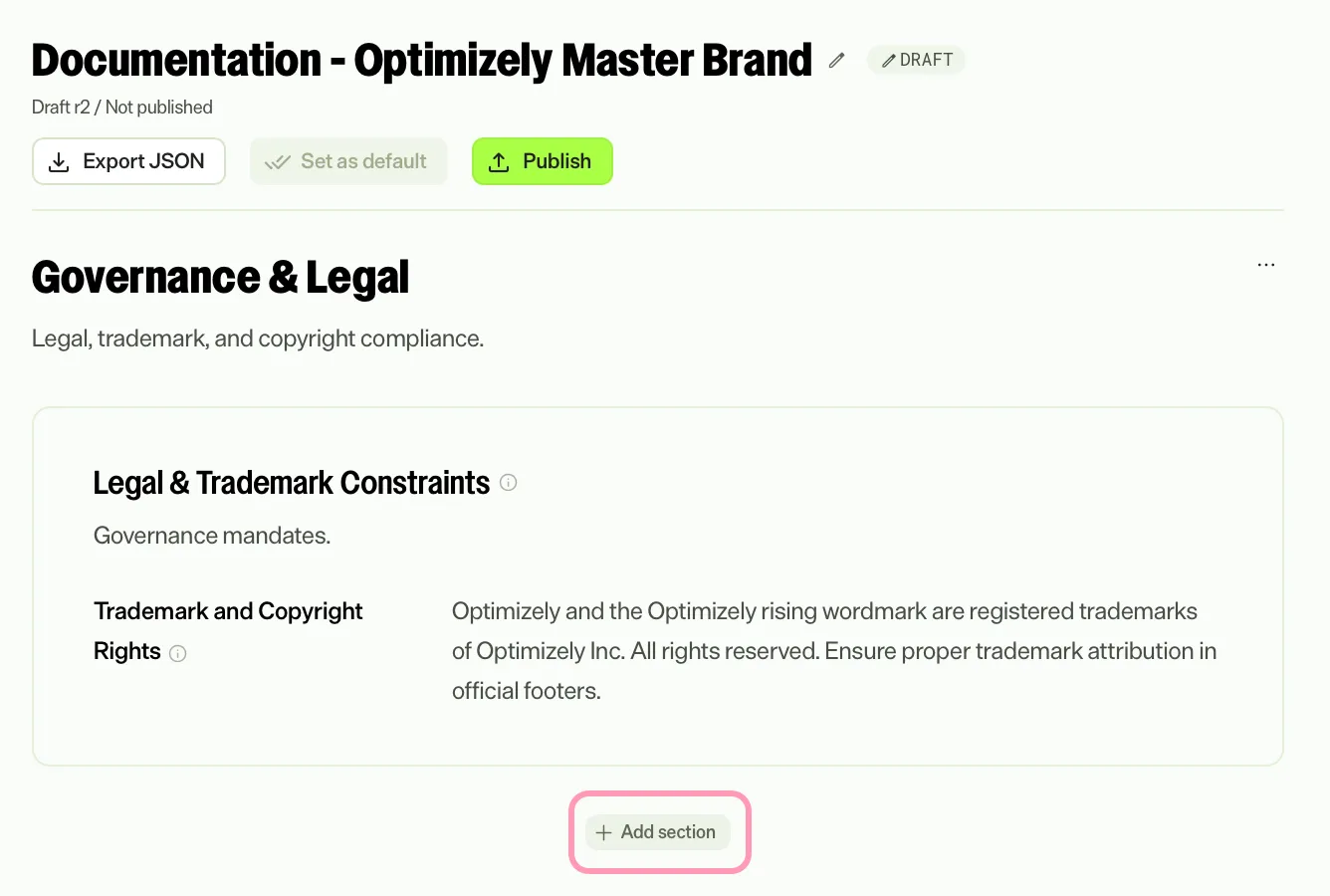
- Scroll to the end of the guidance and hover until Add section displays.
- Click Add section.
- Complete the options and click Add section.
Click Add sub-section inside a top-level section to nest sections when a Brand Pack needs finer structure.
Disable a section to leave it out of the generated skill while you finish working on it.
Add a rule
To add a rule, complete the following steps:
- Select a guidance page.
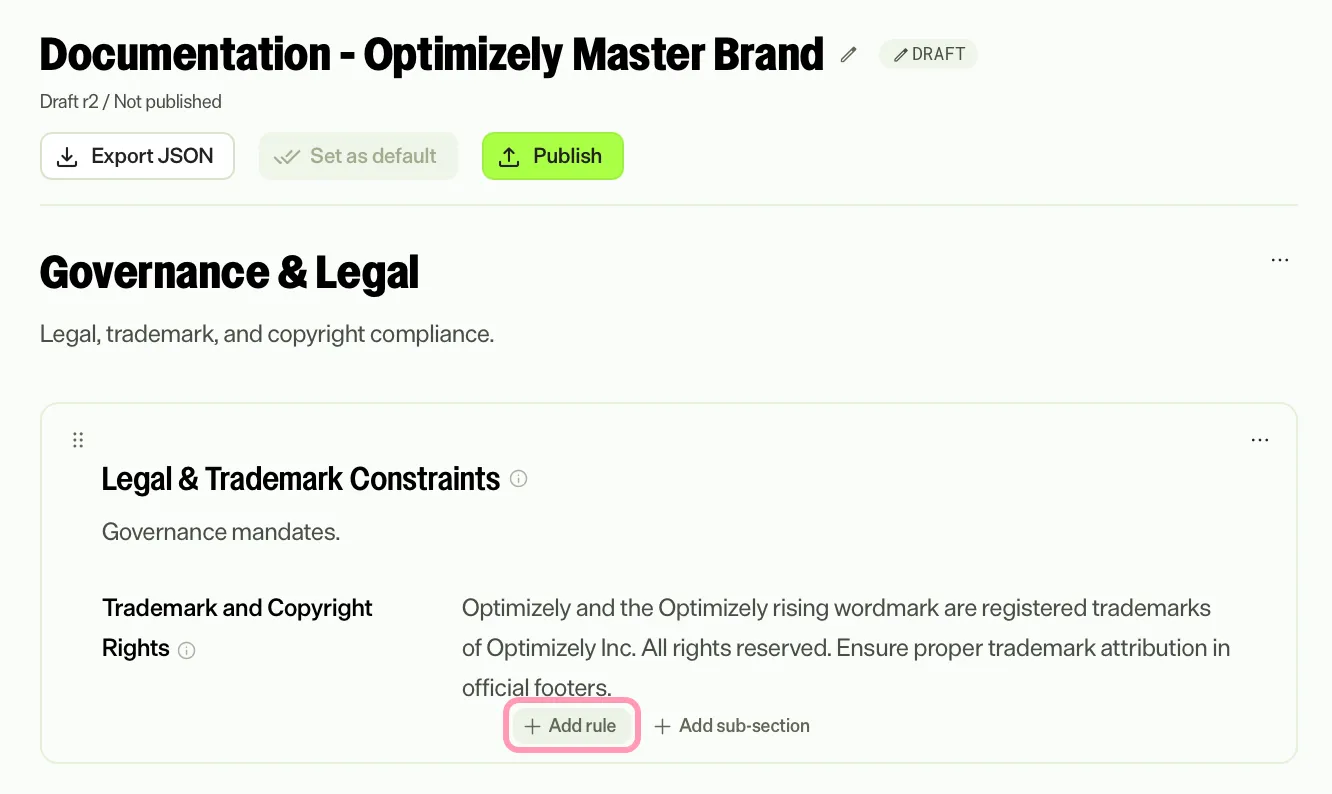
- Hover over a section in the guidance.
- Click Add rule.
- Complete the options and click Add rule.
A rule has the following options:
- Label – A short name for the rule, such as Illustration style.
- Description – The instruction you want an agent to follow.
- Referenced resources – The exact colors, typefaces, and assets the rule applies to. Referencing a resource removes ambiguity because the published skill includes the exact value of each resource, such as the hex value of a color, with the rule.
- Enabled – Whether the rule is active.
- Authoring notes – Context for editors, as for a guidance page.
Review and refine a Brand Pack that Opal generated instead of building every rule by hand.
To add sources or describe changes in chat instead, ask Mark to update the Brand Pack or click More > Add Additional Brand Context on its card.
Next steps
After editing a Brand Pack, publish the Brand Pack and apply it to your content. See Publish and use a Brand Pack.
Note
If you use Opti ID, administrators can turn off generative AI in the Opti ID Admin Center. See Turn generative AI off across Optimizely applicationsTurn generative AI off across Optimizely applications.