Publish and use a Brand Pack
Publish a Brand Pack to make it available to Optimizely Opal, then use it to generate on-brand content.
Publish a Brand Pack
Publishing makes a Brand Pack available to Opal. When you publish, Opal creates a skill with the same name as the Brand Pack.
You cannot edit a Brand Pack skill directly. Instead, update the Brand Pack and publish it again to update the skill. Updating takes a few minutes. Opal sends you a notification when it finishes.
You need permission to manage skills. A Brand Pack needs at least one resource or guidance page before you can publish.
To publish a Brand Pack, complete the following steps in Opal:
- Go to Context > Brand Packs.
- Click the Brand Pack.
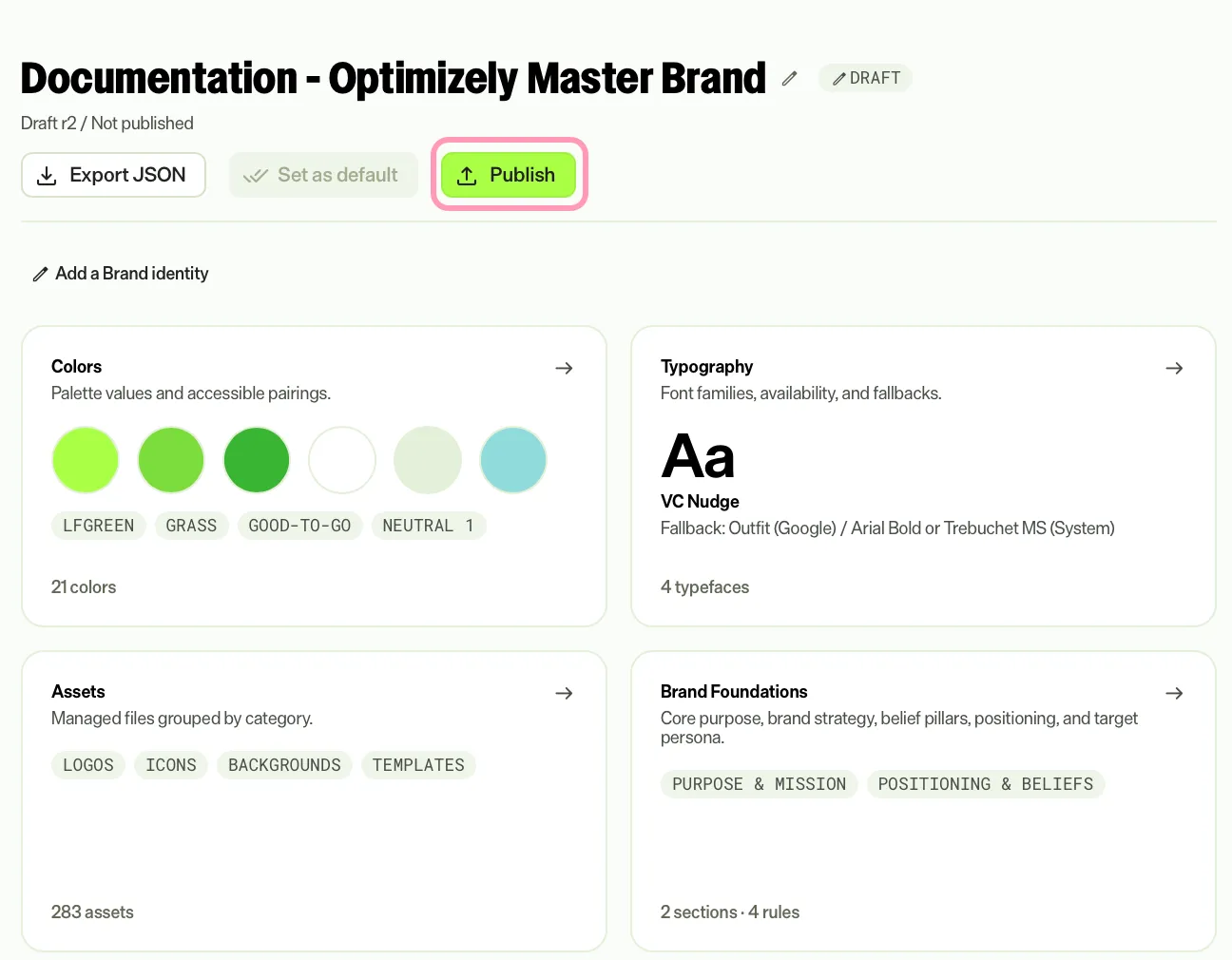
- Click Publish. The Publish Brand Pack dialog opens.
- Enter a summary of the changes in Change notes, which is required.
- Click Publish v1. The number in the label is the version that Opal creates.
The dialog states which draft Opal publishes and which version it creates. After you publish, agents follow the published version instead of the draft.
Turn the skill on or off
After you publish, the Brand Pack details page includes a Skill active toggle. Turn off Skill active to stop agents from using the Brand Pack skill. The Brand Pack stays published, but it no longer displays in the Brand Packs menu in Opal chat. Turn on Skill active to make the skill available again.
The toggle is unavailable while Opal compiles the skill. You need permission to manage skills to use the toggle. When the skill is off, the Brand Pack card displays a Skill inactive badge.
View and restore versions
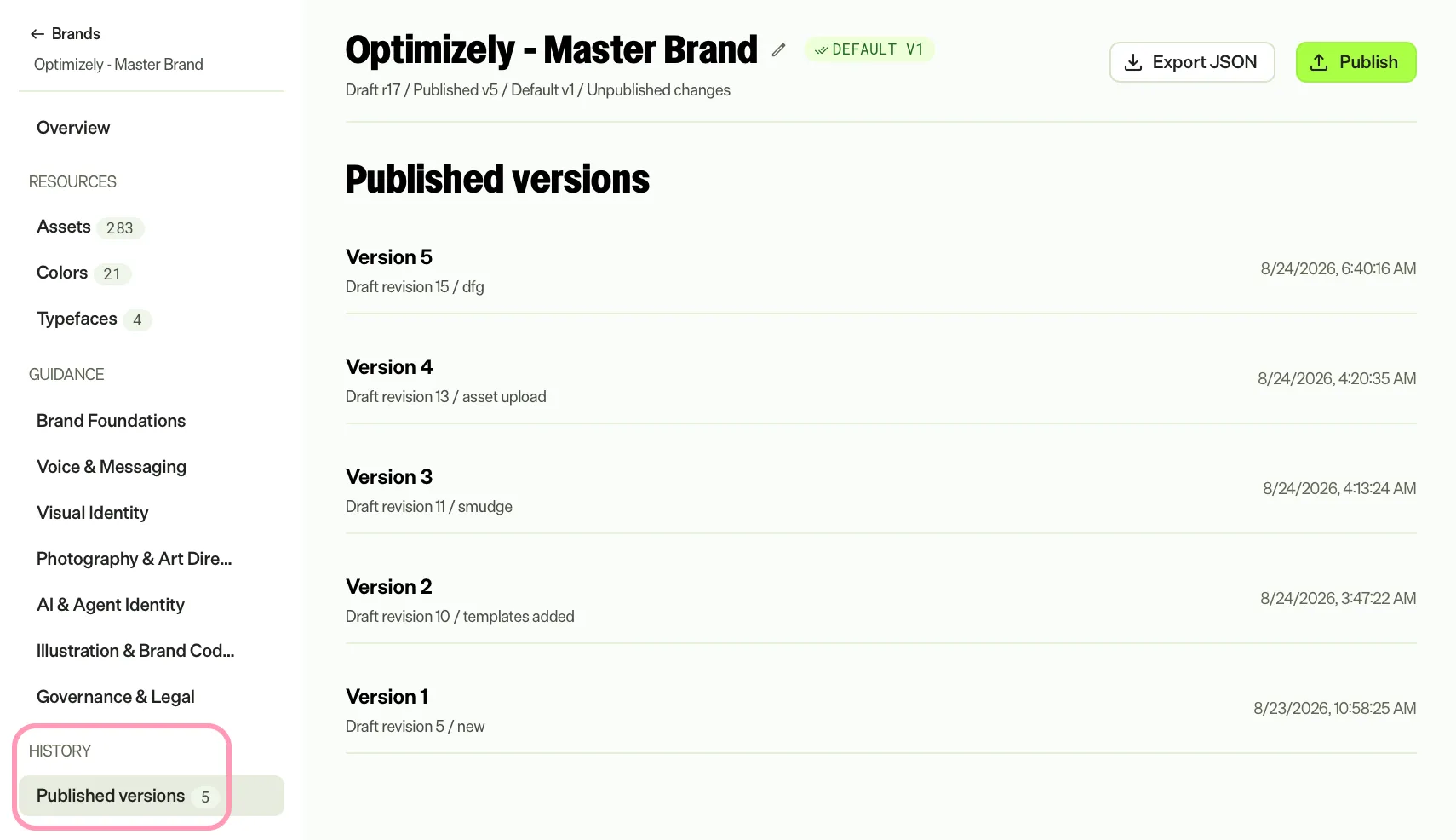
Opal versions each Brand Pack. The Published versions page lists each published version with its change notes. Restore a previous version to replace your draft with that version. Restoring changes only the draft. Published versions stay as they are.
To work with a version, complete the following steps:
- Click a Brand Pack.
- Go to History > Published versions.
- Click More on a version and select one of the following options:
- View this version – Open the version in read-only view.
- Restore this version – Replace your draft with this version. This option is unavailable when your draft already matches the version.
- Export – Download the version as JSON or a zip file.
When you select Restore this version, a dialog asks you to confirm. If your draft has changes that are not in any version, restoring discards them permanently. Click Restore version to confirm.
After the restore, a callout states that the version is not published. The restored draft does not take effect until you publish. To make the restored draft the latest version, publish the Brand Pack.
Export the Brand Pack data
To export the Brand Pack's structured data, hover over the Brand Pack's card on the Brand Packs tab and click More > Export. Alternatively, click More > Export on the details page or on a version. Choose one of the following options:
- Download JSON – Download the Brand Pack document. It references uploaded files instead of including them, so it works best within the same Opal instance.
- Download (zip) – Download the document with its files, so the Brand Pack carries to another Opal instance.
- Copy to clipboard – Copy the JSON.
Use the export to hand off the Brand Pack to engineering or to import it into another Opal instance. See Create a Brand Pack for import steps.
What changes when you republish
Republishing, including after a restore, does not change content you already generated. Opal applies the updated Brand Pack to content you generate afterward.
Start an image from a Brand Pack template
Use a published Brand Pack in Opal chat to start an on-brand image from an approved template. Opal places the template on a canvas, where you edit it. Complete the following steps:
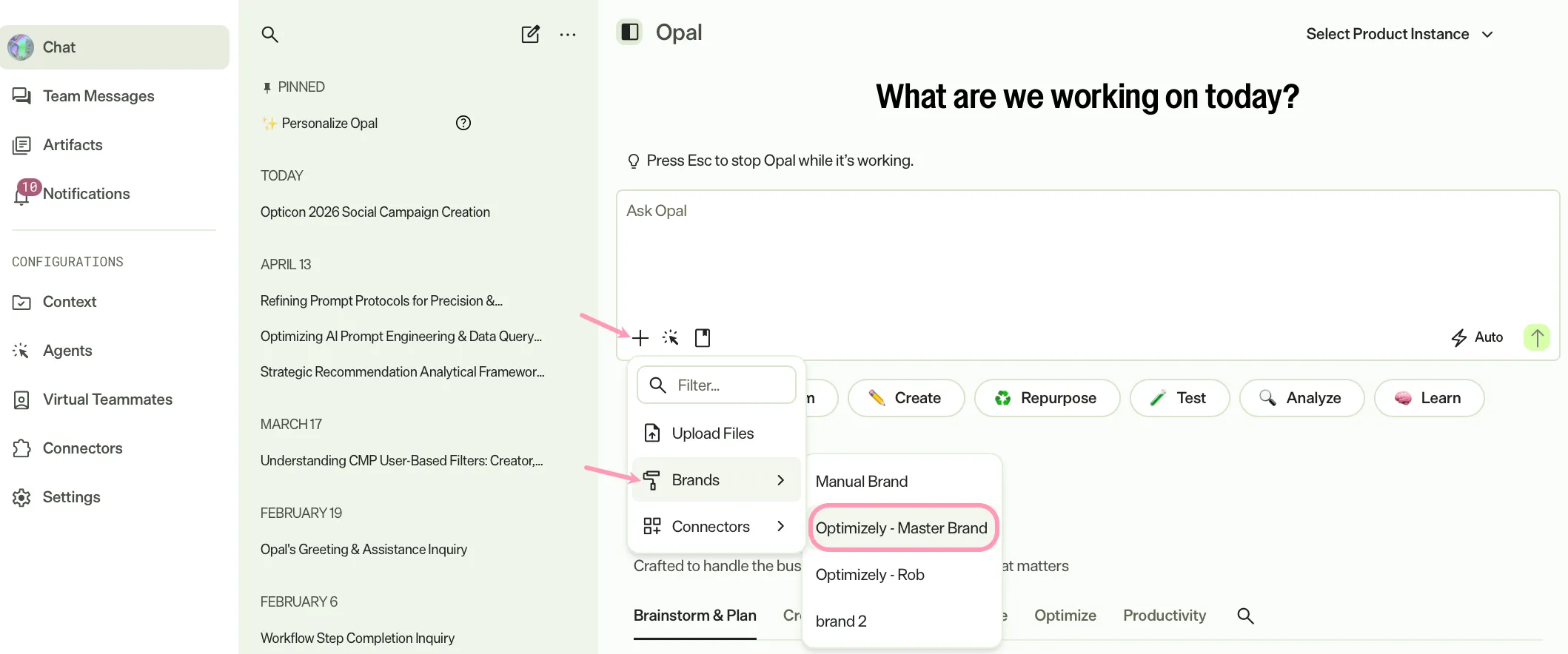
- Click Add.
- Select Brand Packs.
- (Optional) Enter a Brand Pack name in the text field to filter the list.
- Click a Brand Pack. A page opens with the heading Choose a template to start! The page lists the image templates in the Brand Pack.
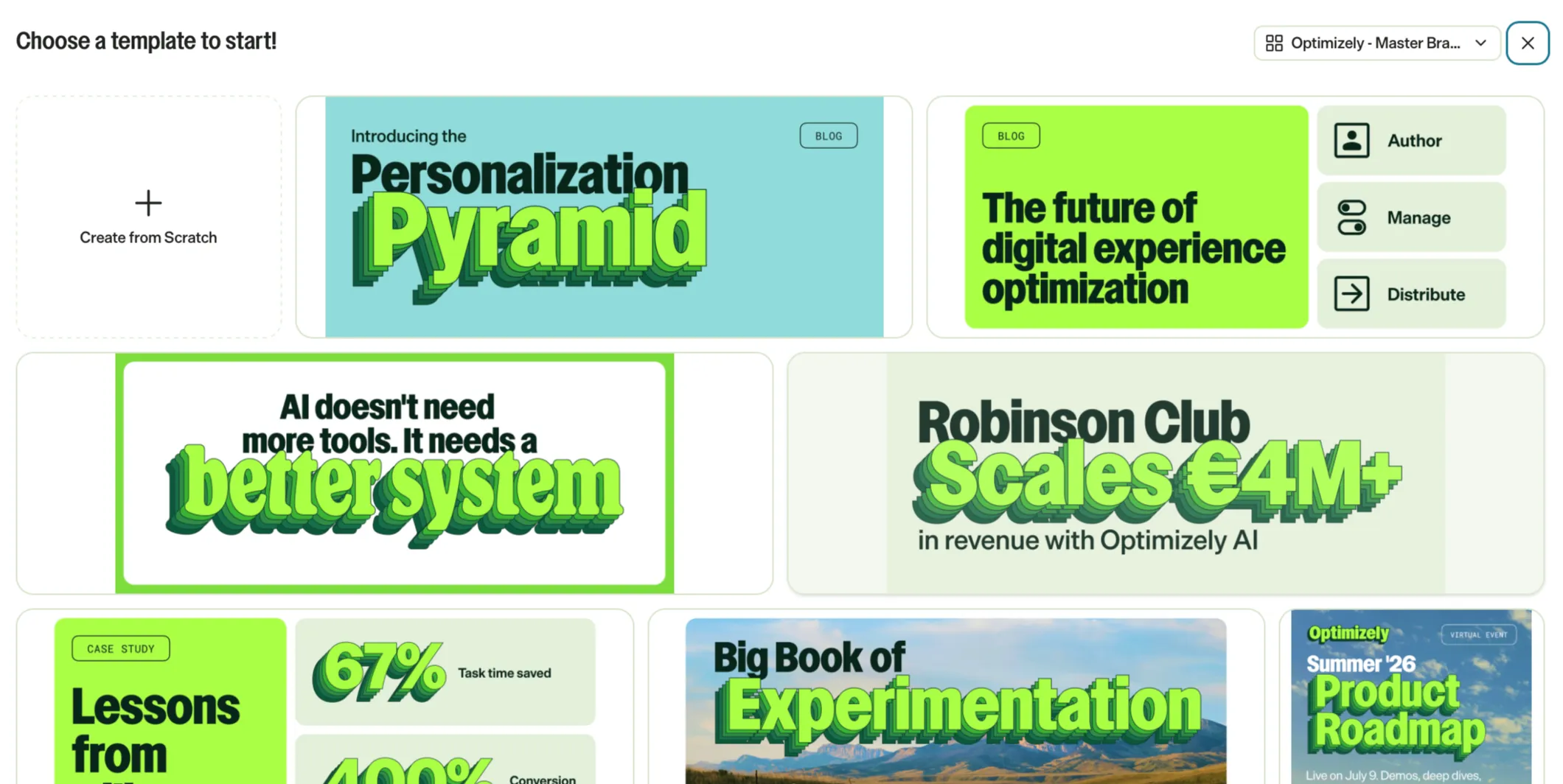
- (Optional) To switch Brand Packs, click the drop-down list that shows the Brand Pack name and select a different one. The default Brand Pack displays a Default label.
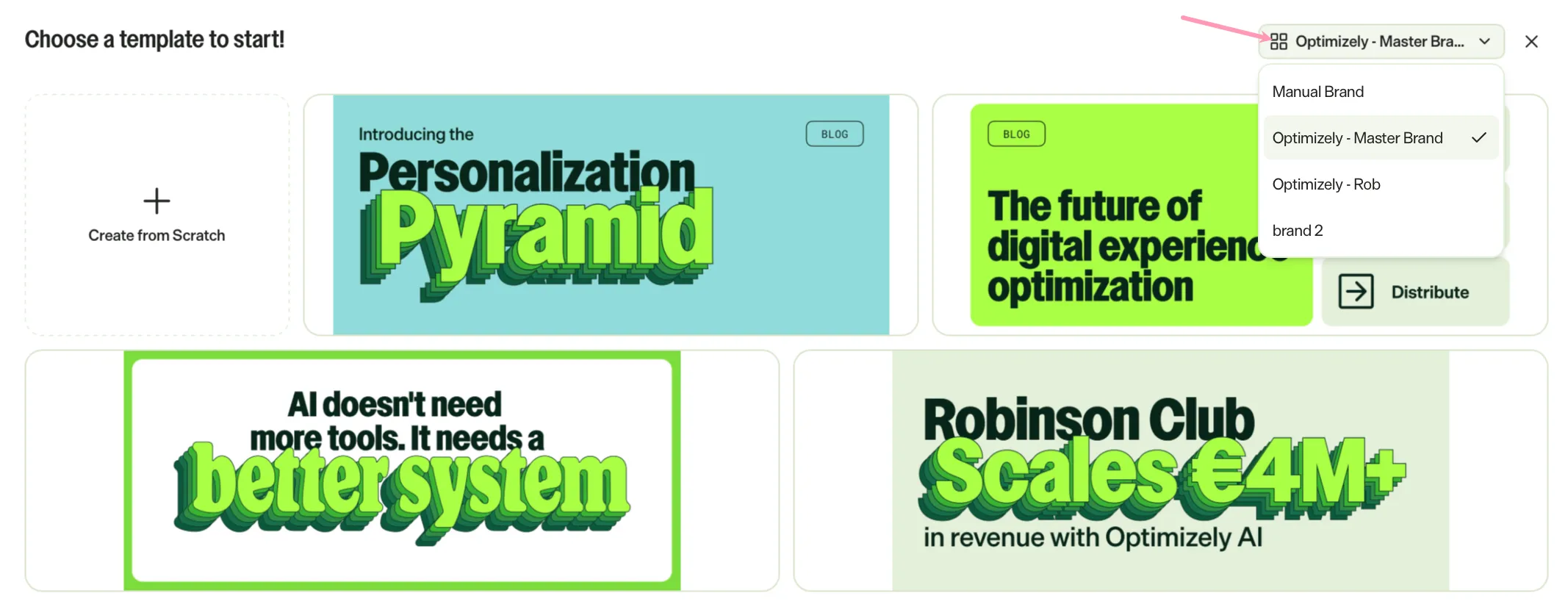
- Click a template.
Opal enters a prompt in the chat that names the Brand Pack skill and the template you selected. Opal then places the template on a canvas and replies with a link to open the canvas. The reply summarizes the template and the Brand Pack rules that Opal follows, then asks what you want to change.
To edit the template, describe the changes you want in chat, such as a headline, event details, a call to action, or a format.
The chat stays connected to the Brand Pack you selected. Opal edits the approved starting image and keeps the output within the Brand Pack's colors, typefaces, and visual identity.
If you click Create from Scratch instead of a template, the page closes and you return to Opal chat without a template. The chat is not connected to the Brand Pack, so Opal does not apply it to your prompts.
See Image editor for details on how to update images.
Apply a Brand Pack to Word and PowerPoint files
Apply a Brand Pack to a Word document or PowerPoint presentation so Opal uses your brand's colors, typefaces, and guidance in the file. The Brand Pack must be published, and Skill active must be on. To apply a Brand Pack, complete the following steps in Opal chat:
- Type / in the message box.
- Select the skill that has your Brand Pack's name.
- Describe the document or presentation you want.
- Send the message.
Opal creates the .docx or .pptx file using the Brand Pack guidance. See Generate PowerPoint presentations and Word documents with Opal for file options.
Note
If you use Opti ID, administrators can turn off generative AI in the Opti ID Admin Center. See Turn generative AI off across Optimizely applicationsTurn generative AI off across Optimizely applications.