Image editor
Use the Optimizely Opal image editor to refine a generated image without recreating it. Select an element, draw over an area, or outline a region with a shape to edit the image.
Open the image editor
To open the image editor, complete one of the following options from Opal Chat to begin:
- Upload a starting image and enter the following prompt: Create this image as is.
- Prompt Opal to generate an image. For example, Create an image for Opticon 2026.
Click Edit on the generated image to display the editor.
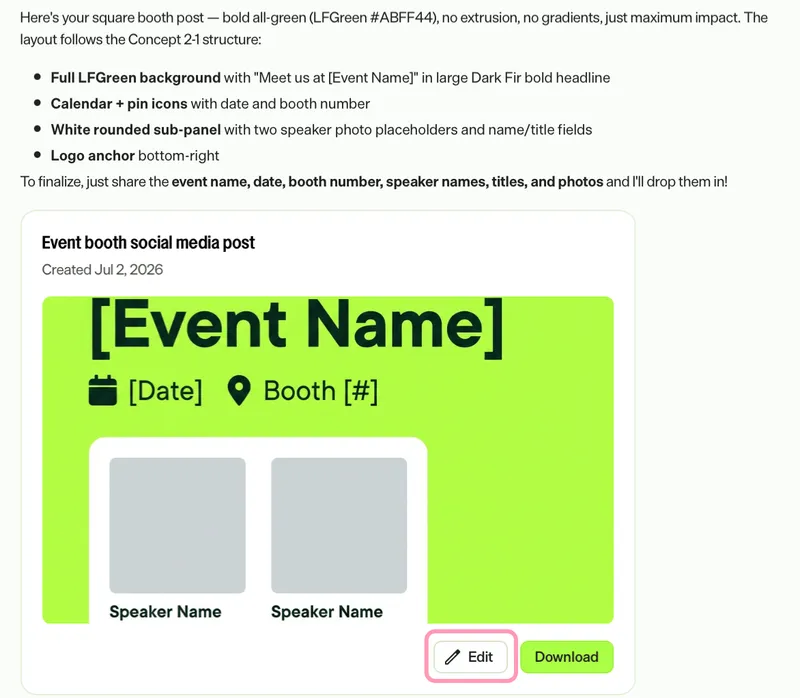
Image editor layout
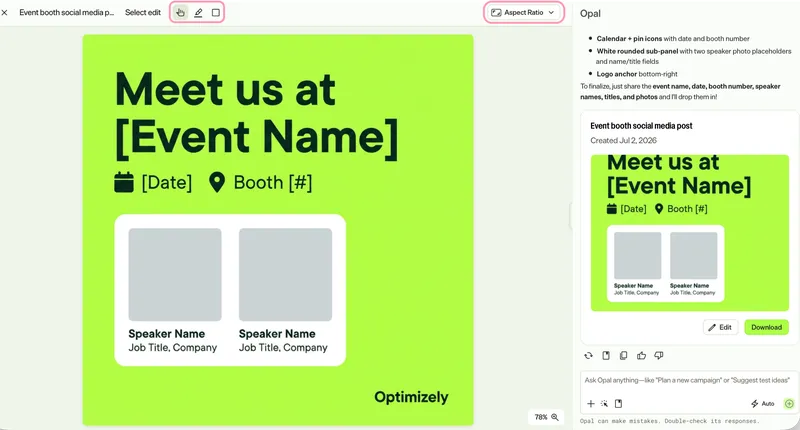
The image editor displays the image and Opal Chat side by side. The toolbar holds the three editing modes, Select, Draw, and Shape. It also contains a drop-down list to change the aspect ratio of the image.
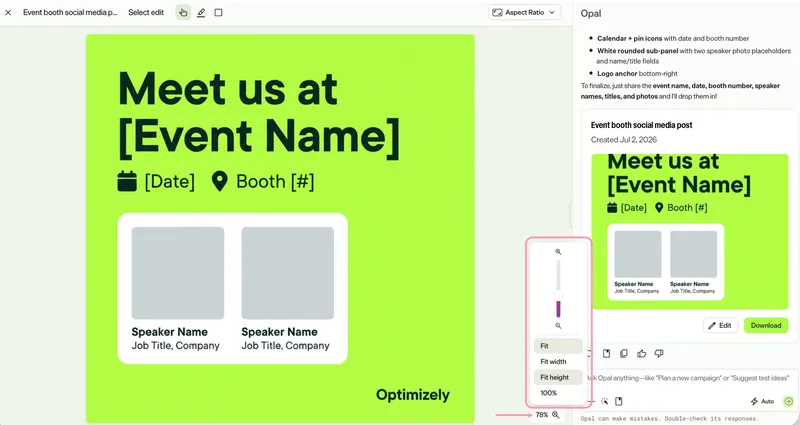
The image editor also opens at a default zoom level. Click Zoom to set a custom zoom level or select a preset.
Edit an image
Edit your image using the three editing modes.
Select individual elements
Select mode detects the separate parts of an image, such as text, shapes, and objects. Change one part without affecting the rest.
- Click Select.
- Click the element you want to edit.
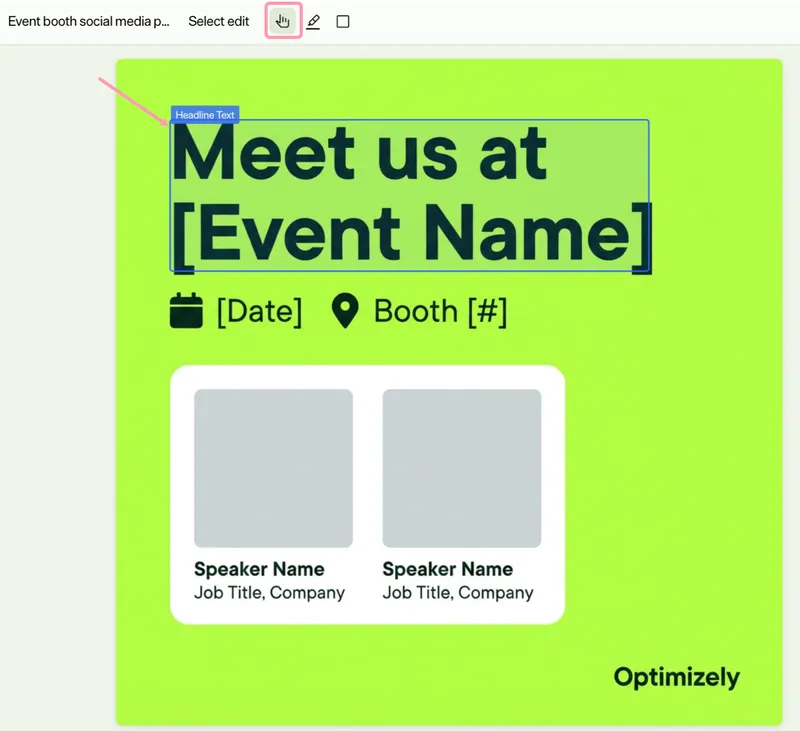
Opal displays the edit element options.
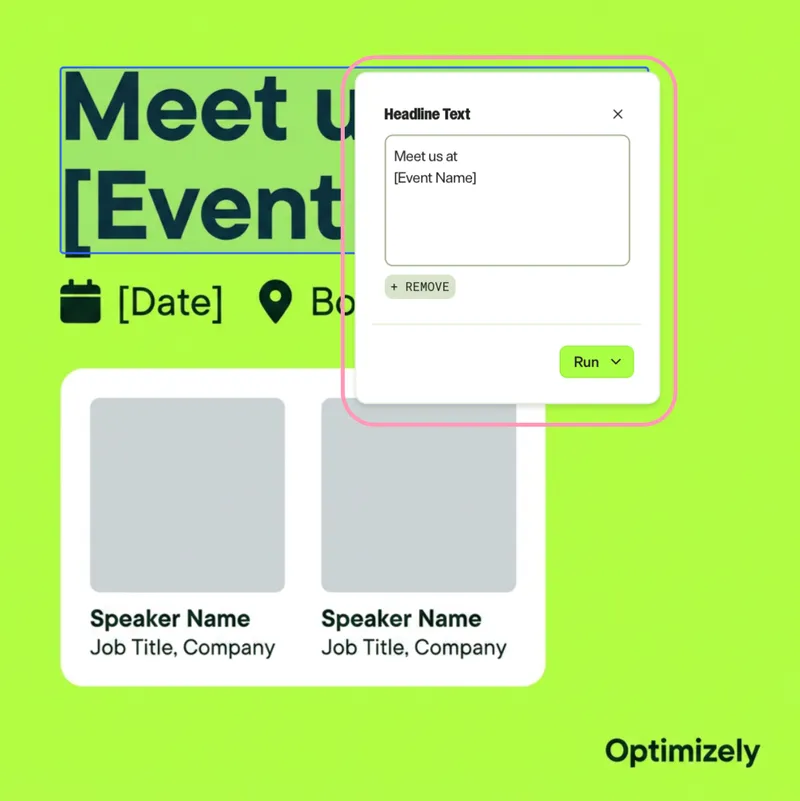
Depending on how you want to edit the element, see the following options:
Remove element – Click Remove. Opal queues the element removal. See Queue and run edits.
Edit the element – The edit box depends on the element type:
- Text element – The edit box displays the current text in the text field.
- Replace the text with the text you want.
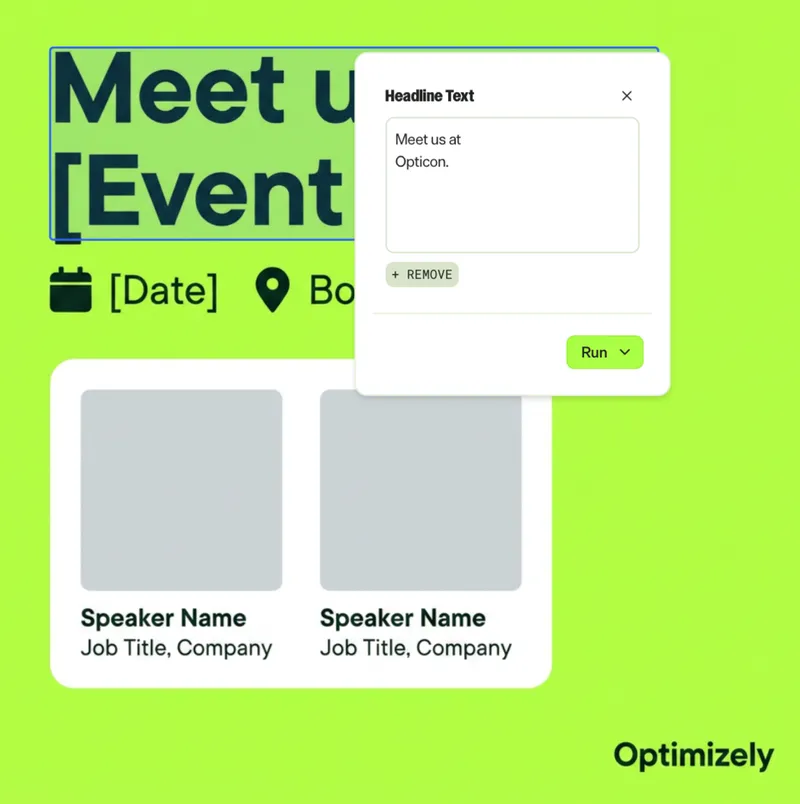
- Click Run.
- Select Run Now or Add to Queue. See Queue and run edits.
- Other element – The edit box displays a text field for your change instructions.
- Describe the change you want Opal to make. You can also drag-and-drop an image from your computer or copy it and paste it in the text field.

- Click Run.
- Select Run Now or Add to Queue. See Queue and run edits.
Draw over an area
Draw mode lets you paint over the exact area you want to change for finer control than Select mode. Use it when a change does not map to a single detected element, or when you want to target only part of one.
- Click Draw.
- (Optional) Drag the Brush Size slider to set the brush width.
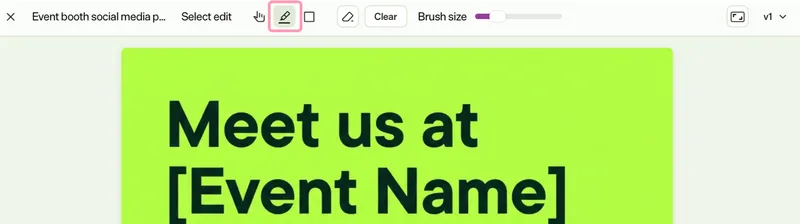
- Paint over the area you want to change.
- In Edit brush area, describe the change you want Opal to make. You can also drag-and-drop an image from your computer or copy it and paste it in the text field.

- Click Run, then select Run Now or Add to Queue. See Queue and run edits.
Outline an area with a shape
Shape mode lets you select a specific area of the image.
- Click Shape.
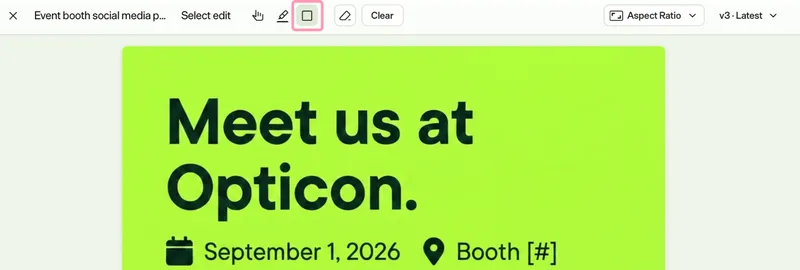
- Click and drag to create a rectangle.
- In Edit brush area, describe the change you want Opal to make. You can also drag-and-drop an image from your computer or copy it and paste it in the text field.
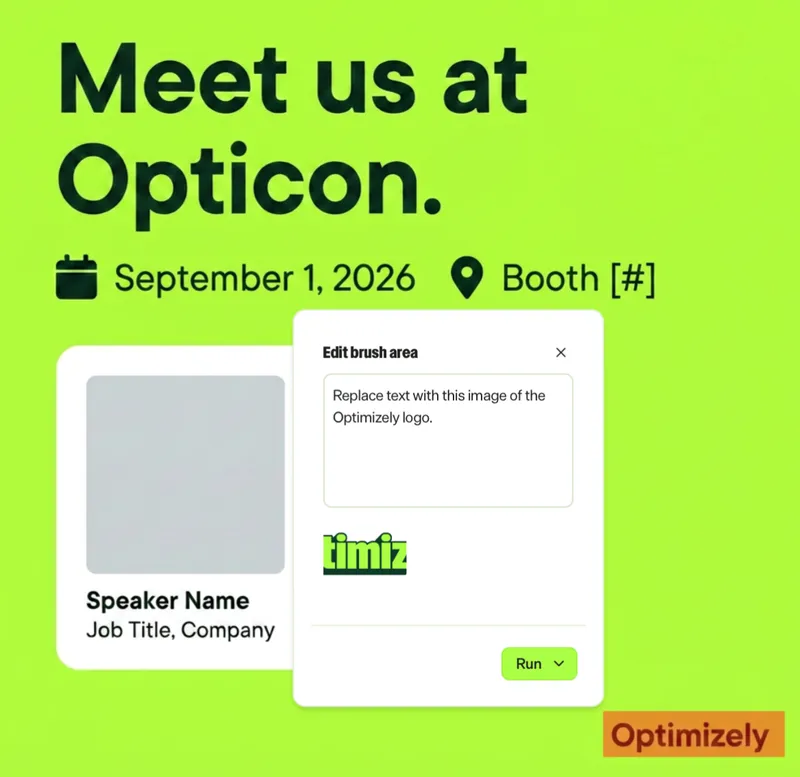
- Click Run, then select Run Now or Add to Queue. See Queue and run edits.
To clear the painted area, click Clear mask.
To refine your selection, click Eraser, then click and drag over the area you want to erase.
Queue and run edits
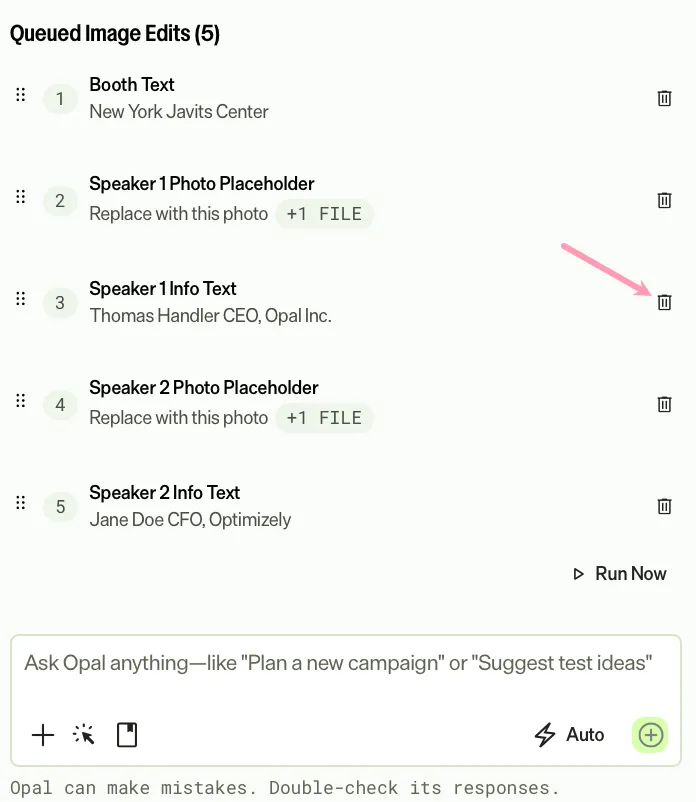
Run an edit immediately, or add it to a queue to run several edits together. Each editing mode has its own queue, and you cannot mix the modes in a single run.
When you finish an edit, click Run and select an option:
- Run Now – Applies the edit immediately and creates a version.
- Add to Queue – Holds the edit so you can add more edits of the same mode before you run them.
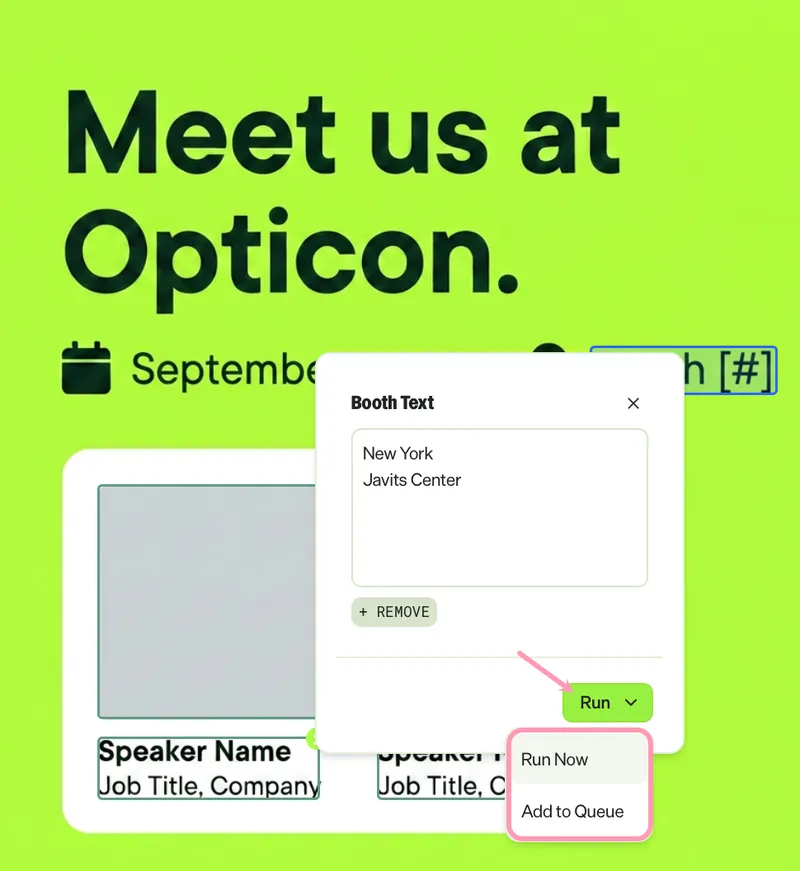
To run queued edits, follow these steps:
- Add one or more edits of the same mode to the queue.
- Click Run Now to run the queue.
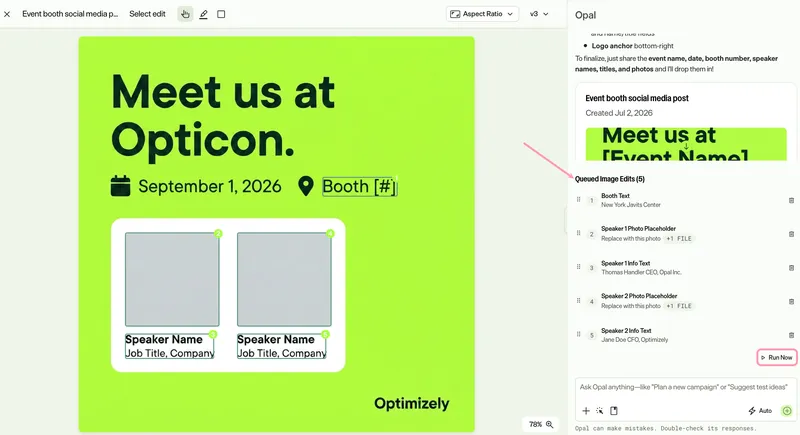
If you switch editing modes while edits are pending, Opal prompts you to run or clear them first.
How Opal applies queued edits
Opal combines the queued edits into a single instruction and applies them at the same time. Opal then creates a version with the result.
When the queue holds more than one edit, the order sets how Opal writes the instruction. The order affects the results because each edit reads as part of a sequence. For example, you queue the following changes:
- Change the background to a night sky.
- Add stars in the sky.
The current order makes sense. The reverse order does not, as the night sky would hide the stars.
Manage queue
Manage the queue in Queued Image Edits in Opal Chat:
- Reorder a queued edit to change its position in the instruction.
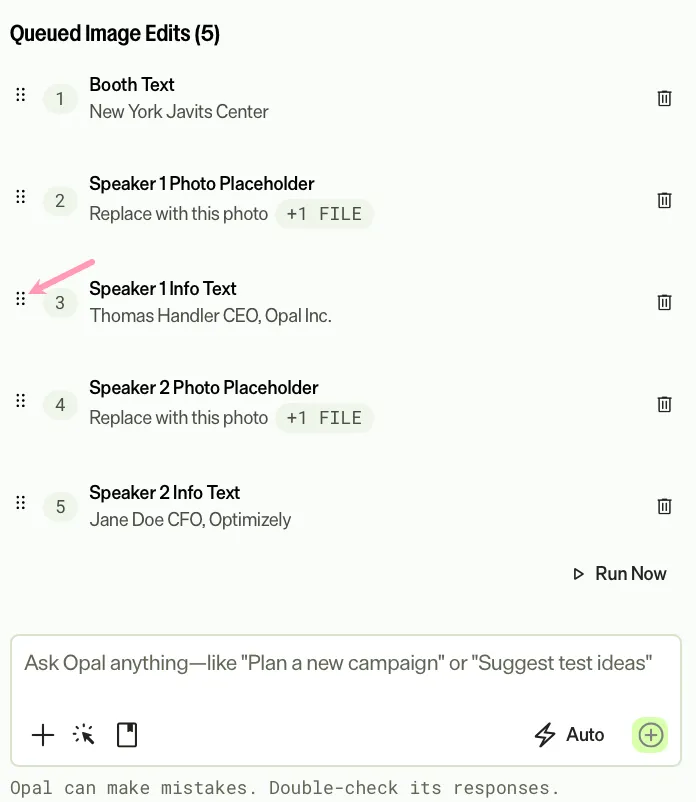
- Click Delete to remove a queued edit.
Change the aspect ratio
Change the aspect ratio to resize the image for a different placement. For example, use 1:1 for a social post or 16:9 for a banner. Aspect ratio changes apply immediately. Opal does not add them to the queue.
- Click the aspect ratio drop-down list.
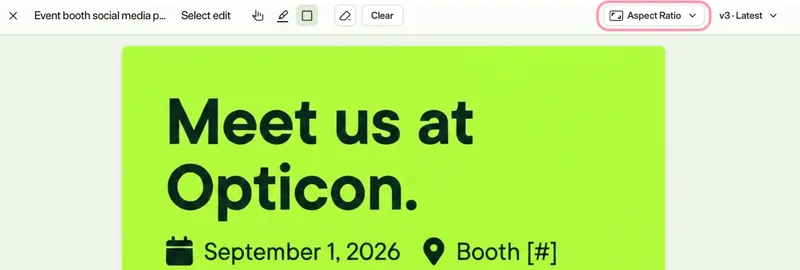
- (Optional) Enter a ratio in the filter field to narrow the list.
- Select an aspect ratio.
Opal resizes the image and creates a version with the result.
Manage versions
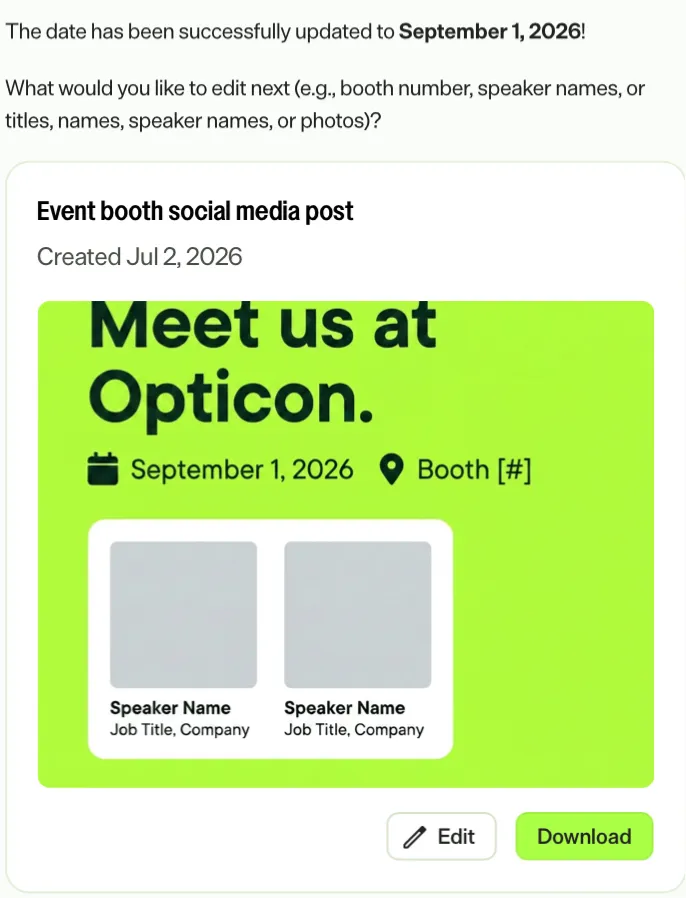
Every run creates a version, shown as a card in Opal Chat. Use versions to compare results and revert to an earlier image when an edit does not look right.
- Each card displays a preview of the image.
- Click Edit to open that version in the image editor and continue editing from that point.
- Click Download to save a version on your computer.
Select different versions in the image editor from the drop-down list.
- Click the version drop-down list.
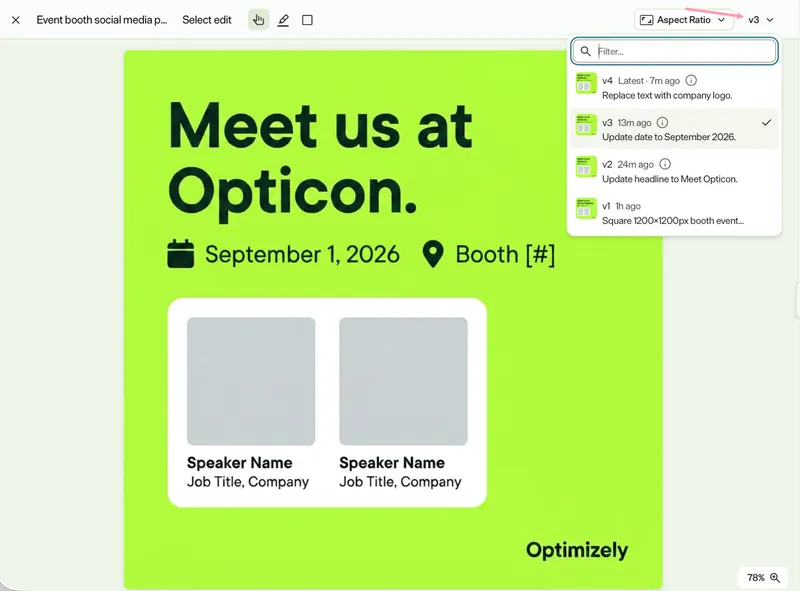
- (Optional) Enter a version number or an edit to filter the list.
- Click a version to open it in the editor.
Note
If you use Opti ID, administrators can turn off generative AI in the Opti ID Admin Center. See Turn generative AI off across Optimizely applicationsTurn generative AI off across Optimizely applications.