Manage canvases
Canvases (also known as elements) in Mark (Optimizely Agent Platform) are collaborative digital spaces where you and Mark co-create and refine digital assets such as documentation, code, and HTML pages. Edit content, manage version history, and get real-time Mark assistance without leaving the space. For example, generate an HTML contact form with Mark, then iterate on the design and copy in the canvas while Mark applies your changes in real time. For more information, see the Canvas overview.
Note
See Canvas and artifacts for a list of available canvas tools.
Create a canvas
Mark uses the create_canvas tool to create an interactive canvas (also called an element). You and Mark can then edit digital assets in the canvas together.
You can create a canvas in Mark chat in three ways. With Implicitly and Explicitly, Mark creates the canvas as part of its response. With Directly, you convert an element Mark already produced into a canvas. The three options are:
- Implicitly – By entering a prompt where Mark infers the need for a canvas. For example, Make an HTML page with a simple contact form.
- Explicitly – By entering a prompt that specifically instructs Mark to use the canvas tool. For example, Make an HTML page with a simple contact form using the canvas tool.
- Directly – By clicking Edit in canvas after sending a prompt to Mark that generates an element but does not automatically create a canvas or invoke an agent.
Locate the canvas Mark created in its response. The canvas displays as a card with the canvas name (for example, Contact Form) and its MIME type (for example, HTML). The MIME type is the format identifier that tells Mark whether the canvas holds HTML, Markdown, React code, or another asset type. From the card, do one of the following:
- To open the canvas in preview mode, click the canvas name or Preview.
- To open the canvas in code mode, click Edit code.
- To save the canvas to your computer, click Download and select a file type.
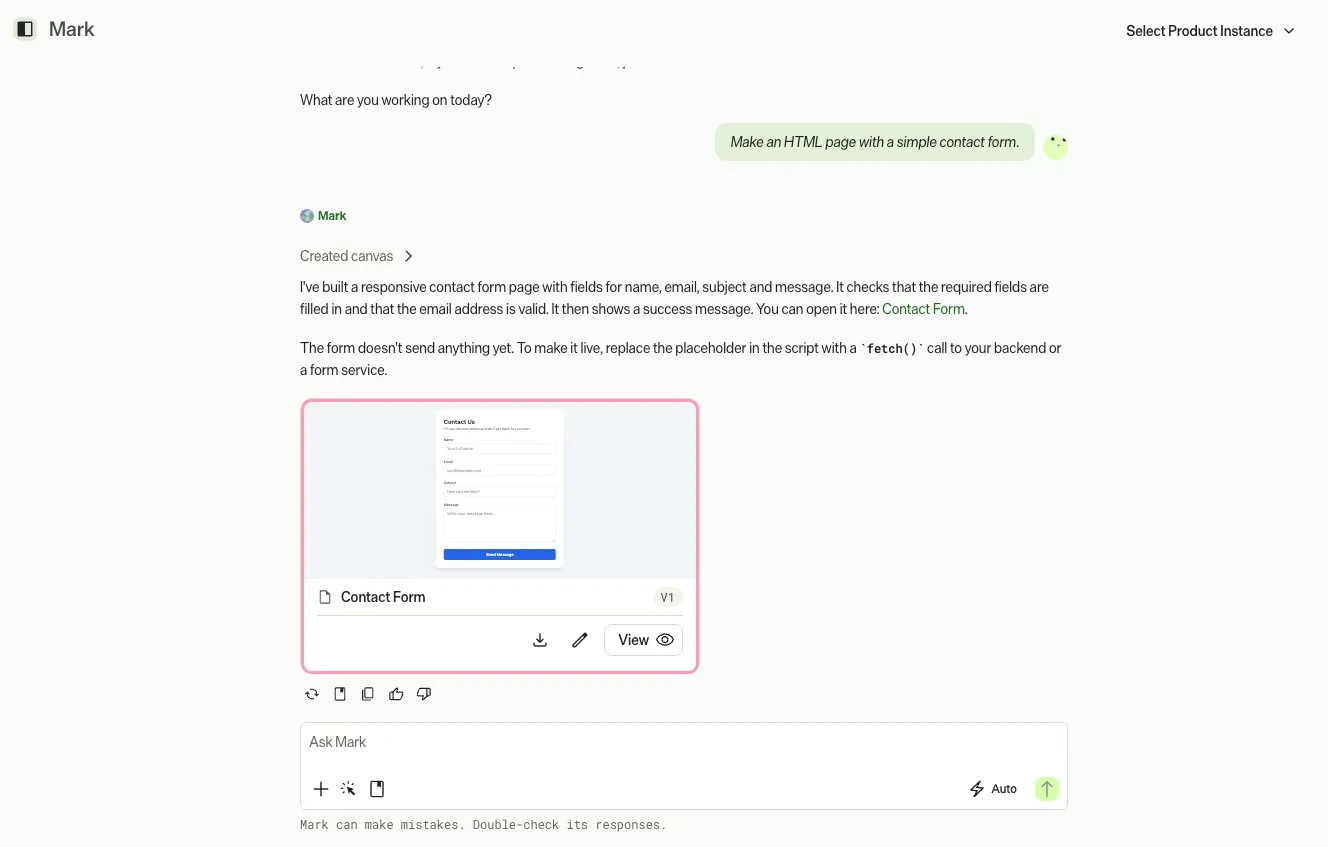
The canvas opens in a split-screen page that displays the canvas alongside Mark chat, so you can edit the asset and prompt Mark in the same view. See Collaborate with Mark in canvas for next steps.
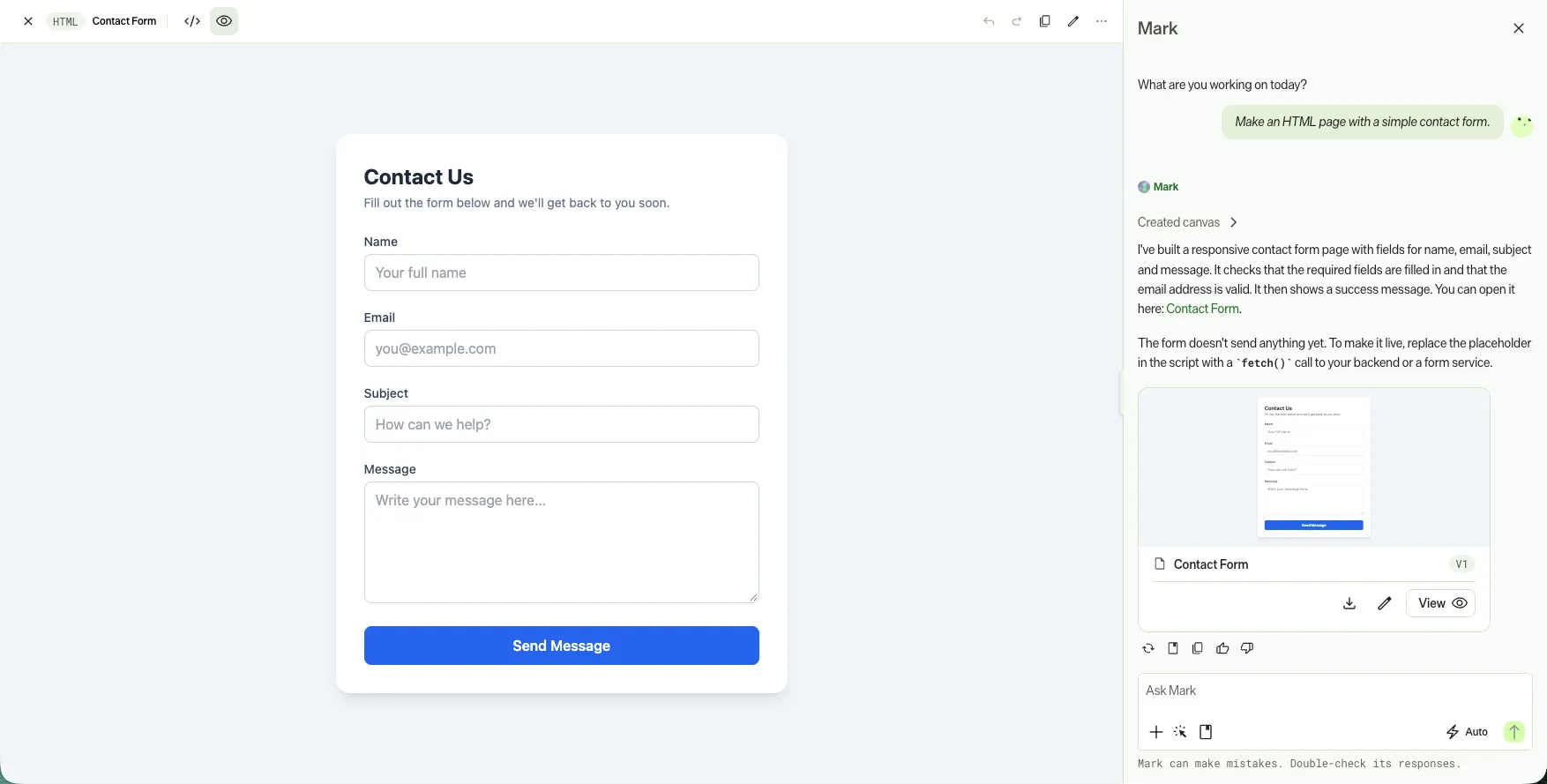
Collaborate with Mark in canvas
After you create a canvas, collaborate with Mark to refine and enhance the asset. Modify code, text, and other elements in the canvas while Mark responds in the chat panel. On the canvas page, you can do the following:
- Edit directly – Modify the digital asset using a rich text editor for formats like Markdown or HTML, or a code editor for application formats such as React or Next.js.
- Receive AI assistance – Prompt Mark in the chat panel to refine, transform, or generate canvas content without leaving the editor.
- Manage version history – Review previous versions of the canvas and revert to an earlier version when needed.
- Adjust properties – Modify metadata, settings, or other properties of the canvas.
Use Mark's assistance
Prompt Mark from the chat panel to help with tasks, such as the following:
- Content generation – Write a paragraph about the benefits of personalization.
- Text refinement – Rewrite this section to be more concise and engaging.
- Summarization – Summarize the key points of this document.
- Code generation or modification – Add a responsive navigation bar to this HTML or Create a new function in this React component to handle form submission.
- Formatting and structure – Organize this markdown into a clear outline with headings.
- Translation – Translate this text into French.
Mark updates the open canvas in place, so you do not need to copy or paste the response. Keep prompting Mark to refine the canvas until it matches what you want.
Example: collaborate with Mark in canvas
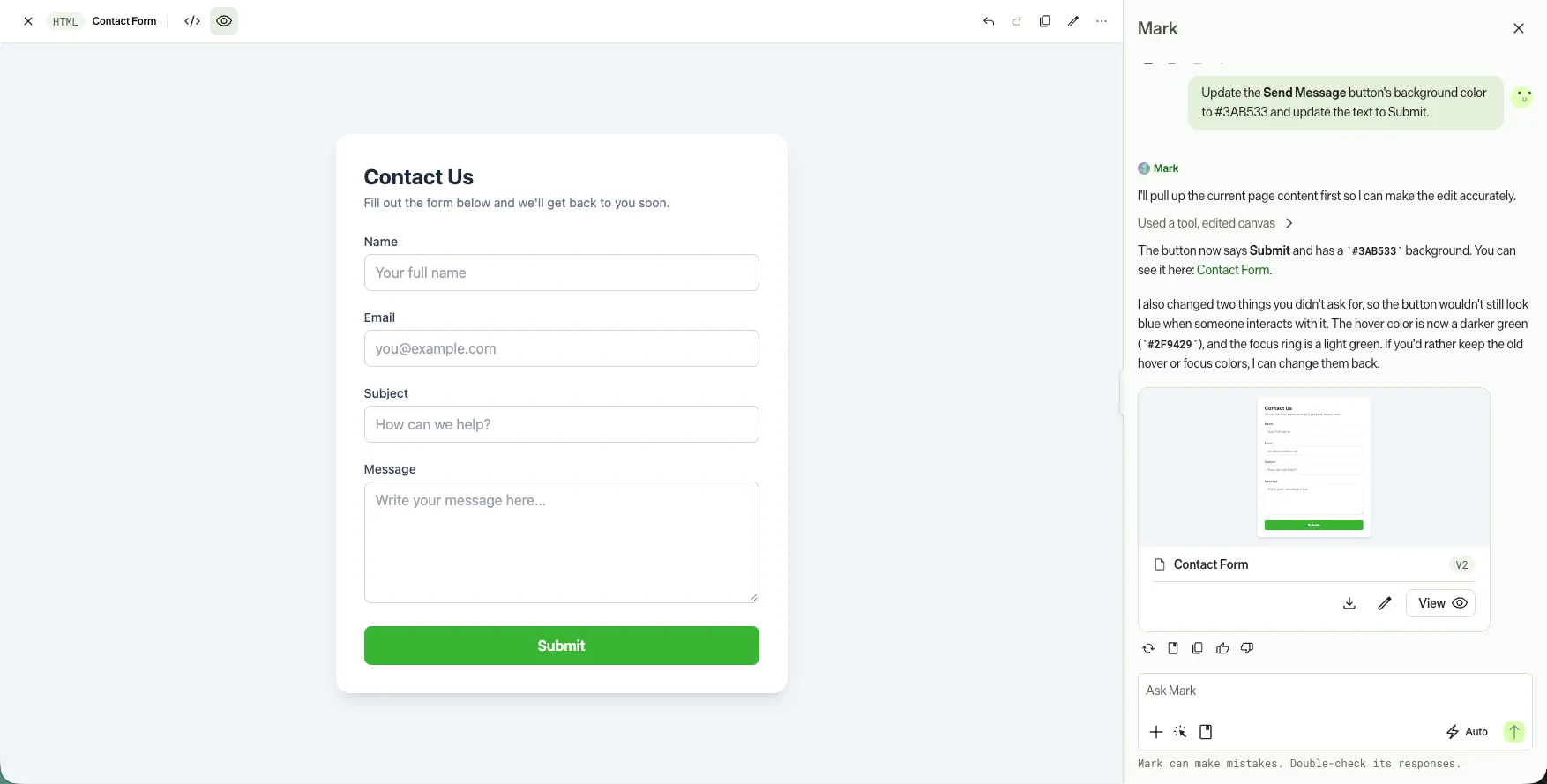
To continue the Create a canvas example, prompt Mark to update the contact form.
Scenario – You want to update the button text and color on your contact form.
- User prompt (in Mark chat) – Update the Send Message button's background color to #3AB533 and update the text to Submit.
- Mark's action – Mark updates the code in the canvas to apply the new button text and color.
View version history
Version history lists each saved version of a canvas. Use it to review when the canvas changed and who changed it.
To open version history, complete the following steps:
- Open the canvas.
- Click More.
- Click Version history.
The panel lists the Current Version and the Previous Versions. Each version card displays when someone saved the version. When the canvas records authors, each card also displays an avatar and a name after the time. The name belongs to the person who saved the version.
The name on a card depends on who saved the version:
- A person – Displays the person's name and avatar.
- A Virtual Teammate – Displays the teammate's name and picture.
- An edit that Mark makes – Displays the person who asked for the edit.
- An automated change – Displays By Optimizely.
- A user who is no longer known – Displays By Removed user with a generic avatar.
Versions without a recorded author display no name.
Restoring a version adds a latest version that names the person who restored it. For image artifacts, the card keeps its thumbnail and displays the name next to the time.
Dashboard data refreshes name the user the refresh ran as. The list hides data refreshes unless you toggle Show data refreshes on.
Find and switch between canvases
To review, export, or continue working on a canvas you created earlier, open it from Mark chat or the Artifacts page.
Through Mark chat
To access a previously created canvas from Mark chat, complete the following steps:
- Go to the chat thread (space) where you initially generated the canvas.
- Click the canvas name or Preview.
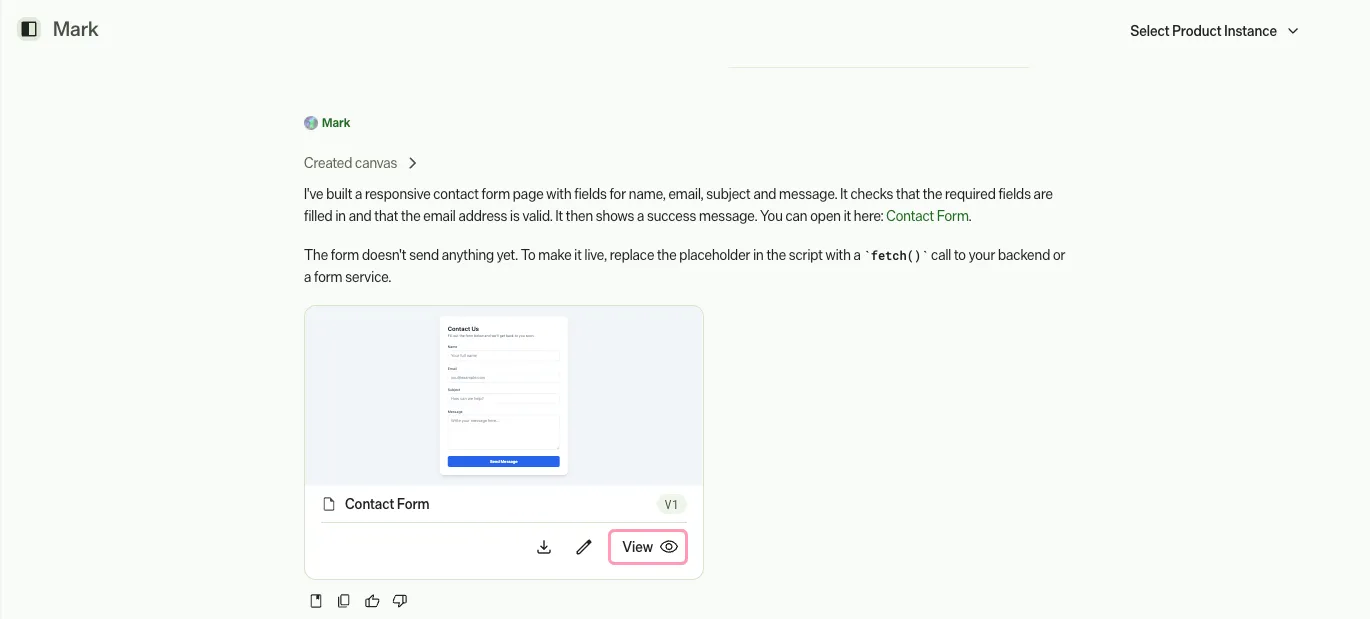
- See Collaborate with Mark in canvas, for next steps.
From the Artifacts page
To access a previously created canvas from the Artifacts page, complete the following steps:
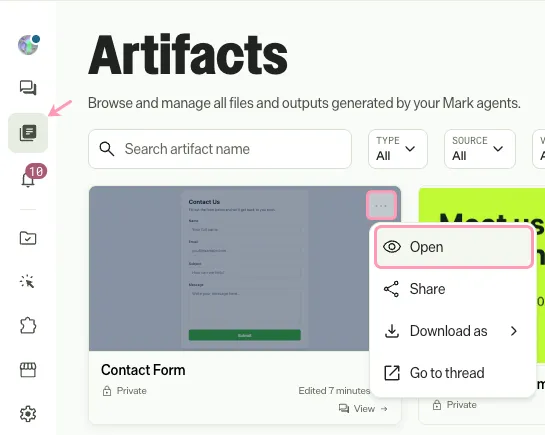
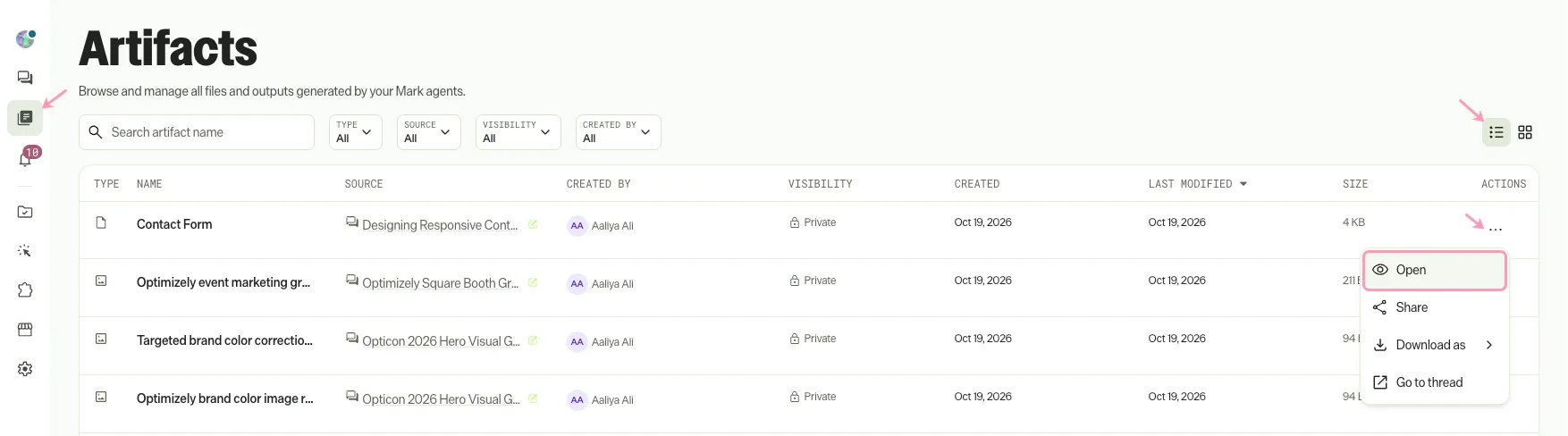
- Click Artifacts.
- Click the canvas, or click More > Open.
Grid view
List view
Access a canvas from within a space
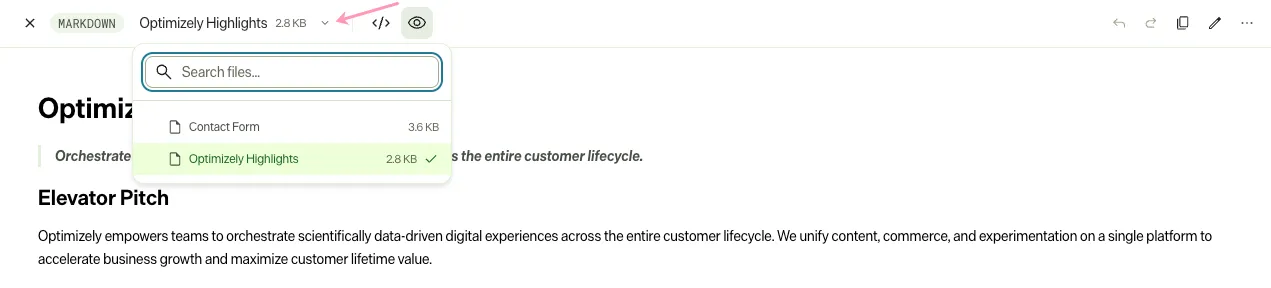
To switch canvases within the same space, complete the following steps:
- Open the canvas Through Mark chat or From the Artifacts page.
- Select a different canvas from the drop-down list.
Share a canvas
A canvas is a type of artifact, so canvas sharing uses the same model as artifact sharing. Grant view, edit, or manage access to specific people, teams, or your entire instance.
Sharing applies at the space level. When you share one canvas, you share every artifact in the same chat thread or agent execution.
See Share artifacts for the procedure and details on visibility and permission levels.
Export and download canvas assets
To export a canvas, download it. The available file types depend on the canvas's MIME type. See Supported formats and Available download formats in the Canvas overview for the full list.
Export canvas content in chat
Retrieve a canvas's content without opening the canvas.
- Go to the chat thread (space) where you initially created the canvas.
- Enter a prompt asking Mark for the output by name or ID, such as the following:
- What is in my 'Product Listing Page'?
- Can you remind me what the 'Advanced Contact Form' looks like?
- Show me the content of the 'Simple Contact Form'.
List canvases in a space
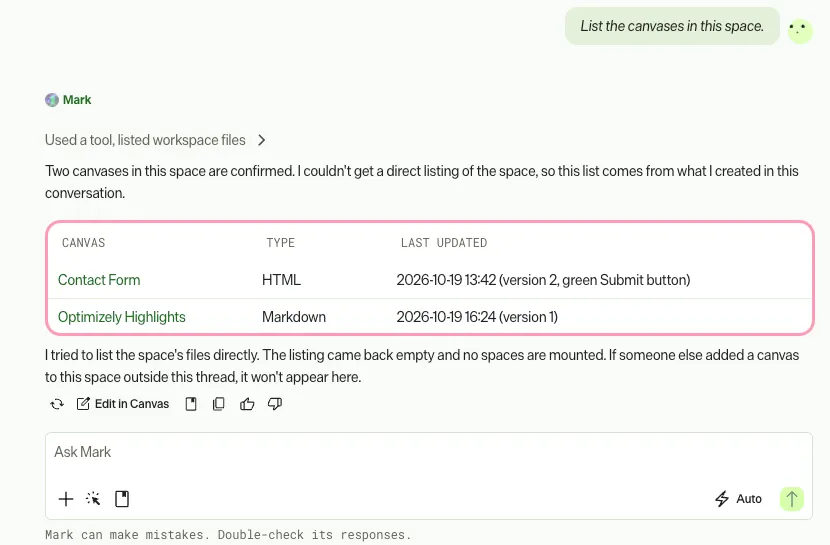
Ask Mark to list all canvases in the current space. The response includes each canvas's Element ID, Name, and MIME type.
To list the canvases in your current space, enter a prompt like the following:
- List the canvases in this space.
- What elements are in this chat?
- Show me the elements in this space.
- What content is in this space?
- Can you give me an overview of the canvases here?
- Display all elements in the current space.
Mark replies with a list of canvases and their metadata, similar to the following example:
Get space information
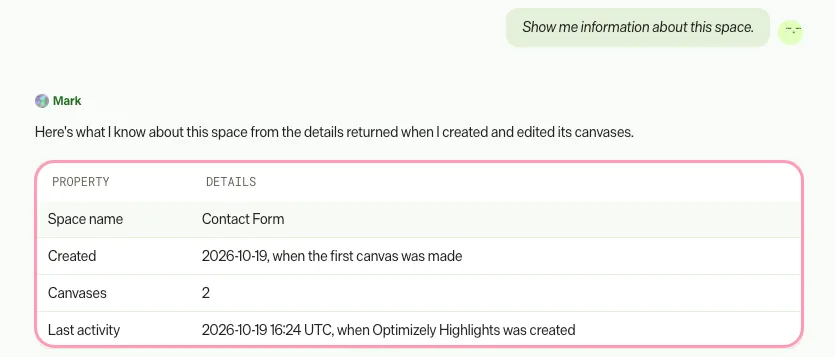
Ask Mark for information about the current space, including its name, unique identifier, and creation date. You can use this information to confirm you are in the right space, identify it in the navigation, track when it was created and last updated, or share its identifiers with the Optimizely Support team during troubleshooting.
To get information about the current space, enter a prompt like the following:
- Show me information about this space.
- What are the details of this space?
- Get space information.
- Tell me about this space.
- What is the name of this space?
Mark replies with details about the current space, similar to the following example:
Note
If you use Opti ID, administrators can turn off generative AI in the Opti ID Admin Center. See Turn generative AI off across Optimizely applications.