Canvas overview
A canvas is a building block for digital experiences, such as a document, web component, slide deck, or other asset you create and edit with Mark (Optimizely Agent Platform). A space is the version-controlled workspace that holds one or more canvases. Each chat thread has one space. See Share artifacts for how space-level permissions control access to artifacts from the same conversation.
Use a canvas to collaborate with Mark in real time on iterative work like marketing briefs, web components, and presentations.
Supported formats
Mark supports rendering and editing the following MIME types (the format identifiers that tell the canvas how to display each digital asset):
- text/markdown – For documents, briefs, emails, and articles.
- text/html – For pure HTML content.
- application/x-reactjs – For React components and applications.
- application/x-nextjs – For Next.js pages and applications.
- text/csv – For comma-separated values (CSV) plain text data formats.
- application/vnd.ms-powerpoint – For Microsoft PowerPoint presentations (when using the create_powerpoint_canvas tool).
Available download formats
Download the canvas in different file types based on its MIME type.
- text/markdown
- Microsoft Word – .docx
- PDF document – .pdf
- Plain text – .txt
- Rich text format – .rtf
- Markdown – .md
- text/html
- HTML – .html
- PDF document – .pdf
- Plain text – .txt
- application/x-reactjs
- JavaScript – .js
- JavaScript JSX – .jsx
- application/x-nextjs
- JavaScript – .js
- JavaScript JSX – .jsx
- text/csv
- Comma Separated Values – .csv
- Microsoft Excel – .xlsx
- PDF document – .pdf
- application/vnd.ms-powerpoint
- Microsoft PowerPoint – .pptx
- PDF document – .pdf
Canvas UI overview
A canvas adapts its UI to the digital asset's MIME type, so the controls match what you are editing. See the Supported formats section for a list of available MIME types.
Canvas header states
The canvas header has a view state and an edit state, so the controls match what you are doing. A canvas opens in the view state. This header applies to a canvas you open from Artifacts, beside a chat, or with the chat closed.
In the view state, the header displays the type badge and title of the canvas, plus the following controls:
- Close – Closes the canvas.
- Share – Opens the sharing panel for the canvas.
- Edit – Switches to the edit state. For an HTML canvas, Edit opens the code view. A Markdown canvas stays rendered and editable.
- More actions – Opens a menu that includes Copy, Download as, and Version history. Copy confirms with a notification, and a failed copy reports a failure. See View version history.
The Code, Source, and Preview toggles do not display in the view state.
Click Edit to switch to the edit state. Not all canvases are editable.
In the edit state, the header displays the title plus the following controls:
- Code and Preview – Switch between the code and the preview of an HTML canvas. A Markdown canvas displays Source and Preview instead.
- Undo and Redo – Reverse or reapply a change. These controls display only while you edit.
- Download – Downloads the canvas. See Available download formats.
- Save – Saves your changes. The label reads Saving with a spinner while the canvas saves.
text/markdown
Markdown canvases display as formatted text. Use them for documents, briefs, emails, and articles.
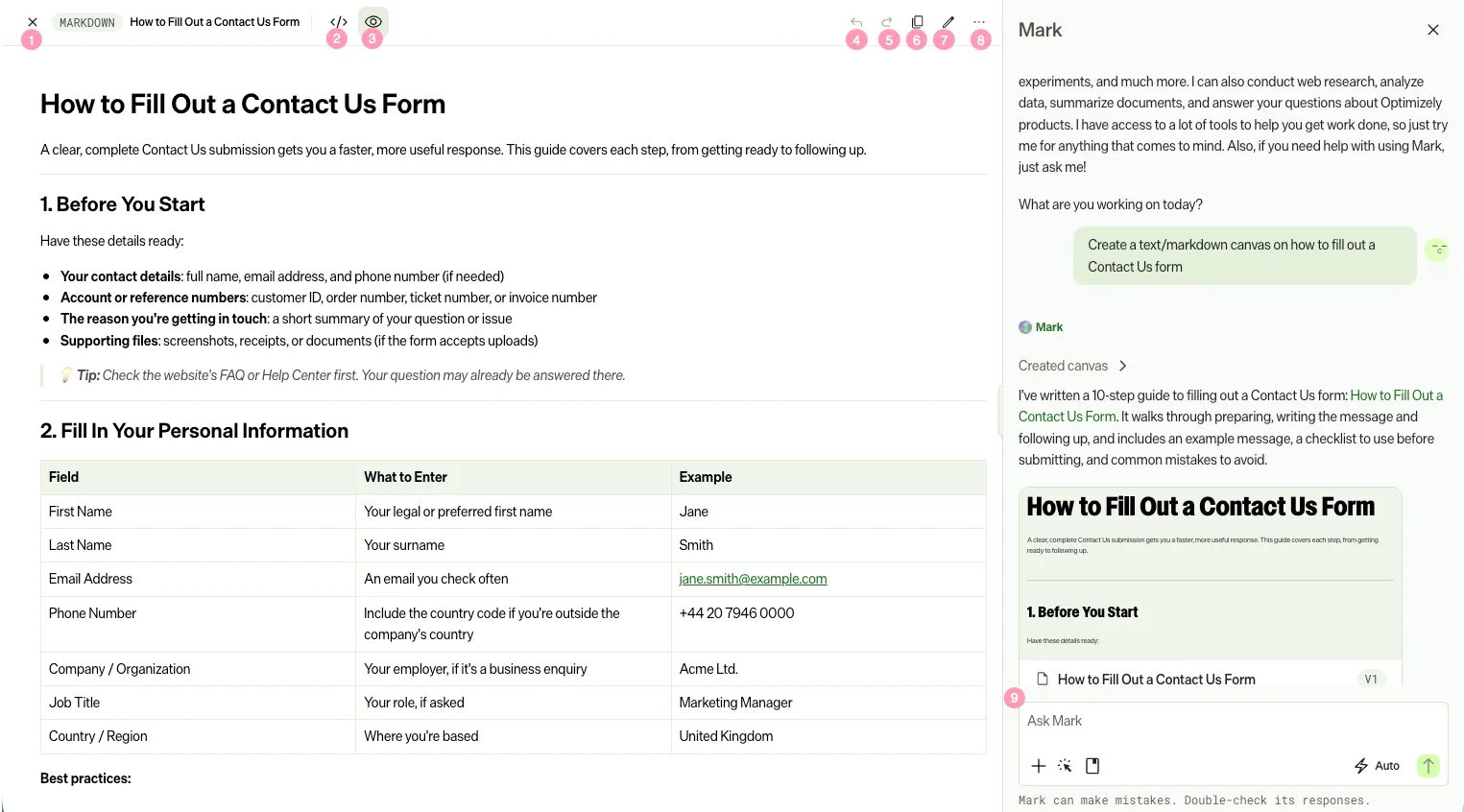
The numbered annotations correspond to the following controls:
- Close the canvas and return to Mark chat.
- Switch to raw Markdown mode to edit the underlying Markdown directly.
- Switch to rich text mode to edit the Markdown in a What You See Is What You Get (WYSIWYG) editor.
- Toggle between canvases in the same workspace.
- See the total number of files and size of the workspace.
- Undo changes in the canvas.
- Redo changes in the canvas.
- Copy the raw Markdown.
- Download the canvas content. See Available download formats.
- Collaborate with Mark in canvas to modify the Markdown.
text/html, application/x-reactjs, and application/x-nextjs
Code-based canvases display the code and a rich preview similar to the following:
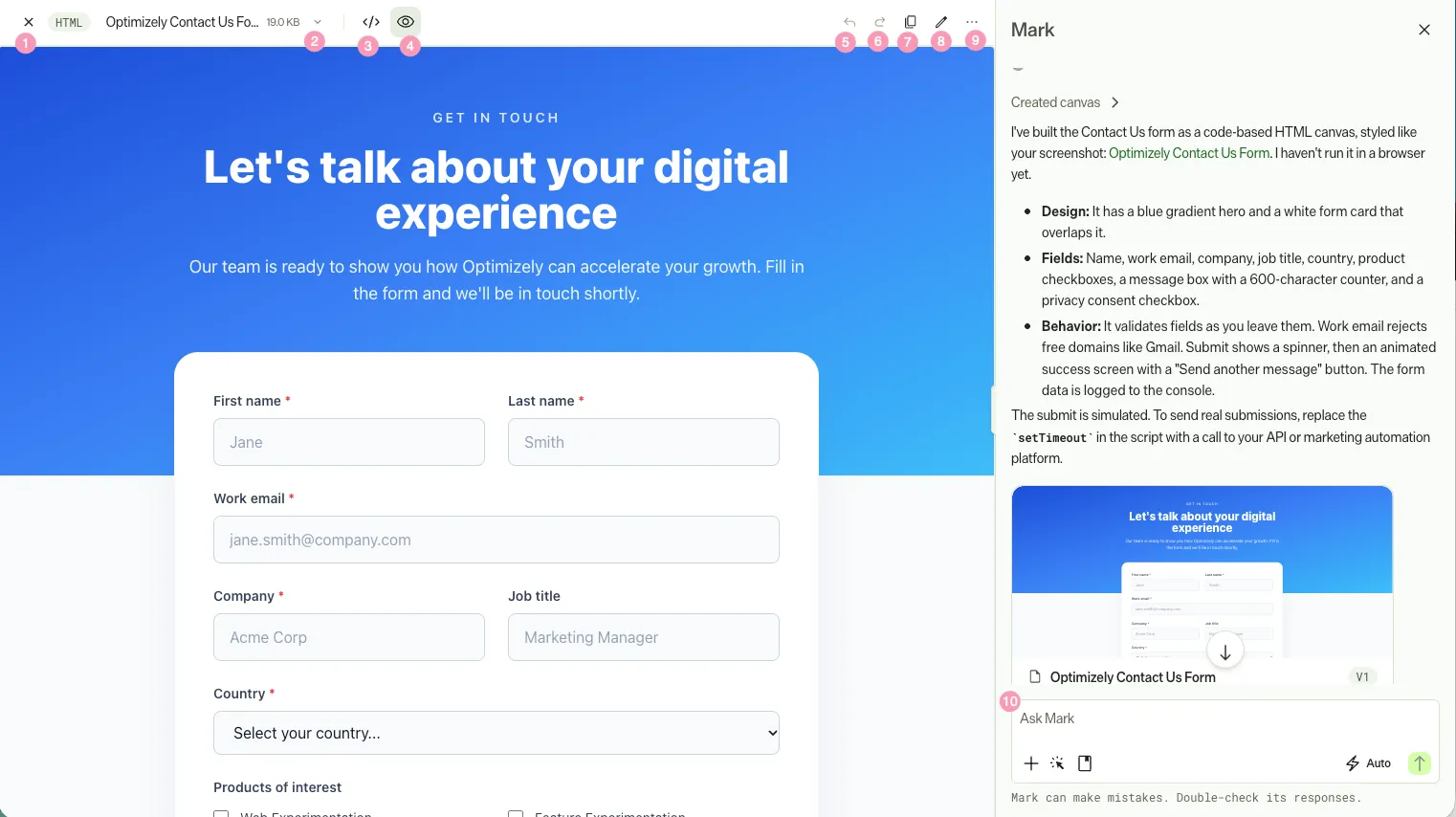
The numbered annotations correspond to the following controls:
- Close the canvas and return to Mark chat.
- Switch to code mode.
- Switch to rich preview mode.
- Toggle between canvases in the same space (chat thread).
- See the total number of files and size of the workspace.
- Undo changes to the canvas.
- Redo changes to the canvas.
- Copy the code to your clipboard.
- Download the canvas content. See Available download formats.
- Collaborate with Mark in canvas to modify the code.
text/csv
CSV canvases display data as a table similar to the following. Use them to inspect, edit, and reshape tabular data alongside Mark.
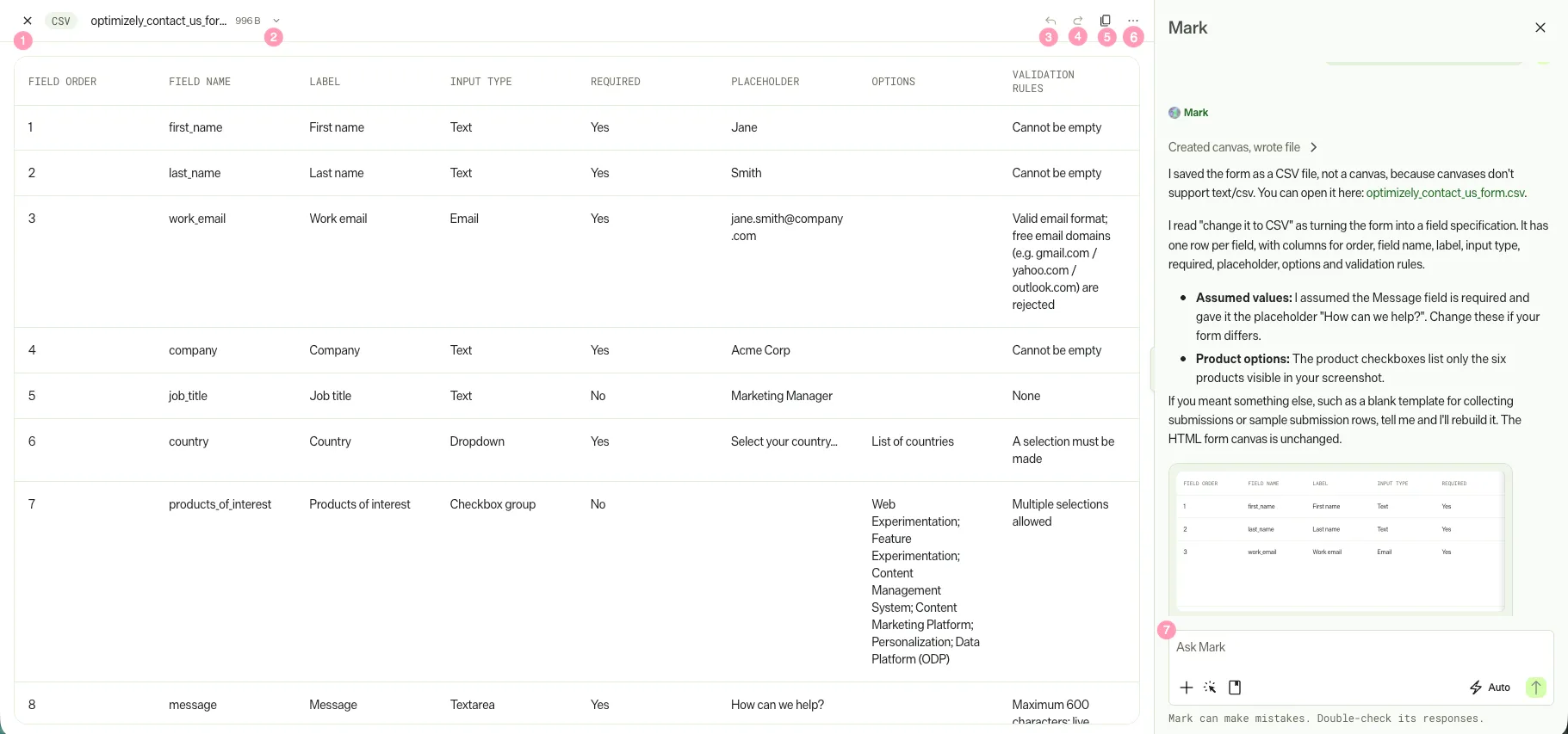
The numbered annotations correspond to the following controls:
- Close the canvas and return to Mark chat.
- Toggle between canvases in the same space (chat thread).
- See the total number of files and size of the workspace.
- Undo changes to the canvas.
- Redo changes to the canvas.
- Copy the canvas content to your clipboard.
- Download the canvas content. See Available download formats.
- Collaborate with Mark in canvas to modify the CSV.
application/vnd.ms-powerpoint
PowerPoint canvases display a preview of the slide deck similar to the following:
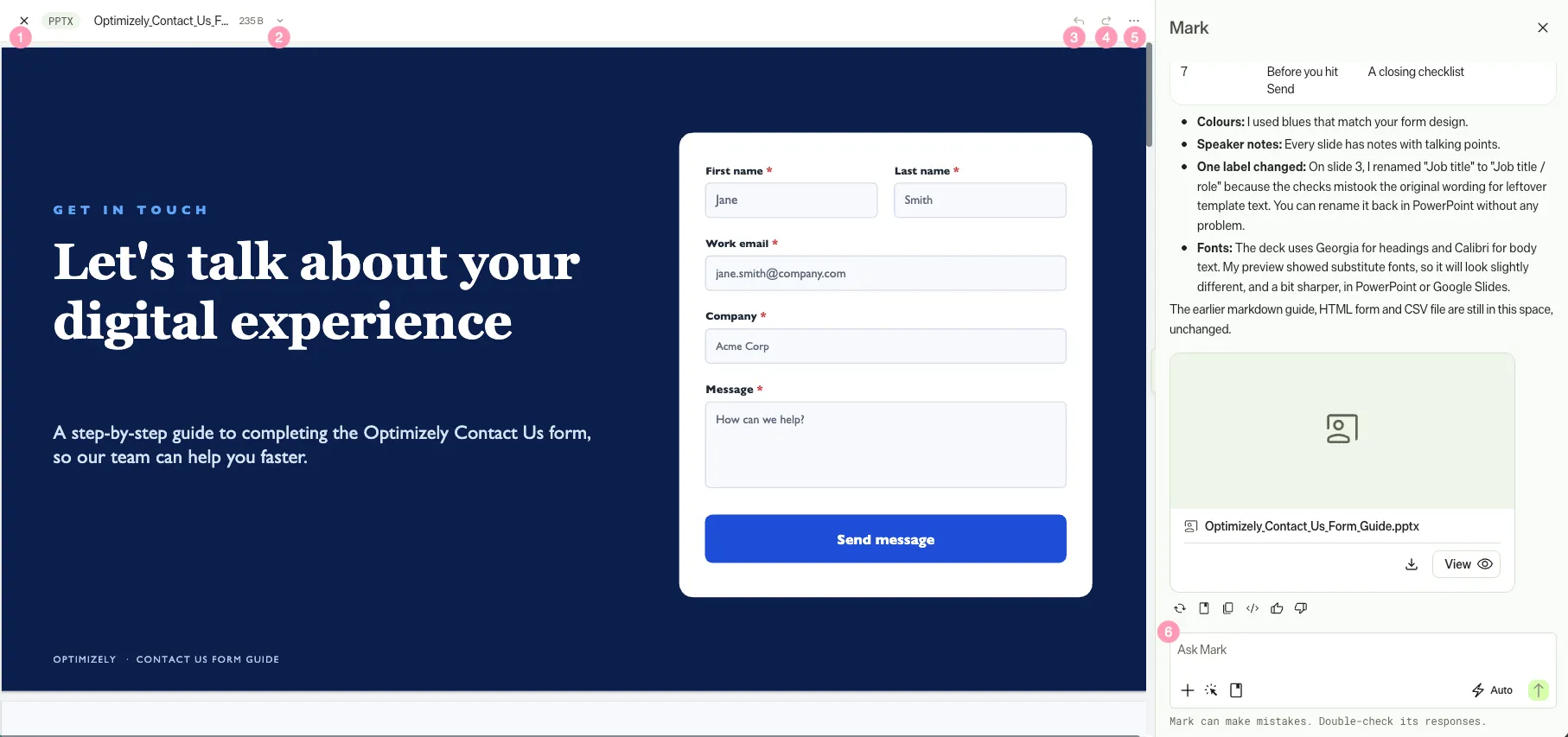
The numbered annotations correspond to the following controls:
- Close the canvas and return to Mark chat.
- Toggle between canvases in the same space (chat thread).
- See the total number of files and size of the workspace.
- Undo changes to the canvas.
- Redo changes to the canvas.
- Download the PowerPoint. See Available download formats.
- Scroll within the canvas to display the slide navigation arrows. Click Next slide or Previous slide to move between slides. The arrows hide after a short pause until you scroll again.
- Collaborate with Mark in canvas to modify the code.
Common use cases
The versatility of a canvas lets you use it for a wide range of applications. Use a canvas for iterative tasks that require multiple versions and collaborative feedback. For example, consider the following common use cases:
- Drafting and editing documents – Create marketing briefs, blog posts, articles, internal communications, or project plans.
- Developing web components – Build and iterate on HTML snippets, React components, or Next.js pages for web development.
- Designing presentations – Work on PowerPoint files, using Mark for content suggestions and structural improvements.
- Prototyping designs – Rapidly prototype UI elements or page layouts, getting immediate feedback and revisions from Mark.
- Brainstorm collaboratively – Use the shared space for ideation, note-taking, and outlining projects with team members and AI assistance.
- Managing code snippets – Store, share, and refine reusable code blocks or scripts.
Request types
Mark uses the create_canvas tool to create a canvas. You can use this tool in Mark chat implicitly or explicitly.
- Implicit request – When your prompt clearly indicates a need to create a digital asset that you can edit or build upon, Mark automatically uses the create_canvas tool. Mark often infers this from keywords such as make, create, write, generate, or draft combined with a format type like HTML page, document, or React component.
- Examples
- Create a new Markdown document for my marketing brief.
- Write a React component for a hero section.
- Make an HTML page with a simple contact form.
- Can you create a Next.js application for a product listing page?
- Draft me full articles with these sections, based on the content in the link I provided.
- Explicit request – When your prompt outright tells Mark to use a canvas by including phrases like in a canvas, using canvas, or as a canvas. Use explicit requests when your prompt is ambiguous or when you want the collaborative editing environment.
- Examples
- Create a new Markdown document for my marketing brief in a canvas.
- Write a React component for a hero section, and put it in a canvas.
- Make an HTML page with a simple contact form using the canvas tool.
- Can you create a Next.js application for a product listing page as a canvas?
- I need a canvas to draft a new blog post.
- Start a new canvas for my project plan.
- Direct action – Click Edit in canvas after sending a prompt to Mark. Mark creates a canvas for collaborative editing. This method lets you convert existing content into a canvas automatically.
See create a canvas for step-by-step instructions.
Best practices
To make the most of canvas and ensure a smooth workflow, consider the following best practices:
- Be specific with prompts – When prompting Mark, ensure you provide clear and detailed instructions. The more specific your prompt, the better Mark can understand your intent and deliver accurate results.
- Use explicit canvas requests – For tasks where you definitely want to use the collaborative editing environment, explicitly include phrases like in a canvas or as a canvas in your initial prompt. See Request types.
- Use descriptive naming – Because Mark automatically infers the canvas name from your prompt, write requests that suggest clear, concise names.
- For example, instead of Make a form, try Make an HTML page for a customer feedback form.
- Review version history regularly – Use canvas version control to track changes across iterations and revert when needed.
- Collaborate actively – Use the real-time collaboration features. Communicate inside the canvas or the adjacent chat panel to streamline feedback and approvals.
- Understand MIME types – Understand the different supported MIME types and their implications. Choose the appropriate format for your digital asset to ensure optimal editing and rendering. See Supported formats.
- Iterate with Mark – Do not expect a perfect result on the first try. Use Mark as an iterative partner, refining your requests and building upon previous outputs to achieve your desired outcome.
- Keep it modular – For complex applications or extensive documentation, break the work into smaller canvases. Modular canvases improve organization and collaboration.
Next steps
For step-by-step instructions, see Manage canvases.
Note
If you use Opti ID, administrators can turn off generative AI in the Opti ID Admin Center. See Turn generative AI off across Optimizely applications.