Create a Brand Pack
Create a Brand Pack in Optimizely Opal to store your brand's assets and usage rules in one place. Build it from your files, create it manually, or import it from JSON.
Explore your Brand Packs
In Opal, go to Context > Brand Packs. The Brand Packs tab lists every Brand Pack in your organization.
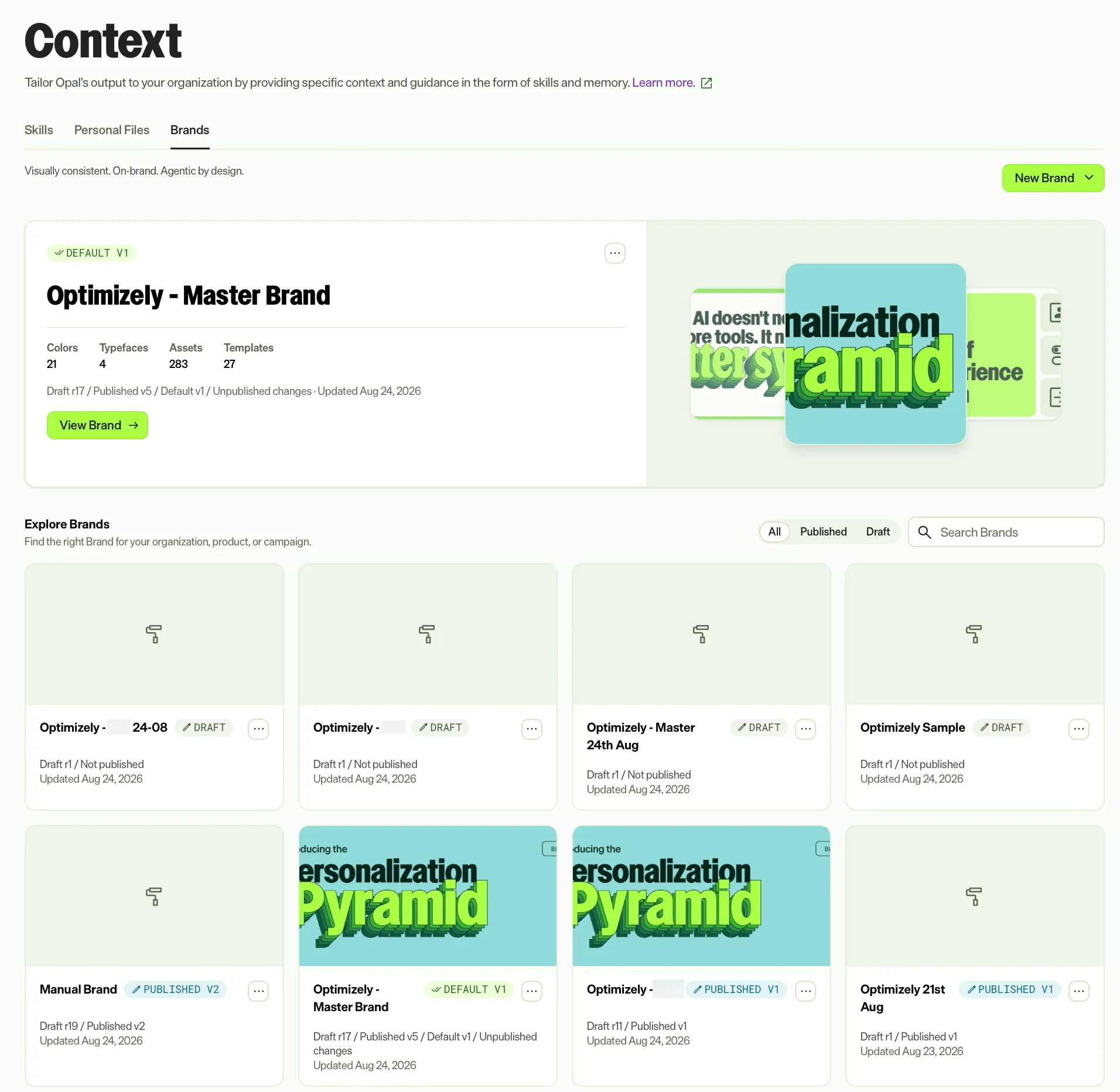
Each Brand Pack displays as a card. The card displays the Brand Pack name, status, version, and last updated date. Use this tab to do the following:
- Search for a Brand Pack by name.
- Filter by status: All, Published, or Drafts.
- Sort by Recently updated or Name A–Z.
Create a Brand Pack
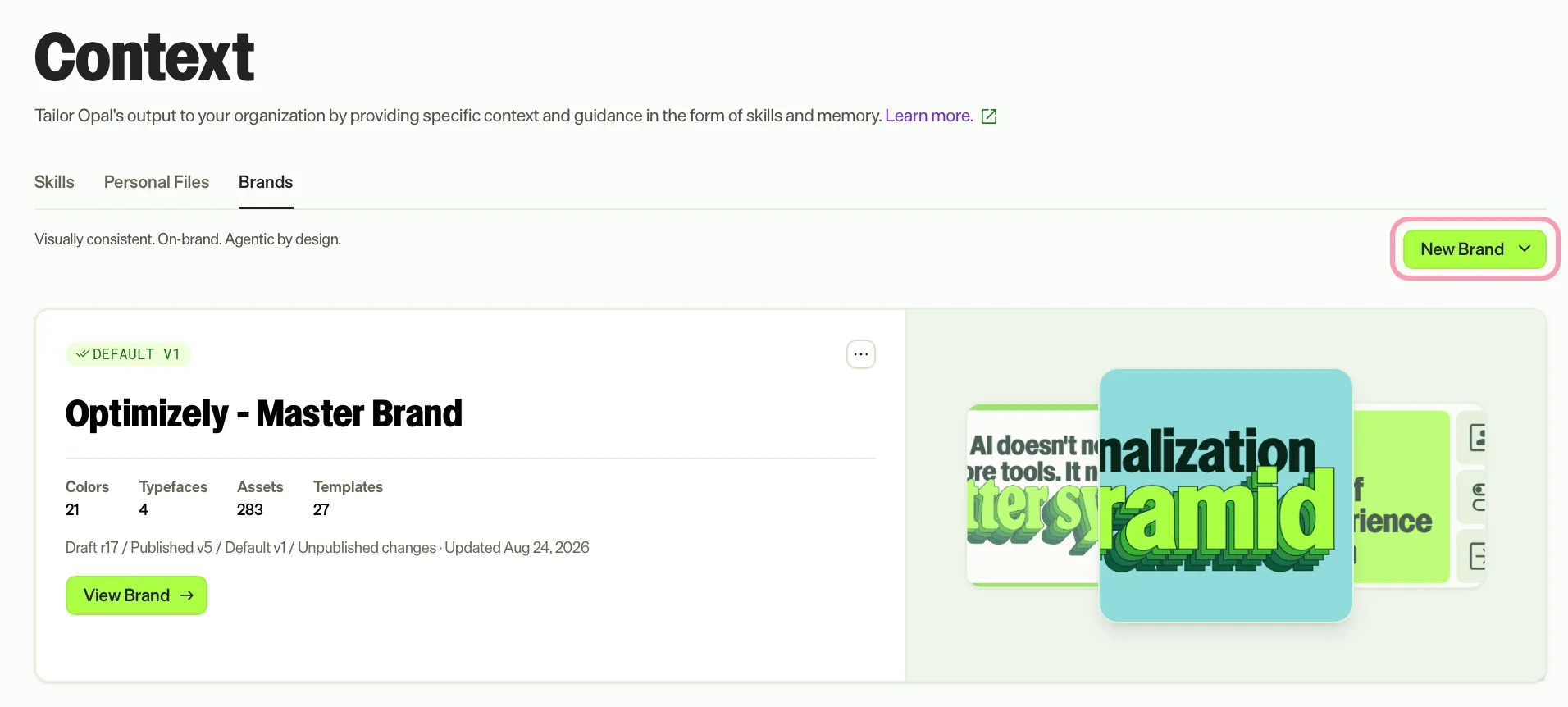
Click New Brand Pack on the Context > Brand Packs page and select one of the following options:
- Create with Mark – Create a Brand Pack from your own files.
- Create Manually – Create a Brand Pack from scratch.
- Create from Import – Create a Brand Pack from exported JSON, or a bundled zip file.
Create with Mark (recommended)
Mark builds a Brand Pack from sources you provide, such as a website or brand guidelines PDFs. Use this option when you already have brand material. To create a Brand Pack with Mark, complete the following steps:
- Select Create with Mark. Mark opens a chat with an action card, which is a form.
- Enter a name in Brand Pack name, which is required. Mark rejects a name that is already in use.
- Complete the following fields. The fields are optional, but provide at least a Website or a Figma file. A style guide PDF alone is not enough.
- Website – The brand's public site.
- Brand guidelines page – A public brand or style guide page.
- Style guide PDFs – Drag and drop PDF files, or click Select files. Mark reads uploaded guides page by page.
- Figma file – The design library to pull styles and variables from.
- Figma pages – The pages to read, separated by commas, such as Social, Email.
- Anything I should know – Context for Mark, such as the language or tone to use.
- Click Build.
To close the action card without building, click Cancel.
Mark builds the Brand Pack in the background. The build takes about half an hour. The Brand Pack displays on the Brand Packs tab when the build finishes.
Mark reviews the sources and extracts details, such as colors, typefaces, and voice. Before you publish, review and refine the Brand Pack on the Brand Pack details page. See Manage a Brand Pack.
Create manually
Create a Brand Pack from scratch, then add colors, typefaces, assets, and guidance. To create a Brand Pack manually, complete the following steps:
- Select Create Manually.
- Enter a name in Name.
- Click Create Brand Pack.
Opal opens the Brand Pack details page. The Brand Pack is blank. Add content in any of the following ways:
- Click Add a Brand Pack identity, enter a short description of what the Brand Pack is, and click Save.
- Click Colors, Typography, or Assets to add each type of resource.
Add at least one resource or guidance page before you publish.
See Manage a Brand Pack for details.
Create from import
Use JSON import to add an existing Brand Pack. Import a JSON file to re-link files where possible. Import a zip file to include the Brand Pack's files.
- Select Create from Import.
- Drag and drop a JSON or zip file into the dialog, or click Choose a file and select a file from your computer.
- (Optional) To paste JSON instead of uploading a file, click Paste JSON instead and paste the JSON in the text field.
- Click Import.
- Review the imported Brand Pack before you publish.
Create or update from chat
Ask Mark in Opal chat to create a Brand Pack, or to add sources or changes to an existing Brand Pack. For example, ask Mark to create a Brand Pack from your website or to add a new guidelines PDF to a Brand Pack you already have.
Mark opens the same action card as Create with Mark. To update an existing Brand Pack, the card displays the Brand Pack name. Provide any new sources and describe the changes you want, and then click Update.
An update adds new material and applies the changes you describe. It does not remove anything except resources whose files were deleted. Mark reports anything that looks out of date so you can remove it yourself.
Use the card menu
Hover over a Brand Pack's card on the Brand Packs tab and click More to select one of the following options:
- Set as default – Make Opal use this Brand Pack by default.
- Export – Download the Brand Pack as JSON or a zip file.
- Add Additional Brand Context – Open Opal chat to add new sources to the Brand Pack.
- Delete – Delete the Brand Pack.
Next steps
- Manage a Brand Pack – Add resources and guidance to your Brand Pack.
- Publish and use a Brand Pack – Publish the Brand Pack and use it with Opal.
Note
If you use Opti ID, administrators can turn off generative AI in the Opti ID Admin Center. See Turn generative AI off across Optimizely applicationsTurn generative AI off across Optimizely applications.