Brand Pack overview
A Brand Pack stores your brand's assets, colors, typefaces, and usage rules in Optimizely Opal so that generated content stays on-brand. When you publish a Brand Pack, Opal turns it into a skill. A skill is foundational context, rules, and behavioral guidelines that shape how Opal creates output and tailors it to your organization or personal preferences. The Brand Pack skill guides features such as image generation in the Image editor, Word documents, and PowerPoint presentations.
Create and manage Brand Packs at Context > Brand Packs.
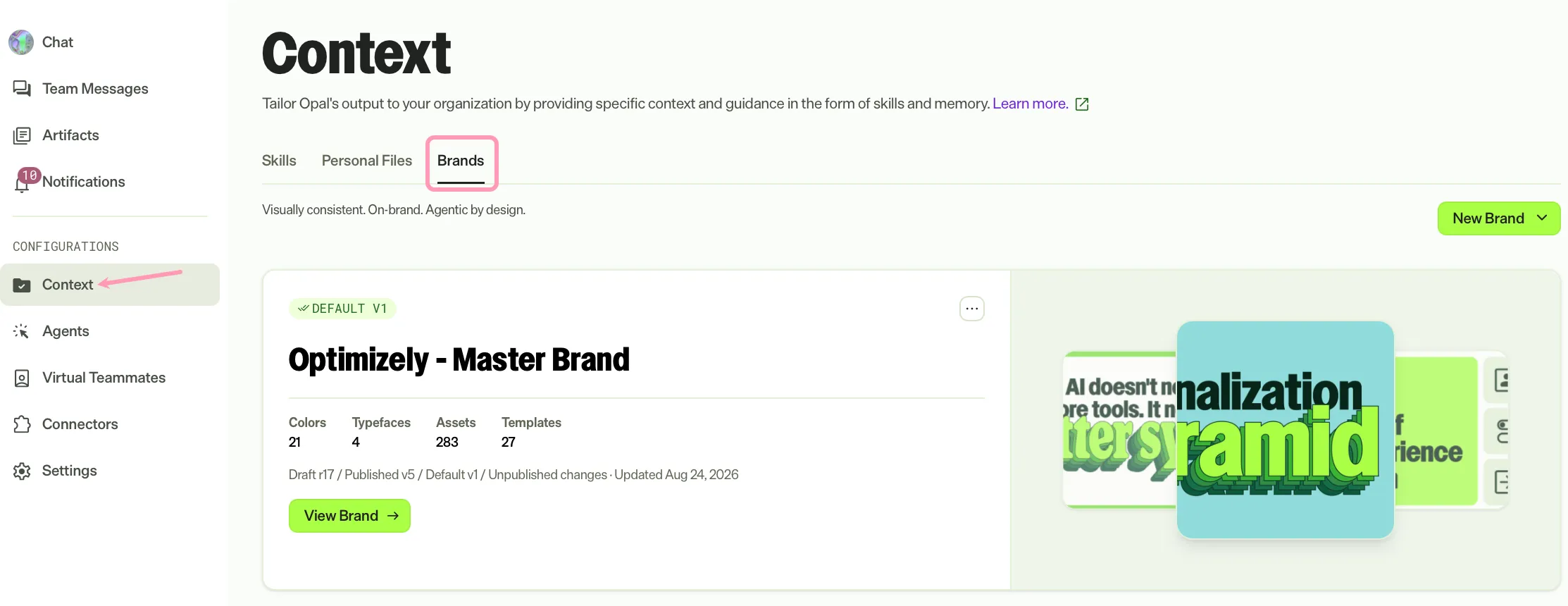
What a Brand Pack is
A Brand Pack is the single source of truth for your brand identity in Opal. Opal draws on the Brand Pack wherever it needs brand context, such as image generation, Word documents, and PowerPoint presentations. Each area reads the same Brand Pack instead of keeping its own copy.
A Brand Pack is not a brand guidelines PDF or a design system. It is the structured data that Opal uses to keep output on-brand.
How a Brand Pack works
A Brand Pack moves through four stages:
- You create a Brand Pack with Mark, manually, or by importing JSON. See Create a Brand Pack.
- You manage its resources and guidance. See Manage a Brand Pack.
- You publish the Brand Pack so Opal can use it.
- You use the Brand Pack when you generate content. See Publish and use a Brand Pack.
Brand Pack statuses
A Brand Pack displays one or more of the following statuses:
- Draft – In progress and not yet published. Opal does not use draft Brand Packs.
- Published – Available for Opal to use.
- Unpublished – A published Brand Pack that has draft changes you have not published yet.
- Skill inactive – A published Brand Pack with its skill turned off, so agents cannot use it. See Turn the skill on or off.
- Default – The Brand Pack Opal uses when you do not specify another one. Only one Brand Pack is the default at a time.
Opal uses the default Brand Pack unless you select a different Brand Pack skill with / when you prompt an agent.
Work with multiple Brand Packs
An organization can hold more than one Brand Pack. Create a Brand Pack for each identity you manage, and set one as the default. To set the default, click More > Set as default on a Brand Pack card or on the Brand Pack details page. See Create a Brand Pack for the card menu.
Next steps
Continue with the following articles:
- Create a Brand Pack – Build a Brand Pack from your sources or import one.
- Manage a Brand Pack – Add resources and guidance.
- Publish and use a Brand Pack – Publish the Brand Pack and use it in chat.
Note
If you use Opti ID, administrators can turn off generative AI in the Opti ID Admin Center. See Turn generative AI off across Optimizely applicationsTurn generative AI off across Optimizely applications.