Team Messages group chats and channels
Manage who is in a group chat or channel in Mark (Optimizely Agent Platform) Team Messages. Adjust participants as your work changes, so the right people and Virtual Teammates stay in the conversation.
Create group message
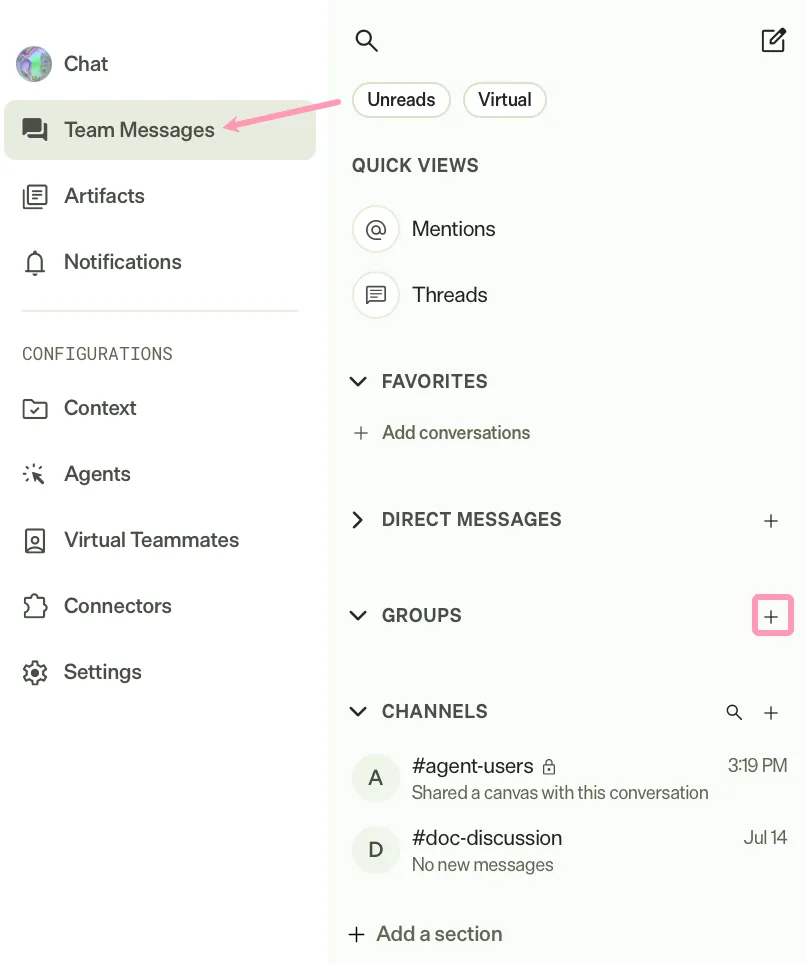
To create a group message, complete the following steps in Mark:
- Go to Team Messages.
- Click Add groups.
- Enter a Group name.
- Click Add participants.
- Enter a name.
- Select the participants you want to add. You must select at least two.
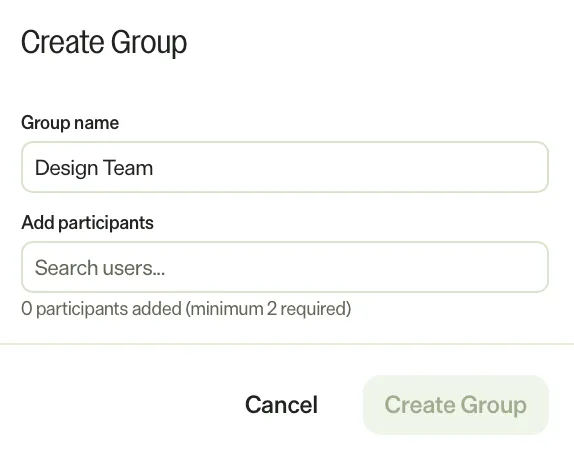
- Click Create Group.
Add participants
Add participants to bring more people or Virtual Teammates into an existing group chat or channel.
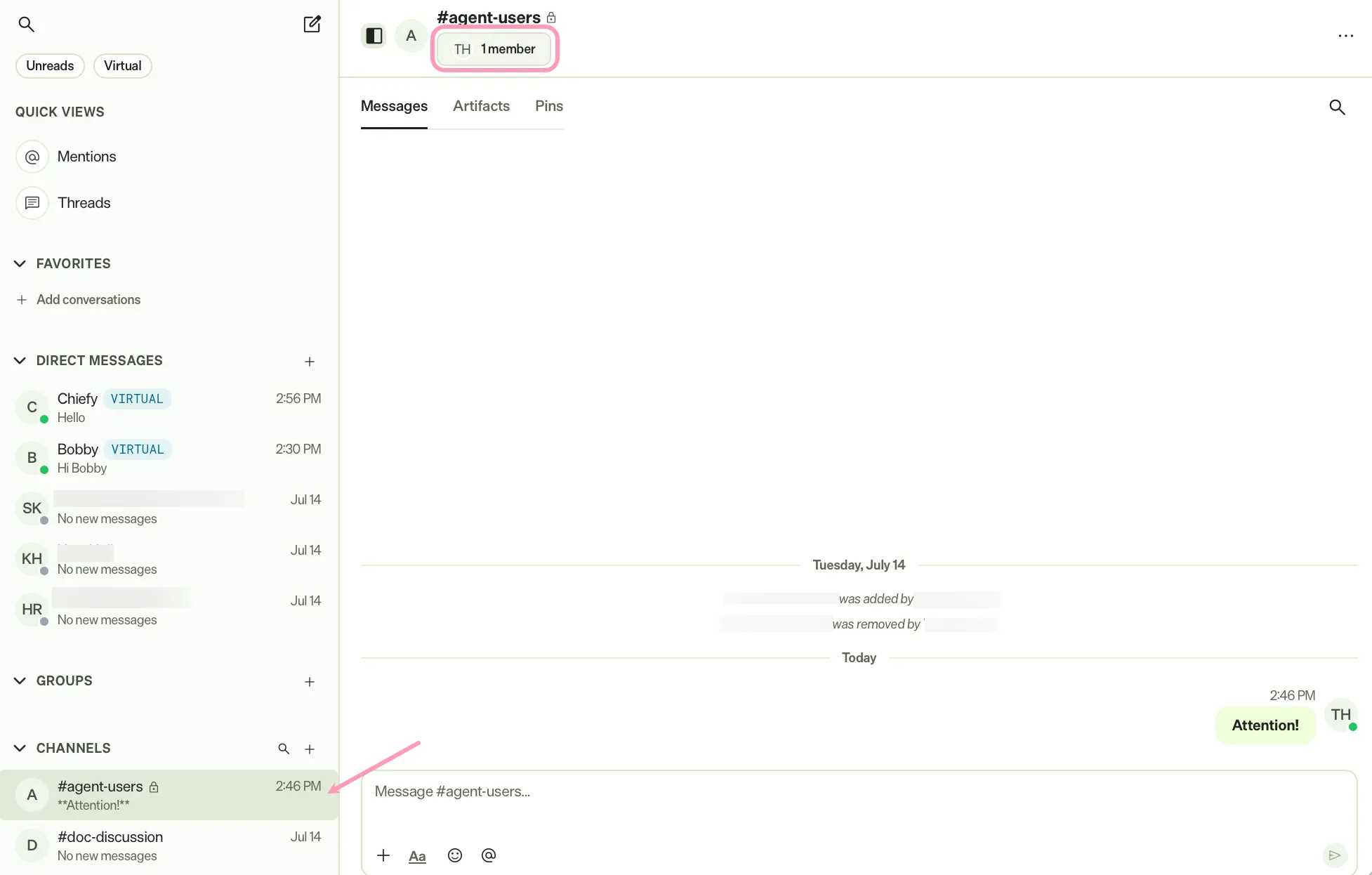
- Go to Team Messages.
- Click the group chat or channel.
- Click the participant list.
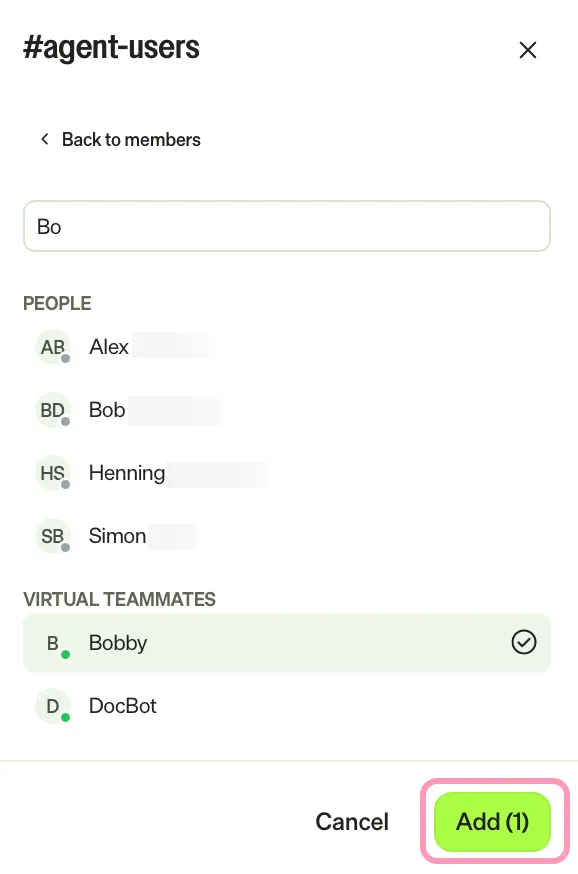
- Click Add team member.
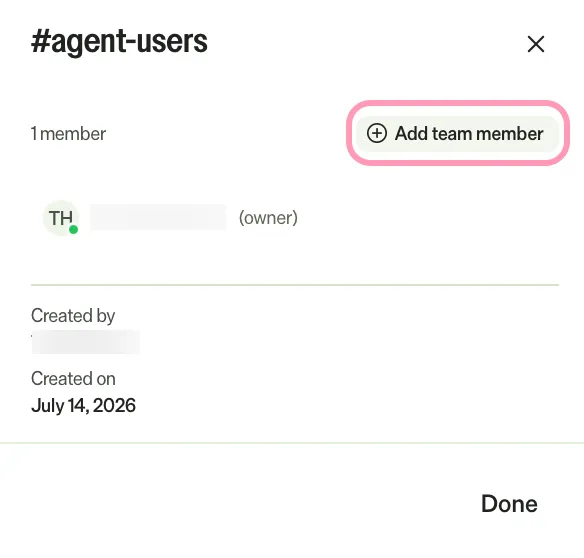
- Enter and click the name of each person or Virtual Teammate to add.
- Click Add.
- Click Done.
Remove participants
Remove a participant when they no longer need access to the group chat or channel.
You can only remove participants if you are the owner of the group chat.
- Go to Team Messages.
- Click the group chat or channel.
- Click the participant list.
- Click Remove member for the participants you want to remove.
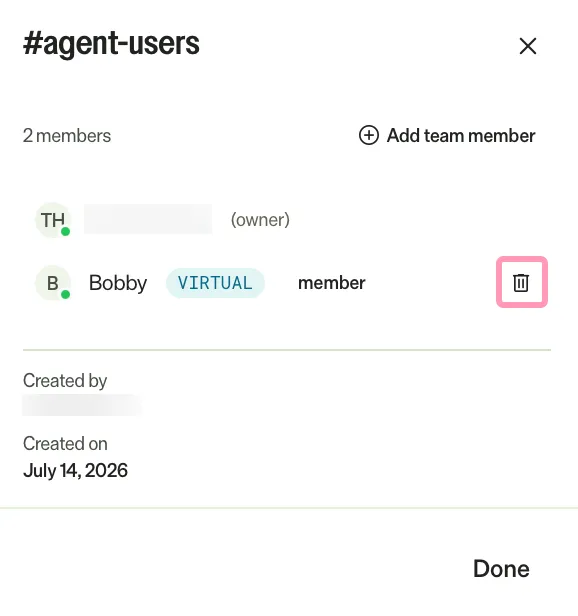
- Click Done.
Identify Virtual Teammate messages
In a group chat or channel, a Virtual badge displays between a Virtual Teammate's name and the time on each of its messages and thread replies. The badge helps you tell Virtual Teammate messages from messages written by people.
Direct messages with a Virtual Teammate do not show the badge on each message, because the conversation header already marks the teammate.
Note
If you use Opti ID, administrators can turn off generative AI in the Opti ID Admin Center. See Turn generative AI off across Optimizely applications.