Share files, agents, and artifacts with Team Messages
Share files and agent-generated artifacts directly in Team Messages. Sharing in Team Messages keeps work and discussion together. Teammates can act on what you send without leaving chat.
Attach a file
Attach a file to your Team Message to share a document, an image, or another resource with the conversation.
- Go to Team Messages.
- Select a conversation.
- Click Attach > File in the message field.
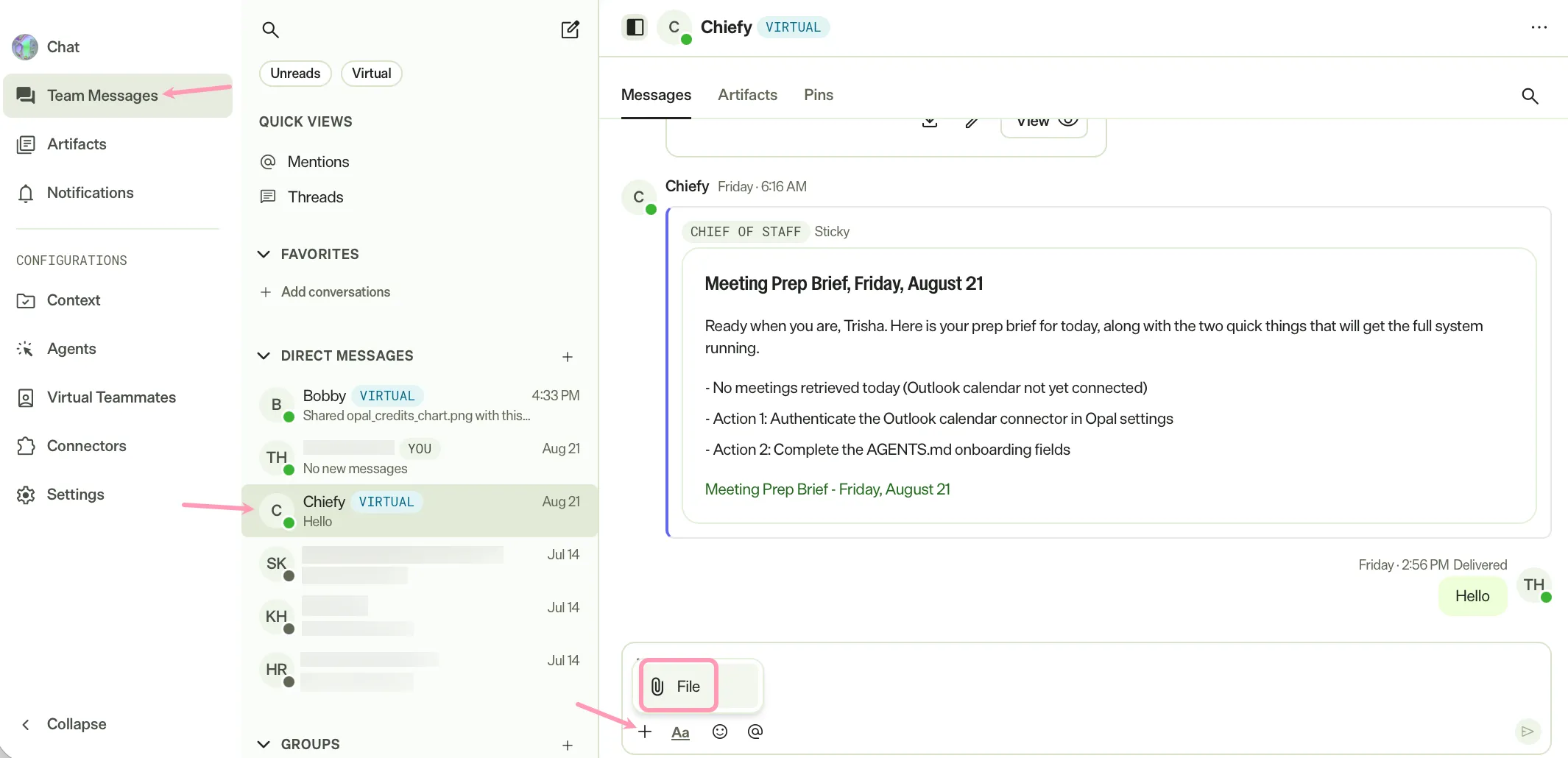
- Select the file to share.
- Click Upload.
- (Optional) Add a message to give the file context.
- Press Enter or click Send Message.
Share an artifact
Share an artifact to bring an agent-generated output, such as a draft or a report, into the conversation. Team Messages displays the artifact inline, so participants can review it in context and discuss it in the same place.
To share an artifact, complete the following steps in Mark (Optimizely Agent Platform):
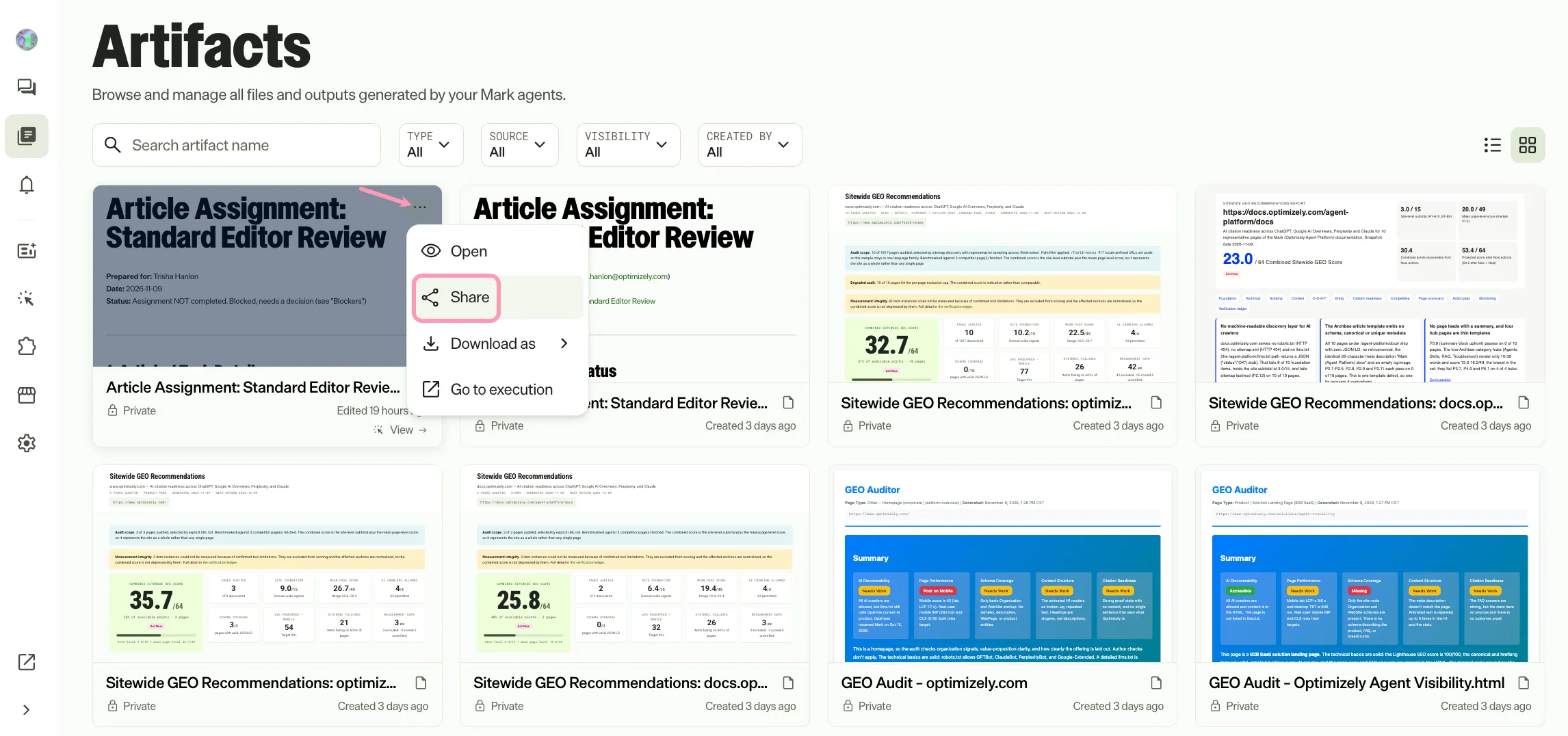
- Go to Artifacts.
- Do one of the following:
- Click More > Share for the artifact you want to send.
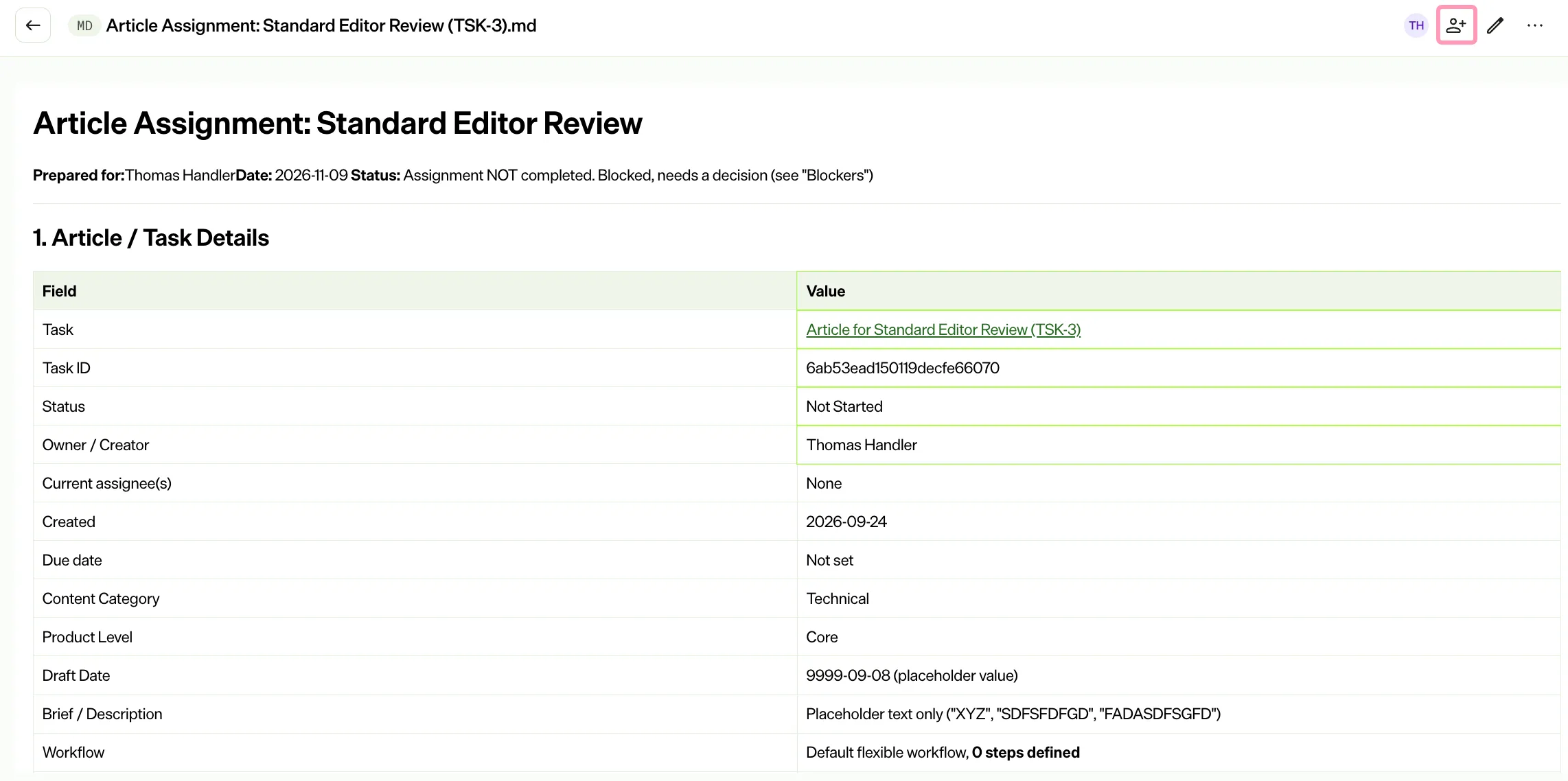
- Click the artifact, and then click Share.
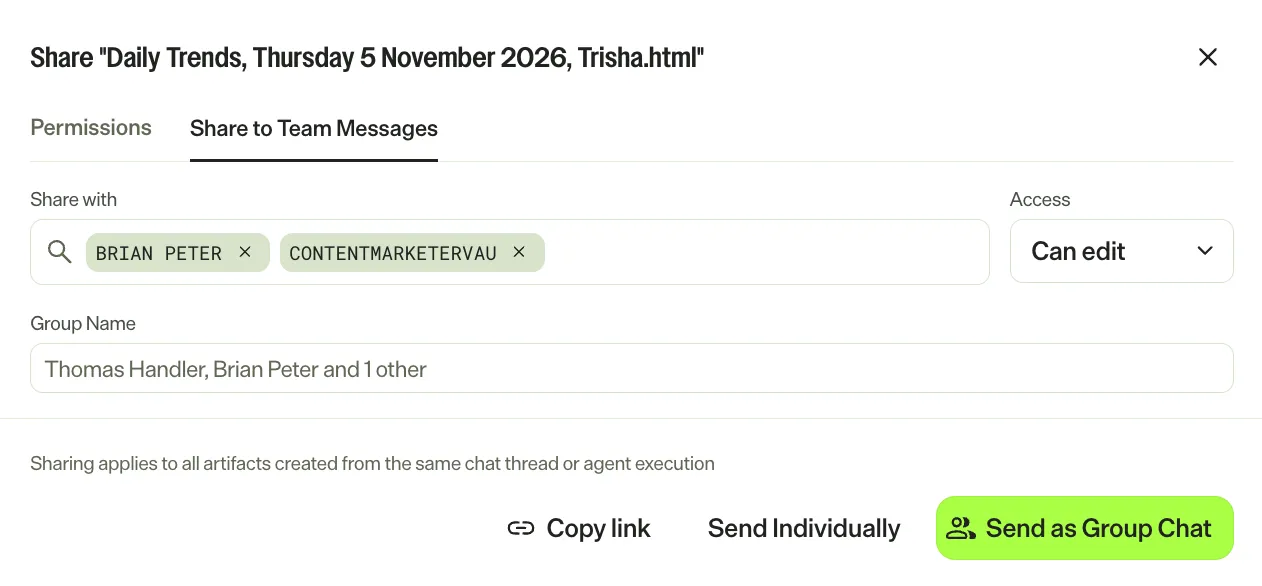
- Select the Share to Team Messages tab.
- Enter the user, Virtual Teammate, group, or channel name.
- Click the user, Virtual Teammate, group, or channel to share the artifact.
- Select the access level. For a description of each access level, see Share artifacts.
- Click Send.
A confirmation message displays. Go to the conversation to continue the discussion.
Share an agent
Share an agent to bring a teammate into the conversation about it. Team Messages gives recipients access to the agent, so they can run it and discuss the results in the same place.
To share an agent, complete the following steps in Mark:
- Go to Agents > Your Agents.
- Do one of the following:
- Click the agent.
- Click More > Edit Agent for the agent.
- Click Share.
- Select the Share to Team Messages tab.
- Enter the user, Virtual Teammate, group, or channel name.
- Click the user, Virtual Teammate, group, or channel to share the agent.
- Select the access level. For a description of each access level, see Share agents and manage visibility.
- Click Send.
A confirmation message displays. Go to the conversation to continue the discussion.
Share with several recipients as a group chat
Share an artifact or agent with several recipients together to keep the discussion in one place.
To share with several recipients as a group chat, complete the following steps:
- Open the Share to Team Messages tab for the artifact or agent. For instructions, see Share an artifact or Share an agent.
- Enter the user, Virtual Teammate, group, or channel name.
- Click the name to select it. Repeat until you select at least two recipients.
- (Optional) Enter a Group Name.
- Click Send as Group Chat. To share with each recipient separately, click Send Individually.
A group chat requires at least two recipients. If you select only one, the tab works the same as in Share an artifact: you select the access level and click Send.
Mark reuses an existing group chat when its members are exactly you and the recipients you selected. Sharing with the same recipients again does not create a duplicate group. The following rules apply:
- A reused group keeps its own name. The Group Name you enter applies only to a group that Mark creates.
- The confirmation message names the group. If the reused group has no name, the message refers to your existing group chat.
- If you also select the same group under Groups and channels, Mark shares once. The group receives one share card, and the confirmation message does not list it as a recipient.
- If you hid a group that Mark reuses, the group returns to the Groups section.
- If several matching groups already exist, Mark uses the most recently active group.
- Matching checks only the 200 most recently updated groups in your instance. In a busy instance, a group with no recent activity falls outside that check. Mark then creates a duplicate.
Note
If you use Opti ID, administrators can turn off generative AI in the Opti ID Admin Center. See Turn generative AI off across Optimizely applications.