Share agents and manage visibility
Share agents in Mark (Optimizely Agent Platform) to control who can find, run, and edit them. Use sharing to grant collaborators specific access levels. Every agent has one owner and a visibility setting. Visibility is either Private (only you and the people you invite) or Organization (anyone in your organization). When you share with specific people, you grant each person Can view or Can edit access. Owners also grant Can manage access and transfer ownership. See Agent ownership and ownership transfer.
Visibility states
A new agent is Private by default. Each agent has one of the following visibility states:
- Private – Only you can find and run the agent. The agent header displays a Private badge.
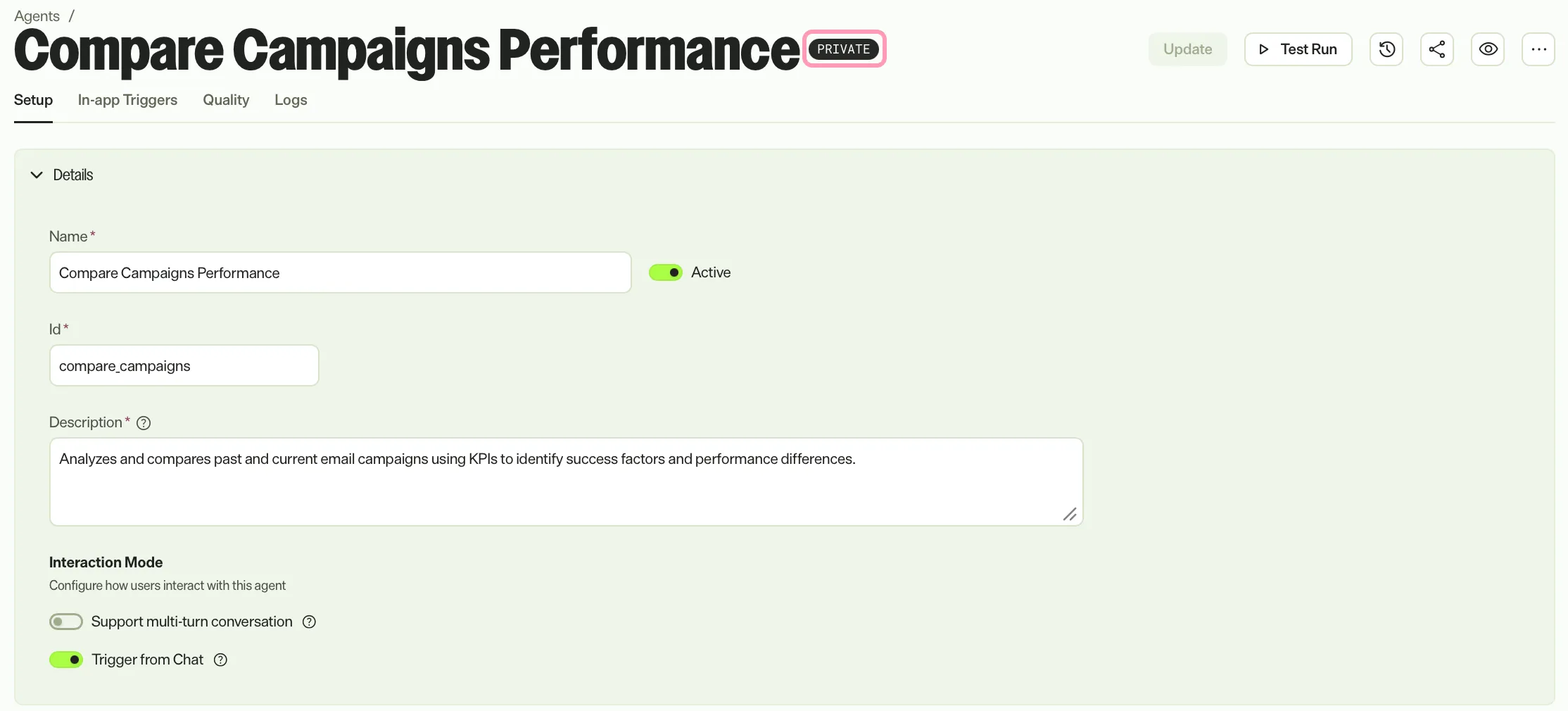
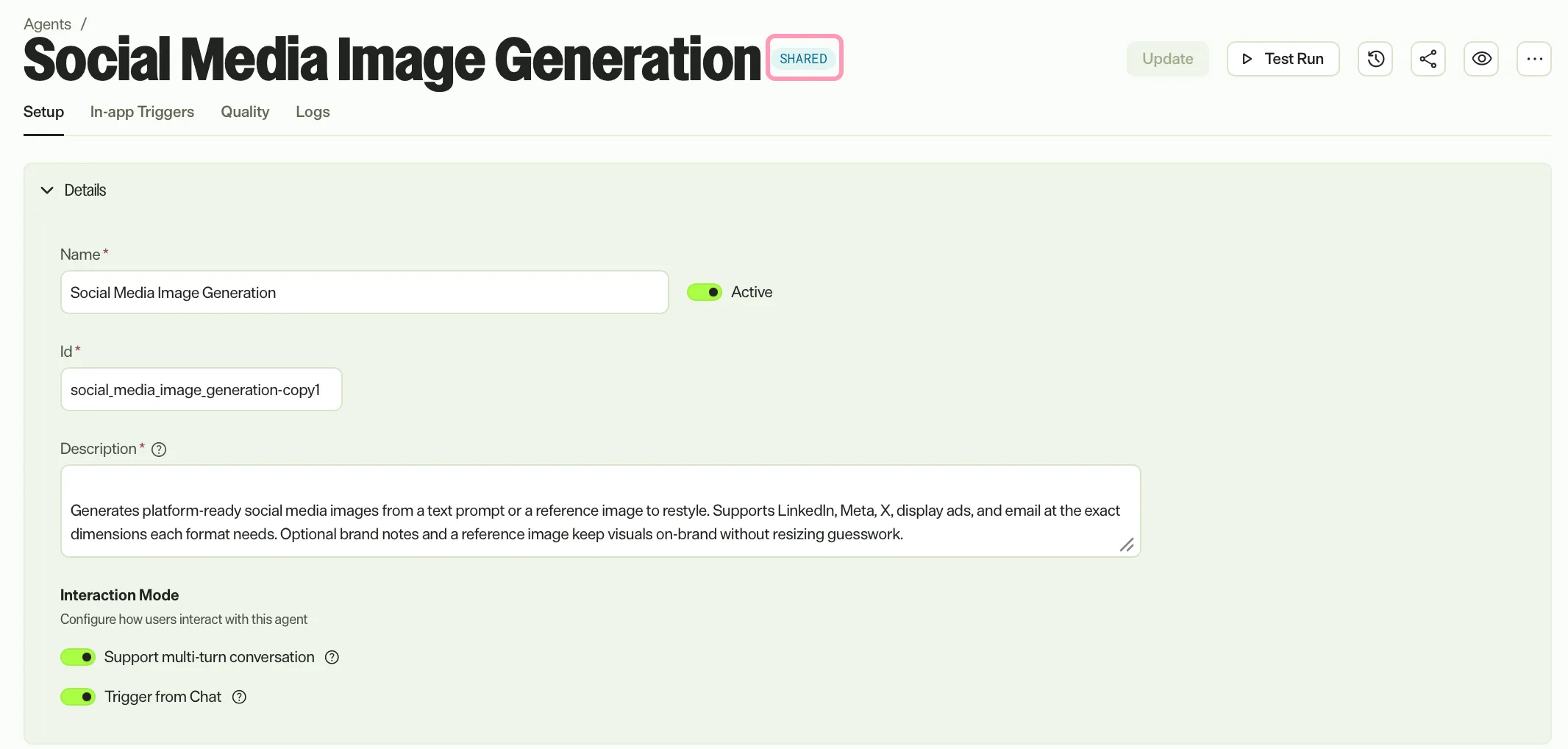
- Shared – Only you and the people you invite can find and run the agent. The agent header displays a Shared badge.
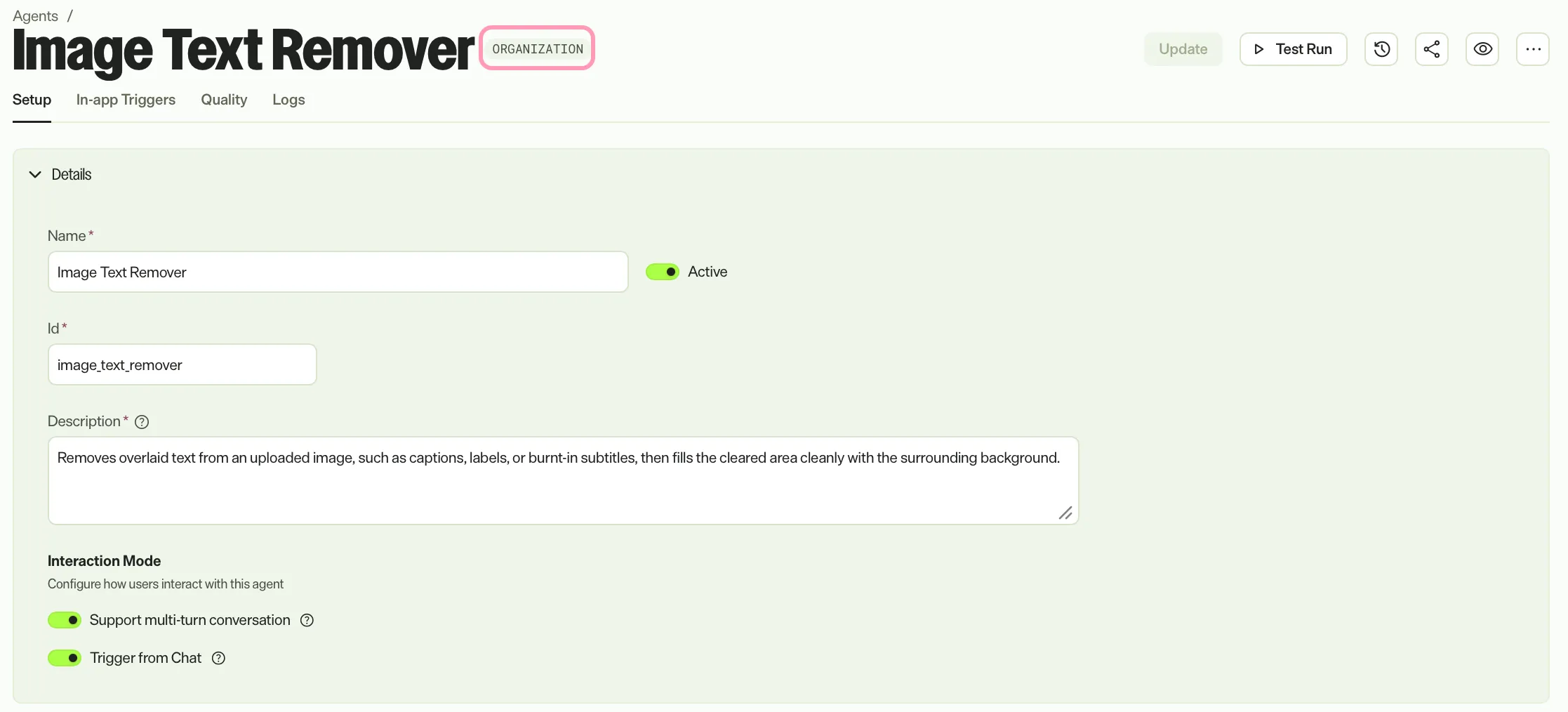
- Organization – Anyone in your organization can find and run the agent. The agent header displays an Organization badge.
Access levels
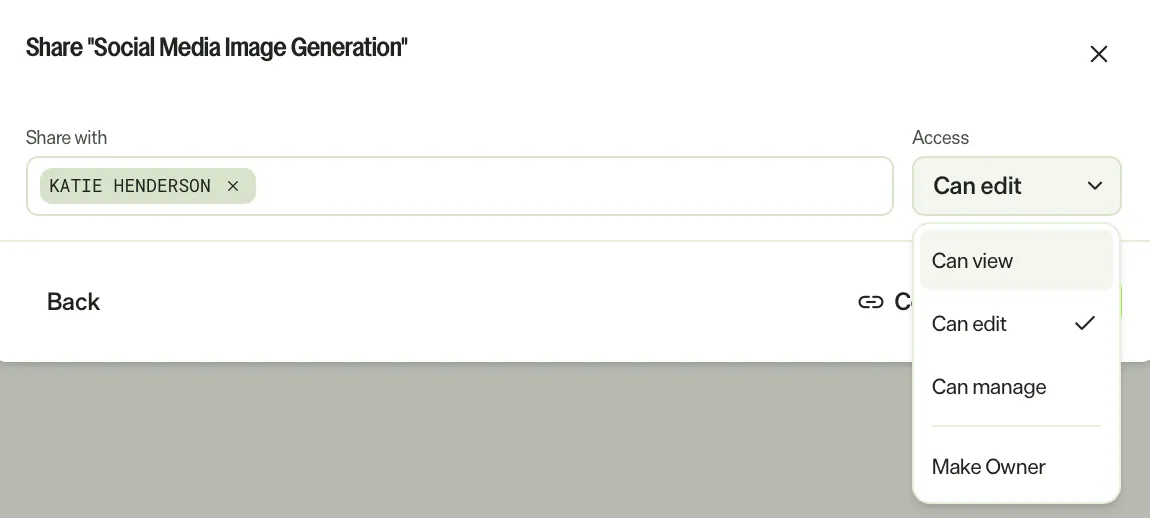
When you share an agent, you assign Can view or Can edit. The agent's creator is the Owner. Mark provides the following access levels:
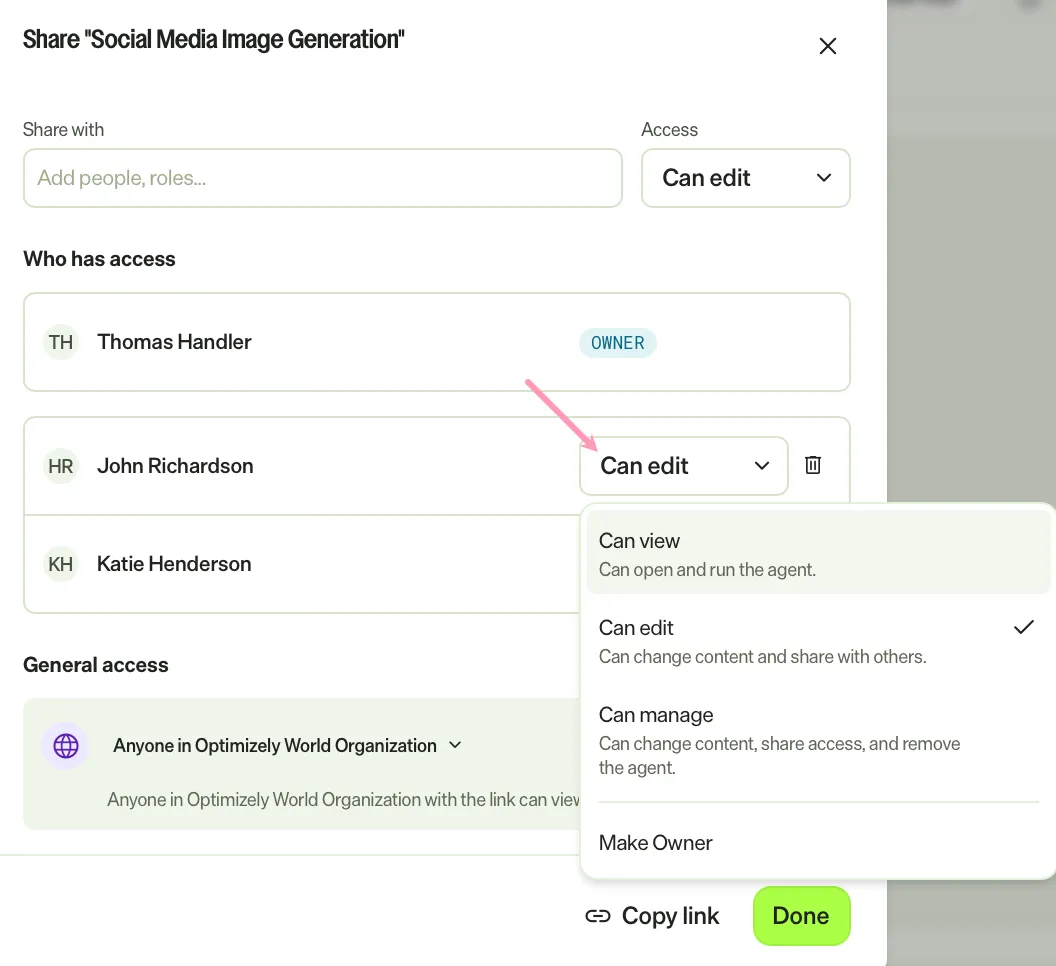
- Can view – Can open and run the agent.
- Can edit – Can change content and share with others.
- Can manage – Can change content, share access, and remove the agent.
- Owner – Has full control of the agent. The agent uses the owner's identity and credits for scheduled, email, and webhook runs. Each agent has one owner. To move ownership to another person, see Agent ownership and ownership transfer.
Note
Only the owner can grant Can manage access or start an ownership transfer. People with Can manage access cannot transfer ownership. Administrators also start transfers on behalf of owners. The new owner accepts the transfer before it takes effect. An administrator who transfers an agent to themselves skips this step.
Open the Share dialog
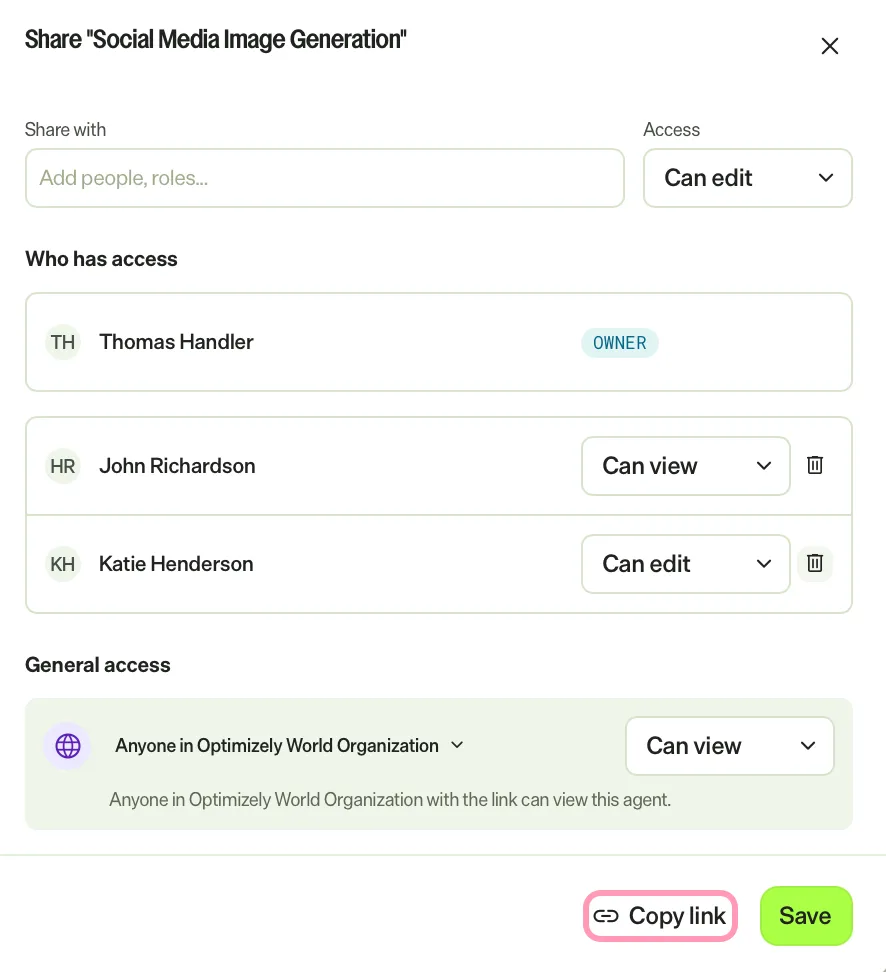
The Share dialog displays who has access and the current general access setting. To open it, complete the following steps in Mark:
- Go to Agents > Your Agents.
- Click the agent to open it or click More (...) > Edit Agent.
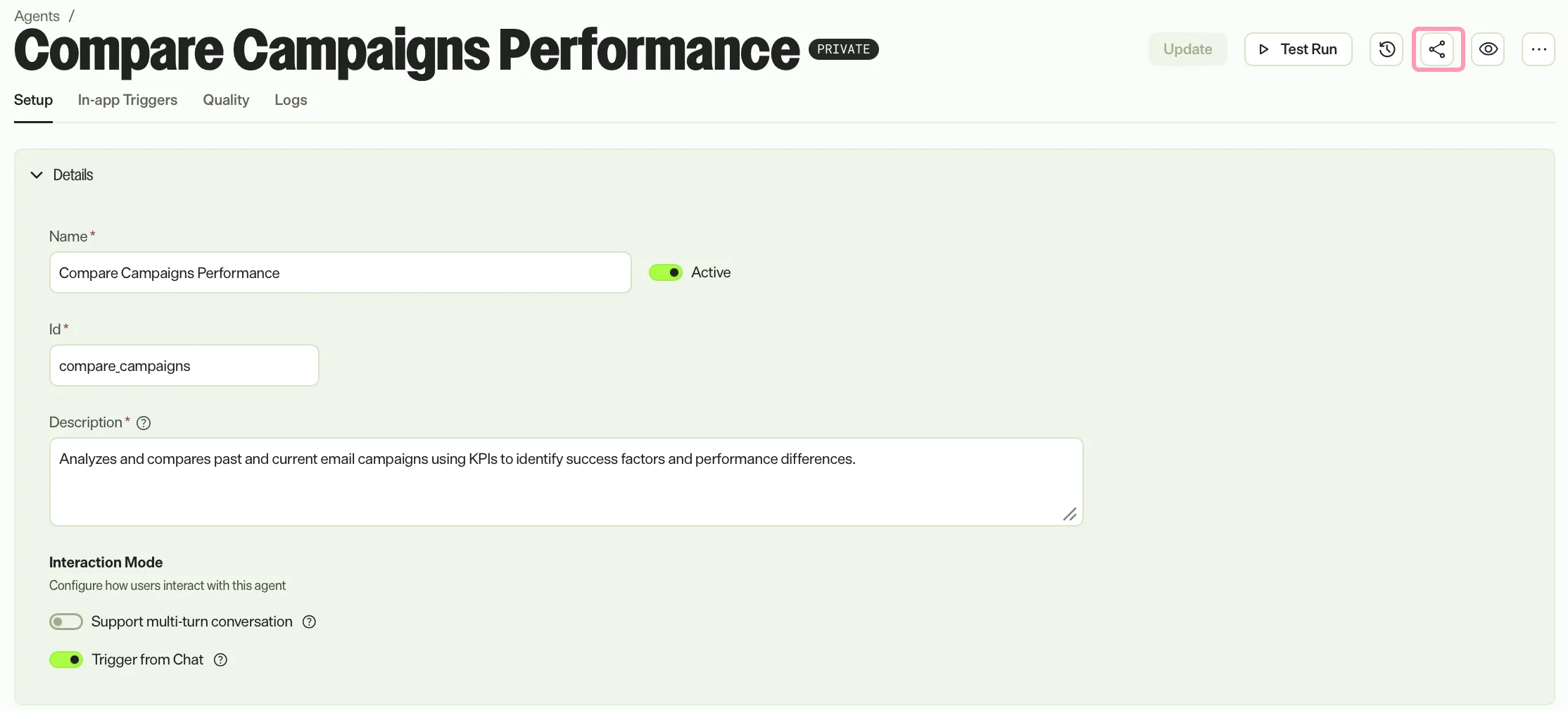
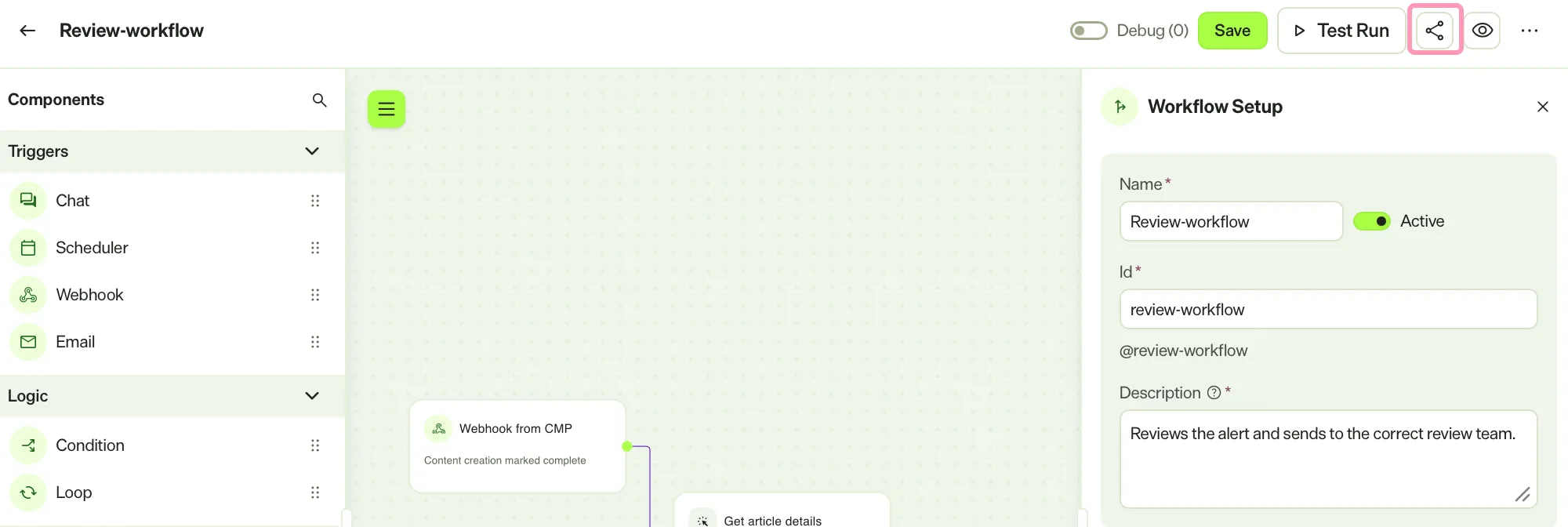
- In the agent details header, click Share.
Specialized agent
Workflow agent
Share with specific people
- Open the Share dialog. See the Open the Share dialog section for instructions.
- In Share with, enter a person's name or role.
- Select the person from the suggestions. Repeat steps 2–3 to add more people.
- Select an access level from the Access drop-down list. See Access levels for what each level allows.
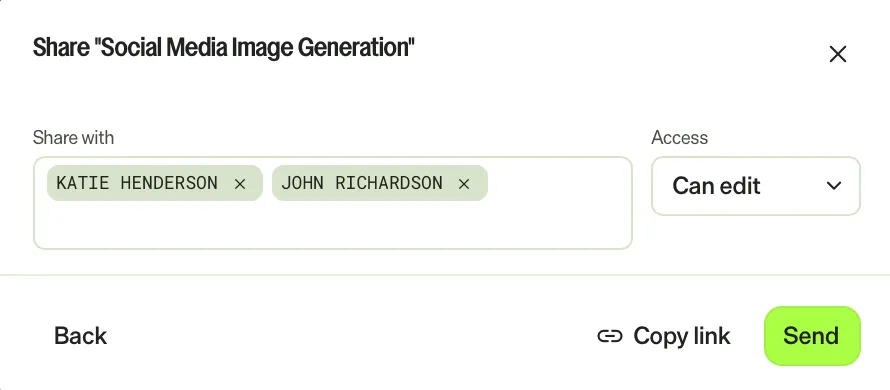
- Click Send. An Access granted message displays.
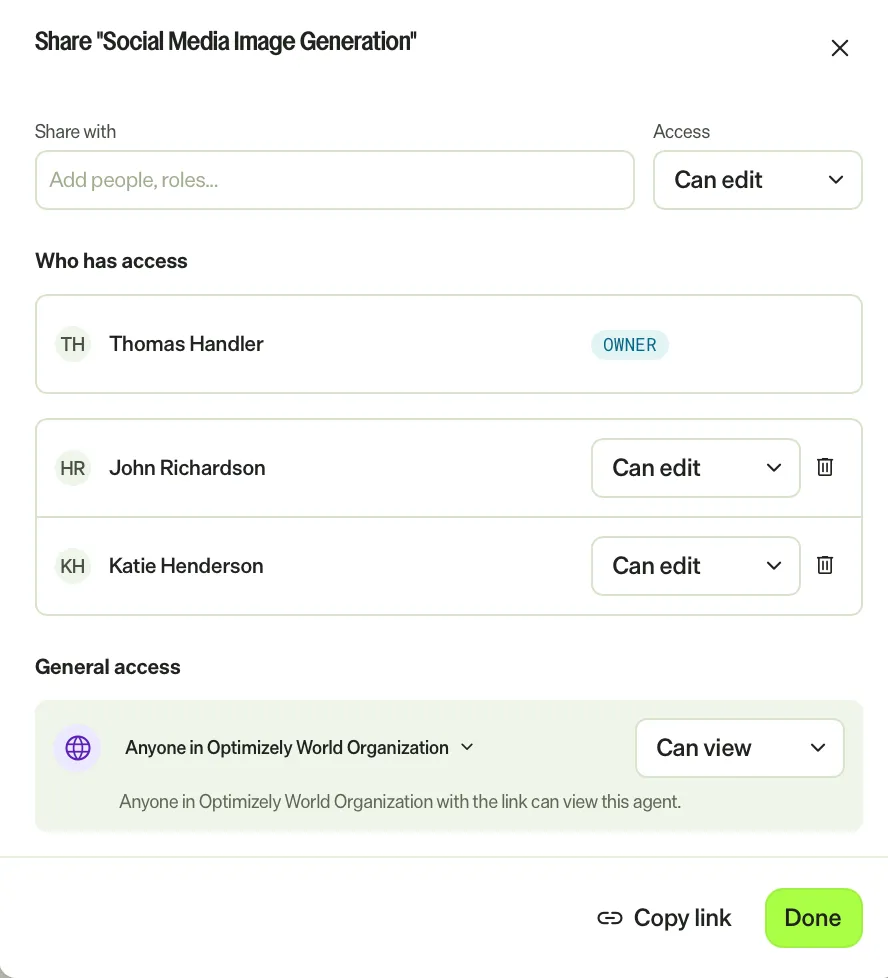
The people you added are listed in the Who has access section with their access level.
Change or remove access
In Who has access, manage the people an agent is shared with:
- To change someone's access, select a different level from their access drop-down list.
- To remove someone, click Remove for that person.
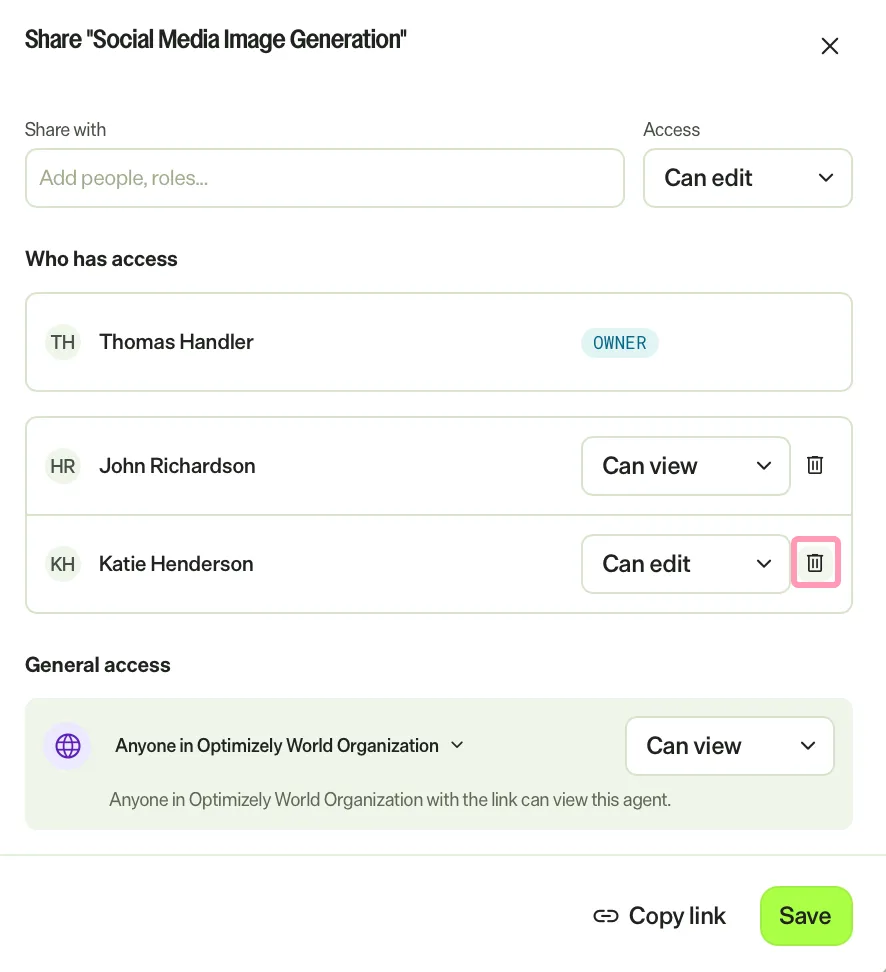
Click Save after making your changes.
The owner is labeled Owner and does not have an access drop-down list.
Set general access
In the General access section, choose who can reach the agent beyond the people you invited:
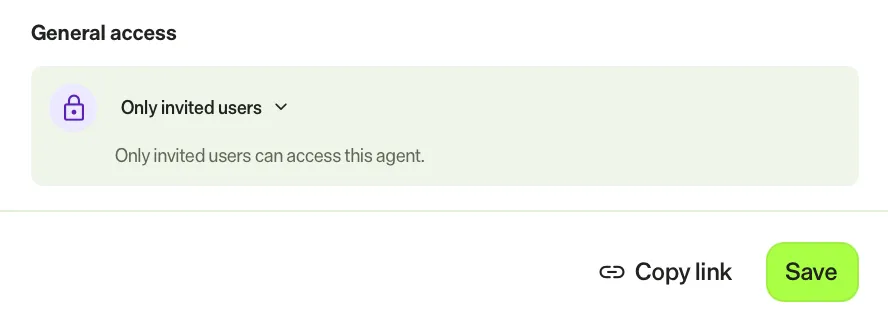
- Only invited users – Only the owner and invited people can access the agent. With no one else invited, the agent is Private. When you invite specific people, it becomes Shared.
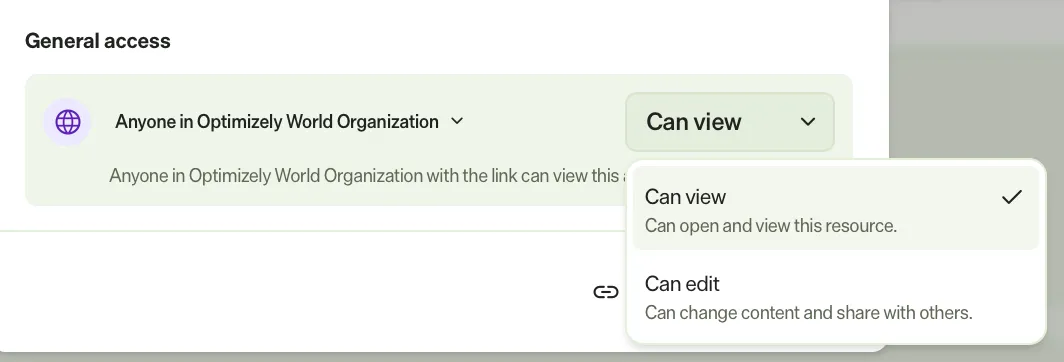
- Anyone in your organization – Everyone in your organization can access the agent, which makes it an Organization agent. Choose the organization's access level:
- Can view – Can open and view this resource.
- Can edit – Can change content and share with others.
Copy a share link
Click Copy link in the Share dialog to copy a link to the agent. The link follows the agent's access settings, including general access and the access granted to specific people. If you remove someone's access, the link no longer works for them.
Next steps
- See Manage agents to find agents by visibility and manage them.
- See Create a specialized agent or Create a workflow agent to build agents you can share.
Note
If you use Opti ID, administrators can turn off generative AI in the Opti ID Admin Center. See Turn generative AI off across Optimizely applications.