Send and format messages
Use messages to direct Virtual Teammates, reply to teammates, and keep discussion organized. Mention participants to get their attention, format a message so it is easy to read, and reply in threads to keep related messages together.
Send a message
To send a message in any conversation:
- Go to Team messages.
- Open the conversation.
- Type your message in the message field.
- Press Enter or click Send message.
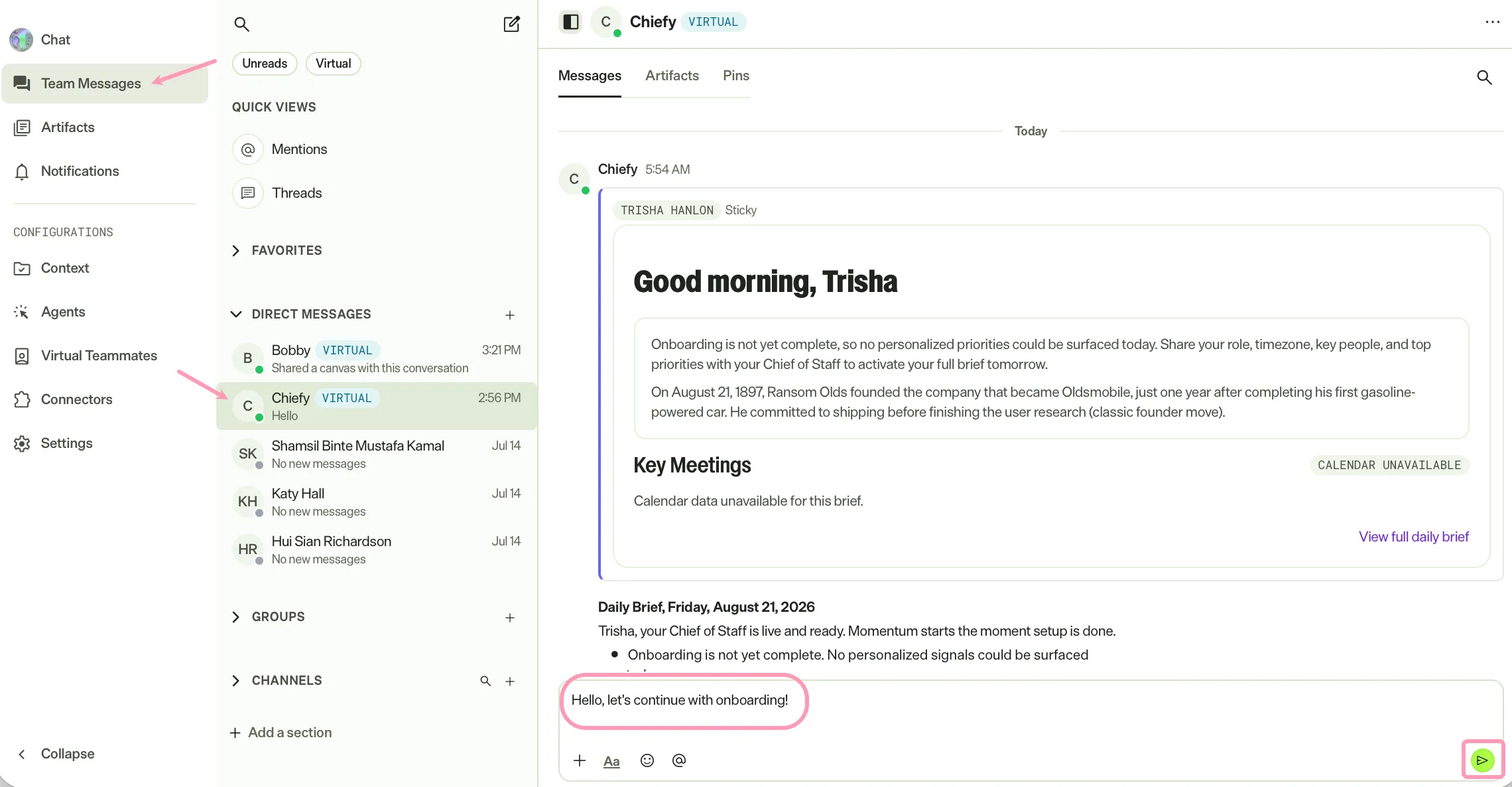
To add a line break without sending, press Shift+Enter.
Mention people, Virtual Teammates, and agents
Mention a participant to notify them and to direct a message to them. Mentions are useful when you want a specific person or Virtual Teammate to act on a message.
- In the message field, enter @.
- Select a name from the list, or continue typing to filter it.
- Finish your message and send it.
Use the following mentions to reach a group:
- @here, @everyone for group chats.
- @ here, @ channel for channels.
Format a message
Format a message to make it easier to read. Click Show formatting then apply formatting as you type.

Combine several formats in one message. For example, use bold to introduce a section, then follow it with bullet points.
Add a link
To include a link, complete the following steps:
- Click Show formatting.
- Click Add link.
- Enter the Text to display.
- Enter the URL Address.
- Click Insert.
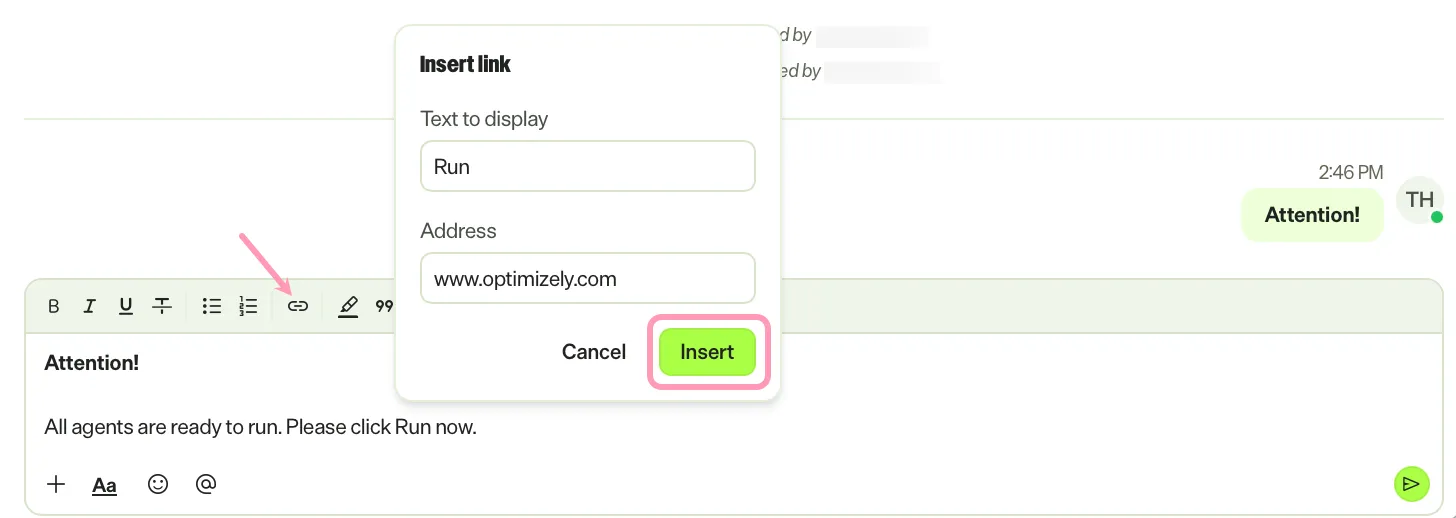
Select a word or phrase in the text field and click Add link to automatically enter that text as the Text to display.
Reply in a thread
Start a thread from any message to keep a focused discussion separate from the main conversation. Replies in a thread stay scoped to that thread.
To reply in a thread:
- Hover over the message you want to reply to.
- Click Reply in thread.
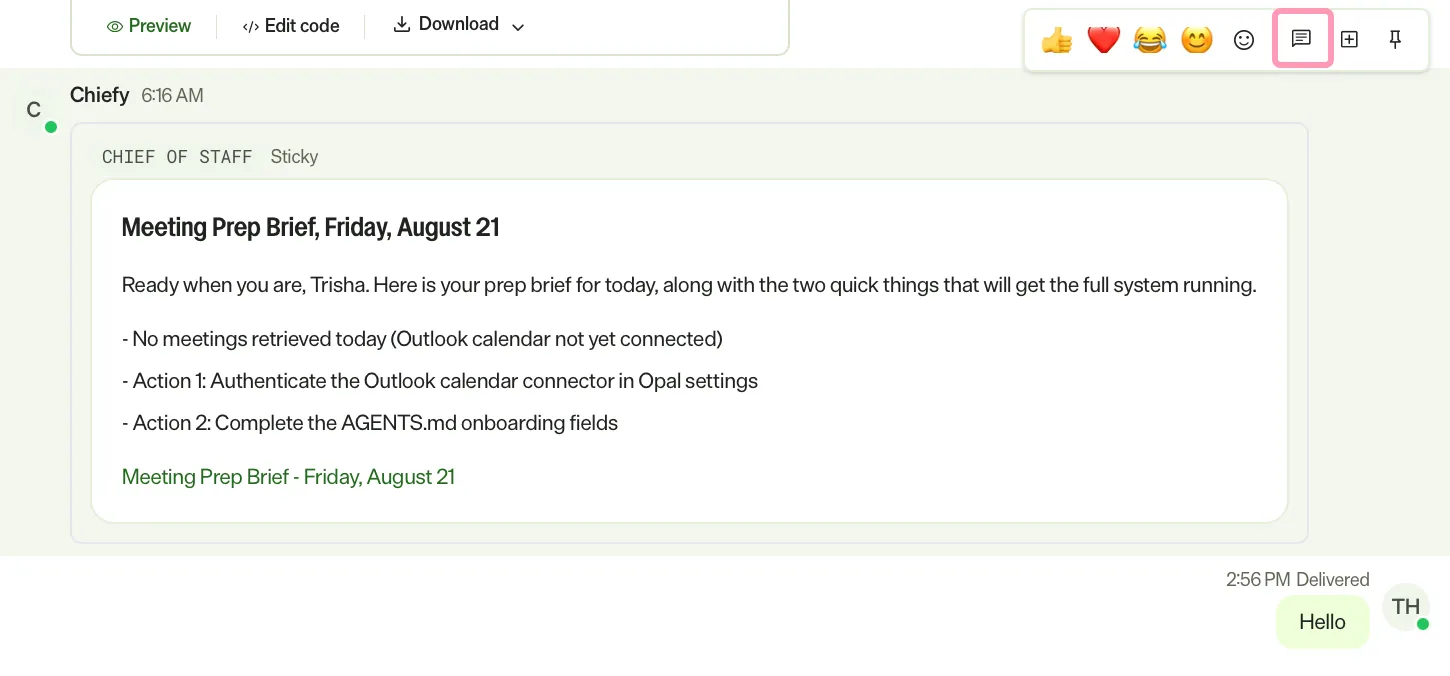
- Type your reply in the thread.
- Press Enter or click Send message to send.
The original conversation displays that the message has replies, so participants can open the thread to follow the discussion.
Edit or delete a reply
Edit or delete a reply that you sent in a thread to correct or remove it.
To edit a reply, complete the following steps:
- Hover over your reply.
- Click Edit.
- Change the text. The editor suggests people, Virtual Teammates, and agents to mention when you enter @.
- Press Enter.
To cancel an edit, press Escape.
To delete a reply, complete the following steps:
- Hover over your reply.
- Click More actions > Delete message.
- Click Delete to confirm.
Archived threads are read-only, so they do not display Edit or Delete. These options also do not display when you view a thread while you act as a Virtual Teammate.
Schedule a message to one or more people
Schedule a message to send it at a time you choose instead of right away. Schedule to one person or to a group of people from the New message page.
To schedule a message, complete the following steps:
- Go to Team Messages.
- Click New message.
- Pick one or more recipients.
- Enter your message in the message field.
- Click Schedule send.
- Select In 30 minutes, In 2 hours, or Pick date & time….
- (Conditional) If you selected Pick date & time…, choose a date and time at least five minutes from now, then click Schedule.
- Click Schedule message.
The send and schedule controls stay unavailable until you pick at least one recipient. If you pick yourself, the page opens your own direct message instead of adding you as a recipient.
A Message scheduled notification displays. Click View to open Scheduled and review the message. The recipients and your draft clear, and you stay on the New message page.
If scheduling fails, an error message displays, and your draft and recipients stay in place.
Where a scheduled message goes
The recipients you pick decide where the message goes.
- One person – Scheduling finds or creates your direct message with that person. The direct message stays out of the sidebar until delivery. Scheduled lists the message until then.
- Two or more people – Scheduling creates no group. At delivery, the message goes to the group those people make up at that moment. That group is an existing group with exactly those members, or a group that delivery creates. Members of a created group receive a group invite at delivery.
A message to a group that does not exist yet reads differently in Scheduled. The row lists your name, the first person you picked, and a count of the other people. You cannot open the row until the group exists.
See who has read your messages
Read receipts show whether the other members of a group chat have seen your newest message. Use them to know when everyone has caught up before you follow up.
A tick displays on your newest message in a group chat. The tick displays one of the following states:
- A gray single tick means at least one member has not seen the message. Hover over the tick to see who has seen it.
- A blue double tick means every other member has seen the message.
When a Virtual Teammate is in the group, the tooltip names the teammate first. While the teammate is still working on a response, the tooltip adds a note that the response is in progress.
Every current member of the group counts toward Seen by everyone. A member who cannot acknowledge the message keeps the tick gray, such as a paused Virtual Teammate or a person who never opens the group chat.
Until someone has seen the message, the tick has no tooltip. Direct messages display the same ticks and tooltips. Channels do not display read receipts.
Note
If you use Opti ID, administrators can turn off generative AI in the Opti ID Admin Center. See Turn generative AI off across Optimizely applications.