Adobe Experience Manager remote MCP connector
Beta
The Adobe Experience Manager remote MCP connector is in beta.
The Adobe Experience Manager (AEM) remote Model Context Protocol (MCP) connector brings AEM content operations into Agent Platform. Use it to search and manage assets, content fragments, pages, and launches, check content against brand governance rules, audit permissions, and troubleshoot CDN and replication issues. You describe the outcome you want, and Mark works out the AEM API calls, so you do not need to know the AEM API structure.
Note
Adobe manages the AEM remote MCP. See AEM MCP servers overview in the Adobe Experience League documentation for information.
First, a Mark administrator must connect the AEM remote MCP. After adding the MCP server, individual Mark users and agent builders log in to AEM to access their content from Mark. Administrators need to add the AEM remote MCP only once.
Use cases
Use the AEM connector to manage content across the following areas:
- Assets – Upload, import, search, copy, move, rename, delete, and download assets. You can also edit metadata, apply tags, find an asset's references, and find unused assets.
- Content fragments – Create, copy, edit, and delete fragments. You can also manage variations and version history, look up fragment models and the GraphQL schema, run filtered GraphQL queries, find language copies, and publish or unpublish fragments.
- Launches and scheduled publishing – Create launches for fragments or pages, edit their scope, and rebase them. You can compare a launch with production, then promote it or set a live date for automatic promotion.
- Pages and sites – List sites and pages, read page properties, create, copy, move, and delete pages, and manage page templates. You can also edit component properties in a page's content tree and update site configuration.
- Publishing – Publish or unpublish pages, assets, and fragments, including bulk publishing from a root path.
- Experience Workspace (da.live) – Browse, create, edit, copy, move, and delete Document Authoring pages. You can also manage versions, publish and unpublish, and create structured-content schemas.
- Brand governance – Look up brands and their guidelines and checks. You can score text, images, or live pages as pass, fail, or not applicable against brand rules, and create or update brand rules.
- Permissions audit – Show what a user or group can do at a given path, and show the full access policy on a page, folder, or subtree.
- CDN insights (AEM as a Cloud Service) – Review cache hit ratio and content request analytics, triage traffic surges and DDoS events, analyze security and bot traffic, author and test CDN rules, and size content requests.
- Replication troubleshooting – Investigate failed publish events, Author queue health, Publish delivery latency, and authentication failures.
- Forms and workflows – Create or copy adaptive forms, extract PDF data for Adaptive Form and Interactive Communication generation, and start, monitor, suspend, resume, or terminate AEM workflows.
Example prompts:
- Find every asset tagged spring-campaign and list the ones that are not published.
- Create a German variation of the hero fragment, then show me the differences before anything goes live.
- Create a launch for the spring campaign pages and schedule promotion for April 1.
- Check this page URL against our brand governance checks and tell me what fails.
- Why is published content slow to show up on stage?
- What is the cache hit ratio on production for the last 7 days, and what is bypassing the cache?
- Can the marketing-authors group edit /content/…?
Connect the AEM remote MCP to Mark
Note
The first person to connect a third-party service to Mark should be an administrator of that service. Administrator access installs the complete set of tools, so Mark adds every available tool. If a non-administrator connects the service first, Mark installs only the tools that account can access.
Mark administrators connect and grant access to AEM from Mark. After granting access, administrators select which tools to enable in Mark and optionally customize their display names.
Add AEM connection
As a Mark administrator, complete the following steps:
- Go to Connectors in Mark.
- (Optional) Enter Adobe Experience Manager in the search bar to filter the connectors list.
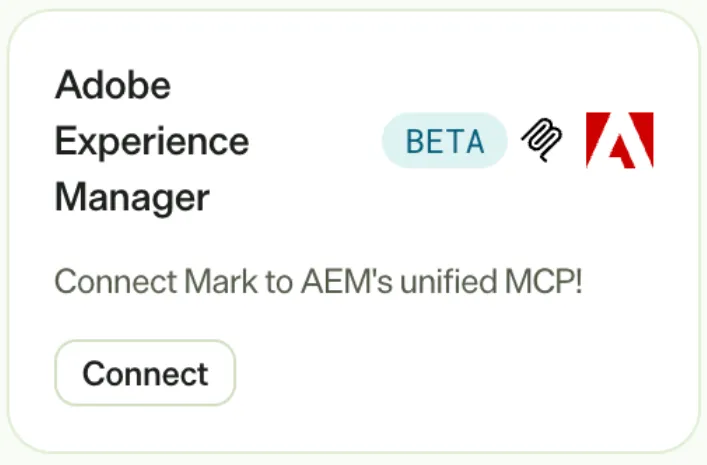
- Click Connect on the Adobe Experience Manager tile.
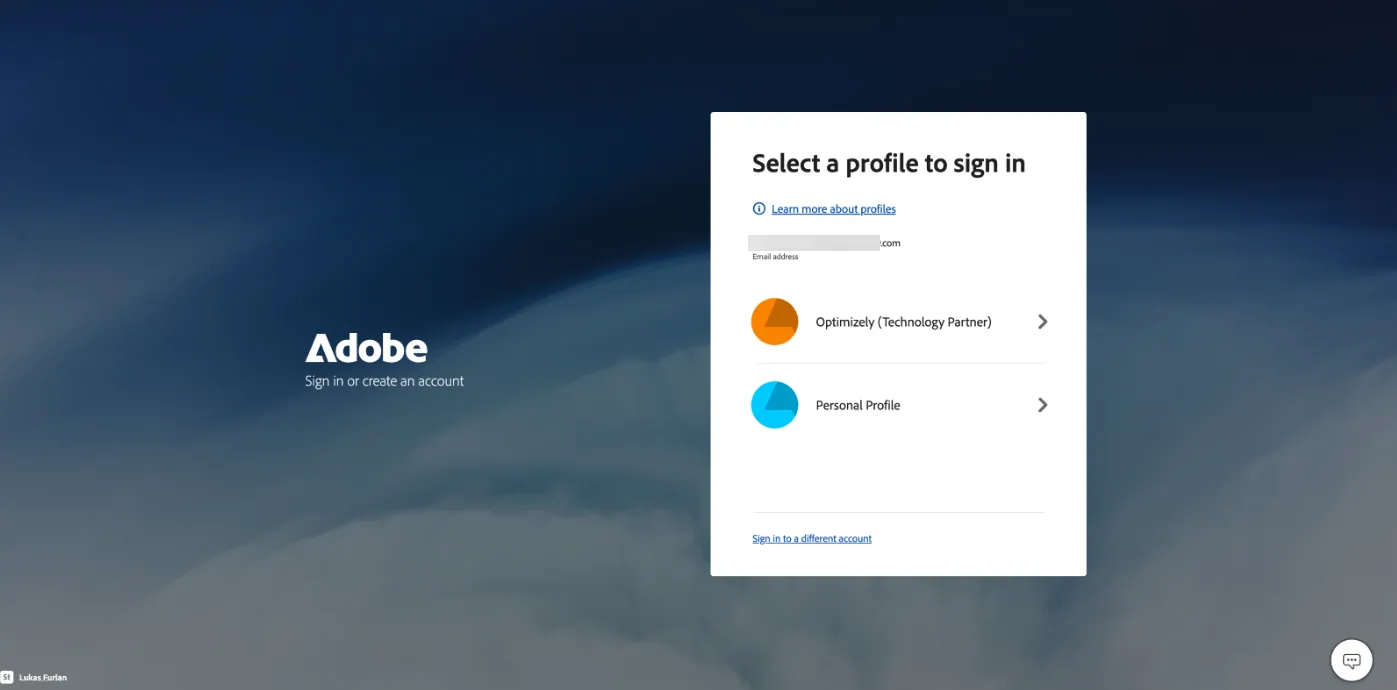
- Log in with your Adobe credentials and select your organization profile when prompted.
- Approve the connection.
A confirmation message displays and you can close the pop-up window.
Configure Mark tools
After adding the AEM connection, Mark prompts you to select which tools to enable and optionally customize their display names.
As a Mark administrator, complete the following steps:
- Deselect any tools you do not want to add to Mark. For example, deselect write-api and delete-api to give users read-only access.
- (Optional) Update any tool's display name.
- Click Finish.
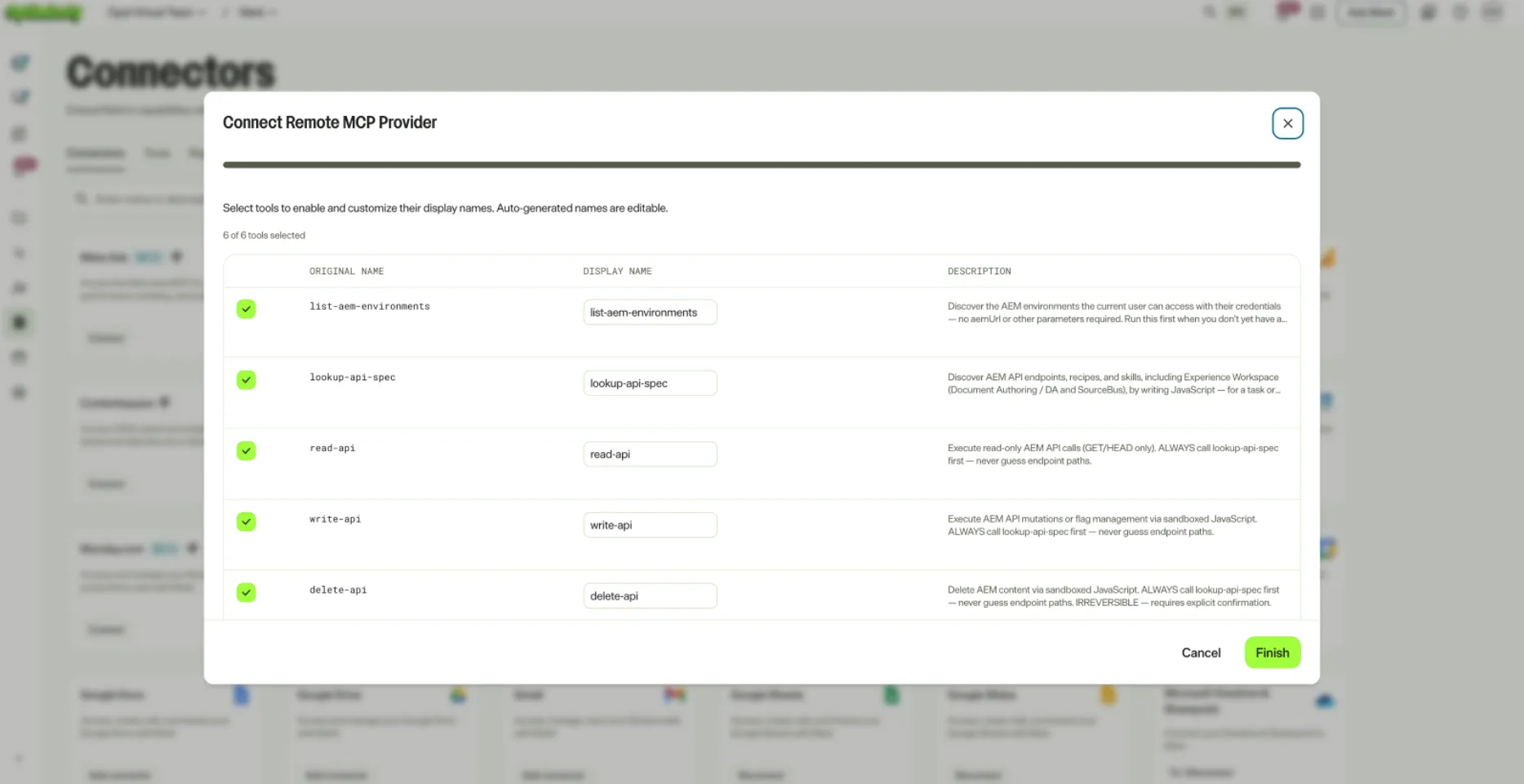
The Adobe Experience Manager tile displays Connect on the Connectors tab for Mark users to authenticate with their personal accounts.
To update the available tools or names, see Update tools.
Authenticate with AEM
Each Mark user and agent builder logs in to AEM individually to access AEM content from Mark. User-level authentication ensures you can access and change only the content your AEM account is authorized to use.
Before you begin, confirm that a Mark administrator has connected the AEM remote MCP. Until an administrator connects it, the Adobe Experience Manager tile displays Contact admin instead of Connect and you cannot select it.
To authenticate, complete the following steps in Mark:
- Go to Connectors.
- (Optional) Enter Adobe Experience Manager in the search bar to filter the connectors list.
- Click Connect on the Adobe Experience Manager tile.
- Log in with your Adobe credentials and select your organization profile when prompted.
After you connect to AEM, the AEM connector tools your administrator added become available in Mark chat, specialized agents, and workflow agents.
AEM connector tools
The AEM connector tools are available in Mark after an administrator connects the AEM remote MCP and you log in to AEM. The available tools depend on which tools your administrator enabled and on the permissions of your AEM account.
Important
The AEM connector can create, edit, publish, and delete real content. Deletions are permanent. Confirm the target environment before you make changes, and use a stage environment or a launch for anything experimental.
list-aem-environments – Lists the AEM environments your credentials can reach, with each author URL and its enabled solutions. Mark runs it first when you do not have a target environment yet or when you switch environments.
list-aem-capabilities – Returns the connector's catalog of supported use cases, grouped by outcome, such as assets, fragments, launches, brand governance, and CDN insights. Use it to find out what the connector can do, not to do the work.
lookup-api-spec – Searches AEM endpoints, recipes, skills, and workflows by running read-only JavaScript against the API specification. Mark runs it before any read, write, or delete, because AEM API paths are non-standard and should not be guessed.
read-api – Runs read-only AEM calls (GET and HEAD), such as searching assets, listing pages, reading fragments, or checking launch status. It can also call upstream services, such as brand governance checks. It cannot change content.
write-api – Runs AEM changes in a JavaScript sandbox, including creating or editing pages, fragments, and assets, managing launches, and publishing or unpublishing. Every change reads the current version first (ETag handling), and long-running jobs, such as launch promotion, are polled until they finish.
delete-api – Permanently deletes AEM content, such as pages, fragments, assets, folders, and launches. Deletions cannot be undone, so Mark asks you to confirm each deletion.
Note
Some AEM features, such as the folder, tag, and asset-search APIs, are experimental and may not be enabled in every AEM environment.
Update tools
To rename, add, or remove tools, a Mark administrator must delete the AEM tool registry and re-add it. To do so, complete the following steps:
- Follow the steps in Delete a tool registry.
Note
If you use Opti ID, administrators can turn off generative AI in the Opti ID Admin Center. See Turn generative AI off across Optimizely applications.