Tracker overview
The Tracker is a panel in Optimizely Opal that gathers your to-dos, notes, and virtual teammate deliverables in one place. Use it to act on your open work instead of hunting through chats and briefs. Each item displays as a card you can organize, pin, and clear.
To add items, organize them, and act on them, see Manage the Tracker.
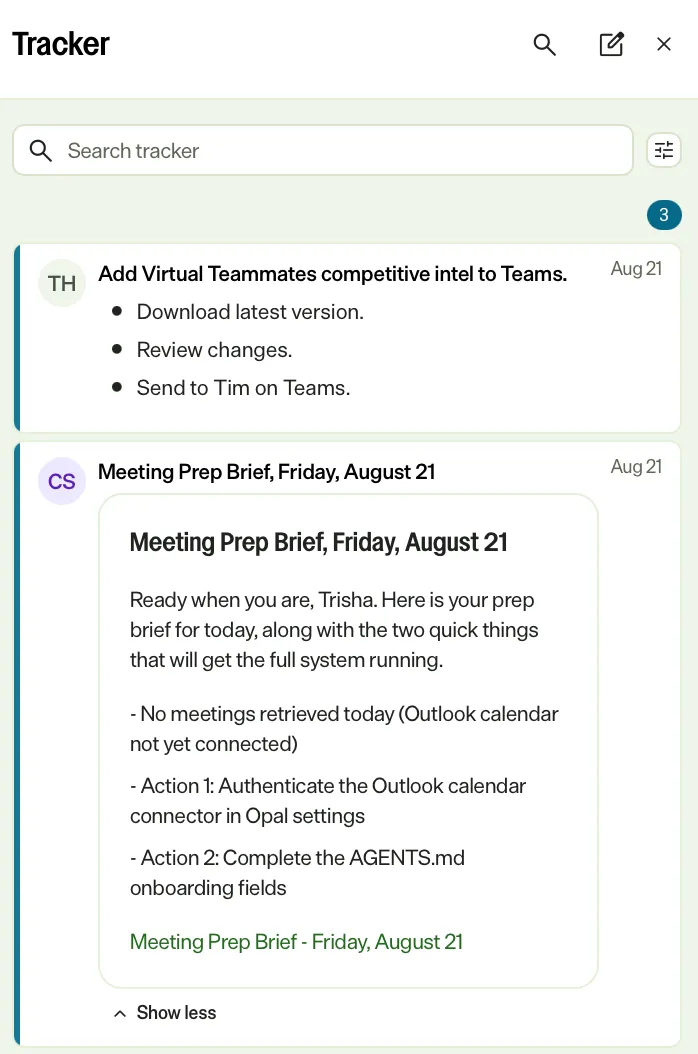
What the Tracker collects
The Tracker gathers items from several sources:
- To-dos – Action items you add yourself, or that Opal and your virtual teammates create for you.
- Notes – Short reference notes you add for later.
- Briefs and reports – Deliverables your virtual teammates send, such as a Daily Brief or a Meeting Prep Brief.
- Approval requests – Items a virtual teammate or workflow sends when it needs your review before it continues.
- Messages – Individual messages you add from Team Messages.
How items reach the Tracker
Items arrive in the Tracker in three ways:
- You add them – Capture a to-do or note whenever you want to track a task or a piece of reference material.
- Opal and your virtual teammates add them – Opal and your teammates post items as they work, so you do not copy their output by hand. A Chief of Staff virtual teammate posts each scheduled brief as a card.
- You add them from Teams Messages – Add any message to the Tracker when a conversation contains something you need to act on.
Some cards link to their source. Click a card to open the linked brief, chat, or conversation.
How Tracker cards work
Each card displays the item type, a summary, and the author. A to-do can include a due date. When an item is due on the current day, the card shows the time instead of the date, so same-day work stands out.
Organize, pin, and toss
Three controls keep the Tracker useful as it fills:
- Sections group related items so a long Tracker stays scannable.
- Pin keeps an item at the top, above your sections.
- Toss clears an item you finish with, and keeps it available to restore for a short time.
For the steps, see Manage the Tracker.
Related information
Note
If you use Opti ID, administrators can turn off generative AI in the Opti ID Admin Center. See Turn generative AI off across Optimizely applicationsTurn generative AI off across Optimizely applications.