Manage the Tracker
Manage the Tracker in Optimizely Opal to add your own items, organize them into sections, and clear what you finish. The Tracker is a panel in Opal that holds your to-dos, notes, and virtual teammate deliverables. For what the Tracker collects and how items reach it, see Tracker overview.
Open the Tracker
Click Open Tracker in Opal. The Tracker opens as a panel. Each card displays the item type, a summary, and the author.
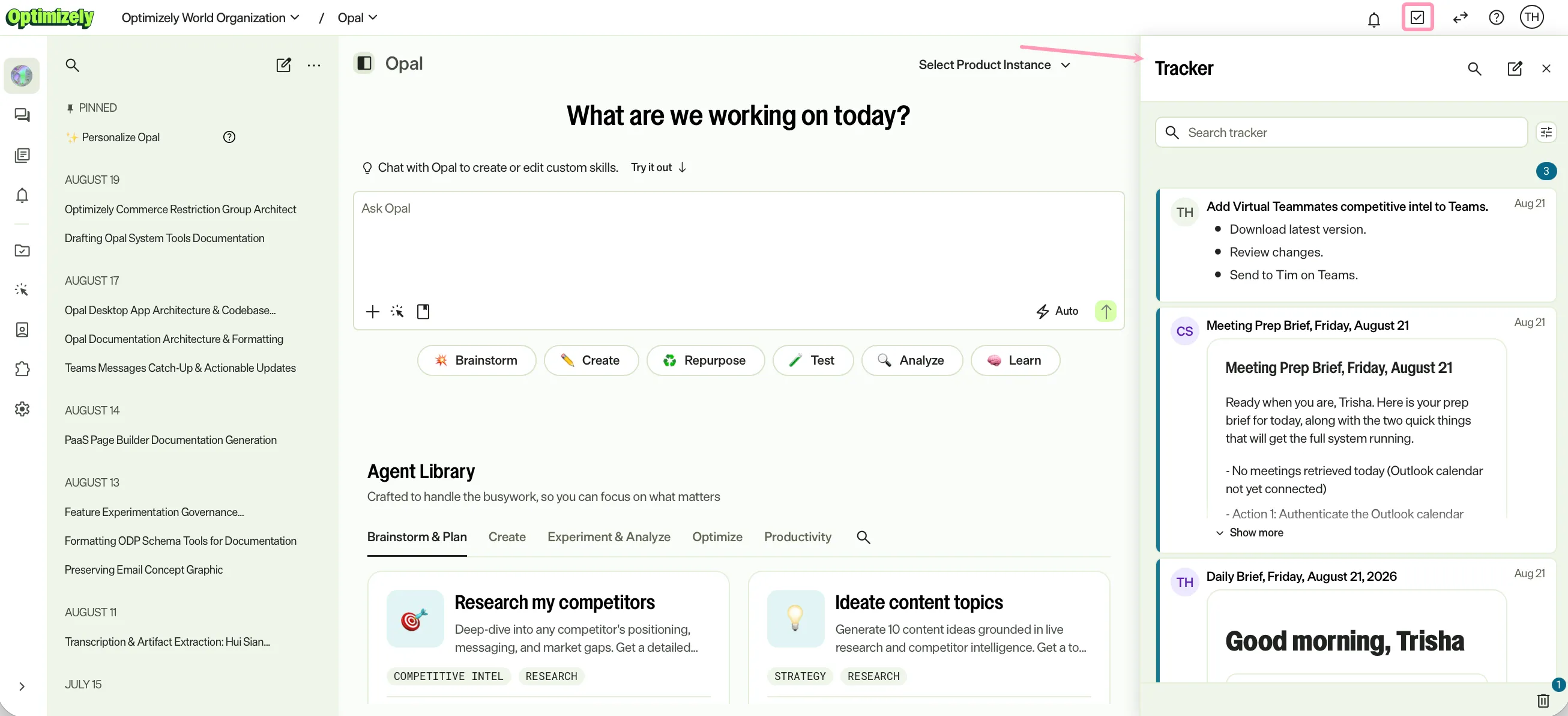
Add your own items
Add your own items when you want to capture a task or a piece of reference material. Add a To-do for work you need to act on, and a Note for information you want to keep. A to-do tracks a task until you complete it. A note holds reference material, such as a decision or a link, with no action attached.
Add a to-do
To add a to-do yourself, complete the following steps in the Tracker:
- Click Add to Tracker.
- Select To-do.
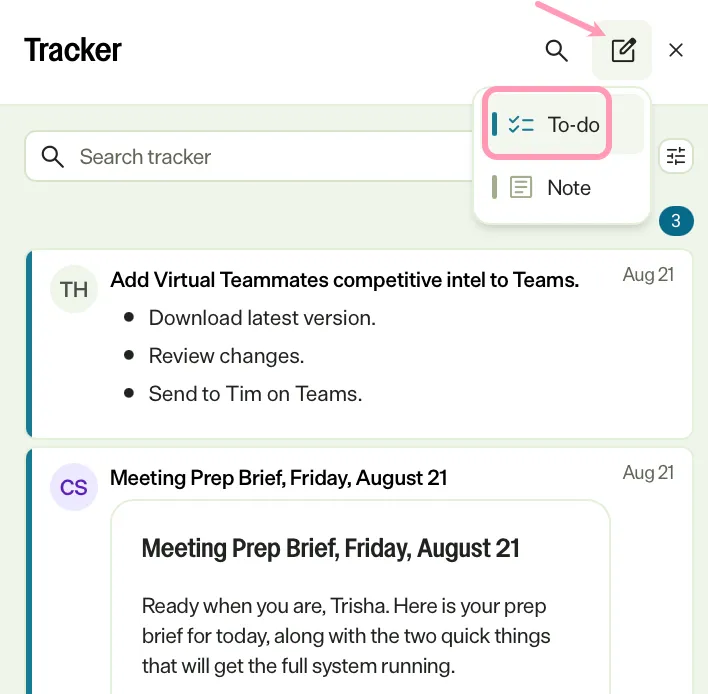
- Enter the title of the task.
- (Optional) Click Open details or press Shift+Enter.
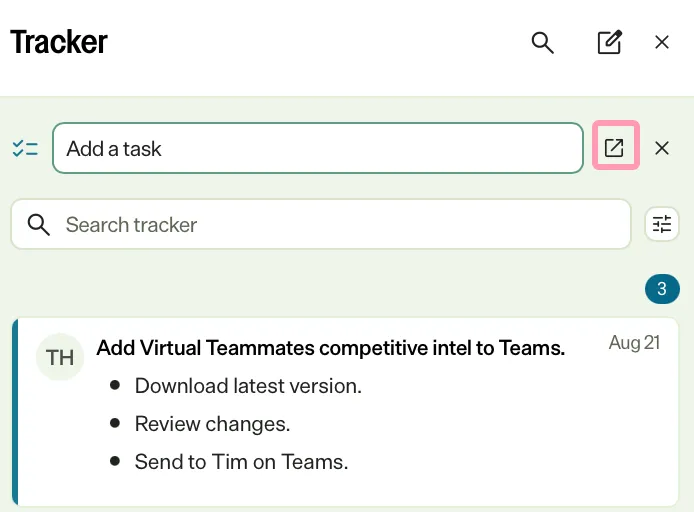
- Add additional details in the rich text editor.
- Click Add to board.
- Press Enter to add the task.
Add a note
To add a note yourself, complete the following steps in the Tracker:
- Click Add to Tracker.
- Select Note.
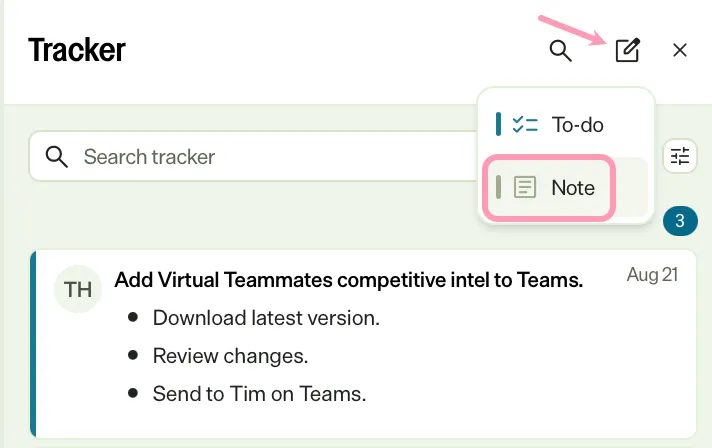
- Enter the title of the Note.
- (Optional) Click Open details or press Shift+Enter.
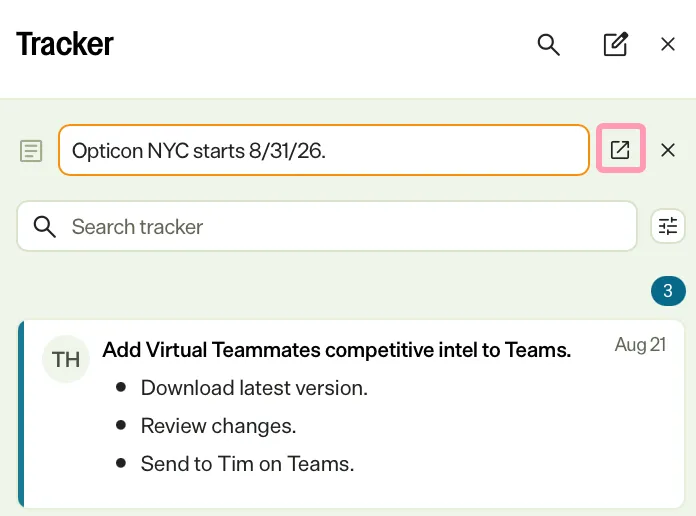
- Add additional details in the rich text editor.
- Click Add to board.
- Press Enter to add the note.
Organize items into sections
Sections group related items so a long Tracker stays scannable. New items file into the first section when they arrive.
To add a section, complete the following steps:
- Click Add section.
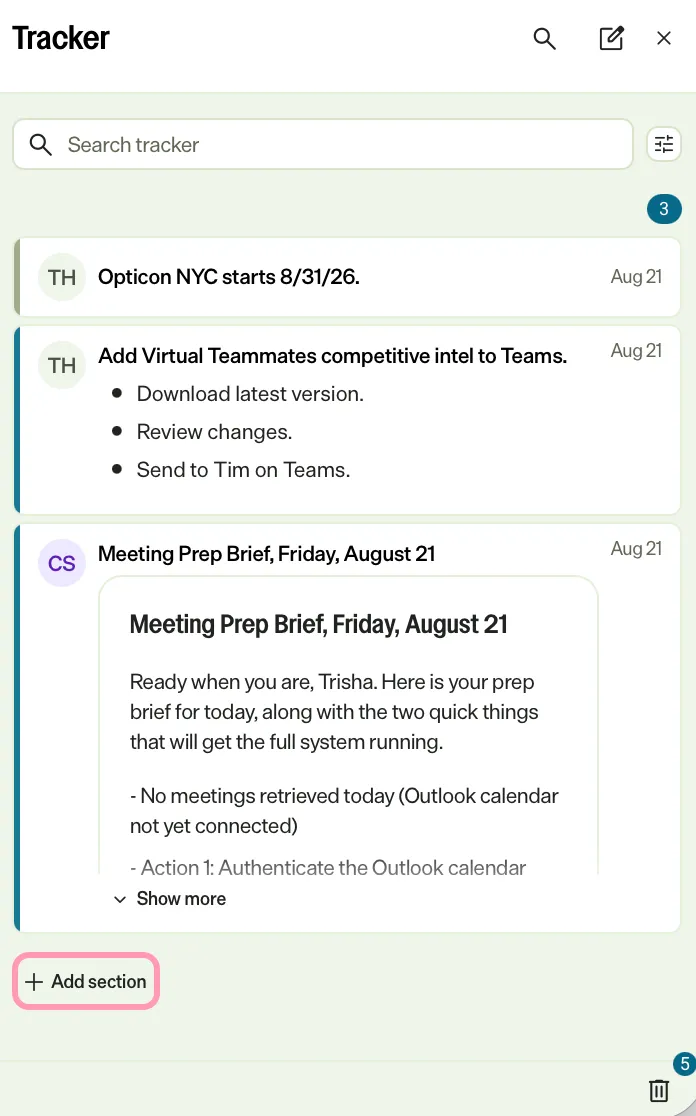
- Enter a name for the section.
- Press Enter.
To move an item, drag its card to another section. Each section header displays a count of the items it holds.
Pin an item
Pin an item to keep it at the top of the Tracker, before your sections. Pinning suits items you return to often, such as a brief you act on throughout the day.
- Hover over the card you want to keep at the top.
- Click Pin.
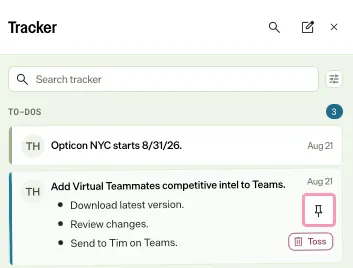
Pinned items sort to the top of the Tracker. To unpin an item, hover over the item and click Unpin.
Toss an item
Toss an item to clear it from the Tracker when you finish it. A tossed item leaves the Tracker but stays available to restore for a short time. An accidental toss is recoverable. See Restore a tossed item.
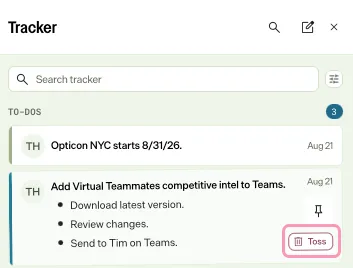
- Hover over the card you want to remove.
- Click Toss.
Restore a tossed item
To restore a tossed item, click Recently tossed.
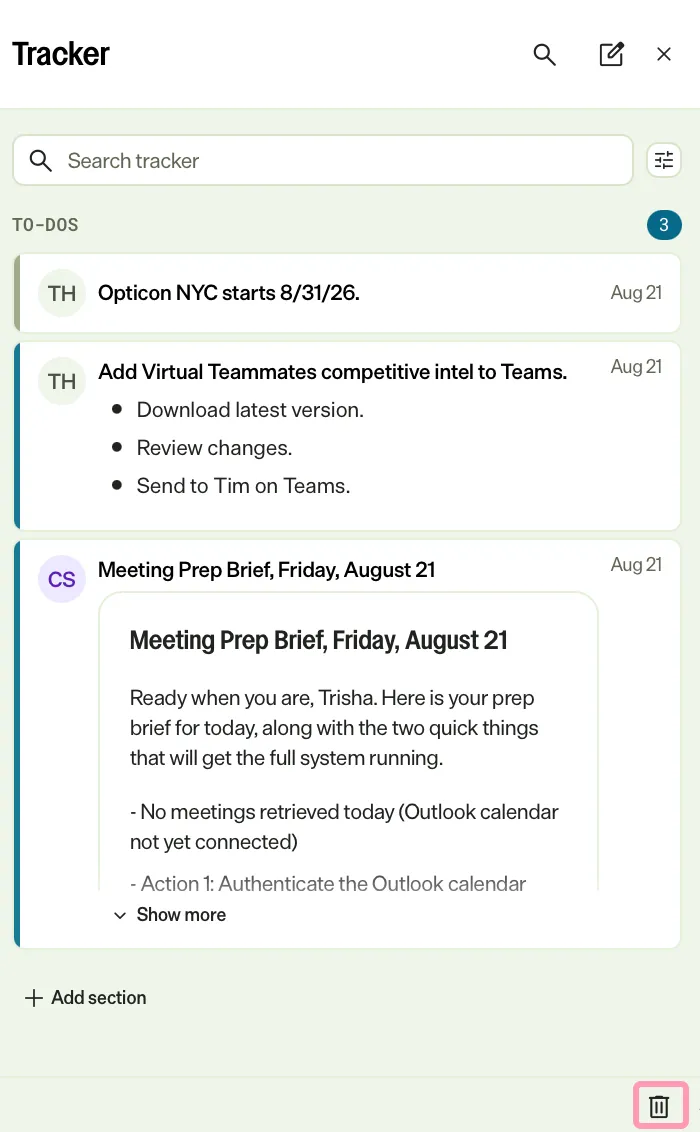
Click a tossed item to restore it.
Search the Tracker
Search when the Tracker holds more items than you want to scroll through.
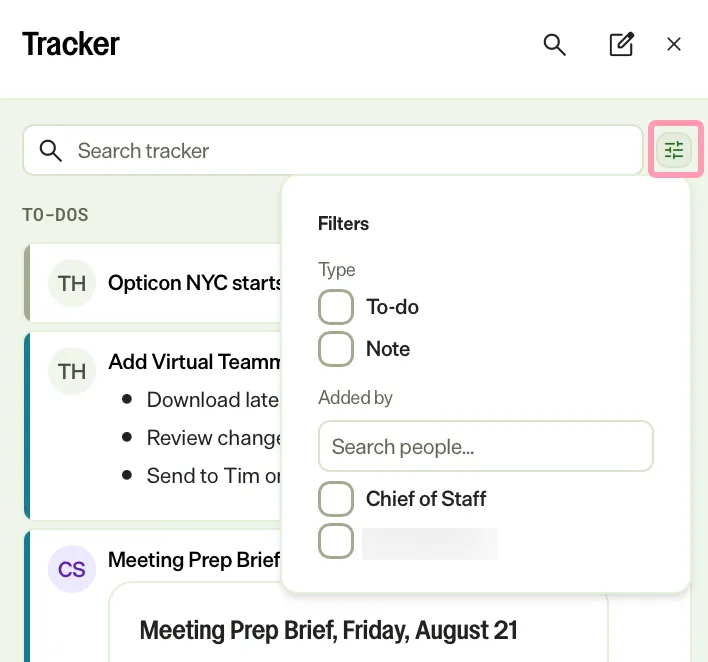
- To find items by keyword, enter a term in Search tracker.
- To narrow the list, click filter and select a Type, such as To-do or Note, or an author in the Added by section.
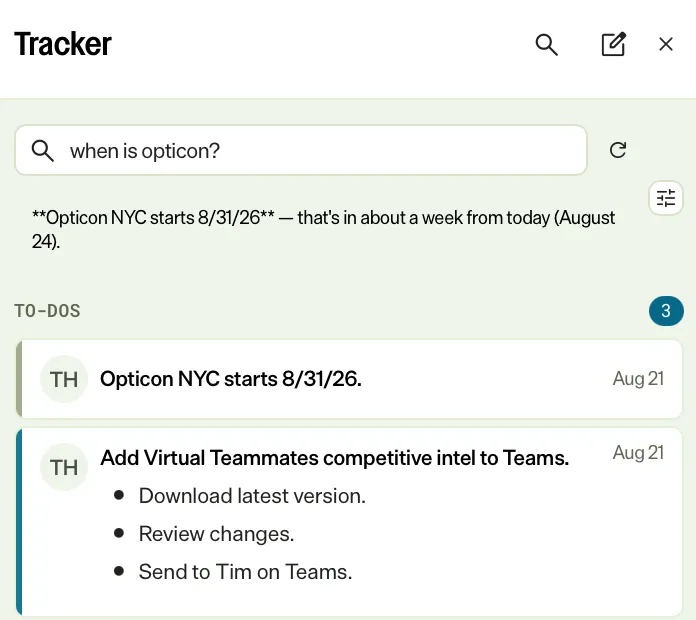
The search bar also answers questions about your tracked items, drawing on what the Tracker contains.
Add a message from Team Messages
Add a message to the Tracker when a conversation in Team Messages contains something you need to act on. The Tracker keeps a link back to the source, so you can return to the full conversation later.
- Go to Team Messages.
- Select the conversation that contains the item you want to act.
- Hover over the message you want to track.
- Click Add to Tracker.
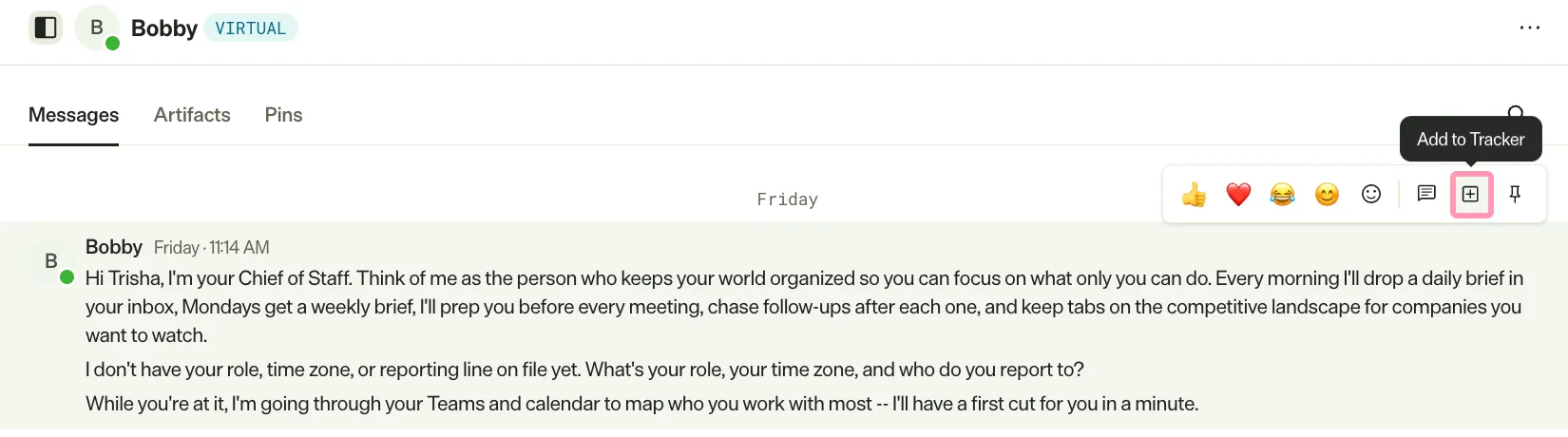
The message displays in the Tracker as a card. Click the card to open the source conversation and highlight the message.
Note
If you use Opti ID, administrators can turn off generative AI in the Opti ID Admin Center. See Turn generative AI off across Optimizely applicationsTurn generative AI off across Optimizely applications.