Subject & Preview Text Ideation agent
Subject & Preview Text Ideation is an agent in Mark (Optimizely Agent Platform). It analyzes email content from Optimizely Campaign. It generates three pairs of subject lines and preview texts, each focused on urgency, curiosity, or benefit.
- Challenge – Crafting subject lines and preview texts for email campaigns takes significant effort. They must capture audience attention, drive open rates, and adhere to character limits. The work requires brainstorming, an understanding of psychological triggers, and a clear marketing rationale. Marketers find this process time-consuming and challenging.
- Agent outcome – The agent analyzes the provided email content and generates three pairs of subject lines and preview texts. Each pair adheres to character limits and focuses on urgency, curiosity, or benefit. The agent provides a marketing rationale for every suggestion.
- Value – Marketers access a variety of high-performing subject line and preview text options without time-consuming brainstorming. This improves email open rates and engagement. It also deepens understanding of how different messaging strategies affect campaign performance.
Required Optimizely products
The Subject & Preview Text Ideation agent requires Optimizely Campaign.
Install agent
Note
Mark Administrators, Agent Builders, and users with the Add, edit, and install specialized agents attribute for a custom role can add agents to their organization's Mark instance. See Add users and set permissions.
Install the agent from the Directory.
- Go to Directory > Agents.
- (Optional) Enter Subject & Preview Text Ideation or use the drop-down list filters to narrow the list.
- Click Install on Subject & Preview Text Ideation to add it to your Mark instance.
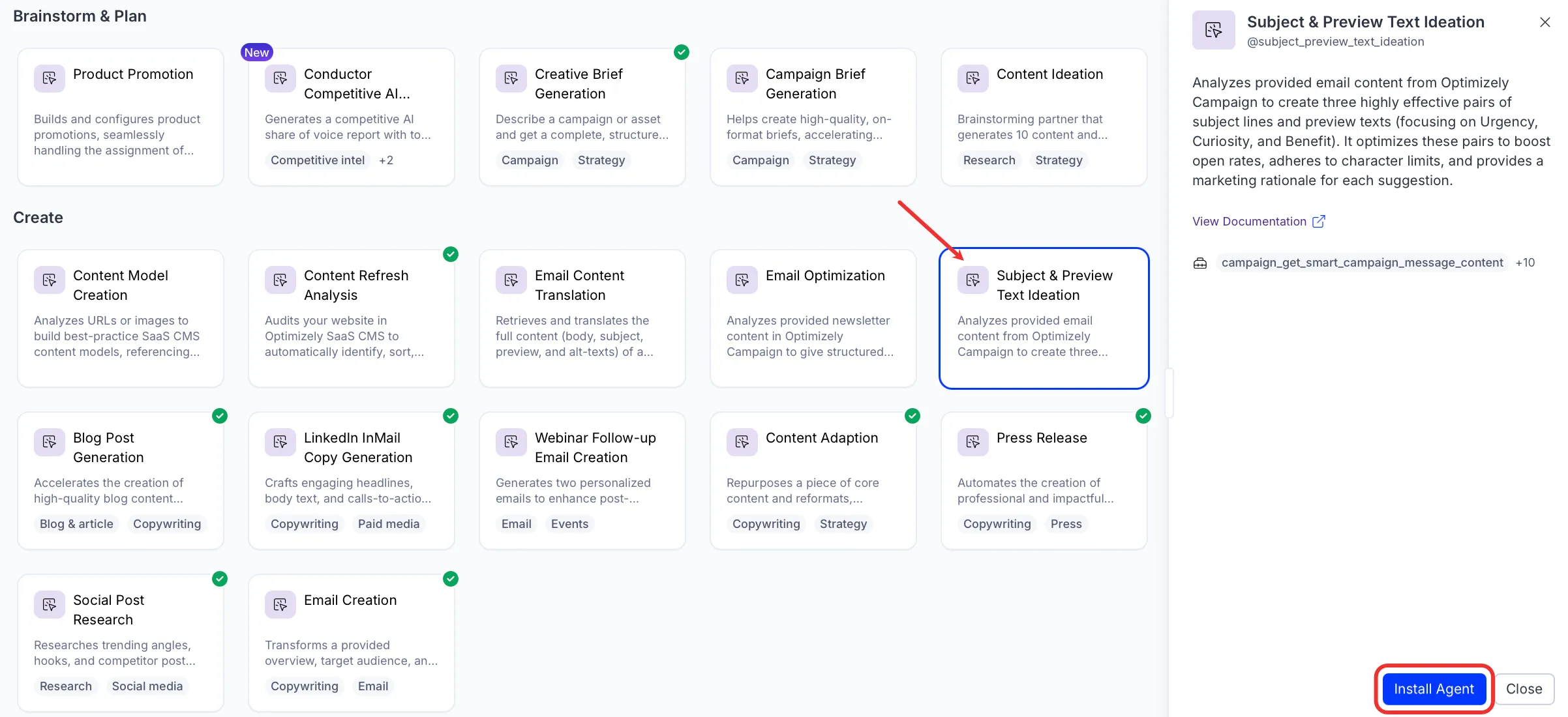
Note
If Install is disabled, ensure you have the Required Optimizely products connected to your Mark instance.
Use the agent
In Mark chat, enter @subject_preview_text_ideation and provide at least one of the following details to identify the email content:
- (Optional) campaignId – The ID of a Smart Campaign.
- (Optional) campaignName – The name of a Smart Campaign.
- (Optional) mailingId – The ID of a message belonging to a Smart Campaign or a Transactional Mail.
- (Optional) emailUrl – The URL of the online version of a mailing.
- (Optional) transactionalMailName – The name of a Transactional Mail.
- (Optional) transactionalMailId – The ID of a Transactional Mail.
The agent delivers a canvas with three subject line and preview text pairs, each with a marketing rationale.
To use the Subject & Preview Text Ideation agent in a workflow agent, add it to your workflow. See the Create a workflow agent.
Default agent details
These are the default details for the Subject & Preview Text Ideation agent. After you install the agent in your Mark instance, you can customize these details based on your organization's needs. See Manage agents for instructions.
Input variables
The Subject & Preview Text Ideation agent takes the following input:
- (Optional) campaignId
- (Optional) campaignName
- (Optional) mailingId
- (Optional) emailUrl
- (Optional) transactionalMailName
- (Optional) transactionalMailId
Tools
The Subject & Preview Text Ideation agent uses the following tools internally to process your request:
- campaign_get_smart_campaign_message_content
- campaign_get_smart_campaign
- campaign_get_smart_campaign_messages
- campaign_get_smart_campaign_list
- campaign_get_transactional_mail
- campaign_get_transactional_mail_list
- campaign_get_transactional_mail_message_content
- campaign_get_transactional_mail_messages
- browse_web
- browse_web_html
- create_canvas
Default configuration
The agent uses the following default configuration:
- Inference level – Balanced, which provides reliable answers with additional reasoning.
- Files – agentstyling_20260429.html.
- Output – Text.
Note
If you use Opti ID, administrators can turn off generative AI in the Opti ID Admin Center. See Turn generative AI off across Optimizely applications.