Webinar Follow-up Email Creation agent
Webinar Follow-up Email Creation is an Optimizely Opal agent that generates two personalized follow-up emails after a webinar: one for attendees to drive next actions, and one for non-attendees to encourage on-demand viewing.
- Challenge – Crafting personalized follow-up emails for both webinar attendees and no-shows is repetitive and time-consuming, often resulting in generic outreach that fails to drive meaningful next actions.
- Agent outcome – The agent produces two ready-to-send email drafts: one for webinar attendees and one for registrants who did not attend.
- Value – Marketing teams reduce manual follow-up effort and maintain consistent post-webinar outreach, driving pipeline from both attendees and no-shows.
Install agent
Note
Opal Administrators, Agent Builders, and users with the Add, edit, and install specialized agents attribute for a custom role can add agents to their organization's Optimizely Opal instance. See Add users and set permissions.
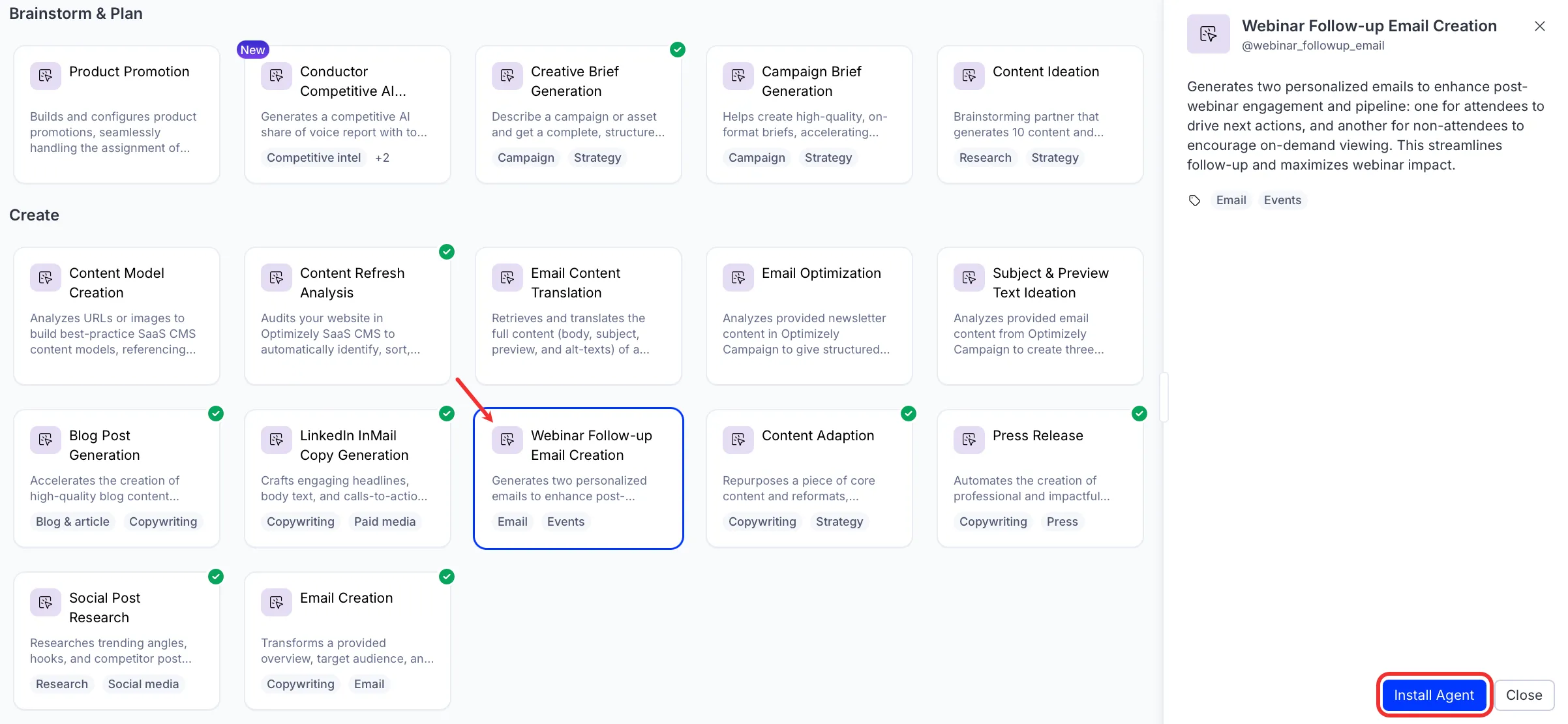
Install the agent from the Opal Agent Directory.
- Go to Agents > Agent Directory.
- Select Webinar Follow-up Email Creation.
- Click Install Agent to add it to your Opal instance.
Use the agent
In Opal Chat, enter @webinar_followup_email and provide the following details:
- webinar details – Details of the webinar including the webinar name, theme, or topic.
- target personas – Target personas for the webinar follow-up email.
- (Optional) webinar transcript – Transcript of the webinar.
- (Optional) call to action – Call to action that all emails should reference.
The agent generates two email drafts: one for webinar attendees and one for registrants who did not attend, each with three subject line options.
To use the Webinar Follow-up Email Creation agent in a workflow agent, drag and drop it into your workflow. See the Create a workflow agent.
Details
The following are the default details of the Webinar Follow-up Email Creation agent. After you install the agent in your Opal instance, you can customize these details based on your organization's needs. See Manage agents for instructions.
Input variables
The Webinar Follow-up Email Creation agent takes the following input:
- webinar details
- target personas
- (Optional) webinar transcript
- (Optional) call to action
Tools
The Webinar Follow-up Email Creation agent does not use any tools.
Additional details
The agent uses the following default configuration:
- Inference level – Balanced. Provides reliable answers with additional reasoning.
- Files – None.
- Output – Text.
Note
If you use Opti ID, administrators can turn off generative AI in the Opti ID Admin Center. See Turn generative AI off across Optimizely applicationsTurn generative AI off across Optimizely applications.