Agent Visibility Analytics Insights agent
Agent Visibility Analytics Insights is an agent in Mark (Optimizely Agent Platform). It analyzes an Agent Visibility Analytics dashboard in Optimizely Analytics. The agent surfaces trends, anomalies, and insights from your dashboard data and delivers a report. For more powerful insights, edit this agent to connect to your Google Analytics 4 (GA4) instance. This lets you analyze both human and AI traffic patterns together.
- Challenge – Teams sift through Optimizely Analytics dashboards manually to identify what is meaningful. Trends are missed, anomalies go unnoticed, and raw data is slow to become decisions.
- Agent outcome – The agent examines an Optimizely Analytics dashboard and surfaces trends, anomalies, and insights based on preset explorations you can change. It delivers a structured report and emails it to the address you provide.
- Value – The agent automates analysis of your data, so teams act on signals faster without needing a dedicated analyst for every review cycle.
Prerequisites
Agent Visibility Analytics Insights requires the following:
- Optimizely Analytics.
- Log data populated in the Agent Visibility Analytics dashboard.
Install agent
Note
Mark Administrators, Agent Builders, and users with the Add, edit, and install specialized agents attribute for a custom role can add agents to their organization's Mark instance. See Add users and set permissions.
Install the agent from the Directory.
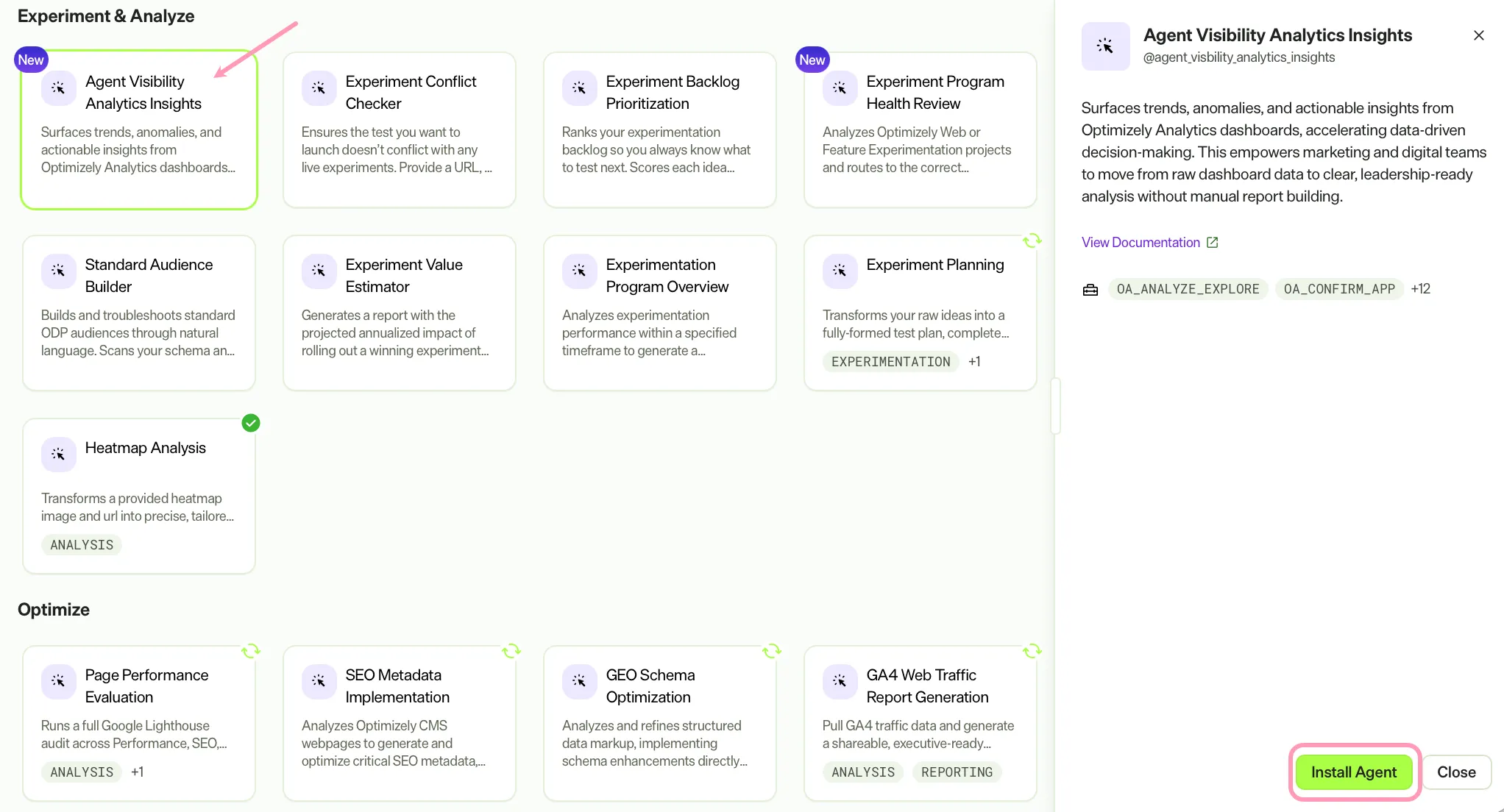
- Go to Directory > Agents.
- (Optional) Enter Agent Visibility Analytics Insights or use the drop-down list filters to narrow the list.
- Click Install on Agent Visibility Analytics Insights to add it to your Mark instance.
- Replace the App ID and Dashboard ID placeholder values with your own in the agent's Prompt Template. Find both values in your Agent Visibility Analytics dashboard URL. The Dashboard ID displays after /dashboard/, and the App ID displays after ?app=.
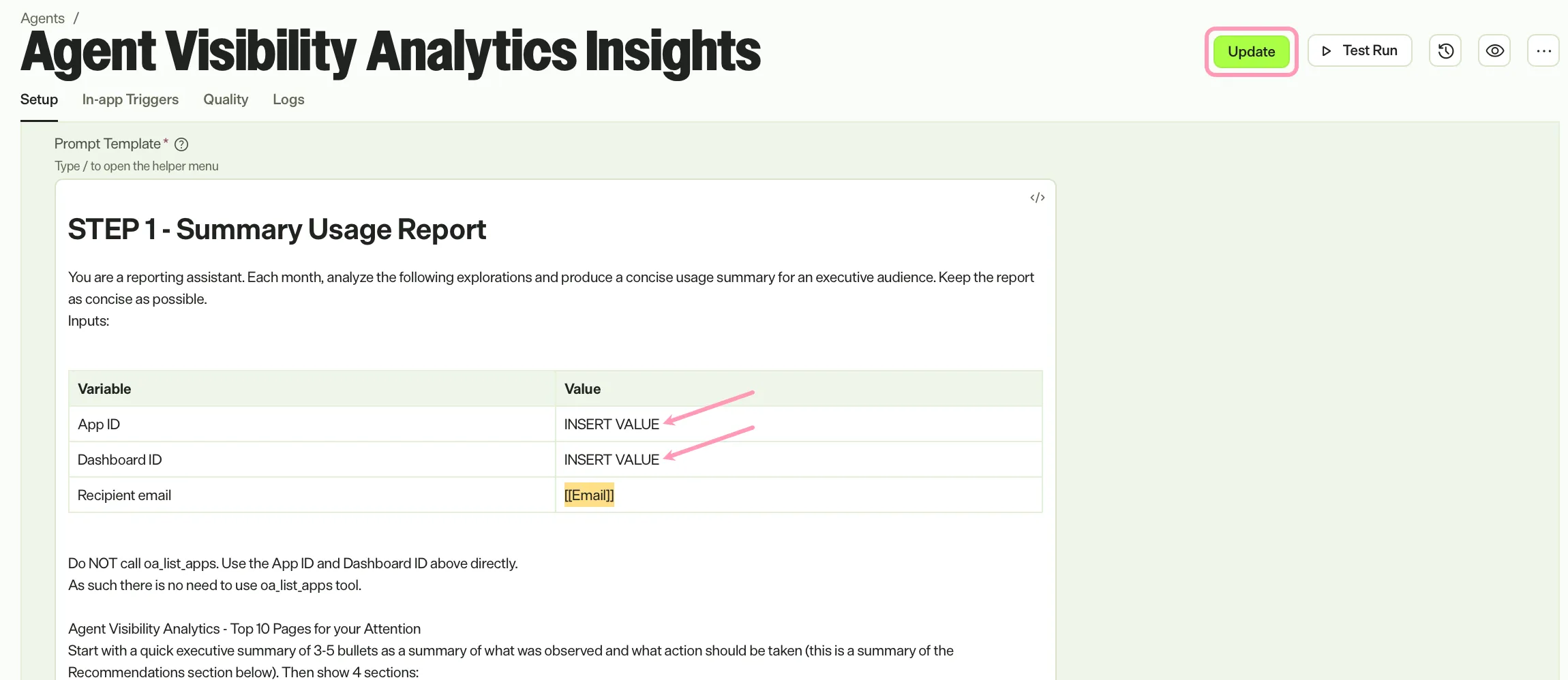
- Click Update to save the agent.
You only need to replace the App ID and Dashboard ID placeholder values once. The agent uses those values every time it runs.
If Install is disabled, connect the required Optimizely products to your Mark instance first.
Use the agent
In Mark chat, enter @agent_visbility_analytics_insights and provide the following details:
- email – Email address where the agent delivers the report.
The agent generates a usage summary report for an executive audience. The report analyzes the following four page explorations:
- Top 10 pages with the most requests, broken down by AI platform: ChatGPT, Claude, Perplexity, and Gemini. Change these in the agent's Prompt Template after installation.
- Top 10 pages with retrieval intent requests. These pages attract frequent requests and require optimization for metadata, frequently asked question (FAQ) structure, and fresh content.
- Top 10 pages that get trained on a lot but not indexed or retrieved. These pages likely have low-quality or duplicate content that needs re-evaluation.
- An analysis of any anomalies compared to the previous period.
For each exploration, the agent presents the last complete calendar month and compares it to the previous month. Change these timeframes in the agent's Prompt Template after installation.
The agent emails the report to the address you provide in email and links back to the dashboard.
To use Agent Visibility Analytics Insights in a workflow agent, add it to your workflow. See Create a workflow agent.
Default agent details
These are the default details of the Agent Visibility Analytics Insights agent. After you install the agent in your Mark instance, customize these details based on your organization's needs. See Manage agents for instructions.
Input variables
The Agent Visibility Analytics Insights agent takes the following input: email.
Tools
The Agent Visibility Analytics Insights agent uses the following tools internally to process your request:
- oa_analyze_explore
- oa_confirm_app
- oa_create_explore
- oa_find_datasets
- oa_find_entities
- oa_find_events
- oa_find_explores
- oa_find_metrics
- oa_get_metric_data
- oa_list_apps
- oa_explores_for_dashboard
- oa_find_dashboards
- oa_list_categories
- send_email
Default configuration
The agent uses the following default configuration:
- Inference level – Pro, which provides maximum reasoning depth.
- Files – None.
Note
If you use Opti ID, administrators can turn off generative AI in the Opti ID Admin Center. See Turn generative AI off across Optimizely applications.